

If you're searching for a Microsoft Teams notifications settings guide, you're probably dealing with one of two frustrating situations.
Either you're missing important messages (channel posts, customer chats from Social Intents live chat, @mentions, meeting alerts, or calls). Or you're drowning in notifications that interrupt your focus every few minutes.
We built this guide to fix both problems. You'll learn how Teams notifications actually work, how to configure them on every device, and how to troubleshoot those "why didn't I get notified?" moments that cost teams real money.
At Social Intents, we route website live chats directly into Teams channels. That means notification settings aren't just about productivity for our customers. They're about never missing a customer who needs help.
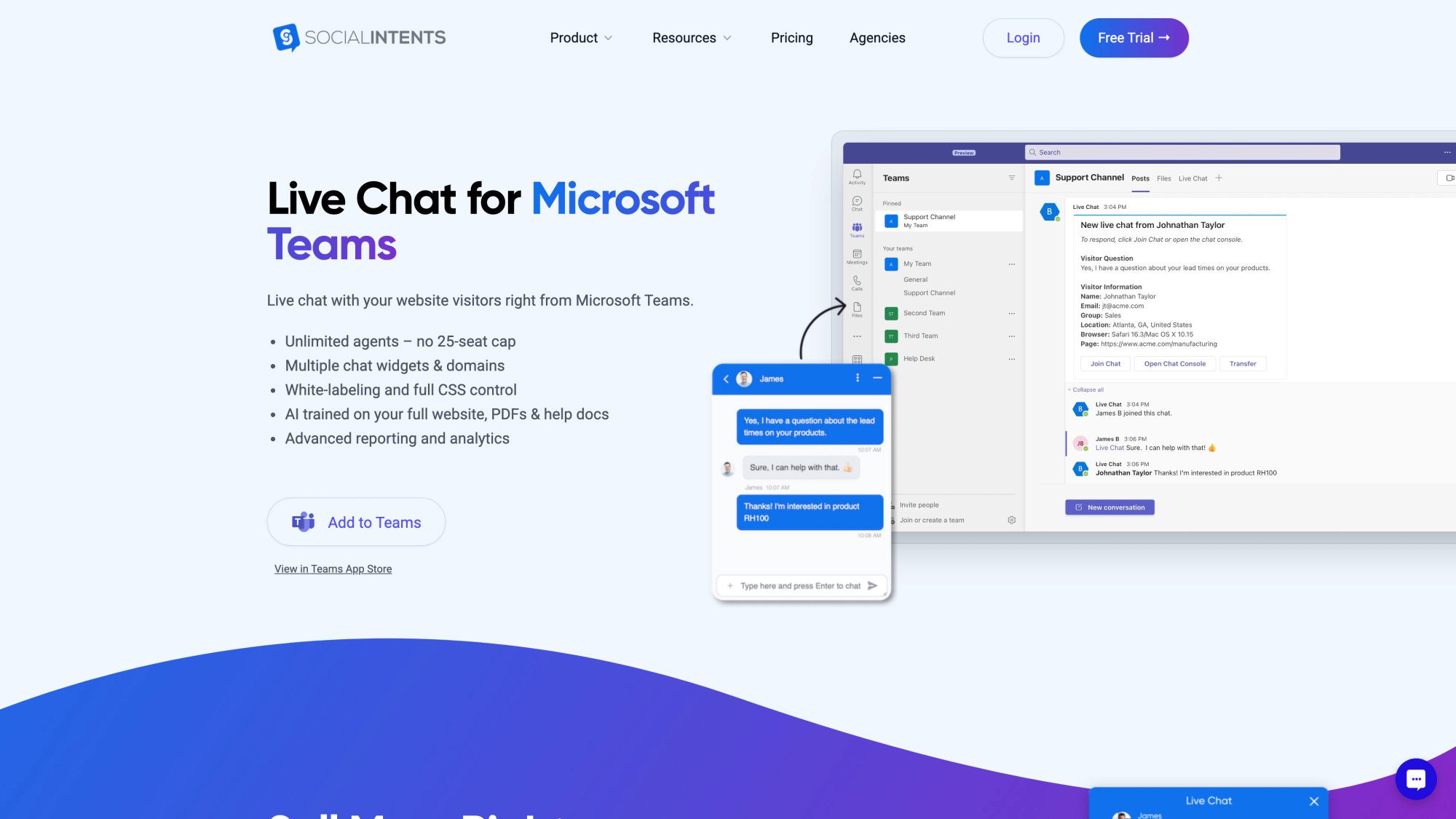
We'll cover everything from the basics to advanced setups, including an "Agent Mode" configuration that ensures your team catches every inbound chat.
What Are the 4 Layers of Teams Notifications?
Most notification problems in Teams aren't caused by a single wrong setting. They happen because four different layers need to align, and if any one fails, you don't get alerted.
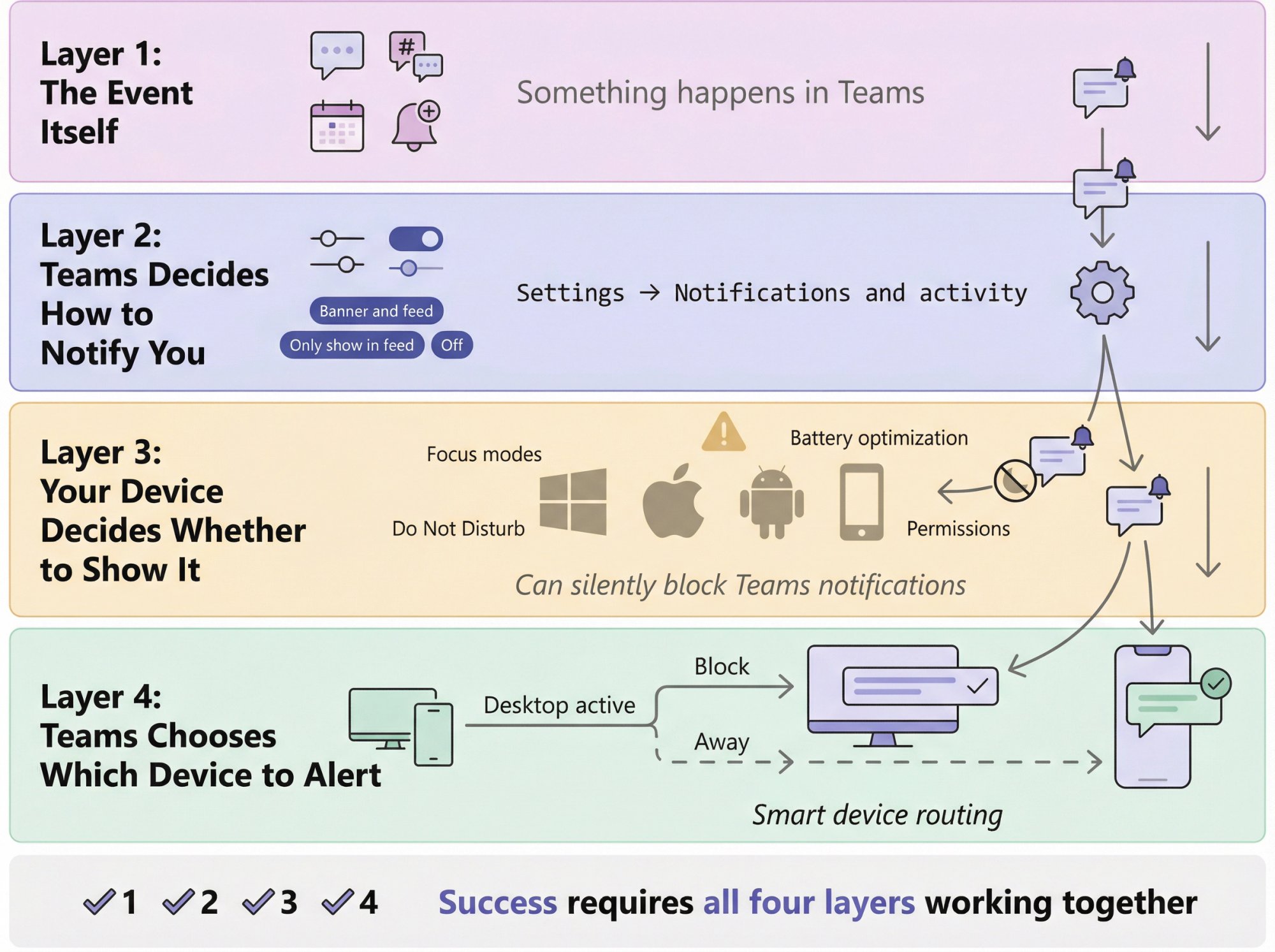
Layer 1: The Event Itself
Something happens in Teams. A chat message arrives, someone posts in a channel, a meeting starts, an app like Social Intents sends a customer chat notification. This is the trigger.
Layer 2: Teams Decides How to Notify You
This is where settings like Banner and feed, Only show in feed, or Off come into play. You configure these in Settings → Notifications and activity on desktop or web (Microsoft's official documentation covers this in detail).
Layer 3: Your Device Decides Whether to Show It
Here's where things get tricky. Windows, macOS, iOS, and Android can block Teams notifications even when Teams itself is configured correctly. Focus modes, Do Not Disturb settings, battery optimization on Android, notification permissions… all of these can silently kill your alerts. Microsoft specifically calls out OS-level settings as a common culprit.
Layer 4: Teams Chooses Which Device to Alert
If you're actively using Teams on desktop, your mobile phone might not buzz. If you're away from your computer, mobile takes over. Microsoft's mobile troubleshooting guide explains how device routing works and why it sometimes feels inconsistent.
Success requires all four layers working together. The rest of this guide walks through exactly how to make that happen.
How to Configure Teams Notifications in 10 Minutes
If you want a "just tell me what to do" baseline configuration, start here. You can refine it later based on your team's needs.
Goal: Catch critical messages without drowning in noise from low-priority channels.
Quick Configuration Steps
1. Identify Your Critical Channels
Pick 1 to 3 channels where missing a message costs you money or creates real problems. For teams using Social Intents for Microsoft Teams customer support, this is usually your customer chat channel. For others, it might be support, sales, or incident response.
2. Set Channel Notifications to Maximum Alert Level
For each critical channel:
• Navigate to the channel
• Click More options (⋯) next to the channel name
• Select Channel notifications
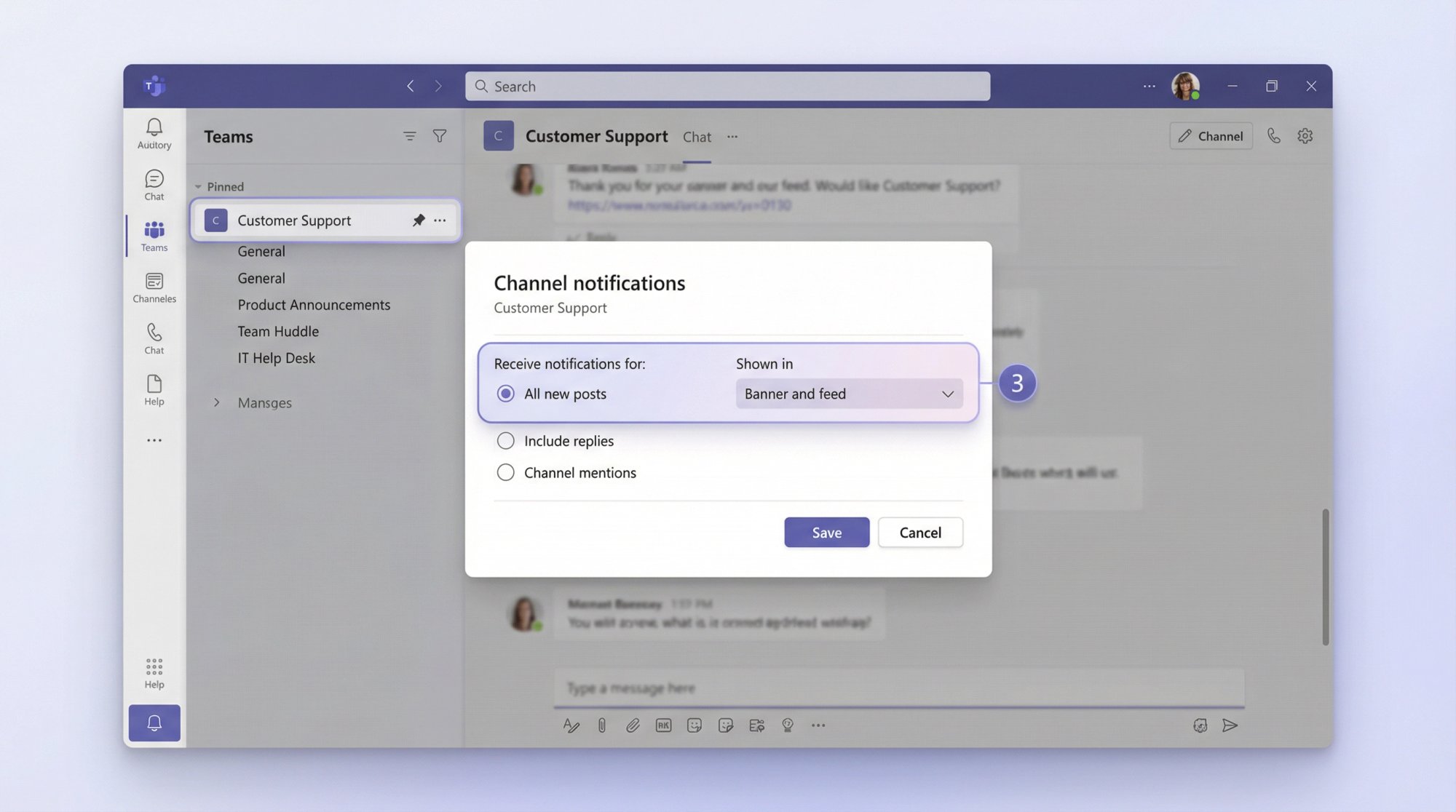
• Choose All new posts → Banner and feed
• Save your changes
(Microsoft's channel notification guide walks through this process with screenshots.)
3. Enable Sound Notifications (Optional But Recommended)
Visual banners are great, but an audible alert ensures you notice even if you're not looking at your screen. Go to Settings → Notifications and activity → Sound and enable Play sounds with notifications. Our Social Intents knowledge base specifically recommends this for customer-facing teams.
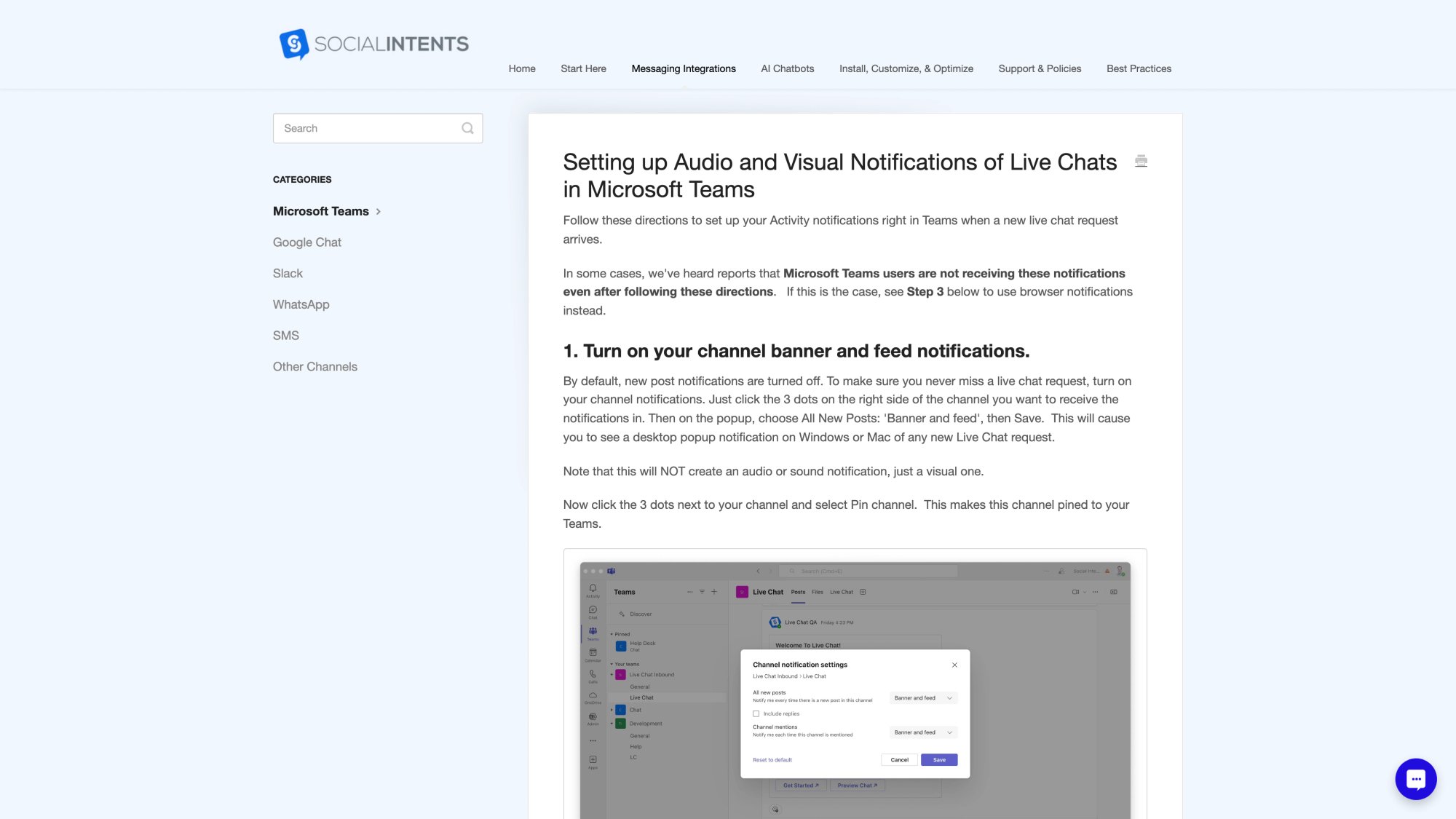
4. Silence Distractions During Meetings
If you present or screenshare frequently, you don't want personal messages popping up for everyone to see. Turn off Show notifications during calls and meetings (Microsoft's dedicated guide on this explains the nuances). You'll still see meeting-related alerts, just not unrelated chatter.
5. Set Mobile Quiet Hours
Work-life balance matters. Configure Quiet time on your phone so Teams doesn't buzz you at 11 PM about a non-urgent message (Microsoft's mobile quiet hours documentation shows how to schedule this).
That's it. These five adjustments handle the majority of notification problems we see teams struggle with.
Where Are Teams Notification Settings on Desktop?
On the Teams desktop app or web version:
Step 1: Click Settings and more (⋯) in the top right corner
Step 2: Select Settings
Step 3: Choose Notifications and activity
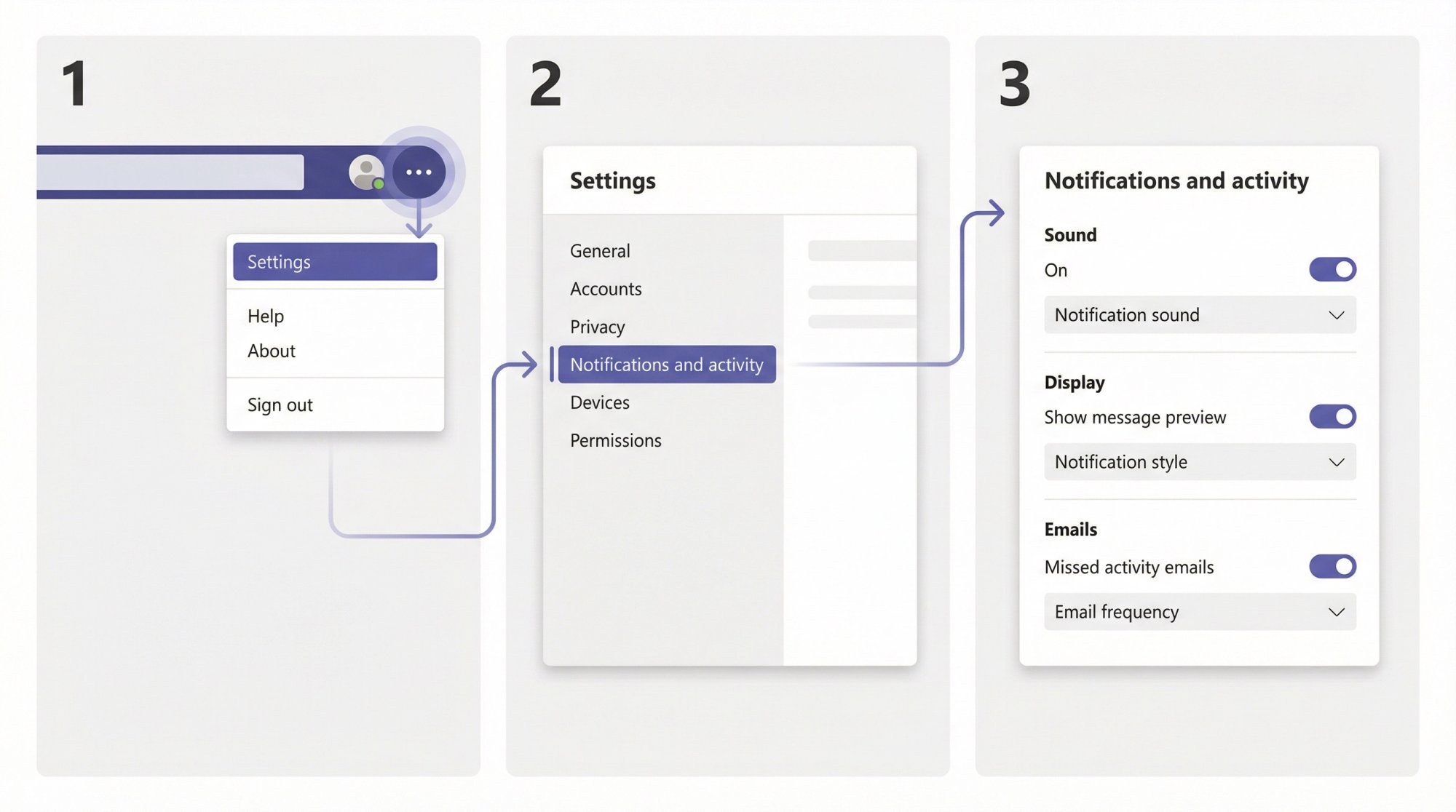
From here, Teams divides controls into sections. The exact labels vary slightly by version and rollout, but Microsoft's current documentation uses Notifications and activity as the hub for everything.
How to Configure Global Notification Settings
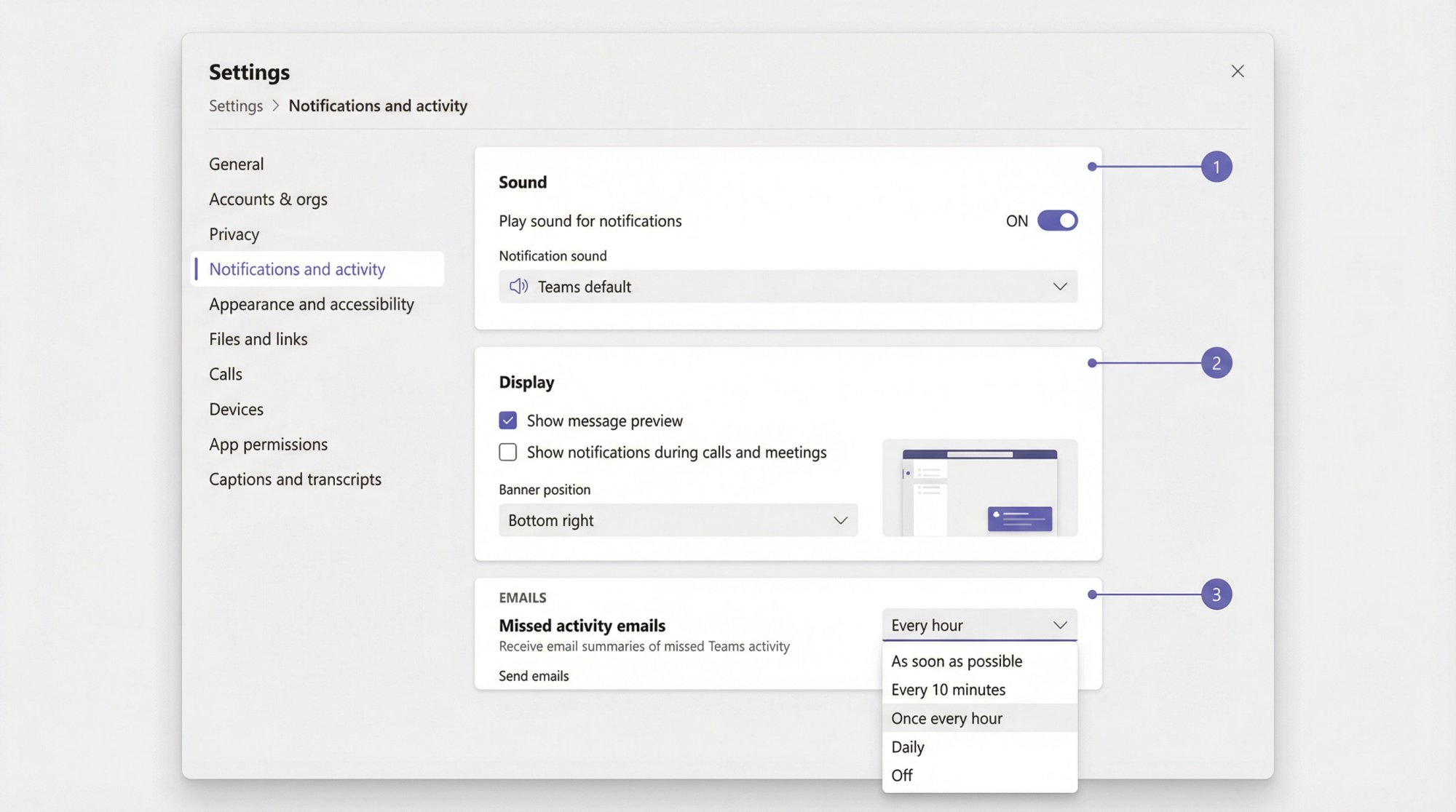
Sound: Make Important Alerts Audible
By default, Teams shows visual banners but doesn't always play sound for every notification. If you want audible alerts (especially for customer chats routed through Social Intents), enable this in Notifications and activity → Sound.
Check "Play sound for notifications." You can choose between Teams' default chime or your operating system's native alert sound.
Advanced: Custom Notification Sounds (Preview Feature)
Microsoft's Teams Insider blog documented the ability to assign different sounds to different notification types. You can distinguish between standard messages and urgent/priority alerts, and even mute sounds while in meetings.
Catch: This requires Teams Public Preview or Microsoft 365 Targeted release and the new Teams client on Windows or web. If you don't see these options, your organization hasn't enabled preview features yet.
Display: Control Banners, Previews, and Screen Position
In Notifications and activity → Display, you'll find controls for:
• Whether to show message content previews in banners
• Whether notifications appear during calls and meetings
• Where on your screen banners appear (new in 2025)
• Windows-only option to "mute all notifications except calls and meetings"
Positioning Your Notification Banners
Traditionally, Teams notifications appeared in the bottom-right corner on Windows. Now you can choose Bottom right, Top right, Bottom left, or Top left. This is incredibly useful if notifications cover important parts of your screen or if you use multiple monitors.
Missed Activity Emails: The Safety Net Most People Ignore
Teams can email you summaries of missed notifications. In the Emails section (sometimes labeled Missed activity emails), choose how frequently to receive these. Options include:
| Frequency | Best For |
|---|---|
| As soon as possible | Critical roles (support, sales) who must respond fast |
| Every 10 minutes | Active professionals who check Teams regularly |
| Once every hour | Knowledge workers balancing focus and responsiveness |
| Once every 8 hours | Part-time Teams users |
| Daily | Teams as secondary communication tool |
| Off | Power users who live in Teams all day |
If you're drowning in missed activity emails, dial this down to daily or off. If you worry about forgetting to check Teams, use a shorter interval. Microsoft's notifications guide explains this feature in detail.
Why Am I Not Getting Channel Notifications in Teams?
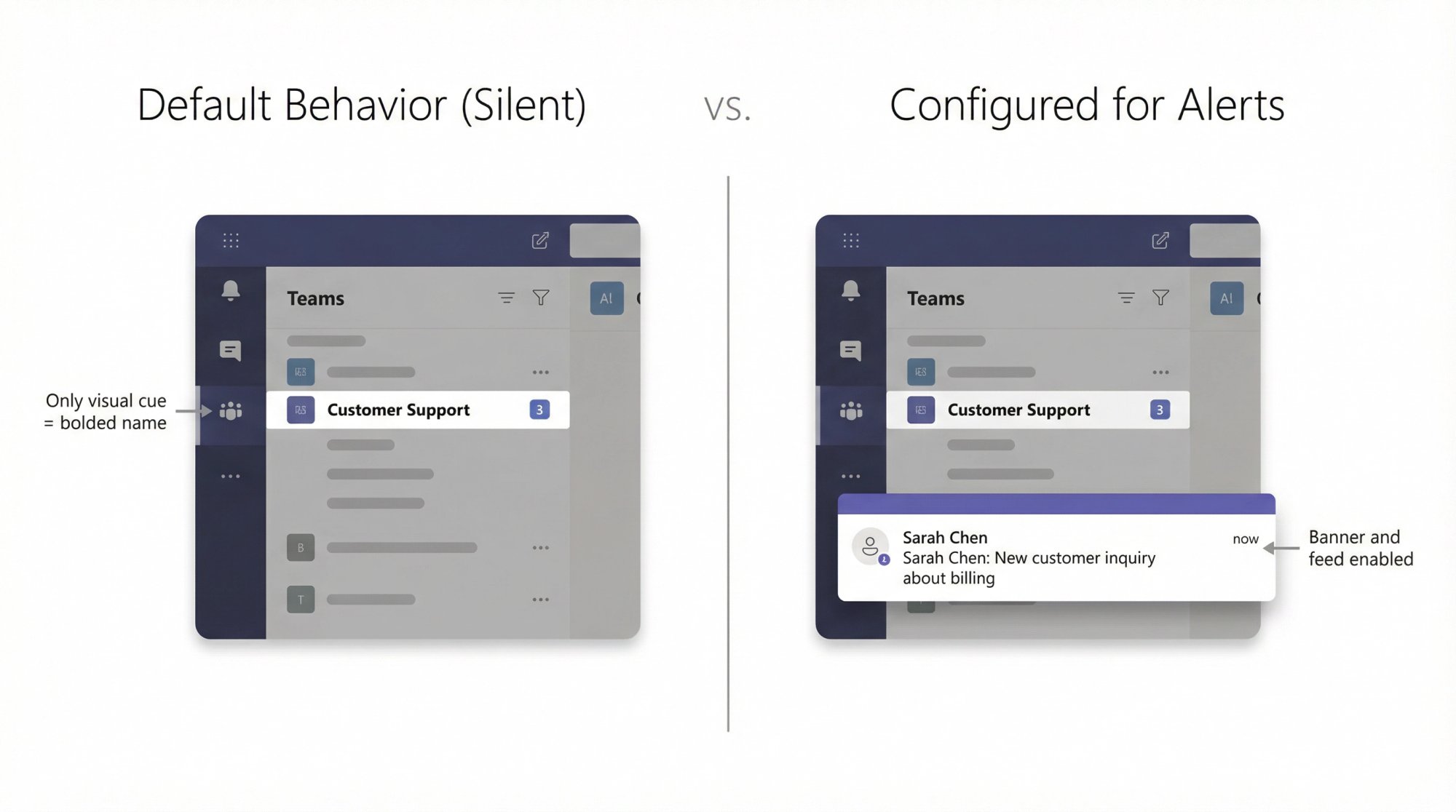
Here's what catches most people off guard: Channel posts don't automatically generate banner notifications the way direct messages do.
By default, Teams assumes you'll browse channel content at your leisure. You'll see channels bolded when they have unread messages, but you won't get a pop-up or sound for new posts unless you explicitly configure that channel.
This is the #1 reason support teams miss customer chats, sales teams miss leads, and incident response teams miss critical alerts.
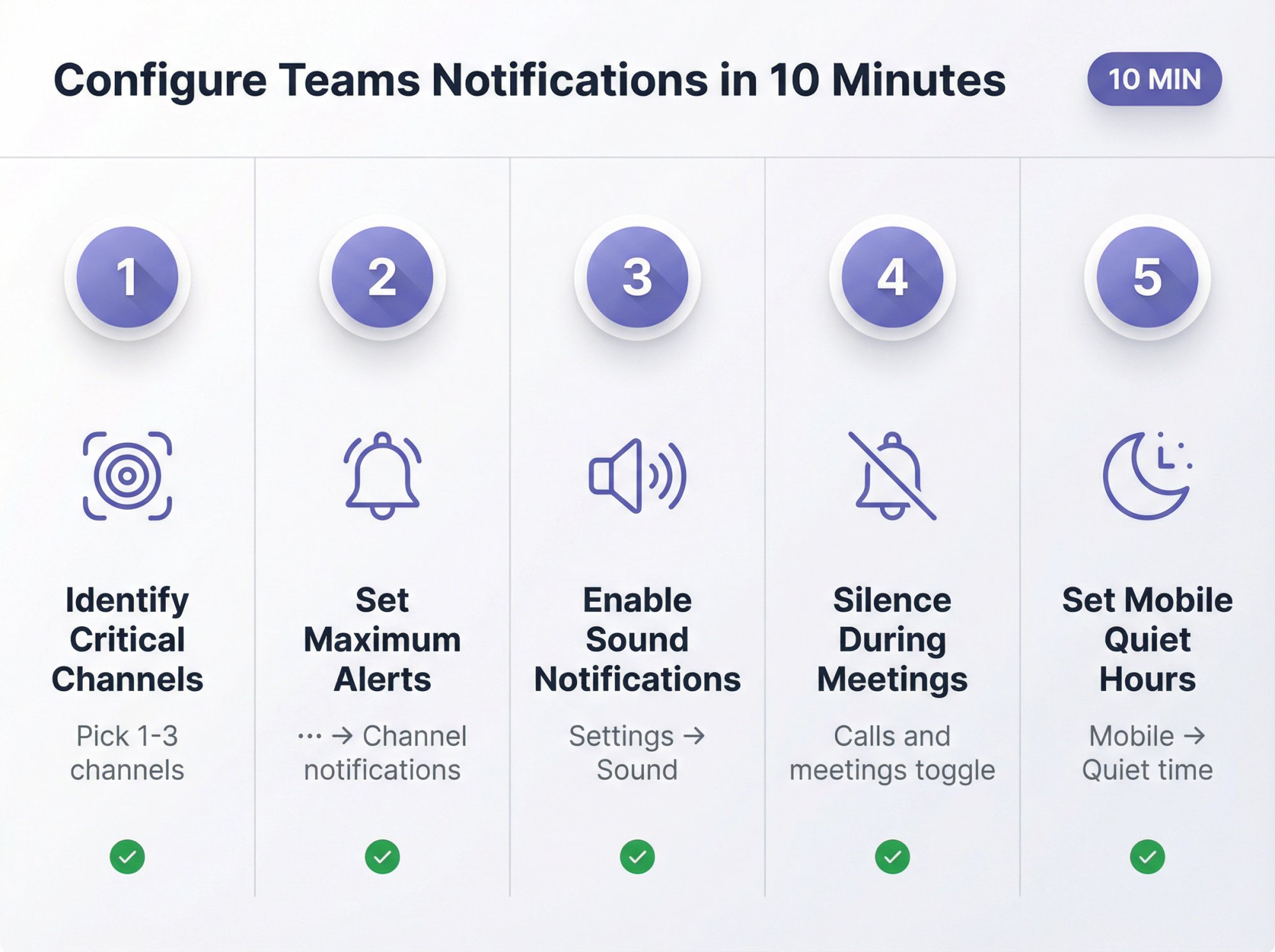
How to Turn On Notifications for Specific Channels
For any channel where missing a message matters:
Step 1: Navigate to the channel
Step 2: Click More options (⋯) next to the channel name
Step 3: Select Channel notifications
Step 4: Configure your preferences
(Microsoft's channel notification documentation walks through this with screenshots.)
What to Set for Critical Channels
For channels handling customer chats via Social Intents, support requests, or sales leads:
• All new posts → Banner and feed (gives you a popup for every message)
• Channel mentions → Banner and feed (when someone @mentions the whole channel)
• Include all replies → On (if using threaded layout, so you catch follow-up responses)
For casual discussion channels or low-priority topics, leave the default (Only show in feed or Off).
A Critical Detail About Sound
Setting a channel to "All new posts (banner and feed)" gives you visual desktop notifications, but it won't play a sound unless your global Teams sound setting is enabled. Teams doesn't ding for channel posts by default. Our Social Intents setup guide specifically calls this out because it confuses new users constantly.
If you want audible alerts for channel messages, enable the global sound option we covered earlier.
Pro Tip: Pin Your Critical Channels
After enabling notifications, pin the channel to keep it visible in your sidebar. Right-click the channel and select Pin. This prevents important channels from getting buried under dozens of others.
For teams routing customer chats through Social Intents, we recommend both pinning the chat channel and setting notifications to all activity. Our customer support guide walks through this complete setup.
If Your Team Uses Threads Layout
Microsoft notes that channel notification management differs between Posts layout and Threads layout. Threads layout has separate controls for following specific conversation threads, which can help you focus on relevant discussions without enabling notifications for the entire channel.
How to Set Up Teams Mobile Notifications
Mobile is where Teams notification behavior feels most inconsistent, because operating system rules and device routing matter more than on desktop.
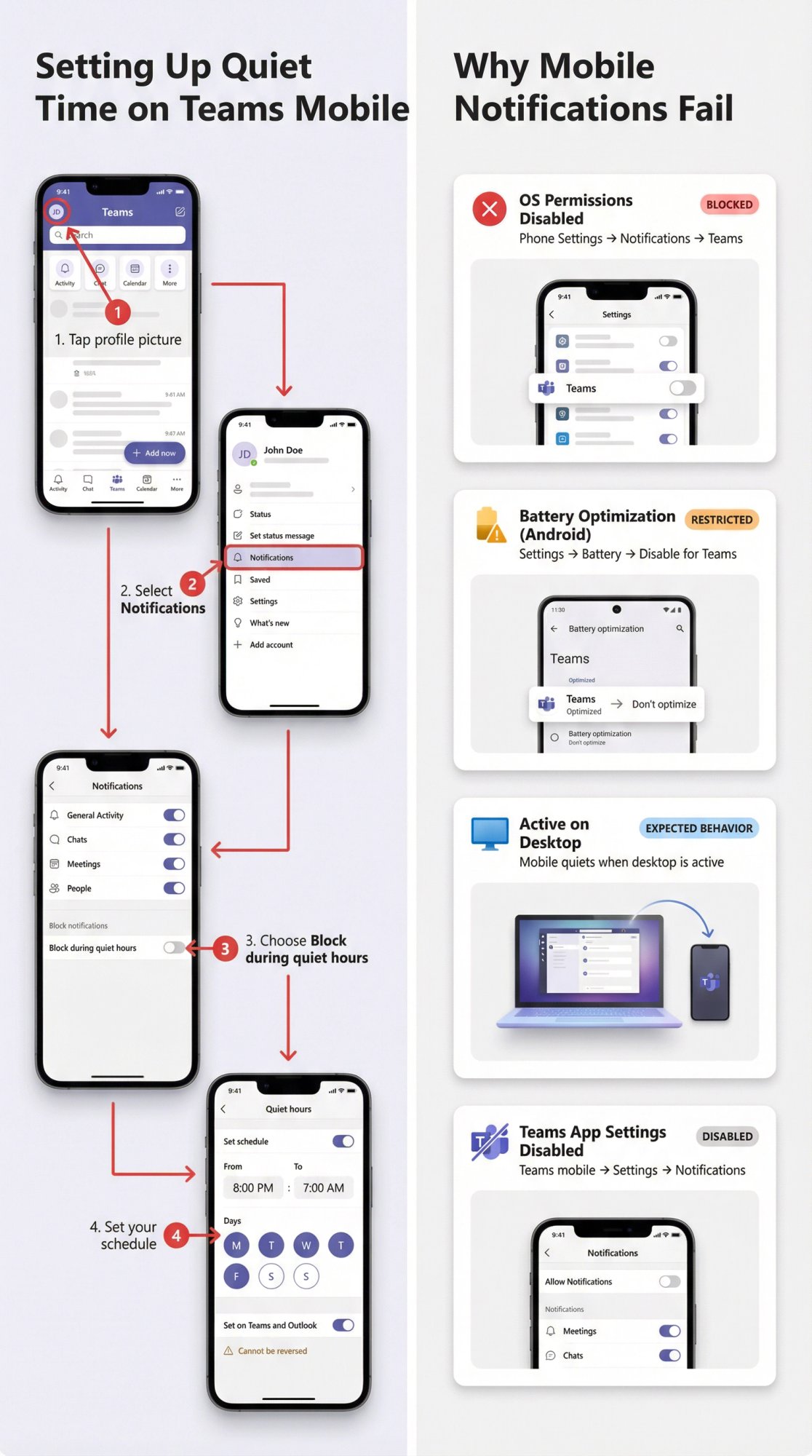
Setting Quiet Time (Quiet Hours) on iOS and Android
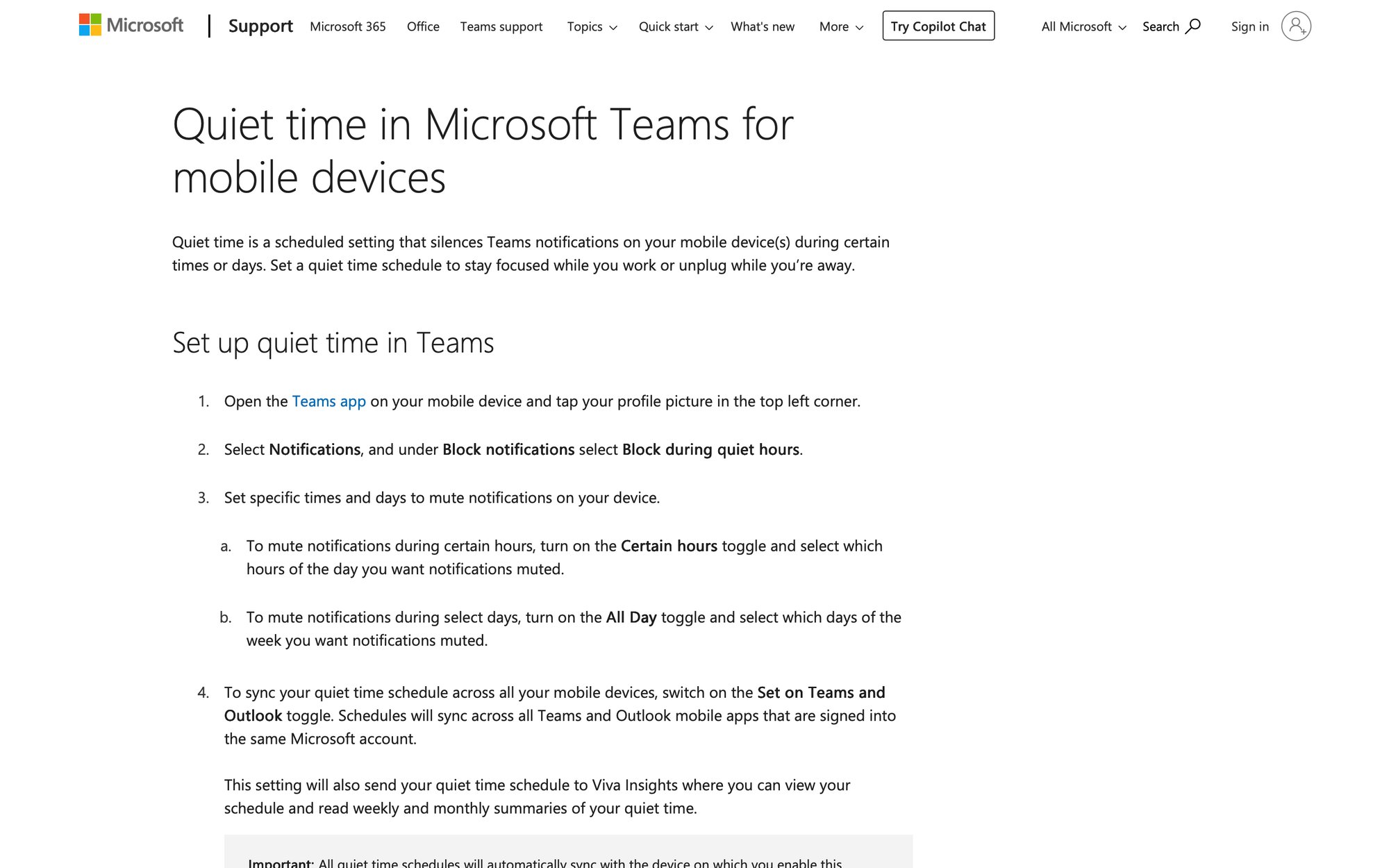
Microsoft calls this feature Quiet time. It silences Teams notifications during specific hours or days.
To configure:
Step 1: Tap your profile picture (top left in Teams mobile)
Step 2: Select Notifications
Step 3: Under Block notifications, choose Block during quiet hours
Step 4: Set your schedule:
• Certain hours (e.g., 8 PM to 7 AM on weekdays)
• All day (e.g., every Saturday and Sunday)
(Microsoft's official quiet time documentation has step-by-step instructions.)
Syncing Quiet Time Across Devices
There's a toggle called Set on Teams and Outlook that syncs your quiet time schedule across Teams mobile, Outlook mobile, and even Viva Insights. Microsoft warns that this sync action "can't be reversed," so configure carefully.
Why Mobile Notifications Sometimes Don't Appear
If you're not getting mobile notifications, check these common causes (Microsoft's mobile troubleshooting guide covers all of these):
| Issue | How to Check | How to Fix |
|---|---|---|
| OS notification permissions disabled | Phone Settings → Notifications → Teams | Enable all notification types |
| Battery optimization blocking Teams (Android) | Settings → Battery → Battery optimization | Disable optimization for Teams |
| Actively using Teams on desktop | Check if you're signed in on computer | Expected behavior (mobile quiets when desktop is active) |
| Teams notification settings disabled in app | Teams mobile → Settings → Notifications | Re-enable notification types you need |
The third one catches people constantly. If you're using Teams on your desktop, mobile notifications often get suppressed to avoid double-alerting you. This is intentional, but it means stepping away from your computer without checking Teams can result in missed alerts.
How to Fix Missing Teams Notifications
Use this order. It maps to the 4-layer model we covered earlier and prevents random setting changes that don't help.
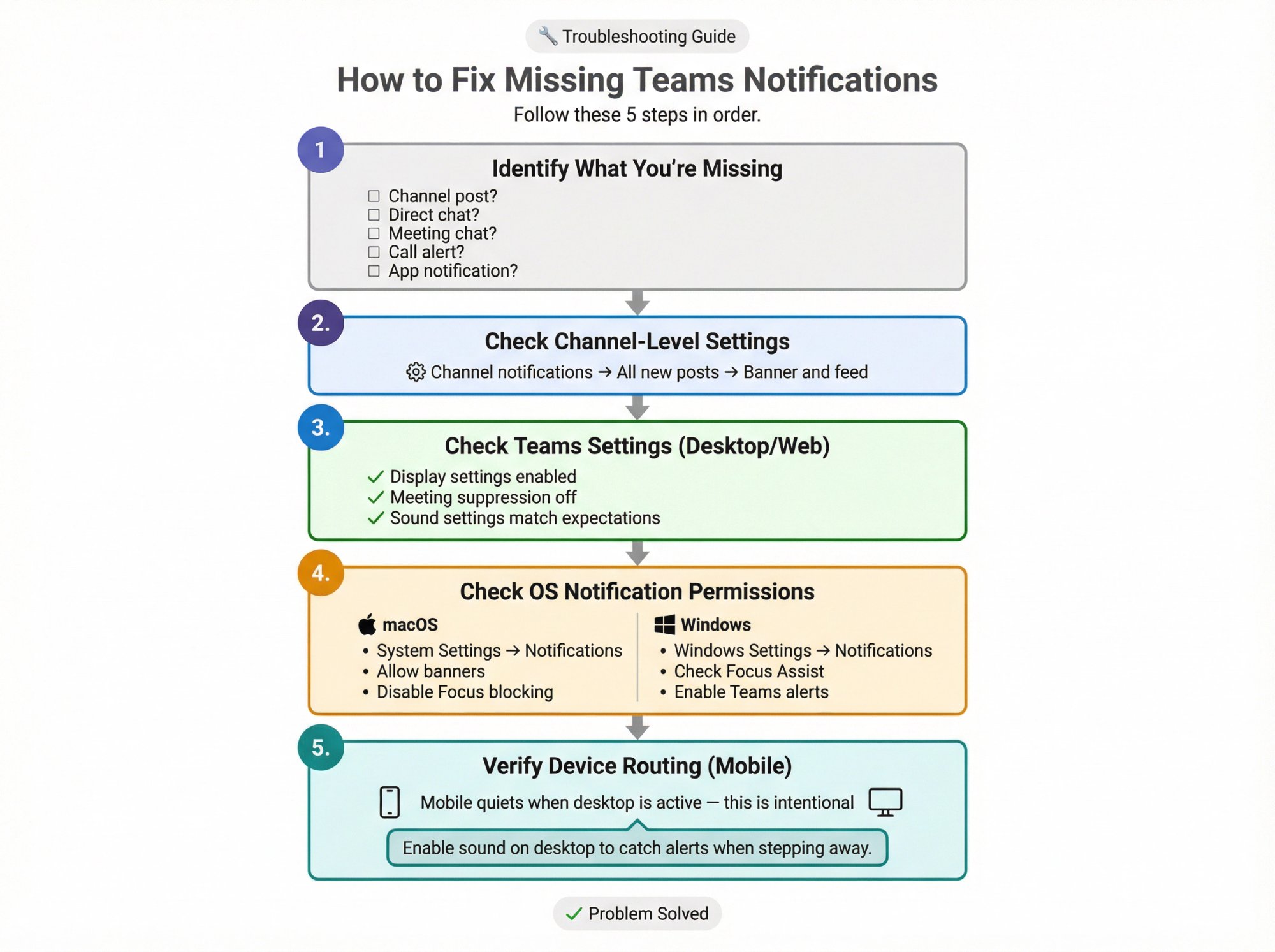
Step 1: Identify Exactly What You're Missing
Be specific:
• Channel post? (Most common issue)
• Direct chat message?
• Meeting chat?
• Call or meeting start alert?
• App notification (like from Social Intents)?
This matters because channel notifications are configured separately from global chat settings.
Step 2: Check Channel-Level Notification Overrides
For missed channel posts, navigate to that specific channel and verify:
• Channel notifications → All new posts → Banner and feed is enabled
(Microsoft's channel setup guide shows where to find this.)
Step 3: Check Teams Settings on Desktop/Web
Go to Settings → Notifications and activity and confirm:
• Display settings aren't suppressing banners
• Meeting/call suppression isn't active when you don't want it
• Sound settings match your expectations
Step 4: Check Operating System Notification Permissions
On macOS, Microsoft explicitly points to System Settings notification permissions and Focus modes as common causes of missing alerts. Ensure:
• Notifications are allowed for Teams
• Banners are enabled (not just badges)
• Focus settings aren't blocking Teams
On Windows, check that Focus Assist isn't set to "Alarms only" or "Priority only" with Teams excluded.
Step 5: Verify Device Routing (If Mobile Seems Quiet)
Use Microsoft's mobile troubleshooting guide to confirm your mobile notification setup and understand device behavior patterns.
If you're actively using Teams on desktop most of the day, mobile notifications will be minimal by design. Consider enabling sound notifications on desktop to ensure you don't miss alerts when stepping away briefly.
What Can IT Admins Control for Teams Notifications?
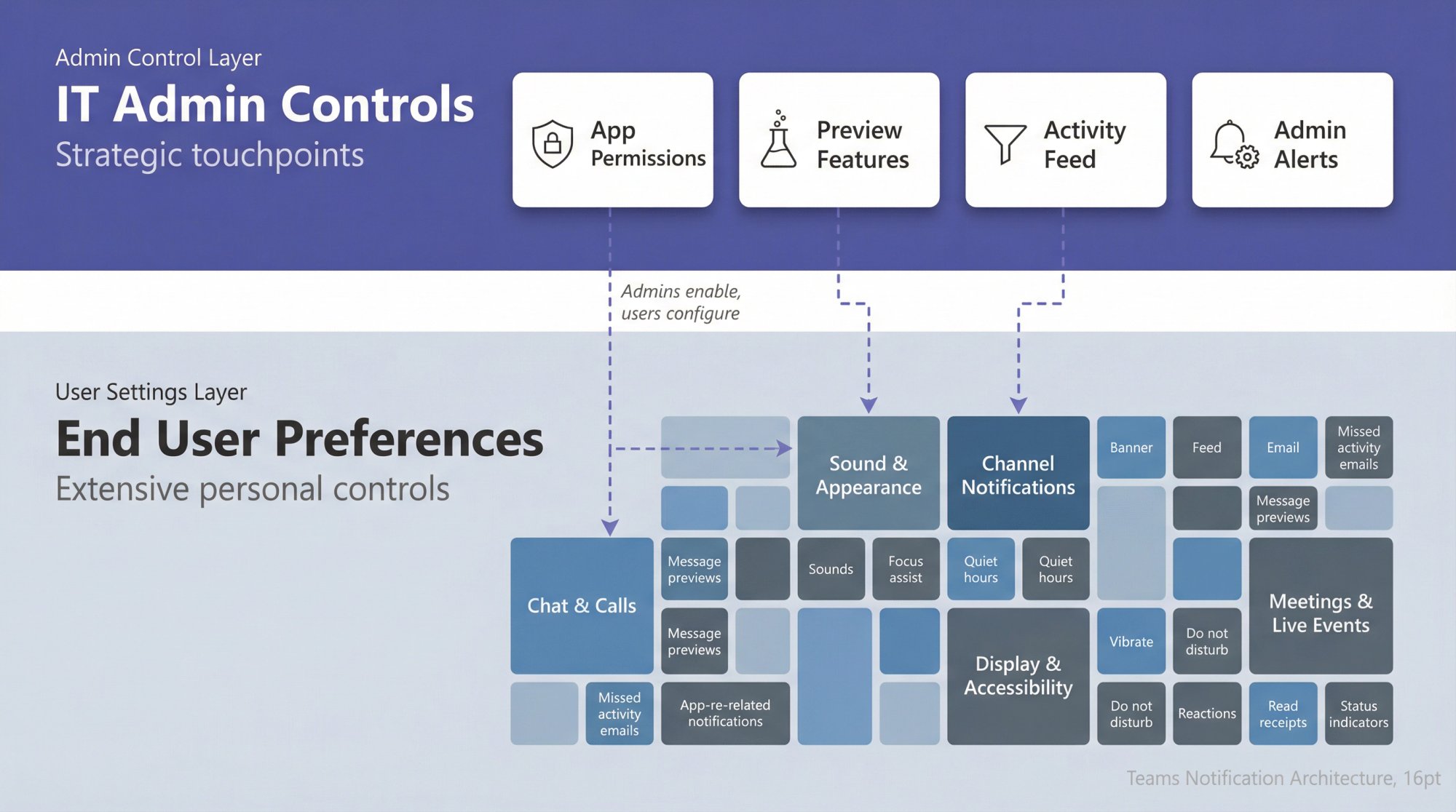
Most end-user notification settings are personal preferences, but admins still influence the notification ecosystem in several ways.
Allowing Third-Party Apps Like Social Intents
If users can't find an app (like Social Intents) in Teams, it's usually because third-party apps are blocked. Our knowledge base article explains how Teams admins can enable these using Teams apps → Permission policies in the Teams admin center.
Important: GCCH and DoD tenants block third-party apps by default. Admins need to explicitly enable them under org-wide app settings.
Preview Features That Affect Notifications
Microsoft's Insider documentation notes that IT admins may need to enable Show preview features in an update policy for users to access certain notification features like custom sounds and notification positioning.
Controlling Suggested Feeds in Activity Feed
Microsoft Learn's Teams settings reference includes a tenant setting: "Suggested feeds can appear in a user's activity feed" (default: On).
If your organization wants to reduce "algorithmic" noise in user feeds, this is one of the few notification-adjacent controls IT can manage centrally.
Admin Monitoring and Alerts
Separate from end-user notifications, Microsoft documents monitoring and alerting rules in the Teams admin center under Notifications & alerts. This is useful for IT operations (service health monitoring, device alerts, etc.) but doesn't affect end-user message notifications.
How to Set Up Teams for Customer Chat Agents
If you're routing website live chats into Teams through Social Intents, notification configuration isn't optional. It's the difference between responding to customers in 30 seconds and discovering hours later that three prospects gave up and left.
Here's the exact setup that has proven most reliable for our customers handling hundreds of chats per day.
The Complete Agent Mode Checklist
① Route Chats Into a Public Channel
Our Teams setup documentation explicitly notes: the Team and channel must be Public. Teams doesn't allow bot interaction with private channels, which breaks chat posting and notifications.
② Add the Live Chat Tab to Every Team/Channel
Our troubleshooting guide is clear on this: add the Live Chat tab to each Team/Channel you want to receive chats in. It's not automatic.
③ Enable Channel Notifications for All New Posts
Navigate to your chat channel, then:
• More options (⋯) → Channel notifications
• Set All new posts → Banner and feed
• Save
(Our notification setup guide walks through this with screenshots.)
This creates a visual popup for every new chat. But you still won't get sound unless you complete step 4.
④ Enable Sound Notifications Globally
In Teams:
• Settings → Notifications and activity → Sound
• Enable Play sounds with notifications
• Optionally choose Teams sounds or system sounds
Now when a customer starts a chat on your website, your team gets both a visual banner and an audible alert.
⑤ Pin the Chat Channel
We specifically recommend pinning the channel so it stays at the top of your Teams sidebar. Right-click the channel and select Pin.
⑥ Fallback: Use the Browser Console for Notifications
Some customers report that Teams notifications occasionally don't fire reliably (especially in certain enterprise configurations). We suggest opening our dedicated chat console window as a fallback. It runs in your browser and uses browser notifications instead of relying on Teams' notification system.
⑦ If Chats Aren't Arriving At All: Validate Routing
Our troubleshooting checklist recommends:
• Mention the bot (e.g., @Live Chat) in the channel to confirm it responds
• Verify "Route Chats to Team" is set correctly in Social Intents settings
• Use Refresh Teams in your Social Intents account settings to resync
• Remove and re-add the Live Chat tab if needed
Pro Tips for Managing Teams Notifications
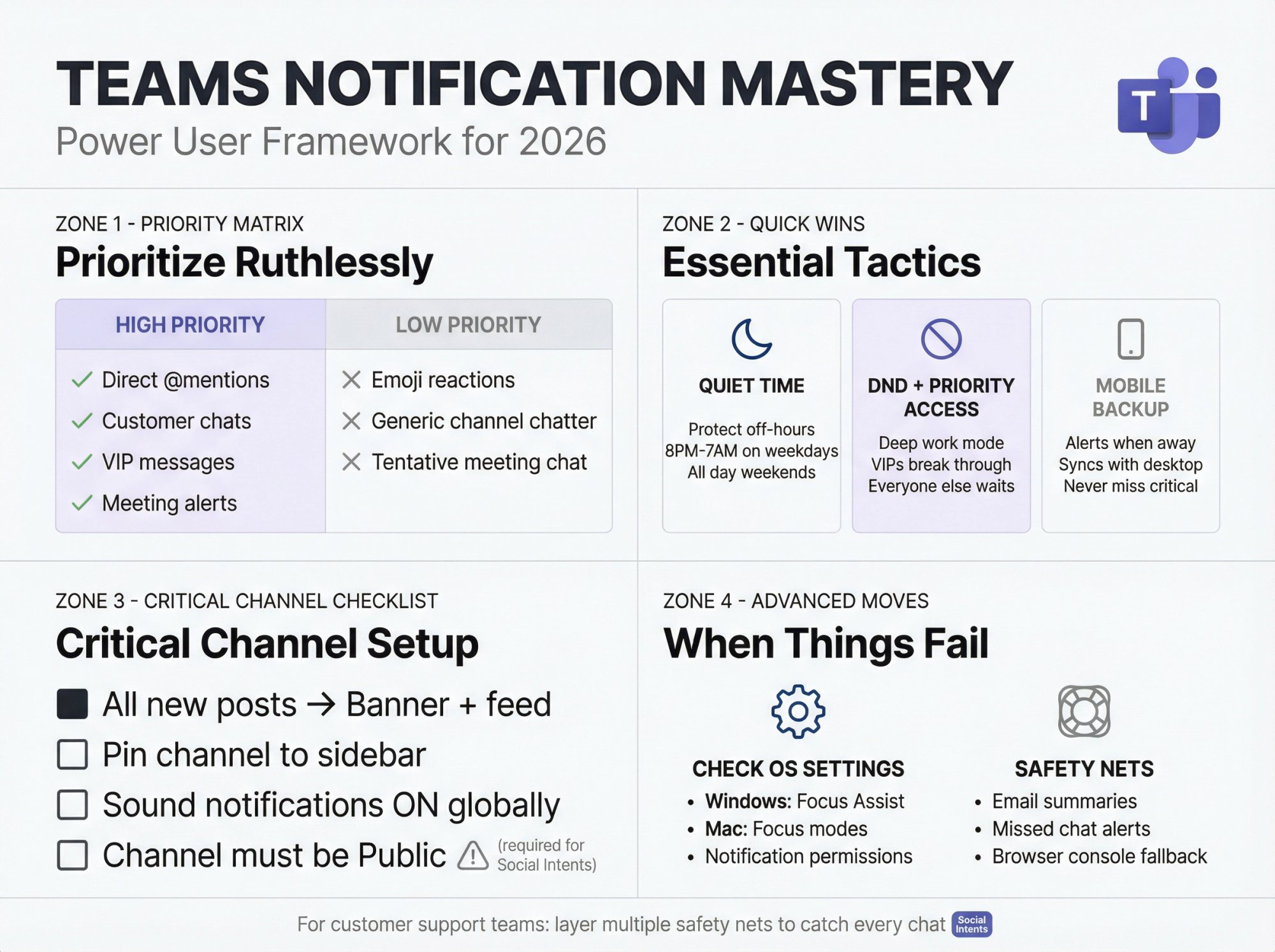
Prioritize Ruthlessly
Not every notification deserves to interrupt you. Deciding which activities truly require instant awareness helps improve focus and productivity.
For most people:
High priority (banner + sound):
→ Direct @mentions
→ Customer chats from Social Intents
→ Direct messages from VIPs
→ Meeting start alerts
Low priority (feed only or off):
→ Emoji reactions
→ Generic channel chatter in non-critical channels
→ Meeting chat for tentative meetings you might not attend
Customize Teams to emphasize the important and minimize the trivial.
Use Quiet Time to Protect Off-Hours
Microsoft's quiet hours feature lets you mute notifications outside work hours. Set it for evenings and weekends so work messages don't intrude on personal time.
These quiet time settings can sync across Teams mobile and Outlook mobile for consistent protection.
Leverage Do Not Disturb with Priority Access
If you set your Teams status to Do Not Disturb, it silences all incoming notifications. Great for deep work or presentations.
But what if your boss or a key client needs to reach you even during DND?
Teams allows priority access contacts who can break through Do Not Disturb. Designate these people under Privacy → Manage priority access in Teams settings. Their messages will still alert you when you're in DND mode, while everyone else stays quiet.
Enable Mobile as a Backup
Install Teams on your phone and enable notifications there. For teams handling customer chats through collaboration tools like Slack, Google Chat, Zoom, or Webex, mobile alerts ensure you don't miss urgent items when stepping away from your computer.
Teams intelligently reduces mobile notifications when you're active on desktop to avoid double-alerting.
Double-Check Critical Channel Settings
For channels where missing a message costs you money (customer support, live chat, sales leads, incident response), verify:
• All new posts → Banner and feed is enabled
• Pin is active so the channel stays visible
• Sound notifications are on globally
• The channel is Public (required for bots like Social Intents)
We emphasize this in our support team setup because it's the most common source of missed customer chats.
Beware of Notification Overload in Large Teams
If you're added to a company-wide Team with 50+ channels, you might want to turn off channel notifications until you figure out which ones matter. Set most channels to "Off" and only enable the few that are relevant.
You'll still see @mentions directed at you, but you won't get banners for every random post.
Check OS Settings If Something's Not Working
If you've configured everything in Teams but still aren't seeing notifications:
On Windows:
• Ensure notifications are enabled for Teams in Windows Settings
• Check that Focus Assist isn't blocking alerts
On Mac:
• Verify notification permissions in System Settings
• Make sure Focus modes allow Teams notifications
Microsoft explicitly calls out OS-level settings as a common cause of missing alerts.
Layer Additional Safety Nets for Critical Communications
For customer-facing teams using Social Intents, we offer features beyond just Teams notifications:
• Email notifications for missed chats (if your team doesn't respond within X minutes)
• Automated reminders if a chat sits unanswered
• Offline message capture that converts the chat widget to a contact form when no agents are available
Our customer support blog post explains how these work together with Teams notifications to ensure nothing falls through the cracks.
Frequently Asked Questions
Why am I not getting notifications for new channel posts?
Because channel notifications require channel-level opt-in. By default, Teams only alerts you to @mentions in channels, not every new post.
Fix: Navigate to the channel, click More options (⋯), select Channel notifications, and set All new posts → Banner and feed. Microsoft's guide shows exactly where to find this setting.
How do I mute distractions during meetings but still keep meeting chat alerts?
Turn off Show notifications during calls and meetings in your notification settings. Microsoft notes you'll still get meeting-related alerts (like meeting chat), but general Teams activity won't pop up while you're presenting or in a call.
Can I schedule Teams quiet hours on mobile?
Yes. Use the Quiet time feature. Tap your profile picture in Teams mobile, select Notifications, then choose Block during quiet hours. Set schedules for specific hours (like 8 PM to 7 AM) or entire days (weekends). Microsoft's documentation walks through the setup.
Do Teams activity feed notifications last forever?
No. Microsoft's platform design documentation states the Activity feed retains notifications from the past four weeks (approximately 30 days). Microsoft Graph documentation confirms this 30-day storage period.
Why don't I hear sounds for channel notifications even though I enabled them?
Two settings need to align:
1. Channel-specific: All new posts → Banner and feed (gives you the visual popup)
2. Global: Settings → Notifications and activity → Sound → Play sounds with notifications (enables audio)
Our Social Intents knowledge base specifically calls this out because it confuses new users constantly. Visual channel notifications are separate from sound settings.
How can I get notified when a specific coworker becomes available?
Use People (Presence) notifications. Go to Settings → Notifications and activity → People, then add the coworkers whose status changes you want to track. Teams will alert you when they go Available or Offline. Microsoft's guide shows where to find this feature.
Will notifications appear on both my desktop and mobile phone?
Usually not at the same time. Teams uses smart device routing. If you're actively using Teams on desktop, mobile notifications are typically suppressed to avoid double-alerting. If you're away from your computer, mobile takes over. Microsoft's mobile troubleshooting documentation explains this behavior.
Can I customize notification sounds for different types of alerts?
This is a preview feature that requires Teams Public Preview or Microsoft 365 Targeted release. Microsoft's Insider blog documented the ability to assign different sounds to standard vs. urgent/priority notifications and mute sounds during specific statuses.
If you don't see these options, your organization hasn't enabled preview features.
Why do I keep missing customer chats routed through Social Intents?
This is almost always a channel notification configuration issue. Verify:
1. The channel receiving chats is Public (private channels don't work with bots)
2. Channel notifications are set to All new posts → Banner and feed
3. Global sound notifications are enabled in Settings
4. The channel is pinned for easy visibility
Our complete setup guide walks through every step.
If Teams notifications still feel unreliable in your environment, consider using our browser console as a fallback. It generates browser notifications independently of Teams' notification system.
Can IT admins control user notification settings centrally?
Only partially. Most notification preferences are personal settings users control themselves. Admins can influence:
• Whether third-party apps like Social Intents can send notifications (via app permission policies)
• Whether preview notification features are available (via update policies)
• Whether suggested/trending feeds appear in Activity feeds (tenant setting)
Microsoft's Teams settings reference documents what admins can control.
Take Control of Your Teams Notifications
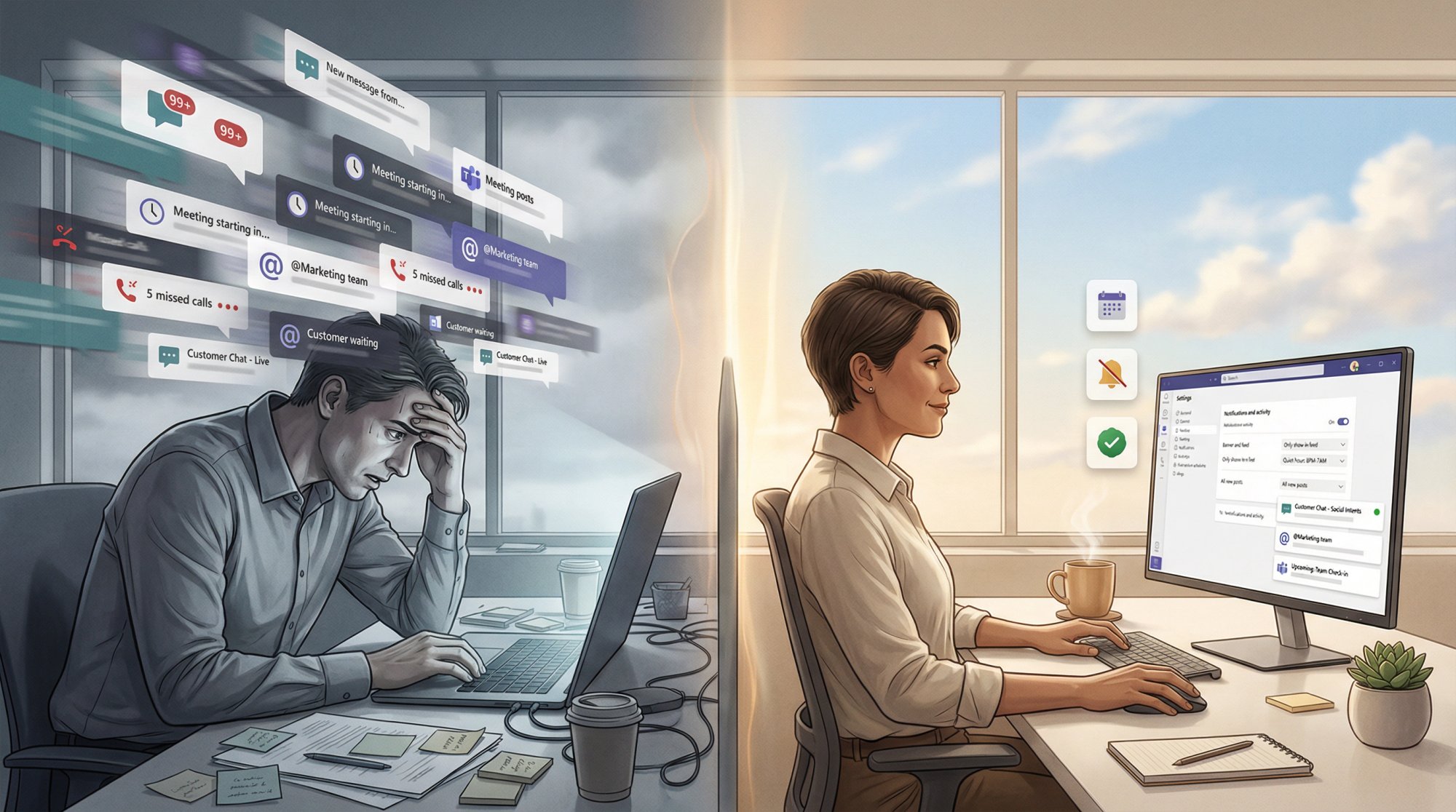
Microsoft Teams provides one of the most configurable notification systems of any collaboration platform. That flexibility is powerful, but it also means you need to actively configure it rather than hoping defaults work for your situation.
Use this guide to audit your notification settings periodically, especially:
• After Teams updates that change UI or add features
• When your role changes and different channels become critical
• When you add new integrations like Social Intents that route external communications into Teams
• If you're consistently missing important messages or drowning in noise
A few minutes of configuration can save hours of frustration and prevent expensive mistakes like missed customer chats or overlooked urgent requests.
For teams using Social Intents to handle customer support directly in Teams, proper notification setup isn't optional. It's the foundation of a responsive customer experience. Combine our chat routing with the notification configuration we covered, and you've built a system where no customer conversation falls through the cracks.
Want to see how Social Intents routes website chats directly into Teams? Start your free 14-day trial or explore our live chat solutions.

