

If you're in Microsoft Teams all day handling customer support, closing deals, or managing team communications, you're probably wasting time clicking through menus. Keyboard shortcuts can save you hours every week.
This isn't another generic shortcuts list copied from Microsoft's docs. We built this guide for people who actually work in Teams: support teams answering customer chats, sales reps managing multiple conversations, project managers coordinating across channels, and anyone who needs to navigate Teams faster without constantly reaching for their mouse.
What You'll Learn (And Why It Matters)
When someone searches "Microsoft Teams keyboard shortcuts," they usually want to:
• Stop wasting time clicking between Chat, Teams, Calendar, Calls, and notifications
• Reply faster in chats and channels with formatted responses, links, and code blocks
• Run meetings smoothly without hunting for the mute button or raise hand feature
• Work across multiple conversations simultaneously with pop-out chats and quick navigation
• Make Teams work like their brain by customizing shortcuts and reducing friction
The goal is simple: Navigate, respond, and manage meetings by muscle memory so you can focus on the actual work instead of fighting the interface.
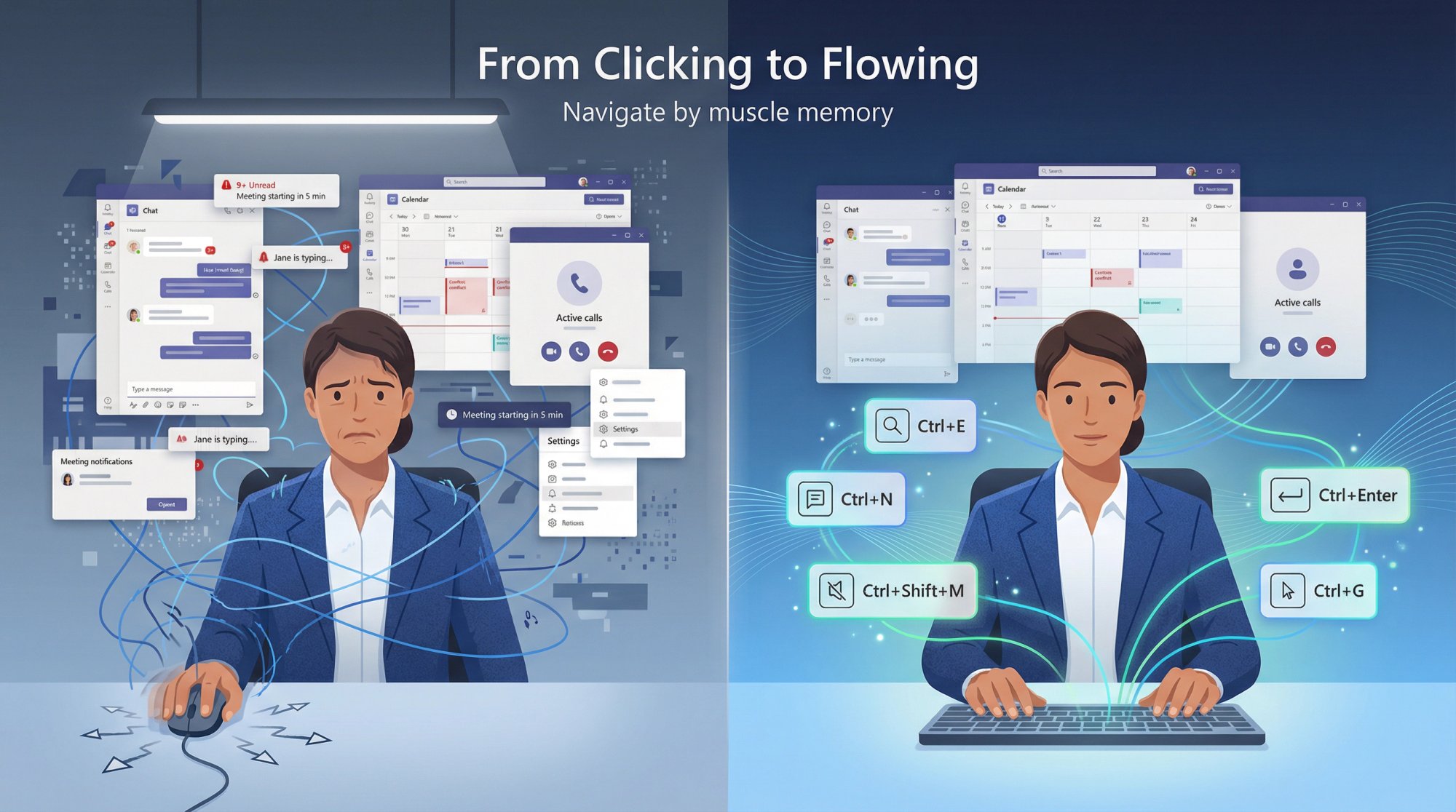
Why Use Keyboard Shortcuts in Microsoft Teams?
Every mouse click adds friction. Opening a menu, finding the right button, clicking it… these micro-delays compound throughout your workday. If you're spending 4-6 hours in Teams daily (and many support and sales teams are), those seconds become minutes, then hours.
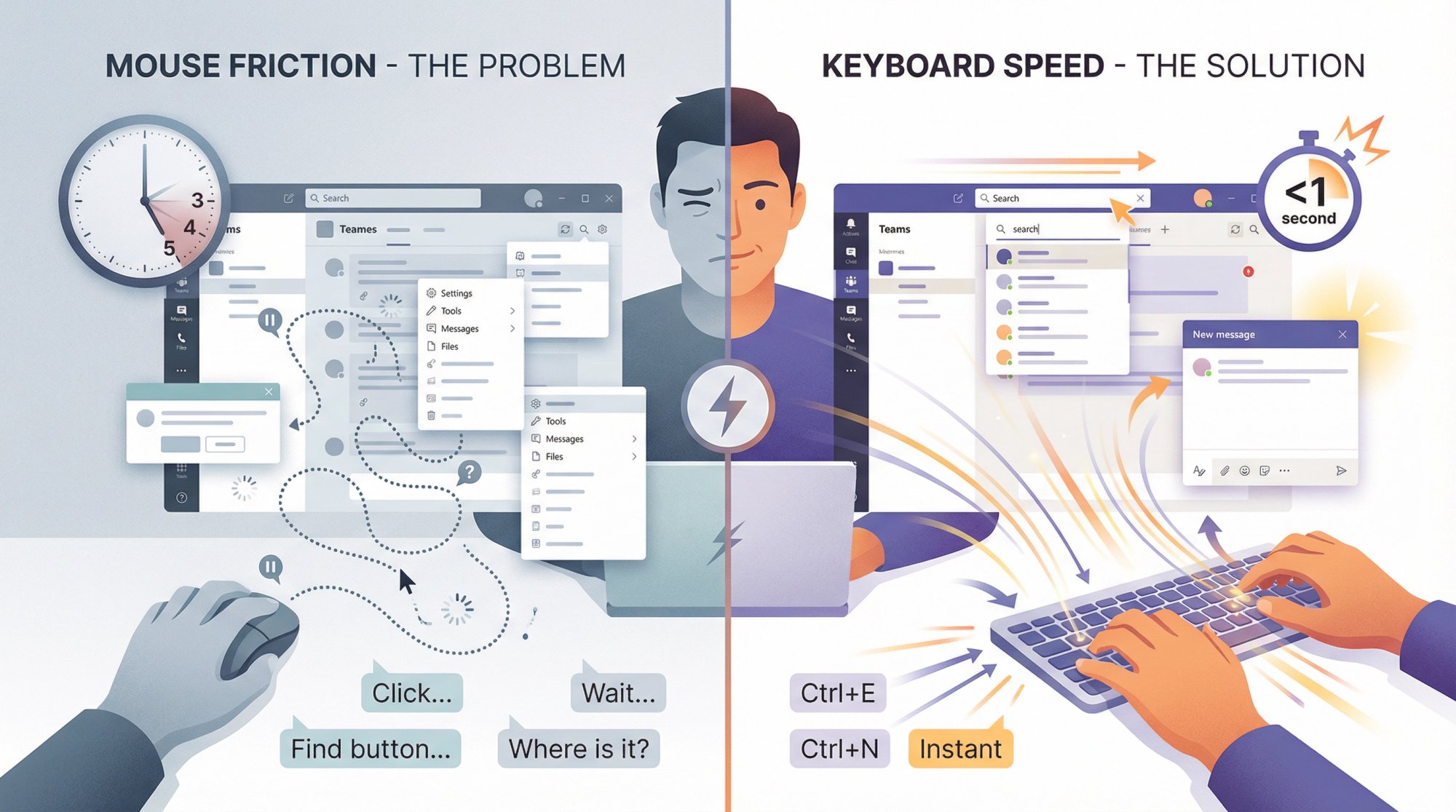
Keyboard shortcuts let you perform common actions instantly. No hunting. No clicking. Just press a key combo and you're there.
This matters even more if you're handling live customer chats in Teams. Response time directly impacts customer satisfaction, and every second counts when you've got multiple conversations happening simultaneously.
Plus, shortcuts improve accessibility. They're often easier than navigating with a trackpad or touchscreen, especially for users with motor control challenges.
How to View All Microsoft Teams Shortcuts (Built-In Feature)
You don't need to memorize this entire guide. Teams has a complete shortcut reference built in:
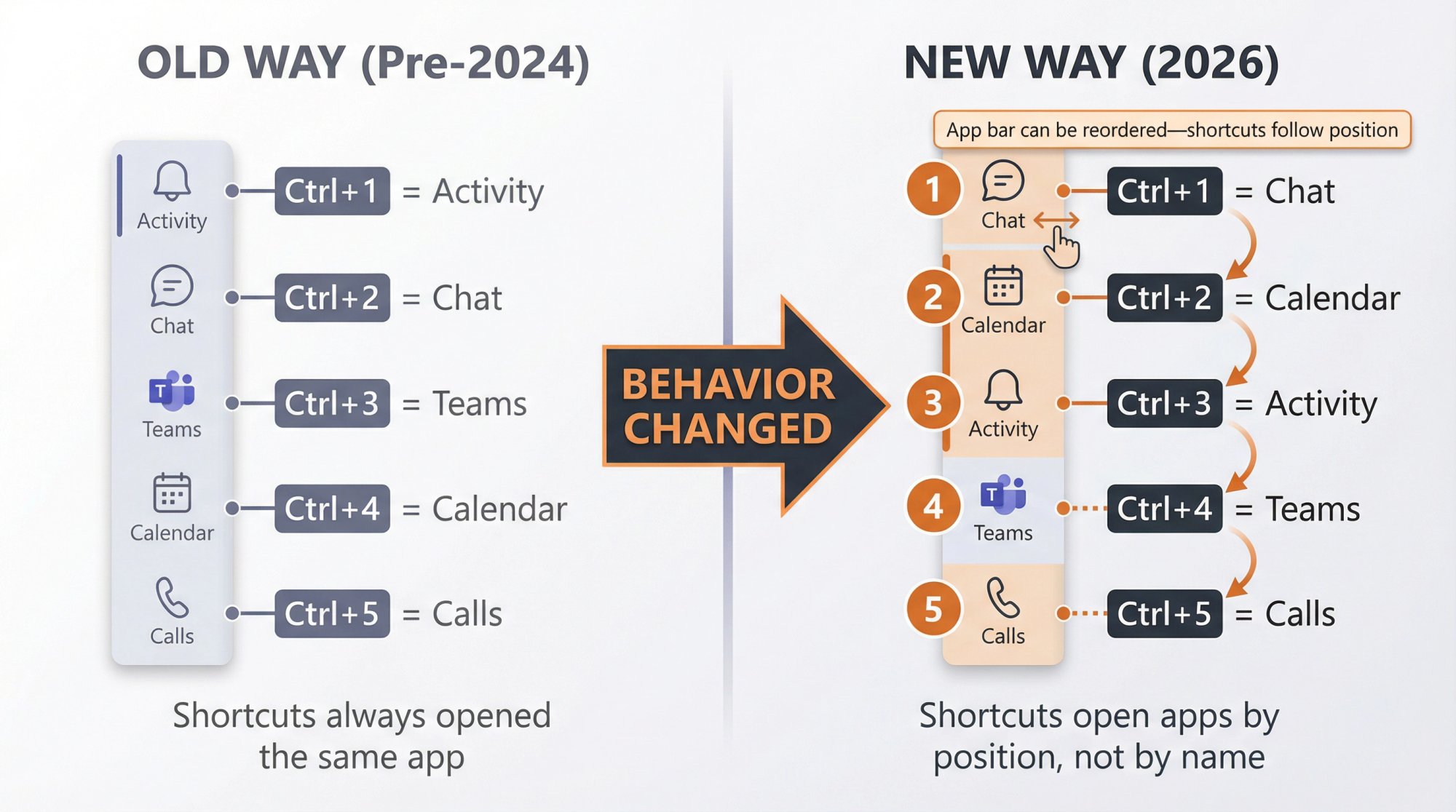
Windows: Press Ctrl + . (Ctrl + Period)
Mac: Press Command + . (Command + Period)
Or open it from Settings and more (…) → Keyboard shortcuts.
This brings up an interactive panel showing every available shortcut for your current platform. It's searchable, categorized, and always up-to-date with your Teams version.
How to Customize Keyboard Shortcuts in Teams (New Feature)
Microsoft finally added the ability to customize keyboard shortcuts directly in Teams. Here's how:
① Press Ctrl + . to open the Keyboard shortcuts window
② Find the shortcut you want to change
③ Tab to Edit shortcut → press Enter
④ Type your new key combo → Tab to Save → Enter
Teams also includes a "Use shortcuts from other apps" dropdown that lets you switch to Slack-style or Zoom-style shortcuts if you're coming from those platforms. This is huge for teams migrating to Teams who have muscle memory from other tools.
CRITICAL: App Bar Shortcuts Changed in 2024
This trips up everyone who learned Teams shortcuts years ago.
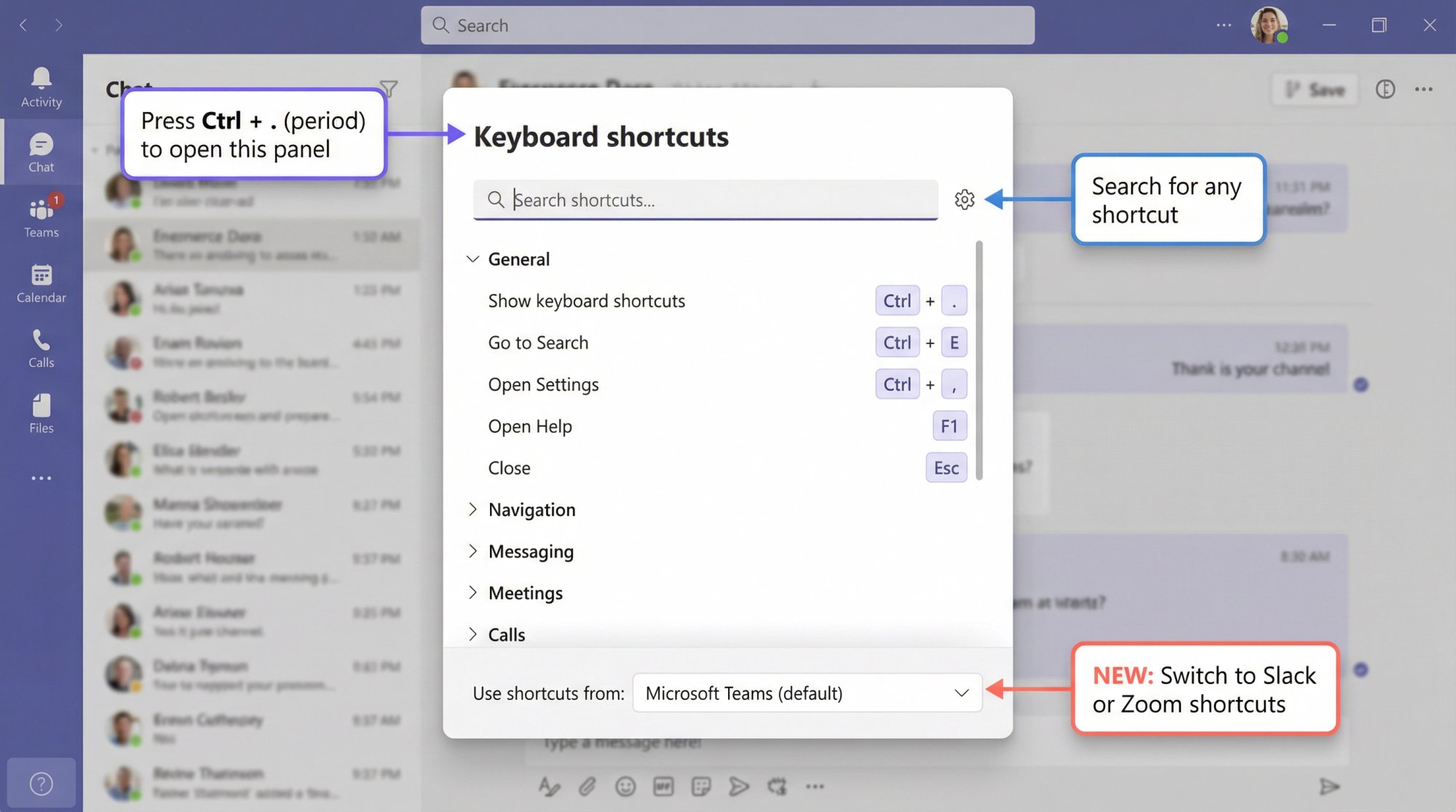
Old way: Ctrl+1 always opened Activity, Ctrl+2 always opened Chat, etc.
New way in 2026: Ctrl+1 opens the 1st app on your app bar, Ctrl+2 opens the 2nd app, and so on.
The shortcut depends on the sequential order of apps in your sidebar, not the app name.
If you (or your IT team) re-order apps in the app bar, the shortcut meanings change. Microsoft explicitly documented this behavior change.
Action to take: If you're rolling this out to a team, standardize your app bar order so everyone's shortcuts behave the same. Otherwise, you'll get "Ctrl+3 doesn't open my calendar" support tickets.
Most Useful Teams Shortcuts for Windows Desktop & Web
These are the shortcuts you'll actually use daily. We pulled these directly from Microsoft's current documentation and verified them in Teams 2.1 (January 2026 release).
Navigation Shortcuts (Get Where You Need to Go)
| Action | Windows Desktop | Teams on Web |
|---|---|---|
| Show keyboard shortcuts | Ctrl + . |
Ctrl + . |
| Go to Search | Ctrl + E |
Ctrl + Alt + E |
| Go to specific chat/channel | Ctrl + G |
Ctrl + G |
| Open 1st app on app bar | Ctrl + 1 |
Ctrl + Shift + 1 |
| Open 2nd app on app bar | Ctrl + 2 |
Ctrl + Shift + 2 |
| Open 3rd app on app bar | Ctrl + 3 |
Ctrl + Shift + 3 |
| Focus Chat/Channel list | Ctrl + L |
Alt + Shift + L |
| Go back | Alt + Left Arrow |
N/A |
| Go forward | Alt + Right Arrow |
N/A |
Pro tip: Ctrl + E to search is probably the single most useful shortcut. It lets you jump to any person, chat, channel, or file in seconds.
Messaging Shortcuts (Reply Faster, Format Better)
| Action | Windows Desktop | Teams on Web |
|---|---|---|
| Start a new chat | Ctrl + N |
Left Alt + N |
| Start chat in new window | Ctrl + Shift + N |
N/A |
| Expand compose box | Ctrl + Shift + X |
Ctrl + Shift + X |
| Send message | Ctrl + Enter |
Ctrl + Enter |
| New line (don't send) | Shift + Enter |
Shift + Enter |
| Attach a file | Alt + Shift + O |
N/A |
| Insert link | Ctrl + K |
Ctrl + K |
| Mark as important | Ctrl + Shift + I |
Ctrl + Shift + I |
| Search in current chat | Ctrl + F |
Ctrl + F |
| Pop out chat to new window | Ctrl + O |
N/A |
| Insert code block | Ctrl + Shift + Alt + B |
Ctrl + Shift + Alt + B |
| Insert inline code | Ctrl + Shift + Alt + C |
Ctrl + Shift + Alt + C |
| Insert block quote | Ctrl + Alt + 4 |
Ctrl + Alt + 4 |
| Record a video clip | Alt + Shift + E |
Alt + Shift + E |
Why These Matter for Customer Support Teams
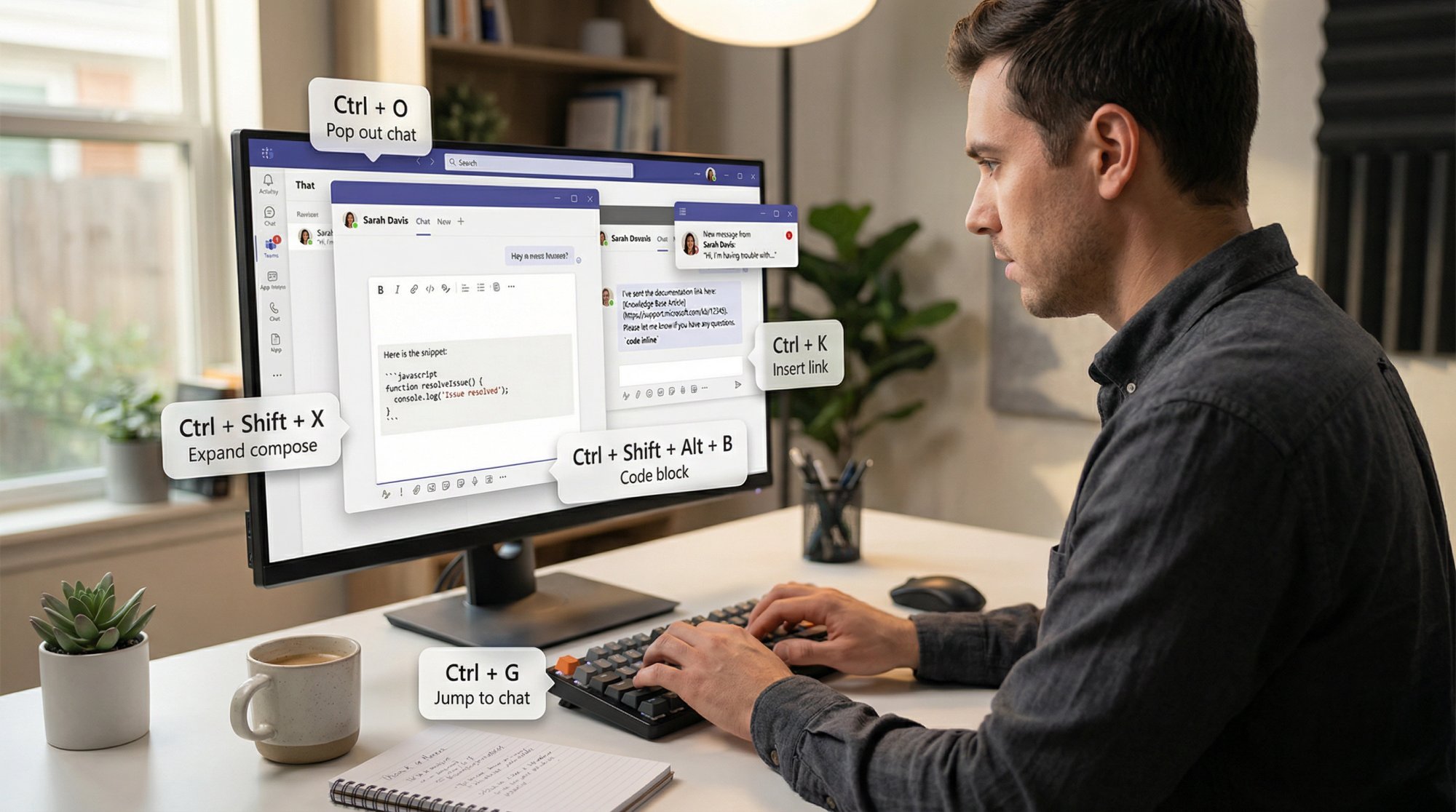
The pop-out chat shortcut (Ctrl + O) is underrated. It lets you pull a customer conversation into its own window so you can reference other chats or documentation side-by-side without losing context.
The expand compose box shortcut (Ctrl + Shift + X) gives you more room to write detailed responses. Way better than squinting at the tiny default compose area.
And if you're handling technical support, the code block and inline code shortcuts save massive time when sharing code snippets or terminal commands with customers.
Teams Meeting Shortcuts (Stay in Control During Calls)
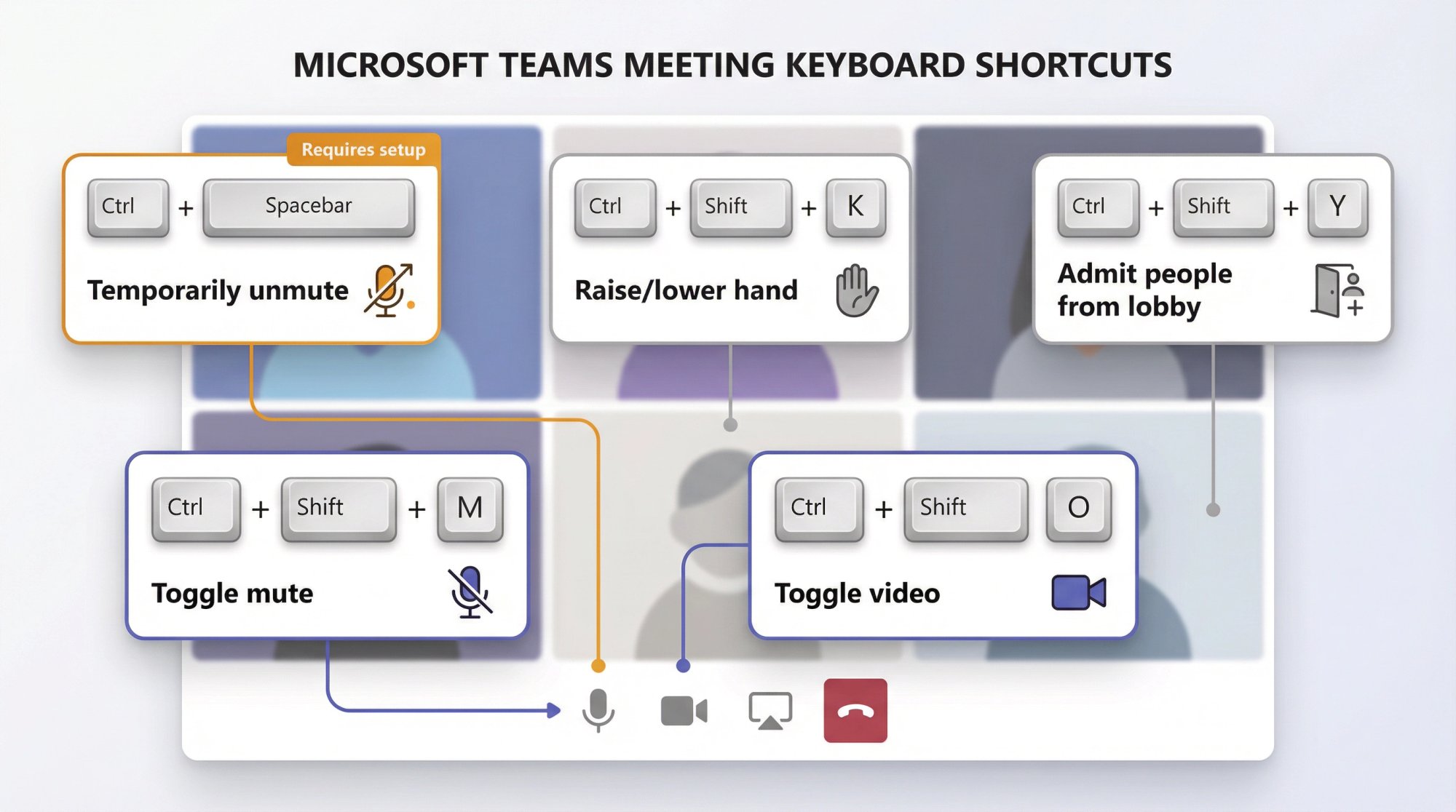
| Action | Windows Desktop | Teams on Web |
|---|---|---|
| Toggle mute | Ctrl + Shift + M |
Ctrl + Shift + M |
| Temporarily unmute (push-to-talk) | Ctrl + Spacebar |
Ctrl + Spacebar |
| Raise/lower hand | Ctrl + Shift + K |
Ctrl + Shift + K |
| Toggle video | Ctrl + Shift + O |
N/A |
| Admit people from lobby | Ctrl + Shift + Y |
N/A |
Important: The temporarily unmute feature (push-to-talk) is disabled by default. You need to enable it in Settings → Privacy → "Keyboard shortcut to unmute" before it works.
This is incredibly useful if you're on a call while working in a shared space. Hold Ctrl + Spacebar to talk, release to mute again.
Microsoft Teams Keyboard Shortcuts for Mac
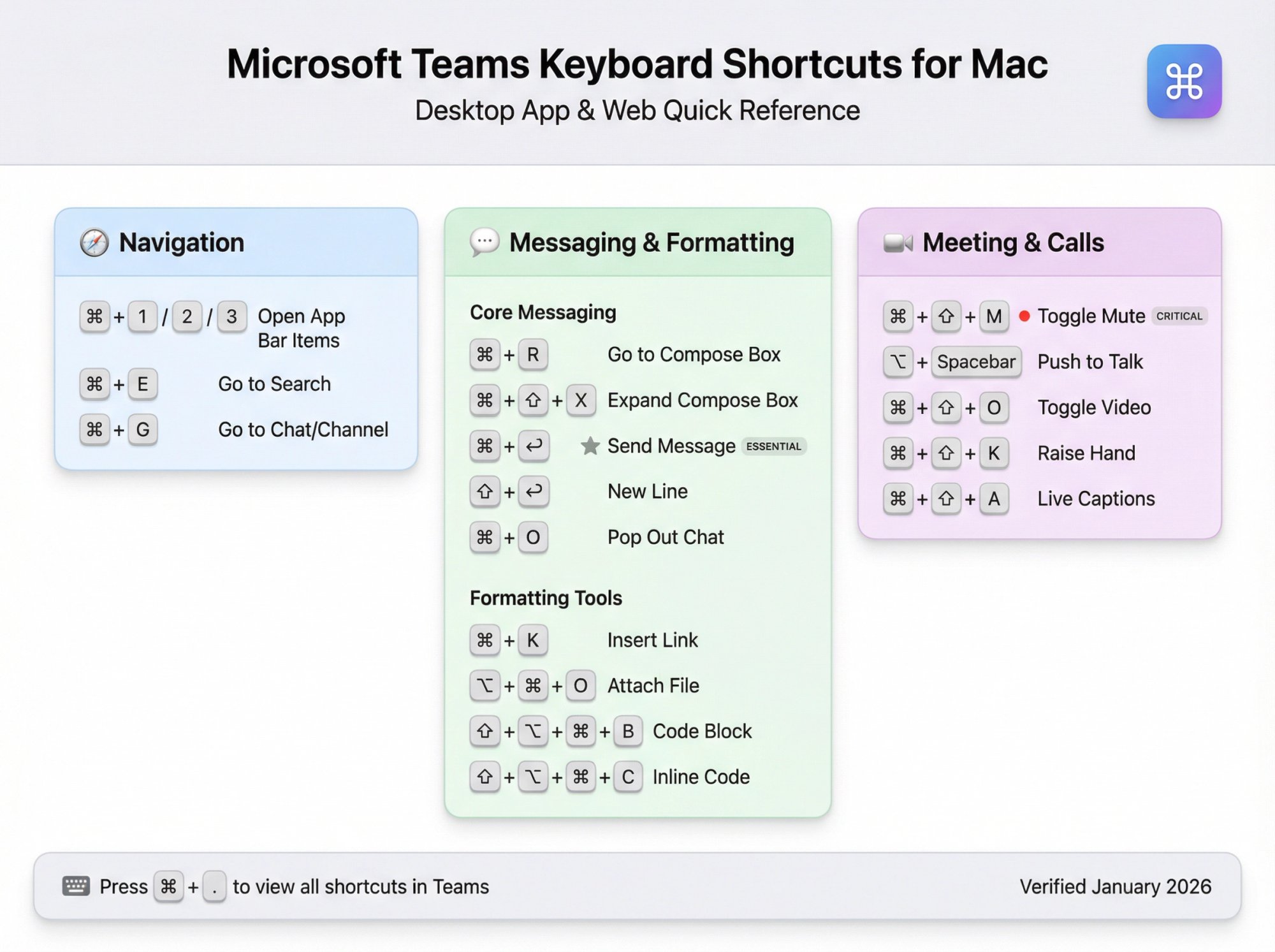
Mac keyboard shortcuts differ enough that you shouldn't try to translate Windows shortcuts mentally. Here are the high-value Mac shortcuts.
Navigation Shortcuts on Mac
| Action | Mac Desktop | Web on Mac |
|---|---|---|
| Open 1st app on app bar | Command + 1 |
Control + Shift + 1 |
| Open 2nd app on app bar | Command + 2 |
Control + Shift + 2 |
| Open 3rd app on app bar | Command + 3 |
Control + Shift + 3 |
Messaging & Formatting Shortcuts on Mac
| Action | Mac Desktop | Web on Mac |
|---|---|---|
| Go to compose box | Command + R |
Control + Command + R |
| Expand compose box | Command + Shift + X |
Command + Shift + X |
| Send message | Command + Enter |
Command + Enter |
| New line | Shift + Return |
Shift + Return |
| Attach a file | Option + Command + O |
Option + Command + O |
| Insert link | Command + K |
Command + K |
| Mark important | Command + Shift + I |
Command + Shift + I |
| Insert code block | Shift + Option + Command + B |
Shift + Option + Command + B |
| Insert inline code | Shift + Option + Command + C |
Shift + Option + Command + C |
| Pop out chat | Command + O |
N/A |
| Record video clip | Option + Command + E |
Shift + Option + Command + E |
Meeting & Call Shortcuts on Mac
| Action | Mac Desktop | Web on Mac |
|---|---|---|
| Toggle mute | Command + Shift + M |
Command + Shift + M |
| Temporarily unmute | Option + Spacebar |
Option + Spacebar |
| Raise/lower hand | Command + Shift + K |
Command + Shift + K |
| Toggle video | Command + Shift + O |
Command + Shift + O |
| Toggle live captions | Command + Shift + A |
Command + Shift + A |
What Are Slash Commands in Microsoft Teams?
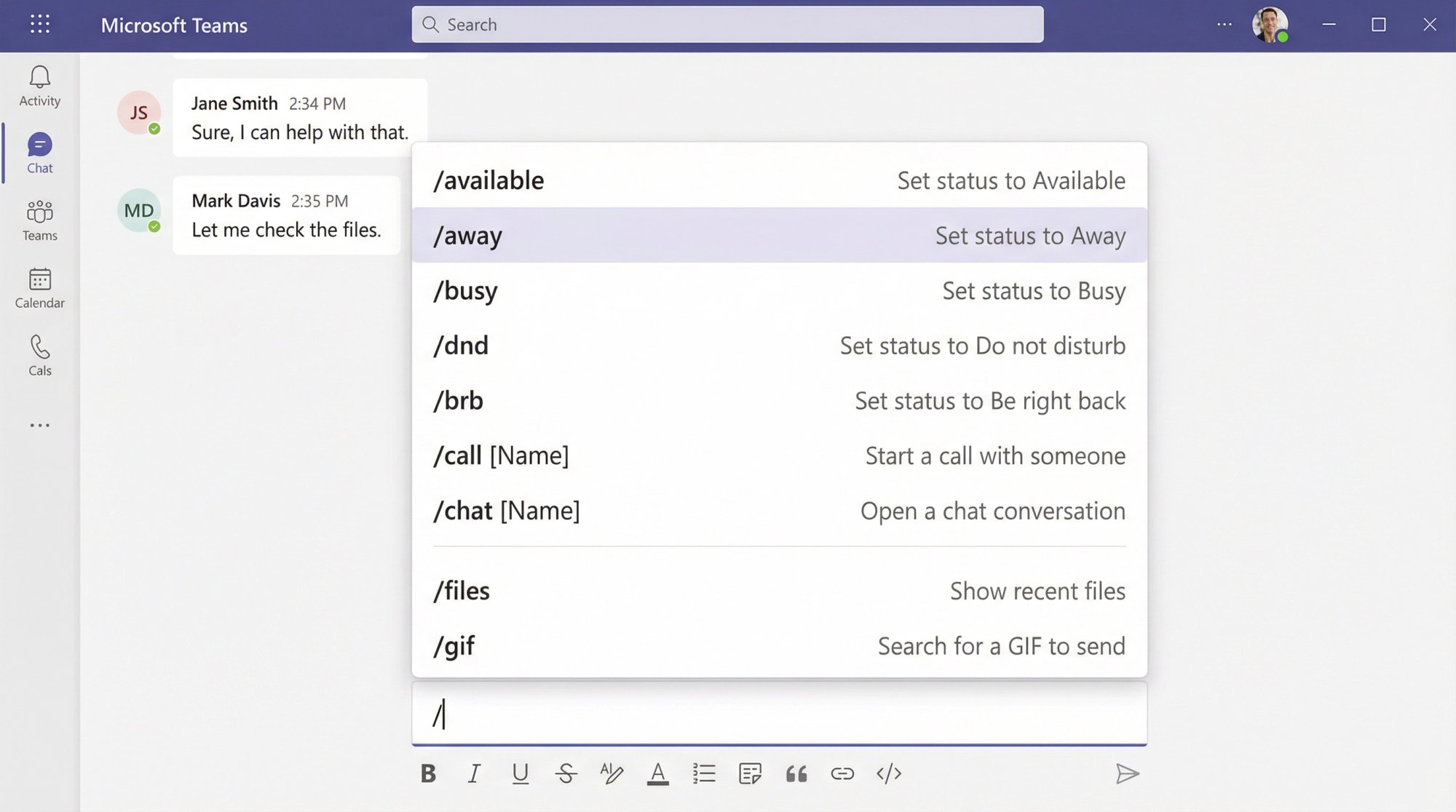
Microsoft calls slash commands "keyboard shortcuts for performing common tasks," and they're perfect for actions you do occasionally but don't want to memorize a key combo for.
How to use them:
Type / in the search box at the top → pick a command → Enter
Or type / in a chat compose box → select a command → Enter/Tab
Useful Slash Commands in Teams
→ Status commands:
• /available
• /away
• /busy
• /brb (be right back)
• /dnd (do not disturb)
→ Action commands:
• /call [Name] (start a call)
• /chat [Name] (open chat)
• /files (show recent files)
• /gif (search for GIF to send)
• /weather [City] (if enabled)
→ App integrations:
If your org has apps like Jira, GitHub, or Trello installed in Teams, you can launch them with /jira, /github, etc.
Note: Slash commands don't work on mobile. Desktop and web only.
How to Start a New Line Without Sending in Teams (Accidental Send Fix)
By default in Teams, pressing Enter sends your message. This catches everyone off guard at first.
To start a new line without sending:
Press Shift + Enter
This inserts a line break instead of sending the message.
Microsoft Might Finally Make This Configurable
As of late 2025, Microsoft was testing an option to choose whether Enter sends or Enter adds a new line. The feature was expected to roll out around February 2026, but it's not guaranteed.
Until you see the setting in your tenant, treat Shift + Enter as your default newline behavior.
Support Team Workflow: How to Use Shortcuts for Multiple Chats
Shortcuts become exponentially more powerful when you combine them into repeatable workflows. Here's how support teams can use shortcuts to triage and respond faster.
Workflow: "Triage and Respond"
① Find the conversation fast
Press Ctrl + E (Windows) or Command + E (Mac) to jump to search. Type a person's name, team name, or keyword. Hit Enter.
② Jump directly to a specific chat
Press Ctrl + G to get a "Go to" dialog. Start typing the chat or channel name. Select it and press Enter.
③ Expand compose box for detailed replies
Press Ctrl + Shift + X (Windows) or Command + Shift + X (Mac) to expand the compose area. This gives you more room to write and makes it easier to format your response.
④ Use formatting shortcuts
For technical support or detailed explanations:
→ Code blocks: Ctrl + Shift + Alt + B
→ Inline code: Ctrl + Shift + Alt + C
→ Block quotes: Ctrl + Alt + 4
→ Links: Ctrl + K
⑤ Pop out conversations for side-by-side work
Press Ctrl + O (Windows desktop) or Command + O (Mac desktop) to pop a chat into its own window. This lets you reference documentation, check past conversations, or handle multiple customers simultaneously.
This workflow turns "click around Teams for 30 seconds" into "get to the conversation and respond in 5 seconds."
If you're running customer support through Microsoft Teams, mastering these shortcuts is essential for maintaining fast response times and high customer satisfaction.
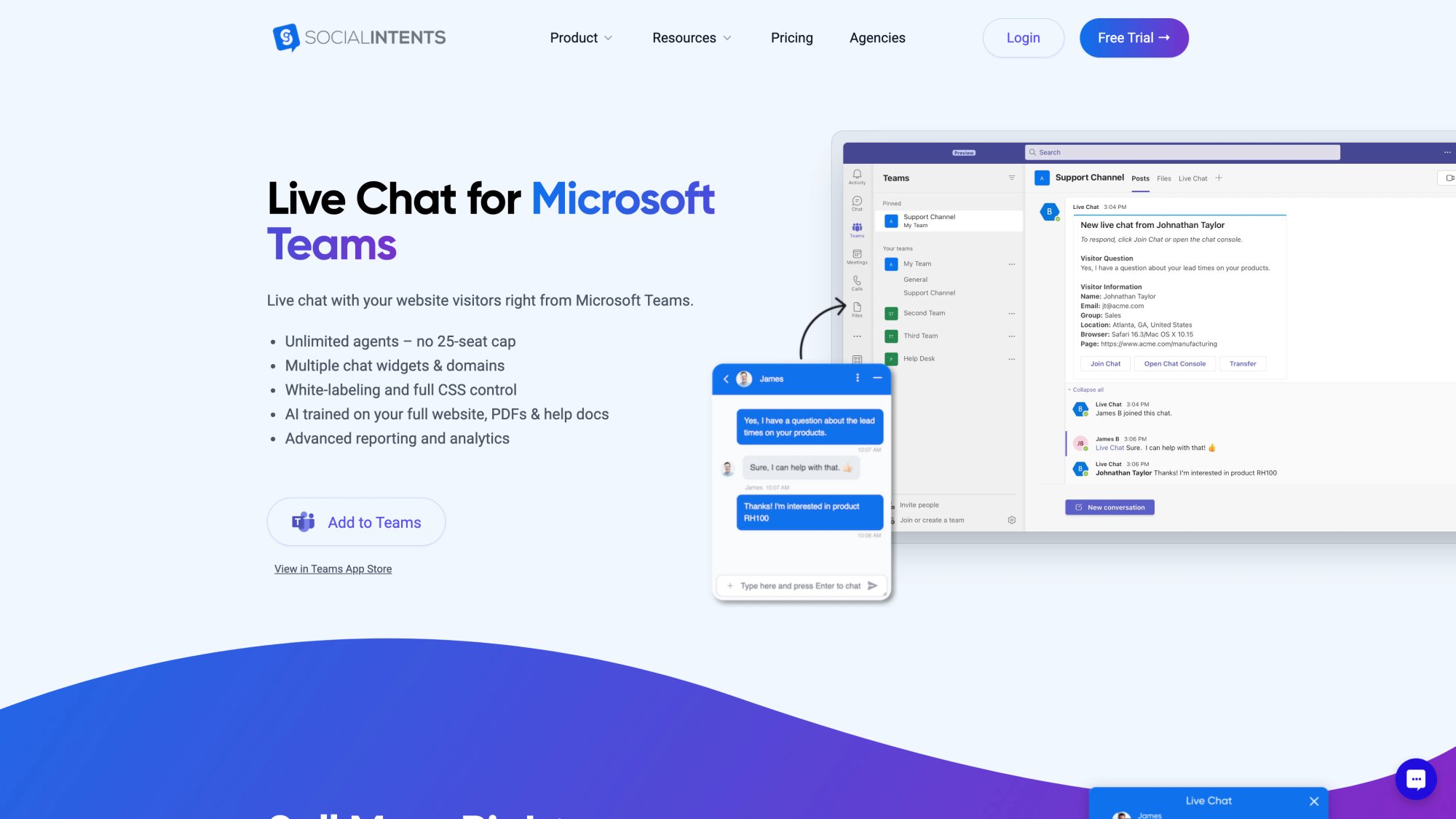
How to Answer Website Chat in Teams Using Social Intents
If you're using Social Intents, your website visitors chat through your site widget and your team replies directly from Microsoft Teams. No separate helpdesk UI. No context switching.
This is where Teams keyboard shortcuts really pay off. Here's how to maximize productivity.
① How to Use Canned Responses (Shortcuts in Social Intents)
Social Intents lets you create canned responses (they call them "Shortcuts") inside your Teams Live Chat settings:
Set them up:
① Go to Teams Live Chat settings
② Navigate to Shortcuts
③ Create common responses (greetings, troubleshooting steps, FAQs, closing messages)
Use them in chats:
① During a chat, click the shortcuts icon (list icon)
② Select the canned response
③ It pre-fills the message
④ Personalize if needed using the compose shortcuts above
⑤ Send with Ctrl + Enter
This combines beautifully with Teams' native formatting shortcuts. You can expand the compose box, insert a canned response, add a code block or link, and send it (all without touching your mouse).
② How to Use Agent Commands for Common Actions
Social Intents supports typed commands you can use during chats:
| Command | What it does |
|---|---|
/transcript |
Emails the chat transcript to the visitor at end of conversation |
/block |
Blocks future chats from that visitor/IP address |
/zap |
Triggers a Zapier automation (when manual triggers are enabled) |
/tag |
Tags the conversation for categorization |
You can type these directly in the Teams chat. They execute actions without leaving the conversation.
③ Setup Detail That Matters for Responsiveness
Social Intents requires the Team/channel to be Public (Teams doesn't allow bot interaction in private channels). Each team member should add the Live Chat app to their personal workspace to access settings and receive notifications.
Also enable desktop notifications in Teams so you don't miss incoming chats. Combine this with the Ctrl + Shift + M mute shortcut during calls so you can jump between customer chats and meetings smoothly.
④ How AI Chatbot with Human Handoff Works
Social Intents includes AI chatbots that can handle common questions automatically and escalate to your team when needed. You can train the AI on your help docs, FAQs, and website content.
When a conversation gets escalated to human support, it arrives in Teams just like any other chat. You can use all the same shortcuts, canned responses, and workflows.
This is particularly powerful for teams handling hundreds of daily conversations. The AI handles tier-1 questions, and your team focuses on complex issues that actually need human expertise.
The platform supports multiple AI models including ChatGPT chatbots, Claude chatbots, and Google Gemini chatbots, giving you flexibility to choose the AI model that works best for your use case.
⑤ What Are Custom AI Actions and How Do They Work?
Social Intents supports Custom AI Actions (basically integrations with third-party tools to enrich chat conversations with real-time data):
Examples:
→ Check order status from your e-commerce platform
→ Look up customer account details from your CRM
→ Create support tickets in your helpdesk
→ Check shipping status from your fulfillment system
These show up as options the AI can trigger during conversations, and they execute via API calls to your backend systems.
Why this matters for keyboard-first workflows: Once you've got these automated actions set up, you don't need to tab out to other systems to look up customer data. Everything flows into the Teams conversation, so you can stay in your keyboard-driven workflow.
Learn more about AI Actions and how they extend chatbot capabilities beyond basic question-answering.
What Results Can You Expect from Teams-Based Support?
Teams that handle website chat directly in Microsoft Teams (via tools like Social Intents) typically see:
• 40-50% faster response times because agents aren't switching between tools
• Higher agent capacity (one agent can handle 3-5 concurrent chats comfortably when they're using keyboard shortcuts)
• Better customer satisfaction because agents spend less time navigating and more time actually helping
• Lower training time for new agents since they don't need to learn a separate helpdesk interface
Activity Feed and Notification Shortcuts
The Activity Feed (bell icon in your sidebar) is where all your @mentions, replies, and notifications live. Here's how to manage it with keyboard shortcuts.
| Action | Windows | Mac |
|---|---|---|
| Open Activity Feed | Ctrl + 1 |
Command + 1 |
| Filter Activity | Ctrl + Shift + F |
N/A |
| Show only unread | Ctrl + Alt + U |
Option + Command + U |
| Mark all as read | Ctrl + Alt + A |
Option + Command + K |
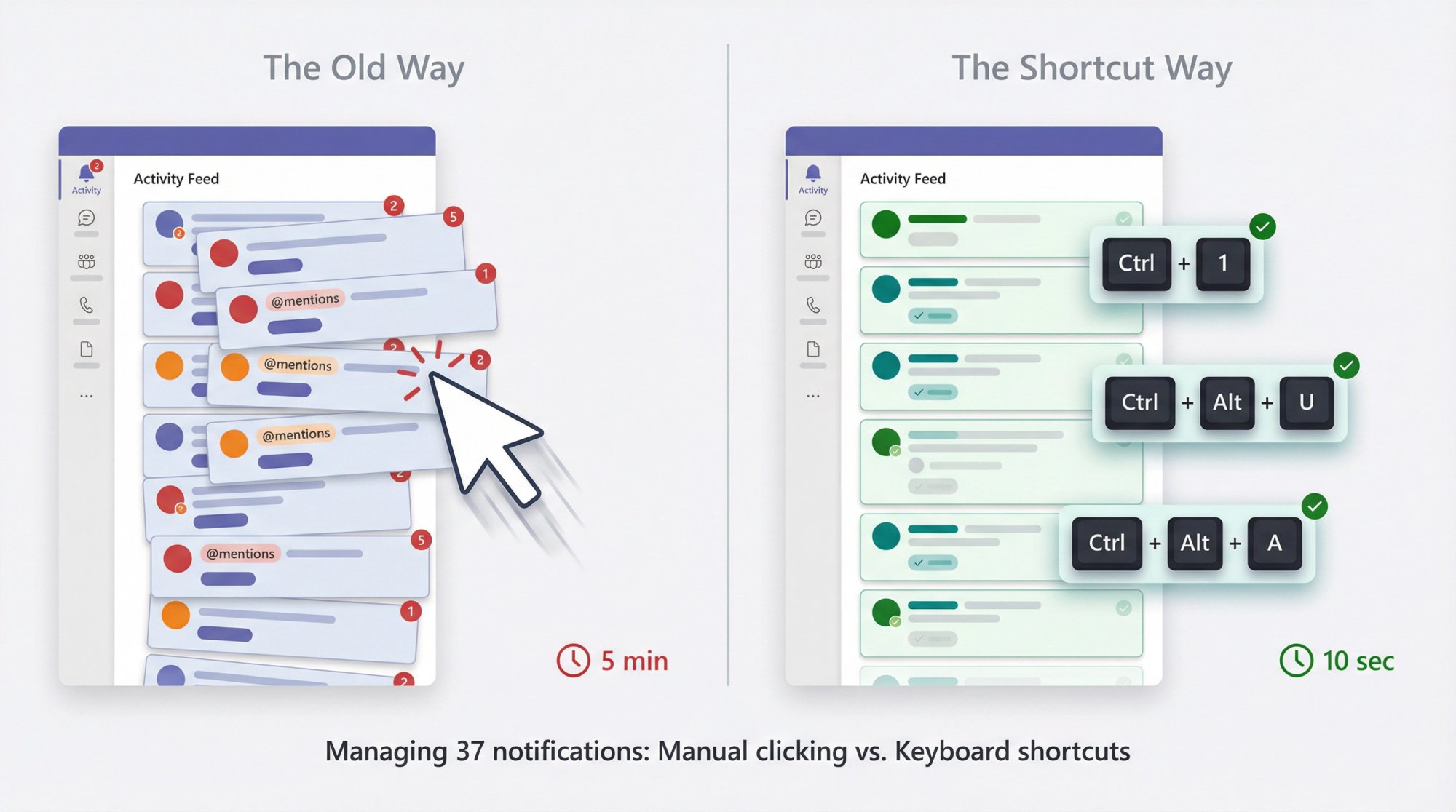
Practical use case: You come back from lunch to 37 notifications. Instead of clicking through each one:
① Press Ctrl + 1 to open Activity
② Press Ctrl + Alt + U to show only unread
③ Scan quickly to see what's urgent
④ Press Ctrl + Alt + A to mark all as read when you're done
Takes 10 seconds instead of 5 minutes.
Advanced Calling & Screen Sharing Shortcuts
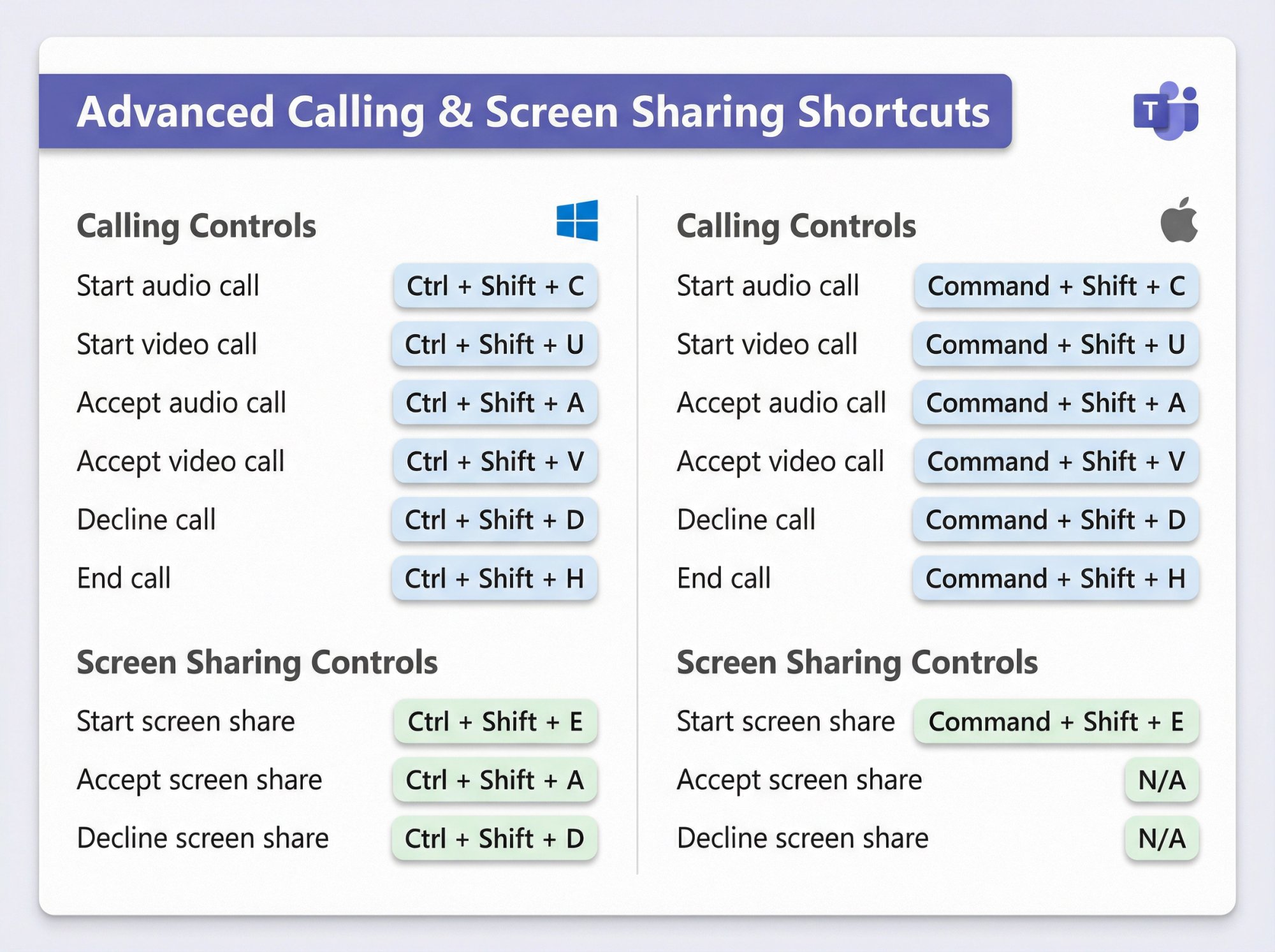
Calling Shortcuts
| Action | Windows | Mac |
|---|---|---|
| Start audio call | Ctrl + Shift + C |
Command + Shift + C |
| Start video call | Ctrl + Shift + U |
Command + Shift + U |
| Accept audio call | Ctrl + Shift + A |
Command + Shift + A |
| Accept video call | Ctrl + Shift + V |
Command + Shift + V |
| Decline call | Ctrl + Shift + D |
Command + Shift + D |
| End call | Ctrl + Shift + H |
Command + Shift + H |
| Start screen share | Ctrl + Shift + E |
Command + Shift + E |
| Accept screen share | Ctrl + Shift + A |
N/A |
| Decline screen share | Ctrl + Shift + D |
N/A |
These are especially useful for support teams doing screen shares with customers. You can accept the call, start screen sharing, and control everything without touching your mouse.
Miscellaneous Power User Shortcuts
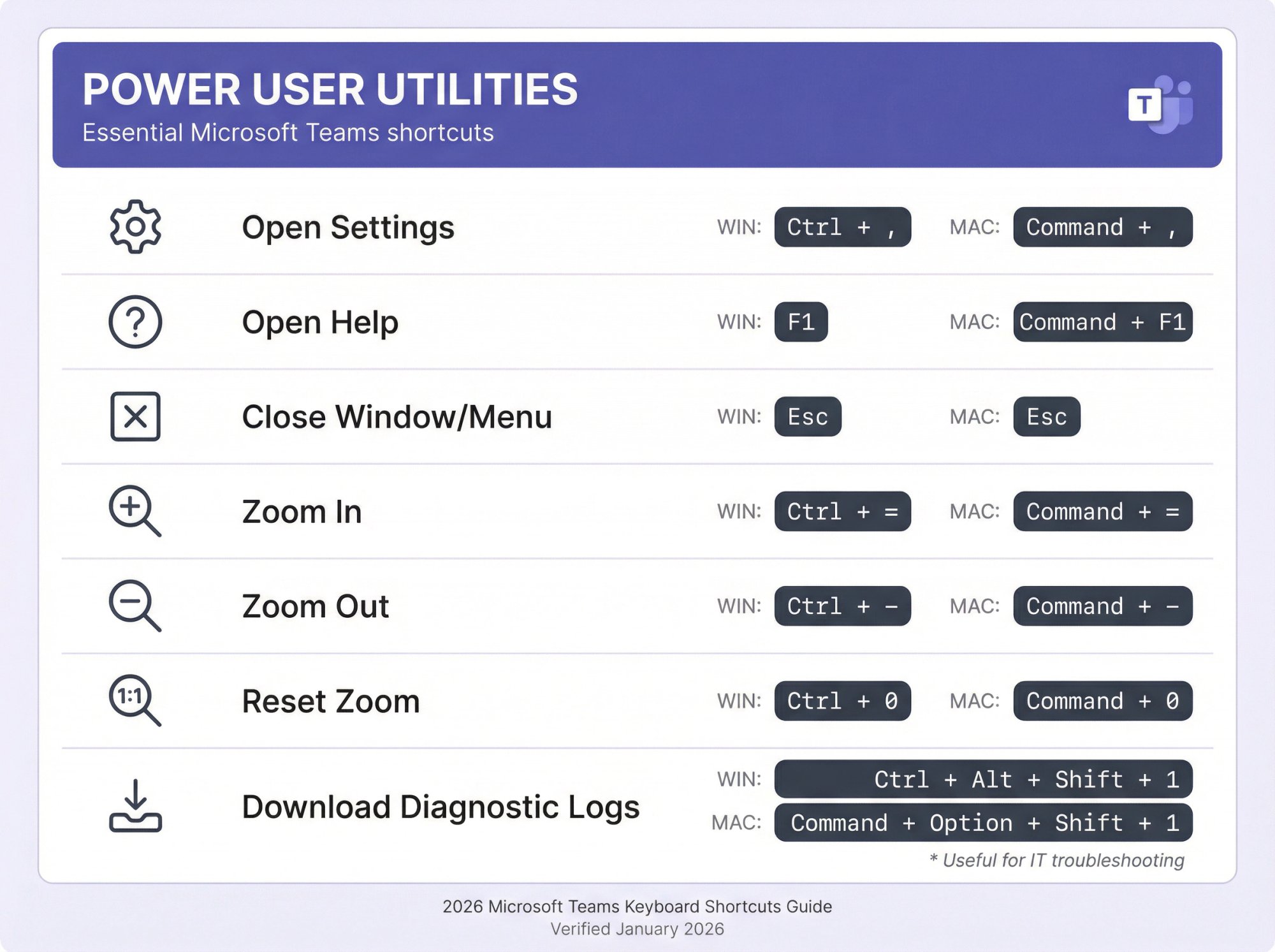
| Action | Windows | Mac |
|---|---|---|
| Open Settings | Ctrl + , |
Command + , |
| Open Help | F1 |
Command + F1 |
| Close current window/menu | Esc |
Esc |
| Zoom in | Ctrl + = |
Command + = |
| Zoom out | Ctrl + - |
Command + - |
| Reset zoom | Ctrl + 0 |
Command + 0 |
| Download diagnostic logs | Ctrl + Alt + Shift + 1 |
Command + Option + Shift + 1 |
The diagnostic logs shortcut is useful if you're troubleshooting Teams issues with IT support. It generates a log bundle you can send to Microsoft support or your internal IT team.
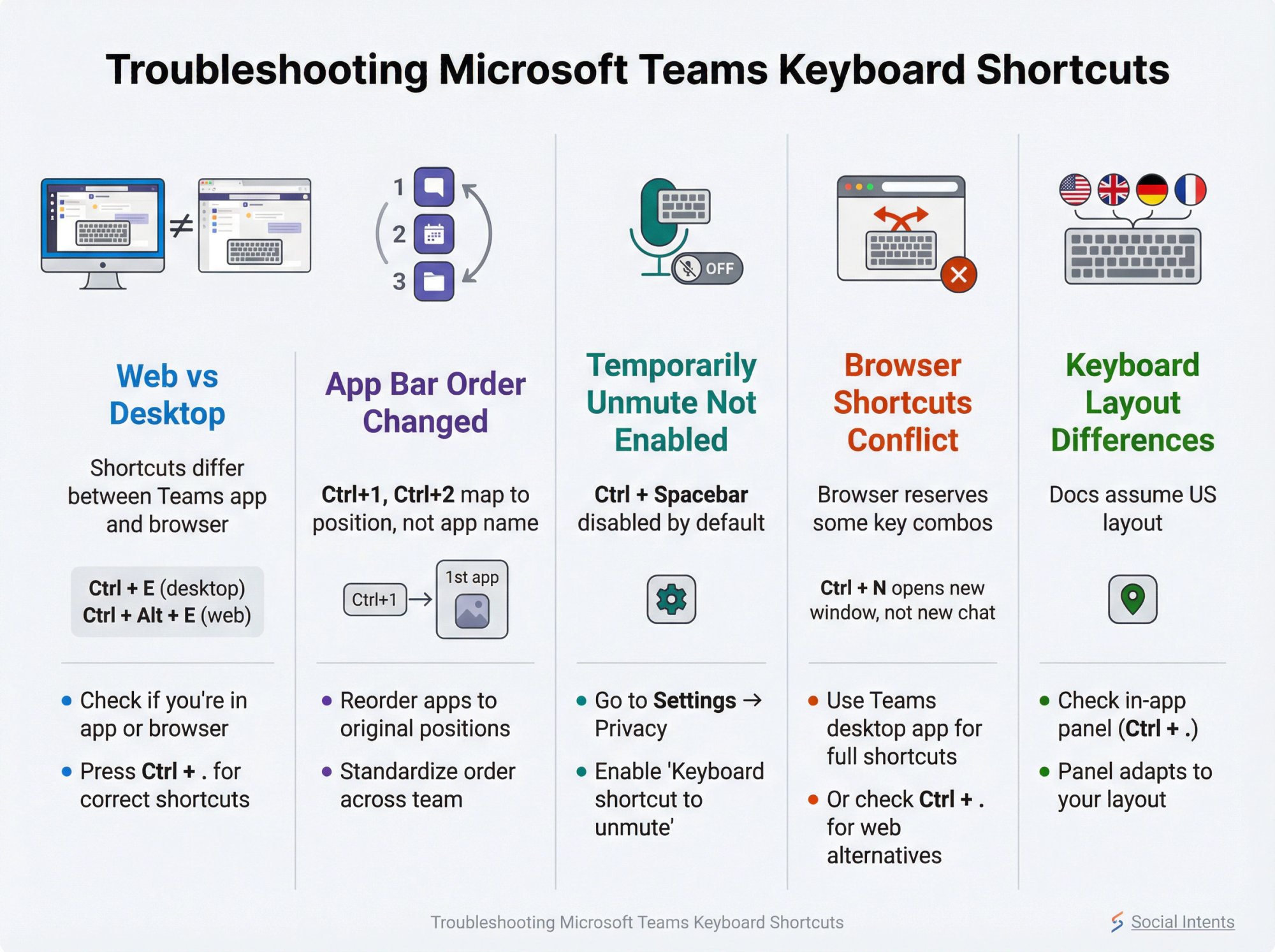
Troubleshooting: Why Teams Shortcuts Don't Work
Most shortcut problems fall into one of these categories:
① You're on Web vs Desktop
Many shortcuts differ between the Teams desktop app and Teams in a browser.
Example: Search is Ctrl + E on desktop but Ctrl + Alt + E on web.
Always check whether you're using the desktop app or browser version. The in-app shortcut panel (Ctrl + .) will show the correct shortcuts for your current platform.
② App Bar Order Changed
Remember, Ctrl + 1, Ctrl + 2, etc. map to app position, not app name. If someone (or your IT team) reordered your app bar, the shortcuts will point to different apps than you expect.
Fix: Reorder your apps back, or re-learn the new positions. Better yet, standardize the app bar order across your team.
③ "Temporarily Unmute" Isn't Enabled
The push-to-talk feature (Ctrl + Spacebar to temporarily unmute) is disabled by default.
Fix: Go to Settings → Privacy and enable "Keyboard shortcut to unmute".
④ Browser Shortcuts Conflict
If you're using Teams in a browser, some shortcuts might be reserved by the browser itself.
Example: Ctrl + N usually opens a new browser window, so Teams can't override it on web.
Fix: Use the Teams desktop app for full shortcut support, or use the web-specific shortcuts (check Ctrl + . for the web shortcut list).
⑤ Keyboard Layout Differences
Microsoft's shortcut documentation assumes a US keyboard layout. If you're using a different layout (UK, German, French, etc.), some key combinations might not match exactly.
Fix: Check the in-app shortcut panel (Ctrl + .) which adapts to your keyboard layout.
How to Learn and Remember Teams Shortcuts
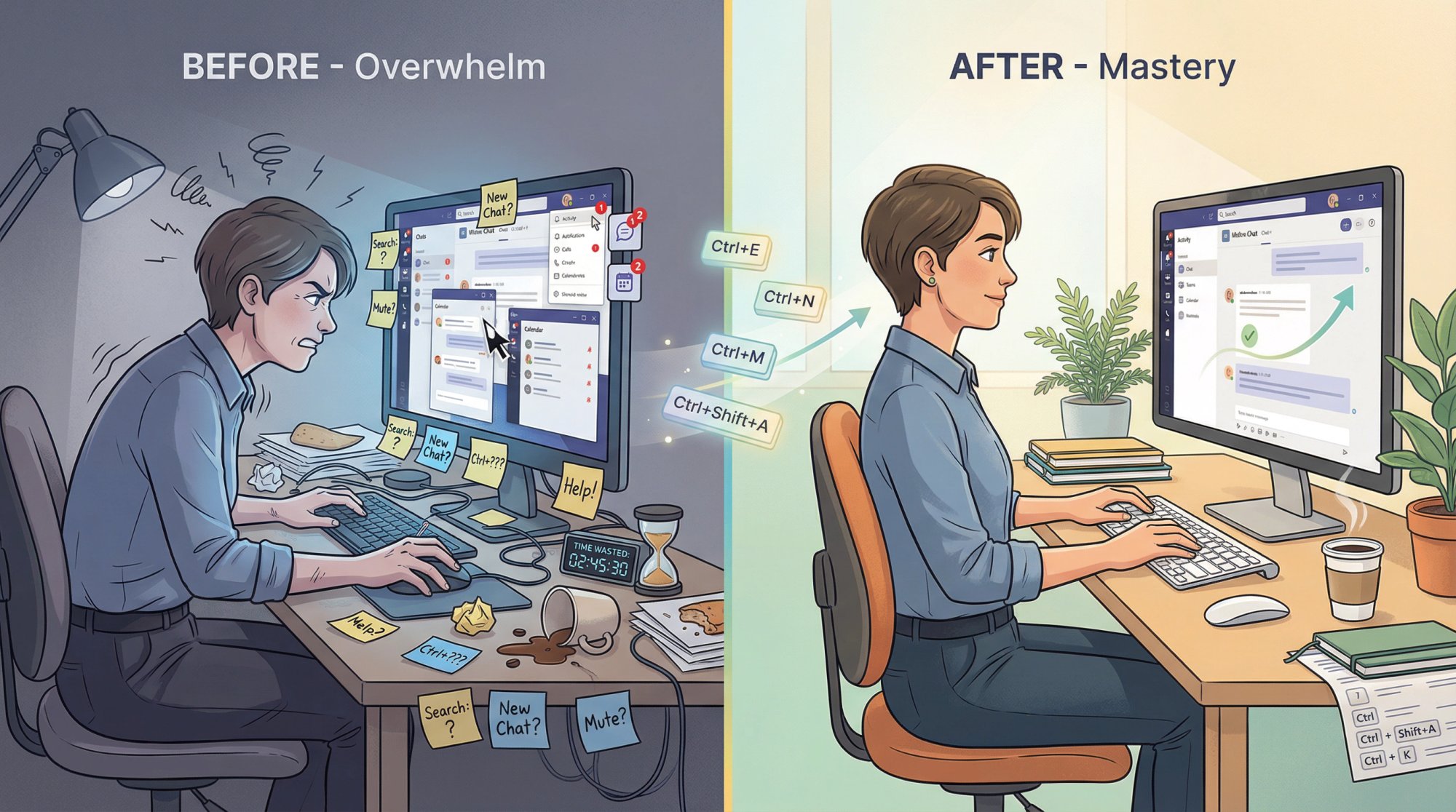
Start with 5-10 shortcuts. Don't try to memorize everything at once. Pick the shortcuts you'll use daily:
→ Ctrl + E (search)
→ Ctrl + N (new chat)
→ Ctrl + Shift + M (mute)
→ Ctrl + Enter (send message)
→ Ctrl + 1 through Ctrl + 5 (switch views)
Use just those for a week. They'll become muscle memory.
Use the cheat sheet whenever you forget. Press Ctrl + . to bring up the built-in reference. Over time, you'll need it less.
Look for patterns. Many shortcuts have mnemonic hints:
→ M for Mute
→ O for camera (On/Off)
→ E for Search ("Explore")
→ N for New chat
→ R for Reply
Once you notice these patterns, shortcuts become easier to remember.
Practice within your workflow. Make a conscious effort to use shortcuts instead of clicking. Each time you need to search, force yourself to press Ctrl + E. After a few days, it becomes automatic.
Learn universal shortcuts first. Some shortcuts work across many apps:
• Ctrl + C / Ctrl + V (copy/paste)
• Ctrl + B / Ctrl + I / Ctrl + U (bold/italic/underline)
• Ctrl + Z (undo)
These work in Teams chats just like they do in Word, Gmail, Slack, etc.
Use slash commands for rare actions. If you need to do something occasionally but there's no memorable shortcut, use a slash command instead. Setting your status? Type /away. Finding files? Type /files.
Customize shortcuts that don't stick. If a particular shortcut just doesn't feel natural, go to Settings → Keyboard shortcuts and change it. The goal is to make Teams ergonomic for you.
Stay updated. Microsoft adds new shortcuts periodically. The push-to-talk feature and shortcut customization were both added in 2025. Check the built-in shortcut panel occasionally to see what's new.
What's Coming in 2026: New Shortcut Features
Microsoft continues to evolve Teams keyboard shortcuts. Here's what we're tracking for 2026:
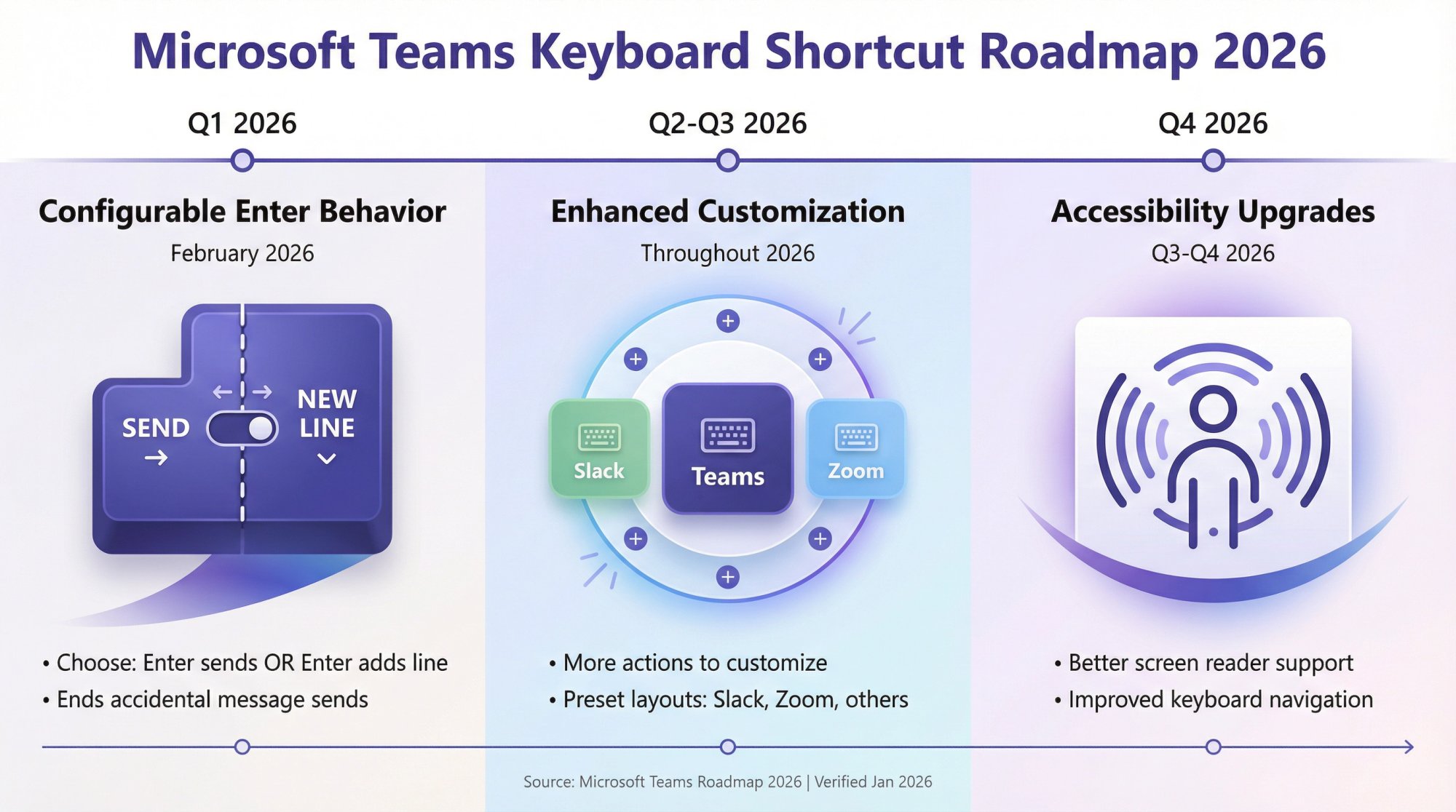
Configurable Enter Key Behavior
As of late 2025, Microsoft was testing an option to choose whether Enter sends a message or Enter inserts a new line. This feature was expected to roll out around February 2026.
Currently, if you want a new line, you have to press Shift + Enter. The new option would let you reverse that behavior (Enter for new line, Ctrl+Enter to send).
Why it matters: Different teams have different preferences, and people coming from Slack (where Enter is new line by default) constantly send messages accidentally in Teams.
Enhanced Shortcut Customization
The shortcut customization feature introduced in 2025 continues to expand. Microsoft is adding more actions that can be customized and improving the preset layouts for Slack, Zoom, and other apps.
Accessibility Improvements
Microsoft is working on better screen reader support for shortcuts and improved keyboard navigation for users with motor control challenges.
Microsoft Teams evolves constantly. This guide reflects Microsoft's official shortcut reference and in-app documentation as verified on January 7, 2026.
Your tenant and app version may differ. Always confirm shortcuts using Ctrl + . (Windows) or Command + . (Mac) inside your Teams app.
How to Handle Website Chat Directly in Teams
If you want your support team to answer website visitors without leaving Microsoft Teams, that's exactly what Social Intents does.
Route website chat into Teams (or Slack, Google Chat, Zoom, or Webex). Add AI chatbots with human handoff. Use canned responses, agent commands, and custom actions. All while staying in the tools your team already uses every day.
Whether you're running a Shopify store, WordPress site, BigCommerce shop, or any other platform, Social Intents integrates with over 60+ business tools to streamline your customer support workflow.

Start a free 14-day trial of Social Intents (no credit card required).
Frequently Asked Questions
What are the most important Microsoft Teams keyboard shortcuts?
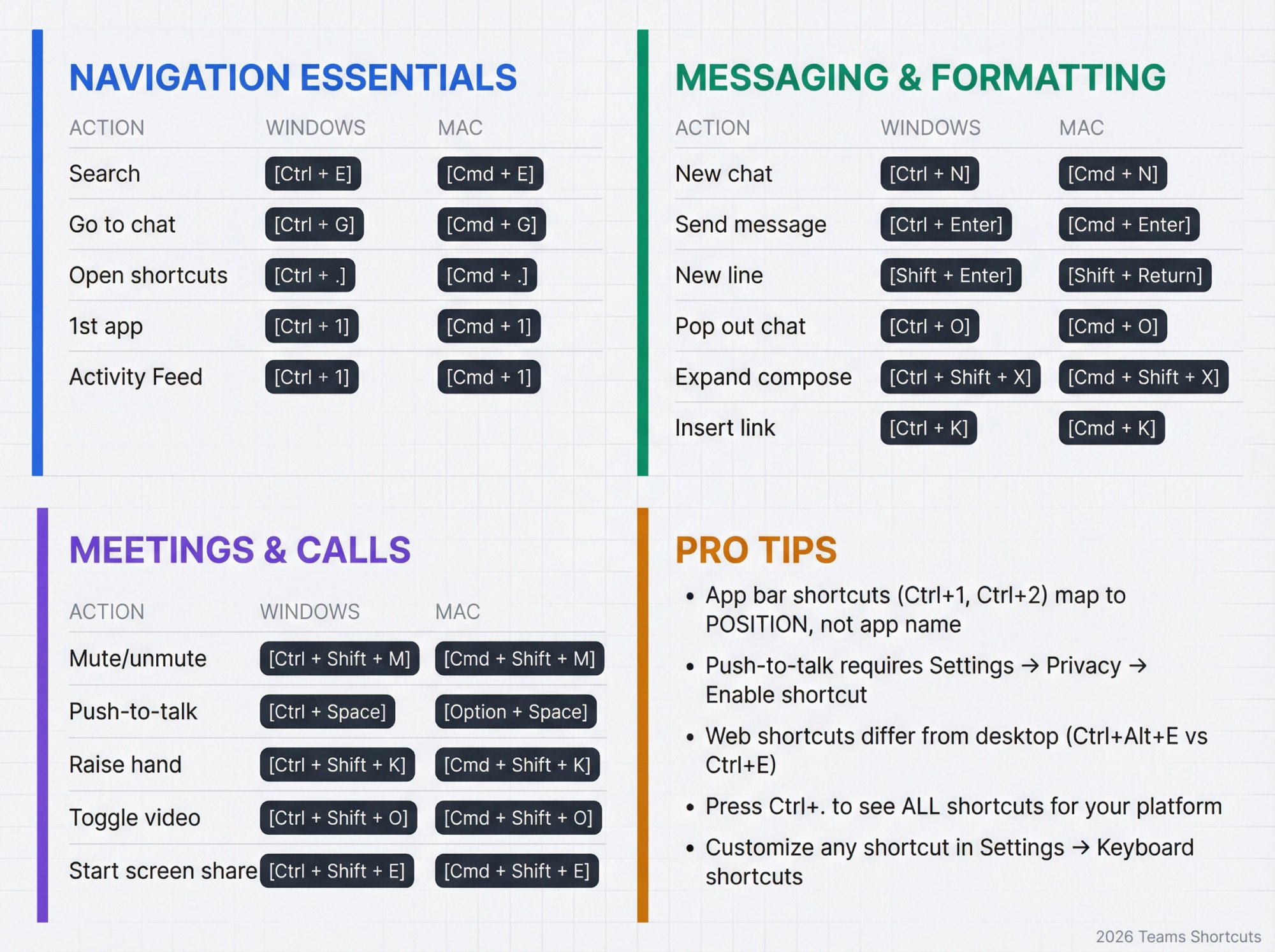
The most useful shortcuts for daily work are:
• Ctrl + E (search for people, chats, channels, files)
• Ctrl + N (start a new chat)
• Ctrl + Shift + M (mute/unmute in meetings)
• Ctrl + Enter (send a message)
• Ctrl + G (go to a specific chat or channel)
• Ctrl + O (pop out a chat to a new window)
These cover the actions you do dozens of times per day. Master these first before moving to advanced shortcuts.
How do I see all keyboard shortcuts in Microsoft Teams?
Press Ctrl + . (Windows) or Command + . (Mac) to open the complete keyboard shortcuts panel. You can also access it from Settings and more (…) → Keyboard shortcuts.
The built-in panel is searchable and shows shortcuts specific to your platform (desktop vs web, Windows vs Mac).
Can I customize keyboard shortcuts in Microsoft Teams?
Yes. As of 2025, Teams lets you customize shortcuts directly in the keyboard shortcuts window:
① Press Ctrl + . to open keyboard shortcuts
② Find the shortcut you want to change
③ Tab to Edit shortcut → press Enter
④ Assign your new key combo → Save
You can also use preset layouts from other apps (Slack, Zoom, etc.) if you want to match muscle memory from those tools.
Why do my app bar shortcuts (Ctrl+1, Ctrl+2, etc.) open different apps than expected?
Microsoft changed how these shortcuts work in 2024. Instead of Ctrl+1 always opening Activity, Ctrl+2 always opening Chat, etc., the shortcuts now map to app position on your sidebar.
Ctrl+1 opens the 1st app in your app bar, Ctrl+2 opens the 2nd app, and so on. If you (or your IT team) reordered your apps, the shortcut meanings change.
To fix this, either reorder your apps back to the original positions, or standardize the app bar order across your team.
How do I start a new line without sending my message in Teams?
By default, pressing Enter sends your message in Teams. To start a new line without sending, press Shift + Enter.
Microsoft was testing an option to make this behavior configurable (so Enter could insert a new line instead of sending), expected around February 2026, but it's not available yet in most tenants.
What's the keyboard shortcut to mute/unmute in Teams meetings?
Mute/unmute: Ctrl + Shift + M (Windows) or Command + Shift + M (Mac)
Temporarily unmute (push-to-talk): Ctrl + Spacebar (Windows) or Option + Spacebar (Mac)
Important: The temporarily unmute feature is disabled by default. You need to enable it in Settings → Privacy → "Keyboard shortcut to unmute".
How do I pop out a chat to a new window in Teams?
Press Ctrl + O (Windows desktop) or Command + O (Mac desktop) while in a chat.
This pulls the conversation into its own window, which is incredibly useful for support teams handling multiple customers simultaneously. You can reference other chats, documentation, or systems side-by-side without losing context.
Note: This shortcut only works in the Teams desktop app, not in the web version.
Do Teams keyboard shortcuts work on mobile?
No. Most keyboard shortcuts only work in the Teams desktop app and web version. Mobile devices don't support keyboard shortcuts (since most people use mobile via touch).
Slash commands also don't work on mobile. They're desktop and web only.
How do I use slash commands in Microsoft Teams?
Type / in the search box at the top of Teams or in a chat compose box. Teams will show you a list of available commands.
Select the command you want and press Enter (or Tab to autocomplete, then Enter).
Common slash commands include:
→ /available, /away, /busy, /dnd (set status)
→ /call [Name] (start a call)
→ /chat [Name] (open a chat)
→ /files (show recent files)
→ /gif (search for GIFs)
Can I use Teams keyboard shortcuts if I have accessibility needs?
Yes. Keyboard shortcuts are often easier than using a mouse or trackpad for users with motor control challenges. Teams also supports screen reader navigation.
Microsoft is continuously improving accessibility features, including better keyboard navigation and screen reader support for shortcuts.
If you have specific accessibility needs, check Settings → Accessibility in Teams for additional options.
Why are Teams web shortcuts different from desktop shortcuts?
Browser-based Teams has to work within the constraints of web browsers, which reserve many keyboard shortcuts for browser functions (like Ctrl + N to open a new window).
To avoid conflicts, Microsoft mapped different shortcuts for Teams on the web. For example, Search is Ctrl + E on desktop but Ctrl + Alt + E on web.
For full shortcut support, use the Teams desktop app. But if you must use web, press Ctrl + . to see the complete web shortcut list.
How do I handle website chat in Microsoft Teams?
You can route website chat directly into Teams using a tool like Social Intents. Your website visitors chat through your site widget, and your team replies from within Microsoft Teams (no separate helpdesk interface required).
This works with canned responses, AI chatbots, agent commands, and all the Teams keyboard shortcuts you already know. It's particularly useful for support teams that want to stay in one tool instead of switching between Teams and a separate live chat platform.
You can embed the Teams chat widget on your website and start handling customer conversations in minutes.
What are canned responses in Teams live chat?
Canned responses (also called "shortcuts" in some tools) are pre-written messages you can insert into chats with a few clicks. They're useful for common responses like:
→ Greetings ("Hi! How can I help you today?")
→ Troubleshooting steps
→ FAQ answers
→ Closing messages
If you're using Social Intents for Teams live chat, you can set up canned responses in your Teams Live Chat settings and use them during any customer conversation. This pairs well with Teams formatting shortcuts (expand compose box, insert links, add code blocks) when you need to personalize a canned reply.
