Your Google Chat inbox is probably a mess right now.
Critical messages buried under noise. Notification overload from spaces you don't care about. That one important decision lost somewhere in a thread from two weeks ago. Maybe you're toggling between Chat, email, and three other tools just to answer a customer question.
It doesn't have to be this way.
Google Chat has evolved into a genuinely powerful collaboration platform, but most teams only scratch the surface. You're missing keyboard shortcuts that could save hours. Search operators that find anything instantly. AI features that catch you up in seconds instead of scrolling through hundreds of messages.
This guide shows you how to actually master Google Chat in 2026. Not generic tips you'll never use. Real productivity gains you'll notice immediately.
What you'll learn:
→ How to organize Chat so critical conversations never get lost
→ Keyboard shortcuts and search tricks that eliminate wasted time
→ Smart notification strategies that give you focus without missing important messages
→ AI-powered features that summarize hours of conversation in seconds
→ How to turn Google Chat into a complete customer support platform with Social Intents
Let's fix your Chat workflow.
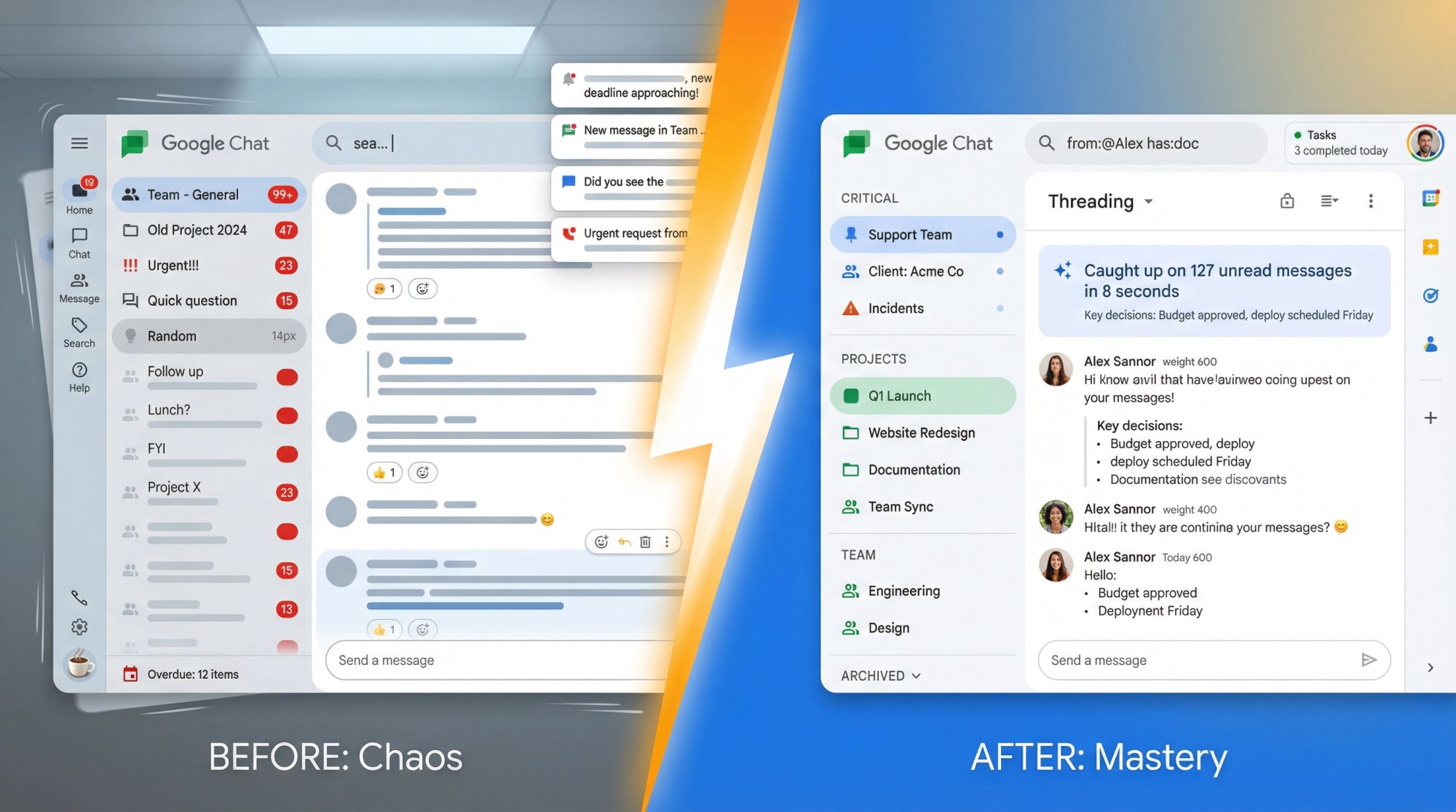
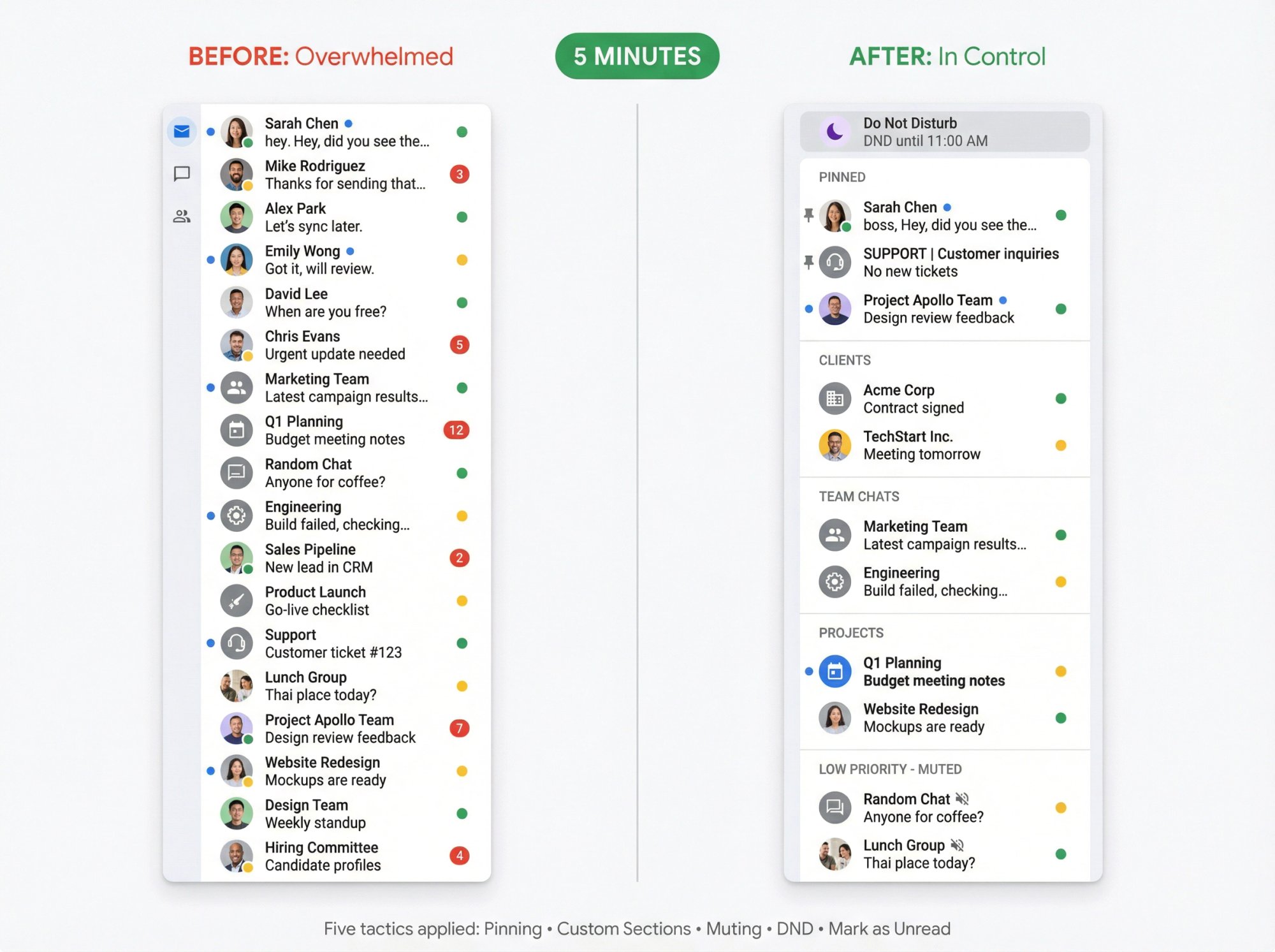
How to Boost Google Chat Productivity in 5 Minutes
Start here. These five changes take under five minutes total and deliver immediate results.
How to Pin Important Conversations in Google Chat
Stop scrolling to find your boss, your main project space, or your support team chat. Pin them to the top of your sidebar so they stay visible regardless of activity.
Pinning is powerful because Google Chat shows a small dot next to pinned items when there are unread messages. You get visibility without the noise.
The pinning philosophy: Google Chat shows a small dot next to pinned items when there are unread messages. You get visibility without the noise.
To pin any conversation or space, click the three dots next to its name and select "Pin". It stays at the top until you manually unpin it. Reference: Google Chat Help on pinning conversations
Pro tip: Only pin 3-5 conversations maximum. More than that defeats the purpose.
How to Organize Google Chat with Custom Sections
If you're drowning in dozens of chats, custom sections are your lifeline. This feature rolled out in late 2024 and lets you create your own organizational structure.
You can group related conversations under labels like:
→ Clients
→ Team Chats
→ Projects
→ Support
Just drag and drop conversations into the sections you create. Everything becomes instantly more navigable. Reference: Google Workspace Updates on custom sections
Important note: You can only create and manage sections on desktop right now, but they'll appear (read-only) on mobile.
How to Mute Noisy Conversations Without Missing Important Messages
Muting is wildly underrated. When you mute a conversation, it won't highlight, won't jump to the top of your list, and won't clutter your Home view.
The muting secret: You still get notified when someone @mentions you. That means you can mute that chatty team space without missing messages directed specifically at you.
Reference: Google Chat Help on muting
How to Set Do Not Disturb Schedules in Google Chat
When you activate Do Not Disturb, Chat pauses all notifications and shows colleagues how long you'll be unavailable. This reduces "are you there?" interruptions.
Better yet, you can create DND schedules. Set your focus hours (say, 9-11 AM daily) and Chat automatically silences notifications during that window. Your team sees your status and knows when you'll be back. Reference: Google Chat Help on status settings
How to Use "Mark as Unread" for Follow-Up Tasks
You read a message but can't deal with it right now? Mark it unread.
This keeps the unread badge visible and maintains the bold text highlight, creating a personal to-do queue. You can filter your Home view to show only unread items, turning Chat into an actionable inbox. Reference: Google Chat Help on mark as unread
The workflow: See message requiring action, mark unread, process during designated Chat time, mark read when complete.
What Are the Best Google Chat Keyboard Shortcuts?
Google Chat has dozens of shortcuts. You need maybe seven of them.
What Is the Master Keyboard Shortcut in Google Chat?
When you're not typing in a text field, press ? to open the shortcuts overlay. This shows you every available shortcut for your current context. Reference: Google Chat Help on keyboard shortcuts
Bookmark this in your muscle memory. It's your reference guide whenever you forget a shortcut.
What Keyboard Shortcuts Do You Actually Need in Google Chat?
These are the ones you'll actually use:
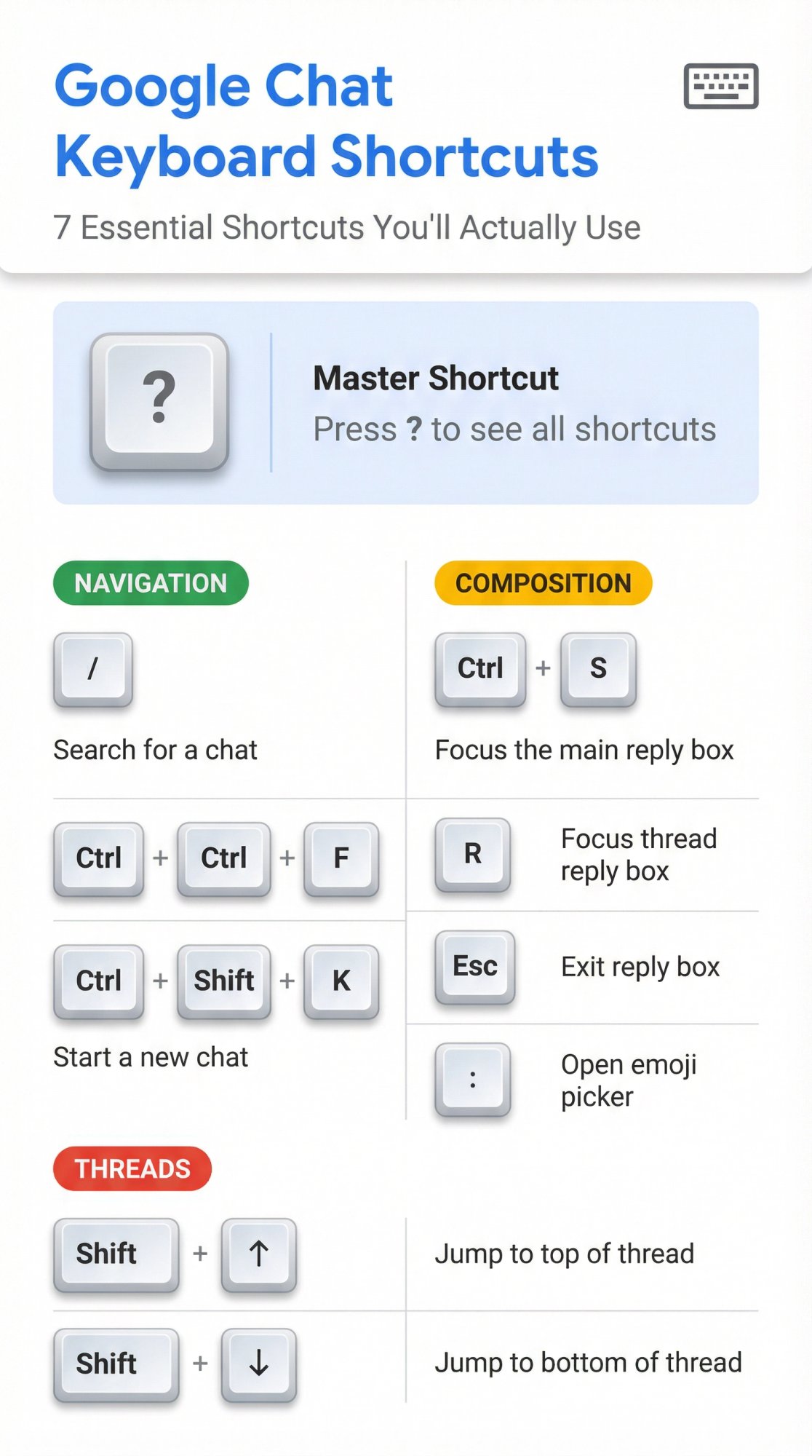
| Category | Shortcut | Function |
|---|---|---|
| Navigation | / or Ctrl + F | Search for a chat |
| Navigation | Ctrl + Shift + K | Start a new chat |
| Composition | Ctrl + S | Focus the main reply box |
| Composition | R | Focus the thread reply box |
| Composition | Esc | Exit reply box |
| Composition | : | Open emoji picker |
| Threads | Shift + ↑ or Shift + ↓ | Jump to top/bottom of thread |
That's it. Master these seven shortcuts and you'll navigate Chat faster than 90% of users.
How to Write Messages That Get Faster Responses
Most teams don't have a Google Chat problem. They have a clarity problem.
When your messages are vague or poorly formatted, people ignore them or ask for clarification. When they're clear and structured, you get answers immediately.
How to Format Messages in Google Chat for Clarity
Google Chat supports Markdown-style formatting. Use it strategically to make messages scannable.
The quick reference:
Bold: *Text*
Italic: _Text_
Strikethrough: ~Text~
Inline code: `Text`
Code block: ```Text```
Bullet: - Text (or * Text)
Reference: Google Chat Help on formatting
When to format:
• Bold for key points, deadlines, or decisions
• Italic for emphasis or aside comments
• Inline code for commands, technical terms, or anything someone might copy-paste
• Code blocks for multi-line technical content
The formatting principle: Don't format everything. Format when it improves understanding.
What Message Structure Gets the Fastest Response?
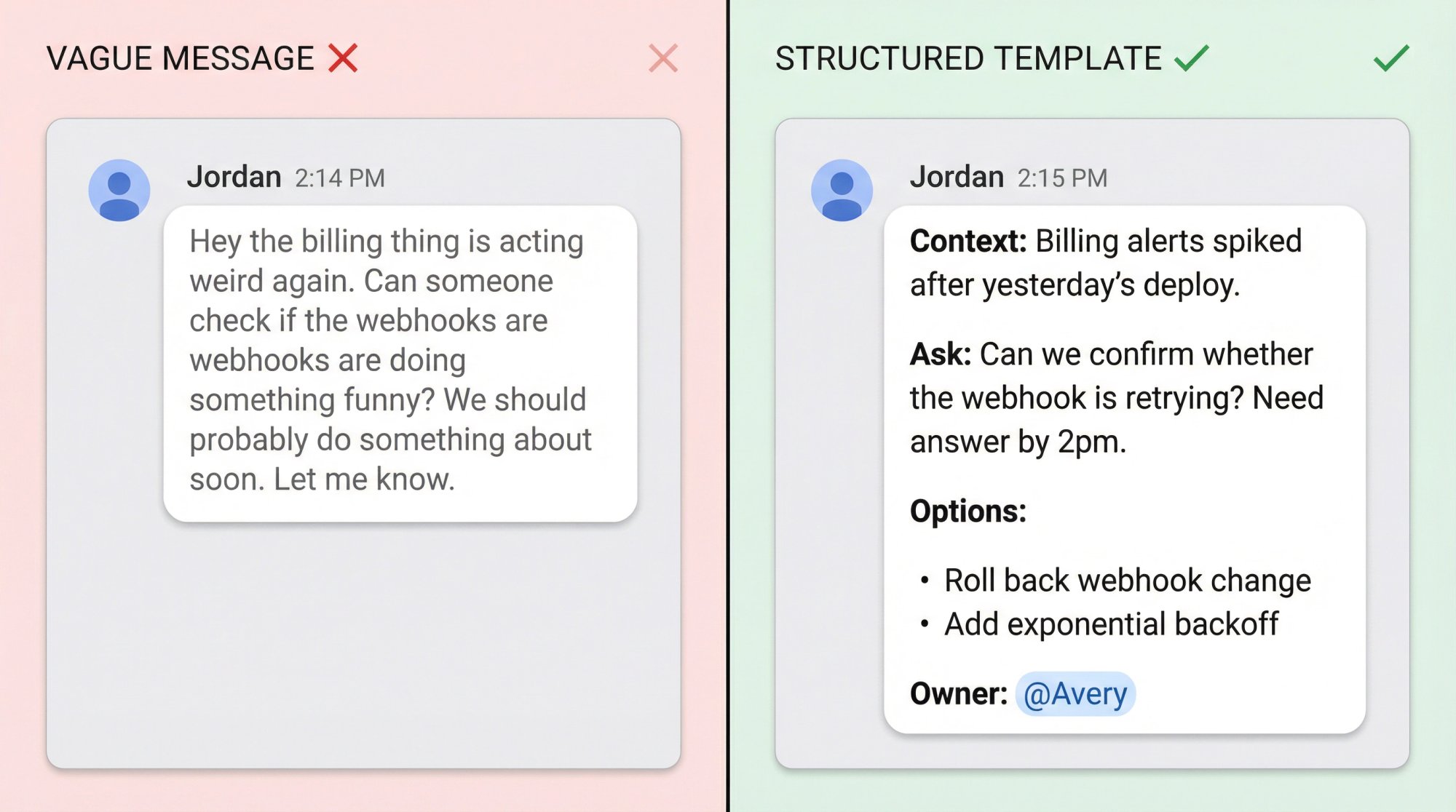
For operational messages that need action, use this template:
Context: [One sentence of background]
Ask: [What you need, by when]
Options: [2-3 bullets if relevant]
Owner: @name
Example:
Context: Billing alerts spiked after yesterday's deploy.
Ask: Can we confirm whether the webhook is retrying? Need answer by 2pm.
Options:
- Roll back webhook change
- Add exponential backoff
Owner: @Avery
This structure eliminates back-and-forth. The recipient immediately understands the situation, what you need, their options, and who's responsible.
How to Use @Mentions Effectively in Google Chat
Type @ and a person's name to direct their attention in busy group chats. Chat highlights the message for them.
There's a feature most people miss: as of 2025, if you @mention someone who's not in the space, Chat asks whether you want to mention them in text or actually invite them to the conversation. Reference: Google Workspace Updates on mentions
This lets you reference colleagues for context without pulling them into the discussion.
Advanced mentions:
• @all (Notifies everyone in the space, use sparingly)
• @here (Notifies active members only)
When Should You React Instead of Replying?
Sometimes a thumbs up says everything. Hover over any message and click the smiley face to add an emoji reaction.
On mobile, there's an even faster trick: double-tap any message for an instant 👍.
Reactions reduce noise while acknowledging messages. Use them strategically: ✅ for "task done," 👀 for "I'm on it," 🎉 for wins.
How to Never Lose Important Messages in Google Chat
Google Chat has two different "pinning" concepts. Understanding both prevents hours of lost productivity.
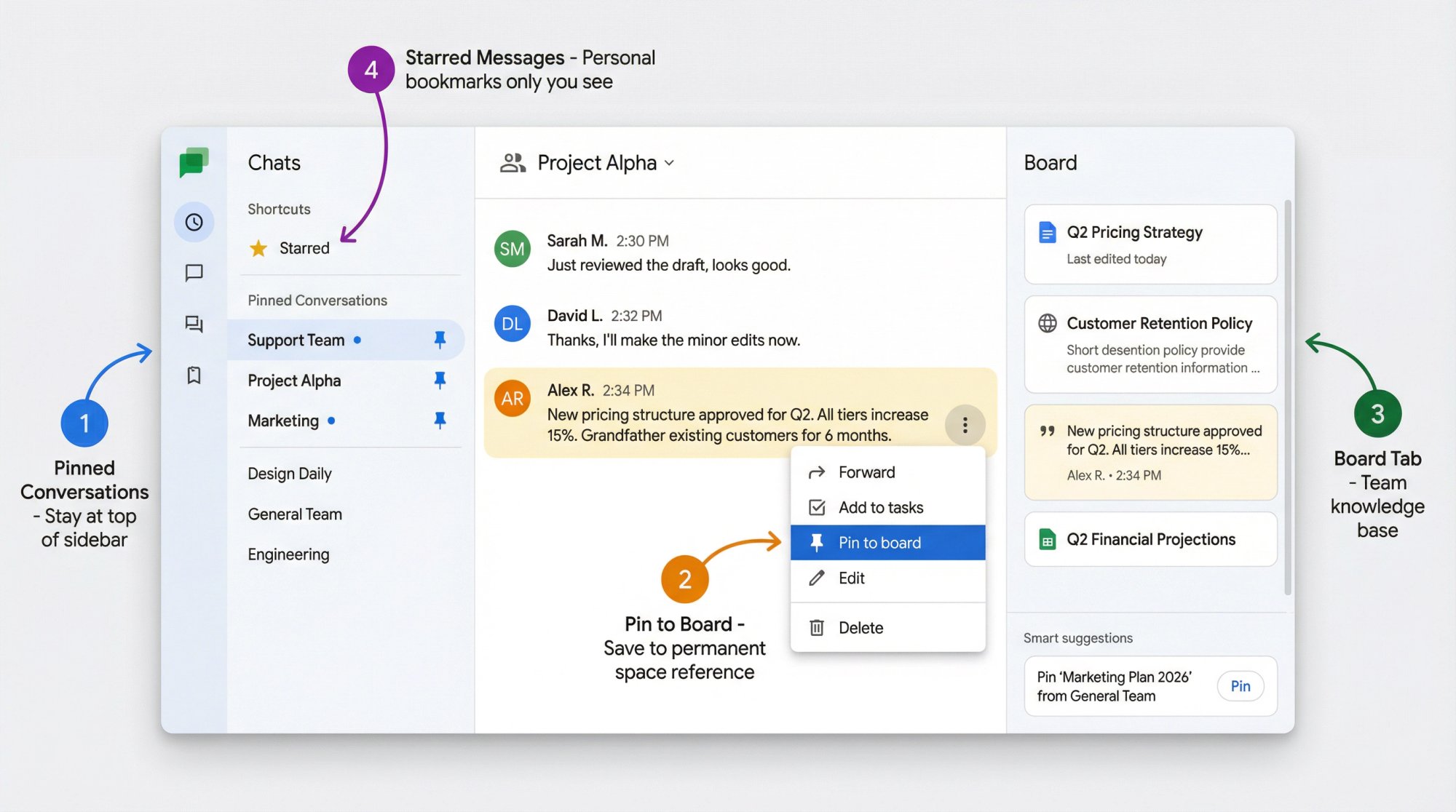
What's the Difference Between Pinning Conversations and Pinning to Board?
Pinning a conversation puts the entire chat or space at the top of your sidebar (covered earlier).
Pinning to Board saves specific messages, files, or links to a space's permanent reference area.
Think of the Board as a mini wiki for your space. When someone shares a critical doc, decision, or resource, pin it to the Board. Everyone in the space can access it from the right-hand panel without scrolling through message history.
Reference: Google Chat Help on Board pinning
To pin to Board: Hover over a message or file, click the three dots, select "Pin to board."
The Board also offers smart suggestions for items you might want to pin, making it easier to build up your space's knowledge base quickly.
How to Star Critical Messages for Personal Reference
If a message contains information you personally need to reference often (an address, approval, code snippet, instructions), star it.
Hover over the message, click the three dots, choose "Star." All your starred messages appear under the Starred shortcut in the left panel. Reference: Google Chat Help on starring
This creates a personal bookmark system separate from the shared Board.
How to Link to Specific Messages in Google Chat
When you need to reference an exact message (say, a decision made three weeks ago), you can copy a direct link to it.
Click the three dots on any message and select "Copy link." Anyone with access to that conversation can click the link and jump straight to that message. Reference: Google Chat Help on message links
Limitation: This doesn't work for spaces grouped by topic, only inline threading spaces.
Use case example: During a project retrospective, link to the original message where you flagged the risk everyone ignored. Receipts matter.
How to Organize Google Chat Spaces Effectively
Spaces work best when they have one clear purpose and consistent patterns.
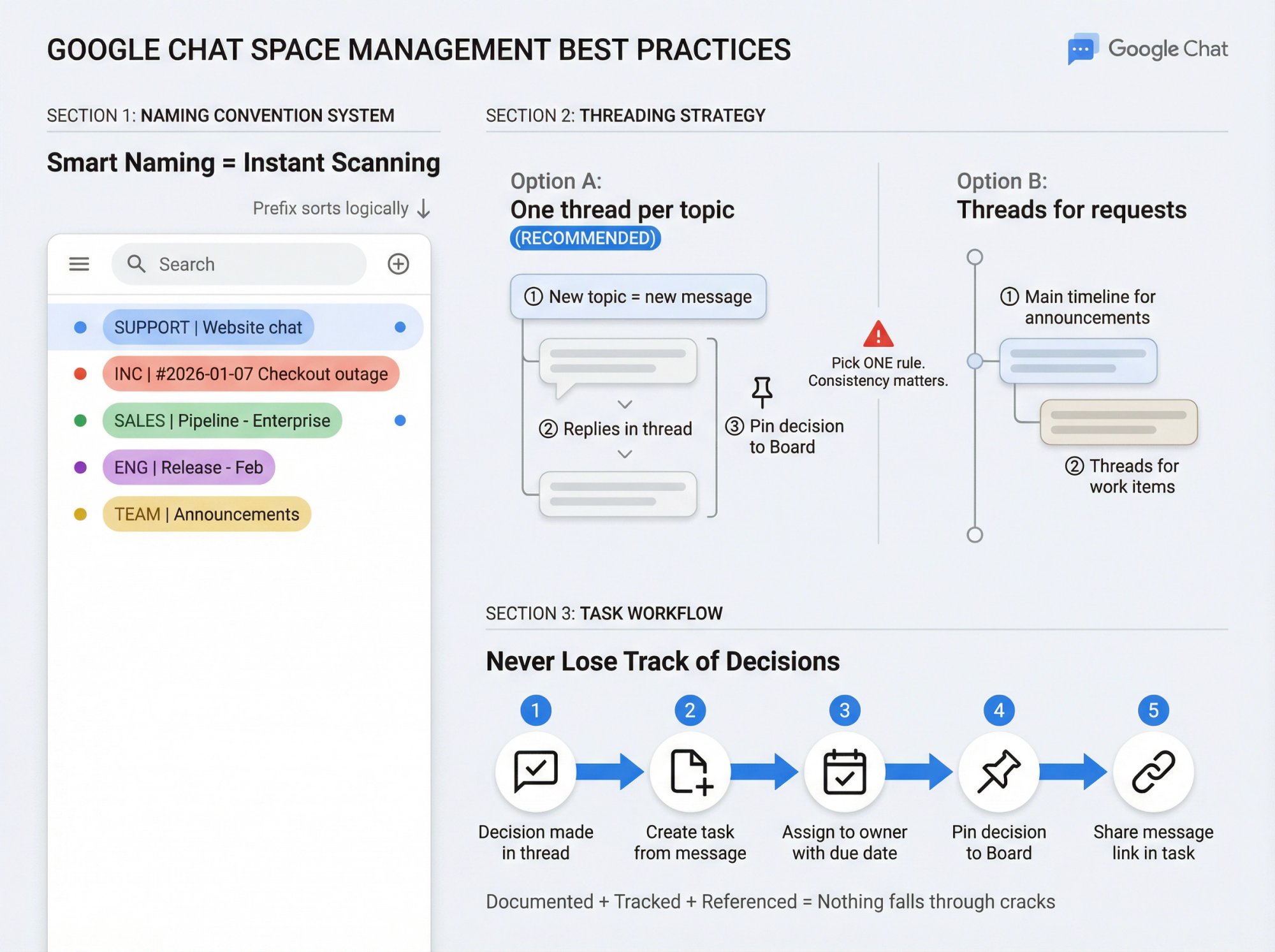
What Naming Convention Works Best for Google Chat Spaces?
Use prefixes so spaces sort logically and people can self-serve:
• SUPPORT | Website chat
• INC | #2026-01-07 Checkout outage
• SALES | Pipeline - Enterprise
• ENG | Release - Feb
• TEAM | Announcements
This naming convention makes scanning your sidebar instant. You know what each space is for without opening it. [Reference: Based on workflow design principles from research]
What Threading Rules Reduce Chaos in Google Chat?
Pick one rule and enforce it across your team:
Option A: One thread per discrete topic (recommended for most teams)
① New topic = new top-level message
② All replies stay in that thread
③ Decisions get pinned to Board + message link shared
Option B: Threads only for requests
① Main timeline for announcements and updates everyone must see
② Threads for questions, requests, and work items
Inconsistent threading creates chaos. Everyone needs to follow the same pattern.
How to Follow and Unfollow Threads Strategically
In spaces with inline threading, notifications tie to which threads you follow and your notification level for the space.
When you set a space to "All" notifications, you automatically follow new threads in that space. You can unfollow specific threads you don't need to track via the Active Threads view. Reference: Google Chat Help on notifications
Strategic following: Follow threads where you're accountable. Unfollow threads you just need to reference occasionally.
How to Convert Google Chat Messages to Tasks
When a thread ends with a decision and a next step, create a task immediately.
In any space, you can turn a message into a trackable task with a title, assignee, due date, and tags via the Tasks tab. Some very large spaces might not support task assignment, but most will. Reference: Google Chat Help on tasks
The workflow:
Decision made in thread
Create task from the decision message
Assign to owner with due date
Pin decision to Board
Share message link in task description
Now the decision is documented, the action is tracked, and nothing falls through cracks.
How to Set Up Google Chat Notifications That Work
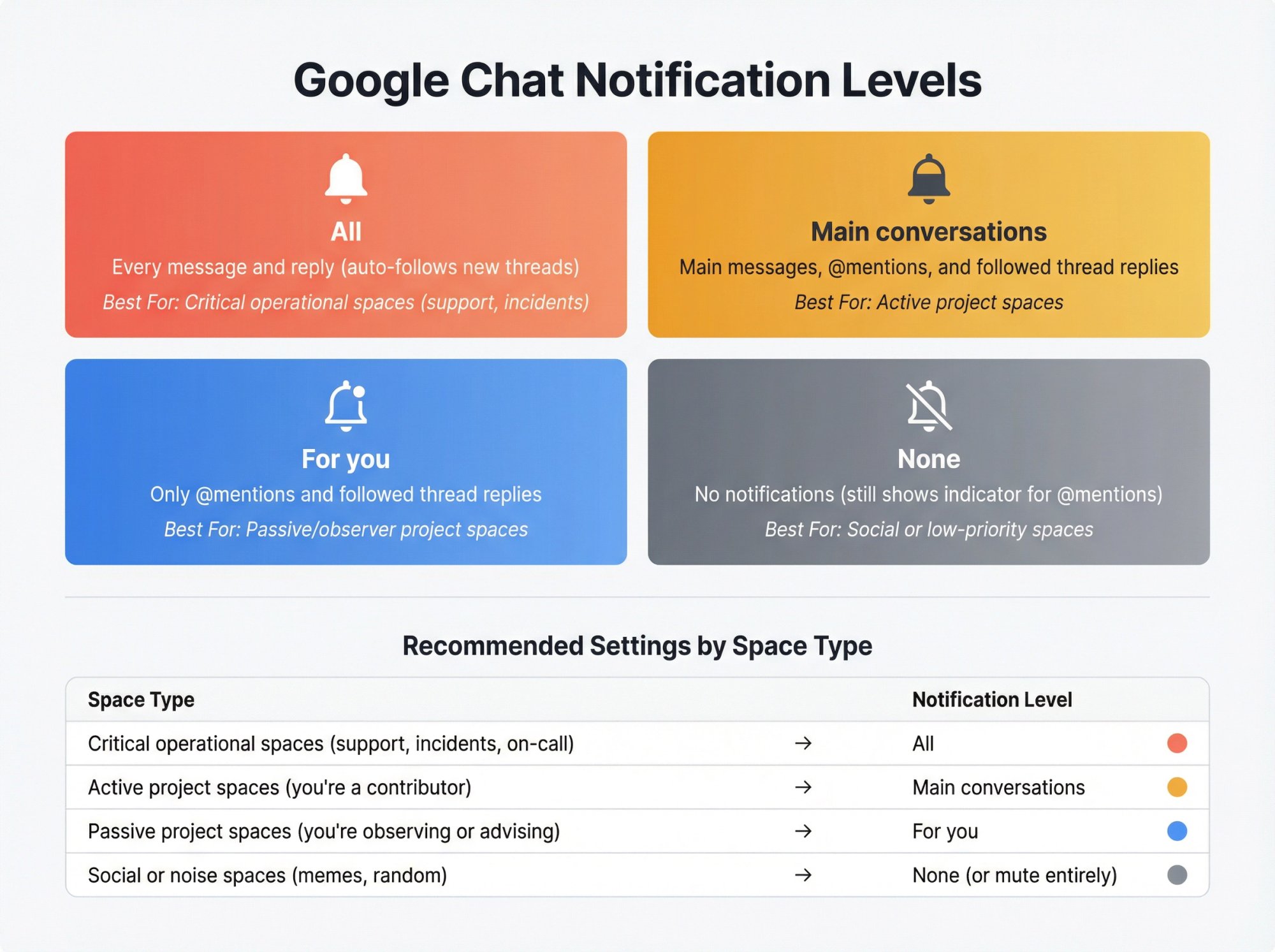
If your team complains about Google Chat, 90% of the time it's notification configuration.
What Do Google Chat Notification Levels Mean?
For spaces with inline threading, Google Chat offers four notification levels:
| Level | What You Get | Best For |
|---|---|---|
| All | Every message and reply (auto-follows new threads) | Critical operational spaces (support, incidents) |
| Main conversations | Main messages, @mentions, and followed thread replies | Active project spaces |
| For you | Only @mentions and followed thread replies | Passive/observer project spaces |
| None | No notifications (still shows indicator for @mentions) | Social or low-priority spaces |
Reference: Google Chat Help on notification settings
What Notification Level Should You Use for Each Space Type?
Apply this consistently across your spaces:
| Space Type | Notification Level |
|---|---|
| Critical operational spaces (support, incidents, on-call) | All notifications |
| Active project spaces (you're a contributor) | Main conversations |
| Passive project spaces (you're observing or advising) | For you |
| Social or noise spaces (memes, random) | None (or mute entirely) |
This matrix gives you signal without drowning in noise.
How to Use Do Not Disturb to Prevent Burnout
DND isn't just an "away" status. It's a communication signal.
When you activate it, people see you've paused notifications and for how long. This sets expectations without requiring you to explain yourself in status messages.
You can set custom durations (30 minutes, 2 hours, until tomorrow) or create recurring DND schedules for your focus blocks. Reference: Google Chat Help on status
How to Use Muting for Surgical Noise Reduction
When a specific conversation is generating too much traffic but you still need access, mute it.
Muted conversations don't highlight, don't jump to the top, and don't appear in Home. But @mentions still surface, so you won't miss direct questions. Reference: Google Chat Help on muting
Perfect for: That one weekly standup chat that generates 50 messages you don't need to see in real-time.
What Search Operators Work in Google Chat?
Chat search is powered by Google and supports advanced operators similar to Gmail.
What Are the Most Useful Google Chat Search Operators?
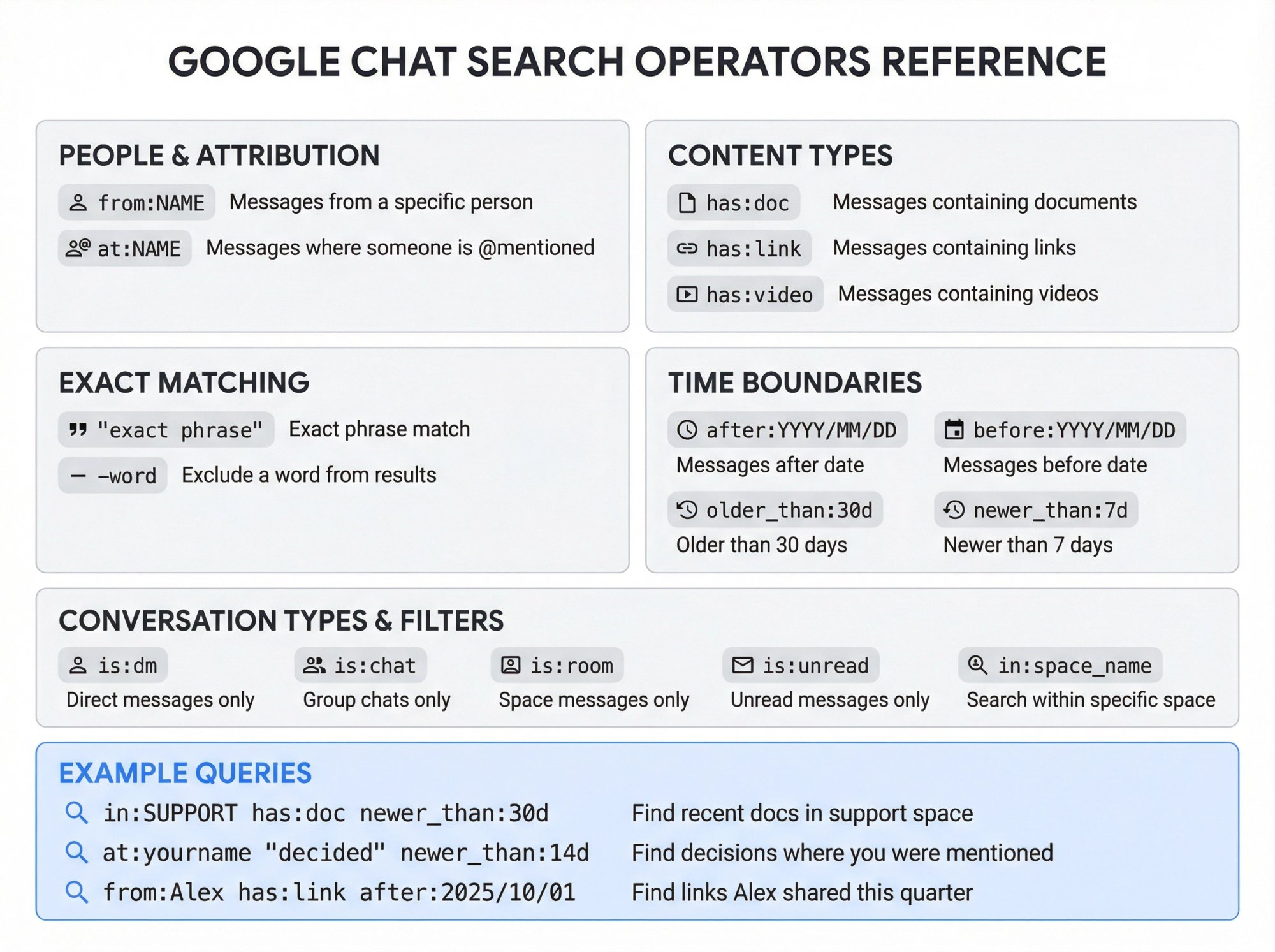
The most useful operators straight from Google's documentation:
People & Attribution:
• from:NAME (Messages from a specific person)
• at:NAME (Messages where someone is @mentioned)
Content Types:
• has:doc / has:link / has:video (Messages containing specific item types)
Exact Matching:
• "exact phrase" (Exact phrase match)
• -word (Exclude a word)
Time Boundaries:
• after:YYYY/MM/DD and before:YYYY/MM/DD (Date boundaries)
• older_than:30d / newer_than:7d (Relative time windows)
• tz:America/Los_Angeles (Search in another time zone)
Conversation Types:
• is:dm, is:chat, is:room (Filter by conversation type)
• is:unread (Find unread messages)
• in:space_name (Search within a specific space)
What Search Queries Should You Save for Daily Use?
Find the latest doc shared in a support space:
in:SUPPORT has:doc newer_than:30d
Find a decision where you were @mentioned:
at:yourname "decided" newer_than:14d
Find a link someone sent last quarter:
from:Alex has:link after:2025/10/01 before:2026/01/01
These operators turn Chat from a black hole into a searchable knowledge base.
How to Turn Google Chat Into Your Collaboration Hub
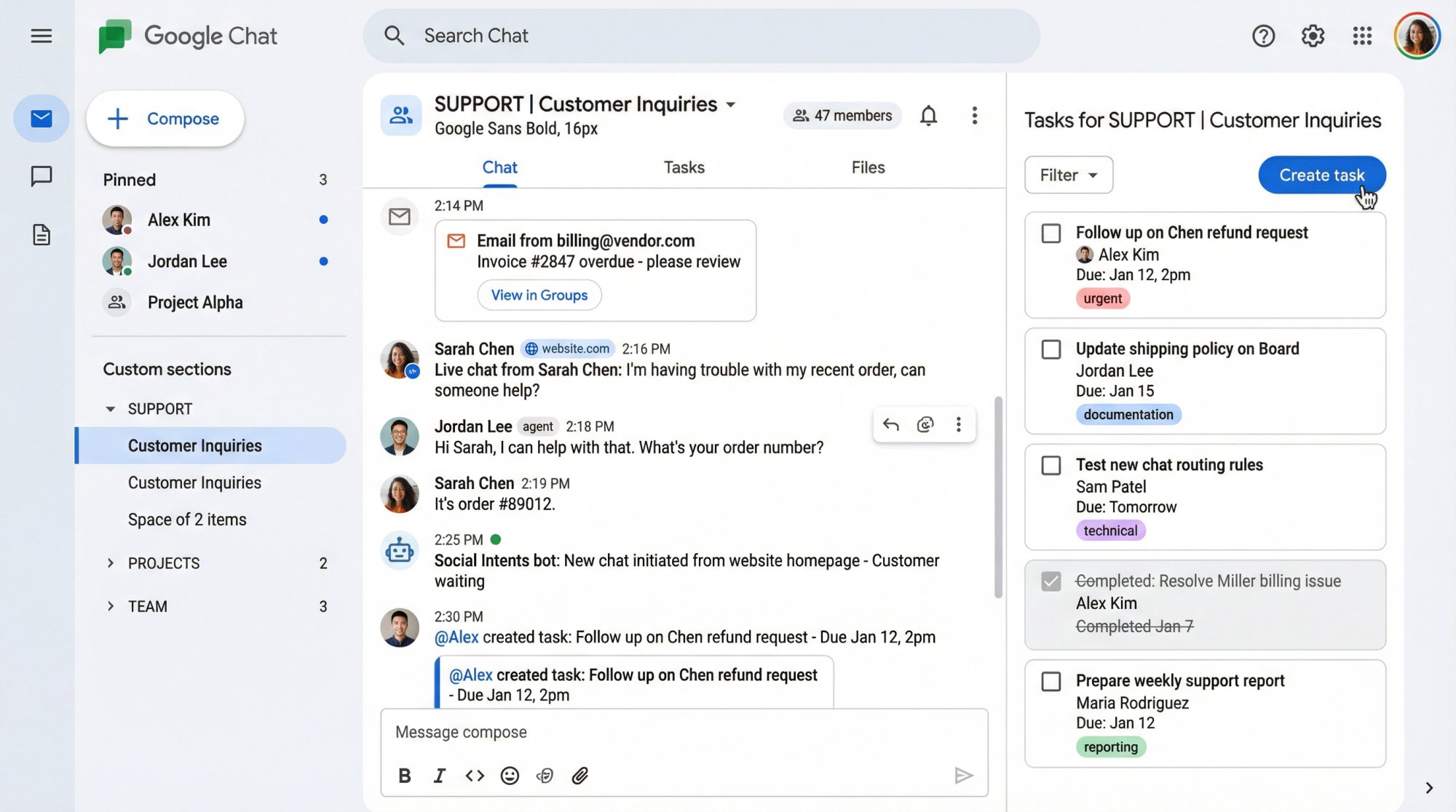
Google Chat isn't just messaging. It's a coordination layer for work.
How to Create and Assign Tasks Inside Google Chat Spaces
Don't let action items die in threads. Convert them to tasks immediately.
In the Tasks tab of any space, you can create tasks with:
• Title and description
• Assignee
• Due date and time
• Tags for categorization
When you assign a task, the owner gets a notification. Tasks appear in both Chat and their Google Tasks app, creating accountability without context switching. Reference: Google Chat Help on tasks
Note: If you don't see the Tasks tab in a work account, your admin may need to enable it.
How to Email Messages Into a Google Chat Space
You can generate an email address for any space (space managers do this). Then anyone in the space can forward emails into it.
Forwarded emails appear as an "email card" with a snippet. Click it to view the full email in Google Groups. Reference: Google Chat Help on emailing spaces
Operational trick for support teams: Route system alerts, vendor notices, or billing receipts into a space. Your team gets shared visibility without CC storms clogging individual inboxes.
If you're running customer support through Google Chat with Social Intents, you can even route certain automated notifications into your support space for complete transparency.
How to Use Huddles for Quick Audio Collaboration
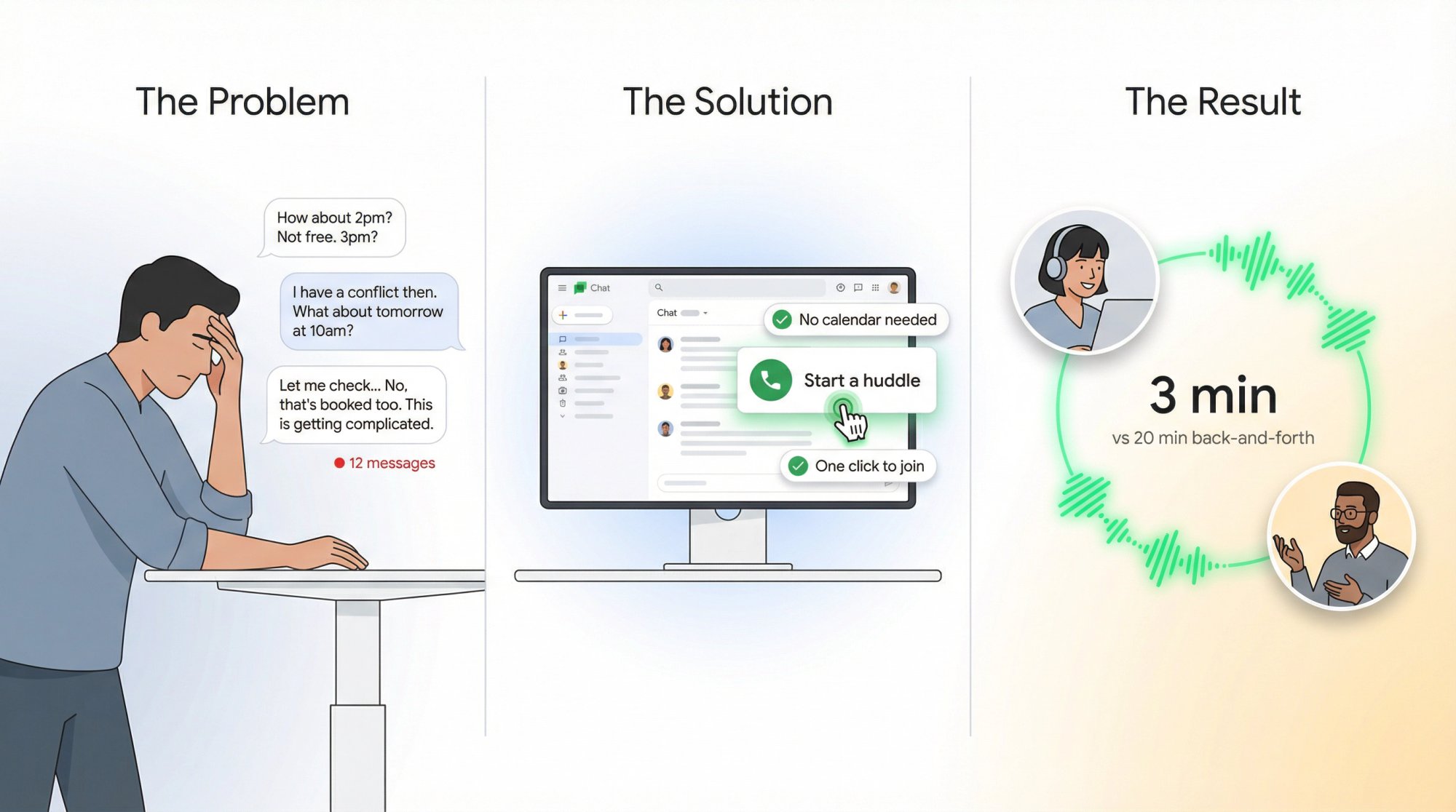
Huddles are instant-on voice chats built into Google Chat. No calendar invite. No formal meeting. Just click and talk.
When Should You Start a Huddle in Google Chat?
Perfect for:
• "We're stuck; this will take 12 messages to resolve"
• Quick triage during an incident
• Pair debugging or code review
• Clarifying handoffs ("what exactly do you need?")
How Do Huddles Work in Google Chat?
In any DM, group chat, or space, click the phone icon or the dropdown by the video icon and select "Start a huddle."
Participants can join with one click. By default, it's audio-only, but you can turn on video or share your screen if needed. The huddle runs in a compact window, so you can multitask in Chat while talking. Reference: Google Workspace Updates on huddles
Tech note: Huddles use Google Meet infrastructure, so if Meet is disabled by your admin, this won't work.
The productivity gain: You cut a 20-minute back-and-forth down to a 3-minute conversation.
How to Use AI Features in Google Chat
This is one of the biggest recent upgrades. AI changes how you handle unread volume.
How Do Conversation Summaries Work in Google Chat?
For eligible Google Workspace accounts, Chat can automatically generate summaries of unread messages in spaces and group DMs.
When you have many unread messages, Google proactively shows a summary card. For fewer messages, you can manually trigger a summary. Reference: Google Workspace Updates on summaries
The AI summary workflow: Return from vacation, see 300 unread messages in #eng-general, click "Summarize," get a bulleted recap of key points in seconds.
How to Catch Up on Unread Messages Inside Conversations
A recent enhancement lets you "catch up" on unread messages directly inside a DM, group chat, or space. Chat shows a summary card when there's significant volume.
This is especially powerful for support teams using Social Intents to handle customer chats in Google Chat. Agents coming back from lunch or switching shifts can instantly catch up on what happened without rereading dozens of customer conversations.
How to Get AI Summaries of Shared Files
When someone shares a Google Docs, Sheets, or Slides file in Chat, you'll often see a "Summarize this file" button on the preview card.
Click it and Chat generates a concise summary of the document's content right in the chat window. Reference: Google Workspace Updates on file summaries
Use case: Teammate shares a 20-page product spec, you get a 4-bullet summary, you know immediately if you need to read the full doc or if you're already aligned.
Important notes:
• Summaries require eligible Workspace subscriptions (typically Business/Enterprise with Gemini)
• Currently available in select languages
• Not available for messages with apps or when history is turned off
How to Automate Google Chat Workflows
Once your Chat basics are clean, automation is the next level.
How to Use Chat Apps to Push Events Into Spaces
Examples of powerful integrations:
• Monitoring alerts to INC | Infrastructure space
• New lead or signup to SALES | Pipeline space
• Deploy notifications to ENG | Release space
• New support ticket or website chat to SUPPORT | Customer inquiries space
Chat supports structured integrations via apps and APIs. Many teams use tools like Zapier to connect systems into Google Chat without writing code.
What Integrations Work Best with Google Chat?
From the Google Workspace Marketplace, you can add:
• Google Drive app (file update notifications)
• Asana or Jira (create and update tasks from Chat)
• Polling bots (quick team decisions)
• Custom bots via Apps Script or APIs (organization-specific workflows)
To add an app, click the "+" (Add people & apps) in any chat and search the Marketplace.
Advanced automation example: A custom bot that posts daily stand-up prompts at 9 AM, collects responses, and summarizes them in a thread. You can build this with Apps Script in about an hour.
How to Run Customer Support in Google Chat
Here's where Google Chat becomes genuinely transformative for support teams.
What Problem Does Running Support in Google Chat Solve?
You're toggling between:
• Your website chat tool
• Google Chat (where your team actually works)
• Maybe Slack or Teams for internal discussion
Every context switch costs time. Every tool switch increases response latency. Your customers wait while you figure out where the conversation is.
How Does Social Intents Connect Live Chat to Google Chat?
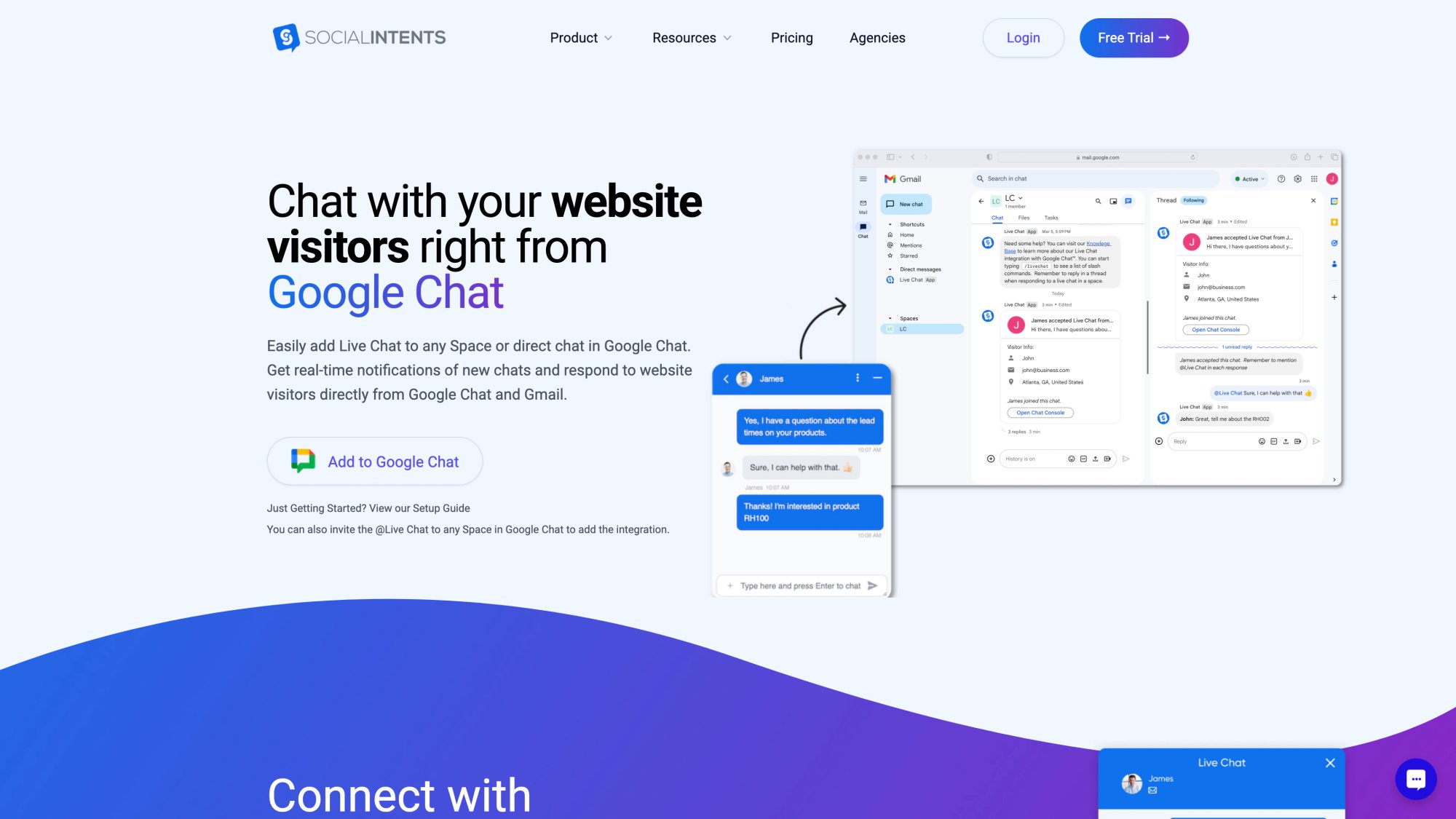
Social Intents connects your website's live chat widget directly into Google Chat. When a visitor starts a chat on your site, it appears as a message in a designated Google Chat space. Your team replies from Chat, and the visitor sees responses in real-time on your website.
Bi-directional integration. No tool switching. No separate login.
What's the Best Support Space Setup in Google Chat?
Here's a high-performing setup:
Space name: SUPPORT | Website chat
Pinned to Board:
• Escalation policy
• Refund and shipping policies
• Top reply templates (macros)
• Routing guidelines
• Key links (status page, CRM, ticketing system)
Notification level: All (for agents on duty)
Threading strategy: One thread per customer conversation
This setup creates a shared support inbox where your entire team has visibility, can collaborate on complex issues, and can jump in to help during peak volume.
How to Set Up Live Chat in Google Chat
The typical installation:
Install the Live Chat app from the Google Workspace Marketplace
Add it to a Google Chat space via "Add people & apps"
Embed the Social Intents chat widget on your website so visitors can start chatting
Route chats to the correct space or user as your team structure changes
Why Does Customer Support Work So Well in Google Chat?
Threads map naturally to customer conversations. Each customer chat becomes its own thread, keeping context clean and organized.
Board tab becomes your mini knowledge base. Pin FAQs, policies, and common responses. New agents onboard faster. Experienced agents answer faster.
Search operators make finding prior conversations instant. Need to see all conversations with a specific customer email? from:customer@email.com finds them in seconds.
Huddles enable fast escalation. Customer issue needs engineering input? Start a huddle with an engineer right in the thread without scheduling a meeting.
Gemini summaries help with shift changes. Agents coming on shift can catch up on what happened while they were away without reading every message.
What Features Do Support Teams Love About Social Intents?
Social Intents offers:
• Microsoft Teams live chat, Slack live chat, and Google Chat integration (meet your team where they work)
• AI chatbots with human handoff (automate routine questions, escalate complex ones)
• Custom AI actions (pull order status, create tickets, check shipping)
• Unlimited agents from the Basic tier up
• Real-time translation for global support teams
• WhatsApp chatbot and Messenger chatbots (omnichannel support from one platform)
The operational unlock: Your support team doesn't leave Google Chat. Customer inquiries, internal collaboration, and even AI automation all happen in the tool they're already using all day.
Ready to try it? Start a 14-day free trial of Social Intents or explore the platform.
How to Fix Common Google Chat Problems
Save this section for when things break.
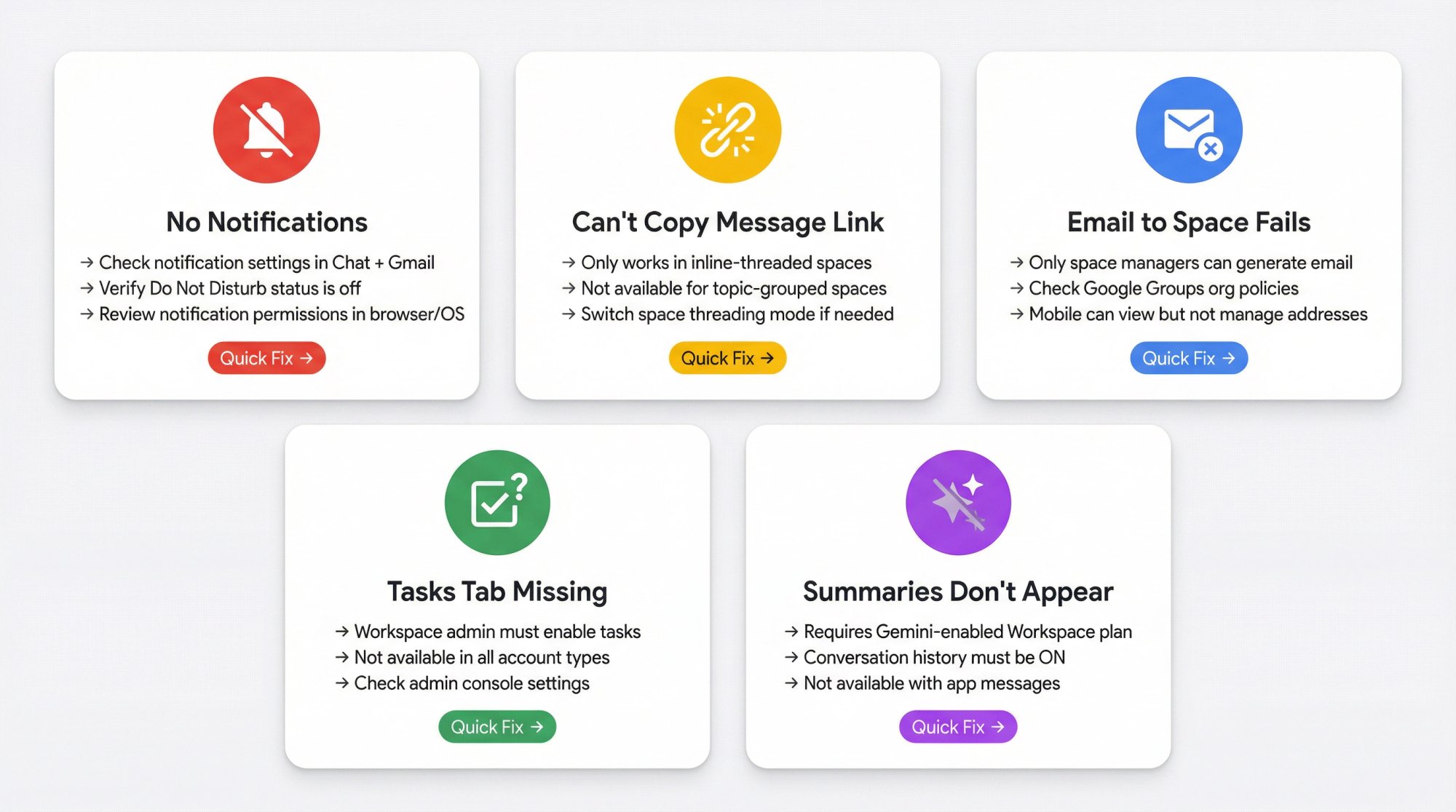
Why Am I Not Getting Google Chat Notifications?
Check two things:
Your Chat notification settings in Chat itself and in Gmail (if using Chat in Gmail)
Whether your status is set to Do Not Disturb
Reference: Google Chat Help on notifications
Why Can't I Copy a Link to a Message?
Message links aren't available for spaces grouped by topic. Only spaces with inline threading support this feature.
Reference: Google Chat Help on message links
Why Doesn't Emailing a Space Work?
Only space managers can generate and manage the space email address. Also, organization policies around Google Groups may affect functionality.
On mobile, you can copy and view the space email address, but you can't generate or manage it. Reference: Google Chat Help on emailing spaces
Why Don't I See the Tasks Tab in My Space?
For work or school accounts, your Google Workspace admin may need to enable access to tasks in Chat.
Reference: Google Chat Help on tasks
Why Don't Summaries Show Up in My Google Chat?
Conversation summaries and Gemini summaries require:
• Eligible Workspace subscription (usually Business/Enterprise with Gemini add-on)
• Supported language
• Conversation history turned on
• Conversations that don't include messages from apps
If you meet these requirements and still don't see summaries, check with your Workspace admin about Gemini settings.
Google Chat Tips and Tricks: Frequently Asked Questions
How do I schedule a message in Google Chat?
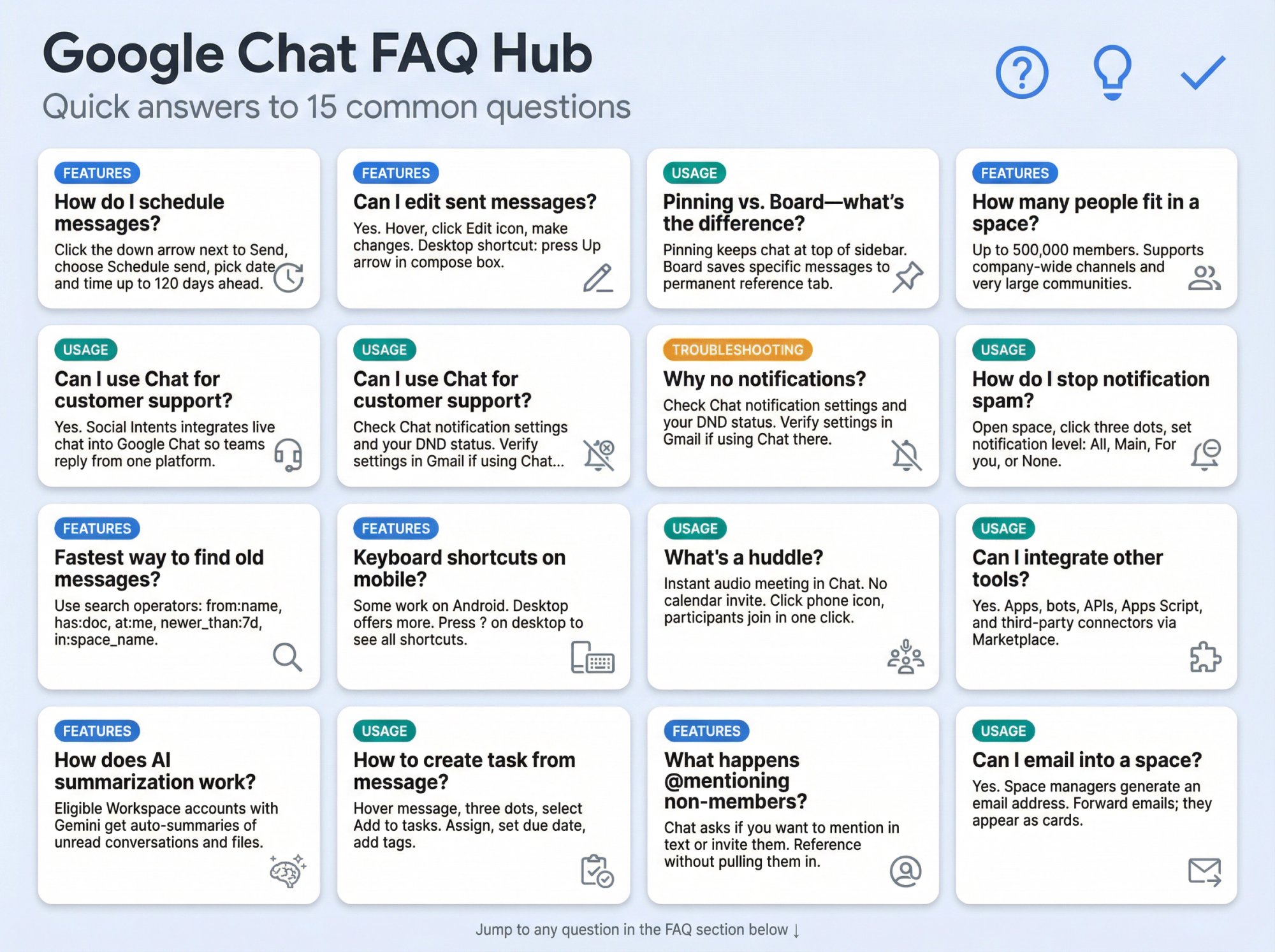
As of December 2025, Chat supports native scheduled sending. When composing a message, click the down arrow next to the Send button and select "Schedule send." Pick a date and time (up to 120 days ahead) and confirm. Your scheduled messages appear under the "Drafts (Scheduled)" shortcut where you can edit or cancel them. Reference: Google Workspace Updates on scheduled messages
Can I edit a message after sending it?
Yes. Hover over your sent message, click the pencil Edit icon, make your changes, and hit Enter. The message displays an "edited" label but doesn't show edit history. On desktop, you can quickly edit your last sent message by pressing the Up arrow in the compose box.
What's the difference between pinning a conversation and pinning to Board?
Pinning a conversation keeps the entire chat or space at the top of your sidebar for quick access. Pinning to Board saves specific messages, files, or links to that space's permanent reference area (the Board tab) so everyone can find them easily later.
How many people can be in a Google Chat space?
As of 2024, Google Chat spaces can include up to 500,000 members. Most teams will never approach this limit, but it means Chat can handle company-wide announcement channels or very large communities. Reference: Zapier blog on Chat capabilities
Can I use Google Chat for customer support?
Absolutely. With Social Intents, you can integrate your website's live chat directly into Google Chat. Customer inquiries appear as messages in a designated space, your team replies from Chat, and responses flow back to the customer in real-time. This eliminates tool switching and keeps your support team in the platform they already use. Try it free for 14 days.
How do I stop a space from sending me constant notifications?
Open the space, click the three dots at the top, select Notification settings, and choose an appropriate level:
• All (Every message, probably too much)
• Main conversations (Main messages and @mentions)
• For you (Only @mentions and followed threads)
• None (No notifications, you'll still see a badge for @mentions)
You can also mute the space entirely if you just need occasional access.
What's the fastest way to find an old message?
Use Chat's search operators. Click the search bar and try searches like:
• from:Alice has:doc (find docs Alice shared)
• at:me "budget" (find messages where you were @mentioned about budget)
• in:SUPPORT newer_than:7d (recent messages in support space)
Reference: Google Chat Help on search operators
Can I use keyboard shortcuts on mobile?
Some shortcuts work on mobile (particularly Android), but the desktop experience offers more. Press ? on desktop to see all available shortcuts for your context.
How does AI summarization work in Google Chat?
If you have an eligible Workspace subscription with Gemini, Chat can automatically generate summaries of unread conversations. You'll see a summary card when there are many unread messages, or you can manually trigger a summary. This works for spaces, group DMs, and direct messages. Reference: Google Chat Help on summaries
What's a huddle and when should I use one?
A huddle is an instant audio-first meeting in Chat. No calendar invite needed. Click the phone icon in any conversation and participants can join with one click. Use huddles when a text conversation is getting complicated and a quick 3-minute voice chat would resolve it faster. You can turn on video or share your screen if needed.
Can I integrate other tools with Google Chat?
Yes. Chat supports apps and bots from the Google Workspace Marketplace, custom integrations via APIs and Apps Script, and third-party connectors. You can push notifications from monitoring tools, CRMs, project management systems, and more into designated Chat spaces. For customer support specifically, Social Intents offers a complete integration for handling website chats directly in Google Chat.
How do I create a task from a Chat message?
In a space, hover over the message, click the three dots, and select "Add to tasks" or "Create space task." You can then assign the task to someone, set a due date, and add tags. The task appears in both Chat's Tasks tab and the assignee's Google Tasks app.
What happens when I @mention someone who's not in the space?
As of 2025, Chat asks if you want to just mention them in text (for reference) or actually invite them to the space. This lets you reference colleagues without pulling them into the conversation. Reference: Google Workspace Updates on mentions
Can I forward emails into a Google Chat space?
Yes. Space managers can generate an email address for a space. Anyone in the space can then forward emails to that address, and they'll appear as email cards in the conversation. This is great for routing system alerts or vendor notifications to a team space.
How do I organize dozens of conversations in Chat?
Use custom sections. Create sections like "Projects," "Clients," "Team," and "Support," then drag conversations into them. Also, pin your 3-5 most critical conversations, mute noisy ones you don't need to actively monitor, and use the Unread filter in Home to focus on what needs attention.
Master Your Google Chat Workflow
You now have everything you need to transform Google Chat from overwhelming to efficient.
The quick wins (pinning, muting, DND, custom sections, mark as unread) take five minutes and deliver immediate relief.
The habits (keyboard shortcuts, smart formatting, threading discipline, notification levels) compound over weeks into massive productivity gains.
The advanced features (search operators, AI summaries, huddles, task management) turn Chat into a genuine work operating system.
The integrations (especially Social Intents for customer support) eliminate tool switching and keep your team focused in one platform.
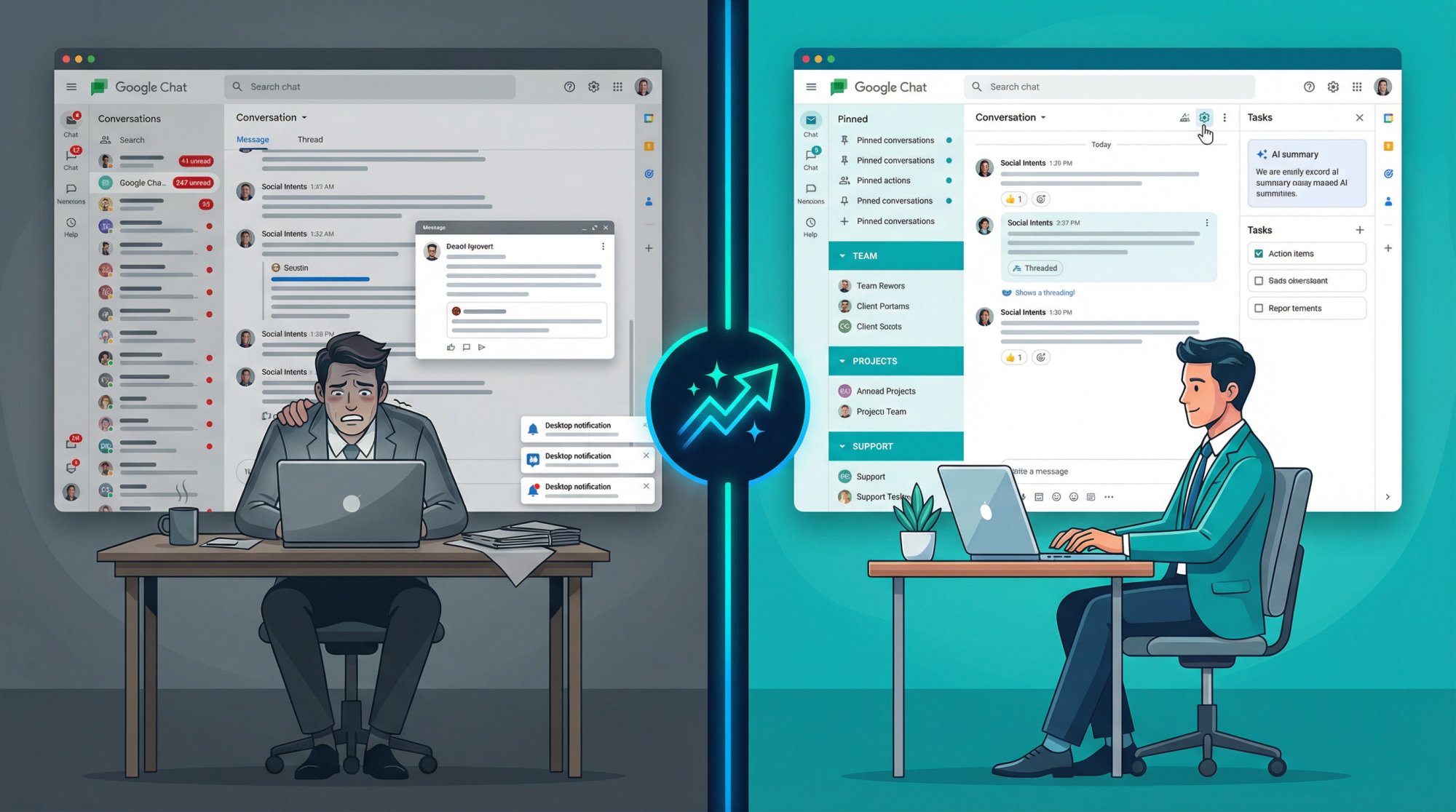
Start with the quick wins today. Add one new habit this week. Within a month, you'll wonder how you ever worked without these systems.
And if you're running a support team, try Social Intents for 14 days free. See what happens when your customer chats flow directly into the tool your team already lives in. No separate platform. No context switching. Just faster, better support.
Your Chat inbox doesn't have to be chaos. It just needs the right system.