

Want to chat with website visitors and respond from inside Microsoft Teams without juggling another app? You can.
In fact, there are two main ways to do this in 2025: using Microsoft's new built-in Teams live chat feature (available to certain Microsoft 365 subscribers), or using a third-party integration like Social Intents.
This guide walks you through both approaches so you can pick what fits best and get set up quickly.
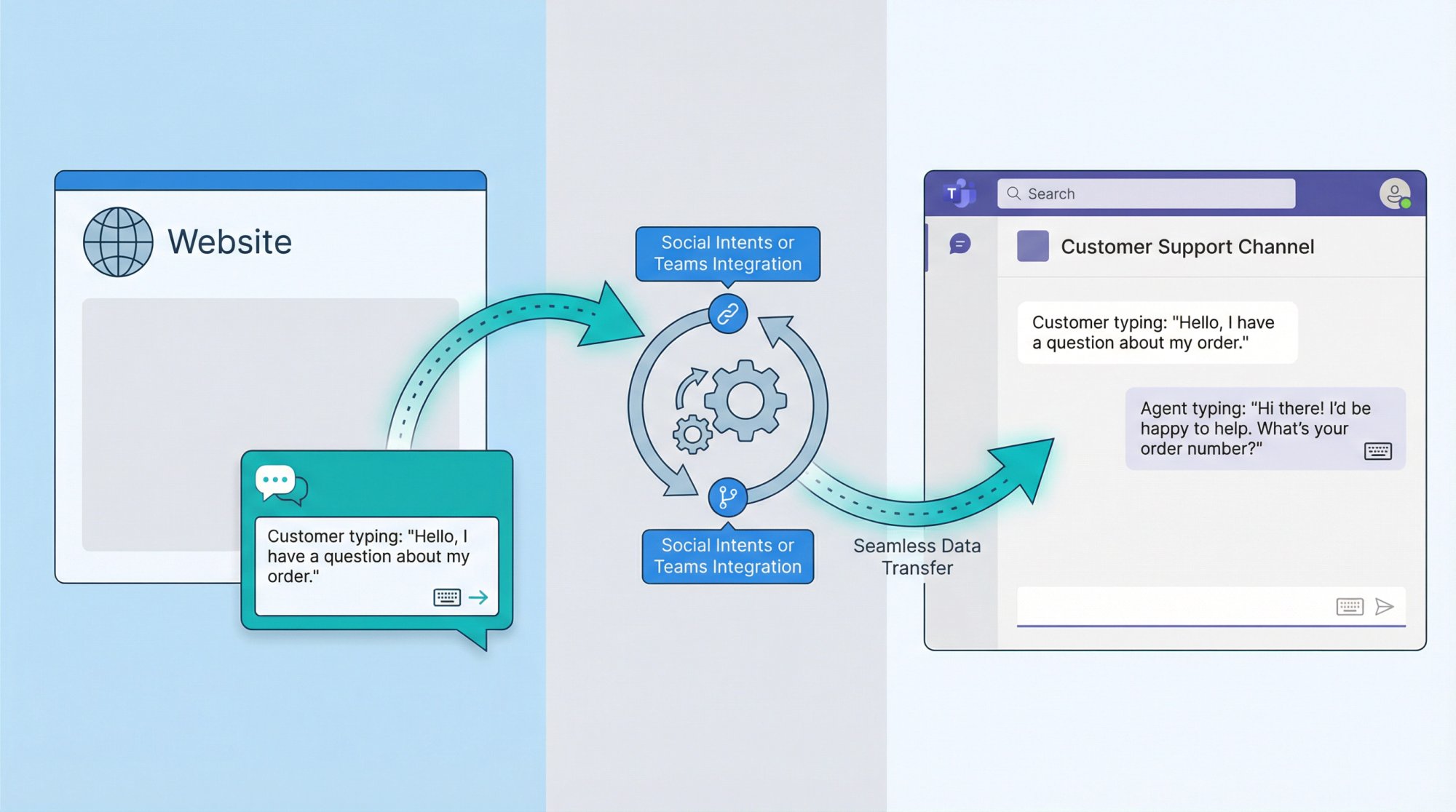
Why Should You Connect Website Chat to Microsoft Teams?
If your team already works in Teams all day, integrating website chat brings real advantages:
→ Faster response times
Agents don't switch tools. They reply from the same Teams app they already have open, so customer questions get answers in real time. Research shows that reducing tool-switching dramatically improves response times.
→ Better collaboration
Handling customer chats in Teams lets support reps easily pull in coworkers, share messages, and solve problems together. Teams is built for collaboration, so using it for customer support naturally boosts teamwork and helps build stronger customer relationships.
→ Convenience and visibility
Website inquiries become part of your normal communication flow. Support teams can loop in any colleague right from Teams if they need help, instead of being siloed in a separate helpdesk. Managers can also see incoming chats in a channel, providing visibility into customer needs.
→ No new software to learn
Your team already knows Teams. By turning Teams into a helpdesk, you eliminate the learning curve of a new chat support tool. This means quicker adoption and one less app cluttering your agents' workflow.
The core value: Connecting website chat to Teams lets you meet customers' needs on their terms (via instant chat) while keeping your team productive in a single interface. Customers enjoy seamless live chat on your site, and your agents enjoy the efficiency of staying in Teams.
What Are the Two Ways to Answer Website Chats in Teams?
There are two main approaches:
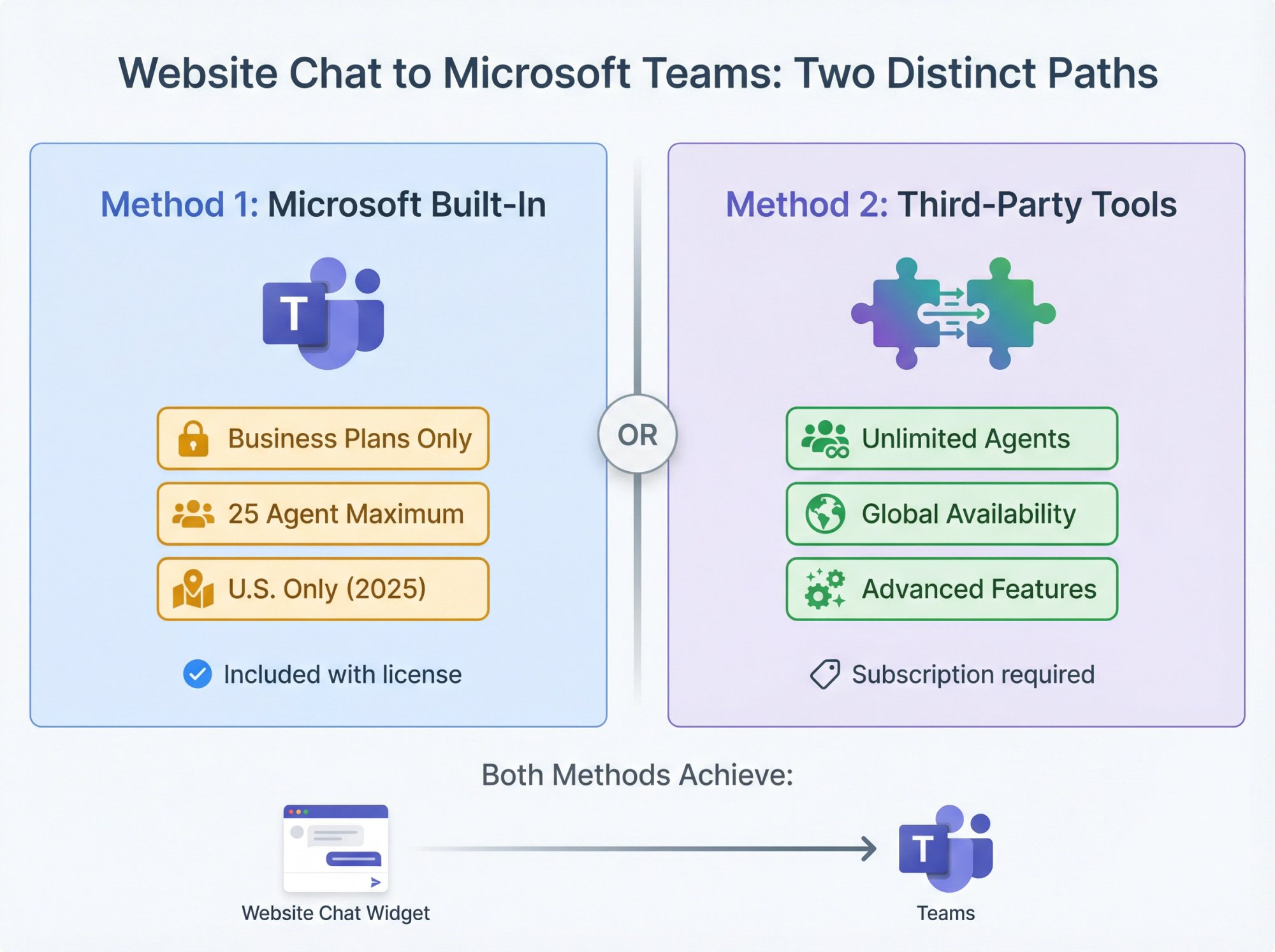
① Using Microsoft Teams' built-in Live Chat widget (a feature for Microsoft 365 Business plans)
② Using a third-party live chat integration, such as Social Intents or similar services
Let's explore both. Each method achieves the same outcome: a visitor on your website clicks a chat widget to talk to you, and your team receives and answers that message in Teams. The differences lie in setup, availability, and features.
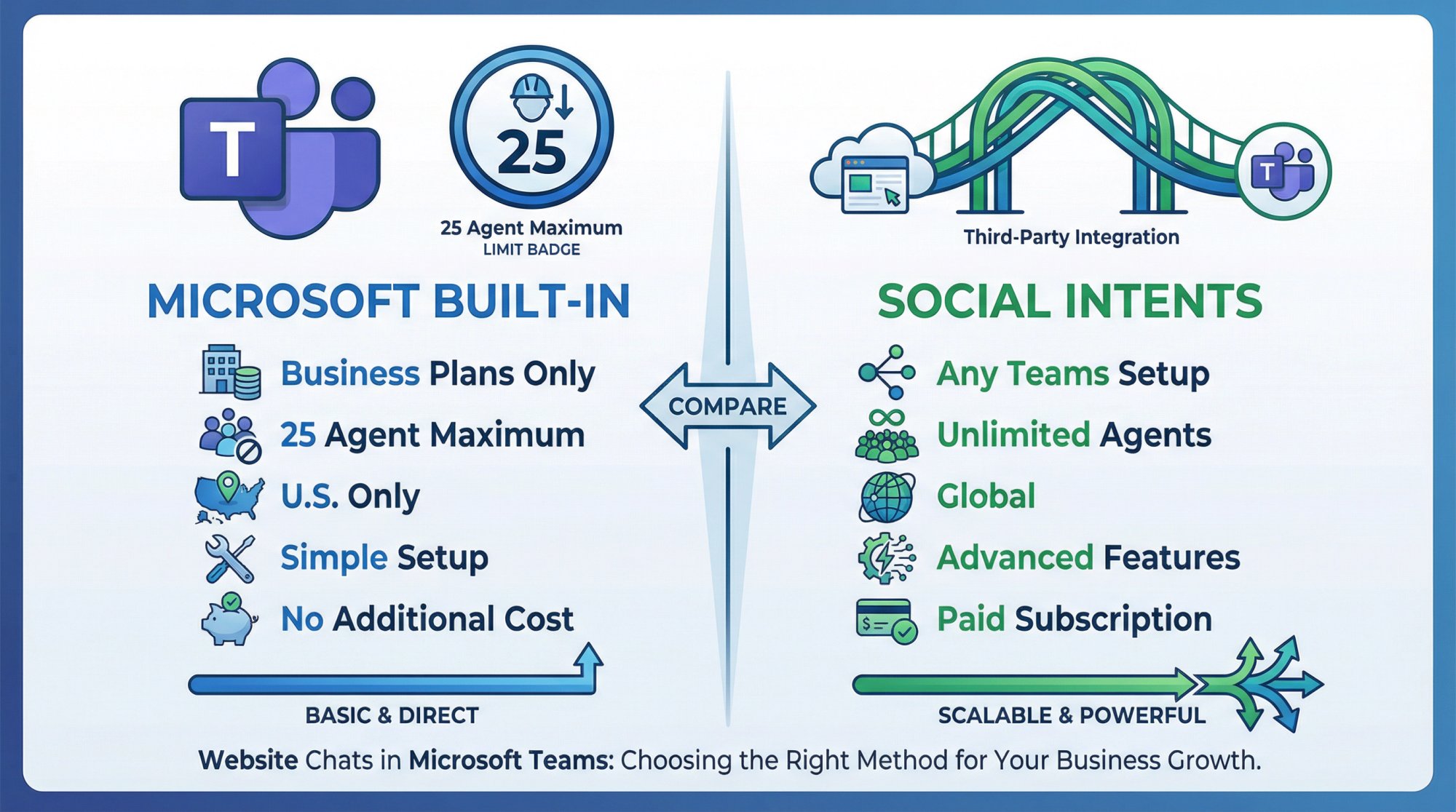
Method 1: How Does Microsoft's Built-In Teams Live Chat Work?
Microsoft recently introduced an official Teams Live Chat widget that businesses can embed on their websites. This feature is included with certain Microsoft 365 subscriptions, specifically the Business Basic, Standard, and Premium plans. It's designed for small to mid-sized businesses.
Important limitation: Microsoft currently limits the support team to 25 users maximum for this built-in chat. Only up to 25 people in your organization can actively receive and handle website chats via the Teams Live Chat feature.
If your support team is larger, or if you're on an Enterprise plan (E3/E5) rather than a Business plan, this might not work for you.
How It Works
An admin enables live chat from the Teams Admin Center. You customize a chat widget (branding, greeting, etc.), designate a Team and channel to receive the chats, set your support hours, and then generate a JavaScript snippet to embed on your website.
Once the code snippet is added to your site and the widget is live, visitors can click it to start a chat. Their questions show up in Teams for your designated support team to answer in real time.
Teams creates a Live Chat Requests channel where incoming customer chats appear as conversation threads or tickets. An available team member can respond, and the replies go straight back to the visitor via the web widget.
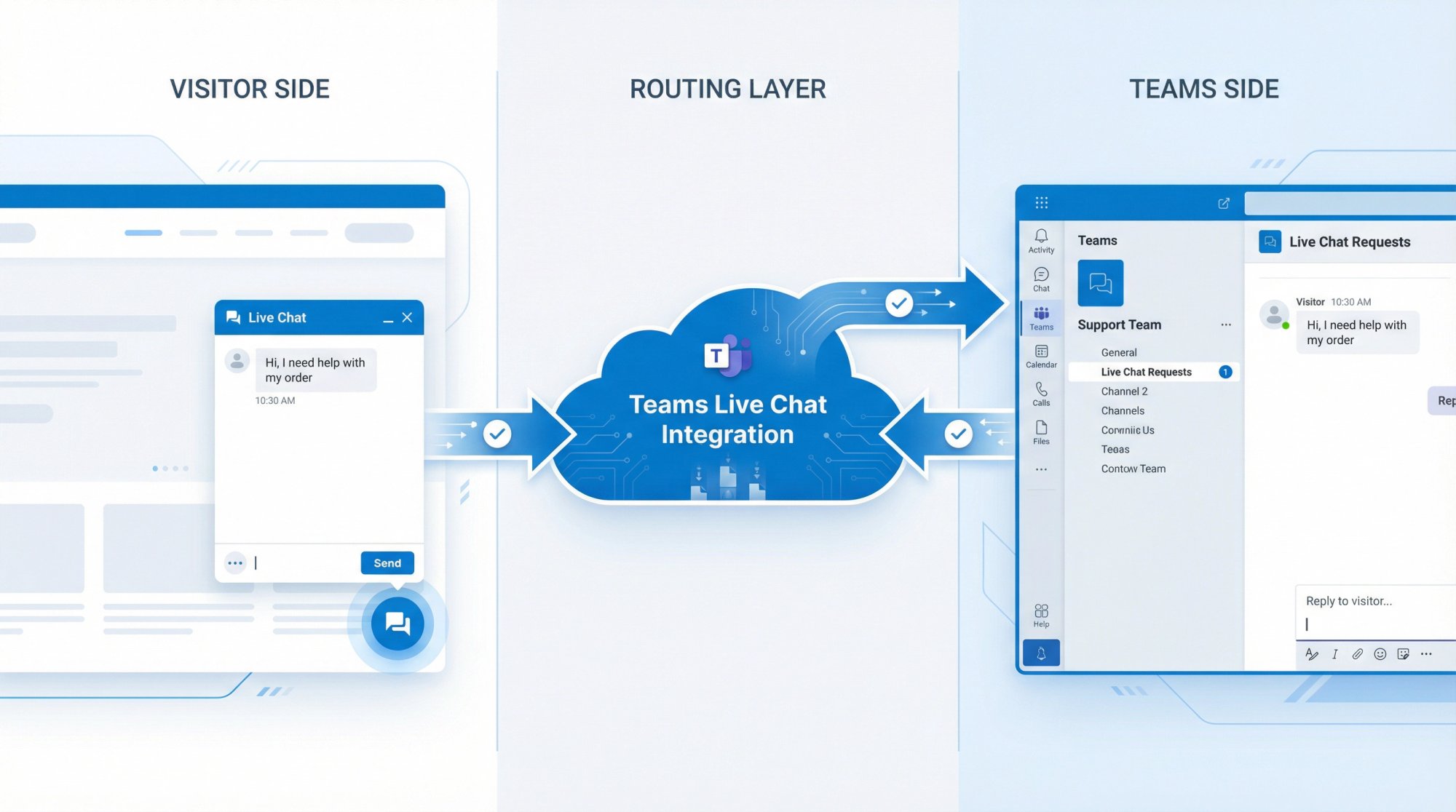
Availability
As of late 2025, the Teams Live Chat feature is fully functional for tenants in the United States. Microsoft originally planned worldwide availability by Q2 2025, but rollout outside the U.S. has seen delays.
Many global users reported not yet seeing the feature in their Teams admin as of Q4 2025. So if you're outside the U.S., you may find this option is still unavailable in your tenant. Microsoft hasn't announced a completed global rollout at the time of writing.
Keep an eye on Microsoft 365 updates for your region if you prefer to use the built-in route.
Limitations to Note
Besides the 25-agent cap and regional rollout issues, the built-in solution requires you to have the supported Microsoft 365 licenses. You must also be a Teams admin to set it up, and your organization's Teams policies must allow Live Chat (it's part of the Teams Admin Center).
On the upside, there's no additional cost if you already have the appropriate Microsoft 365 subscription, and it tightly integrates with Teams. It even offers extras like appointment scheduling and AI responses via Microsoft Copilot (if you have those add-ons).
How to Set Up Microsoft Teams Live Chat in 3 Steps
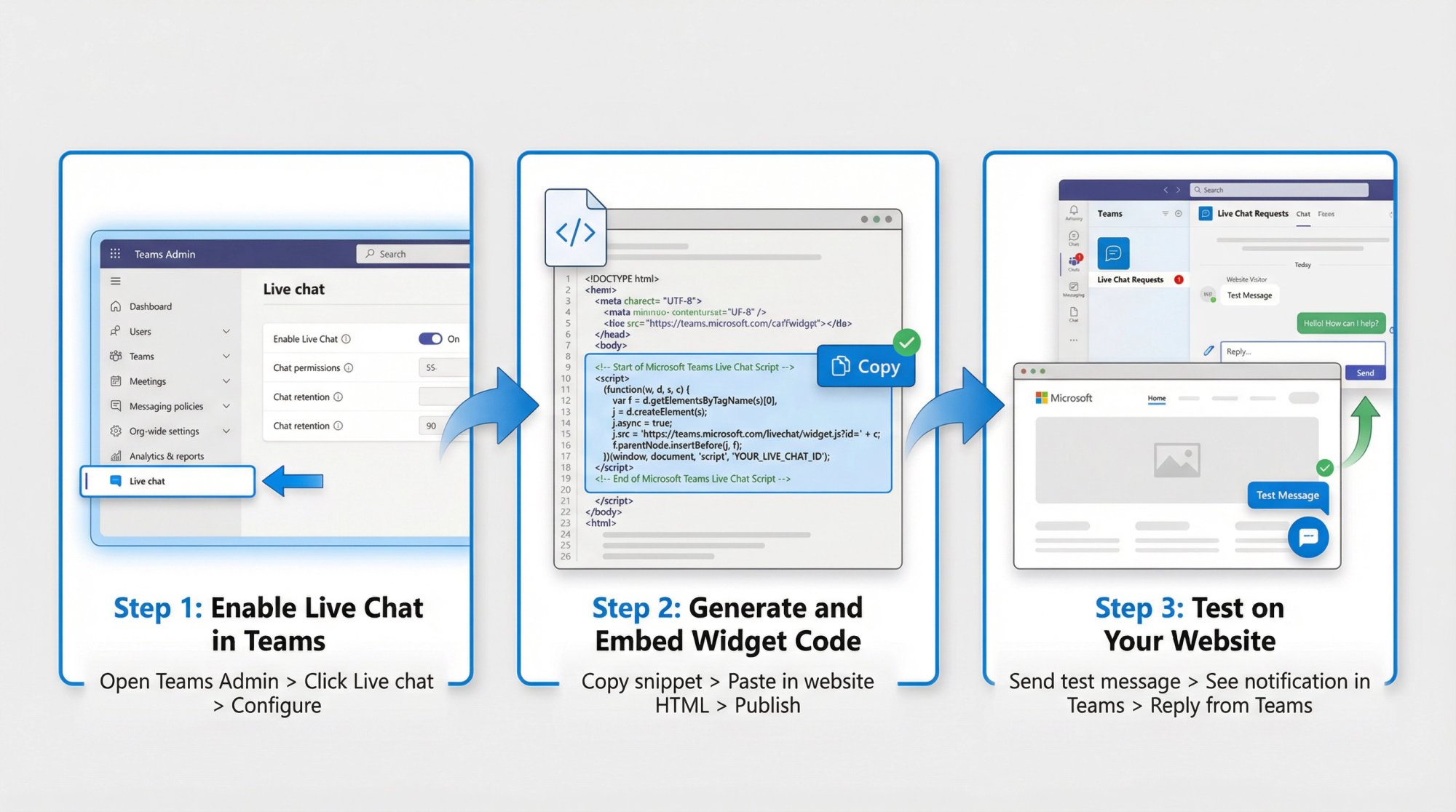
① Enable Live Chat in Teams
A Global Admin can open the Teams Admin app (in Teams) and find Live chat in the menu. Click "Get started" and follow the prompts.
You'll be asked to add your business name, logo, and a greeting message for the chat bot (this bot welcomes visitors and can hand off to humans). You'll then assign users to the support team (remember, Business license users, max 25), and set your support hours and offline message.
② Generate and embed the widget code
After setup, use the Add to website option to trust your domain and get the JavaScript snippet. Copy-paste this code into your website's HTML (just before the closing </body> tag). This inserts the Teams chat button on your site.
③ Test it out
Microsoft lets you test the widget right inside Teams after creation. You can also go to your website and send a test message.
In Teams, you should see a notification or new post in the Live Chat Requests channel (Teams will create a default team or channel if needed). Team members can click the chat request to open a threaded chat. Now simply start typing your response.
The customer sees the reply instantly on the website chat widget, and you'll see their incoming messages in Teams just like a normal chat conversation.
While Microsoft's native solution is convenient for those who qualify, it may not work for everyone (especially larger organizations, those outside currently supported regions, or anyone who wants more flexibility).
This is where third-party integrations come in.
Method 2: How to Use Third-Party Live Chat Integration with Teams
Before Microsoft launched its own widget, several third-party providers offered ways to connect website chats into Teams. These services are still highly relevant, and in many cases offer more features or fewer restrictions than the built-in option.
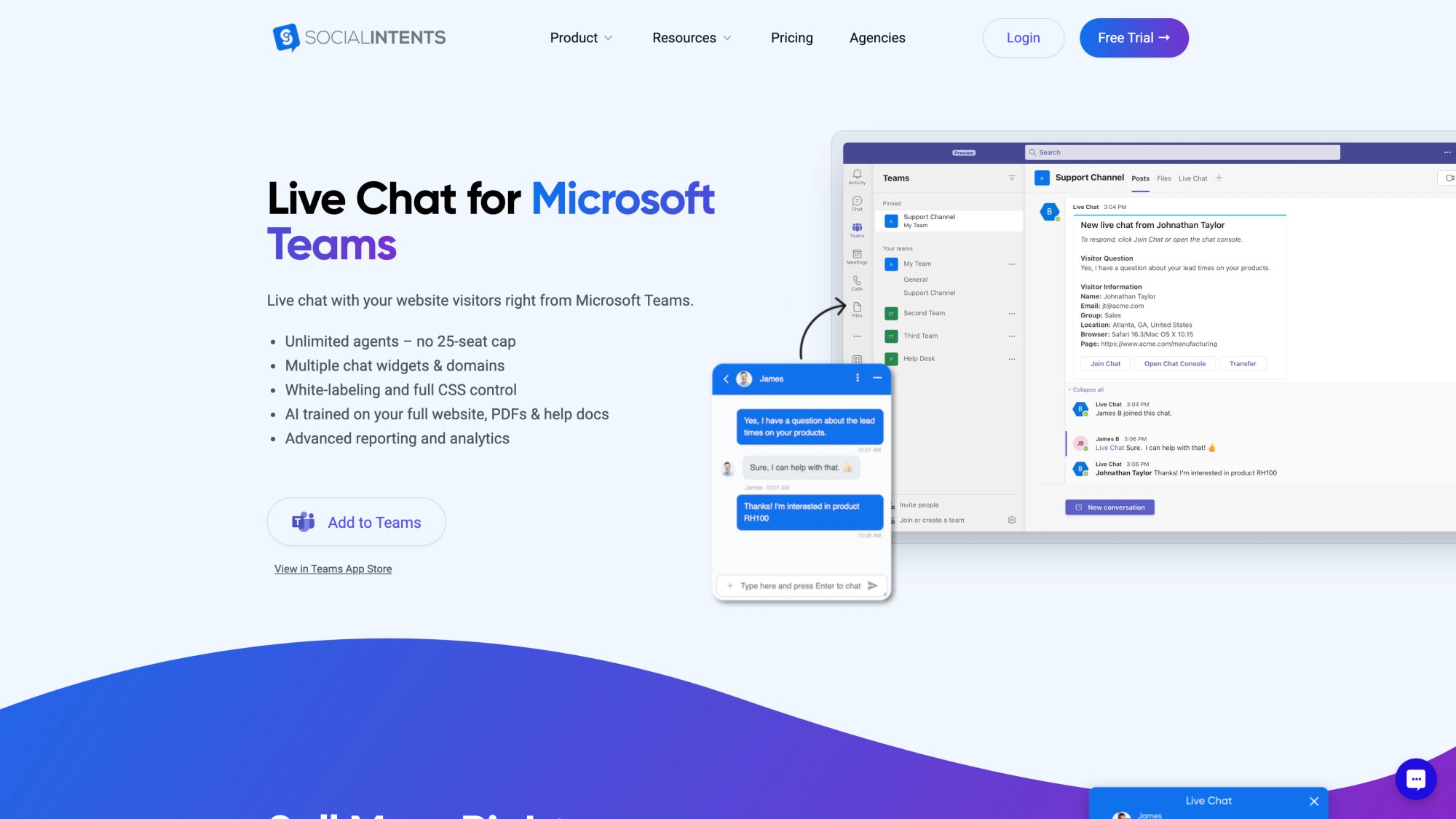
Social Intents is one such provider (our company's solution), and we'll use it as the example for this method. The general idea is similar: you add a Teams app that acts as a bridge between your website and Microsoft Teams.
How It Works
Social Intents provides a customizable chat widget for your website that routes messages into your Microsoft Teams.
From the visitor's perspective, it's just a normal live chat box on your site. From your team's perspective, incoming chats appear in Teams (in a channel or chat interface provided by our app) and you answer directly from Teams.
The customers do not know you're using Teams. They see only the website chat UI, which you can brand to look like your company's style.
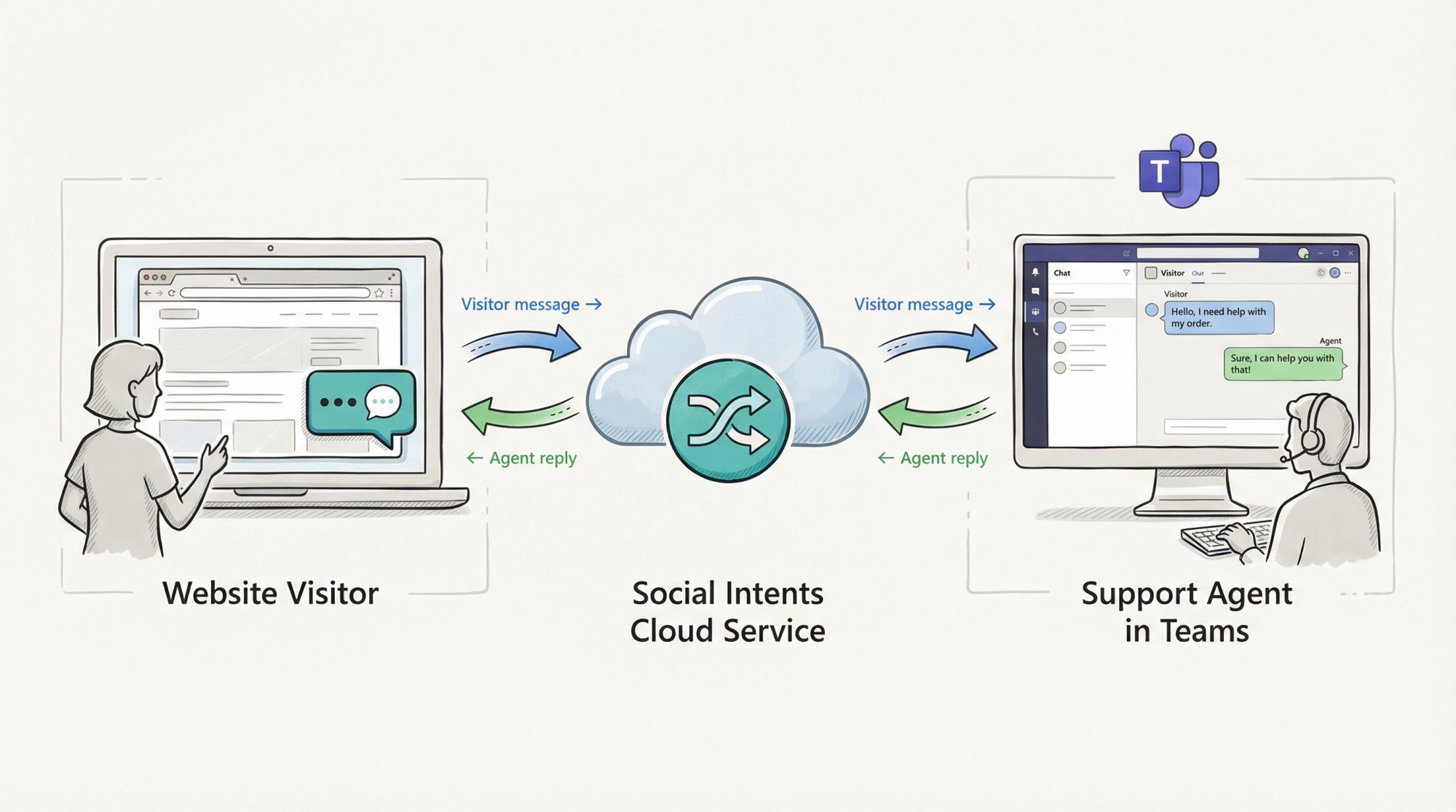
On the back end, the Social Intents cloud service relays messages between the site and your Teams app. The result is real-time, bi-directional chat: your messages from Teams go to the visitor's browser, and their replies show up instantly in Teams for you.
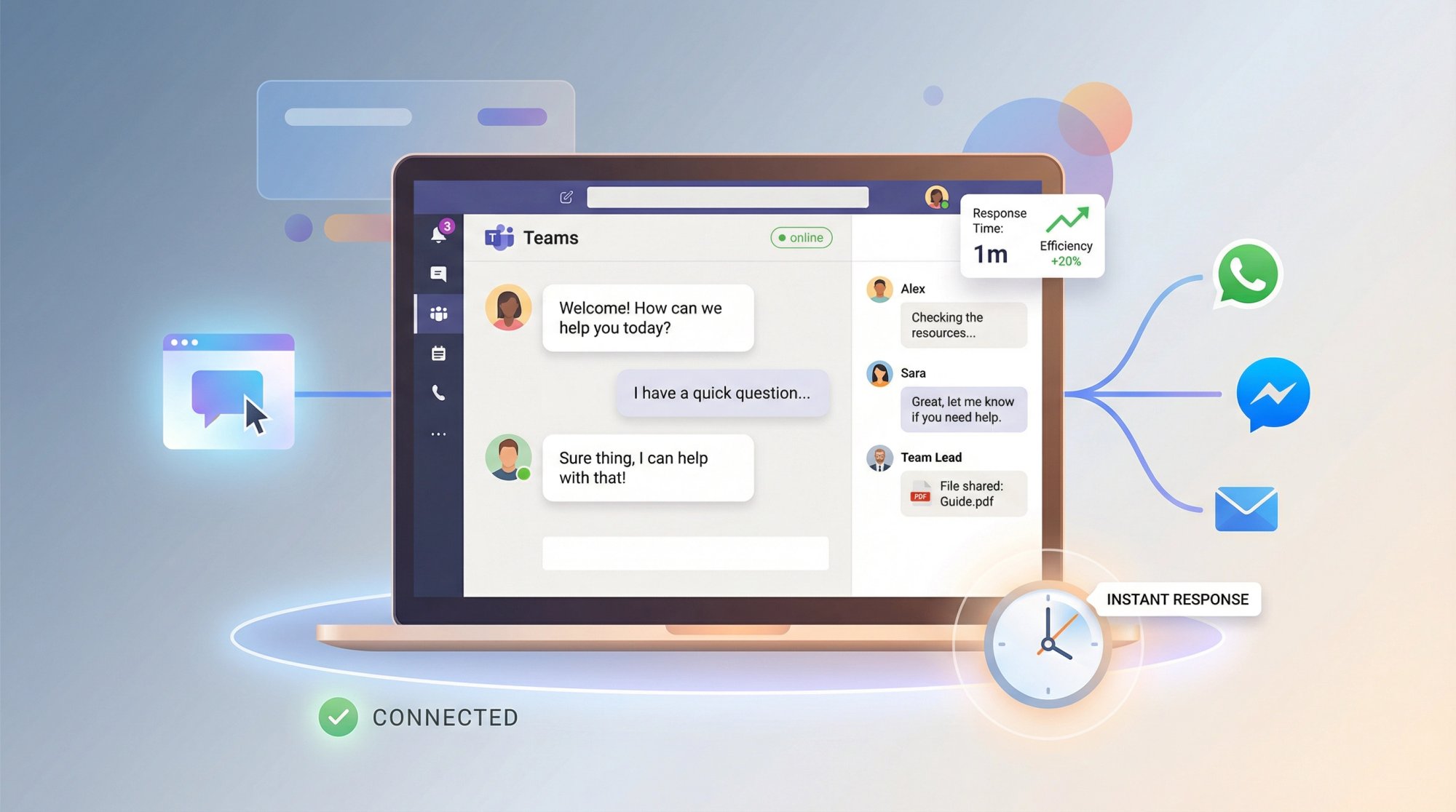
Visual example: Think of a website live chat widget (lower right corner) that's connected to Microsoft Teams. Visitors type into the site chat box, and your team receives the message inside Teams. The customer sees a familiar chat interface on the website, while your agents can reply from within Teams.
What Are the Benefits of Third-Party Chat Solutions?
Works with any Teams setup
There's no special license requirement. As long as you can install apps in Teams, you can use it. Even enterprise E3/E5 tenants or education tenants can take advantage (just ensure your admin allows third-party Teams apps).
No seat limits
Social Intents does not impose a 25-agent cap. You can add unlimited agents to handle chats, which is great for larger support teams or if you want many people available to jump into chats.
Multiple widgets and channels
You aren't limited to one chat widget. You can deploy chat on multiple websites or different product pages and have each route to a different Team or channel if needed.
For example, sales chats to the Sales team in Teams, support chats to the Support team. This makes it flexible to support several departments or brands from one Teams tenant.
Richer feature set
Third-party tools often come with features like:
• File sharing through chat
• Pre-chat forms (to collect visitor info or questions up front)
• Custom chat themes
• Proactive chat triggers
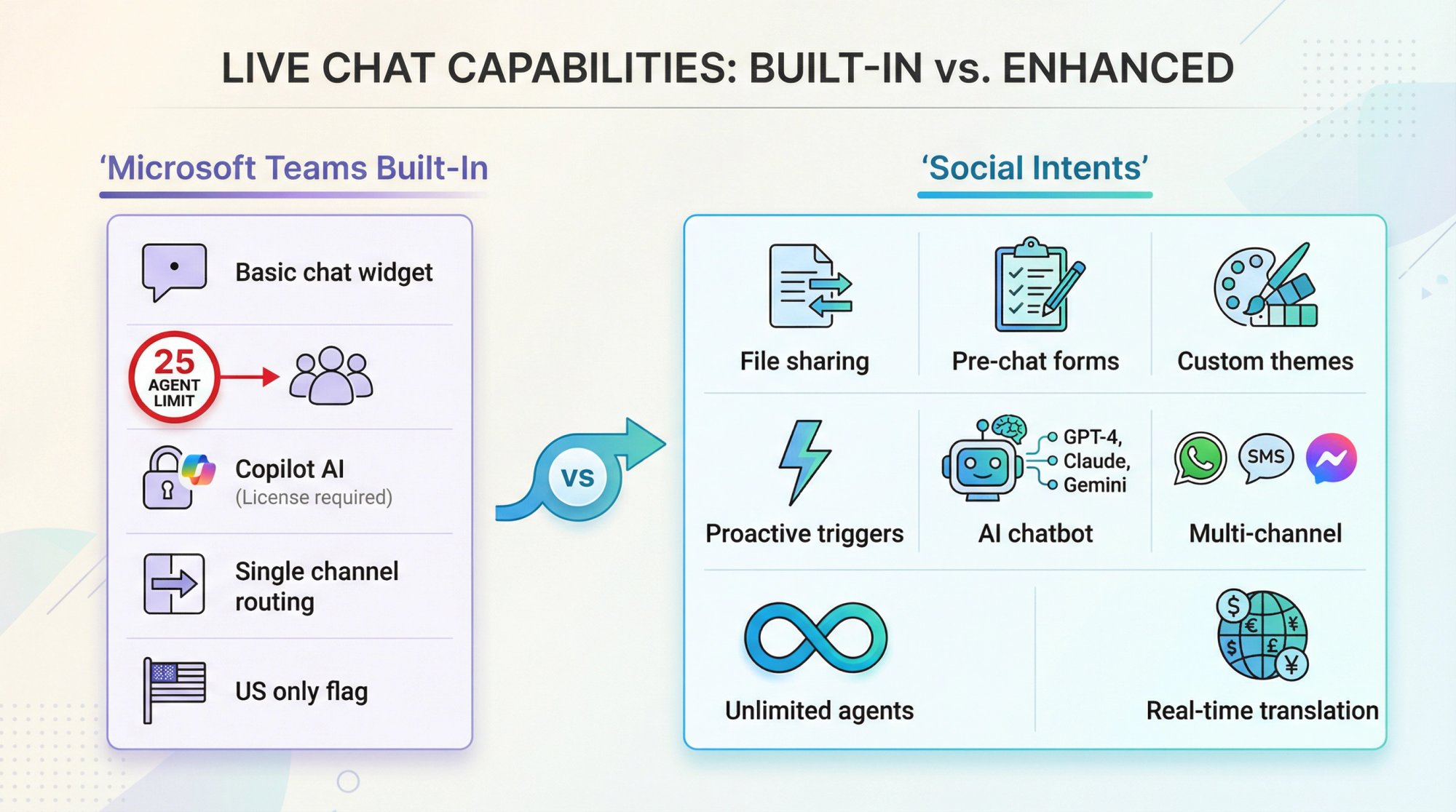
Social Intents supports all of these: file transfers both ways, customizable pre-chat surveys, full widget branding control via CSS, proactive message prompts, and more.
You can even turn on an AI chatbot to answer common questions automatically and then seamlessly escalate to a human in Teams when needed.
Microsoft's built-in solution similarly offers an AI option via Copilot, but that requires a separate Copilot license, whereas Social Intents lets you use OpenAI GPT-4, Anthropic Claude, or Google's models out of the box.
Multi-channel integrations
Some third-party platforms go beyond just website chat. For example, Social Intents can funnel WhatsApp, SMS, or Facebook Messenger conversations into Teams as well.
This means your team could use Teams as a unified inbox for multiple messaging channels (something the native Teams widget alone doesn't do).
In summary, third-party integrations are typically more feature-rich and not subject to Microsoft's limitations. The trade-off is that they're external services (involving separate subscriptions after any free trial) and require installing a Teams app from the provider.
How to Connect Website Chat to Teams with Social Intents (5 Steps)
Setting up Social Intents with Teams is straightforward and usually takes only a few minutes. Here's how:
1. Add the Social Intents Live Chat App to Microsoft Teams
In Teams, go to Apps (the app store) and search for "Live Chat by Social Intents." It should appear with the Social Intents name (our app listing is simply called "Live Chat").
Click Add to Teams. You'll be prompted to choose a team and channel where you want to install the app. Pick the team/channel that should receive website chats (for example, a "Customer Support" team and its General channel, or whatever makes sense for you).
The app will then be installed to that channel. You'll notice a new Live Chat tab at the top of the channel after installation.
Note: If you don't see the app in search, your Teams admin might need to enable third-party apps or give permission.
2. Sign In and Configure the App
Once added, the Live Chat tab will prompt you to sign in or create a Social Intents account (if you haven't already). This is so the chat service can link to your organization. You can sign up for a free trial directly through the Teams tab.
After logging in, you'll land on the Live Chat console inside Teams. This is where you can manage settings. By default, a new chat widget is created for you.
In the Teams tab interface, you can customize the widget's appearance and behavior:
• Set the welcome message
• Choose colors to match your brand
• Upload your logo or agent avatar
• Configure office hours (online/offline times)
All these customization options are available right within Teams, so you don't have to switch to a separate website for configuration.
3. Add the Chat Widget to Your Website
Now that your Teams app is set up and your widget customized, you need to put the widget on your actual website.
In the Social Intents Teams tab (or the web dashboard), you'll find a code snippet (JavaScript code) for your chat widget. Copy this snippet. Then, paste it into your website's HTML (typically just before the </body> tag or via your tag manager).
If you use a CMS like Shopify, WordPress, Wix, etc., Social Intents also offers plugins or app store integrations to make installation even easier (you can install our official Shopify app, WP plugin, etc., instead of manually editing code).
Once the code is added and your site changes are published, the chat widget will appear on your website. It usually shows up as a chat icon or banner in the corner of the site, which expands when clicked.
4. Start Chatting from Teams
With the widget live, you're ready for the magic. When a website visitor clicks the chat and sends a message, it will pop up in Microsoft Teams for your team.

Social Intents will post a notification in the channel you configured, alerting everyone (or a specific subset of users) that a new live chat has arrived.
For example, a card might appear in the channel saying "New live chat from [Visitor Name or 'Website Visitor']" with the visitor's question and options to join or answer the chat.
A team member can click "Join Chat" (which either opens a private 1:1 chat with the visitor via the bot, or opens the Live Chat tab to handle it, depending on configuration). Once joined, simply type your responses in Teams as you would in any chat.
The visitor sees the replies instantly on the website widget, and you'll see their messages in real time in Teams. Other team members can also see the conversation (if it's in a channel thread) and even collaborate behind the scenes.
For instance, discussing in a side thread or Teams chat before responding, since the visitor only sees what the agent sends through the live chat. When the conversation is over, you can close the chat from Teams (and even trigger a "rate our service" survey if you'd like).
5. Optimize and Expand (Optional)
After setting everything up, take advantage of additional features to enhance your Teams chat support:
Canned responses – Set up pre-written replies and use shortcut commands in Teams to insert them, saving time on FAQs.
Routing rules – If you have multiple chat widgets, route sales inquiries to a Sales channel and support inquiries to a Support channel automatically.
Agent availability status and office hours – The widget can show "offline" outside your set hours or offer the visitor an email form when no one's available.
AI chatbot – Enable an AI chatbot to answer common questions. Our platform lets you train an AI on your website or knowledge base, which can greet the visitor and handle simple queries, then pass the chat to a human in Teams if the question is complex or the user requests a human. This can significantly reduce workload while still keeping the conversation in Teams when human help is needed.
All these settings are accessible right from the Teams interface or the Social Intents web dashboard.
Pro Tip: Make sure to configure your Teams notifications so you don't miss incoming chats. You might want to enable banner/pop-up notifications for the channel where chats are posted, or use the Social Intents app's built-in alerts (the app can send @mentions or Teams activity notifications for new chats). This ensures a new website message gets an agent's attention immediately.
With proper notification settings, you'll never miss a live chat. Every new inquiry will ping your team in real time.
Which Method Should You Choose for Your Team?
So which method should you choose? Here's a quick comparison:
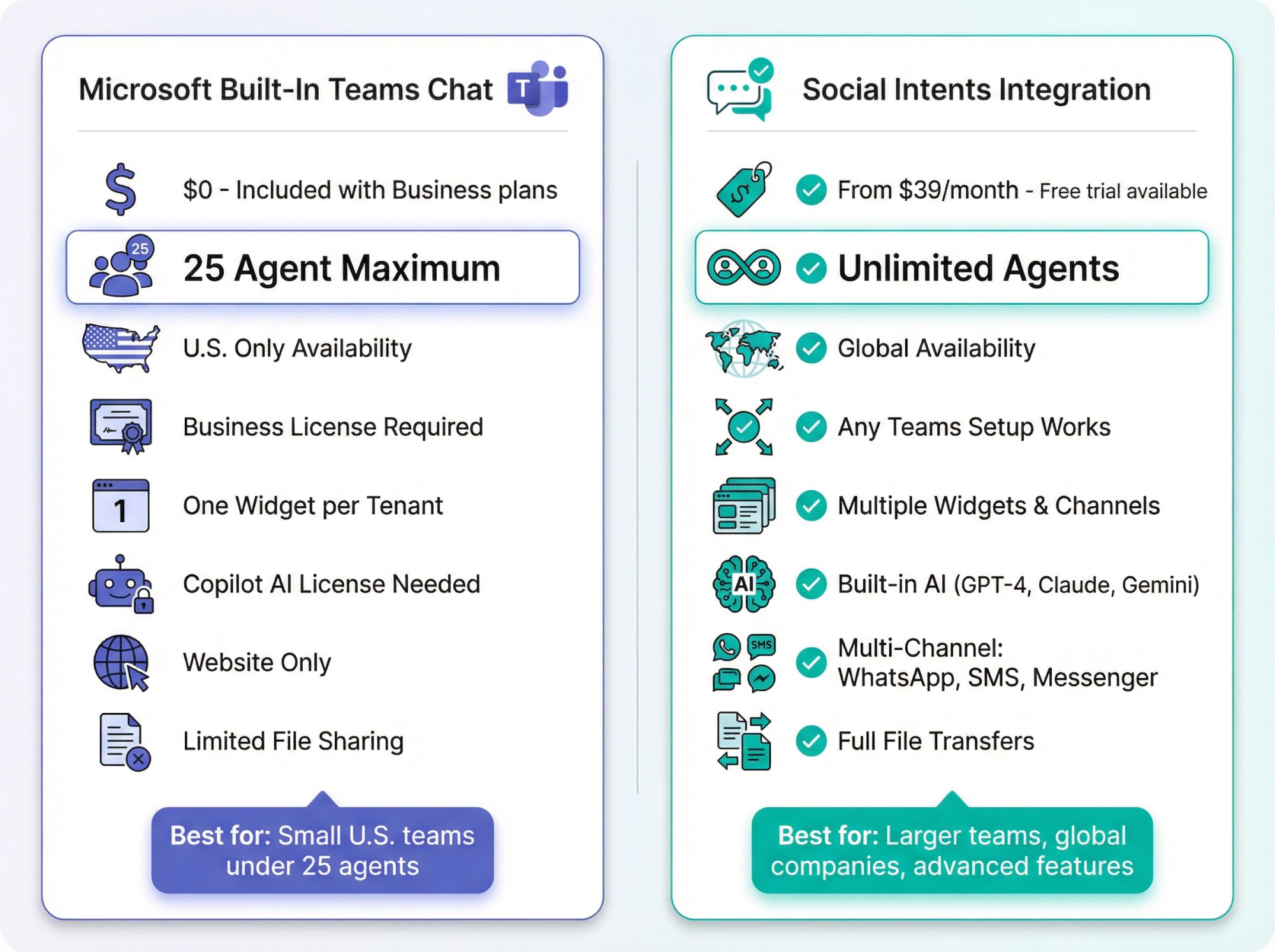
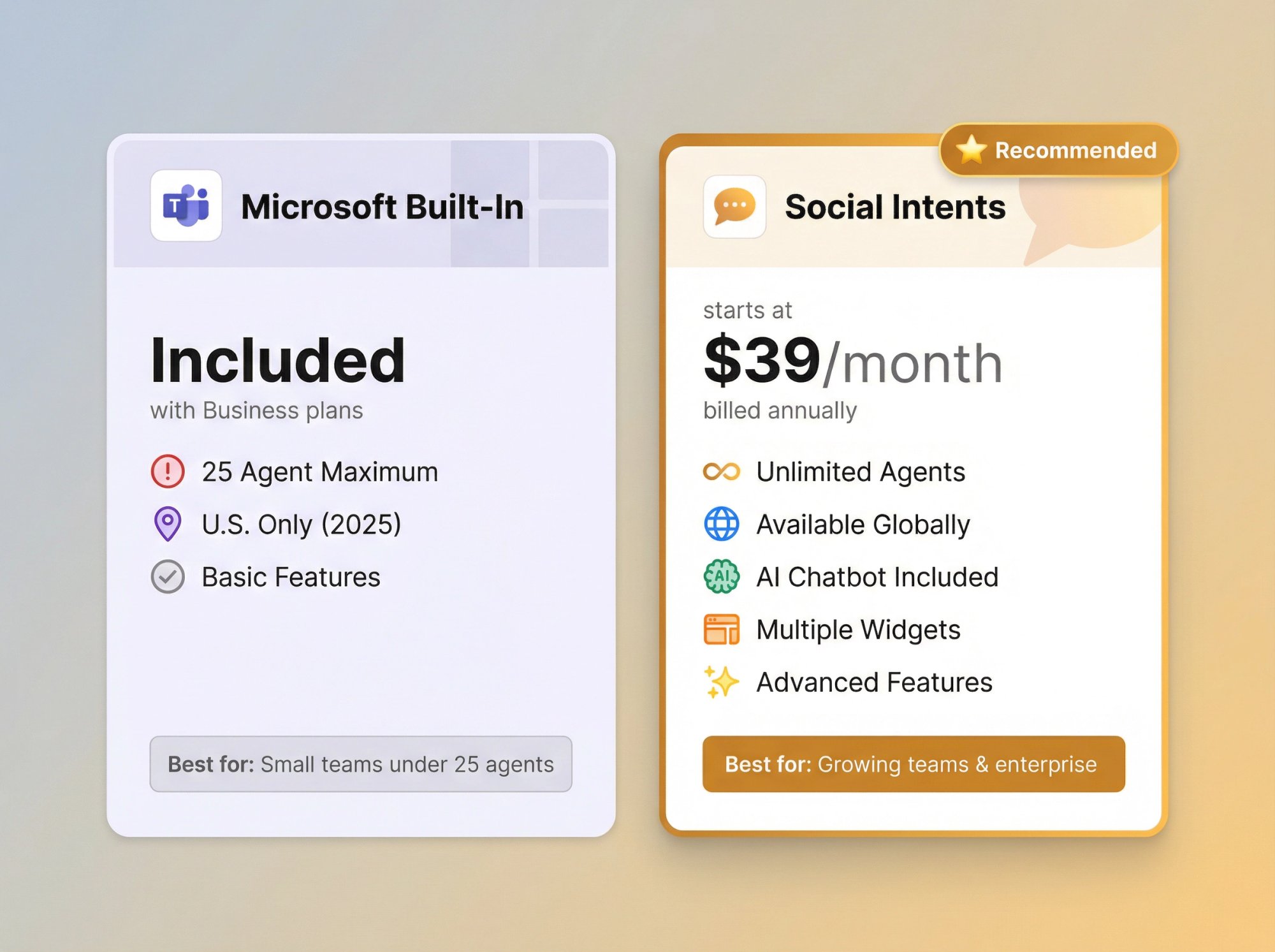
| Feature | Microsoft Built-In | Social Intents |
|---|---|---|
| Cost | Included with Business plans | Paid subscription (free trial available) |
| Agent limit | 25 maximum | Unlimited |
| Availability | U.S. only (as of late 2025) | Global |
| License requirements | Business Basic/Standard/Premium | Any Teams setup |
| Multiple widgets | One per tenant | Multiple widgets and channels |
| AI chatbot | Requires Copilot license | Built-in (GPT-4, Claude, Gemini) |
| Multi-channel | Website only | WhatsApp, SMS, Messenger |
| File sharing | Limited | Full file transfers |
| Setup complexity | Requires admin permissions | Simple app install |
Use Microsoft's built-in solution if:
• You have fewer than 25 support agents
• You're on a Microsoft 365 Business plan
• You're located in the U.S.
• You need a basic, free solution
Use Social Intents if:
• You have a larger support team (or want unlimited agents)
• You're on an Enterprise plan or outside the U.S.
• You need multiple chat widgets or advanced features
• You want AI chatbot capabilities without extra licenses
• You want to integrate other messaging channels (WhatsApp, SMS, etc.)
Why We Built Social Intents for Teams
We created Social Intents because we saw teams struggling with the same problem: they'd add live chat to their website, then realize their support agents had to constantly switch between chat software and Teams where they actually worked.
It was inefficient. Agents would miss messages. Collaboration was difficult because the chat tool was isolated from their main workspace.
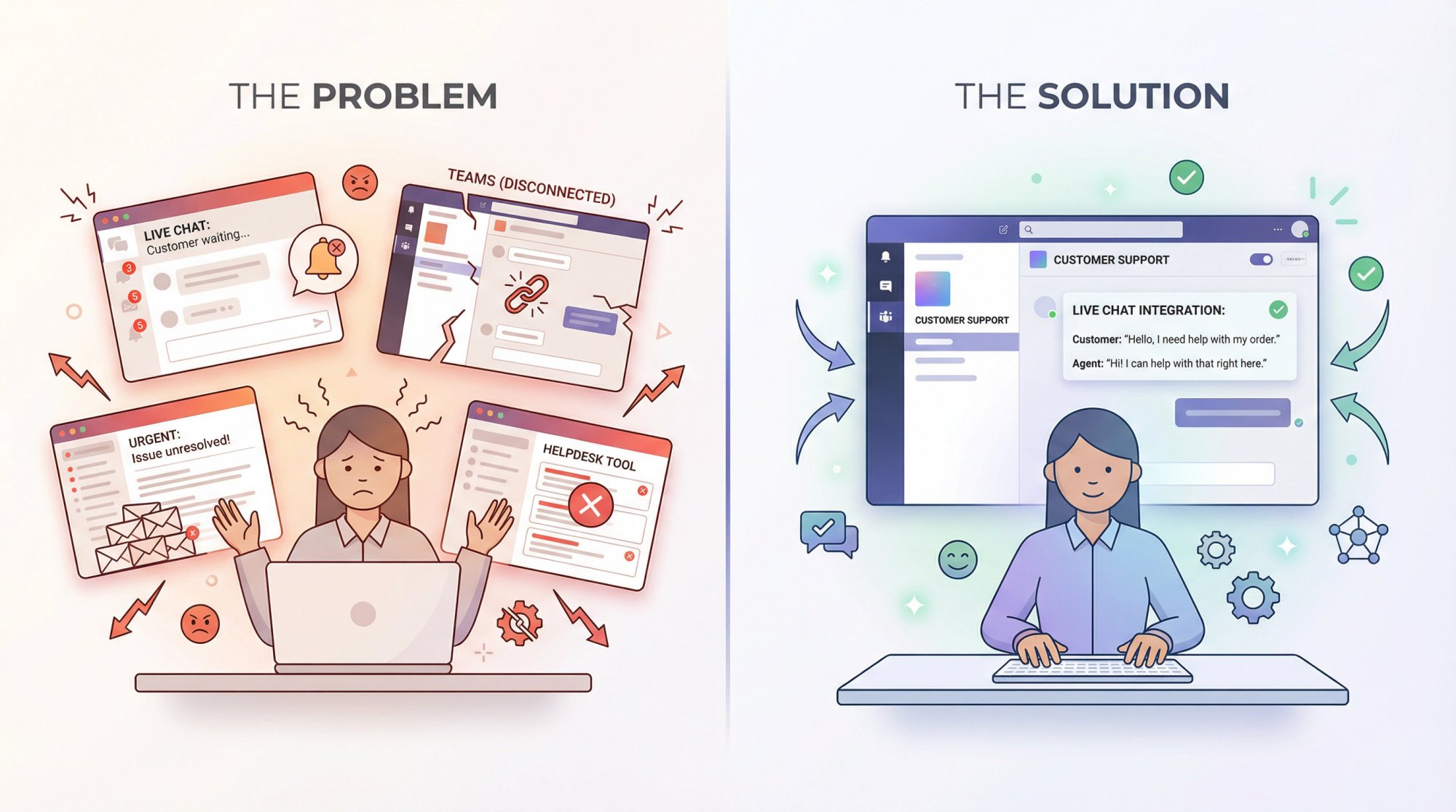
So we built a solution that brings website chat into Teams instead of forcing your team out of Teams. We wanted support teams to stay productive in one place while still providing excellent customer service.
Since launching, we've helped thousands of teams streamline their customer support by integrating chat directly into their existing workflow. Whether you're a small business using Teams for internal communication or a large enterprise with complex support needs, Social Intents scales with you.
Our platform includes:
• Unlimited agents on most plans (no artificial caps)
• AI chatbot integration with GPT-4, Claude, or Gemini for automated responses
• Custom AI Actions to integrate with third-party tools (order status, ticket creation, shipping updates)
• Multi-channel support (website, WhatsApp, Facebook Messenger, SMS)
• Native e-commerce apps for Shopify, BigCommerce, Wix, and WordPress
• Real-time translation for international support
• Proactive chat invites to engage visitors at the right moment
• Full customization of chat widget appearance and behavior
Plus, everything works directly in Teams. Your agents don't need to learn new software or switch contexts.
Start your free 14-day trial and see how fast you can get live chat running in Teams.
How to Take Teams Chat Support to the Next Level
Once you've got basic chat working in Teams, you can enhance it with more advanced capabilities:
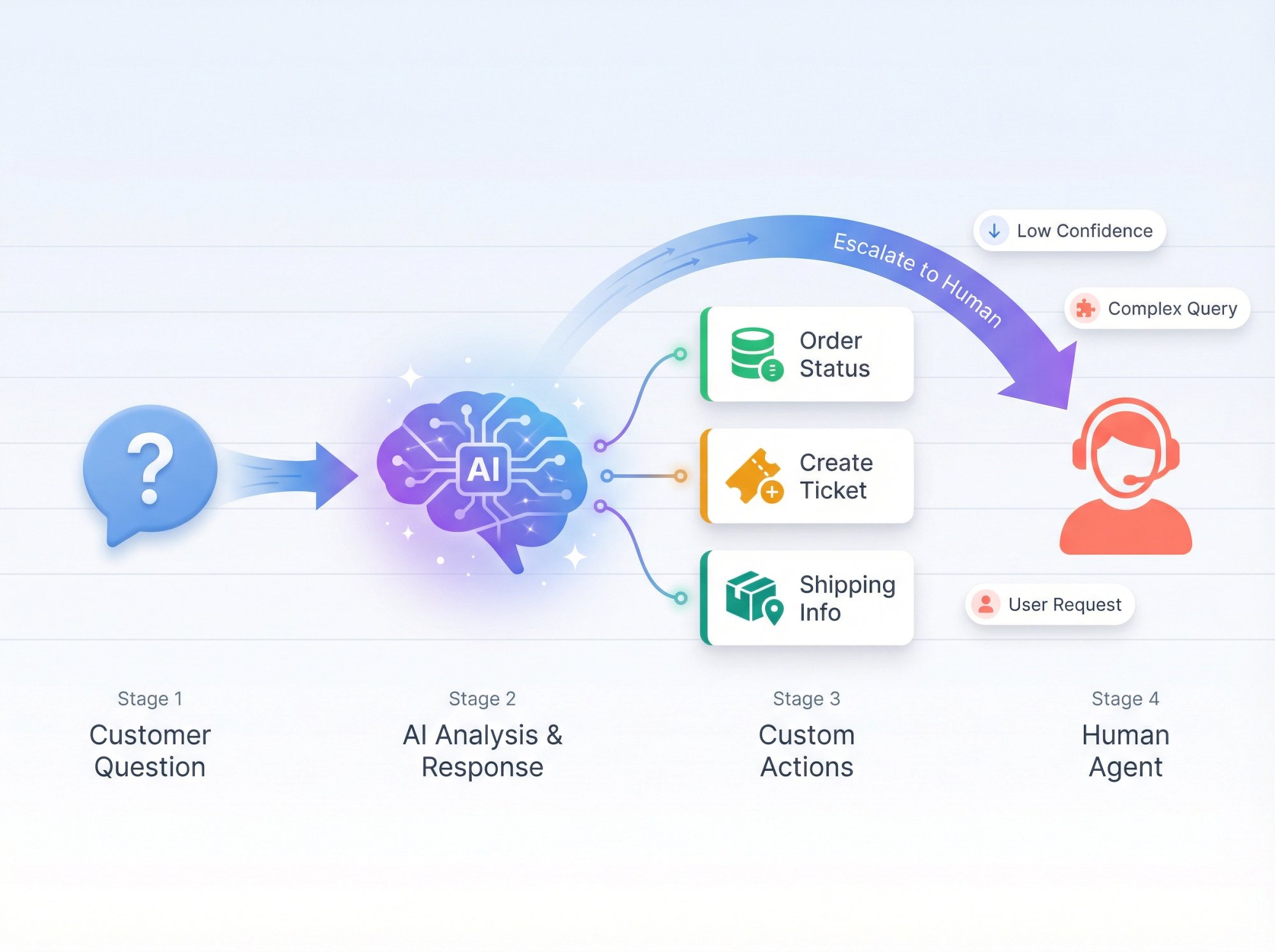
AI-Powered Automation
Modern chat tools let you blend AI and human support seamlessly. With Social Intents, you can:
Train an AI on your content
Upload your website pages, PDFs, help docs, or knowledge base articles. The AI chatbot learns your content and can answer questions automatically.
Set escalation rules
Configure when the AI should hand off to a human. For example, if confidence drops below a threshold, if the user asks for a human, or for specific keywords.
Handle after-hours inquiries
Let AI answer questions when your team is offline, then escalate to a human during business hours.
The hybrid approach: AI plus human support lets you scale support without hiring more agents, while still maintaining the personal touch when needed.
Custom AI Actions
One of our most popular features is Custom AI Actions. These are custom integrations with third-party tools that enrich chat conversations:
• Order status lookup (pull real-time order info from your system)
• Ticket creation (automatically create support tickets in your helpdesk)
• Shipping updates (provide tracking information)
• Account information (look up customer details securely)
These actions make your chat more powerful by connecting it to your existing business systems. The AI can execute these actions during a conversation, providing instant, accurate information to customers.
Customers are very interested in these capabilities because they significantly reduce support workload while improving customer satisfaction.
Multi-Channel Unified Inbox
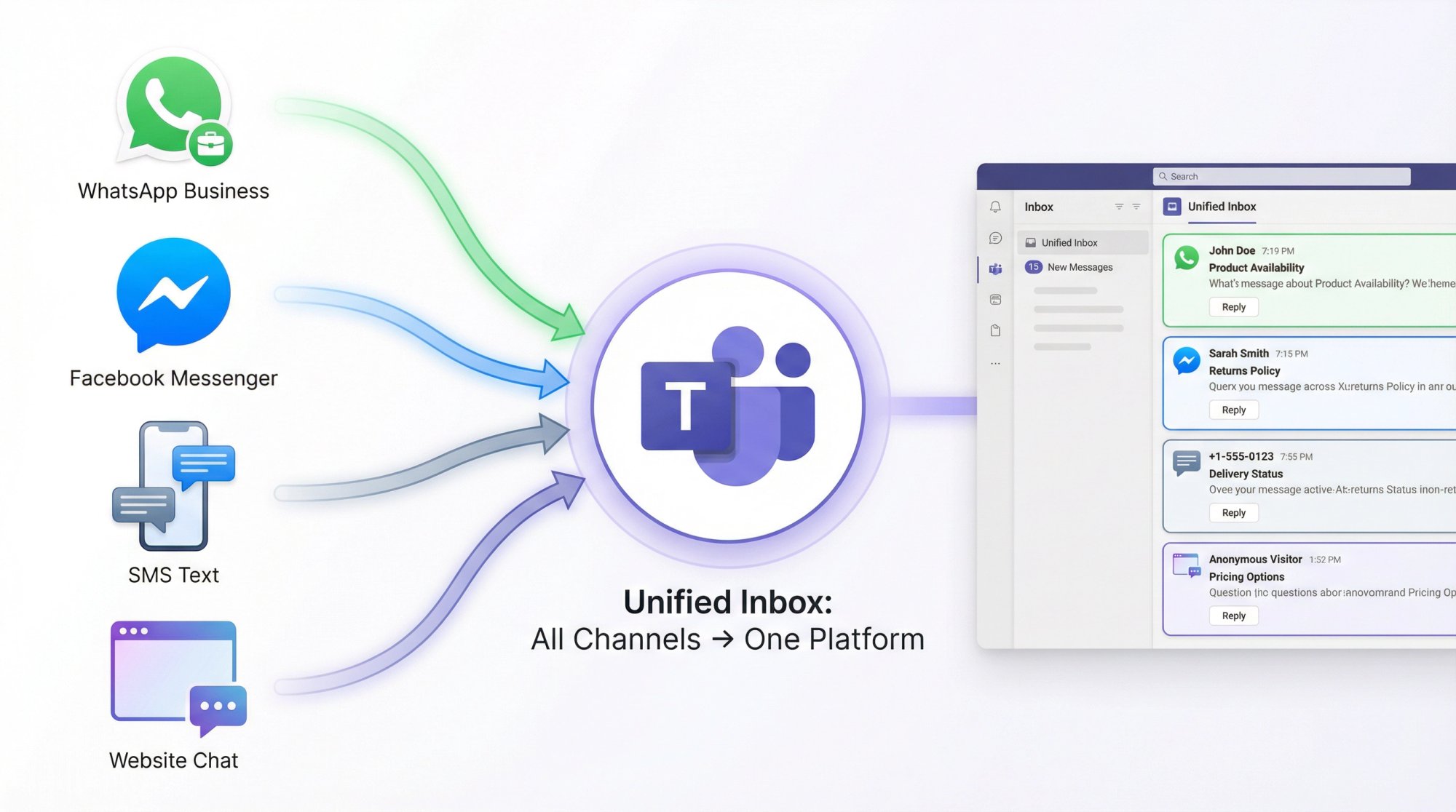
Why limit yourself to website chat? Social Intents can bring multiple communication channels into Teams:
→ WhatsApp Business – Connect your WhatsApp Business account and answer WhatsApp messages from Teams
→ Facebook Messenger – Route Messenger conversations to Teams
→ SMS – Handle text message conversations in Teams
→ Website Chat – Standard live chat widget
All these channels feed into Teams, giving your support team a unified inbox for all customer communications. No more jumping between apps to answer questions from different channels.
Proactive Chat Engagement
Don't wait for visitors to initiate chat. Use proactive triggers to engage them:
Time-based triggers – Show a chat invite after a visitor has been on your site for 30 seconds
Page-based triggers – Display different messages on different pages (e.g., pricing page vs. product page)
Exit intent – Catch visitors as they're about to leave with a targeted offer or question
Scroll depth – Engage visitors who've scrolled a certain percentage down the page
These proactive invites can significantly increase conversion rates by engaging visitors at the perfect moment.
Team Collaboration Features
Social Intents enhances Teams' natural collaboration strengths:
Chat transfers – Route a conversation to a different team member or department without the customer knowing
Internal notes – Add private notes to a chat that only your team can see
Chat history – Access complete conversation transcripts for training or quality assurance
Analytics and reporting – See chat volume, response times, customer satisfaction ratings, and more
These features turn Teams into a full-featured support platform while keeping the interface your team already knows.
Best Practices for Teams Chat Support
Once you're up and running, here are some tips to maximize effectiveness:
Set Clear Availability Hours
Be transparent about when you're available. Configure your chat widget to show:
• Online status during business hours
• Offline message when you're unavailable (with option to leave email)
• Estimated response time so customers know what to expect
Nothing frustrates customers more than sending a chat message and getting no response. If you can't provide 24/7 coverage, be upfront about it.
Create Canned Responses for FAQs
Identify your most common questions and create pre-written responses. This lets agents respond faster while maintaining consistency.
Examples:
• Shipping information
• Return policy
• Product specifications
• Pricing questions
• Account setup help
Store these in Social Intents and your agents can insert them with a quick command.
Use AI for First Response, Humans for Complex Issues
A hybrid approach works best:
① AI chatbot handles initial greeting and collects basic information
② AI answers simple FAQs automatically
③ AI escalates to human for complex questions or on customer request
④ Human takes over with full context from the AI conversation
This gives you fast response times for simple questions while preserving human expertise for situations that need it.
Monitor and Optimize
Track these metrics to improve over time:
Response time – How quickly do agents reply to new chats?
Resolution time – How long does it take to resolve customer issues?
Customer satisfaction – What's your CSAT score from post-chat surveys?
Chat volume – How many chats do you receive per day/week?
Agent utilization – Are all agents handling chats evenly?
Use this data to identify bottlenecks and optimize your support process.
Train Your Team
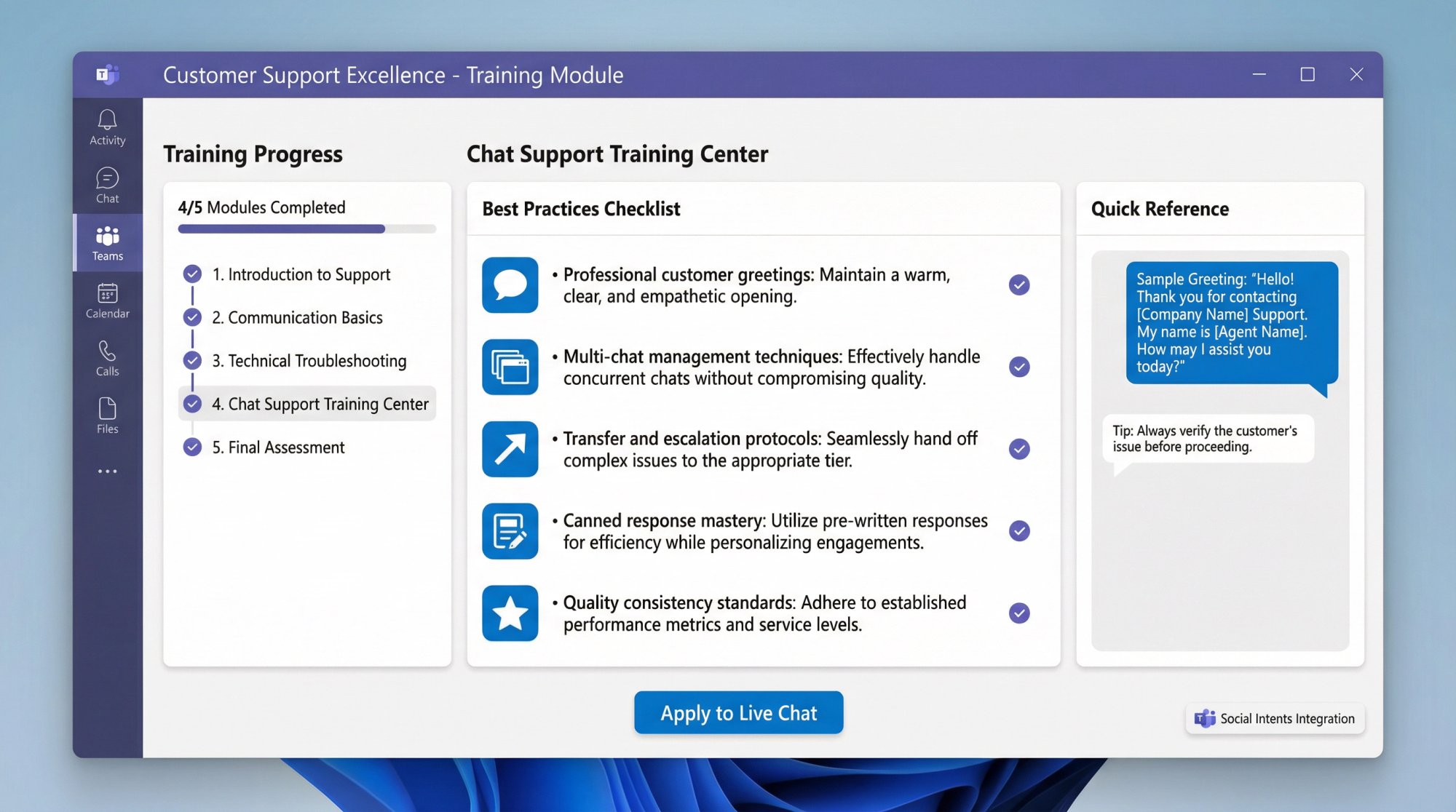
Even though your team already knows Teams, they still need training on chat support best practices:
• How to greet customers professionally
• How to handle multiple chats simultaneously
• When to transfer chats to specialists
• How to use canned responses effectively
• How to recognize when to escalate
Good training ensures consistent, high-quality support across your entire team.
Frequently Asked Questions

Can I use Teams chat support for multiple websites?
Yes. With Social Intents, you can create multiple chat widgets and deploy them across different websites. Each widget can route to a different Teams channel if needed.
For example, you could have one widget for your main company site (routed to your Support team) and another for your product documentation (routed to your Technical team). Microsoft's built-in solution is more limited. You can only create one chat widget per tenant.
What happens when multiple agents are available?
When a new chat comes in, Social Intents posts a notification to your designated Teams channel. The first available agent can claim the chat by clicking "Join Chat."
Once someone joins, the chat is assigned to them and other agents see it's being handled. You can also configure automatic assignment rules to distribute chats evenly across your team.
Can customers send files through the chat?
Yes, with Social Intents. Customers can upload files (images, documents, screenshots) directly in the chat widget, and agents can send files back.
This is useful for troubleshooting (customers can send error screenshots) or sharing documents (agents can send guides or instructions). Microsoft's built-in solution has more limited file sharing capabilities.
What if no agents are available?
You have several options:
Option 1: Offline message form – When all agents are offline or busy, the chat widget can switch to an email form. Visitors can leave their question and contact info, and you can follow up later.
Option 2: AI chatbot coverage – Enable an AI chatbot to handle inquiries 24/7. The AI can answer common questions even when your team is offline, and collect information for human follow-up if needed.
Option 3: Set specific hours – Configure the widget to only appear during your support hours, so customers never encounter an unavailable chat.
Most teams use a combination of these approaches.
Does this work on mobile devices?
Absolutely. The chat widget works on all devices (desktop, tablet, mobile). Your visitors can chat from their phones, and your agents can respond from the Teams mobile app.
This gives you full flexibility to provide support from anywhere.
How secure is the chat data?
Social Intents encrypts all data in transit and at rest using industry-standard encryption. Chat data is stored on AWS infrastructure with regular backups. We're compliant with GDPR and offer Data Processing Agreements for enterprise customers.
For Microsoft's built-in solution, chat data is handled according to your Microsoft 365 data policies and stored within your tenant's data boundaries.
Can I customize the chat widget's appearance?
Yes. With Social Intents, you have full control over:
• Widget colors and theme
• Chat button icon and position
• Welcome message and greeting
• Agent names and avatars
• Custom CSS for advanced styling
You can make the chat widget match your brand perfectly. Microsoft's built-in solution offers basic customization (colors, logo, greeting) but is less flexible for advanced branding.
What languages are supported?
Social Intents offers real-time translation powered by Google Translate. Your agents can chat in English, and customers can chat in their native language. Each side sees messages automatically translated. This supports 100+ languages.
The AI chatbot also supports multiple languages (depending on which AI model you use). Microsoft's built-in solution doesn't offer automatic translation at this time.
How much does it cost?
Microsoft's built-in Teams Live Chat: Included with Microsoft 365 Business Basic, Standard, and Premium plans. No additional cost if you have these licenses.
Social Intents: Pricing starts at $39/month (billed annually) for the Starter plan. This includes:
• 1 chat widget
• 3 agents
• 200 conversations/month
• 10 trained URLs for AI
Higher plans offer more widgets, unlimited agents, more conversations, and advanced features like real-time translation and custom branding.
See full pricing details or start a free 14-day trial to test everything before committing.
Final Thoughts
Connecting website live chat to Microsoft Teams can transform how your support team works. You get the benefits of real-time customer communication without forcing your agents to learn new software or constantly switch between apps.
Whether you choose Microsoft's native solution or a third-party integration like Social Intents depends on your specific needs:
For small teams (under 25 agents) in the U.S. with basic requirements: Microsoft's built-in solution is a solid, free option.
For larger teams, global companies, or those needing advanced features: Social Intents offers more flexibility, unlimited agents, AI capabilities, and multi-channel support.
What's clear is that the era of siloed support tools is ending. You no longer have to keep one app open for customers and another for internal comms. By uniting them, you streamline your workflow and respond to visitors in seconds.
Microsoft Teams becomes not just an internal collaboration hub, but a customer-facing support hub as well. Your team stays productive, your customers get faster responses, and everyone wins.
Ready to get started? Try Social Intents free for 14 days and see how fast you can turn Teams into a complete customer support platform. No credit card required, and you can have live chat running on your website in less than 10 minutes.
Give it a try. The first time that notification goes off in Teams and you're chatting with a live customer through a platform you already know, it feels pretty amazing.
