

Your support team probably spends half their day switching between apps. Chat in one tool, tickets in another, internal questions in Teams, customer conversations scattered everywhere. It’s exhausting, and your response times show it.
Here’s what most companies don’t realize: Microsoft Teams can handle customer support directly. Not just internal IT tickets or team collaboration, but actual customer conversations from your website’s live chat, routing straight into the workspace your team already uses all day.
We’re going to show you exactly how to turn Teams into your customer support hub. You’ll learn why this approach works, how to set it up (it takes about an afternoon), and which tools make it possible. By the end, you’ll understand how companies are delivering real-time support without forcing agents to learn yet another platform.
Why Use Microsoft Teams for Customer Support?
Your team already lives in Teams. Over 320 million people use Microsoft Teams monthly, with more than one million companies relying on it as their primary communication tool. Research shows Teams has seen exponential growth since 2020. Your support agents are probably in Teams right now, chatting with colleagues, attending meetings, sharing files.
That’s the whole point. Why make them switch to a separate helpdesk interface?
No more app-switching chaos. When customer conversations live in Teams, agents handle everything in one place. They don’t toggle between a helpdesk tab, Teams for internal questions, and email for follow-ups. Studies have found that if your team communicates in Teams all day, managing support there is far more efficient than training them on another tool. Eliminating constant context switching shaves precious seconds (actually minutes) off every interaction.
Real-time responses that customers actually notice. Teams was built for instant communication. You can offer immediate, real-time assistance that reduces wait times dramatically. Agents see inquiries pop up and reply within seconds. This agility helps you solve problems faster and eliminate the backlogged email tickets piling up in your inbox.
The collaboration advantage: While chatting with a customer, agents can quickly tag a colleague or start a side thread for help. All within Teams. Your team can loop in a product engineer or manager without leaving the conversation.

Familiarity means faster adoption. Teams is already integral to your business. Your support process lives where the rest of your work lives. Agents feel comfortable from day one (minimal learning curve), and they can use existing Teams features like notifications, tags, and search to manage customer inquiries.
For companies already using Microsoft 365, it just makes sense to keep support in the same ecosystem rather than adopting an entirely new platform and paying per-seat fees.
Cost-effective scaling without per-agent pricing headaches. Teams is included in most Office 365 plans. You don’t pay extra per-seat fees for adding support agents. Plus, when you pair Teams with the right integration, you avoid the per-agent pricing model many helpdesks force on you.
Social Intents offers unlimited agents on all plans from Basic upward. According to TechRadar’s 2025 review, this makes scaling your support team budget-friendly, especially for growing organizations. You can add five agents or fifty without your software costs skyrocketing.
Can You Use Teams as a Help Desk?
It sounds unconventional. Microsoft Teams as a customer service help desk? Teams is known for internal workplace chat, not consumer-facing support channels.
But with the right approach, Teams absolutely can power your help desk. Companies are already doing this successfully.
Internal IT support proves the concept. Organizations use Teams to run internal help desks for employees. A question in a Teams channel creates a ticket, IT staff resolve it in-chat. This “conversational ticketing” approach has proven effective for IT and HR support because it’s fast and familiar.
This confirms that a well-configured Teams environment can handle support workflows. Not just for employees, but for customers too.
External customer support requires a bridge. For customer-facing support, you wouldn’t invite every customer into your company’s Teams tenant (that’s neither practical nor scalable). Instead, you integrate Teams with the channels customers already use, like your website’s live chat.

Here’s how it works:
• Customers initiate chats on your website through a chat widget
• Those messages route into Microsoft Teams for your agents to answer
• Customers don’t know you’re using Teams on the backend
• Your agents enjoy the unified experience of replying from Teams
The customer chats through a web widget as usual. Meanwhile, your support team works from the familiar Teams interface they use for everything else.
Voice and video support options exist too. Even phone or video support can run through Teams. A support agent could initiate a Teams meeting with a customer if an issue needs screen sharing or “face-to-face” help. You can send a meeting invite link (no Teams account required on the customer’s end).
This is usually arranged case-by-case rather than through an always-on integration, but it’s useful for high-touch support scenarios.
| Support Type | How It Works in Teams | Best For |
|---|---|---|
| Live website chat | Widget routes to Teams channel | Most businesses, immediate support |
| Internal IT helpdesk | Employees message bot/channel | Internal teams, IT/HR support |
| Video/phone support | Teams meeting invites | High-touch, complex issues |
Teams won’t replace every ticketing system feature. It’s not a full-fledged helpdesk with advanced workflows, SLA tracking, and omnichannel case management. But it can eliminate the need for a separate live chat interface or lightweight helpdesk.
Your team works in Teams. Your customers reach you through familiar channels. The result is a streamlined support process that bridges internal and external communication without forcing anyone to learn new software.
What Do You Need to Use Teams for Customer Support?
To successfully use Teams as a customer support hub, you need a few things in place:
| Requirement | Why You Need It | Key Details |
|---|---|---|
| Microsoft Teams with admin access | Third-party integrations require permissions | Must allow external apps or whitelist specific integrations |
| Live chat integration | Bridge between Teams and customers | Social Intents or similar tool connects your site to Teams |
| Website or contact point | Where customers initiate conversations | Usually your website, could be in-product chat |
| Support team training | Ensure smooth adoption | Define channels, roles, protocols |
| Integration account | Manage settings and customization | Free trial available (e.g., Social Intents 14-day) |
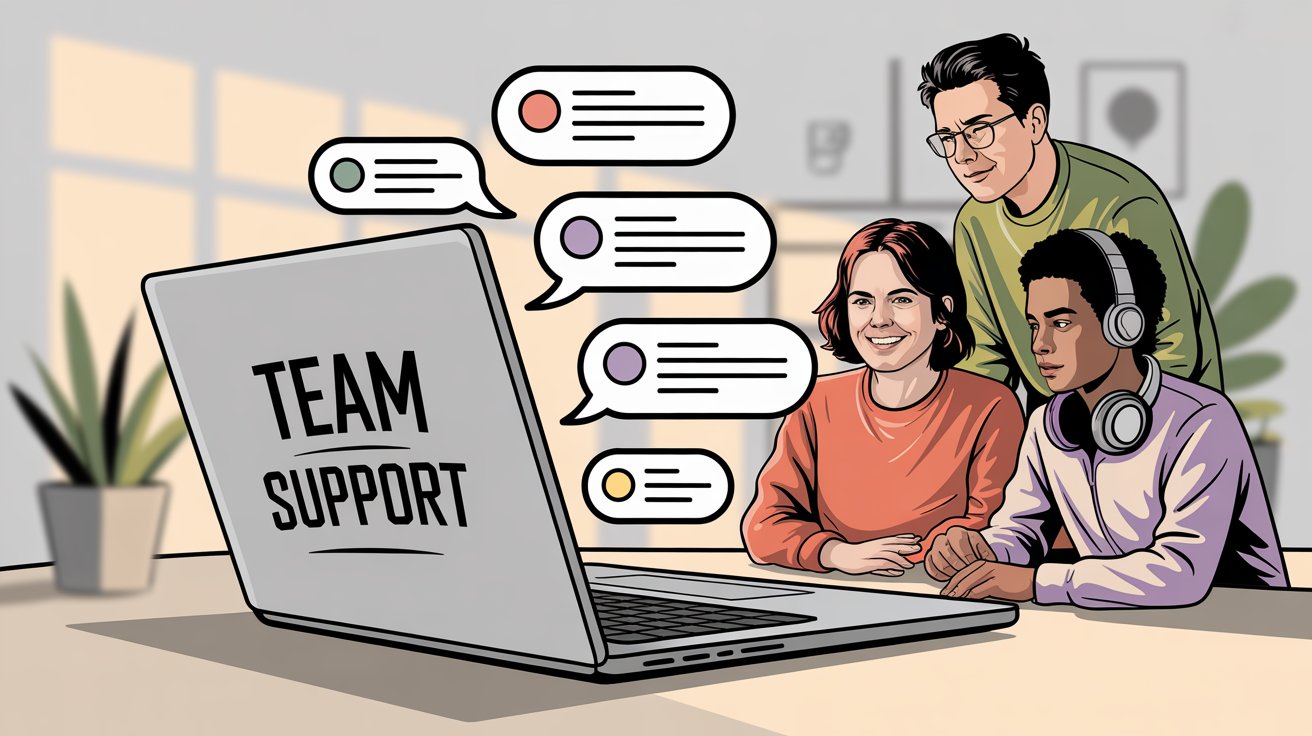
Microsoft Teams with admin access. You need an active Teams setup for your organization. Make sure you’ve got admin rights or can work with your IT admin, because adding third-party integrations might require adjusting Teams policies.
Your Teams tenant must allow third-party apps and custom apps. According to Social Intents’ help documentation, many companies lock this down by default. If it’s disabled, ask IT to enable “Allow external apps” or whitelist the specific app you plan to use.
A live chat or support integration. Since customers won’t be hopping into your Teams channels, you need a bridge between Teams and the customer. This is where a tool like Social Intents comes in.
Social Intents provides a live chat widget for your website that directly connects to a Microsoft Teams channel. There are alternatives (bots that turn Teams messages into tickets, or Dynamics 365 integrations), but for real-time customer chat, a purpose-built Teams live chat integration is the easiest route.
TechRadar’s analysis notes that Social Intents excels at integration, making the workflow smoother for customer service teams.
Website or customer contact point. You need a place where customers will initiate support conversations. Typically, this is your website via a chat button. It could also be in-product chat if you have a software app, or even channels like WhatsApp, Facebook Messenger, or SMS.
Many modern chat platforms (including Social Intents) let you funnel multiple channels into Teams. For simplicity, most companies start with website live chat as the primary channel.
Support team training and roles. Even though Teams is intuitive, plan some brief training for your support agents. Define which Teams channel will receive customer chats, who’s expected to monitor and respond, and any protocols:
• How to tag colleagues for help
• When to transfer chats
• How to handle off-hours inquiries
Treat Teams as your support workspace and set clear roles just as you would in a traditional helpdesk.
Account with integration provider. Sign up for the service that connects to Teams. For instance, you’d create a Social Intents account (they offer a free 14-day trial) and connect it to your Teams.
This account is where you manage settings like chat widget appearance, canned responses, office hours, and targeting rules. The integration walks you through linking with Teams via Microsoft’s OAuth and installing the Teams app.
No additional Microsoft licensing is needed beyond standard Teams access. The live chat app for Teams is typically free to install. You just need a subscription with the chat provider for advanced features or higher usage.
How to Set Up Microsoft Teams for Customer Support
Ready to integrate Teams into your customer support workflow?
Here’s exactly how to get up and running:
How to Plan Your Support Channel Structure
Decide where in Teams your customer chats should appear. Create a dedicated Team or channel (for example, a Team called Customer Support with a channel Live Chat).
Critical requirement: The channel must be standard (public), not private. According to Social Intents documentation, Teams doesn’t allow bots to post in private channels. All agents who will answer chats should be members of that Team/channel.
You might set up a secondary private channel for internal triage discussions, but the live chat posts themselves need to be in a public channel (visible only to your team, since customers aren’t in Teams).
How to Install a Live Chat Integration App
For a smooth experience, use a trusted Teams-integrated chat tool. We’ll use Social Intents as our example, since it’s specifically built for Microsoft Teams live chat.
Installation steps:
① Go to the Microsoft Teams App Store (via the Teams desktop app or web)
② Search for “Live Chat” by Social Intents
③ Alternatively, click the “Add to Teams” button on the Social Intents Teams page
④ Install the app into the Team/channel you chose in step 1
⑤ During installation, approve permissions for the app to post messages and interact
Once added, the Social Intents app typically appears as a new tab in that channel (often labeled Live Chat).
If you can’t find the app or installation fails, double-check with your Teams admin that third-party app permissions are enabled. Microsoft might also require you to be a team owner to add an app to a channel.
How to Connect Your Accounts
After adding the Live Chat app to Teams, click its tab in the channel. You’ll see a prompt to sign in or sign up.
If you haven’t created an account on the chat platform, do so now. Social Intents will guide you through creating an account or linking your Microsoft login.
Sign in with your credentials and authorize the connection. Once signed in, the app is linked to your Teams workspace. From this interface, you can configure chat settings or find detailed instructions.
How to Embed the Chat Widget on Your Website
Now that Teams is ready to receive chats, you need to place the chat box on your customer-facing site.
In Social Intents, this involves copying a small JavaScript snippet from your account dashboard and adding it to your website’s HTML (often just before the closing </body> tag).
If you’re not technical, don’t worry. Social Intents provides plugins for platforms like:
→ Shopify
→ Wix
→ Webflow
For example, on Shopify you’d install the Social Intents app, which automatically injects the chat widget into your store. Get the chat widget code onto any web pages where you want the “Chat with us” button to appear.
Once added, it displays a chat bubble that customers can click to start a chat.
How to Configure Your Chat Settings
Before going live, configure key settings of your chat tool. In Social Intents, you can:
→ Customize widget appearance to match your brand (colors, chat icon, welcome message)
→ Set up pre-chat form fields to collect visitor name, email, or other info you need
→ Configure business hours so that during off-hours, you show an “offline” message or a contact form
→ Create canned responses (pre-written replies for common questions) and assign them to shortcuts
→ Set targeting rules for proactive chat invites or deciding which pages show the chat
These settings are accessible in the Social Intents web dashboard or via the Teams personal app interface.
How to Test the End-to-End Flow
Before announcing the new support channel to customers, test thoroughly.
Open your website in a browser (ideally in an incognito window) and start a chat as a customer. Make sure that:
✓ The message appears in your chosen Teams channel
✓ You see a notification in Teams with the visitor’s question and details
✓ You can click the “Join Chat” button to enter the conversation
✓ Your reply from Teams reaches the customer on the website
✓ Multiple back-and-forth interactions work smoothly
Test edge cases: What happens if the customer closes the chat? Can they resume? What if an agent transfers the chat? Address any issues now.
If something isn’t working, consult the integration’s help center. Common fixes include re-authenticating the app or making sure you clicked the “Sign into Live Chat” button in Teams after installation.
How to Train Your Team on Workflows
Once the tech is working, get your support staff up to speed.
Outline how they’ll receive notifications. Instruct agents to favorite or pin the support channel in Teams and turn on alerts for all new messages. (In Teams, right-click a channel > Notifications > All activity to make sure no customer chat is missed.)
Teach agents how to use slash commands in the chat (e.g., typing “/transfer” to transfer a chat, or “/tag” to tag conversation topics).
Clarify how to handle multiple chats at once. Teams will thread each chat separately, so agents might have concurrent threads in the channel.
Define an escalation path. If the first-line agent can’t answer, how do they bring in a senior agent or specialist? They can @mention someone or share the conversation to another channel.
How to Go Live and Monitor Performance
After configuration and training, you’re ready to offer support via Teams.
Make the chat widget visible to users. Announce the new support channel to your customers: “We now offer live chat support during business hours. Look for the chat button on our website.”
In the initial days, keep a close eye on the Teams channel:
• Make sure agents are actively watching for chats
• Monitor response quality and customer satisfaction
• Gather feedback from your support team on the workflow
Sometimes small adjustments (adding another team member during peak hours, tweaking notification settings) can significantly improve the experience.
By following these steps, you should have a fully functional customer support chat solution with Microsoft Teams at its core. The setup process usually takes an afternoon. Social Intents advertises a 5-minute setup for Teams live chat, and the core steps (install app, embed snippet) are indeed very quick.
Best Practices for Customer Support in Teams
Using Teams as your support platform comes with unique advantages. Here’s how to use them effectively:
How to Keep Your Support Channel Organized
Use a specific Teams channel for incoming chats (e.g., #customer-support). Keep this channel focused. Discourage other chatter to avoid confusion.
Within the channel, each customer chat appears as its own thread. Train agents to reply within that thread (not to the channel generally) to keep conversations separated.
You might use the channel’s Posts tab purely for system messages and chat threads, and have a separate Teams tab or OneNote for internal notes and FAQs.
How to Use Teams Features for Collaboration
One huge benefit of answering support queries in Teams is the ease of internal collaboration.
Encourage agents to use @mentions to pull in colleagues when they need help on a case. (“@ProductTeam, can someone assist with this technical question?”)
They can quickly share files or screenshots in the chat thread if needed. If a question requires input from another department, the agent can start a new chat or call with that person while still viewing the customer’s question.
This real-time teamwork can dramatically improve first-contact resolution.
Just make sure that any internal discussion about the issue remains private (in a side chat), then the agent consolidates the answer back to the customer.
How to Maintain a Human Touch
When chatting through Teams, it’s easy for the tone to be conversational. This is great. Customers appreciate quick, friendly back-and-forth rather than stiff ticket responses.
Make sure agents follow live chat etiquette:
• Use a warm greeting
• Address the customer by name
• Sign off politely
Emojis and GIFs are supported in Teams and can add personality (when appropriate), but should match your company’s tone.
Also, because agents might be multitasking in Teams, always read the customer’s messages carefully and avoid terse replies that could sound abrupt.
How to Use AI Chatbots for Common Questions
Scaling live support can be challenging. That’s where AI helps.
Social Intents allows you to deploy an AI chatbot (powered by models like ChatGPT or Anthropic Claude) on your website that handles FAQs and simple requests. This bot can be trained on your knowledge base or website content.
When the bot runs into a question it can’t confidently answer, it should seamlessly escalate to a human agent on Teams.
This gives you the best of both worlds:
→ The bot filters easy questions 24/7
→ Your team deals with high-value or complex conversations
According to TechRadar’s review, Social Intents’ ChatGPT integration allows businesses to automate routine inquiries while freeing up agents for more complex issues.
If you implement a chatbot, configure the handoff rules properly. If a user asks for a human or if confidence score is low, immediately route to Teams. Customers should never feel stuck with the bot.

Many companies start with a “hybrid” approach: let the chatbot answer common queries (like “Where is my order?” or “What are your hours?”) and if the question is anything nuanced, the agent jumps in via Teams.
How to Set Online and Offline Availability
If your support isn’t 24/7, configure how and when the chat is available.
Use the office hours settings so that outside of hours, the widget either hides or turns into an offline form (“Leave us a message and we’ll reply by email”).
Within Teams, instruct agents to mark themselves Available during their shifts. Social Intents offers an online/offline toggle right inside Teams, which is handy. It lets you control availability without digging into settings.
Make sure someone toggles it to “Offline” at close of business if no one will monitor after hours (or use the auto-scheduler if available). This prevents customers from waiting for responses when no one is there.
How to Optimize Teams Notifications
You don’t want to miss customer messages.
Besides channel notifications, consider using Teams features like banner notifications or push to mobile. Agents who are frequently on the move should install the Teams mobile app and enable notifications for the support channel.

That way, if they step away from their desk, they still get an alert of a new chat.
Social Intents can send email alerts for missed chats or if a customer has been waiting, but ideally your team will rely on instant Teams alerts.
How to Integrate with Your CRM
While running support through Teams is great for live conversations, you might still want transcripts logged in a CRM or follow-up tasks in a ticket system.
Social Intents provides a Zapier integration to pipe chat transcripts or leads into thousands of other apps. You could auto-create a ticket in Zendesk or a lead in Salesforce each time a chat concludes.
At minimum, have a process for storing chats that need follow-up. Social Intents allows exporting chat data and has reporting dashboards. Make sure these are used so no customer inquiry falls through the cracks after the live chat ends.
How to Update Your Knowledge Base
As your team handles chats in Teams, keep track of common questions and their answers. Use this insight to update an FAQ page or help center articles.
You can even add a OneNote or Wiki tab in your Teams channel with quick-reference information for agents (like product details, refund policies, troubleshooting steps).
This way, when a tricky question comes, agents can quickly consult this resource without leaving Teams. The faster your agents can find information, the faster they can help the customer.
How to Monitor Support Metrics
Treat your Teams support channel like any support program. Measure its success.
Look at metrics such as:
• Response time
• Handle time
• Customer satisfaction (send a follow-up survey or ask for a rating at end of chat)
If using Social Intents, use its built-in reporting to see chat volumes and peak times. These data help in staffing appropriately and identifying if any issues are bottlenecking resolution.
Also solicit feedback from your agents: how do they find using Teams compared to other tools? Often, agents love the simplicity, but you might learn about friction points (for example, “searching past chats in Teams is hard” which you could solve by tagging chats or using the Social Intents console for historical searches).
Tools and Integrations That Power Teams Support
We’ve referenced the need for a “bridge” that connects your customers to Teams. Here are the main categories:
Live Chat Platforms for Teams
Social Intents is the prime example in this category. It’s a dedicated live chat platform that pipes website chat, SMS, WhatsApp, and more into Microsoft Teams. Agents respond in Teams, and the messages go back to the visitor via the original channel.
Social Intents is particularly known for:
| Feature | Details |
|---|---|
| Seamless integration | Teams and Slack that eliminates juggling multiple platforms |
| Unlimited agent model | Scale your team without per-seat pricing |
| AI chatbots | Handoff to human agents powered by ChatGPT, Claude, or Gemini |
| Custom AI actions | Integrate with third-party tools for order status, ticket creation, shipping updates |
| Multi-channel support | WhatsApp and Facebook Messenger |
According to TechRadar’s 2025 review, Social Intents delivers an impressive feature set with unlimited agents available, making it stand out from competitors.

Other similar tools include LiveChat (with a Teams integration plugin) and Quiq (for SMS/Messaging into Teams). When choosing, look for:
→ Does it support the channels you need?
→ Does it push notifications into Teams effectively?
→ Can you transfer chats or have multiple agents join?
→ How customizable is the chat widget?
Ticketing Bots for Internal Support
If your goal is to support internal users (employees) via Teams, tools like conversational ticketing systems might be what you need.
These allow employees to create tickets by messaging a bot or posting in a channel, and the support team manages the issue in Teams or in a linked ticketing system.
Some systems turn Teams into an internal ticketing system and provide forms and workflows inside Teams. This approach works well for IT or HR support use cases.
For external customer support (with lots of one-off users), the live chat approach with Social Intents is usually more appropriate, since you don’t have to invite external people into your tenant.
Microsoft Dynamics 365 for Teams
Microsoft itself has been extending Teams for customer service. If you use Dynamics 365 Customer Service, there’s an Omnichannel add-on that integrates Teams for agent collaboration.
Microsoft has also introduced Teams Shared Channels and Guest Access, which could theoretically be used to support known external clients by adding them as guest users. This is typically only viable for B2B scenarios or account-based support. It’s not practical for general consumer support to add thousands of random guests.
Teams Phone System for Voice Support
If phone support is important, consider integrating Teams Phone system. Teams can become your company’s phone system, replacing a PBX.
You could have a support hotline that rings a Teams call queue. Agents would take calls in Teams just like they take a chat. This requires a Microsoft 365 Phone System license and possibly a calling plan or direct routing setup.
Some companies effectively run their call centers on Teams. This could complement your chat support: customers can call a number and a Teams auto-attendant routes them to available support agents.
Social Intents + Microsoft Teams is an excellent stack for most small-to-mid-sized businesses looking to use Teams for customer support. It covers live chat, AI chatbot, and multi-channel messaging within Teams.
Common Challenges When Using Teams for Support
While using Teams for customer support has many benefits, be mindful of these challenges:
Teams Admin Permissions
A locked-down Teams environment can impede setup. You might need to coordinate with IT to allow the live chat app.
This includes enabling bot posting and uploading in the channel. If your company has strict policies, get sign-off early for using a third-party integration.
Social Intents is a certified app in the Microsoft Teams store. Microsoft has published security and compliance info about it (data storage on AWS, GDPR compliance), which you can present to any skeptics.
Due diligence is important if you’re in a regulated industry. Make sure the integration meets your compliance needs (no sensitive data stored without encryption, etc.).
High Chat Volume Scalability
Teams is great for handling moderate volume of live chats. But if you expect extremely high traffic (hundreds of simultaneous chats), consider how the channel will handle that.
Each chat becomes a threaded conversation. Dozens of active threads could become hard to track. You might split incoming chats across multiple channels or have routing logic (by topic or department).

Social Intents allows multiple widgets so you could route sales chats to a Sales team channel and support chats to a Support team channel.
Be aware of conversation limits on your plan. Social Intents plans have monthly conversation caps (1,000 chats on Basic, 5,000 on Pro, 10,000 on Business). Make sure your plan covers your volume.
Chat History Search Limitations
Teams’ search isn’t optimized for customer chat history. If you need to find an old conversation by keyword or see past interactions for a returning customer, it might be tricky in the channel interface.
To mitigate this, use the chat provider’s history logs or CRM integration. Social Intents retains transcripts that you can access and search outside of Teams.
You might also have agents copy important info from a chat into your CRM after resolving an issue. This is one area where traditional helpdesks have an edge (they’re built for ticket history tracking), so fill that gap with process or tools.
Multi-Channel Complexity
Offering chat via website, Facebook, WhatsApp, etc., all into Teams is great. But make sure your team is prepared to identify the channel and adjust accordingly.
A WhatsApp message may have a different tone or expectation than a web chat. The integration should tag or indicate the source of each chat (e.g., prefix messages with [WhatsApp] or [Website]).
Train agents to recognize this. Test each channel type. WhatsApp might impose rate limits or formatting limitations on replies. Know the quirks so you don’t accidentally send a long message that gets truncated on the customer’s end.
What Happens When Teams Goes Down?
If Teams goes down or your Office 365 has an outage (rare but possible), what’s your backup for support?
Have an alternate plan. Maybe the chat integration also sends email notifications, or you have a way to quickly switch the widget to a contact form.
If a chat comes in and no agent responds (everyone’s in a meeting), decide on a procedure. Do you have an auto-response after X minutes? Social Intents can be configured to auto-reply if unanswered.
Ideally, strive to answer quickly, because live chat users expect fast responses (often within a minute or two).
Agent Training and Mindset
Most support agents pick up Teams quickly (especially if they already use it internally). But if some of your team are used to traditional helpdesk software, they might need a mindset shift.
Emphasize that speed and informality of chat is different from email. They should keep responses brief and conversational.
Some agents might initially miss having features like ticket priority or status fields. You can mimic this by using message labels or simple tags (instruct them to type #urgent or use an emoji reaction to flag a conversation needing follow-up).
Because Teams isn’t a specialized ticketing system, you rely a bit on convention and discipline to manage workflow. Set those expectations early to avoid confusion.
Despite these considerations, most companies find that the advantages far outweigh the challenges. By planning for the above issues, you can make sure everyone has a smooth experience.
Why Social Intents Is the Best Teams Chat Integration
You have options for integrating live chat with Teams, but Social Intents stands out for several reasons.
Unlimited agents from the Basic plan upward. Most chat platforms charge per agent. That gets expensive fast. With Social Intents, you pay for conversations and features, not headcount. Your entire support team can access the platform without budget concerns.
AI chatbots with seamless handoff. The platform includes AI chatbots powered by ChatGPT, Claude, or Gemini. These bots can handle routine inquiries 24/7, then smoothly hand off complex questions to your human agents in Teams. According to TechRadar, this integration allows businesses to automate routine inquiries while freeing up agents.
Custom AI actions for advanced workflows. This is huge. Social Intents lets you create custom integrations with third-party tools to enrich chat conversations. Things like:

• Order status lookups
• Ticket creation
• Shipping status updates
• Account verification
Customers are very interested in these capabilities because they eliminate the back-and-forth of “let me check that for you.”
Multi-channel support beyond just web chat. You can route WhatsApp, Facebook Messenger, and SMS conversations into Teams alongside your website chat. Everything in one place.
Five-minute setup. The installation is genuinely fast. Add the app to Teams, embed a snippet on your website, and you’re live. The Social Intents help center provides video tutorials showing the entire process.
Native Shopify, WordPress, Wix, BigCommerce, and Webflow integrations. If you’re running an e-commerce store or using any of these platforms, installation is even simpler. Just add the Social Intents app from your platform’s app store.
14-day free trial with no credit card required. You can test the entire system with your team before committing. See how it works in your actual workflow, not just a demo environment.
Frequently Asked Questions
Can I use Teams for customer support if my team isn’t using Microsoft 365?
You need Microsoft Teams to be your agent workspace, which requires a Microsoft 365 subscription. Your customers don’t need Teams or any Microsoft account. They just chat through your website or WhatsApp, completely unaware that you’re using Teams on the backend.
How do customers contact us if we’re using Teams for support?
Customers contact you through the channels you choose: your website’s live chat widget, WhatsApp, Facebook Messenger, or SMS. The integration (like Social Intents) routes these messages into your Teams channel, where agents respond. To the customer, it looks like any normal chat experience.
What happens to chats when our team is offline?
You can configure office hours. When you’re offline, the chat widget can display an “offline” message or switch to a contact form that sends you an email. Alternatively, if you have an AI chatbot configured, it can continue answering questions 24/7 and escalate to humans during business hours.
Can we transfer chats between agents or departments?
Yes. Social Intents allows chat transfers between different Teams channels or team members. You can route specific types of inquiries to different departments (sales to one channel, technical support to another).
Do we need technical skills to set this up?
No. The setup involves installing an app in Teams (which is a few clicks) and embedding a small code snippet on your website. If you use platforms like Shopify or WordPress, there are plugins that handle even the code snippet part. Most teams complete setup in under an hour.
How many agents can we have?
With Social Intents, you get unlimited agents on all plans from Basic upward. This is different from most chat platforms that charge per agent. You can scale your support team without worrying about per-seat fees.
Can the AI chatbot handle complex questions?
The AI chatbot (powered by ChatGPT, Claude, or Gemini) handles common questions well. When it encounters a question it can’t confidently answer, it automatically escalates to a human agent in Teams. You control the confidence threshold and escalation rules.
What if a customer wants to speak to a human immediately?
You can configure the chatbot to recognize phrases like “speak to a human” or “I need help” and immediately escalate. The handoff happens seamlessly within the same conversation window.
Is our customer data secure?
Social Intents is a certified app in the Microsoft Teams store. Data is stored on AWS with encryption in transit and at rest. The platform is GDPR compliant. For regulated industries, you can request their full security documentation and sign a Data Processing Agreement.
Can we customize the chat widget to match our brand?
Yes. You can customize colors, chat icon, welcome message, and pre-chat form fields. The widget can match your website’s branding so it looks like a native part of your site.
What happens if Teams goes down?
Microsoft Teams has high uptime, but if there’s an outage, you have options. Social Intents can send email notifications for missed chats. You can also configure the widget to switch to a contact form during outages. Plus, the AI chatbot can continue handling inquiries even if your agents can’t access Teams temporarily.
Can we see chat history and analytics?
Yes. Social Intents provides a dashboard with chat history, transcripts, and analytics (response times, chat volumes, peak hours). You can search past conversations and export data. This complements Teams’ native search capabilities.
How much does this cost?
Social Intents offers several plans starting at $39/month for the Starter plan (billed annually). The Basic plan is $69/month with unlimited agents and 1,000 conversations. Plans scale based on conversation volume and features, not agent count. They offer a 14-day free trial.
Can we integrate with our existing CRM or helpdesk?
Yes. Social Intents provides Zapier integration, which connects to thousands of apps. You can automatically send chat transcripts to your CRM, create tickets in your helpdesk, or trigger workflows in other tools.
Using Microsoft Teams for customer support isn’t just possible. It’s practical, efficient, and increasingly popular among companies that want to streamline their operations.
Your team already lives in Teams. Your customers expect real-time support. By bridging these two with the right integration, you eliminate app-switching chaos and deliver faster, more collaborative support experiences.
Social Intents makes this transformation straightforward. Unlimited agents, AI automation with human handoff, multi-channel support, and a setup process that takes minutes, not days.

The 14-day free trial lets you test everything with your actual team and real customer conversations. No commitment required. Just see if it works for your workflow.
Your competitors are already doing this. The question isn’t whether to integrate customer support with Teams. It’s how quickly you can get it running.
