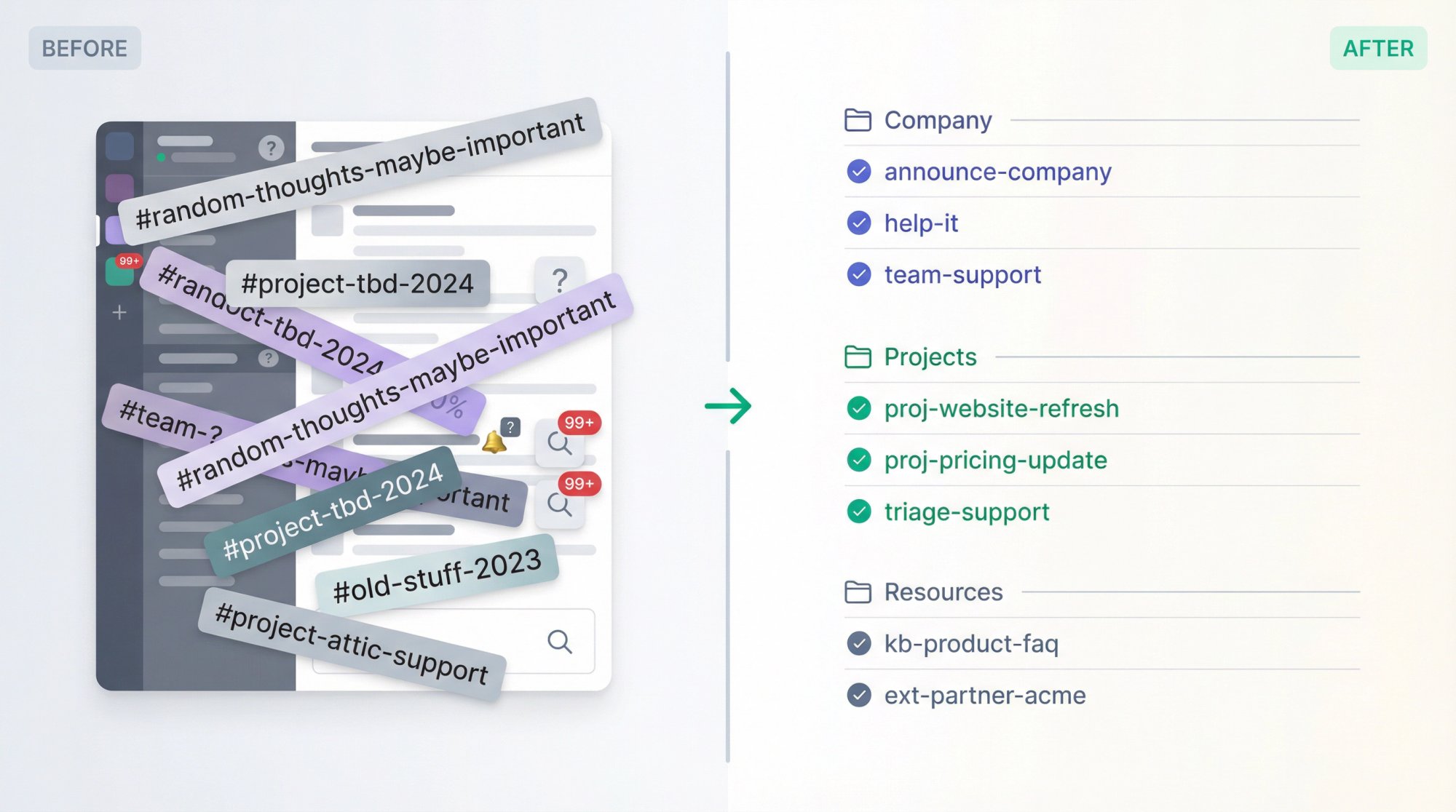
Your Slack workspace probably started simple. A few channels, clear purposes, everyone knew where to post. Fast forward six months, and you've got 200+ channels with names like #random-thoughts-maybe-important and #project-tbd-2024, half your team asking "where should I post this?", and critical updates buried under cat photos.
Slack doesn't get messy because teams are disorganized. It gets messy because Slack makes it absurdly easy to create channels and equally hard to maintain a coherent system as you scale.
This guide walks you through proven systems for organizing Slack channels that actually work at scale. Not theoretical best practices that fall apart when humans touch them, but real frameworks that help teams find information fast, reduce noise, and onboard new hires without confusion.
Why Slack Organization Matters for Your Team
Before diving into tactics, here's what's at stake. Poor Slack organization isn't just annoying. It actively costs your business money.
When channels are chaotic:
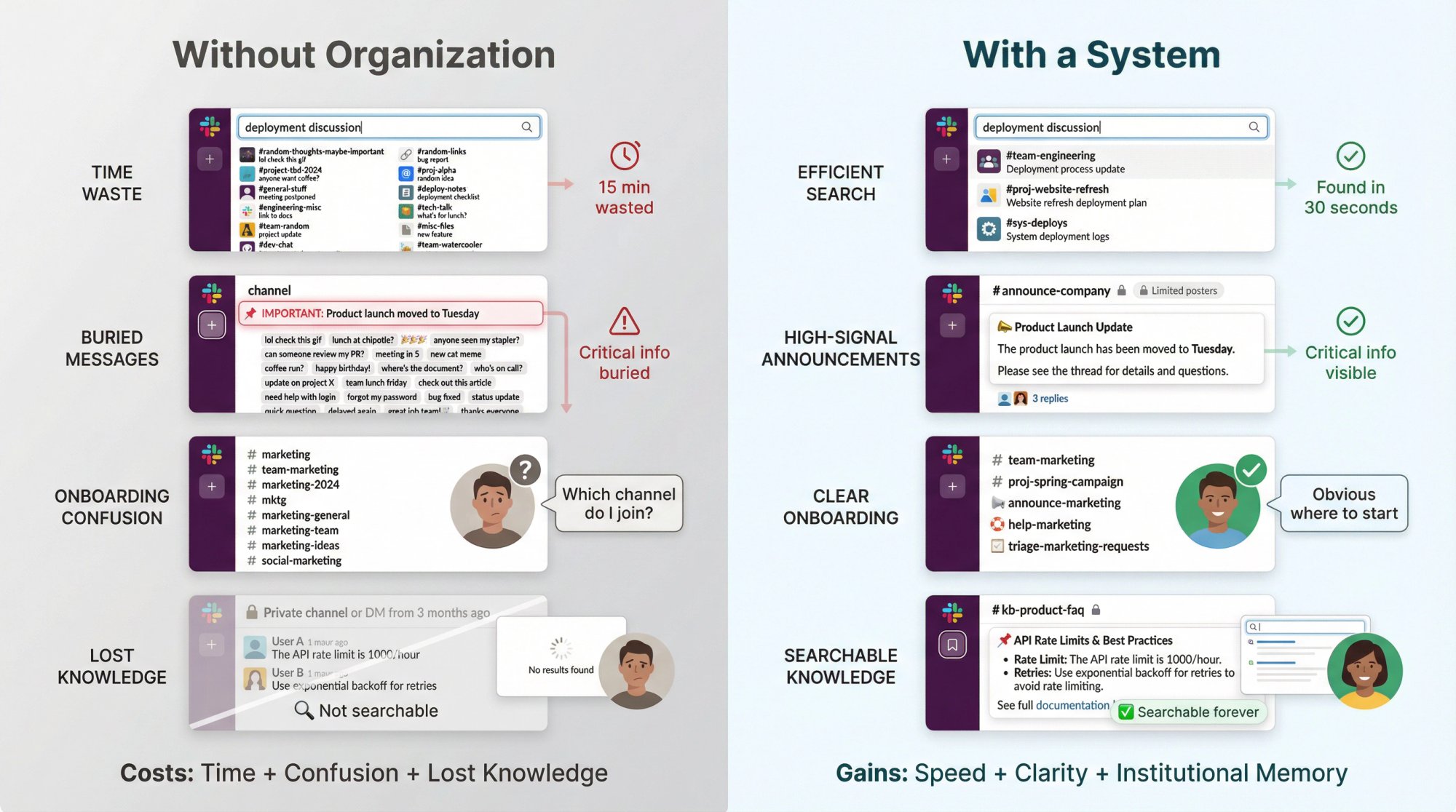
Teams waste time searching. Your engineers spend 15 minutes hunting for that deployment discussion from last week. Your sales team can't remember if the pricing doc is in #sales-resources or #team-sales-2024 or that DM from three months ago.
Important messages get buried. Your announcement about the product launch? Lost somewhere between 47 messages about lunch orders and a gif war. Critical customer issues? Sitting unread in a channel nobody monitors.
New hires struggle. Instead of productive week one, they're paralyzed trying to figure out which of the eight channels with "marketing" in the name is the right one to join.
Knowledge disappears. Valuable decisions and context get trapped in private channels or DMs, forcing everyone to re-solve the same problems.
The good news? You don't need to be a Slack admin wizard to fix this. You need a system.
How to Build a Channel Naming System That Scales
Most "Slack organization" advice stops at "use prefixes." That's like saying "use folders" is a complete filing system. It's not enough.
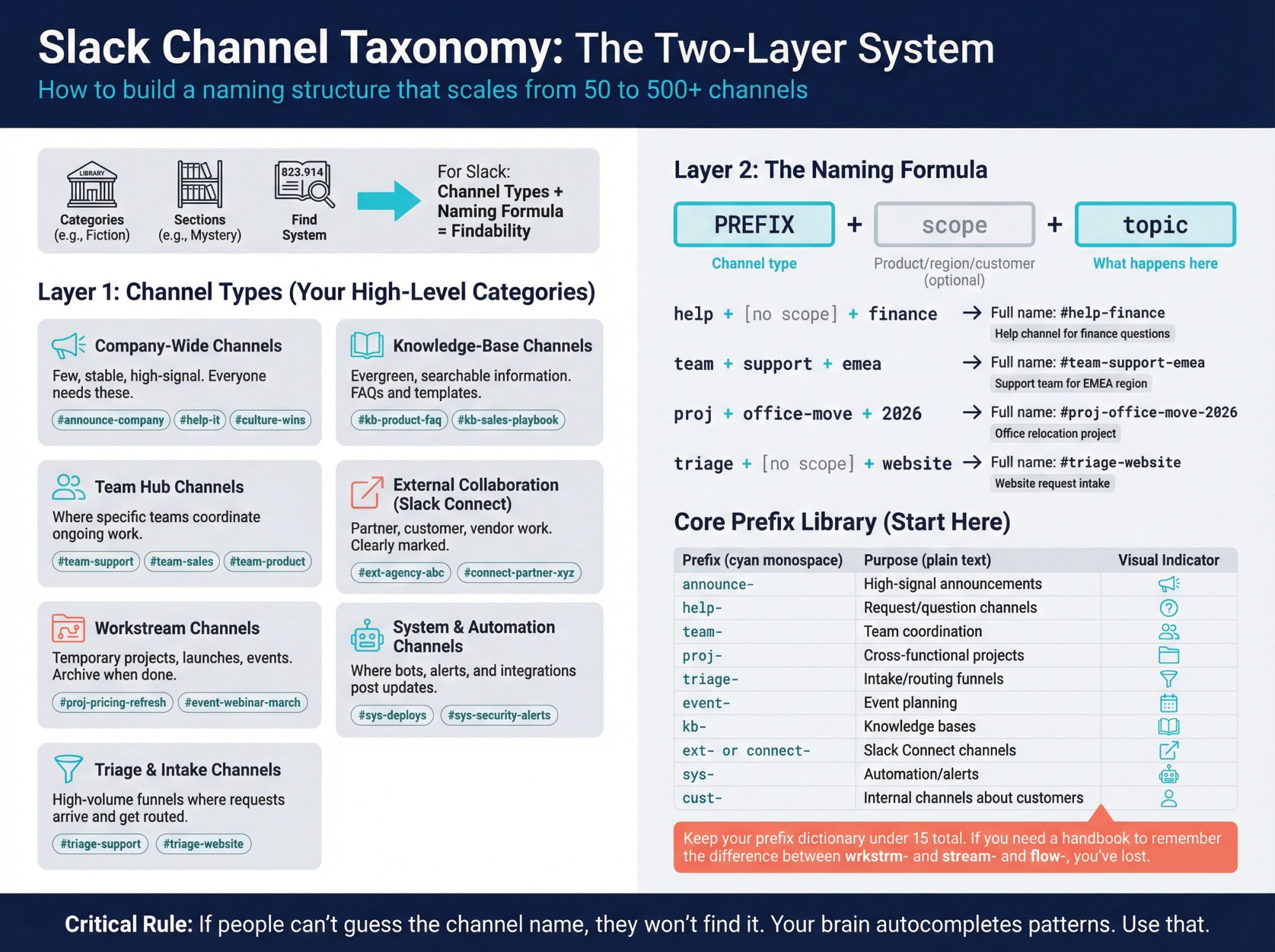
A durable channel structure has layers working together. Think of it like organizing a library. You need categories (fiction, non-fiction), sections (mystery, romance), and a system for finding specific books (Dewey Decimal). For Slack, that means:
Layer 1: Channel Types (Your High-Level Categories)
Company-wide channels are few, stable, and high-signal. These are channels everyone needs, not channels where everyone talks.
Examples:
• #announce-company (company-wide news only)
• #help-it (where to get IT support)
• #culture-wins (celebrating team wins)
Keep these minimal. If everything is important, nothing is.
Team hub channels are where specific teams coordinate ongoing work. Slack explicitly recommends using a team- prefix for these.
Examples:
• #team-support (support team's daily coordination)
• #team-sales (sales team hub)
• #team-product (product team discussions)
Workstream channels are temporary or semi-temporary. Projects, launches, events, migrations. These have a clear beginning and (ideally) a clear end.
Examples:
• #proj-pricing-refresh (temporary project)
• #event-webinar-march (one-time event)
Archive these when done. Seriously. More on that later.
Triage and intake channels are high-volume funnels where requests arrive and get routed.
Examples:
• #triage-support (customer support intake)
• #triage-website (website change requests)
These channels exist to create order from chaos. Without them, requests scatter across DMs, random channels, and email.
Knowledge-base channels store evergreen, searchable information. Think FAQs, assets, templates.
Examples:
• #kb-product-faq (product team FAQs)
• #kb-sales-playbook (sales resources)
Pin the important stuff. Keep it clean.
External collaboration channels (Slack Connect) keep partner/customer/vendor work separate and clearly marked.
Examples:
• #ext-agency-abc (working with external agency)
• #connect-partner-xyz (partner collaboration)
System and automation channels are where bots, alerts, and integrations post updates.
Examples:
• #sys-deploys (deployment notifications)
• #sys-security-alerts (security monitoring)
Nobody likes bot spam in human channels. Give them their own home.
Layer 2: Naming Conventions (Your Search System)
The brutal truth: if people can't guess the channel name, they won't find it.
Your brain autocompletes patterns. Use that.
The formula that works:
prefix-scope-topic
Where:
-
prefix = channel type (team, help, proj, announce, etc.)
-
scope = product/region/customer (optional)
-
topic = what happens here
Real examples:
→ help-finance (Help channel for finance questions)
→ team-support-emea (Support team for EMEA region)
→ proj-office-move-2026 (Office relocation project)
→ triage-website (Website request intake)
The prefix library you should steal:
Core prefixes (start here):
• announce- (High-signal announcements)
• help- (Request/question channels)
• team- (Team coordination hubs)
• proj- (Cross-functional projects)
• triage- (Intake/routing funnels)
• event- (Event planning)
Optional extensions (add as needed):
• kb- (Knowledge bases)
• ext- or connect- (Slack Connect channels)
• sys- (Automation/alerts)
• cust- (Internal channels about customers)
Keep your prefix dictionary under 15 total. If you need to reference a handbook to figure out the difference between wrkstrm- and stream- and flow-, you've lost.
Naming rules that prevent chaos:
✓ Use hyphens to separate words (proj-website-refresh)
✓ Keep it under 80 characters (Slack's limit)
✓ Make it descriptive, not cryptic (help-expense-reports beats expense-q)
✓ Name channels after the work, not the people
✗ Don't use underscores (they're ugly and hard to read)
✗ Don't create multiples for the same purpose (#support, #support-team, #customer-support)
✗ Don't use inside jokes as names (you'll regret it when explaining to new hires)
Slack's official naming guide recommends exactly this approach. Predictable prefixes, clear topics, consistent structure.
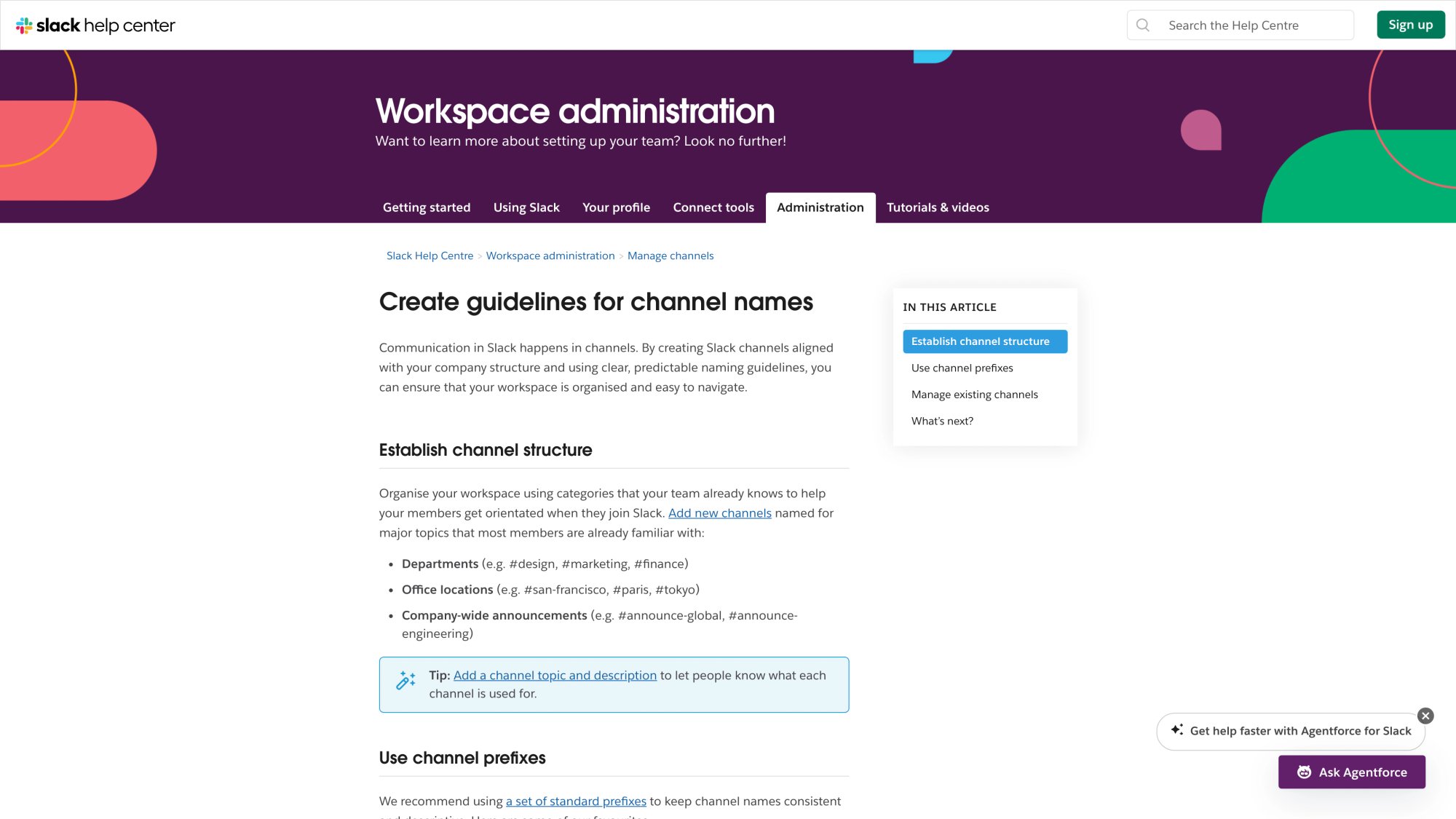
This official Slack documentation reinforces these best practices, emphasizing how consistent naming conventions help teams find channels faster and reduce confusion as workspaces scale.
How to Set Up Default Channels for New Team Members
Most Slack workspaces botch onboarding because new people land in too many channels, the wrong channels, or channels with zero context.
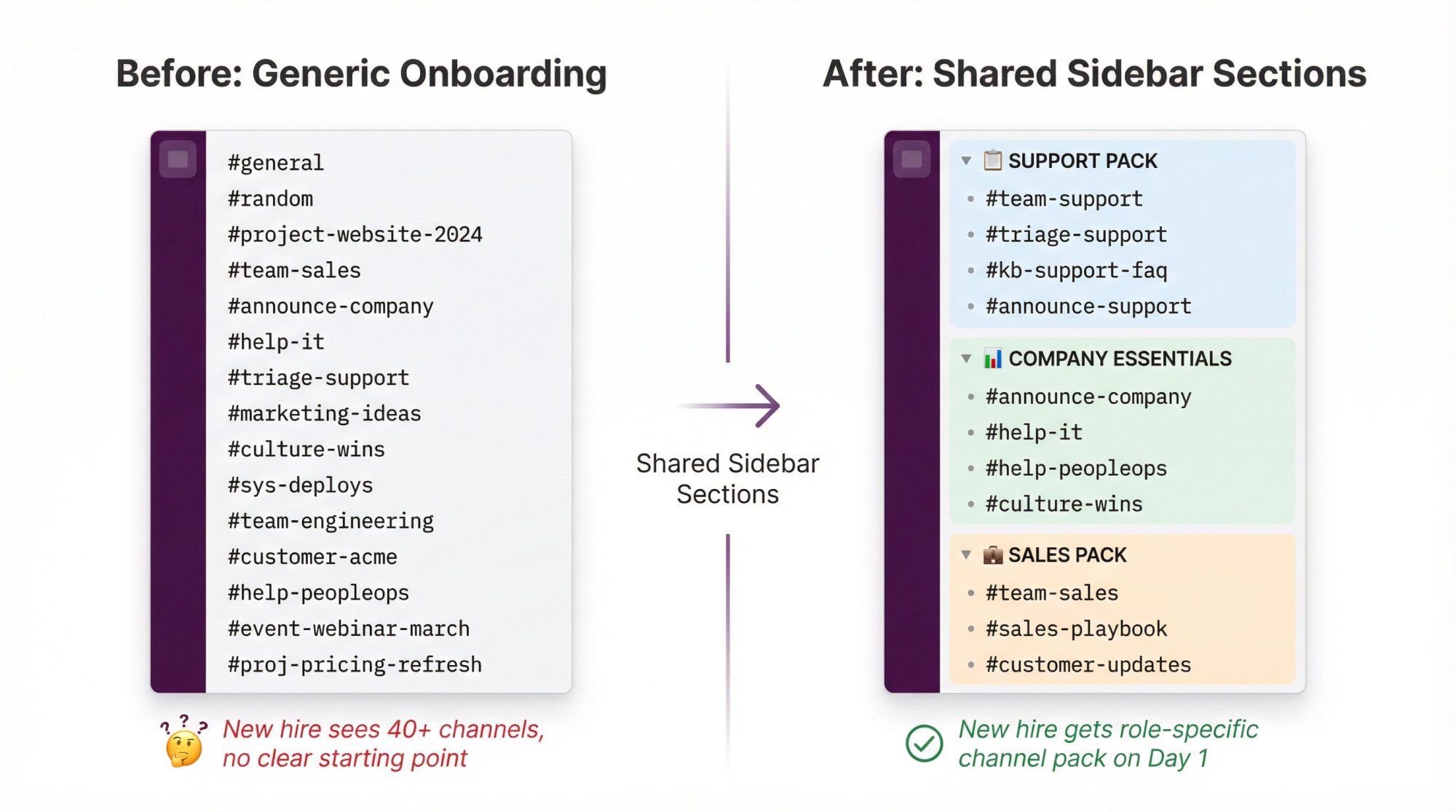
Fix this with default channels and shared sidebar sections.
Default Channels (Set These Up Today)
Slack lets you automatically add new members to specific public channels. You can configure up to 25 default channels, making some required and some optional.
A lean default set looks like:
• #general (required by Slack)
• #announce-company (important news)
• #help-it (tool support)
• #help-peopleops (HR/benefits questions)
• #culture-wins (optional, for culture)
Don't default people into:
-
High-volume triage channels
-
Alert/bot channels
-
Project channels unrelated to their role
Think of default channels as the "must-haves" for context, not every possible channel.
Shared Sidebar Sections (The Power Move)
Here's a feature most teams miss: Slack's shared sidebar sections let you create curated "channel packs" for different roles.
Instead of telling new support agents "join these 12 channels," you share a Support Pack section that auto-organizes their sidebar with:
• #team-support
• #triage-support
• #kb-support-faq
• #announce-support
Do the same for Sales, Engineering, Marketing. Each role gets a starter pack that makes Slack instantly navigable on day one.
This is high-leverage organization most teams completely overlook.
Channel Governance Without Bureaucracy
Channel organization fails without ownership. But governance shouldn't mean "submit a ticket and wait two weeks."
Three Roles That Scale
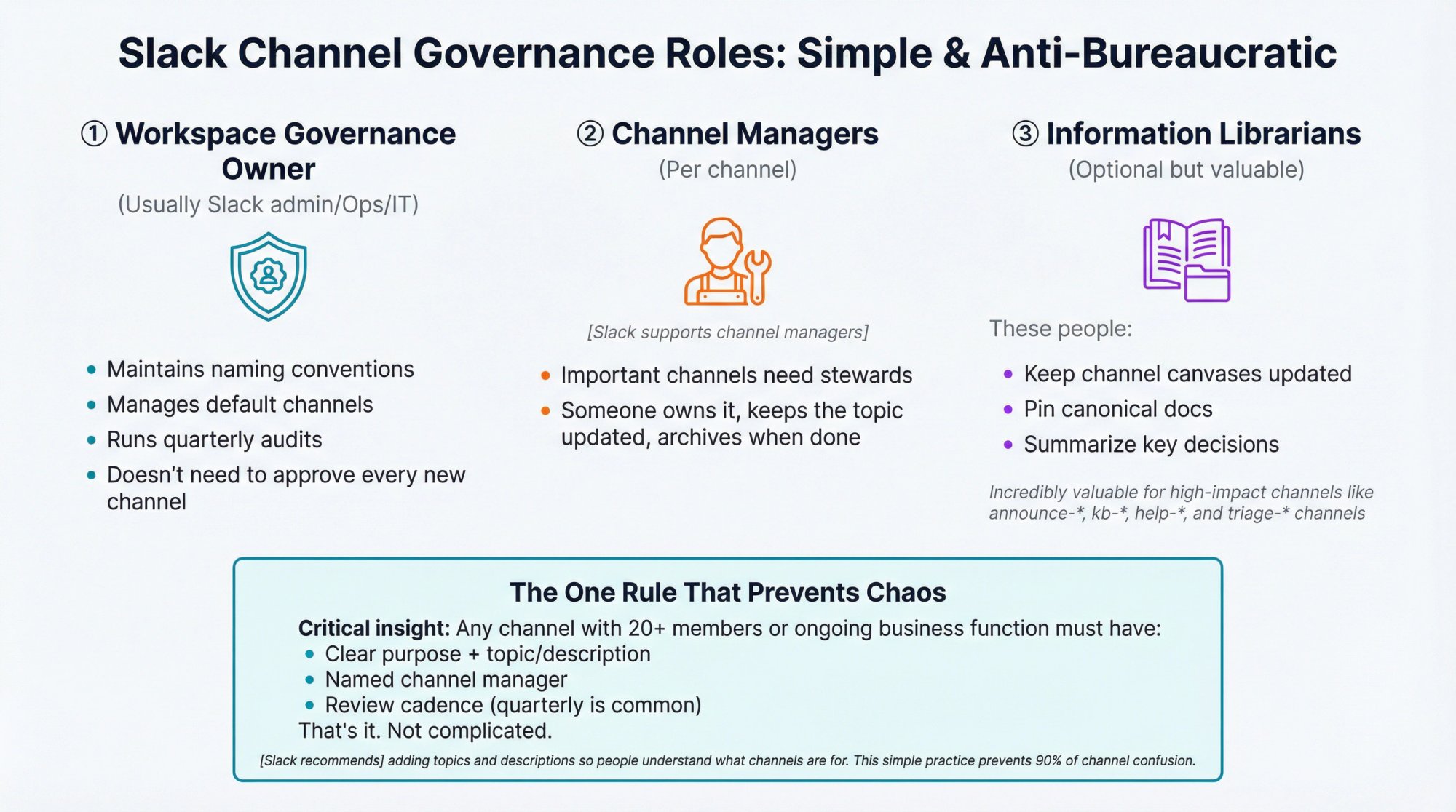
① Workspace governance owner (Usually Slack admin/Ops/IT)
Responsibilities:
• Maintains naming conventions
• Manages default channels
• Runs quarterly audits
• Doesn't need to approve every new channel
② Channel managers (Per channel)
Slack supports channel managers who can always archive channels they're assigned to.
Important channels need stewards. Someone owns it, keeps the topic updated, archives when done.
③ Information librarians (Optional but valuable)
These people:
• Keep channel canvases updated
• Pin canonical docs
• Summarize key decisions
This role is incredibly valuable for high-impact channels like announce-*, kb-*, help-*, and triage-* channels.
The One Rule That Prevents Chaos
Critical insight: Any channel with 20+ members or ongoing business function must have:
• Clear purpose + topic/description
• Named channel manager
• Review cadence (quarterly is common)
That's it. Not complicated.
Slack recommends adding topics and descriptions so people understand what channels are for. This simple practice prevents 90% of channel confusion.
How to Set Up New Channels the Right Way
A channel name alone is not enough context. Every important channel needs a starter kit.
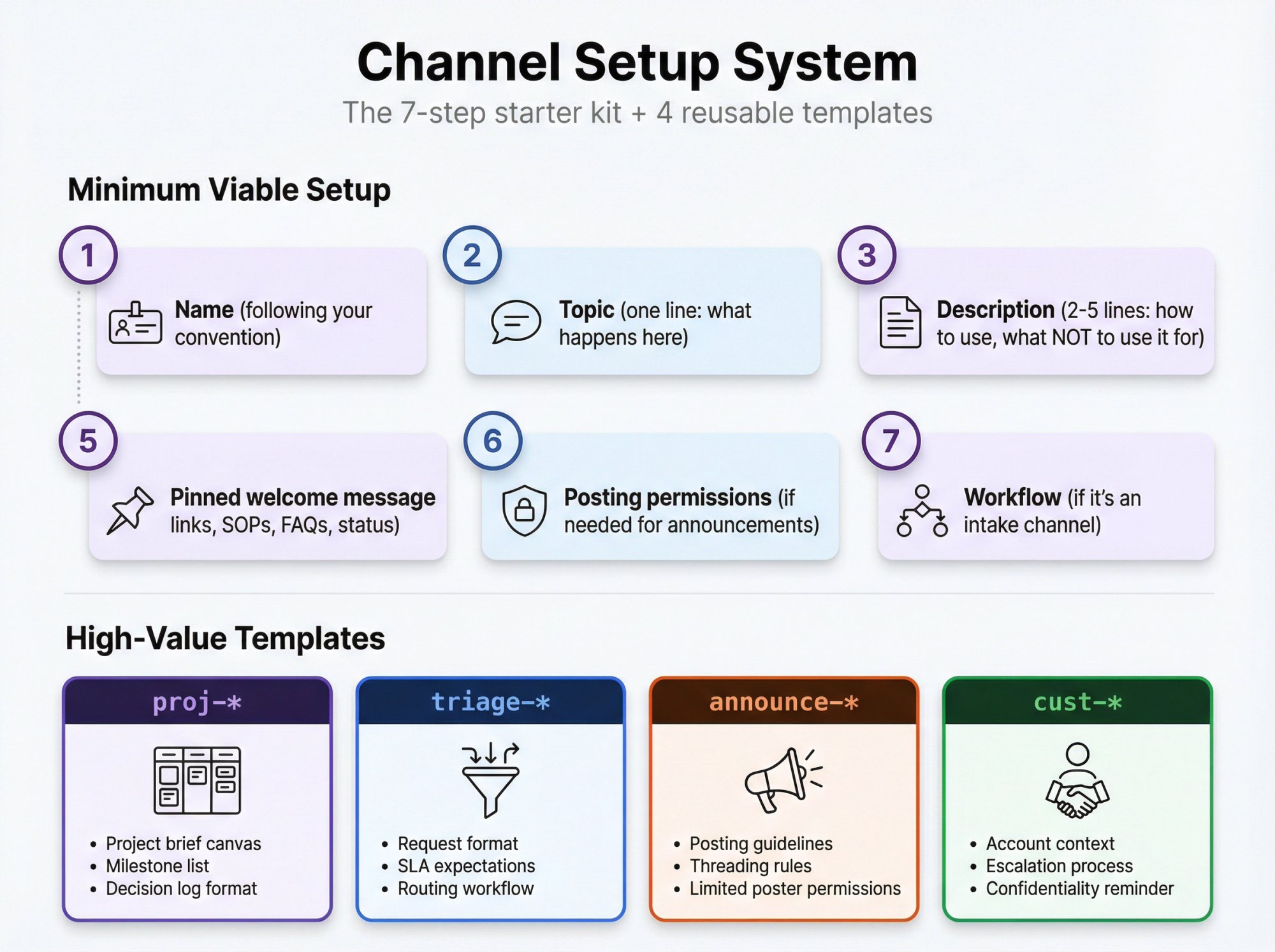
Minimum Viable Setup
1. Name (following your convention)
2. Topic (one line: what happens here)
3. Description (2-5 lines: how to use, what NOT to use it for)
4. Canvas (channel wiki with links, SOPs, FAQs, status)
5. Pinned welcome message (the "start here" post)
6. Posting permissions (if needed for announcements)
7. Workflow (if it's an intake channel)
Slack's canvas feature is designed exactly for this. Put the channel purpose, rules, links to docs, and FAQs right at the top of every canvas.
Pro move: Write "How to use this channel" at the top of every canvas so new members get context instantly.
Channel Templates Save Massive Time
Slack's channel templates (on paid plans) let you standardize setup for common channel types.
High-value templates to create:
→ Project channel template (proj-*)
Includes: project brief canvas, milestone list, decision log format
→ Triage channel template (triage-*)
Includes: request format, SLA expectations, routing workflow
→ Announcement channel template (announce-*)
Includes: posting guidelines, threading rules, limited poster permissions
→ Customer channel template (cust-*)
Includes: account context, escalation process, confidentiality reminder
Stop reinventing channel setups. Template once, reuse forever.
How to Archive and Delete Slack Channels
Channel sprawl is inevitable. The difference between chaos and clarity is whether you close the loop.
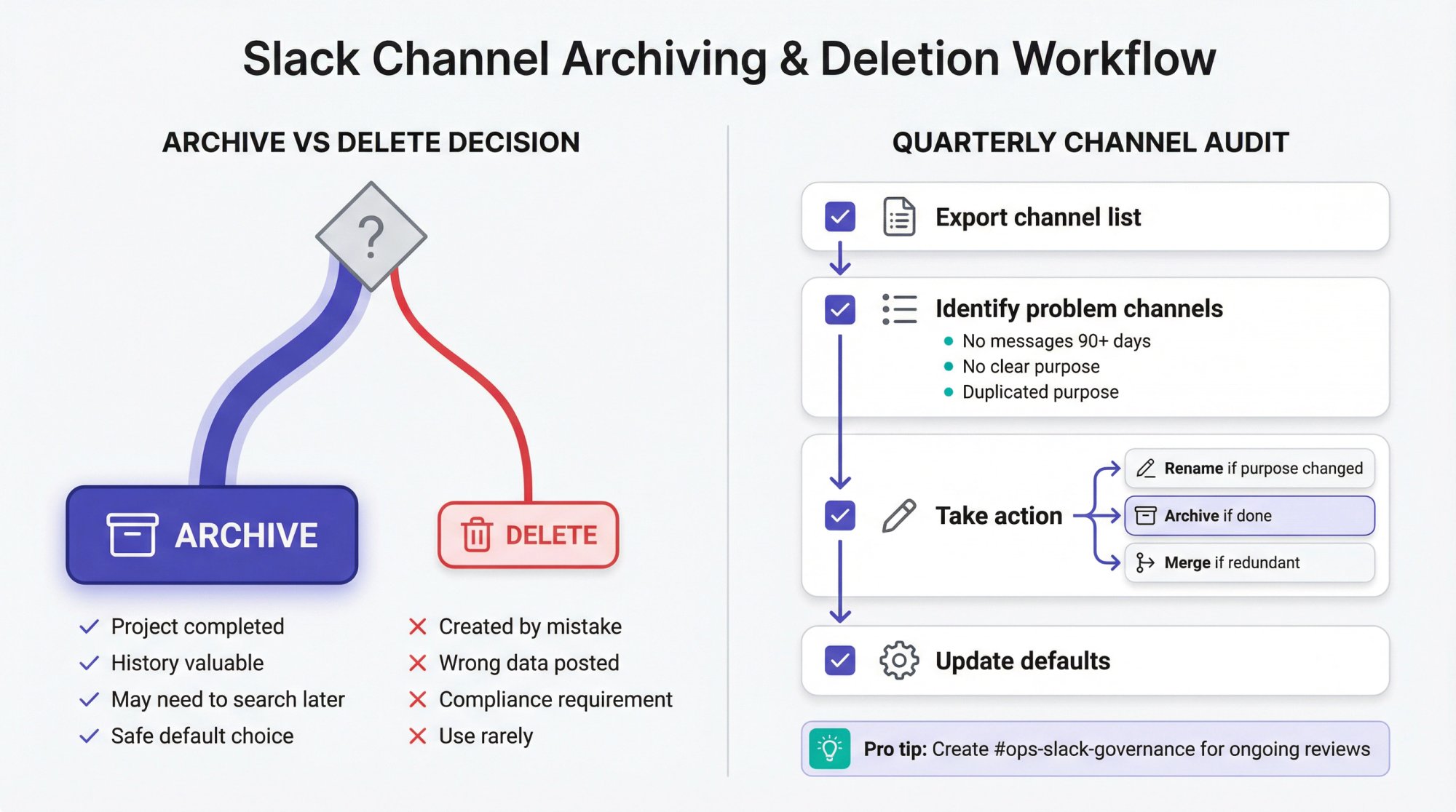
Archive vs Delete (Know the Difference)
| Action | What Happens | When to Use |
|---|---|---|
| Archive | Closes channel; history retained and searchable (paid plans) | Project done, history valuable |
| Delete | Permanently removes channel + all history | Created by mistake, wrong data, compliance requirement |
Rule of thumb: Archive by default. Only delete when you absolutely must.
Quarterly Channel Audit (Copy/Paste Checklist)
Run this every quarter:
□ Export or review channel list
□ Identify channels with:
-
No messages in 90+ days
-
No clear purpose/topic
-
Duplicated purpose
□ For each flagged channel:
-
Rename if purpose changed
-
Archive if done
-
Merge if redundant
□ Update default channels if org structure changed
Advanced move: Create a governance channel (#ops-slack-governance) where channel owners quarterly answer:
• Is this channel still needed?
• Who owns it?
• What's the next review date?
This prevents the "ghost town" problem where dead channels accumulate forever.
How to Reduce Slack Noise and Keep Channels Focused
Perfect taxonomy doesn't matter if people drown in noise.
Use Posting Permissions for High-Signal Channels
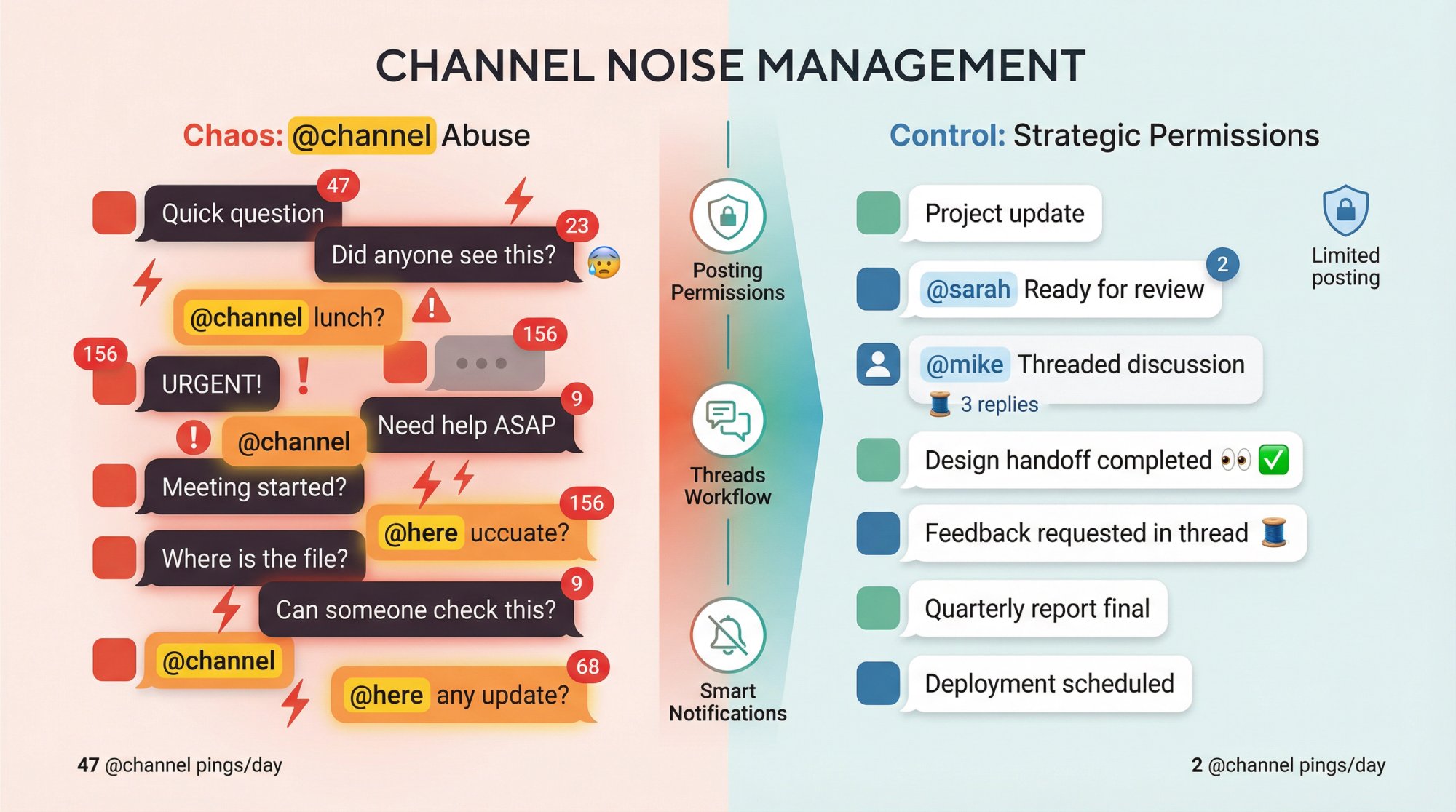
Slack allows adjusting who can post and who can use @channel/@here mentions to keep large channels focused.
Best practice pattern for announcements:
• Limited posters (leadership, team leads only)
• Allow threads for questions (or redirect to help-*)
• Restrict @channel use (or ban it entirely)
This keeps announcements clean and high-signal.
Triage Channels: Threads + Handoffs
For triage-* channels, require:
• A request format (template message)
• Thread-first workflow (intake stays clean)
• Emoji reactions for state (👀 = seen, ✅ = done, 🧵 = threaded)
Slack recommends using threads to keep discussions organized. This is non-negotiable for triage channels.
When a request moves to action, link to the handoff channel:
"Moving to #proj-website-redesign for implementation 🧵"
@channel Etiquette (Set Clear Rules)
Nothing kills Slack productivity faster than @channel abuse.
Make it policy:
@channel and @here are reserved for:
• Actual emergencies
• Time-sensitive decisions with tight deadlines
• Critical system outages
NOT for:
• "Quick question"
• Routine updates
• "Did anyone see this?"
Enforce this. Gently redirect people who misuse mass notifications.
Better alternatives:
-
Direct mentions for specific people (
@sarah @mike) -
User groups for departments (
@support-team) -
Just post without notification (async-first culture)
How to Organize Slack Connect for External Partners
If you work with partners, agencies, customers, or vendors, Slack Connect channels need special handling.
Slack notes that Connect channels can host up to 250 organizations (each on a paid plan), and the organization owning the channel controls key actions.
Naming for External Channels
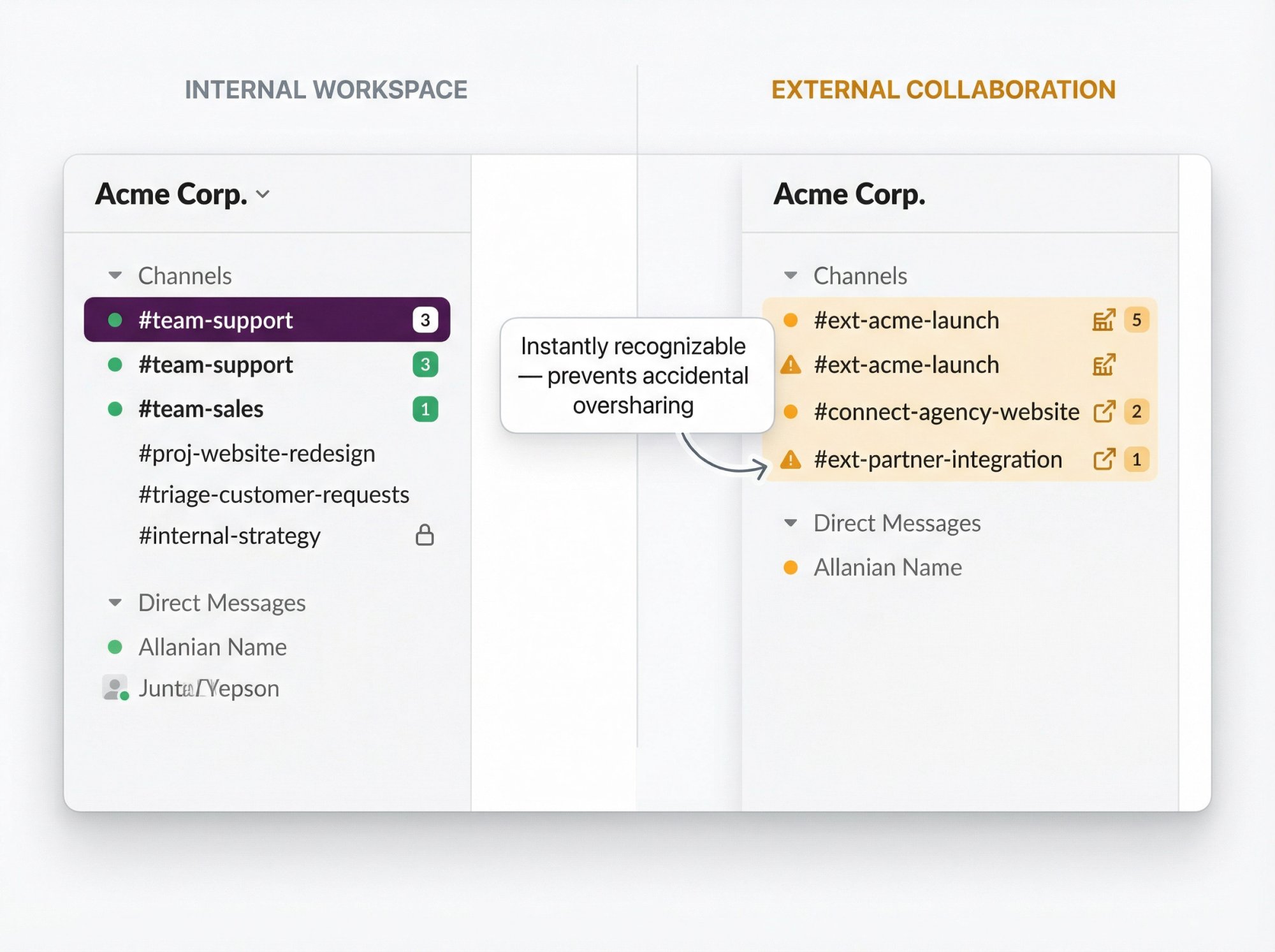
Use a dedicated prefix so external channels are instantly recognizable:
• ext-[company]-[topic]
• connect-[partner]-[project]
Examples:
• ext-acme-launch (working with Acme Corp)
• connect-agency-website (agency collaboration)
Why this matters: Your team needs to know at a glance when external people are watching. It prevents accidental oversharing of internal info.
Setup Standards for External Channels
Every external channel should include (in canvas or pinned message):
✓ What's in scope / out of scope
✓ Response time expectations
✓ Who owns the relationship internally
✓ What should stay internal (and where internal discussions happen)
Set these expectations upfront to avoid awkward moments later.
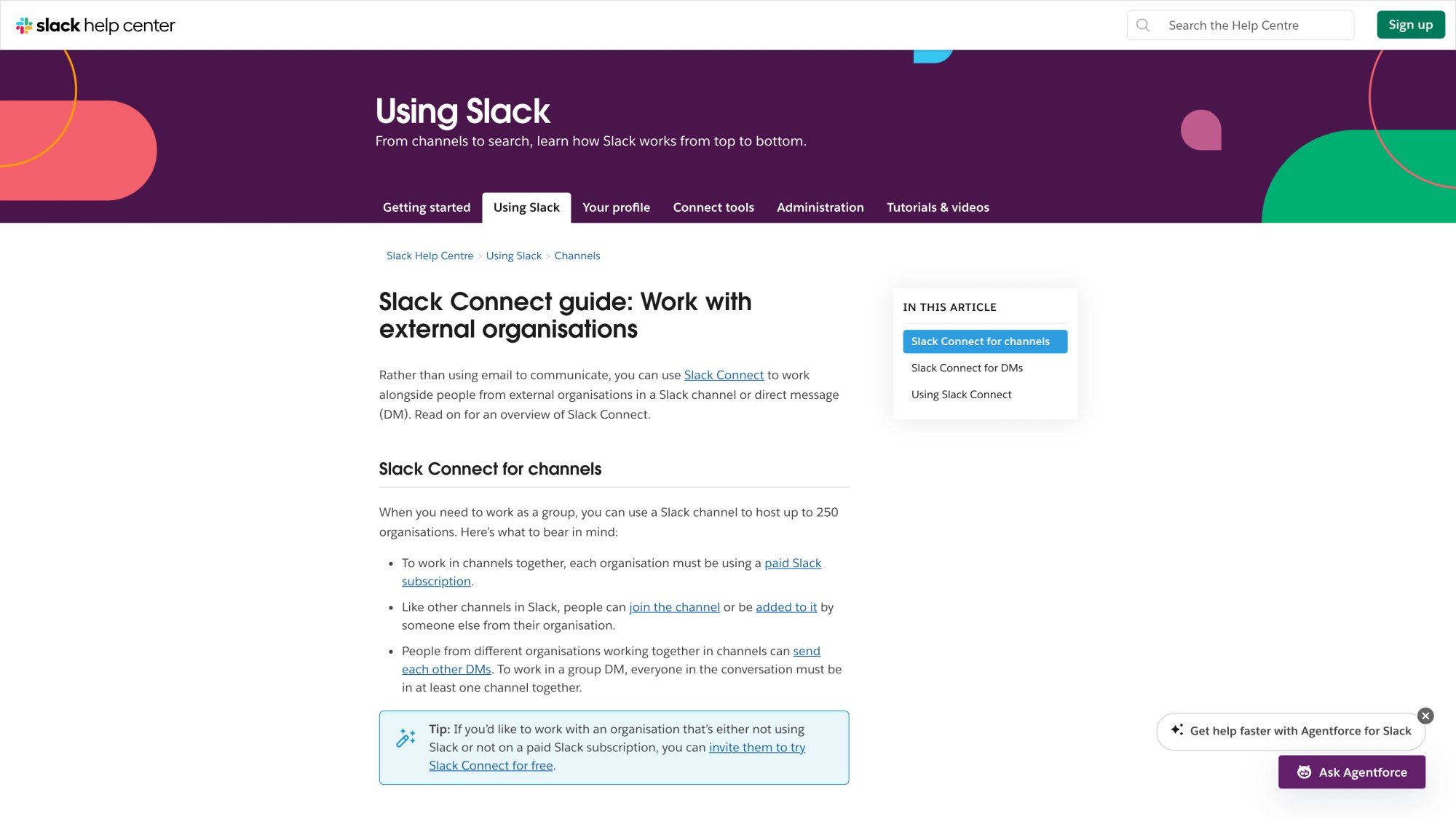
Slack's official Slack Connect documentation provides detailed guidance on managing external partnerships, including security considerations, channel management, and best practices for cross-organization collaboration.
How to Organize Slack for Customer Support and Live Chat
Support teams face unique challenges when routing website live chat into Slack.
If you route website live chat into Slack (which we'll discuss in detail shortly), you need a specific channel architecture that handles high volume without chaos.
The challenge: Customer conversations create channel volume. Without structure, your Slack becomes unusable fast.
The "Chat Inbox + Dedicated Chat Channel" Model
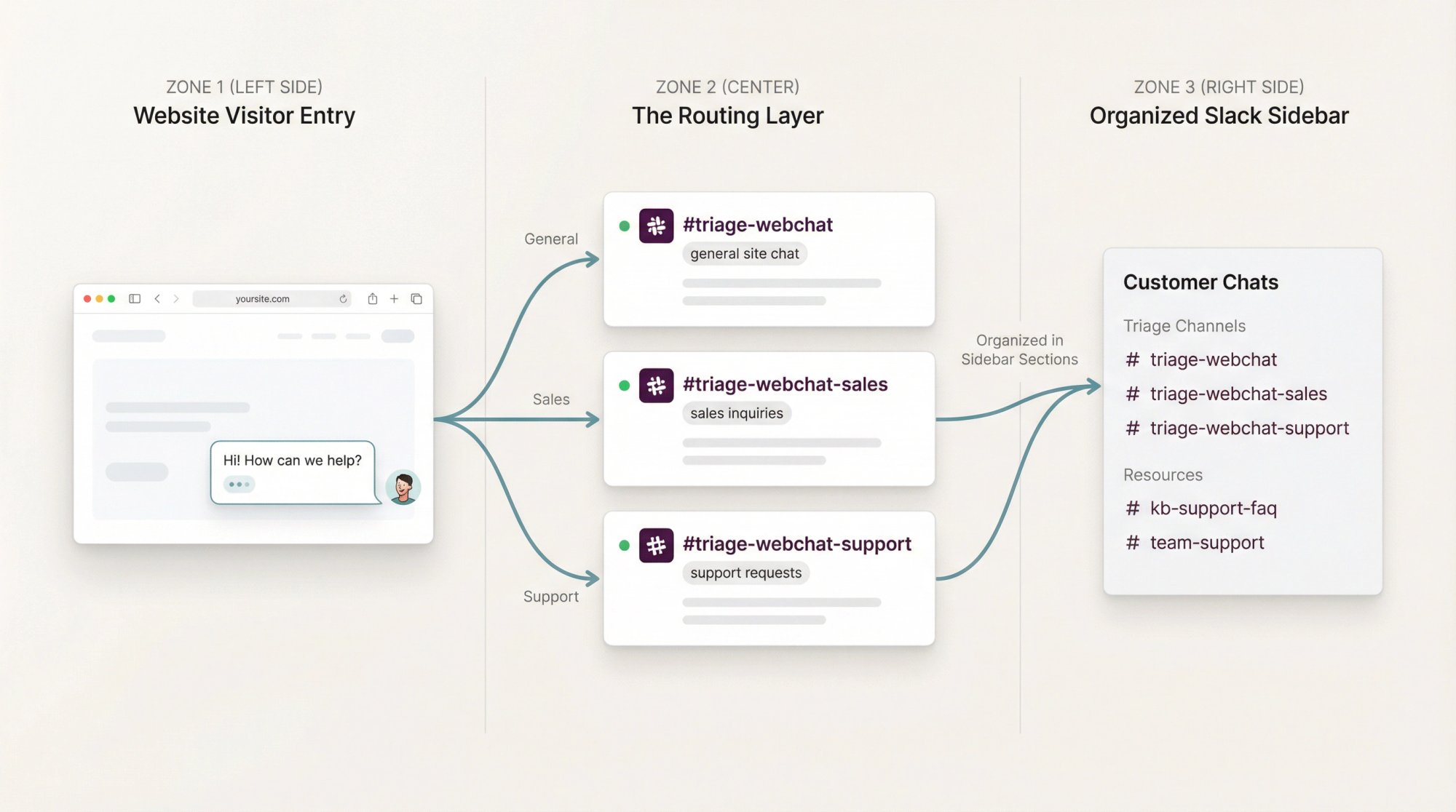
The model that works:
① Create intake channels for different routing destinations:
• triage-webchat (general site chat)
• triage-webchat-sales (sales inquiries)
• triage-webchat-support (support requests)
② Use Slack's sidebar sections to organize:
Create a "Customer Chats" section (using shared sidebar sections) that includes:
• The triage channels
• Active chat channels
• Related support resources (kb-support-faq, team-support)
③ Route by department or topic
Different inquiry types go to different channels. Sales questions hit triage-webchat-sales, support issues hit triage-webchat-support.
This mirrors Slack's prefix guidance: triage- for intake, help- for questions.
Lifecycle for Chat Channels
After a chat ends:
• Archive the dedicated channel if you want searchable history (paid plans)
• Delete if you must remove content permanently (be careful with this)
Chat transcripts are valuable. Archived channels remain searchable on paid subscriptions, making them perfect for customer interaction history.
How Social Intents Brings Customer Conversations Into Slack
Most Slack organization guides completely miss something critical: what happens when customer-facing work lands in Slack.
At Social Intents, we've spent years helping teams route website live chat directly into Slack. We've seen every possible way teams organize (and disorganize) customer conversations.
The reason this matters for channel organization? Customer chats create unique challenges:
• High volume (hundreds of chats per week)
• Need fast response (customers waiting in real-time)
• Require clean handoffs (sales to support, tier 1 to tier 2)
• Generate valuable history (you want to search past conversations)
How Social Intents' Slack Integration Works
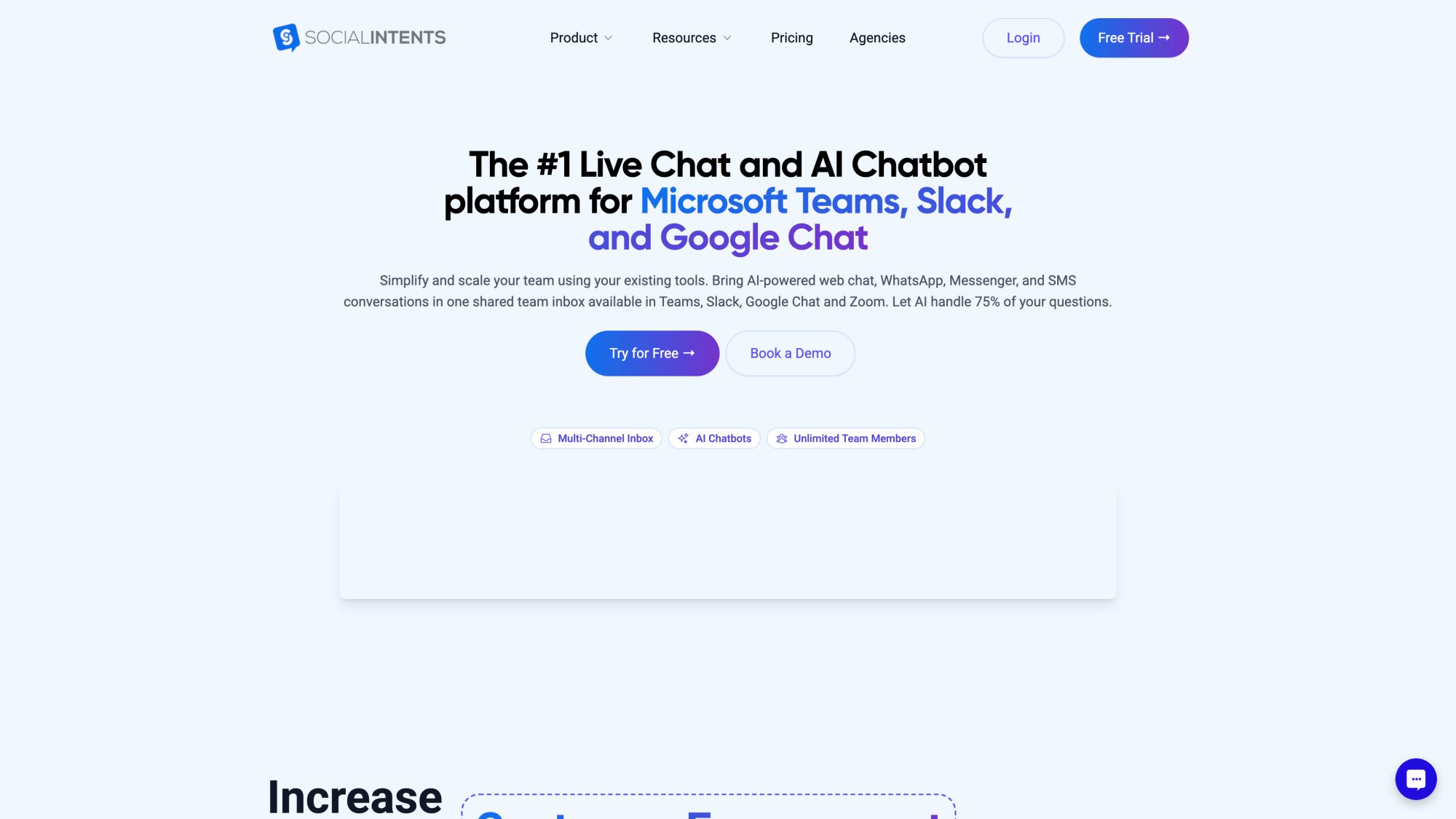
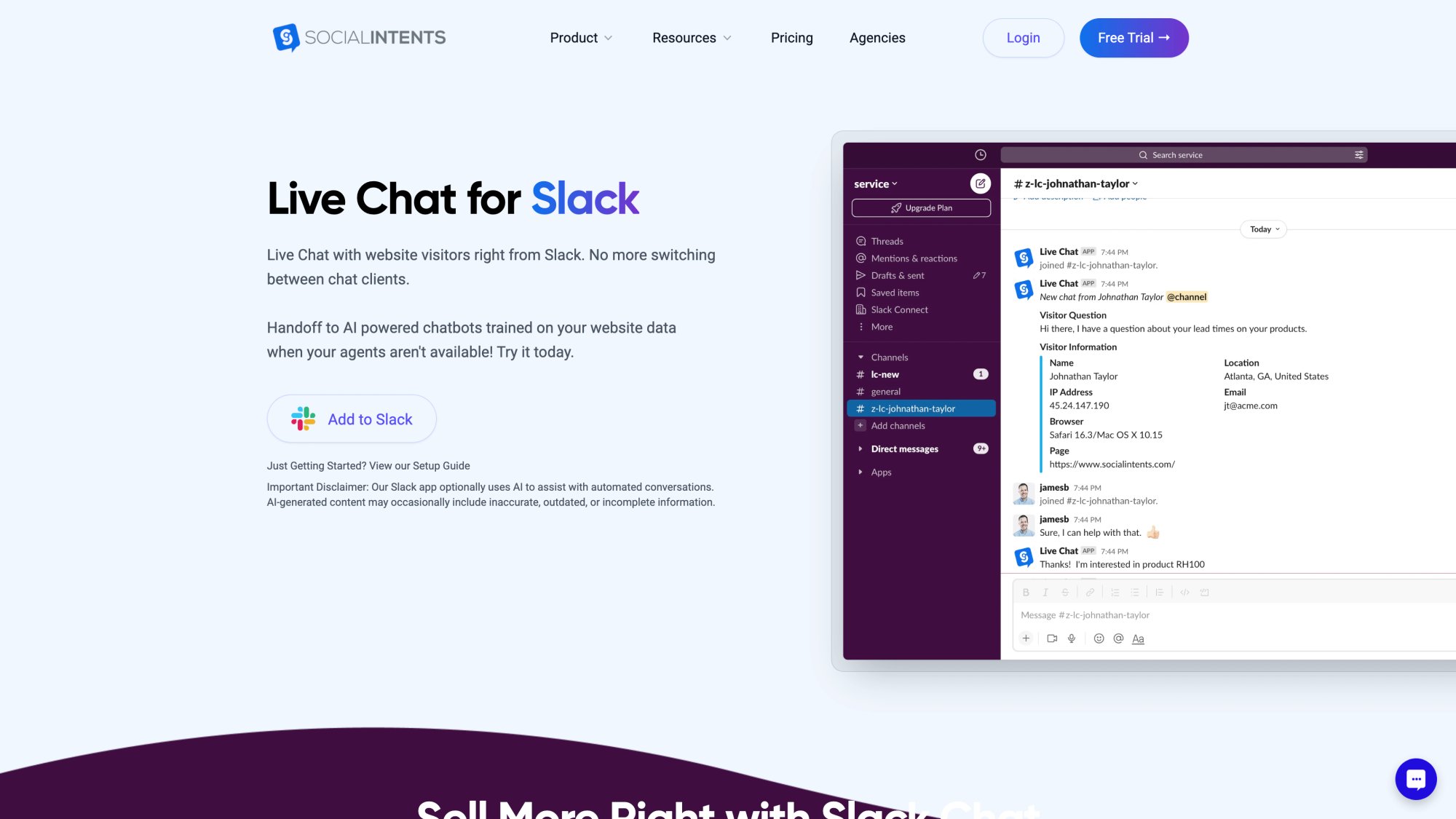
Social Intents routes your website chat widget directly into Slack channels you choose. When a visitor starts a chat on your site, it creates a dedicated channel for that conversation in Slack.
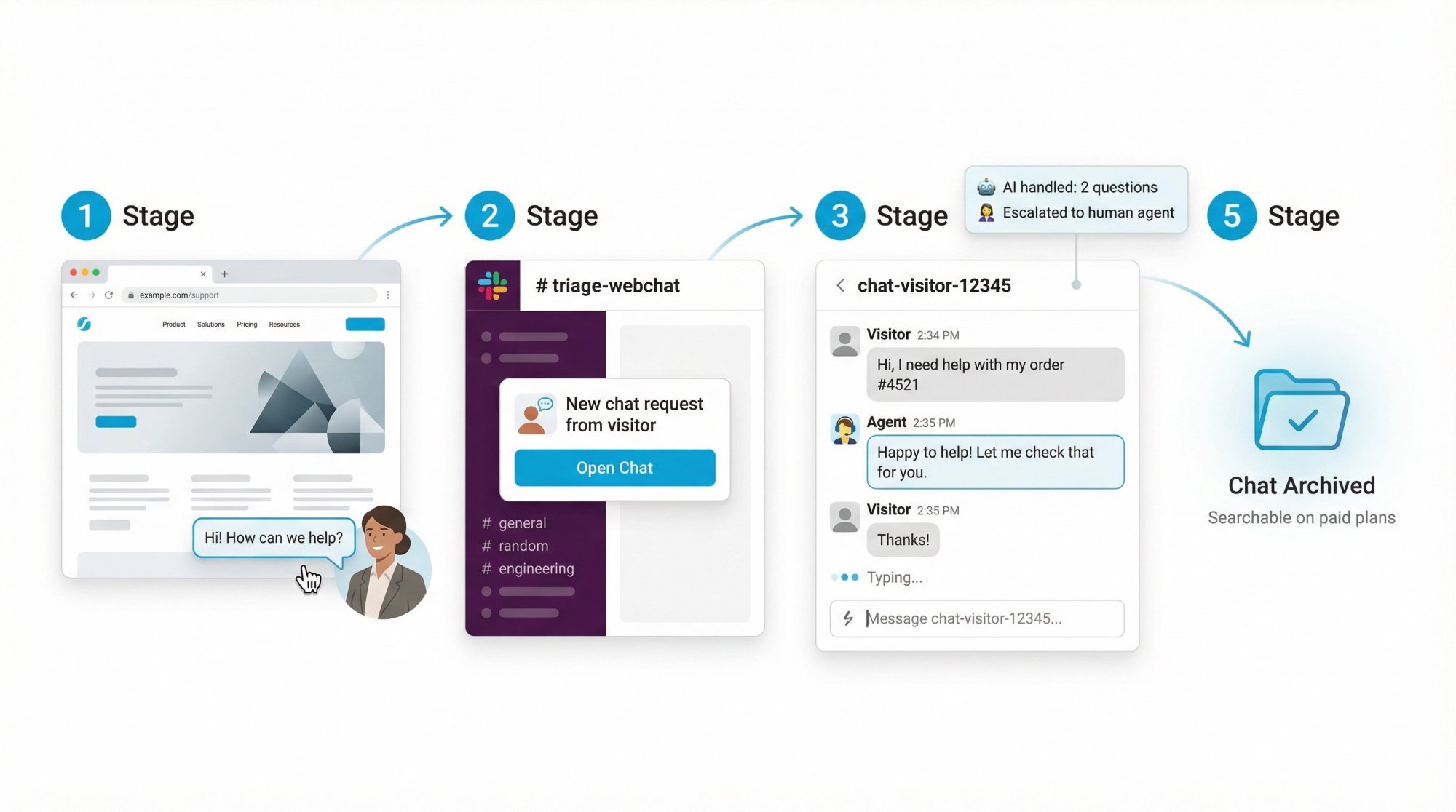
The workflow:
① Visitor clicks chat widget on your website
② Chat request appears in your chosen intake channel (e.g., #triage-webchat)
③ Agent clicks to open dedicated channel for that chat
④ Conversation happens in real-time in Slack
⑤ When done, archive the channel (history retained)
Why this architecture works:
→ Your team stays in Slack. No switching to another support tool. No separate login. No training required.
→ AI handles the easy stuff. Social Intents' AI chatbots can answer common questions automatically, escalating to humans only when needed. You can train the AI on your knowledge base, product docs, and FAQs.
→ Unlimited agents. From the Basic plan up, Social Intents includes unlimited agents. No per-seat pricing. Your whole team can jump in when needed.
→ Custom integrations. The platform includes custom AI actions so you can pull order status, create tickets, check shipping status, all within the chat.
→ Multi-channel support. Beyond Slack, Social Intents also routes chats to Microsoft Teams, Google Chat, Zoom, or a web console. Use the tools your team already lives in.
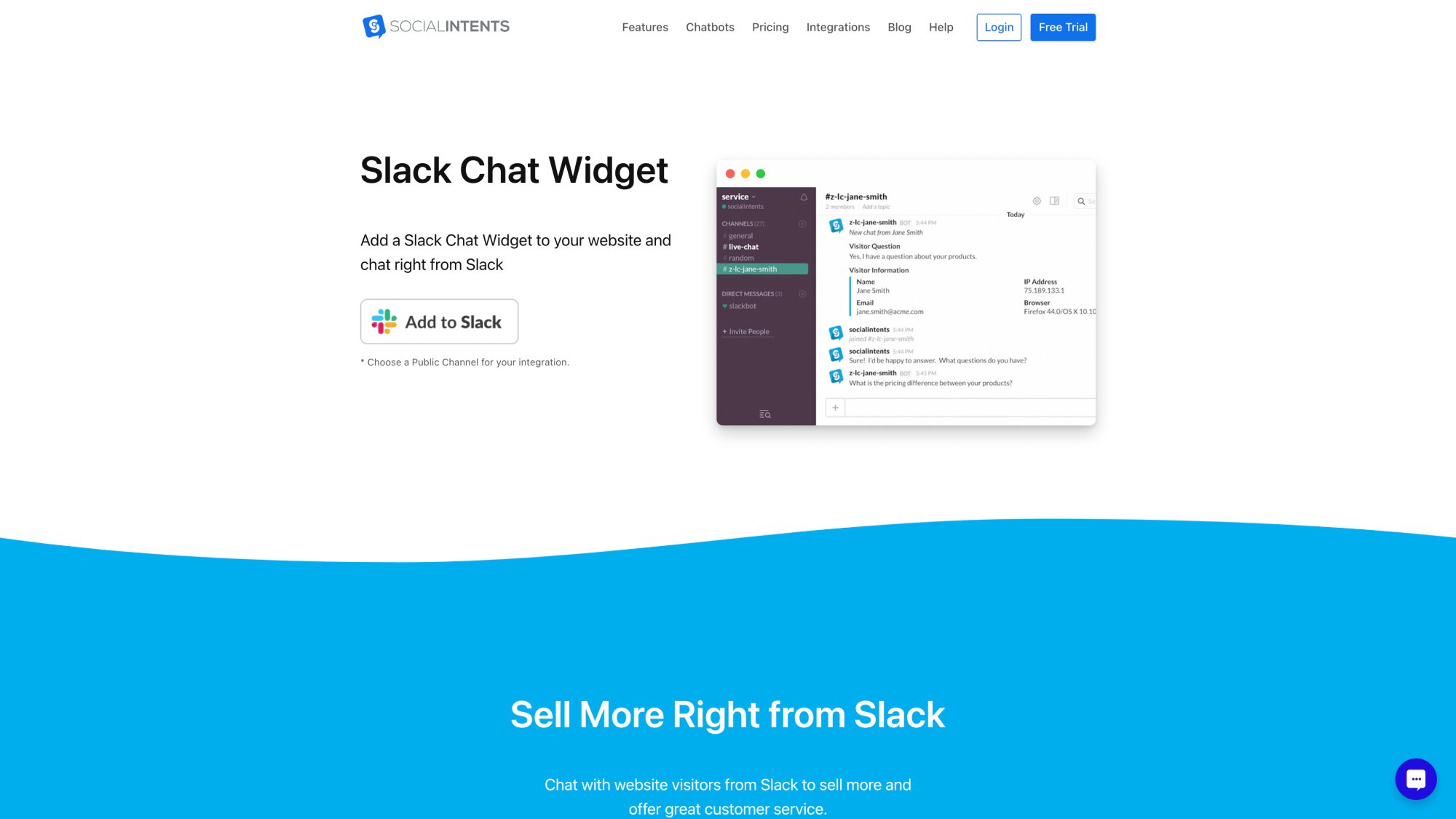
The Social Intents chat widget is fully customizable and can be deployed across your website, with conversations automatically routing to the appropriate Slack channels based on department, product, or visitor context.
How to Organize Slack for Social Intents Chat Routing
If you're using Social Intents for customer support in Slack (or considering it), here's the channel structure that scales:
Create departmental intake channels:
• #triage-webchat-sales (Sales inquiries)
• #triage-webchat-support (Support requests)
• #triage-webchat-billing (Billing questions)
Map routing in Social Intents:
Social Intents supports department mapping so different inquiry types route to different Slack channels automatically.
Critical operational detail:
Channels receiving chat must have the @livechat bot added. Due to Slack API updates, channels won't appear in Social Intents' channel list without explicitly inviting the bot.
Operational policy: Add @livechat to any channel intended for web chats immediately when creating it.
This is the difference between "we never miss a customer chat" and "why didn't we get notified?"
Set up sidebar sections for chat teams:
Create a shared "Customer Chats" section for your support team with:
• All triage channels
• Active chat channels
• Knowledge base channels (kb-support-faq)
• Team coordination (team-support)
Establish archiving policy:
After chats end, archive dedicated channels. Social Intents stores transcripts as part of the workflow, and archived Slack channels remain searchable (paid plans).
This keeps your active channel list clean while preserving valuable customer conversation history.
Why This Matters for Teams Using Slack as Their Support Hub
Most live chat tools force you into their interface. You log into their dashboard, learn their system, manage conversations in yet another tool.
Social Intents does the opposite. It brings conversations to where your team already works.
For Teams-heavy organizations: Same integration works with Microsoft Teams.
For distributed teams: Route chats to Google Chat, Zoom, or Webex depending on what your team uses.
For e-commerce teams: Social Intents integrates with Shopify, BigCommerce, Wix, and WordPress. Perfect for online stores routing customer questions through Slack.
The bottom line: If customer conversations are landing in Slack, you need channel organization designed for high-volume, real-time interactions. The taxonomy and naming conventions we covered earlier aren't optional. They're essential.
Copy/Paste Templates to Implement Today
Stop reinventing. Use these.
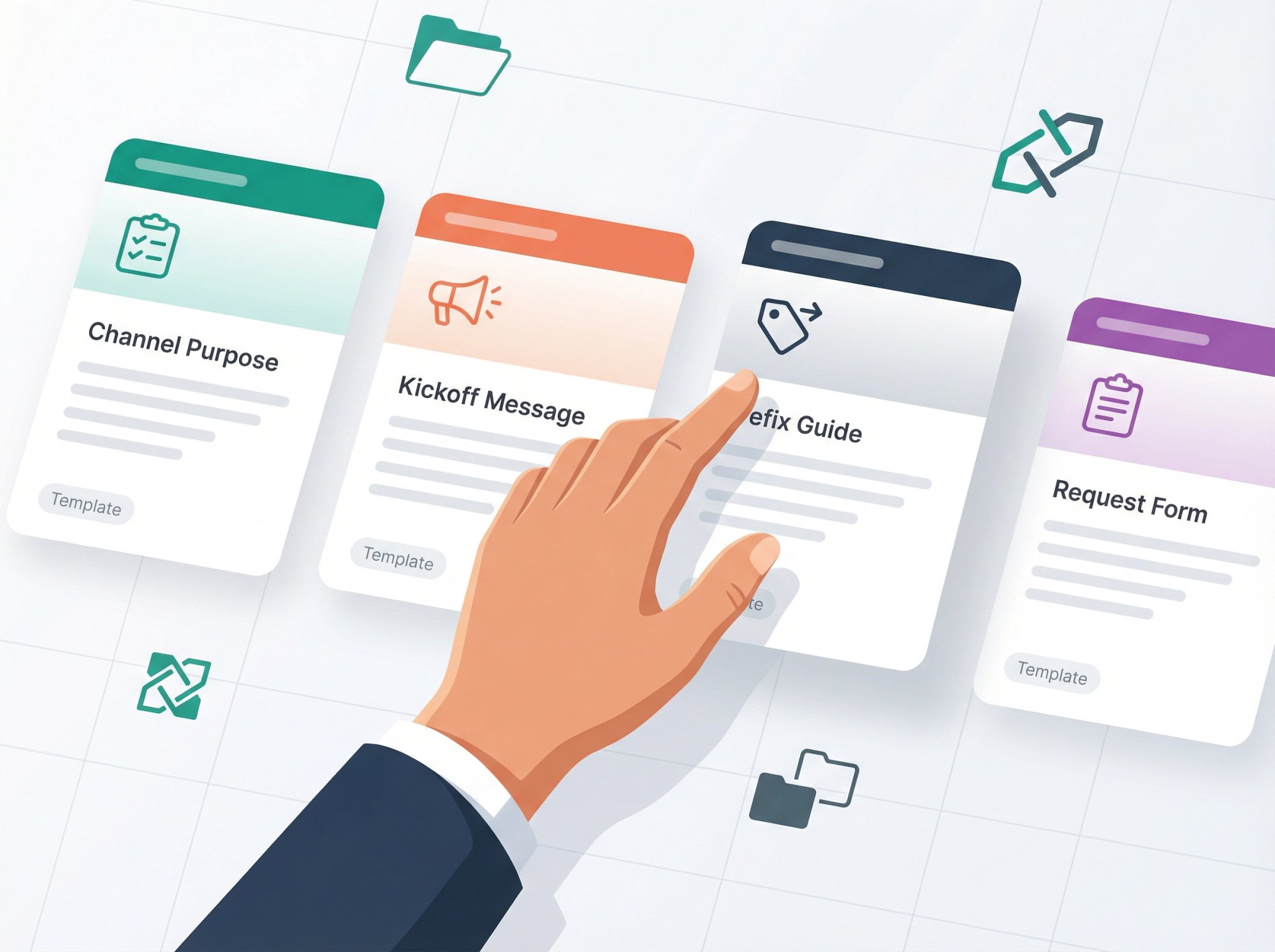
Channel Purpose Template
Topic (one line):
Owner: @name | Use for: X | SLA: Y
Description (3-6 lines):
• What this channel is for
• What this channel is NOT for
• How to ask for help (format)
• Where to escalate
• Link to canvas
Channel Kickoff Message (Pin This)
**Welcome to #channel-name**

**Purpose:** [one sentence]

**How to use:**
• Post requests in this format: [template]
• Use threads for follow-ups
• Don't @channel unless [criteria]

**Owner:** @name (backup: @name)

**Docs:** See channel canvas for SOPs and FAQs.
Prefix Dictionary (Publish Once)
Create #ops-slack-governance and pin:
Standard Prefixes:
• announce- = Important announcements (limited posting)
• help- = Ask questions / request help
• team- = Team coordination
• proj- = Cross-functional projects
• triage- = Intake + routing
• event- = Events
• ext- = External work (Slack Connect)
• sys- = Systems/alerts/logs
Channel Request Form (Lightweight Governance)
Create a simple template:
Proposed channel name:
Prefix/type: (team/help/proj/triage/etc)
Public or private: (and why)
Owner + backup:
Purpose: (2 sentences)
Expected membership:
Review cadence:
Integrations needed:
This prevents chaos without bureaucracy.
30-Day Plan: How to Fix Your Slack Organization
Don't try to fix everything at once. Use this phased approach:
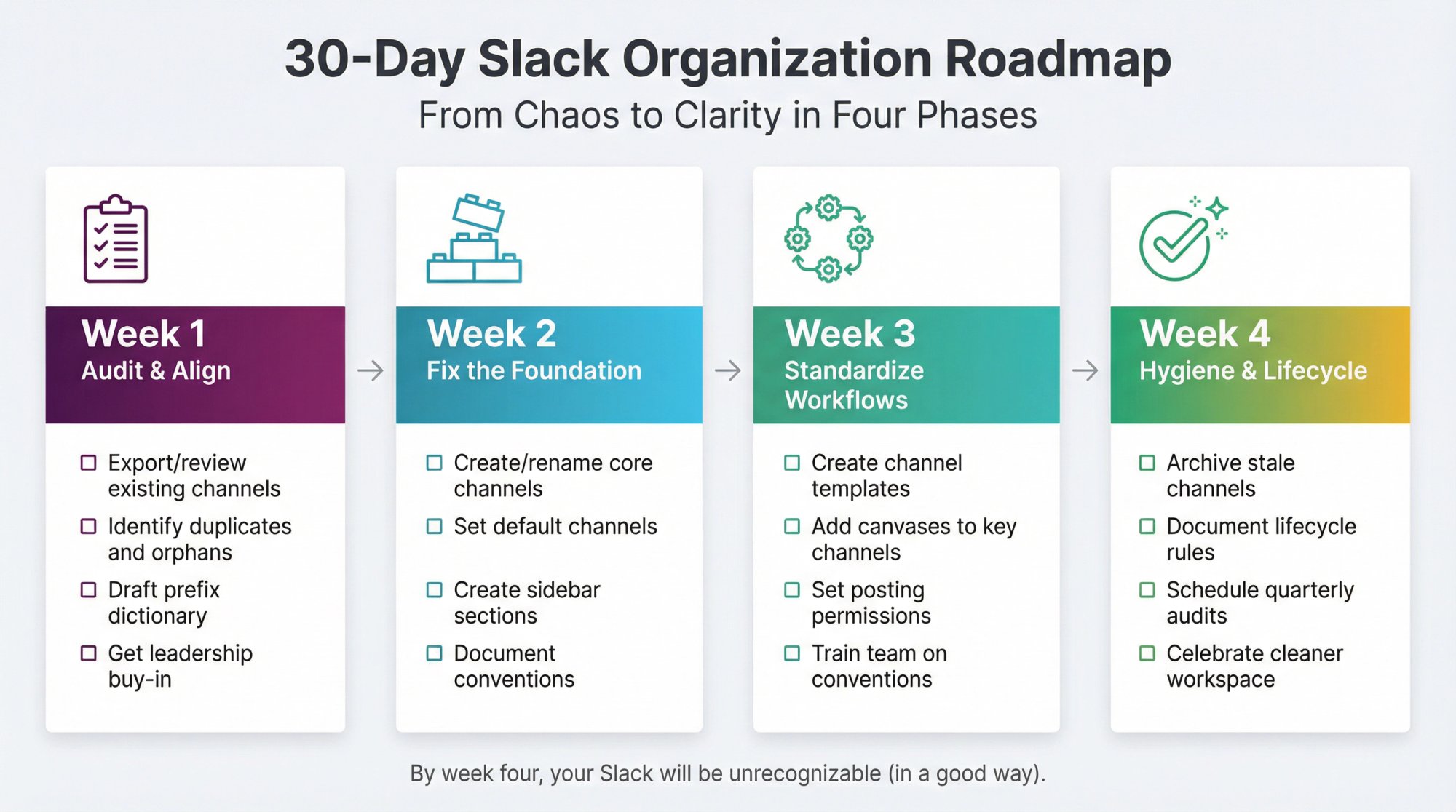
Week 1: Audit and Align
□ Export/review existing channels
□ Identify duplicates and orphaned channels
□ Draft prefix dictionary + taxonomy
□ Get leadership buy-in
Week 2: Fix the Foundation
□ Create/rename core channels (announce-*, help-*, team-*)
□ Set default channels for onboarding
□ Create shared sidebar sections for role-based packs
□ Document naming conventions (pin in #general)
Week 3: Standardize Workflows
□ Create channel templates (project, triage, announcements)
□ Add canvases for key channels
□ Set posting permissions for announcement channels
□ Train team on new conventions
Week 4: Hygiene and Lifecycle
□ Archive stale channels
□ Document channel lifecycle rules
□ Schedule quarterly audits (set calendar reminder)
□ Celebrate the cleaner workspace
By week four, your Slack will be unrecognizable (in a good way).
Frequently Asked Questions
How many channels is too many?
There's no magic number, but if people regularly ask "which channel should I join?", you have too many overlapping channels. Focus on consolidation over proliferation. Most organizations can function well with 30-50 active channels if they're well-organized.
Should we make channels public or private by default?
Public by default. Slack explicitly recommends this for transparency and knowledge sharing. Only use private channels for genuinely sensitive topics (HR issues, confidential projects, leadership discussions). Overusing private channels creates information silos.
How do we handle channels that serve multiple purposes?
Split them. A channel trying to be both "project updates" and "casual team chat" will fail at both. Create #team-sales for coordination and #sales-social for banter. Define clear boundaries.
What's the best way to name temporary project channels?
Use proj-[project-name] with an optional end date or quarter: proj-website-redesign-q2 or proj-office-move-2026. This makes temporary channels easy to identify and archive when done.
How often should we archive channels?
Quarterly audits work for most teams. Archive any channel with no activity in 90+ days, unless there's a specific reason to keep it active. Archived channels remain searchable on paid plans, so you don't lose history.
Can we enforce naming conventions technically?
Sort of. Slack admins can educate and encourage, but there's no built-in "naming police" feature. The best enforcement is cultural (make the conventions so obvious and useful that people naturally follow them). Post the prefix dictionary in #general, include it in onboarding, and gently redirect when someone creates off-convention channels.
How do we handle Slack Connect channels with external partners?
Always use a prefix like ext- or connect- so your team knows external people are present. Set clear expectations upfront about scope, response times, and what stays internal. Pin a welcome message with ground rules.
What about channels that become unexpectedly popular?
Great problem to have. If a channel balloons to hundreds of members, consider:
-
Adding posting permissions to reduce noise
-
Creating threaded workflows to keep timelines clean
-
Splitting into sub-channels if topics diverge
-
Promoting it to default channels if everyone needs it
Should every team member be in every team channel?
No. People should join channels relevant to their work. Use default channels for must-haves, and let people opt into others. Slack's shared sidebar sections help organize role-specific channel sets.
How do we prevent @channel abuse?
Set explicit guidelines for when @channel is acceptable (emergencies, urgent decisions, critical outages only). Document these in channel descriptions. Some teams restrict @channel permissions to channel owners only.
What if people resist the new naming system?
Start with new channels first. Rename critical channels gradually. Show quick wins (faster search, easier onboarding). Make it so obviously better that adoption becomes natural rather than mandated.
How does this work with customer support in Slack?
For teams routing customer chats into Slack (like with Social Intents), create dedicated intake channels (triage-webchat-*), use departmental routing, and establish clear archiving policies for completed conversations. The channel organization becomes even more critical at high chat volumes.
Can we automate channel creation?
On some Slack plans, yes. You can use Slack's API, Zapier workflows, or tools like Social Intents' department mapping to automatically route conversations into specific channels. But always pair automation with governance to prevent sprawl.
What's the biggest mistake teams make with Slack organization?
Creating channels reactively without structure, then never archiving them. The second biggest? Making too many channels private, which kills transparency and creates silos.
How do we train new hires on our Slack organization?
Make it automatic. Use default channels to get them into the right places. Share sidebar sections for their role. Pin a "How We Use Slack" doc in #general. Most importantly, make the system so intuitive they don't need training (the names and structures should be self-explanatory).
Conclusion: From Chaos to Clarity
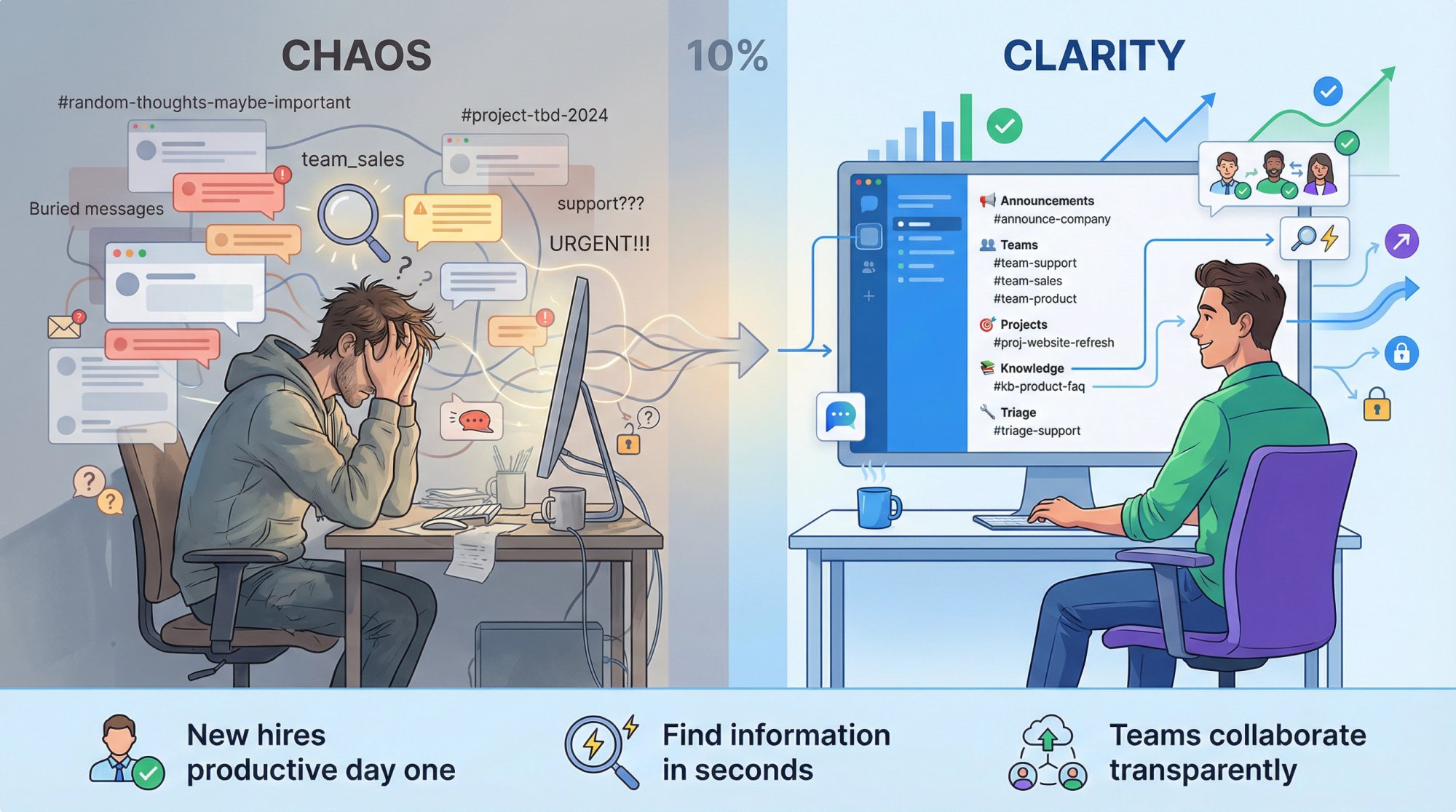
Slack channel organization isn't a one-time project. It's a system you build, maintain, and refine as your team grows.
The difference between a productive Slack workspace and a chaotic one isn't the tools available. It's whether you've designed a structure that scales with humans, not against them.
Start with the foundation:
→ Clear taxonomy (channel types everyone understands)
→ Consistent naming (predictable prefixes)
→ Smart defaults (new hires land in the right places)
Layer in governance:
→ Channel ownership (someone maintains each important channel)
→ Lifecycle management (archive when done)
→ Usage guidelines (threads, @channel etiquette, clear purposes)
Then optimize for your workflows:
→ External collaboration (Slack Connect)
→ Customer support (especially if routing chats into Slack)
→ Team-specific needs (shared sidebar sections, templates)
The payoff is real:
✓ New hires productive on day one
✓ Critical information findable in seconds
✓ Teams working transparently across departments
✓ Customer conversations handled smoothly
✓ Less time managing Slack, more time using it
And if you're bringing customer conversations into Slack through live chat, a tool like Social Intents paired with proper channel organization transforms support operations. Your team answers customers from where they already work, AI handles the repetitive questions, and everything stays organized through the taxonomy and naming systems we covered.
The workspace you build today determines how effectively your team collaborates tomorrow. Make it count.
Ready to transform your Slack workspace? Start with week one of the implementation plan. Audit your channels, define your prefixes, and document your system. By week four, you'll wonder how you ever worked in the chaos.
And if customer support in Slack is part of your strategy, get started with Social Intents to see how seamless live chat routing can be when paired with proper channel organization.