Chatbots on their own capture conversations. CRMs on their own store customer data. But when you connect them together, you unlock something that actually matters to your business: every chat becomes a trackable, actionable customer record without anyone copying and pasting.
The numbers back this up. Research shows that 33% of CX leaders say they definitely prioritize chatbot-CRM integration, with another 14% doing so frequently. And it makes sense. When your chatbot talks to your CRM, you can automatically capture leads, personalize conversations using existing customer data, and give your team a unified view of every interaction.
This guide walks through the practical side of integrating a chatbot with your CRM. You'll learn which integration approach fits your needs, how to build it step by step, and what actually works in production.
Why Should You Integrate a Chatbot With CRM?
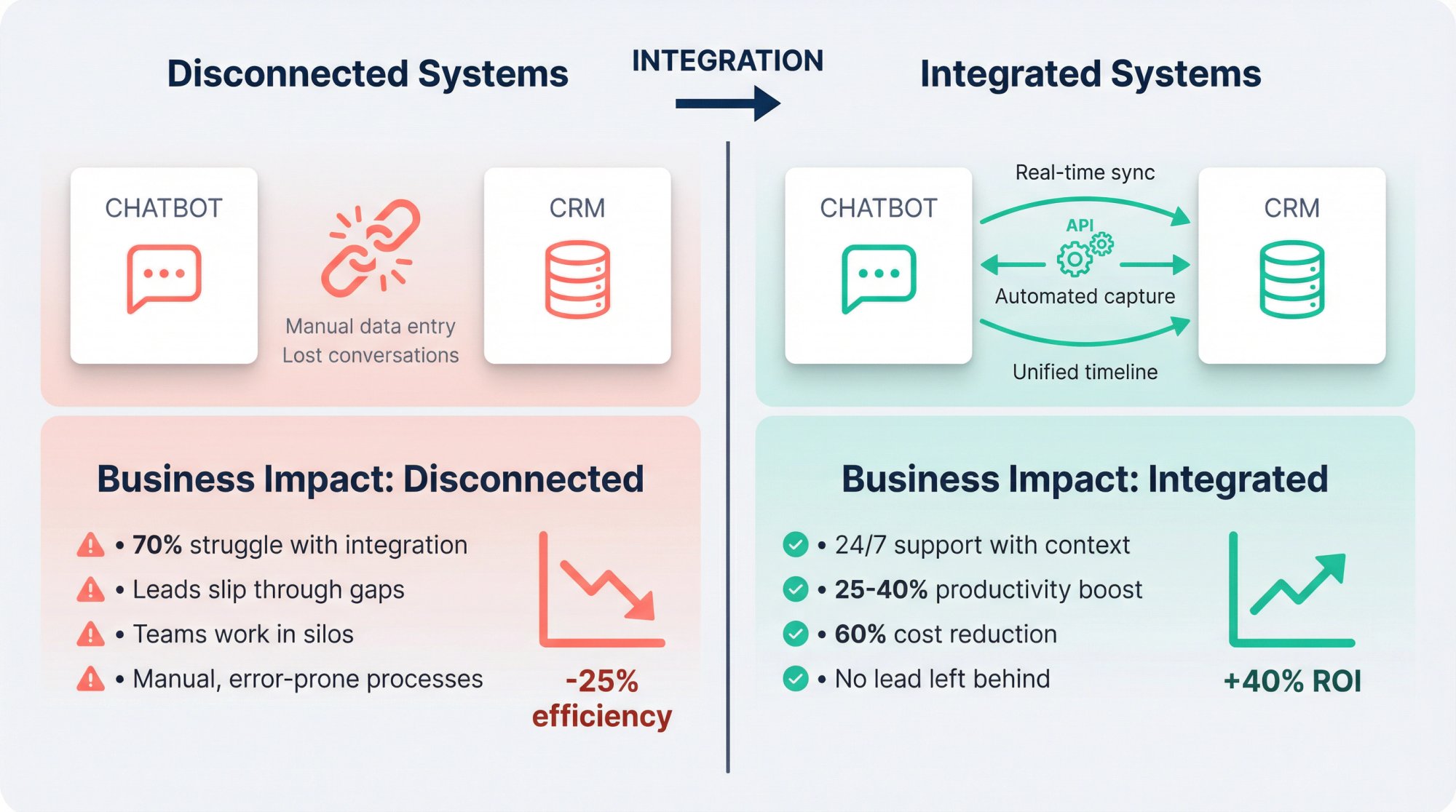
Most organizations are still figuring out how to make their revenue tools work together. Bain research from April 2025 found that 70% of companies struggle to integrate their sales plays into CRM and revenue technologies. Only about 20% have actually realized full value from these systems.
At the same time, conversational AI adoption is accelerating fast. Industry research shows that 85% of customer service leaders will explore or pilot customer-facing conversational GenAI in 2025. The gap is obvious: teams are adding chatbots, but most aren't connecting them to where customer data actually lives.
Here's what happens when you do integrate them properly:
Instant 24/7 support with real context. Your AI chatbot can pull order status, account details, or support ticket history from your CRM to answer questions immediately. Industry research shows that 82% of consumers would rather use a chatbot for quick answers than wait on hold. Companies often see a 25-40% productivity boost and up to 60% reduction in customer service costs after integrating chatbots with their CRM systems.
No lead left behind. When someone chats on your website and shows interest, the chatbot can create a CRM lead automatically with qualifying details already attached. Your sales team wakes up to a pipeline of pre-qualified leads instead of raw transcripts they need to decode. Research shows that chatbots integrated with CRM can qualify leads in real time and push details straight into the CRM, eliminating manual data entry and follow-up delays.
A single source of truth. Sales, support, and marketing all see the same timeline of chats, emails, calls, and purchases in one place. This shared visibility improves cross-team collaboration and ensures consistent messaging across touchpoints. No more asking customers to repeat themselves because different teams can't see what already happened.
Personalization at scale. Your chatbot can greet VIP customers by name, suggest products based on browsing history, or route support questions to the right agent using account tier data from your CRM. Industry data shows that 60% of business owners believe AI chatbots enhance the customer experience when fed with customer data, and about 32% of chatbot interactions already involve product information and recommendations.
The core benefit: When your bot and CRM work together, customers get instant self-service convenience with the personalization of a human rep.
What Are the 3 Best Ways to Integrate Chatbot With CRM?
There are three proven ways to integrate a chatbot with a CRM. The right one depends on your scale, technical resources, and how real-time you need the data exchange to be.
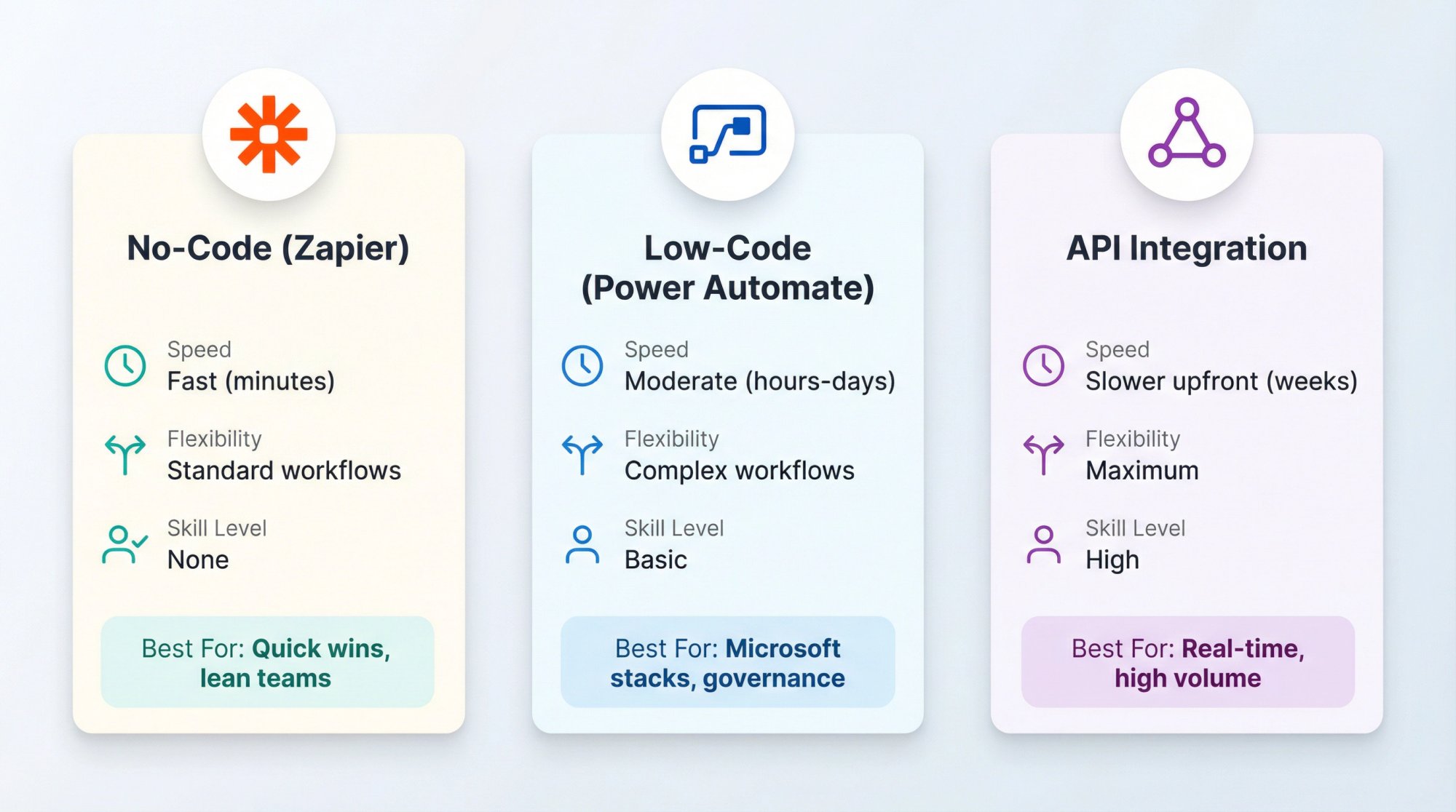
| Approach | Speed | Flexibility | Technical Skill | Best For |
|---|---|---|---|---|
| No-Code (Zapier) | Fast (minutes) | Standard workflows | None | Quick wins, lean teams |
| Low-Code (Power Automate) | Moderate (hours-days) | Complex workflows | Basic | Microsoft stacks, governance |
| API Integration | Slower upfront (weeks) | Maximum | High | Real-time, high volume |
No-Code Automation: Zapier and Similar Tools
Best for: Fast time-to-value, standard use cases, lean teams.
If your goal is "when a chat ends, create or update a CRM record," no-code automation is often enough. Tools like Zapier let you connect a chatbot to virtually any CRM without writing code.
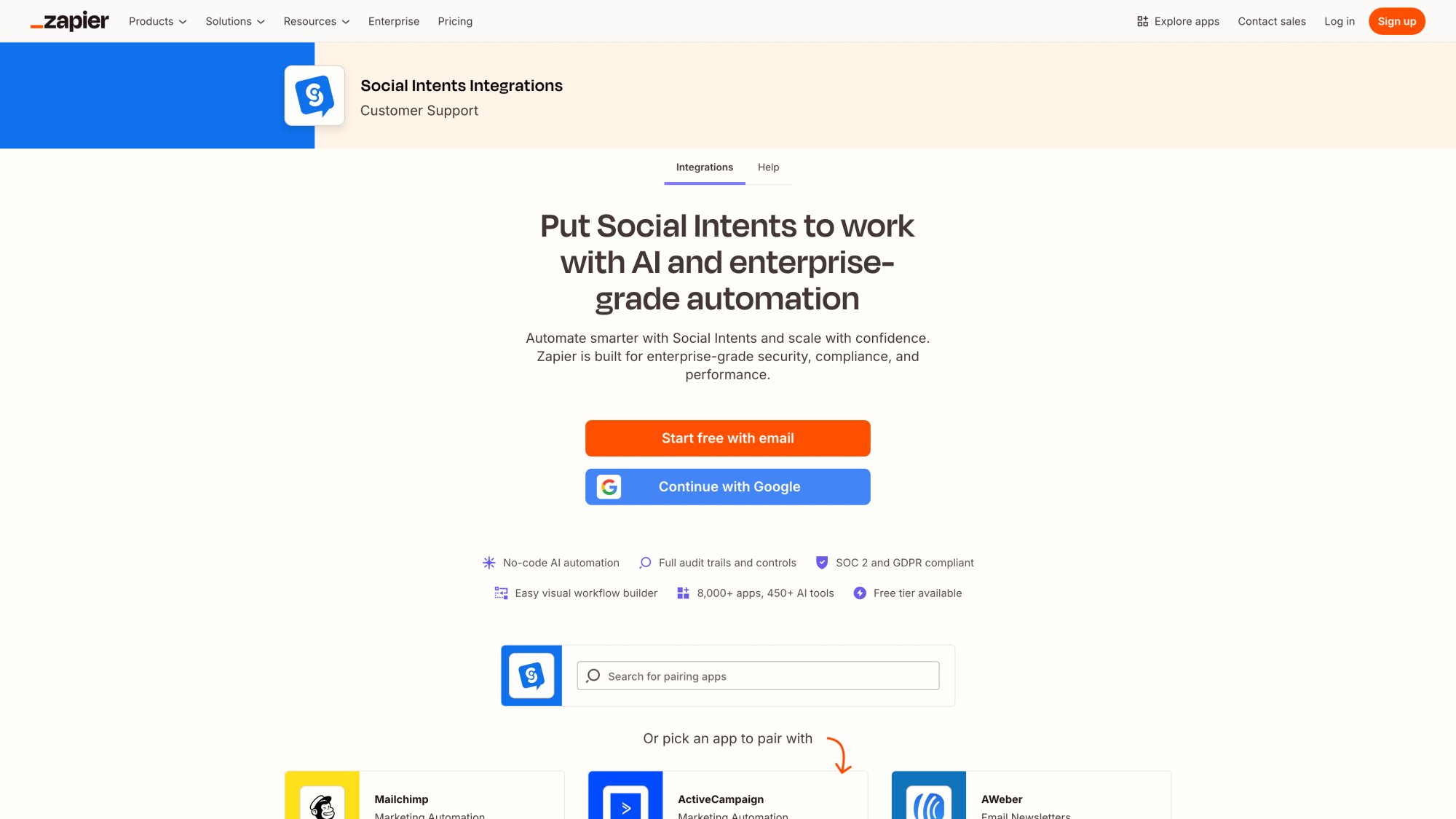
For example, Social Intents offers instant Zapier triggers including Chat Closed, New Offline Message, and New Lead. These triggers can automatically send chat transcripts and lead details into CRMs like Salesforce, HubSpot, Microsoft Dynamics, Zoho, and others (integrations page).
What you get:
→ Trigger on chat lifecycle events (chat closed, offline message, new lead)
→ Push contact info and transcript to your CRM automatically
→ Fast setup (often minutes, not days)
Tradeoffs:
→ Typically post-chat (not real-time personalization mid-conversation)
→ Limited complex branching unless you build it in the automation layer
→ May introduce slight delays (a few seconds)
Low-Code Middleware: Power Automate and iPaaS
Best for: Microsoft-heavy stacks, governance requirements, multi-step workflows.
Low-code platforms like Microsoft Power Automate or other iPaaS solutions give you more control than Zapier while still avoiding full custom development.
Microsoft's Dataverse documentation shows how flows can use "Add a new row" actions to create CRM records. Social Intents has a dedicated guide for setting up Dynamics 365 integration via Power Automate, including how to attach transcripts as notes and use shared secret headers for security.
What you get:
→ More flexibility than pure no-code
→ Built-in governance and compliance features
→ Supports complex, multi-step workflows
Tradeoffs:
→ More moving parts to manage
→ Requires disciplined environment and configuration management
→ Power Automate HTTP trigger URLs have specific migration requirements (older URLs stopped working after November 30, 2025)
Direct API Integration for Real-Time Data
Best for: Premium experiences, high-volume lead creation, deep CRM object customization, bidirectional data flow.
If you want your chatbot to read from and write to your CRM in real time during conversations, direct API integration is the most powerful approach. This means the chatbot calls CRM APIs directly to look up customer data or create records.
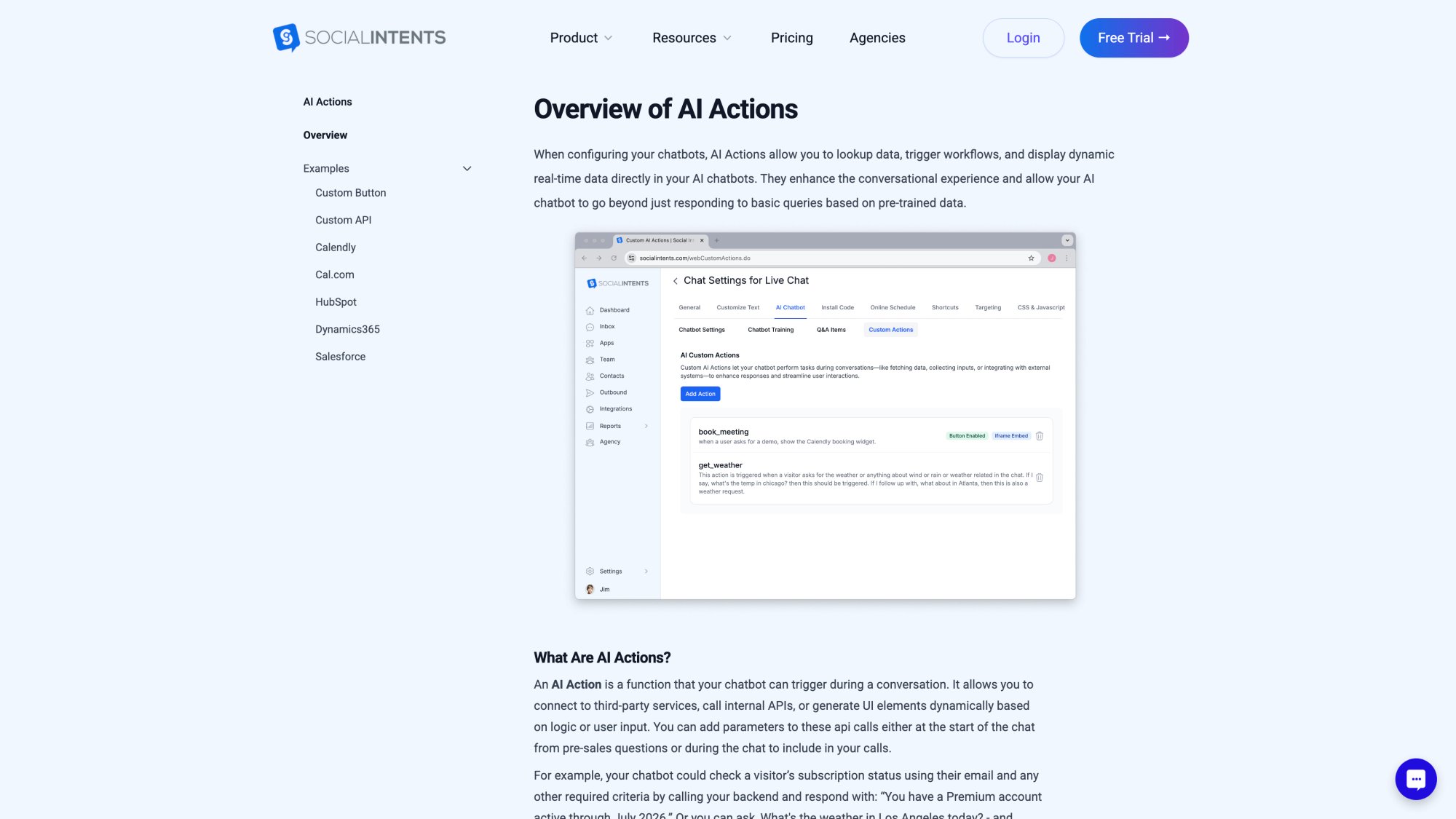
Social Intents' AI Custom Actions are designed for this pattern. They let your chatbot call external systems to check order status, create tickets, update account info, and more. You can trigger these actions automatically when chats end or based on visitor intent during the conversation.
What you get:
→ Real-time CRM lookups during chat (personalization mid-conversation)
→ Write to multiple CRM objects (Contact + Deal + Task all from one chat)
→ Full control over data flow and performance
→ No middleware delays
Tradeoffs:
→ Requires managing auth, rate limits, error handling
→ More technical rigor upfront
→ Your team owns the reliability and monitoring
Rule of thumb: Start with no-code for basic lead capture. Upgrade to API integration when you need real-time personalization or high-volume workflows.
How to Build a Chatbot CRM Integration: Step-by-Step
Before you touch Zapier or an API endpoint, make these foundational decisions.
This is where most integrations go wrong.
Step 1: What Should Happen in the CRM When Someone Chats?
Pick one primary CRM object for each chatbot use case:
| Use Case | CRM Object | Typical Fields |
|---|---|---|
| Sales / Inbound lead gen | Lead or Contact + Deal | Name, email, intent, source URL, UTM data |
| Support | Case/Ticket + Contact | Issue description, order number, priority |
| Customer success | Account + Activity/Note | Chat summary, account tier, next steps |
Critical rule: A chat should always become something trackable in the CRM (even if it's just an activity). Otherwise it disappears from your revenue or resolution system.
Step 2: What Data Should You Collect From Every Chat?
Here's a practical "minimum viable payload" that works across most CRMs:
Identity:
• Email (preferred unique key)
• Name (first/last)
• Phone (optional)
Company:
• Company name
• Website domain (optional)
Conversation context:
• Transcript or link to transcript
• Intent (demo, pricing, support issue, etc.)
• Qualification fields (budget, team size, timeline, product interest)
• Source URL (page where chat started)
• Widget/bot identifier
• Timestamps
Attribution:
• UTM source/medium/campaign (if available)
• Referrer
Compliance fields:
• Consent to be contacted (if applicable)
• Data retention flags (optional)
Social Intents' HubSpot AI Action guide provides a ready-to-use example that maps all these fields to HubSpot contact properties using their batch upsert endpoint.
Step 3: How to Prevent Duplicate Contacts in Your CRM
Most CRM messes are dedupe messes. A sane approach:
Primary dedupe key: email
Fallback keys: phone, company domain, CRM-specific IDs
Policy: If email matches an existing record, update it. Otherwise create new.
HubSpot's batch upsert supports specifying idProperty to handle this automatically. Social Intents documents this pattern in their HubSpot integration guide, showing how to upsert by email to prevent duplicates.
Step 4: Where Should You Store Chat Transcripts?
Don't assume "dump transcript into a text field" is always best. Common options:
| Method | Pros | Cons | Best For |
|---|---|---|---|
| Text property / description field | Fast, searchable | May hit field length limits | Short chats |
| Task/activity/note | Better for timelines and reporting | Requires additional API call | Activity tracking |
| File/attachment | Best for long transcripts, compliance | Less searchable | Permanent records |
Social Intents' Salesforce guide explicitly supports both patterns: logging transcripts as a Task for activity timelines or uploading as a File for permanent storage, depending on whether you use Web-to-Lead or REST API.
You can also do both: store a short structured summary in a field, and attach the full transcript as a task or file.
Step 5: What Security Measures Should You Implement?
Minimum bar:
→ Least-privilege API scopes (only the permissions your integration needs)
→ Secret storage (no tokens in client-side JavaScript)
→ Rotation plan for tokens and secrets
→ Request authentication for inbound webhooks (shared secret header is simple and effective)
Social Intents AI Custom Actions support adding headers and secrets, making it straightforward to include verification secrets for webhook security.
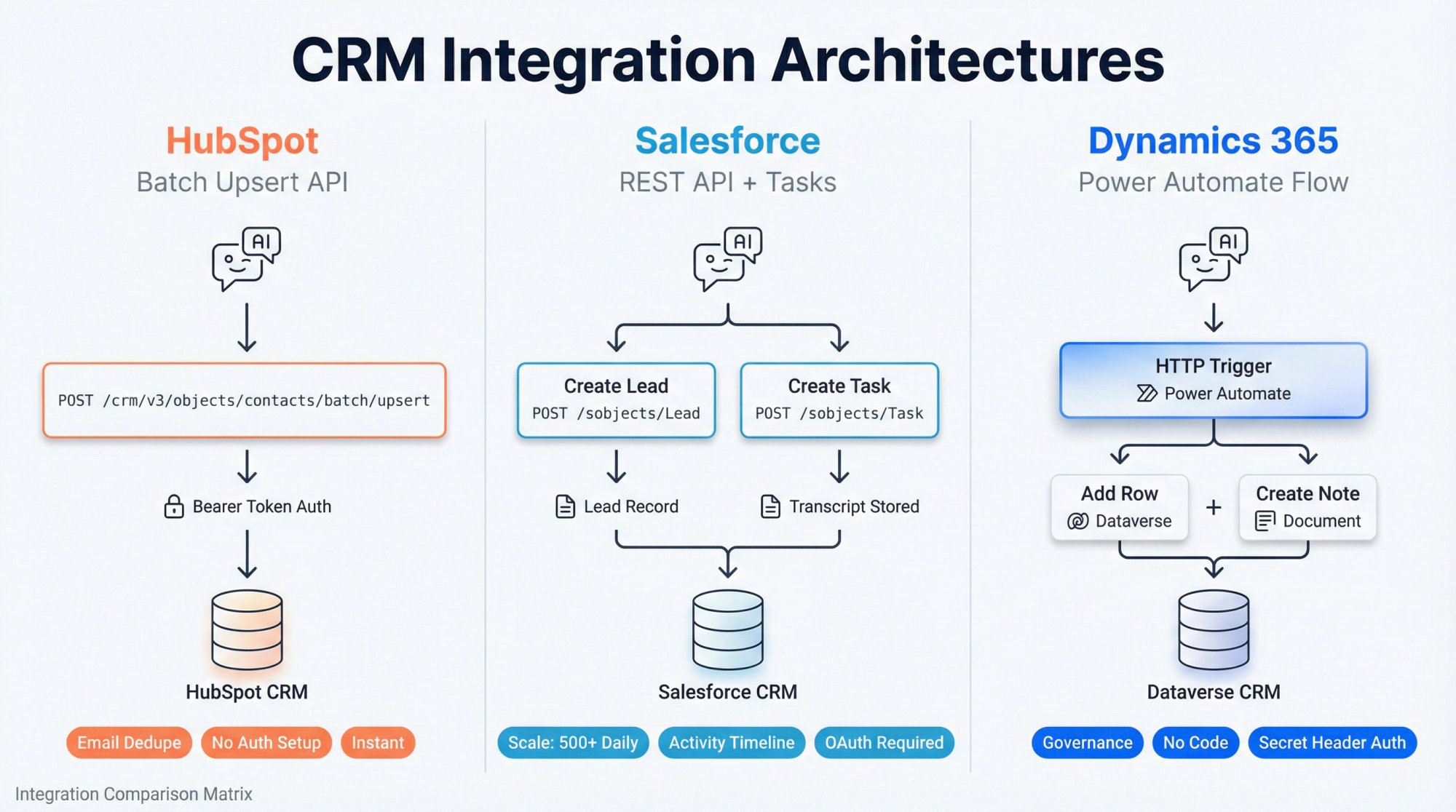
How to Integrate Chatbot With HubSpot, Salesforce, and Dynamics 365
Let's walk through production-grade integration paths for the three most common CRMs.
How to Connect Chatbot to HubSpot Using Batch Upsert
Why this works: HubSpot's batch upsert API lets you treat email as a unique key and either create or update in one call.
Prerequisites:
① Create a HubSpot Private App to generate an access token
② Grant the necessary scopes (contacts write, CRM write)
③ Create a custom contact property to store transcript (e.g., si_transcript)
The API call:
Social Intents provides a complete example using HubSpot's batch upsert endpoint:
Example using HubSpot batch upsert:
POST https://api.hubapi.com/crm/v3/objects/contacts/batch/upsert
Authorization: Bearer YOUR_PRIVATE_APP_TOKEN
Content-Type: application/json
Key point: Use idProperty: "email" for deduplication
The payload uses idProperty: "email" to dedupe by email and populates standard fields plus custom transcript/source fields.
Best practices:
• Prefer upsert over create to prevent duplicates
• Use least-privilege scopes
• Don't rely only on transcript-in-field for long chats (consider storing a summary property plus full transcript in an engagement/note)
How to Connect Chatbot to Salesforce: Two Methods
Salesforce offers two paths. Social Intents' Salesforce guide recommends choosing based on your needs:
Option A: Web-to-Lead (fastest, no auth)
This pattern posts form-encoded data to Salesforce's Web-to-Lead endpoint.
Social Intents provides the endpoint and example payload, including the required oid (Org ID) and standard lead fields:
Example using Salesforce Web-to-Lead:
POST https://webto.salesforce.com/servlet/servlet.WebToLead?encoding=UTF-8
Content-Type: application/x-www-form-urlencoded

oid=YOUR_ORG_ID
&last_name={{lastName}}
&first_name={{firstName}}
&email={{email}}
&phone={{phone}}
&company={{company|Website Visitor}}
&lead_source=Chat
&description={{transcript}}
Critical limit: Salesforce enforces daily Web-to-Lead limits by edition. Salesforce documentation shows a maximum of 500 new leads in a 24-hour period for certain org types. If you're doing high-volume inbound, use REST API instead.
Option B: Salesforce REST API (recommended for scale + activity logging)
Social Intents' guide provides a clear approach:
① Create Lead via REST
② Add transcript as a Task (searchable activity)
③ Optionally upload transcript as a File
Example using Salesforce REST API:
Representative calls:
POST https://YOUR_INSTANCE.salesforce.com/services/data/vXX.X/sobjects/Lead
Authorization: Bearer {{secrets.salesforceAccessToken}}
Content-Type: application/json

{
  "LastName": "{{lastName}}",
  "FirstName": "{{firstName}}",
  "Company": "{{company|Website Visitor}}",
  "Email": "{{email}}",
  "Phone": "{{phone}}",
  "LeadSource": "Chat"
}
Then create a Task linked to the Lead:
POST https://YOUR_INSTANCE.salesforce.com/services/data/vXX.X/sobjects/Task
Authorization: Bearer {{secrets.salesforceAccessToken}}
Content-Type: application/json

{
  "WhoId": "{{tools.createLead.id}}",
  "Subject": "Chat Transcript",
  "Status": "Completed",
  "Priority": "Normal",
  "Description": "{{transcript}}"
}
Salesforce best practices:
→ De-duplication: Implement Salesforce matching/duplicate rules or post-processing to merge by email (Social Intents calls this out explicitly)
→ Owner routing: Set OwnerId based on territory/product, or route via Salesforce Flow
→ Transcript storage: Task is often better than stuffing Description on Lead, especially for long chats
How to Connect Chatbot to Dynamics 365 Using Power Automate
For Dynamics/Dataverse teams, the cleanest pattern is:
Social Intents AI Action → HTTP endpoint (Power Automate) → Dataverse Create Lead + Note
Social Intents' Dynamics 365 guide walks through this end-to-end, including:
• Power Automate flow triggered by HTTP request
• Dataverse row creation using "Add a new row" action
• Attaching transcript as a Note
• Using a shared secret header like x-webhook-secret for security
Microsoft's Dataverse connector documentation includes operations such as Add a new row, Update a row, and Upsert a row.
Important operational note: If you built HTTP-triggered Power Automate flows before late 2025, re-check your inbound URL. Microsoft introduced changes where older HTTP trigger URLs needed migration, with warnings that old trigger URLs would stop working after November 30, 2025.
Practical takeaway: Store the flow endpoint URL in configuration (not hardcoded in multiple places) and document how to rotate it.
Advanced Chatbot CRM Integration Strategies
Everything above gets data into your CRM. But the truly valuable systems do more.
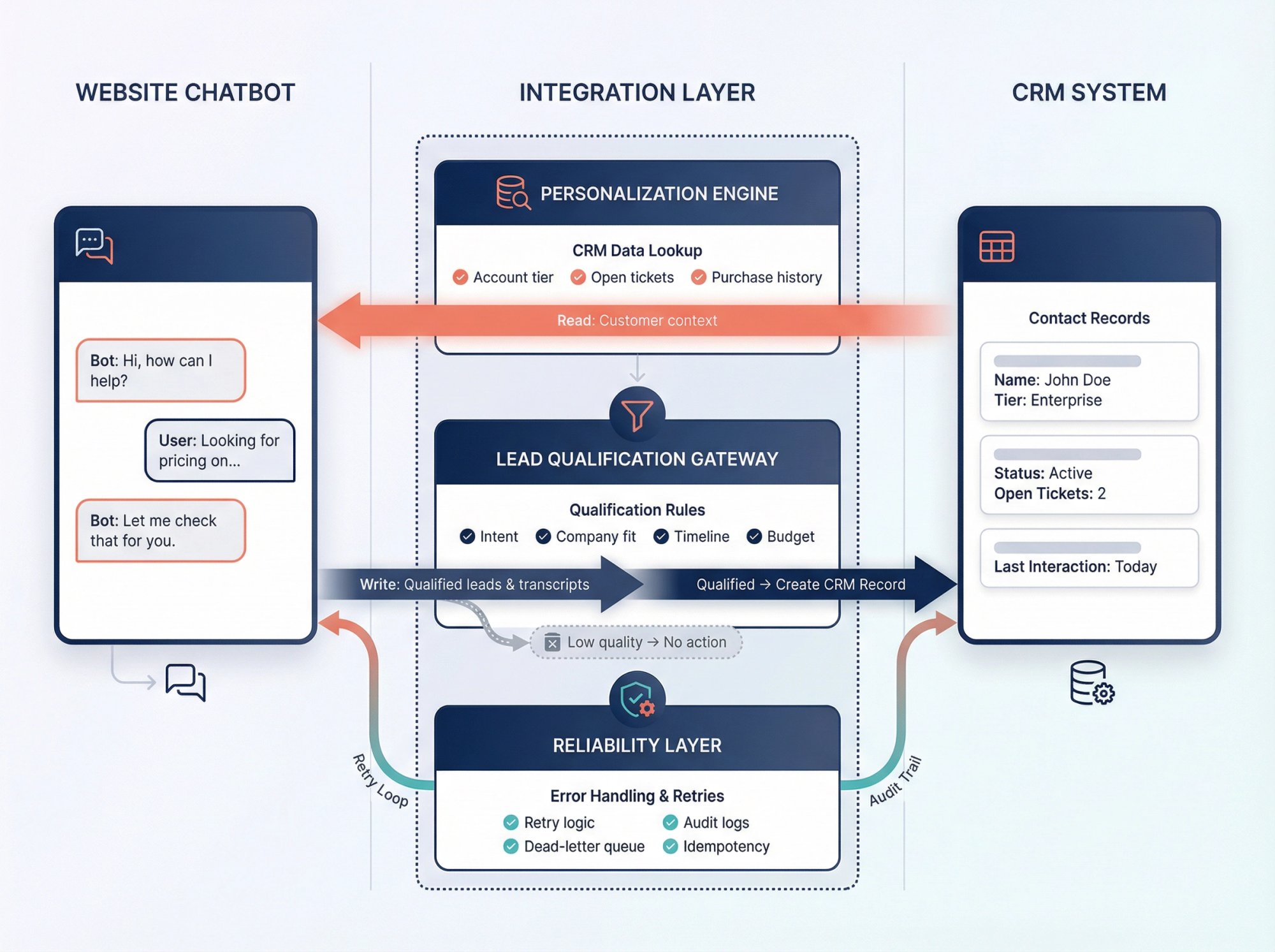
How to Use CRM Data to Personalize Chatbot Conversations
Instead of only writing after the chat, use CRM reads to improve outcomes:
Sales:
→ Detect existing account and route to assigned AE
→ Show tailored pricing guidance by segment/tier
→ Create meeting booking workflows with the right owner
Support:
→ Identify customer and pull open ticket status
→ Detect entitlement (SLA) and route to priority queue
→ Suggest known KB articles based on product + case type
Social Intents AI Custom Actions are built specifically to call external APIs (read or write) from within chatbot workflows. You can look up order status, check shipping dates, verify account status, and more during the conversation.
How to Qualify Leads Before Creating CRM Records
Creating a CRM Lead for every chat can flood your system with low-quality records.
Social Intents' CRM guides show two modes:
• Create a record on every chat completion
• Create a record only for qualified visitors using intent/qualification checks
A practical qualification rubric:
| Criteria | Example Rules |
|---|---|
| Intent | Demo/pricing vs browsing |
| Company fit | Size/industry/region match ICP |
| Contact quality | Work email vs personal email |
| Timeline | Now vs later |
| Need clarity | Has a concrete use case |
Store qualification values in custom CRM fields so you can report on them later.
How to Store Chat Summaries Instead of Raw Transcripts
Raw transcripts are useful, but reps don't have time to read them all. A high-performance approach:
Save a structured summary:
• Intent
• Key requirements
• Objections
• Next step
Plus: Save full transcript as a Task/Note/File
Social Intents already supports passing transcripts and rich variables into CRM records (e.g., Task description in Salesforce, transcript field in HubSpot examples).
How to Build Reliable Chatbot CRM Integration
Industry research indicates that 62% of organizations are at least experimenting with AI agents, but many remain in early scaling phases where reliability matters.
Your chatbot-to-CRM integration should include:
→ Retries for transient failures (timeouts, 429 rate limits)
→ Dead-letter queue or error inbox (failed writes you can replay)
→ Idempotency (avoid duplicate records on retry)
→ Audit logs (what was sent, when, and outcome)
Best Zapier Workflows for Chatbot CRM Integration
If you're using Social Intents' Zapier integration, here are production-grade Zaps worth building:
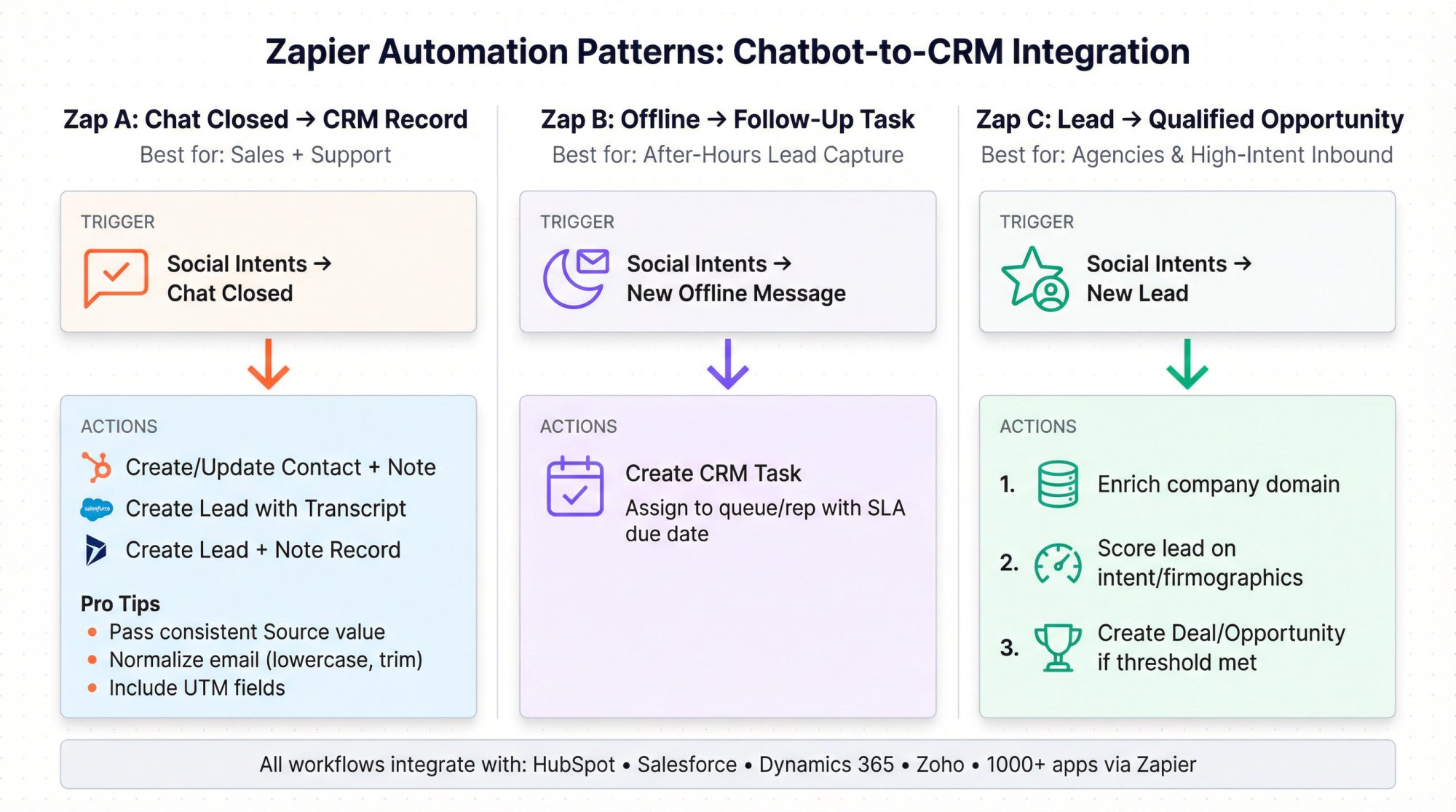
Zap A: Chat Closed → Create or Update Contact + Log Transcript
Best for: Sales + support
Trigger: Social Intents → Chat Closed
Actions (examples):
• HubSpot: Create/Update Contact; add a Note/Engagement with transcript
• Salesforce: Create Lead (or Task on Contact) with transcript
• Dynamics: Create Lead; add a Note record
Pro tips:
• Always pass a consistent Source value like "Website Chat" to enable reporting
• Normalize the visitor identity (lowercase email, trim whitespace)
• Add UTM fields if your site captures them
Zap B: New Offline Message → Create CRM Task for Follow-Up
Best for: After-hours lead capture
Trigger: Social Intents → New Offline Message
Action: Create a CRM Task assigned to a queue/rep with SLA due date
Zap C: New Lead → Enrich and Qualify Before Creating Opportunity
Best for: Agencies and high-intent inbound
Trigger: Social Intents → New Lead
Actions:
• Enrich company domain (Clearbit-like enrichment or internal DB)
• Score lead based on intent/firmographics
• Create Deal/Opportunity only when score exceeds threshold
How to Fix Common Chatbot CRM Integration Problems
Data Quality and Duplication
A poorly configured integration might clutter your CRM with messy data. Research identifies duplicate contacts, incomplete records, and mis-fielded information as top challenges.
Fix:
→ Use unique identifiers (like email) to deduplicate
→ Build in validation and checks (search CRM via API before creating new contact)
→ Apply required field validation in the chat
→ Enable CRM-side duplicate detection rules
Integration Complexity and Maintenance
As you add more functionality, the integration can become complex. Custom APIs, multiple chat channels, and advanced workflows can increase maintenance burden.
Fix:
→ Document how your integration works
→ Assign responsibility for maintaining it
→ Monitor API updates from your CRM vendor
→ Set up integration error alerts
Security and Privacy Concerns
You're transmitting potentially sensitive customer data between systems. Integration security research emphasizes ensuring data is protected in transit and at rest.
Fix:
→ All API calls over HTTPS (secure web protocols)
→ Secure credential storage (encrypted config files or vault services)
→ Implement role-based access (least privilege principle)
→ Consider compliance with GDPR, CCPA if applicable
→ Maintain audit trails of data exchanges
API Limits and Performance
Almost every CRM API has rate limits. If your chatbot gets popular, you don't want it to hit a ceiling and start failing to create records.
Fix:
→ Monitor usage against API limits
→ Optimize data flow (batch certain updates or upgrade API plan)
→ Defer non-critical CRM updates until after chat ends (user doesn't need to wait)
→ Use webhooks where CRM can push data proactively instead of polling
User Adoption and Trust
Research notes that technology alone doesn't guarantee success. If your sales reps or support agents don't trust or use the data coming from the chatbot, the value is lost.
Fix:
→ Involve teams early and gather feedback
→ Show them chatbot transcripts in the CRM and how it helps them
→ Add a flag or field marking records from chatbot (e.g., "Source: Website Chatbot (pre-qualified)")
→ Train the team on how to interpret and follow up on chatbot-generated records
→ Track lead quality and adjust bot questions if needed
Troubleshooting: Real-World Failures and Fixes
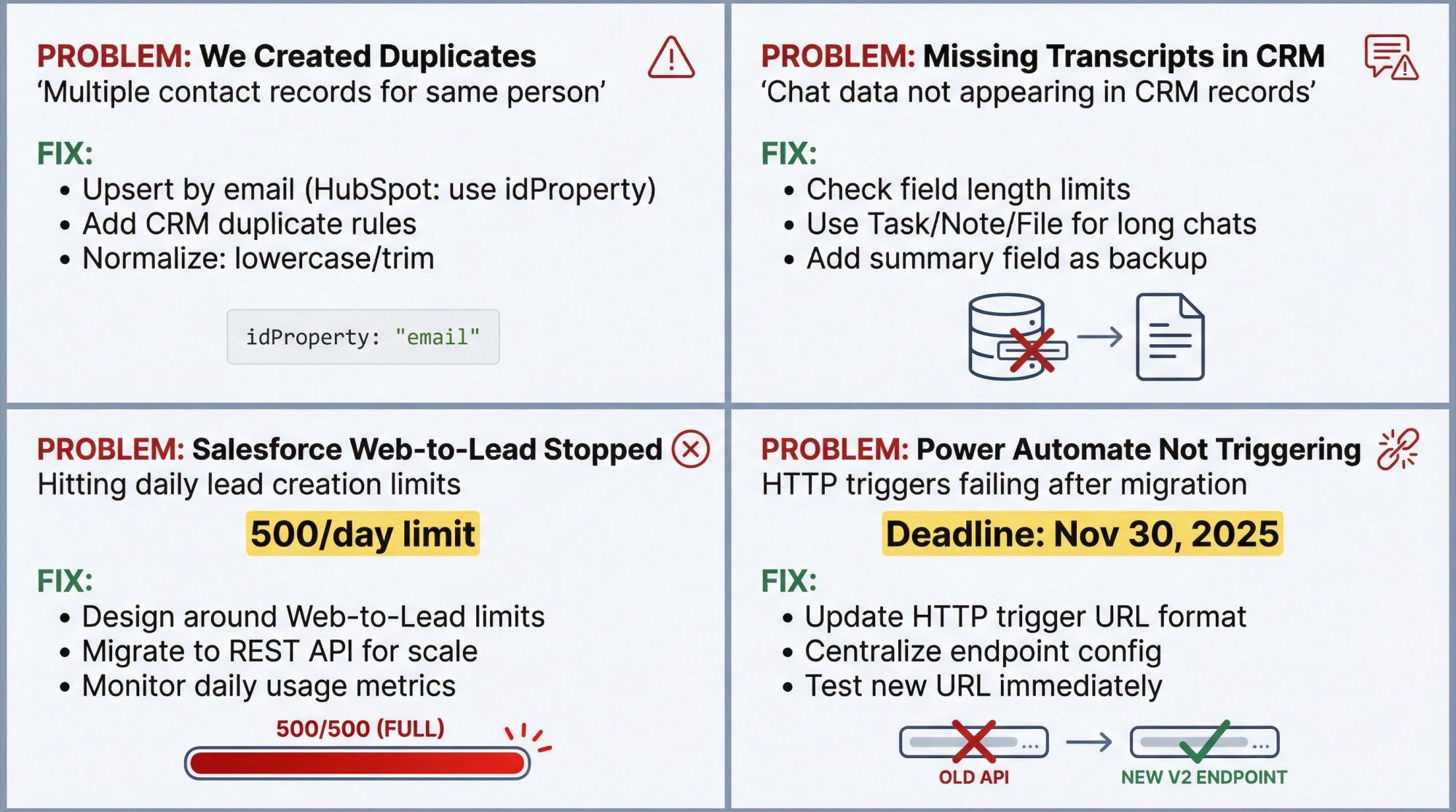
"We created duplicates"
Fix: Upsert by email wherever possible (HubSpot upsert supports idProperty). Add CRM-side duplicate rules. Normalize email (lowercase/trim).
"We're missing transcripts in CRM"
Fix: Ensure transcript is mapped to a field that can handle length. Prefer Task/Note/File for longer transcripts (Salesforce example supports Task/File). Add a short summary field so something remains even if transcript is truncated.
"Salesforce Web-to-Lead stopped capturing leads at high volume"
Fix: Design around Web-to-Lead daily limits (Salesforce docs show 500/day for some orgs). Move high-volume flows to Salesforce REST API (Social Intents recommends REST for scale).
"Power Automate flow stopped triggering"
Fix: Confirm you're using the current HTTP trigger URL format (older URLs had migration deadline Nov 30, 2025). Centralize endpoint configuration so you can rotate without redeploying everywhere.
Which Chatbot CRM Integration Method Should You Choose?
Choose your integration path based on your needs:
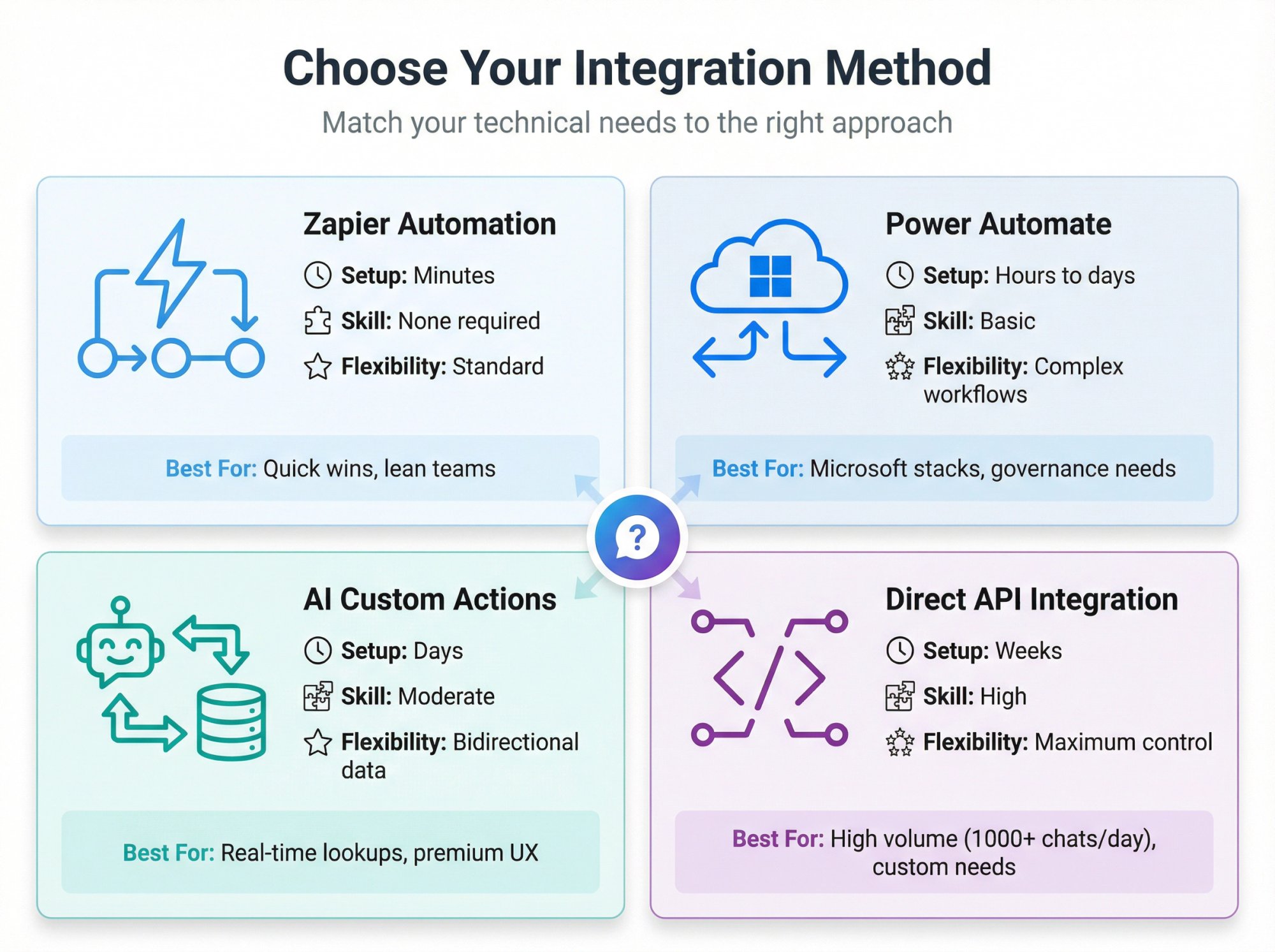
| Your Need | Recommended Approach | Why |
|---|---|---|
| Need it today, minimal engineering | Zapier triggers (Chat Closed / New Lead) | Fast setup, no code required |
| Need Microsoft-native governance | Power Automate → Dataverse "Add a new row" | Built-in compliance, familiar to IT teams |
| Need real-time CRM lookups + deep objects | Social Intents AI Custom Actions calling CRM APIs | Full flexibility, bidirectional data |
| High volume (1000+ chats/day) | Direct API integration with retry logic | Performance, reliability, no middleware delays |
Chatbot CRM Integration Planning Template
Use this worksheet to plan your integration:
| Chat Data | Source | CRM Field | Required? | Transform | Notes |
|---|---|---|---|---|---|
| User input / known visitor | Contact.Email | Yes | lowercase | Primary dedupe key | |
| First name | User input | Contact.FirstName | No | title case | – |
| Intent | Chatbot classifier | Lead.Intent__c | No | enum | demo/pricing/support |
| Transcript | Chat log | Task.Description | No | truncate? | Or File attachment |
| Source URL | Chat widget | Lead.Source_URL__c | No | none | Helps attribution |
| UTM campaign | Site params | Lead.UTM_Campaign__c | No | none | Marketing ROI |
Security Checklist
Before going live:
□ Use least-privilege scopes (HubSpot scopes guidance)
□ Store tokens as secrets (not in client-side code)
□ Rotate tokens periodically (follow vendor guidance)
□ Add shared secret header to inbound webhook endpoints
□ Log failures and test retries
□ Document sub-processor list and data flows
□ Verify GDPR/CCPA compliance if applicable
Why Social Intents Makes This Easier
If you're looking for a chatbot platform that's built for CRM integration from the ground up, Social Intents offers two high-leverage integration options:
1) Zapier Triggers for Fast No-Code CRM Writes
Social Intents' Zapier app supports instant triggers including Chat Closed, New Offline Message, and New Lead. You can automatically send chat transcripts and lead details into CRMs like Salesforce, HubSpot, Microsoft Dynamics, Zoho, and dozens of others.
2) AI Custom Actions for Direct API Integration
If you want your chatbot to call CRM APIs in real time during conversations, Social Intents AI Custom Actions let you:
• Create tickets, check order/shipping status, update account status
• Call external APIs with headers and secrets for security
• Trigger on chat end automatically or based on visitor intent
• Handle both "premium" lookup experiences and high-volume lead creation
Social Intents also offers:
• Native integrations with Microsoft Teams, Slack, Google Chat, Zoom, and Webex (your agents reply from tools they already use)
• E-commerce apps for Shopify, BigCommerce, Wix, and WordPress
• AI chatbots that can escalate to human agents when needed
• Unlimited agents from the Basic plan upward
Ready to connect your chatbot to your CRM? Start a free 14-day trial of Social Intents and set up your first integration today.
Next Steps: How to Start Your Integration Today
If you want the fastest path to a high-quality chatbot-to-CRM integration:
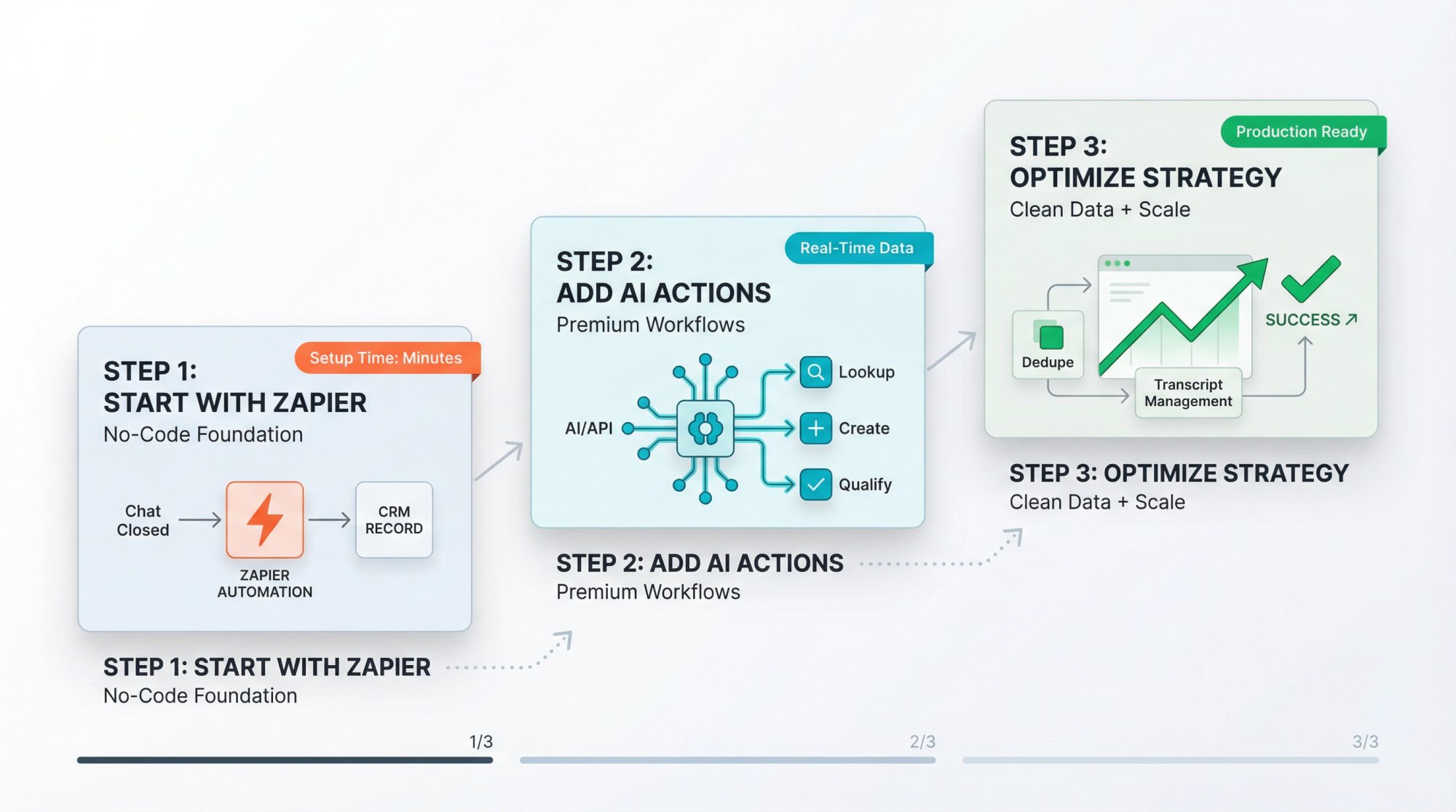
① Start with Zapier for "Chat Closed → CRM record" to prove value quickly (Social Intents Zapier integration)
② Add AI Custom Actions for premium workflows (qualification-gated lead creation, CRM lookups, ticket creation)
③ Implement dedupe + transcript strategy early, so your CRM remains clean and useful
FAQ
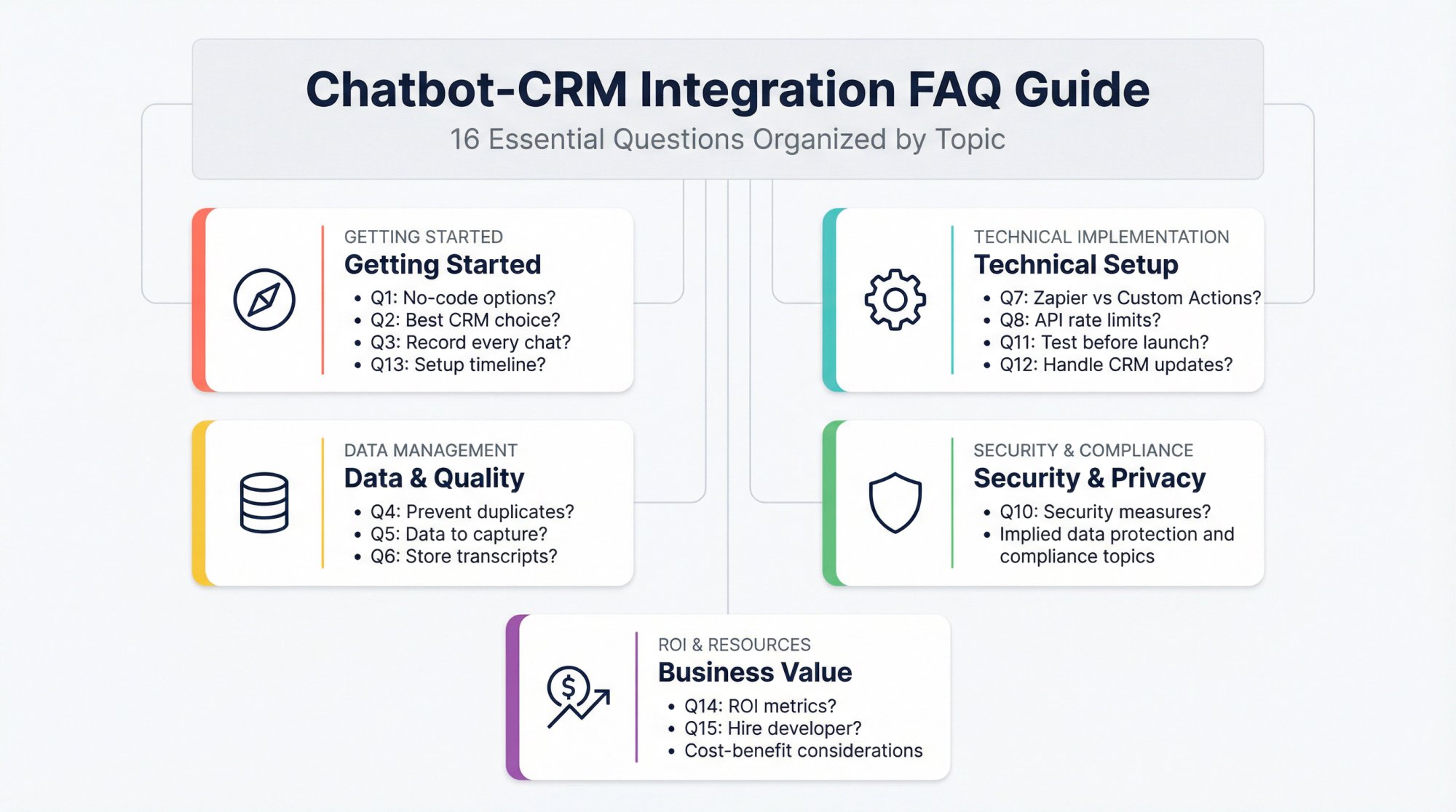
Can I integrate a chatbot with a CRM without writing code?
Yes. If your goal is "when chat ends, create/update a CRM record," no-code automation is often enough. Social Intents' Zapier triggers cover common chat events like Chat Closed and New Lead, and you can connect them to virtually any CRM through Zapier's connector library.
What's the best CRM to integrate with chatbots?
The best CRM is the one your teams actually use. The bigger variable is integration maturity. No-code gets you fast outcomes. API-driven integration gives you the best experience and richest data. Most modern CRMs (Salesforce, HubSpot, Dynamics 365, Zoho) have solid APIs and support both approaches.
Should I create a CRM record for every chat?
Not always. Many teams should start with "create for every chat" to ensure coverage, then evolve to "only qualified" once qualification rules are stable. Social Intents provides both patterns in its HubSpot and Salesforce AI Action examples. You can trigger on every chat completion or only for qualified visitors using intent checks.
How do I prevent duplicate contacts in my CRM?
Use email as your primary dedupe key. Most CRMs support upsert operations that will update an existing record if the email matches, or create a new one if it doesn't. HubSpot's batch upsert endpoint uses idProperty for this. Salesforce has matching rules you can configure. Also normalize emails (lowercase, trim whitespace) before sending to CRM.
What data should I capture from chatbot conversations?
At minimum: email, name, intent, transcript, source URL, timestamps. For better qualification: company name, budget, timeline, product interest. For attribution: UTM parameters. For compliance: consent flags. Review the data mapping template earlier in this guide for a complete checklist.
How do I store long chat transcripts in the CRM?
Don't assume "dump transcript into a text field" is always best. Options include: (1) Text property/description field (fast, searchable, but may hit length limits), (2) Task/activity/note (better for timelines and reporting), (3) File/attachment (best for long transcripts and compliance). You can also do both: store a short summary in a field and attach the full transcript as a file.
What's the difference between Zapier integration and AI Custom Actions?
Zapier integration is no-code and typically post-chat (when chat closes, send data to CRM). AI Custom Actions are more powerful: they let your chatbot call external APIs in real time during conversations. This enables CRM lookups mid-chat, qualification-gated record creation, and bidirectional data flow. Social Intents supports both.
How do I handle API rate limits when integrating with a CRM?
Monitor your usage against the CRM's published rate limits. Optimize by batching non-critical updates or deferring them until after the chat ends (users don't need to wait). If you approach limits regularly, consider upgrading your API plan or implementing retry logic with exponential backoff. Most enterprise CRMs have higher rate limits available for paid tiers.
Can I use CRM data to personalize chatbot responses?
Yes, with bidirectional integration. Your chatbot can call CRM APIs to look up customer data (account tier, open tickets, order status) and use that information to personalize responses. This requires direct API integration or middleware that supports real-time lookups. Social Intents AI Custom Actions are built for this pattern.
What security measures should I implement for chatbot-CRM integration?
Use HTTPS for all API calls. Store credentials securely (encrypted config files or vault services). Implement least-privilege access (only the permissions needed). Add authentication for inbound webhooks (shared secret headers). Maintain audit trails of data exchanges. Follow GDPR/CCPA requirements if applicable. Social Intents AI Custom Actions support headers and secrets for security.
How do I test a chatbot-CRM integration before going live?
Use sandbox environments for both your chatbot and CRM if available. Test data accuracy (does info land in correct fields?), edge cases (partial data, duplicates, abandoned chats), error handling (what happens if CRM is down?), and concurrent usage (multiple chats at once). Run dummy chats and verify records appear correctly before enabling for real customers.
What should I do if my integration breaks after a CRM update?
Monitor your CRM vendor's API changelogs and developer alerts. If an update breaks your integration, check error logs first to identify the issue (new required fields, changed endpoints, deprecated methods). Most modern CRMs maintain backwards compatibility for a grace period. Have a documented rollback plan and consider implementing feature flags so you can disable the integration temporarily while fixing issues.
Can I integrate multiple chatbots with the same CRM?
Yes. Most CRMs can handle multiple data sources. Use a "Source" or "Widget ID" field to track which chatbot generated each record. This helps with reporting and troubleshooting. Make sure each chatbot uses consistent data mapping and validation rules to maintain CRM data quality.
How long does it typically take to set up a chatbot-CRM integration?
It depends on the approach. No-code Zapier integration can be done in minutes to hours. Low-code Power Automate typically takes 1-2 days for basic workflows. Custom API integration usually takes 1-2 weeks for initial setup plus testing. The planning phase (deciding what data to capture, designing qualification logic) often takes as long as the technical implementation.
What's the ROI of integrating a chatbot with a CRM?
Common benefits include: 25-40% productivity boost, up to 60% reduction in customer service costs, higher lead-to-opportunity conversion rates, faster response times, and better team collaboration. Research shows these improvements come from automation handling repetitive tasks and giving teams better context for each interaction.
Should I hire a developer to build my chatbot-CRM integration?
Only if you need custom API integration with advanced requirements (bidirectional real-time data, complex qualification logic, high-volume workflows). For standard lead capture and transcript logging, no-code or low-code approaches work well and don't require a developer. Start simple and only invest in custom development if you outgrow the no-code options.