Setting up the WhatsApp Business API can completely change how you communicate with customers. You get automation, scale, and integration that the regular WhatsApp app just can't handle.
But unlike downloading a simple app, the API requires a detailed setup process with Meta (Facebook) and potentially third-party providers. If you've looked into this before and felt overwhelmed by the technical requirements, you're not alone.
This guide walks you through everything you need to know:
• What the API actually is
• Why it matters for your business
• What you'll need before starting
• The two main setup paths you can choose from
• Current pricing information for 2025
By the end, you'll have a clear roadmap for getting this powerful platform up and running.
What Is WhatsApp Business API and How Is It Different?
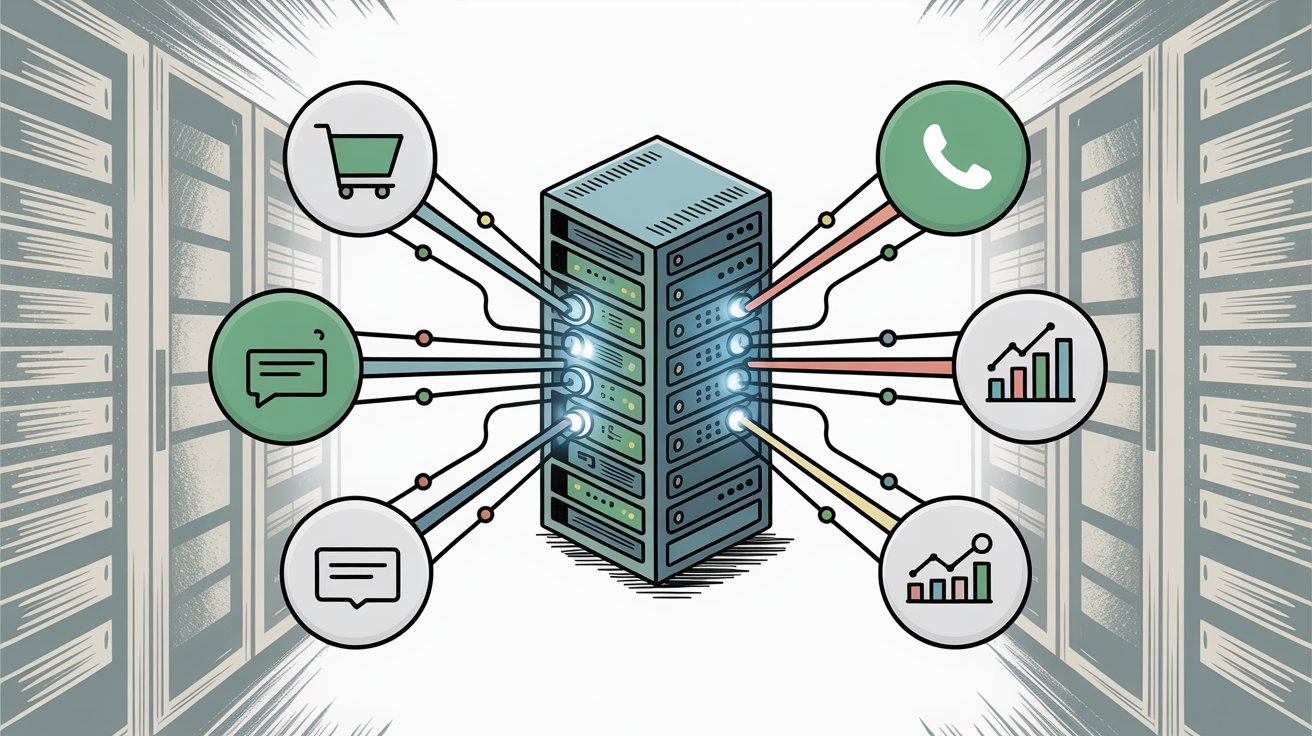
The WhatsApp Business API lets companies send and receive WhatsApp messages at scale by integrating with business software or chatbot platforms. It's not an app you install on your phone. It's not the same as the regular WhatsApp app or even the WhatsApp Business app.
Instead, it's a backend system that connects WhatsApp with your business tools through code or third-party platforms. Meta introduced it in 2018 to help medium and large businesses communicate with customers in an automated or multi-agent environment.
Here's a simple way to think about it: The API lets you use WhatsApp as a programmatic channel. You could integrate it into a CRM to send order notifications, or connect it to a customer support dashboard so your entire team can reply to incoming WhatsApp chats together.
WhatsApp Business App vs. API: Key Differences
The regular WhatsApp Business app is designed for small businesses. One device, one person, manual chats with customers.
The API, on the other hand, handles advanced needs. It has no visual interface of its own. Messages go through your company's systems or an integrated platform. This allows for:
→ Unlimited messaging (no single-device restrictions)
→ Automation capabilities (chatbots, notifications, triggered messages)
→ Multi-user access (your whole team can respond)
The trade-off? Setup is more complex and requires approval from Meta or a solution provider.
Cloud API vs. On-Premise: Which Should You Use?
Originally, accessing WhatsApp's API meant hosting their server software yourself or through an official provider. In 2022, Meta launched the Cloud API, which simplified everything dramatically.
The Cloud API is hosted on Meta's servers. You don't host anything. The approval process is faster, fees are often lower, and updates happen automatically.
Unless you have specific on-premise requirements, the Cloud API is what you'll use.
When people say "WhatsApp Business API" today, they usually mean the Cloud API.
Why Use WhatsApp Business API for Customer Communication?
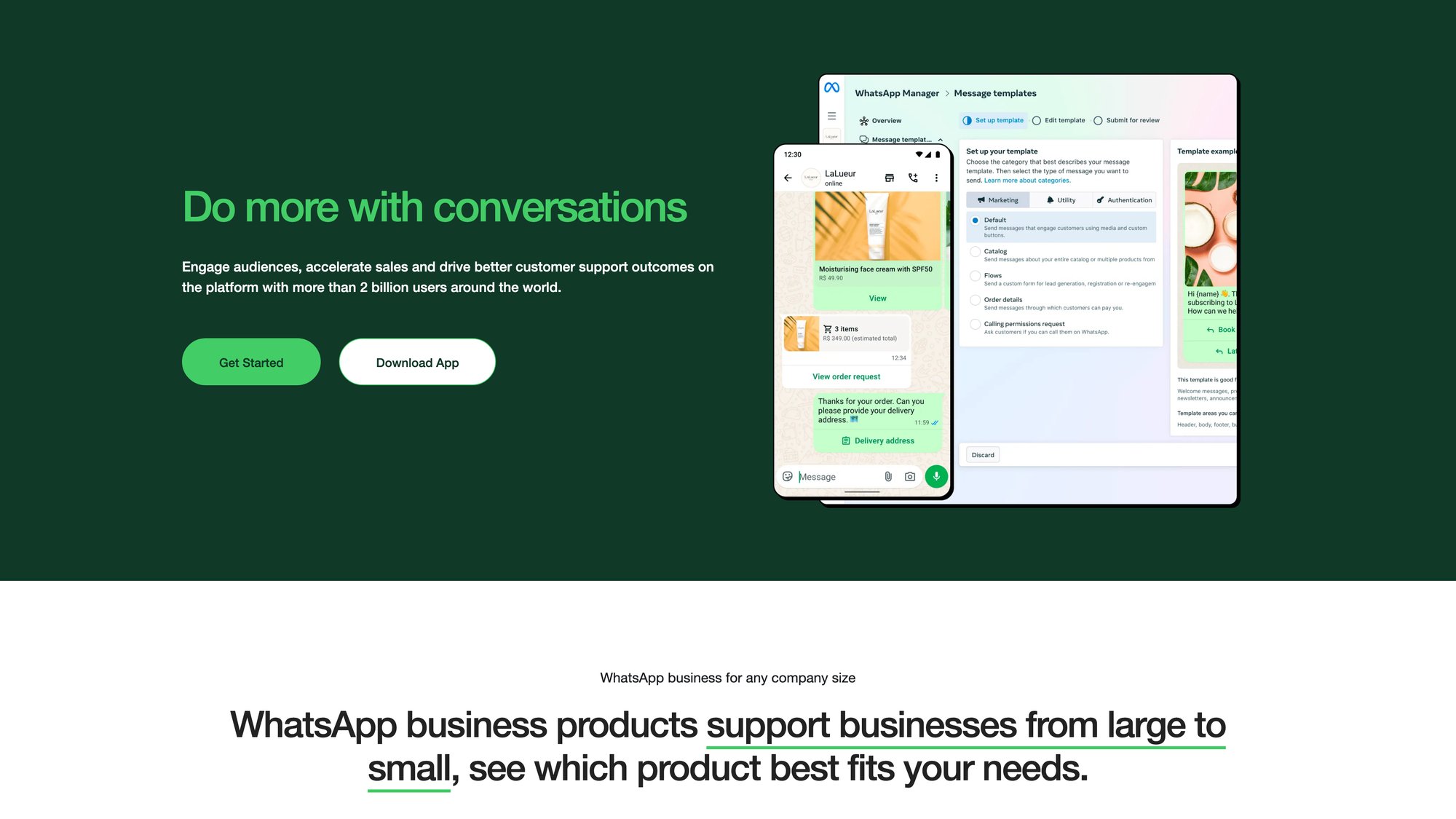
You might be wondering why you'd go through this trouble when the free WhatsApp Business app exists. Fair question. Here's what the API gives you that the app doesn't:
Reach 2 Billion Users With Unlimited Messaging
WhatsApp has over 2 billion users across 180+ countries. It's a channel your customers already trust and use daily. The API lets you tap into that reach with unlimited messaging, unlike the app which is tied to one phone.
The Cloud API can handle roughly 80 messages per second by default. That's serious volume for customer communications.

How to Handle Team Conversations on WhatsApp
This is huge.
With the API, multiple team members can handle conversations simultaneously. Messages can be routed into a shared inbox, CRM, or collaboration tool.
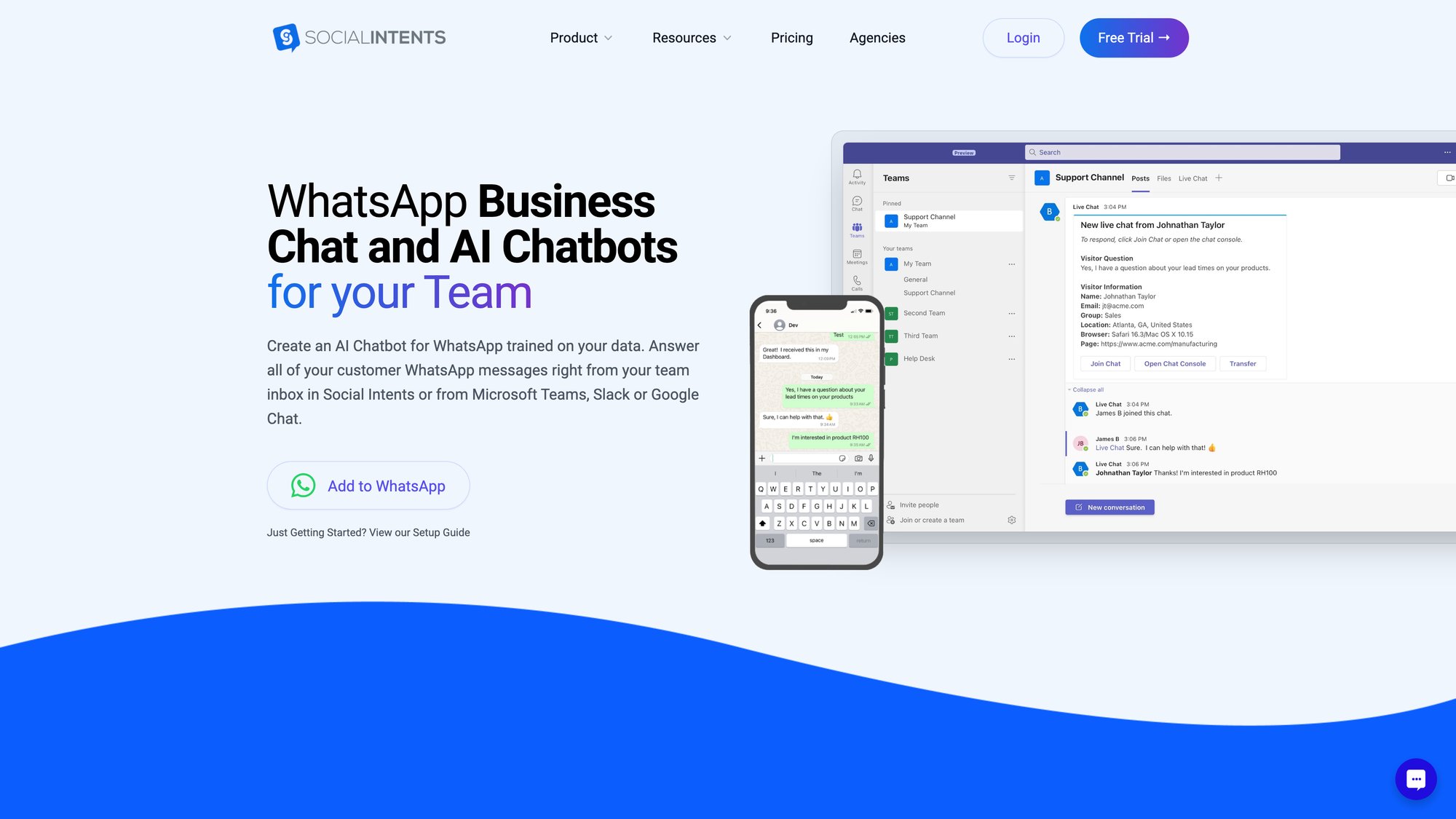
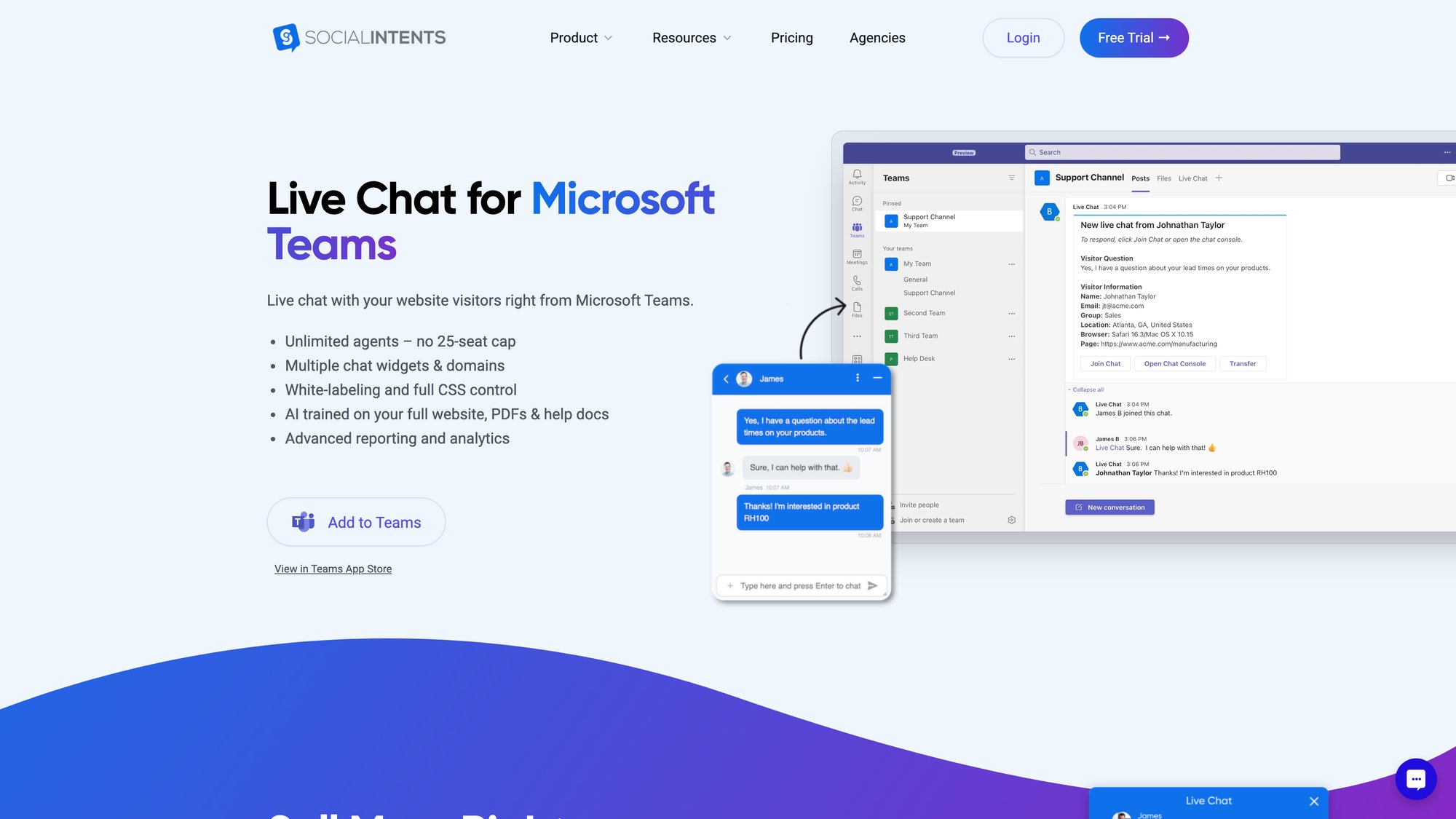
For example, using Social Intents, incoming WhatsApp chats appear directly in your Microsoft Teams or Slack channel. Your entire team can respond together in real time. No more passing a single phone around or missing messages because one person was busy.
When someone messages your WhatsApp number, your team sees it immediately in the tools they already use. They reply in Teams or Slack, and those responses go out via WhatsApp. It's seamless.
This kind of setup isn't possible with the phone app.
How to Automate WhatsApp With AI Chatbots
The API enables chatbots and automated messaging. You can set up an AI chatbot to answer common questions on WhatsApp 24/7, then seamlessly hand off to a human agent when needed.
With Social Intents, you can configure an AI chatbot that works across WhatsApp and Teams. The bot handles FAQs instantly, but if a customer needs human help, the conversation flows to your team without friction.
You can also automate notifications: shipping updates, appointment reminders, order confirmations, OTP codes. All triggered automatically from your backend systems.
How to Integrate WhatsApp With Your CRM and Business Tools
Because it's an API, WhatsApp connects with your existing tools. CRM software, e-commerce platforms, customer support tools, marketing automation, analytics.
You might connect WhatsApp messaging into your order system to send purchase confirmations, or integrate it with your sales CRM to log conversations with leads. This creates a unified workflow instead of having conversations siloed on a single phone somewhere in your office.

What Features Does WhatsApp Business API Include?
The API supports features like message templates (pre-approved messages you can send proactively), rich media (images, documents, videos), quick reply buttons, and interactive lists.
It also maintains WhatsApp's end-to-end encryption for all messages. Your customers still get the security they expect.
And because it's the official API, your messages show as from a verified business line, with your business name and logo displayed.
Why Customers Prefer WhatsApp for Business Communication
Many customers prefer WhatsApp for contacting businesses. It's fast, familiar, and on a device they check constantly. The API means you can offer WhatsApp as a support or sales channel in a way that's actually manageable for your team.
The combination of WhatsApp's encryption and verified business profiles also increases customer trust in the conversation.
Bottom line: The WhatsApp Business API lets you meet customers where they are (on WhatsApp) but with the control and scale that businesses need. Whether for marketing, customer support, or chatbot-driven interactions, the API unlocks WhatsApp's potential beyond a single smartphone.
What You Need Before Setting Up WhatsApp Business API
Before we get into the actual setup steps, there are a few crucial concepts that'll help you avoid surprises:
Can You Use WhatsApp API Without Technical Skills?
You can't just sign up and use the API immediately. You must either use a WhatsApp Business Solution Provider (like Social Intents) or go through Meta's developer process. Expect an application or approval step as part of setup.
How to Set Up Meta Business Manager for WhatsApp
To use the API, you need a WhatsApp Business Account (WABA) managed inside Facebook's Meta Business Manager. Your business must have a Facebook Business Manager account and go through business verification.
This means providing documents to prove your business is legitimate. Meta requires verification to unlock full messaging limits and ensure compliance.
Start this early. Verification can take days or even weeks (often up to 2 weeks for document review).
What Phone Number Can You Use for WhatsApp Business API?
You need a phone number not already registered on WhatsApp. This can be a mobile or landline number, but it must be able to receive SMS or voice calls for verification.
Once connected to the API, that number cannot be used in the regular WhatsApp app anymore. Many businesses use a new number or migrate an existing WhatsApp Business app number over to the API (migration is possible, but once moved to API it's not usable in the app).
WhatsApp Opt-In Requirements: What You Must Know
WhatsApp has a strict opt-in policy. You cannot import a list of numbers and start blasting messages without user consent.
Users must agree (via a web form, SMS confirmation, in-store sign-up, etc.) to receive WhatsApp messages from your business. Cold outreach isn't allowed. If too many people block or report your messages, your account will be restricted.
Make sure you have a clear mechanism to gather and manage opt-ins before you start sending.
How to Create WhatsApp Message Templates That Get Approved
For any business-initiated message (you start the conversation or message a user who hasn't messaged you recently), you must use approved message templates.
Templates are pre-written messages like "Hello {{name}}, your order #{{number}} has shipped…" that you submit to WhatsApp via Business Manager for approval. Only after approval can they be sent.
Templates must follow WhatsApp's policies (no spam, no certain regulated content). User-initiated conversations (when a customer messages you first) don't require templates for your replies. Those are free-form within a 24-hour window.
What Is the 24-Hour WhatsApp Support Window?
When a customer messages you, a 24-hour session window opens. During this window, you can chat freely (any messages, including non-templated) without additional cost.
After 24 hours of no response from the user, the session closes. You can only message them again with an approved template (which may incur cost).
This rule encourages timely responses and prevents spam. It's one of WhatsApp's core mechanisms for keeping the platform user-friendly rather than becoming a broadcast channel for businesses.
How Much Does WhatsApp Business API Cost in 2025?
Using the API is not free (aside from some free tiers, which we'll cover). As of July 1, 2025, Meta introduced per-message pricing for the Business API.
Each message delivered has a small cost, varying by:
① Message category (marketing, utility, authentication, or service)
② Recipient's country
For example, a marketing message to a US number might cost around $0.03, while utility notifications might cost around $0.01. Service messages (user-initiated support chats) are free for businesses.
We'll detail pricing later, but at scale, you'll incur messaging fees (usually a few cents per message, depending on volume and region).
What Are WhatsApp Business Solution Providers?
These are officially authorized third-party companies that provide access to the WhatsApp API through their platforms. Social Intents is an excellent example of a BSP that focuses on team collaboration integration.
If you use a BSP, you use the API through them. They handle the technical integration and often provide a user-friendly interface plus extra features (campaign tools, integrations, team collaboration).
BSPs may charge their own fees on top of WhatsApp's fees (monthly subscription or per-message markup). The upside? Simpler setup, support, and no coding needed.
Can You Access WhatsApp Cloud API Directly Without a Provider?
If you have development resources, you can bypass a BSP and use WhatsApp's Cloud API directly through Meta.
This requires more technical work (calling REST/Graph API endpoints, setting up webhooks, managing tokens) but can reduce costs (no middleman fees) and give you more control.
We'll provide guidance for both routes in this guide.
Provider vs. Direct Setup: Which WhatsApp API Path Is Right for You?
You have two main paths:
| Approach | Best For | Key Trade-Off |
|---|---|---|
| WhatsApp Business Solution Provider | Non-technical teams, quick setup, need for UI/support | Easier but may have provider fees |
| Direct via Meta Cloud API | Technical teams, cost-sensitive at scale, want full control | Lower ongoing cost but requires dev work |
How to Set Up WhatsApp API With a Solution Provider
This is the simplest route for most businesses, especially if you don't have a developer team. A BSP gives you a platform where you basically click through the setup, and they handle all the API connectivity behind the scenes.
They often provide features like a message inbox, template management UI, analytics, and compliance guidance. They ensure you follow WhatsApp's guidelines and help you verify your business and approve templates.
For example, Social Intents focuses on connecting WhatsApp with team collaboration tools. Instead of learning a new interface, your team manages WhatsApp conversations directly in Microsoft Teams, Slack, or Google Chat. Messages flow in, your team responds, and everything stays in one place.
How to Set Up WhatsApp Cloud API Directly
This route uses Meta's Cloud API on Facebook's developer platform. It's more technical but gives you direct access with potentially lower ongoing costs (you pay WhatsApp fees and minimal else).
You'll work in Meta's Developer dashboard, generate API keys, and either use your own code or a third-party integration to send/receive messages.
This approach is ideal if you have in-house developers or want fine-grained control. The Cloud API was made generally available in 2022 and has made it much more straightforward for businesses to go direct without needing a formal provider contract.
Should You Choose a Provider or Go Direct?
If you want a plug-and-play solution or a nice UI for your team, a BSP is probably best.
If you're cost-sensitive at scale or want to build custom logic, direct may be better.
Keep in mind that even if you go direct, you might use tools to manage messages. For example, you could integrate the Cloud API with Social Intents to get a team inbox in Slack or Teams, combining the control of direct API with the convenience of a user-friendly interface.
Also, some providers charge extra fees, so compare pricing carefully. Many BSPs charge either a flat monthly fee or a small markup per message, while others advertise no markup (you just pay WhatsApp fees).
Next, we'll walk through both setup processes in detail.
How to Set Up WhatsApp API With a Solution Provider (Step-by-Step)
While every provider's process varies slightly, the overall steps are similar since they all interface with the same WhatsApp system. Here's what setup generally looks like:
Step 1: How to Choose the Right WhatsApp Business Provider
Research and select a BSP that fits your needs. Consider:
→ Cost (monthly fees, per-message costs)
→ Features (chatbots, analytics, integrations)
→ Support quality
→ Integration options with your existing tools
Create an account on their website. Some BSPs require you to submit a form and will reach out, while others let you sign up immediately online.
Step 2: What Business Information Does WhatsApp Require?
Most providers will ask for your business information:
-
Company name
-
Address
-
Website
-
Industry
-
Facebook Business Manager ID
They need this to register (or link) a WhatsApp Business Account on your behalf. If you don't already have a Facebook Business Manager account, the provider will guide you to create one at business.facebook.com and get it verified.
Step 3: How to Connect Facebook Business Manager to WhatsApp
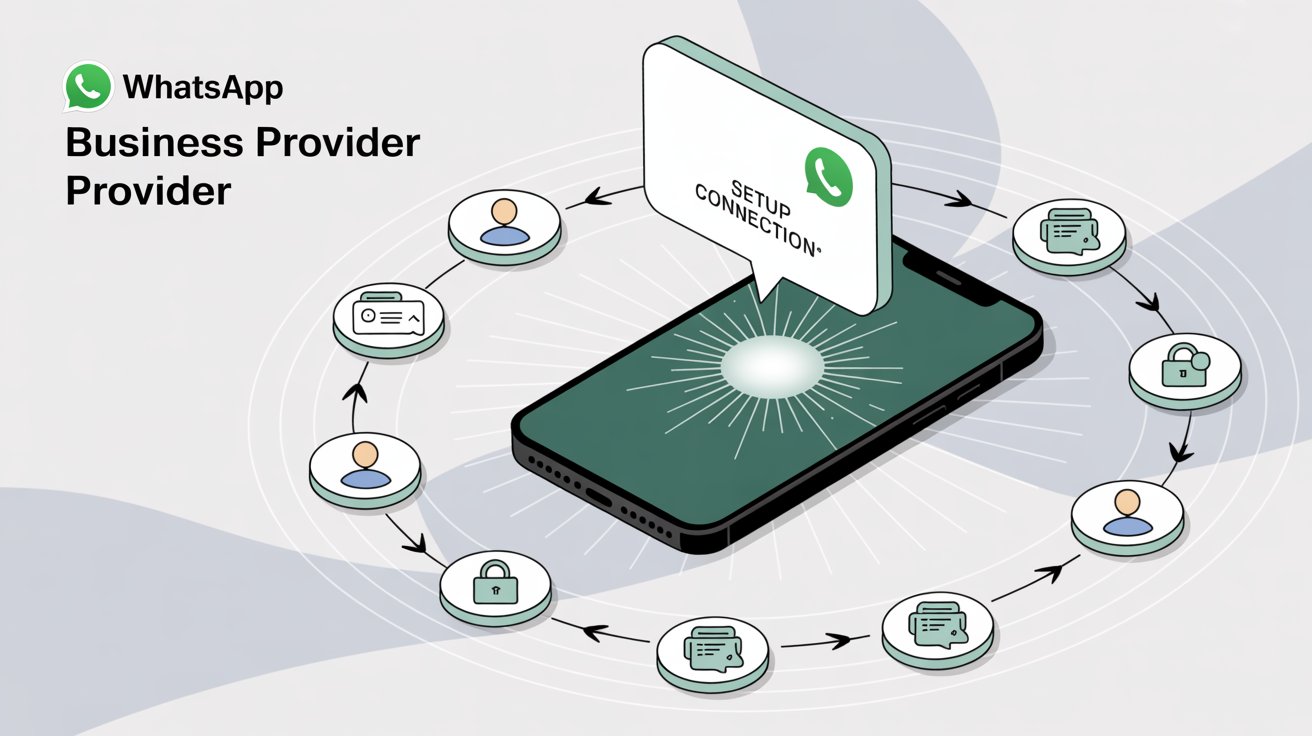
The provider will typically have an integration flow where you log in with your Facebook/Meta account to authorize WhatsApp access.
For example, with Social Intents, you click "Connect WhatsApp" from your dashboard and it prompts you to sign in to your Meta Business account and grant permission.
This step links the provider's platform to your WhatsApp Business Account. You'll select your Business Manager account (or create one) and allow the provider to manage your WhatsApp messaging on your behalf.
You're giving the provider's app the rights to send/receive messages via your WABA.
Step 4: How to Register and Verify Your WhatsApp Business Number
Next, you'll add the phone number you want to use for WhatsApp. The provider's interface will usually have a field to input your number, then trigger the WhatsApp verification process.
You'll receive a 6-digit code via SMS or voice call to that number. Enter that code into the provider's setup form to verify the number.
Once verified, this number is attached to your WhatsApp Business Account and will be used as the sender ID for your messages.
Important: Make sure this number isn't already in use on WhatsApp. If it is, you'll need to delete or migrate the existing WhatsApp account for that number first.
Step 5: How to Create Your WhatsApp Business Profile
Through the provider (or in Facebook Business Manager), configure your business profile for WhatsApp:
| Profile Element | Requirements |
|---|---|
| Display name | Must closely match your legal business name or brand |
| Profile picture | Usually your company logo |
| Description | Brief business description |
| Contact info | Email, address, website |
This information appears to users who chat with you, so it adds credibility. The display name goes through an approval process by WhatsApp.
Step 6: How to Get WhatsApp Message Templates Approved
If you plan to send outbound notifications or marketing messages, create your message templates now.
In the provider's interface or WhatsApp Manager, draft the template messages you'll need. Example: "Hello {{name}}, your order #{{number}} has been shipped…"
Submit them for approval. Providers often facilitate this with a form where you enter the template text and category (marketing, utility, authentication, etc.).
Approval can take from a few minutes up to a day or two. Templates cannot contain fully dynamic content beyond permitted placeholders, and they shouldn't be overly promotional in a spammy way.
Step 7: How to Test Your WhatsApp Business API Setup
At this point, your number is connected and the basics are set. Test everything:
① Test outbound: Send a message from the provider's dashboard to your personal WhatsApp to ensure it delivers.
② Test inbound: Have someone message your new WhatsApp number and verify it appears in the provider's inbox or your configured destination.
If using a provider's multi-agent inbox or integration (like Social Intents routing messages to Teams or Slack), test that flow as well.
Step 8: How to Scale Your WhatsApp Business Use Cases
With everything confirmed, start using WhatsApp in your operations.
For customer support scenarios: Providers usually offer an agent dashboard or allow integration into tools like Microsoft Teams, Slack, or Google Chat.
For marketing or notifications: Integrate the provider's API into your systems or use their campaign tools.
Monitor any analytics the provider offers (delivery rates, session counts, quality rating of your phone number). WhatsApp assigns a quality tier based on user feedback. The provider may show if your quality is high, medium, or low. Low quality means you should slow down or adjust messaging to avoid restrictions.
How Social Intents Simplifies WhatsApp Provider Setup
Social Intents takes a different approach. Instead of giving you yet another inbox to check, it lets you receive and send WhatsApp messages directly in the collaboration tools your team already uses.
The process:
① Create a Social Intents account
② Go to Integrations and click Connect on WhatsApp
③ Log into Meta to authorize Social Intents
You select your business and the WhatsApp Business Account/number in that flow.
④ Connect to your agent platform (Microsoft Teams, Slack, or Google Chat)
Choose which channel receives messages.
⑤ Start receiving WhatsApp messages in Teams or Slack
When someone messages your WhatsApp number, it appears as a thread in Teams or Slack. Your team replies in the tool they already know, and responses go out via WhatsApp.
This kind of setup saves your team from learning a new app. They can use WhatsApp through tools they already live in. And you still need a WhatsApp Business API account (the Meta login step ensures that). Social Intents is using the official API under the hood, but providing the interface your team actually wants to use.
How to Set Up WhatsApp Cloud API Directly (Developer Guide)
If you prefer not to rely on a third-party platform, you can work directly with Meta's WhatsApp Business Platform using the Cloud API. This requires using the Facebook Developer portal and some developer tools, but Meta has made it much more straightforward than it used to be.
Step 1: How to Create and Verify Meta Business Manager
Ensure you have a Meta Business Manager account for your company at business.facebook.com.
If you don't have one, create one. You'll need to add your business details and likely verify the account.
Business verification involves submitting identifying information (legal name, address, phone) and usually uploading official documents (business registration, tax license, etc.).
This is crucial. An unverified business account will have limited messaging (typically only 2 phone numbers and low message volume limits). Those limits disappear once verified.
Start verification early. It can take days. You don't necessarily need to complete verification to begin testing the API, but you'll want it done before going live or scaling up.
Step 2: How to Create a WhatsApp App in Facebook Developers
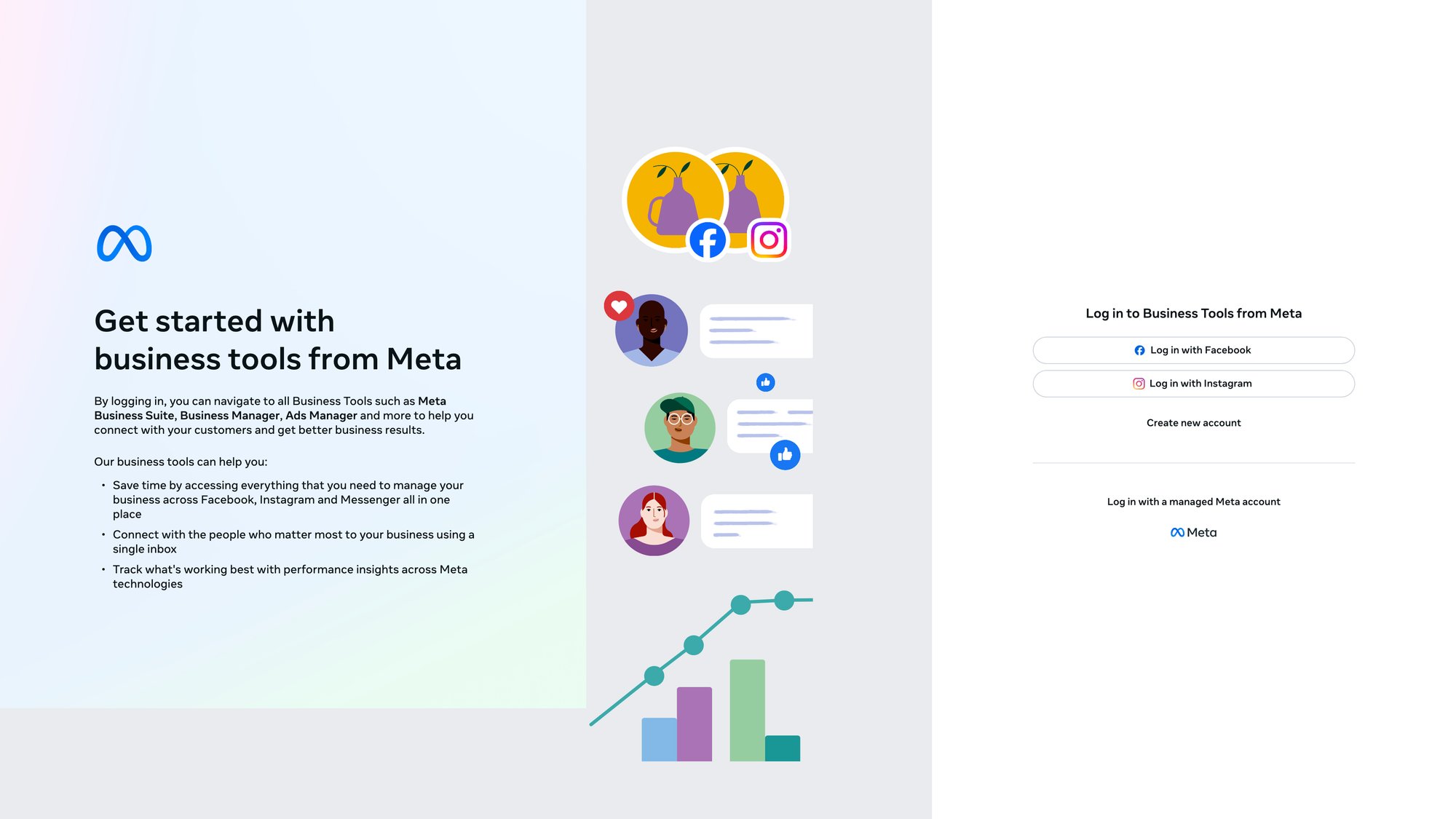
Go to the Meta for Developers site. Log in with a Facebook account that is an admin of your Business Manager.
Create a new App (click "Create App").
When prompted for the type, choose "Business" as the app type. This is important because only Business apps can use the WhatsApp API.
Give the app a name (e.g. "MyCompany WhatsApp API"), and associate it with your Business Manager account (there's a dropdown to select your business during app creation).
You may also have to enter a contact email for app admin and complete a CAPTCHA. Once done, the app will be created and you'll be on the app's dashboard.
Step 3: How to Add WhatsApp API Product to Your App
In your newly created app's dashboard, you'll see a list of products (like Facebook Login, etc.).
Find "WhatsApp" and click Set Up.
This will enable the WhatsApp Business API for your app. You might need to accept Meta's WhatsApp Business terms and conditions as part of this step. Read and accept them to proceed.
Once the WhatsApp product is added, you should see a WhatsApp settings section in the left sidebar of the developer portal.
Step 4: How to Get WhatsApp API Test Access Token
Upon adding WhatsApp, Meta provides:
-
A temporary access token
-
A WhatsApp Business Account ID
-
A test phone number (sandbox)
This test phone number is provided by Meta for you to send test messages. You'll also see a "To" number field.
To test, input your personal WhatsApp number as the recipient and use the example code or API Explorer to send a message (usually a pre-approved template like a hello-world message).
The Getting Started page often shows a cURL or Graph API call you can make with the access token. Try it out. If done right, your phone should receive a WhatsApp message from the test number within seconds.
This confirms that your app is working and can send messages.
Step 5: How to Add and Verify Your Business Phone Number
The test number is only for sandbox use. To use WhatsApp with real customers, you need to add your own phone number.
In the WhatsApp settings, find the section to add phone number. Choose your country code, enter the number, and set a display name for that phone line (e.g. your business name, which will show up on WhatsApp chats).
Trigger the verification. Select SMS or voice call to receive a 6-digit code on that number, and input the code to verify.
Once verified, the number becomes associated with your WhatsApp Business Account under your Business Manager.
Note: The number must not be active on WhatsApp already. If it is, you'll get an error and need to remove it from the WhatsApp app first. You can connect multiple numbers (up to the limit allowed by your tier), but start with one.
Step 6: How to Generate Permanent WhatsApp API Access Token
The access token given in the developer dashboard by default is a temporary token (valid for 23 hours). Good for quick testing, but you'll need a permanent token for a real integration.
To get a permanent token, create a System User in Business Manager:
① In Business Manager, go to Business Settings → Users → System Users
② Create a new system user (e.g. "WhatsApp API User") with Admin role
③ Under that system user, add an Asset → select your WhatsApp App and assign full access to WhatsApp Business Messaging
④ Under that system user's settings, create a token for your app with the scope including "whatsapp_business_messaging" (and possibly "business_management" if needed to manage templates)
Copy this token. It's your long-lived API key. This token is what your backend or integration will use to authenticate when making API calls to send messages.
Keep it secure. It's essentially like a password to send messages from your number.
Step 7: How to Set Up WhatsApp Webhooks for Incoming Messages
WhatsApp Cloud API uses webhooks to deliver incoming messages and status notifications to you.
If you want to receive messages (which you likely do, unless you only plan one-way notifications), you must set up a webhook URL on a server you control.
In your developer app under WhatsApp → Configuration, there's a place to subscribe a webhook. You'll provide:
-
A callback URL (HTTPS)
-
A verification token (a random string you generate)
You'll need to verify the webhook by echoing back a challenge code (Meta provides instructions for this). Once set, you can choose which events you want (messages, message status, etc.) to be sent to your webhook.
After this, whenever someone messages your WhatsApp number, WhatsApp's servers will send an HTTP POST to your webhook URL containing the message details (sender, message text, etc.).
Your application can then process it (log it, respond via an API call, etc.).
If you use a BSP or a platform like Social Intents, they handle webhooks for you on their side. But if you're DIY, you must implement this to capture incoming chats.
Step 8: How to Create and Get WhatsApp Message Templates Approved
Using the developer tools, you can create message templates for any outbound use cases.
This can be done in WhatsApp Manager (which you can access via business.facebook.com once your WABA is set up).
Navigate to WhatsApp Manager → Message Templates, and create a template:
-
Choose a category (Account Update, Payment Update, Alert Update, Appointment update, or Marketing)
-
Select language
-
Enter the content (you'll have placeholders like {{1}}, {{2}} for dynamic parts)
Submit the template for review. The status will show as Pending and then Approved or Rejected. This usually is quick (few minutes to an hour) unless it triggers a manual review.
Make sure your template content is compliant (no disallowed content, and if marketing, ensure it's something users would expect based on opt-in).
You'll need at least one approved template if you intend to initiate conversations (for example, a "welcome message" or a "we missed you, reach back out" message).
Step 9: How to Integrate WhatsApp API With Your System
At this point, the WhatsApp API is basically ready on the Meta side:
✓ Verified business
✓ Approved number with display name
✓ API token
✓ Templates (likely)
Now you need to actually use it in practice.
This could mean:
Writing code using the WhatsApp Cloud API endpoints (part of the Graph API) to send messages from your server. You'd call an endpoint like POST /v17.0/your_phone_number_id/messages with the to/from and message content (using your permanent token for auth).
Using integrations: Plug this into a CRM that supports WhatsApp API, or use a no-code automation tool (some services let you connect to WhatsApp Cloud API via connectors).
Using Social Intents with your Cloud API: You can bring your own WhatsApp API setup, and Social Intents will provide the interface for your team. In your Social Intents account, use the "Connect WhatsApp" integration which will recognize that you have a Cloud API app and number. After authorization, Social Intents can route messages to your agents in Slack or Teams, while your own WABA and Meta setup handle the backend messaging.
This hybrid approach is often effective: you maintain control of the API connection and data, and use a third-party interface for convenience.
Be sure to test thoroughly in a live environment. Have a colleague or test user send messages to your WhatsApp number and verify you receive them via your system. Try replying. Check that templates send correctly.
Monitor the WhatsApp Manager insights for your number. It will show message counts, delivery rates, any errors, etc.
How to Monitor Quality Rating and Stay Compliant
During the initial days of going live, watch your quality rating and compliance.
If you inadvertently violate policy (say, sending a template that users mark as spam), your number's quality rating will drop from High → Medium → Low, and you might get rate-limited.
If quality is low, stop proactive messages and focus on support until it recovers. Keep opt-ins documented to defend against any complaints.
How to Scale Beyond Initial WhatsApp Messaging Limits
New WhatsApp Business API numbers start with a messaging limit tier (commonly Tier 1: able to start 1,000 unique conversations with users per day).
As you send messages successfully and maintain quality, WhatsApp will automatically upgrade your tier (to 10k, 100k, and unlimited per day).
However, since late 2024, service (user-initiated) conversations are free and unlimited (no charge and no limit). The tier limits apply mainly to business-initiated messaging volume.
Be aware of these limits. If you need to message a huge user base on day 1, you might need to apply for a higher tier or warm up gradually.
Best Practices for Managing WhatsApp Business API
Getting the WhatsApp Business API working is a big accomplishment. But using it effectively and staying within guidelines is equally important. Here are best practices moving forward:
How to Ensure Proper WhatsApp Opt-In and Opt-Out
Only send WhatsApp messages to users who have given permission. Clearly inform users (on your website or at sign-up) that by providing their number they agree to WhatsApp messages.
Also, if a user requests to stop or types "stop", honor that. Even though WhatsApp doesn't have a global "unsubscribe" mechanism, you should manually refrain from messaging those users to avoid complaints.
How to Monitor Your WhatsApp Quality Score
In your WhatsApp Manager, monitor the Quality rating and Messaging limits of your number.
A high quality rating means users generally aren't reporting issues. If it dips, adjust your messaging frequency or content.
Also monitor if you get close to messaging limit thresholds. Meta will notify you in the Business Manager if you're upgraded or if you're restricted.
How to Use Free WhatsApp Conversation Windows
As of 2025, Meta gives 1,000 free service conversations per month per WABA (sessions initiated by users).
Also, if a user contacts you via a Click-to-WhatsApp Ad or a Facebook Page button, you get a 72-hour window of free messaging with that user.
Take advantage of these:
-
Encourage users to message you first ("Message us on WhatsApp to get quick support")
-
Consider using Click-to-WhatsApp ads for campaigns, since replies in that window won't incur message fees
Free entry points can significantly reduce costs for engaging users.
How to Create Better WhatsApp Message Templates
For templates, use a friendly and concise tone. Avoid templates that sound overly generic or promotional, as those often get rejected or lead to user blocks.
Personalize via placeholders (include the user's name or specific info they care about).
Don't overload a single template with too much info. If it's transactional (utility), just give the key update. If marketing, get to the point and maybe include a CTA link.
Each template must be submitted in each language you plan to use, so plan for localization if needed.
How to Balance Automation With Human Support
One of the great features through the API is integrating chatbots and AI.
You can set up a bot to handle FAQs or common flows on WhatsApp, which can save your team time.
For instance, Social Intents enables an AI chatbot that greets WhatsApp users and answers common questions, then auto-escalates to a human in your team's Slack or Teams if it's something the bot can't handle.
This hybrid approach gives customers quick answers 24/7, but also a seamless path to a real agent.
If you use bots:
→ Monitor their performance
→ Train/tweak them with real conversation data
→ Always allow an easy way for the user to reach a human ("type 'agent' to chat with a person", etc.)
How to Manage WhatsApp Across Multiple Channels
WhatsApp is one channel, albeit a very important one globally. Consider managing it alongside your other channels (website chat, Facebook Messenger, SMS, etc.) in a unified way.
Social Intents can combine WhatsApp with web live chat and others into one team inbox. Even if you're not using an external platform, internally coordinate your support teams so that the tone and info on WhatsApp is consistent with email or other support.
Customers often use multiple channels. Make sure the experience is consistent across all of them.
How to Keep WhatsApp Data Secure and Compliant
WhatsApp messages are end-to-end encrypted between your service and the user. However, once they arrive to your side via the API, you'll see the content.
Make sure to handle that data securely:
→ If you log messages, protect those logs
→ If you integrate with a CRM, ensure compliance with privacy laws (e.g. GDPR)
→ Treat WhatsApp user data like you would treat email or phone data
Also, note that certain content is not allowed on WhatsApp Business API (like medical info, financial info, if you're not using the appropriate template types, etc.). Be familiar with WhatsApp's commerce and business policies.
Should You Get WhatsApp Green Tick Verification?
You might have seen some businesses on WhatsApp have a green checkmark badge next to their name (official business account).
This is a coveted status that requires a separate application and is only granted to notable brands or those with high volume and impeccable compliance.
It does not unlock any additional messaging functionality, but it does show the business name even if the user hasn't saved the contact (unverified numbers only show the name after the user adds them, otherwise just the number until a chat is opened).
If you have a strong brand presence, you can apply for this after your WhatsApp API is set up and your display name is approved. Criteria are strict (basically you need to be a well-known entity; most SMBs won't qualify).
It's not necessary for effective use, but I mention it in case your marketing team asks. Having the API is a prerequisite to even request the green tick. Engage your BSP or Meta partner manager for this process if relevant.
How to Train Your Team on WhatsApp Best Practices
If you have agents or sales reps using WhatsApp, train them on best practices.
WhatsApp is more informal than email. Using quick, helpful, and friendly language works well. But also ensure they know not to share sensitive links or info without verification (social engineering concerns).
If you're integrating with Slack or Teams (via Social Intents or others), train the team on how to use that integration:
-
How to reply in threads in Teams for each WhatsApp conversation
-
How to bring in colleagues by @mention
-
How to manage multiple conversations simultaneously
A well-trained team will make the most of this new channel.
How to Track WhatsApp Performance and Improve Results
Use any analytics available. WhatsApp Manager provides metrics on how many messages you sent, delivery rates, open rates for templates, etc.
If you run campaigns, track responses. This data can guide you:
If a certain notification template is often not delivered or gets blocked, maybe reword it or send at a different time.
If users frequently ask a certain question on WhatsApp, consider broadcasting that information proactively or updating your chatbot knowledge base.
By following these practices, you'll not only have WhatsApp Business API set up correctly, but also running smoothly as an ongoing channel.
WhatsApp Business API Pricing: Complete 2025 Breakdown
No guide would be complete without addressing costs. Usage fees are a key part of planning an API deployment. Here's how WhatsApp Business API pricing works as of 2025:
How WhatsApp Charges Per Message in 2025
Starting July 1, 2025, businesses are charged for each message delivered via the API (previously it was per conversation window).
Charges apply when a message is successfully delivered to the user's device (if it's sent but not delivered, e.g. user offline, it shouldn't bill).
The price of a message depends on two factors:
① The category of the message
② The country/region of the recipient
What Are the Four WhatsApp Message Categories?
WhatsApp defines four categories for API messages:
| Category | Purpose | Typical Cost |
|---|---|---|
| Marketing | Promotional or sales-oriented messages, product offers, announcements | Highest per message (e.g. ~$0.03 in US) |
| Utility | Transactional messages related to a specific user action (order confirmations, shipping updates, reminders) | Lower cost (e.g. ~$0.01 or less) |
| Authentication | One-time passwords or verification codes for login, MFA | Similar to utility |
| Service | Customer service messages (responses within 24h to user inquiries) | FREE (no charge since late 2024) |
Service messages are free, meaning you can have unlimited back-and-forth in a support conversation without worrying about cost.

How WhatsApp Pricing Varies by Country
The exact price per message varies by country. WhatsApp publishes rate cards by country and currency.
Examples (as of late 2024):
• Marketing message in the U.S.: ~$0.03
• Marketing message in India: ~$0.005
• Utility messages: $0.01 or less in many markets
• Authentication messages: Often a fraction of a cent
• Service messages: $0.00
It's important to check current rates for your key markets.
Also, volume tiers exist. If you send huge volumes of utility or auth messages, the price per message can drop after certain thresholds.
What Free WhatsApp Messaging Allowances Are Available?
Each WhatsApp Business Account gets 1,000 free user-initiated service conversations per month (effectively 1,000 free 24-hour sessions that start from a customer message).
Given service messages are free anyway, this allowance means the first 1,000 customer-initiated chats in a month incur no charges at all.
Additionally, WhatsApp offers free entry point conversations: if a user messages you via a Click-to-WhatsApp ad or a Facebook Page button, you get a 72-hour window of free messaging with that user.
These free conversations can significantly reduce costs for those specific use cases (lead gen campaigns, etc.).
How Much Do WhatsApp Providers Charge on Top?
Remember that if you use a BSP, their costs are on top of WhatsApp's fees.
Many providers charge:
- A monthly fee (ranging from ~$50 up to hundreds for enterprise plans)
OR
- A per-message markup (e.g. adding $0.002 to each WhatsApp message)
Some providers promote that they only charge a flat software fee and pass WhatsApp costs at direct rates.
Be sure to understand your provider's pricing model. If you go direct with Cloud API, you avoid provider markups but you'll need to pay for hosting your integration (albeit trivial if you already have infrastructure) and development effort.
How to Reduce Your WhatsApp API Costs
To keep costs manageable:
① Focus on conversational interactions. If you can get users to message you (service conversations), your replies are free.
② Use templates wisely. Don't spam marketing messages. A small, targeted campaign to engaged users is more cost-effective than blasting thousands of cold numbers (which might also get you blocked).
③ Utilize the free windows from ads. If you do advertising, those 3 days free can be leveraged to nurture a lead.
WhatsApp can actually be cheaper than SMS in many regions for the value it provides (rich media, verified sender, etc.), but it requires discipline in how you use it.
What Does WhatsApp API Actually Cost? Real Examples
Support chats: Basically $0 (free service messages)
Notifications: A few fractions of a cent up to a few cents each depending on type/region
Marketing messages: A few cents each
Examples:
→ Send an order confirmation to 1,000 customers at $0.008 each = $8
→ Run a marketing broadcast to 1,000 leads at $0.03 each = $30
These are ballpark figures. Check your actual rates. But it gives you an idea.
The ROI can be great if those messages drive sales or retain customers. Just be smart about volume.
Many businesses find the investment well worth it: higher engagement and read rates on WhatsApp can lead to better outcomes than email or SMS campaigns. Just avoid unnecessary messaging to keep your costs and customer sentiment in check.
How Social Intents Simplifies WhatsApp Business API
Throughout this guide, we've mentioned Social Intents several times. There's a reason for that.
Most WhatsApp Business API solutions give you yet another dashboard to check, yet another inbox to manage. Your team has to log into a separate platform, learn new interfaces, and constantly switch between tools.
Social Intents takes a different approach: it brings WhatsApp directly into the tools your team already lives in.
How Social Intents WhatsApp Integration Works
① Connect your WhatsApp Business API (Social Intents works with both provider-managed and direct Cloud API setups)
② Choose where your team works (Microsoft Teams, Slack, Google Chat, Zoom, or Webex)
③ Messages flow in automatically
When a customer messages your WhatsApp number, it appears as a thread in your chosen platform. Your team responds in Teams or Slack, and those responses go out via WhatsApp.
Why This Approach Transforms WhatsApp Support
No context switching. Your support team doesn't have to check multiple inboxes. Everything happens where they already work.
Multi-agent collaboration. Multiple team members can see and respond to WhatsApp conversations simultaneously. You can @mention colleagues, share context internally, and provide faster support.
AI chatbot integration. Social Intents includes AI chatbot capabilities that work across WhatsApp and your team platform. The bot handles FAQs 24/7, then seamlessly hands off to your human team when needed.
Unified customer communication. You can manage WhatsApp alongside website chat, Facebook Messenger, and other channels in one place. Every message in one unified view.
Real Example: WhatsApp Support Through Teams
Imagine your support team is in Microsoft Teams all day. A customer messages your WhatsApp number with a question about their order.
Instead of someone having to check a separate WhatsApp dashboard:
① The message appears instantly in your Teams channel
② Any available team member can respond
③ They reply directly in Teams
④ The customer receives the response via WhatsApp
⑤ The conversation continues seamlessly
Your team stays in their workflow. Your customer stays in their preferred channel (WhatsApp). Everyone wins.
How to Get Started With Social Intents for WhatsApp
If you already have a WhatsApp Business API account set up (or you're in the process of setting one up using this guide), connecting Social Intents takes just a few minutes:
① Sign up for Social Intents (free 14-day trial available)
② In the dashboard, go to Integrations
④ Log into your Meta Business account to authorize
⑤ Connect to your team platform (Teams, Slack, etc.)
⑥ Start receiving messages
Social Intents also provides unlimited agents on most plans, meaning your entire team can participate without worrying about per-agent fees.
And if you want to add AI automation, you can configure a chatbot that works across all your channels (WhatsApp, website chat, etc.) with human handoff when needed.
Learn more at socialintents.com.
WhatsApp Business API: Common Questions Answered
Do I need technical skills to set up the WhatsApp Business API?
Not necessarily. If you use a Business Solution Provider like Social Intents, the setup is mostly point-and-click. They handle the technical complexity.
If you want to use the direct Cloud API route, you'll need development skills (working with REST APIs, webhooks, tokens). But even then, Social Intents can provide the user interface on top of your direct API setup, giving you the best of both worlds.
Can I use my existing WhatsApp Business app number with the API?
Yes, but with a caveat. You can migrate an existing WhatsApp Business app number to the API. However, once migrated, you cannot use that number in the WhatsApp app anymore. The number becomes API-only.
The migration process is documented by Meta, and many providers can help facilitate it.
How long does business verification take?
Business verification through Meta Business Manager typically takes anywhere from a few days to two weeks. It depends on how quickly you submit required documents and how complex your business structure is.
Start this process early, before you need to go live with messaging.
What happens if users block or report my messages?
WhatsApp tracks user feedback for your number and assigns a quality rating (High, Medium, Low). If too many users block or report your messages, your quality rating drops.
Low quality can result in messaging restrictions or even account suspension. To avoid this:
-
Only message users who have opted in
-
Send relevant, valuable content
-
Respond promptly to user-initiated messages
-
Don't spam with excessive marketing
Can I send bulk messages to my contact list?
Only if those contacts have explicitly opted in to receive WhatsApp messages from you. You cannot import a random contact list and start messaging.
For business-initiated messages, you must use approved message templates. And you must respect WhatsApp's anti-spam policies.
If you want to run marketing campaigns, use Click-to-WhatsApp ads to generate opt-ins, then message those users who respond.
How much does it really cost to run WhatsApp Business API?
It varies based on:
-
Your message volume
-
Message types (service messages are free)
-
Geographic regions you message
-
Whether you use a provider (who may charge fees)
A rough example:
If you send 1,000 utility notifications per month to US customers at $0.01 each = $10
If you have 500 customer service conversations per month (user-initiated) = $0 (free)
If you send 200 marketing messages at $0.03 each = $6
Total monthly WhatsApp fees: ~$16
Add your provider's platform fee (if using one) on top of that. Many providers charge $50-200/month for their software.
Social Intents, for example, includes WhatsApp integration as part of their plans starting at $39/month (with unlimited agents), plus you pay WhatsApp's per-message fees.
Can I use multiple phone numbers?
Yes. Each WhatsApp Business Account can have multiple phone numbers. You might use different numbers for different regions, departments, or brands.
With Social Intents, you can route each WhatsApp number to a different Teams channel or Slack workspace to keep conversations organized.
Do I need a separate WhatsApp Business Account for each brand?
If you're managing multiple brands, it's recommended to have separate WhatsApp Business Accounts for each. This keeps business profiles distinct and prevents confusion for customers.
However, within a single Business Account, you can have multiple phone numbers if needed.
Can I automate responses with a chatbot?
Absolutely. One of the biggest advantages of the API is chatbot integration.
You can connect AI-powered chatbots to handle common questions, provide instant responses 24/7, and escalate to human agents when needed.
Social Intents includes AI chatbot functionality that works across WhatsApp, website chat, and team platforms. The bot learns from your content and handles FAQs, while complex queries go to your human team.
What's the difference between marketing and utility messages in terms of cost?
Marketing messages are promotional (sales, offers, announcements). They cost more per message because WhatsApp considers them optional for users.
Utility messages are transactional (order confirmations, shipping updates, appointment reminders). They cost less because they're expected and valuable to users.
The price difference can be significant (marketing might be 3-5x more expensive than utility), so categorize your templates correctly.
How do I ensure my message templates get approved?
Follow these guidelines:
→ Be clear and concise
→ Don't use misleading or spammy language
→ Personalize with user-specific information (use placeholders)
→ Match the category appropriately (don't mark a promo as utility)
→ Follow WhatsApp's content policies
→ For marketing templates, ensure users have opted in to receive that type of content
Most templates are approved within minutes to hours. If rejected, WhatsApp will provide a reason, and you can edit and resubmit.
Can I send images and videos via WhatsApp Business API?
Yes. The API supports rich media including images, videos, documents, and audio files. You can send these as part of your messages to make communication more engaging.
This is especially useful for:
-
Product catalogs (sending product images)
-
Support (sending instruction videos)
-
Order confirmations (including shipping documents)
-
Marketing (visual promotions)
What if my quality rating drops?
If your quality rating drops to Medium or Low:
① Stop or reduce business-initiated messaging immediately
② Focus only on responding to user-initiated conversations
③ Review your messages for any policy violations
④ Ensure you're only messaging opted-in users
⑤ Improve response times and message relevance
Your quality rating can improve over time as you demonstrate better messaging practices. But if it drops to Low and stays there, you risk account restrictions or suspension.
How is WhatsApp Business API different from regular WhatsApp?
| Feature | Regular WhatsApp | WhatsApp Business App | WhatsApp Business API |
|---|---|---|---|
| User Limit | Personal use only | Single business user | Unlimited agents |
| Messaging Scale | Individual chats | Manual, limited | Automated, unlimited |
| Multi-Agent Support | No | No | Yes |
| API Integration | No | No | Yes |
| Automation/Bots | No | Limited | Full support |
| Verified Business Profile | No | Yes | Yes |
| Message Templates | No | No | Yes (required for business-initiated) |
| Setup Complexity | Download app | Download app | Requires approval process |
| Cost | Free | Free | Per-message fees apply |
Can I switch from WhatsApp Business app to the API?
Yes, you can migrate. The process involves:
① Setting up your WhatsApp Business API account
② Requesting to migrate your existing number
③ Verifying you own the number
④ Completing the migration
Once migrated, the number will no longer work in the WhatsApp Business app. It will be API-only.
Many providers can help facilitate this migration process.
Your Next Steps With WhatsApp Business API
Setting up the WhatsApp Business API might seem complex at first, but the payoff is substantial. You get access to a channel where billions of people already spend their time, with the scale, automation, and integration capabilities that modern businesses need.
Whether you choose the provider route (easier, more guided) or the direct Cloud API route (more control, potentially lower cost), the core steps remain consistent:
✓ Verify your business with Meta
✓ Register a dedicated phone number
✓ Set up proper access (via provider or token)
✓ Configure messaging (templates, integrations)
✓ Follow best practices (opt-in, quality monitoring, compliance)
WhatsApp is powerful because it combines the personal touch of messaging with massive scale. When you set it up correctly and use it responsibly, it can become one of your most valuable customer contact channels.
And if you want to make the experience seamless for your team, consider tools like Social Intents that integrate WhatsApp directly into Microsoft Teams, Slack, or Google Chat. Your team stays in one place, your customers stay on their preferred channel, and everyone communicates more effectively.
Ready to get started with WhatsApp Business API? Try Social Intents free for 14 days and connect WhatsApp to your team's workflow in minutes.