If you're running a team that practically lives in Slack, you already know the struggle. Messages pile up, manual tasks eat away at your day, and somehow work becomes talking about work instead of actually getting it done.
The reality: 77% of desk workers believe automating routine tasks would boost their productivity, and those already using automation save about 3.6 hours per week (according to Slack research). That's nearly half a workday reclaimed every single week.
This guide isn't about cute bot tricks. It's about building a system where Slack becomes your team's operational hub. Where requests arrive structured, work gets routed automatically, and your systems of record stay clean without anyone lifting a finger.
What you'll learn:
→ The 4 layers of Slack automation (and when to use each)
→ 12 high-leverage workflow recipes you can implement today
→ 50+ automation ideas organized by department
→ How to route customer conversations from your website directly into Slack
→ The governance tactics that prevent automation sprawl
Why Most Slack Automation Guides Are Already Outdated
A lot of content about Slack automation is stuck in 2023. Two major shifts happened that make older tutorials partially wrong.
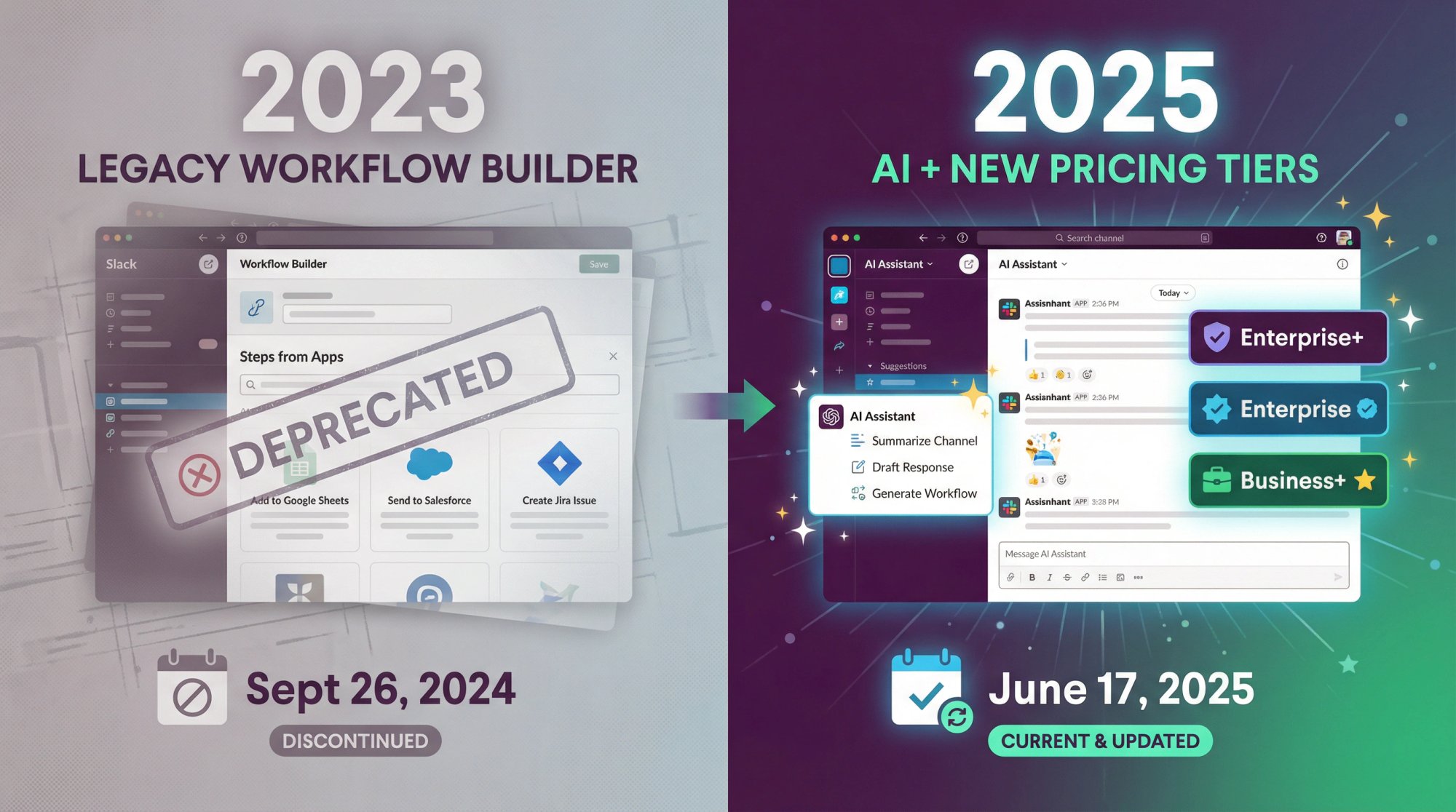
1. Legacy Workflow Builder is dead
Slack's developer changelog confirms that "Steps from Apps" for the legacy Workflow Builder retired on September 26, 2024. If you're following a tutorial that references this, it won't work anymore.
2. Slack's AI and pricing shifted in mid-2025
On June 17, 2025, Slack announced major plan changes including broader AI access, a new Enterprise+ tier, and Business+ price adjustments. The AI add-on is no longer sold separately, and features are now bundled differently across tiers.
This matters because your automation options depend heavily on your plan level.
How to Choose the Right Slack Automation Tool
High-performing teams don't randomly grab tools. They pick an automation layer based on complexity and governance needs.
| Layer | Best For | Complexity | Plan Requirement |
|---|---|---|---|
| Layer 1: Workflow Builder | Structured intake, routing, reminders | No-code, inside Slack | Paid subscriptions |
| Layer 2: Workflow Builder + Connectors | Third-party tools without coding | No-code with auth | Paid + admin approval |
| Layer 3: Cross-App Automation | Multi-system workflows | Zapier/Make/Workato | External platform |
| Layer 4: Custom Build | Deterministic logic, secure data | Slack Platform + APIs | Can't develop on Free |
Layer 1: Workflow Builder (No-Code, Inside Slack)
Best for: Structured intake, routing, reminders, lightweight processes
This is your fastest ROI. Slack's Workflow Builder lets you create automations from templates or scratch, triggered by emoji reactions, joining channels, schedules, or links.
Plan requirement: Available on paid subscriptions
Layer 2: Workflow Builder + Connectors (Still No-Code)
Best for: When you need third-party tools but want to avoid coding
Connector steps authenticate with external apps (admin approval may be required). Slack highlighted 65 new connectors in early 2024, expanding options significantly.
Layer 3: Cross-App Automation (Zapier/Make/Workato)
Best for: Multi-system workflows where Slack is the front-end
Use when your workflow spans CRM, billing, ticketing, and data systems. For example, we at Social Intents integrate with Zapier to connect live chat to over 1,000 other services.
Layer 4: Custom Build (Slack Platform + APIs)
Best for: Deterministic logic, secure internal data, deep integration
Slack's developer docs describe custom workflow steps using Slack SDK (Deno runtime) or Bolt frameworks. You can't develop these on a Free plan.
How to Audit Your Slack Workspace Before Building Anything
Most teams skip this step, which is why their automations get ignored.
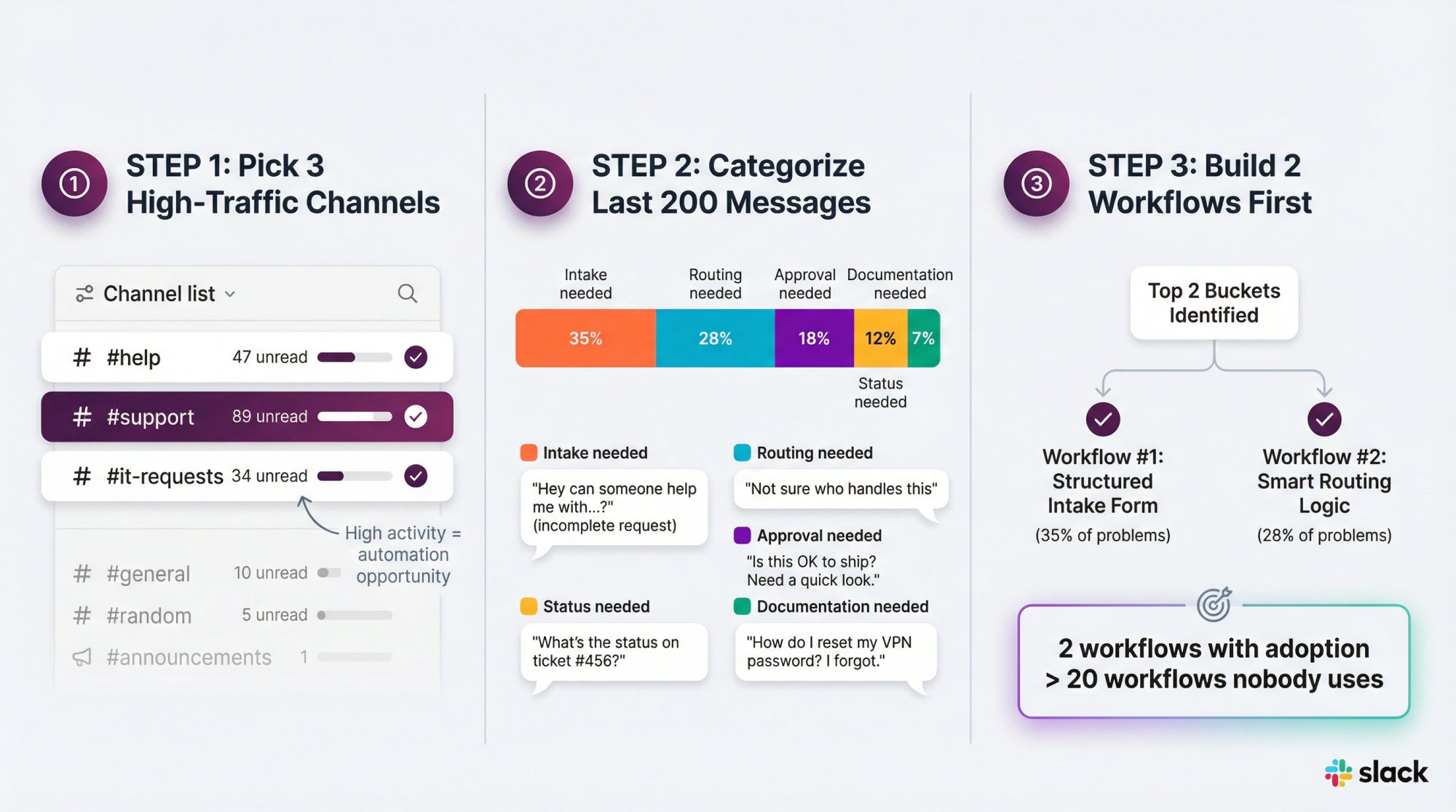
Here's the protocol:
① Pick 3 channels with the most work requests (#help, #support, #it-requests)
② Scan the last 200 messages and categorize each request:
Intake needed (missing details, needs a form)
Routing needed (wrong owner, needs assignment logic)
Approval needed
Status needed (people asking "any update?")
Documentation needed (repeat questions, needs saved answer)
③ Pick the top 2 buckets and build one workflow for each
You'll get more ROI from 2 workflows with adoption than 20 workflows nobody uses.
What Does Successful Slack Automation Look Like?
After implementing these automations, you should be able to point to:
| Before | After |
|---|---|
| Drive-by DMs for requests | Structured intake through workflows |
| Delayed first responses | Auto-acknowledge + instant routing |
| Unclear ownership | Every workflow has named owner + escalation |
| Work trapped in chat | Requests logged in systems of record |
| Meeting overload | Async updates + scheduled recaps |
6 Automation Patterns That Solve Most Problems
Instead of random "cool ideas," master these patterns and recombine them:
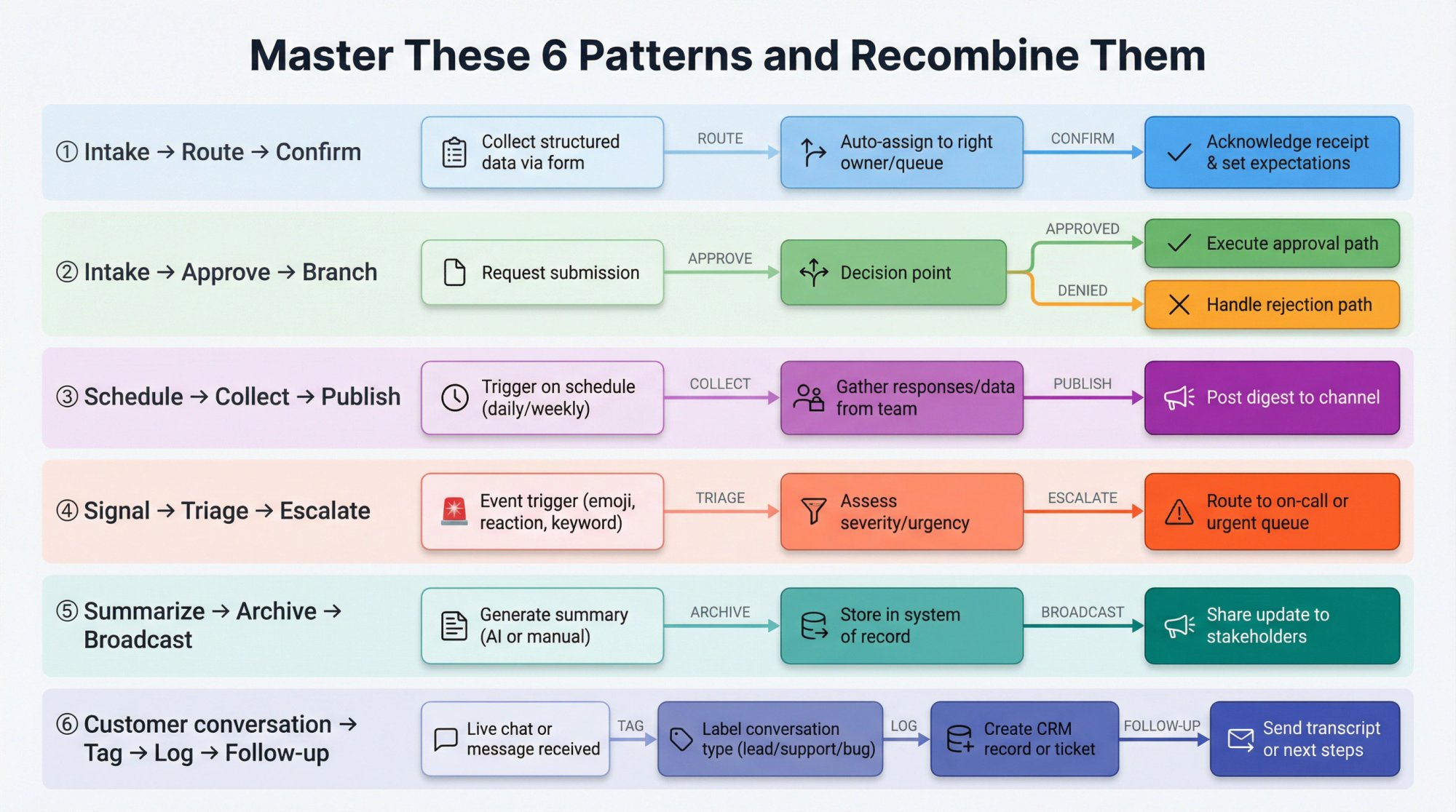
① Intake → Route → Confirm
② Intake → Approve → Branch
③ Schedule → Collect → Publish
④ Signal (emoji/event) → Triage → Escalate
⑤ Summarize → Archive → Broadcast
⑥ Customer conversation → Tag → Log → Follow-up
12 Slack Automation Workflows You Can Build Today
Each recipe includes the trigger, workflow steps, optional connectors, and a governance tip so it survives contact with reality.
| Recipe | Purpose | Complexity | Key Benefit |
|---|---|---|---|
| 1. Single Front Door | Structured request intake | No-code | Eliminates vague pings |
| 2. Async Standups | Searchable status updates | No-code + connector | Replaces meetings |
| 3. New Hire Onboarding | Channel + workflow template | No-code | Consistent experience |
| 4. PTO Requests | Approval workflow | Branching | Automatic calendar sync |
| 5. Incident Response | Emergency coordination | Multi-connector | Faster MTTR |
| 6. Bug Reports | Better Jira tickets | Form + connector | Quality issue tracking |
| 7. Deal Desk Approvals | Threshold-based routing | Branching + CRM | Faster deal closure |
| 8. Weekly Leadership Digest | Automated reporting | Scheduled + AI | Eliminates status meetings |
| 9. IT Access Requests | Secure approvals | Branching + audit | Compliance trail |
| 10. Marketing Creative | Intake with requirements | Form + PM tool | Reduces back-and-forth |
| 11. Security Reporting | Phishing/incident intake | Urgent branching | Faster response |
| 12. Website Chat → Slack | Full support workflow | Social Intents | Support in Slack |
Recipe 1: How to Build a Single Front Door for Request Channels
Best for: #help, #it-requests, #design-requests, #ops
Goal: Replace vague pings with structured requests and automatic routing
Trigger
From a link in Slack (pin the workflow link in channel canvas or topic)
Workflow Steps
① Collect info in a form:
Request type (dropdown)
Urgency (dropdown)
Description (rich text)
Deadline (date)
Attachments/links
② Auto-acknowledge in DM (sets expectations)
③ Post clean summary to the request channel
④ Branch on urgency (if available on your plan)
Slack's branching feature allows up to 15 branches with up to 5 nested branches under each primary branch. Available on Business+ and Enterprise subscriptions.
Governance Tip
Route to a role (triage user group/on-call rotation), not a person's name. People change teams, roles endure.
Recipe 2: How to Run Standups Without Meetings
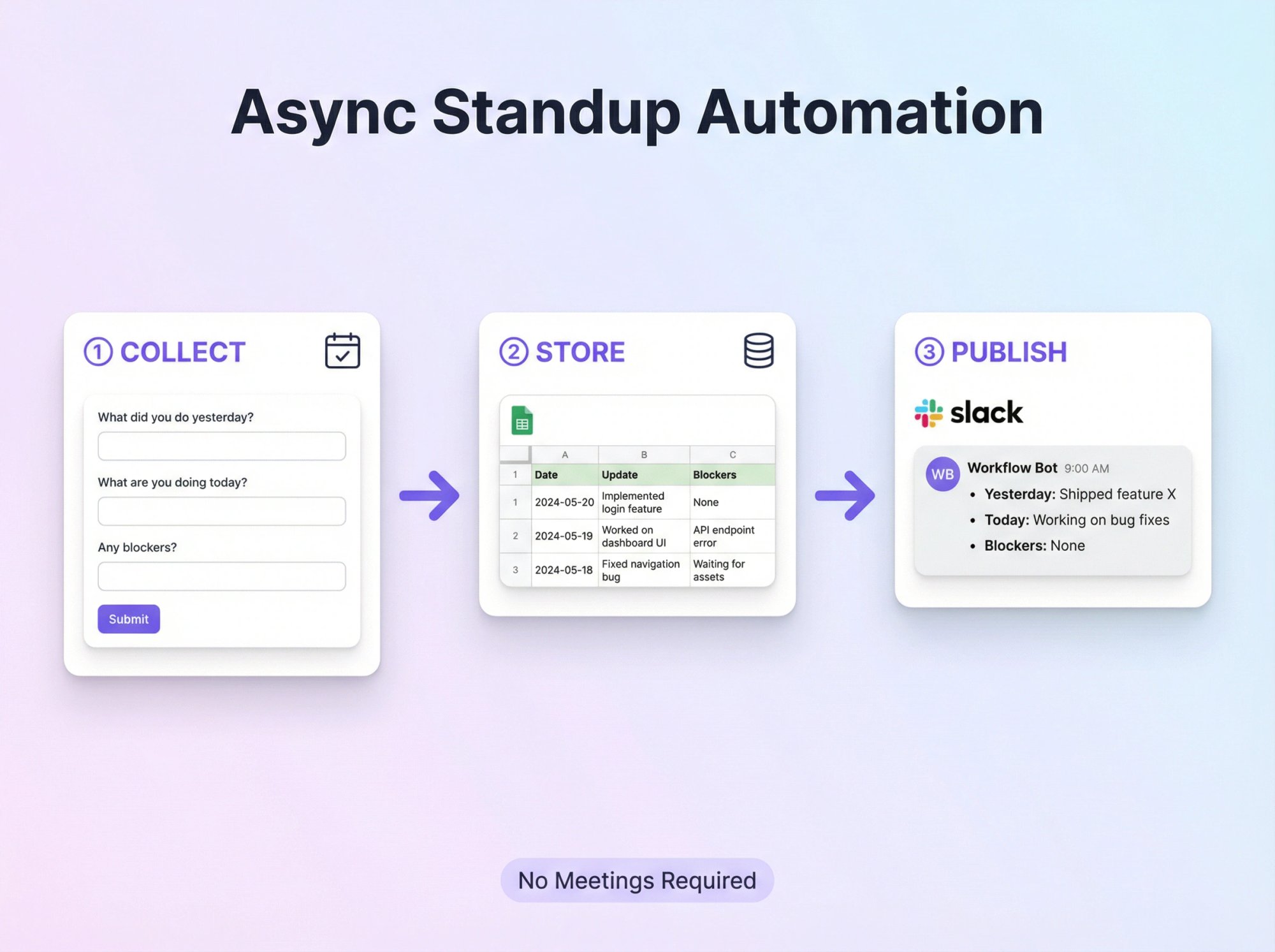
Slack's developer workshop walks through building a standup workflow that collects responses, posts to a channel, and stores in Google Sheets.
Trigger
Start from a link for testing, then duplicate and run on a schedule for daily use
Build Tip
After publishing a workflow, you can't change the trigger type. You have to duplicate the workflow to change triggers.
Workflow Steps
① Form questions: Yesterday/today/blockers
② Add to spreadsheet (for historical tracking)
③ Post formatted update to channel using "Insert all form responses"
Governance Tip
Keep blockers structured (Yes/No + details) so you can route blocker=Yes automatically to a manager or lead.
Recipe 3: How to Automate New Hire Onboarding
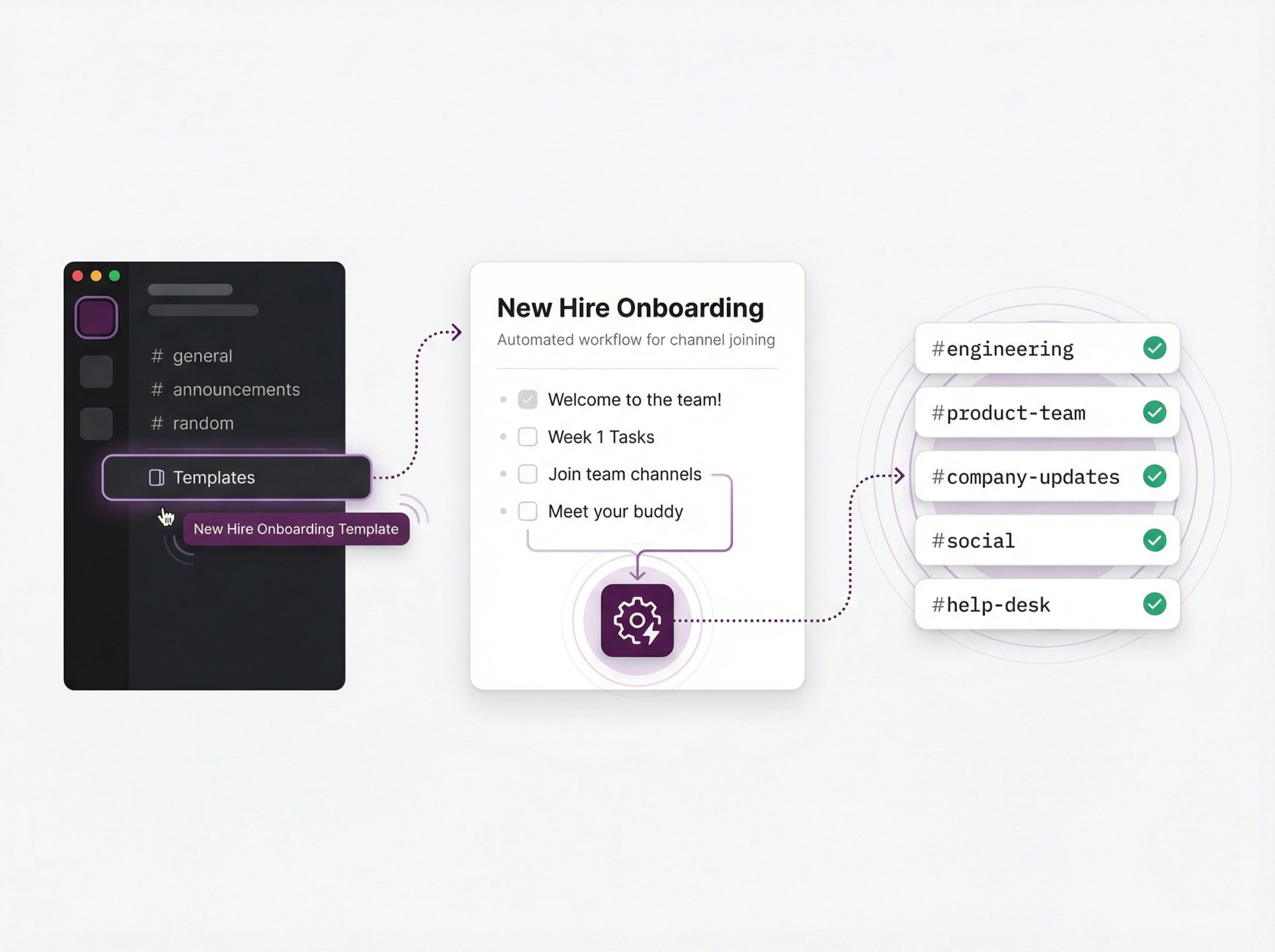
Slack's onboarding template combines a canvas, a first-week list, and an included workflow to help join channels.
Trigger
Use Templates in Slack to create a channel from the onboarding template
Workflow Steps
Configure the template workflow to invite the new hire to the right channels automatically
Governance Tip
Treat onboarding as a product. Review monthly or quarterly and update the template based on feedback.
Recipe 4: How to Automate PTO Requests and Approvals
Trigger
From a link in #people-ops or #team-admin
Workflow Steps
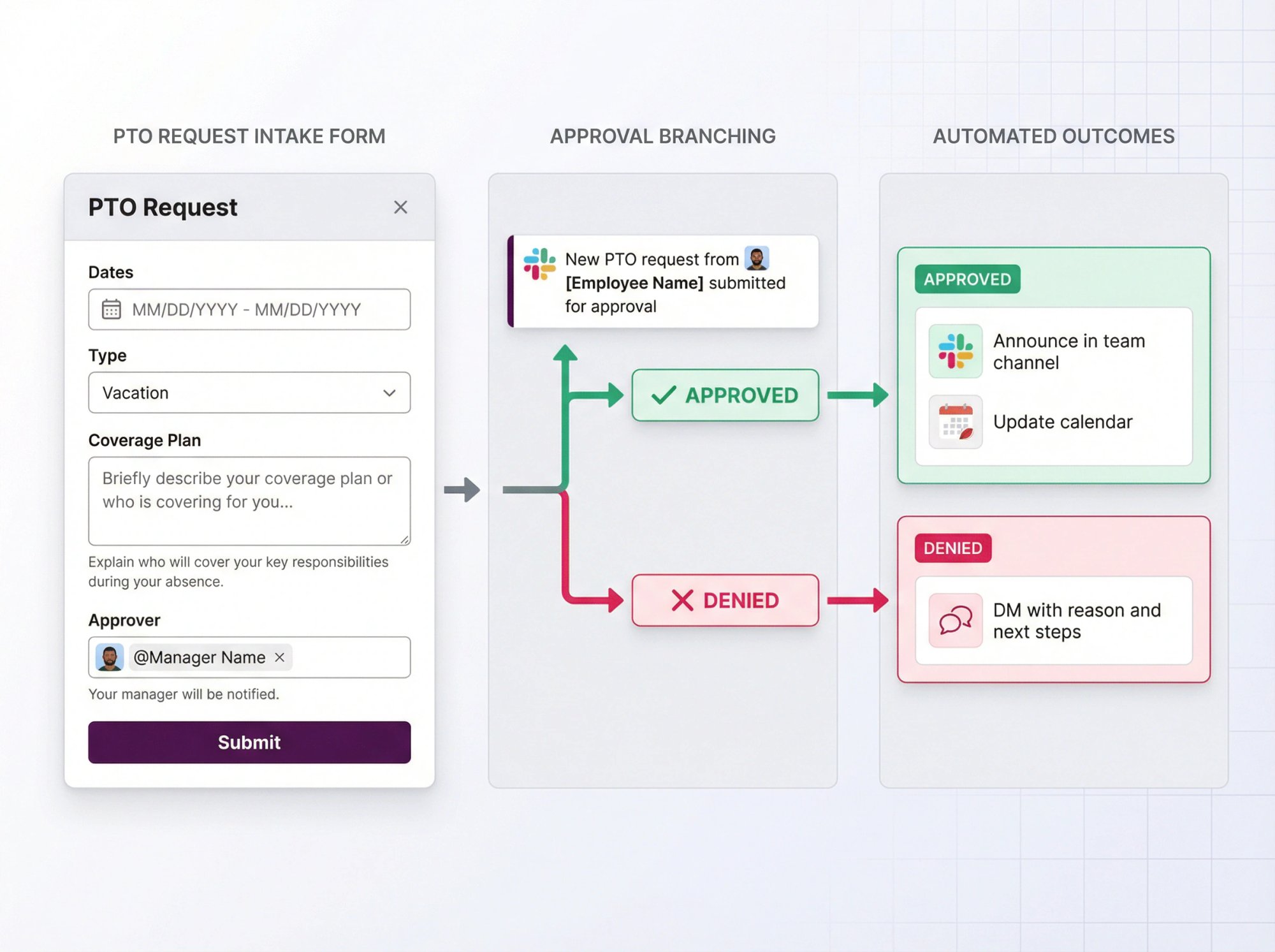
① Form: Dates, type, coverage plan, approver
② Notify approver (DM with details)
③ Branch:
Approved → Announce in team channel + update calendar
Denied → DM with reason and next steps
Governance Tip
Automate the decision capture, not just the request intake. The approval should trigger downstream actions automatically.
Recipe 5: How to Build an Incident Response Workflow
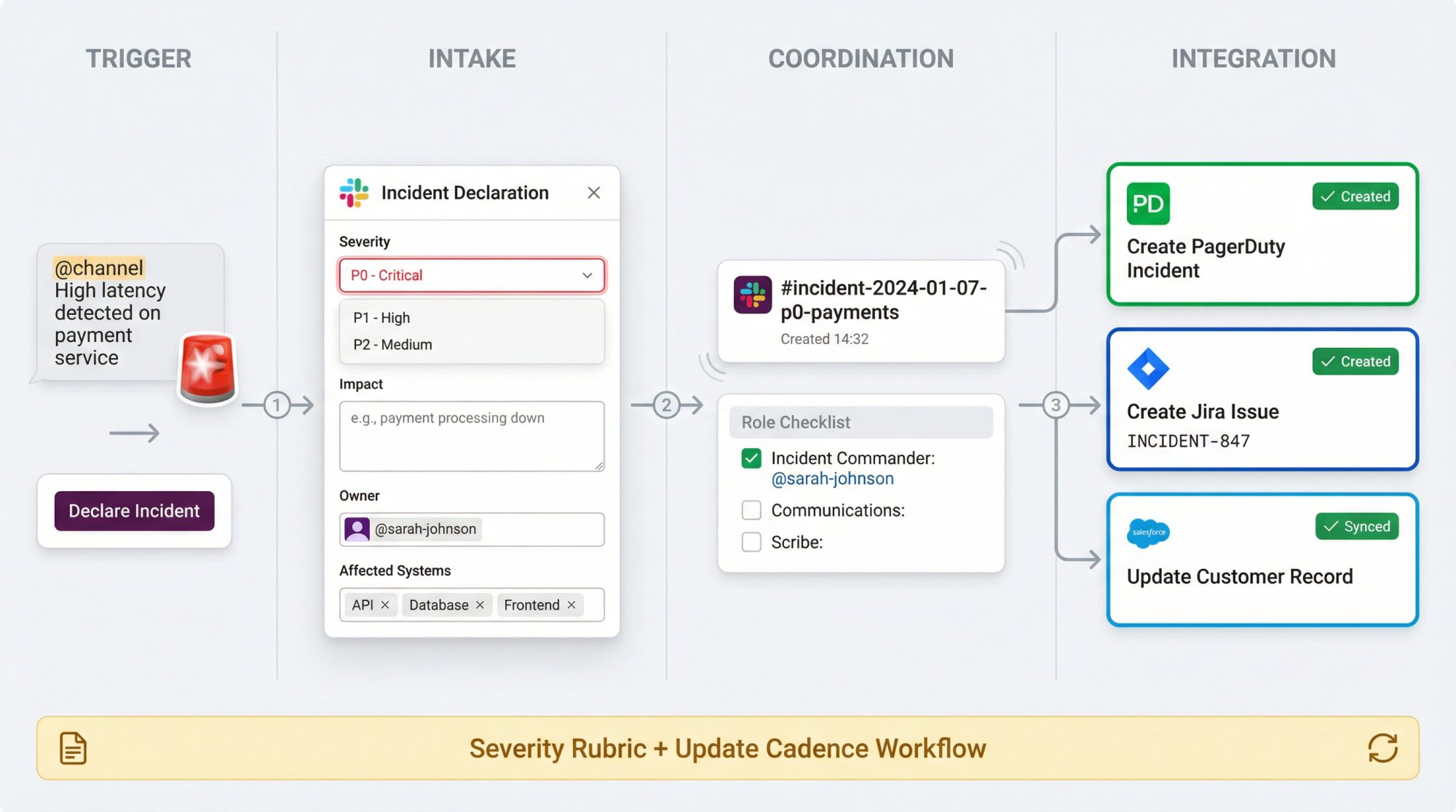
Slack has highlighted incident workflows that use connectors like PagerDuty, Jira, and Salesforce to declare incidents, create records, and assemble teams in dedicated channels.
Trigger
Emoji reaction (🚨) in #alerts, or a "Declare incident" link
Workflow Steps
① Form: Severity, impact, owner, affected systems
② Create incident channel (if supported)
③ Post role checklist (Incident Commander, Communications, Scribe)
④ Connector steps: Create PagerDuty incident, Jira issue, etc.
Governance Tip
Pair automation with a severity rubric and an update cadence workflow. Set expectations early.
Recipe 6: How to Create Better Bug Reports That Produce Quality Jira Tickets
Slack's workflow template content for engineers describes using Workflow Builder to collect ideas/bugs and formalize them into Jira or Asana tasks.
Trigger
From a link in #bugs, or emoji reaction on "this is a bug" message
Workflow Steps
① Form: Steps to reproduce, expected/actual behavior, environment, severity
② Post clean summary to #bugs
③ Connector: Create Jira issue automatically
④ Reply in thread with ticket link
Governance Tip
Don't automate ticket spam. Add a branch requiring severity classification or reproduction steps before creating the ticket.
Recipe 7: How to Automate Deal Desk Approvals
Trigger
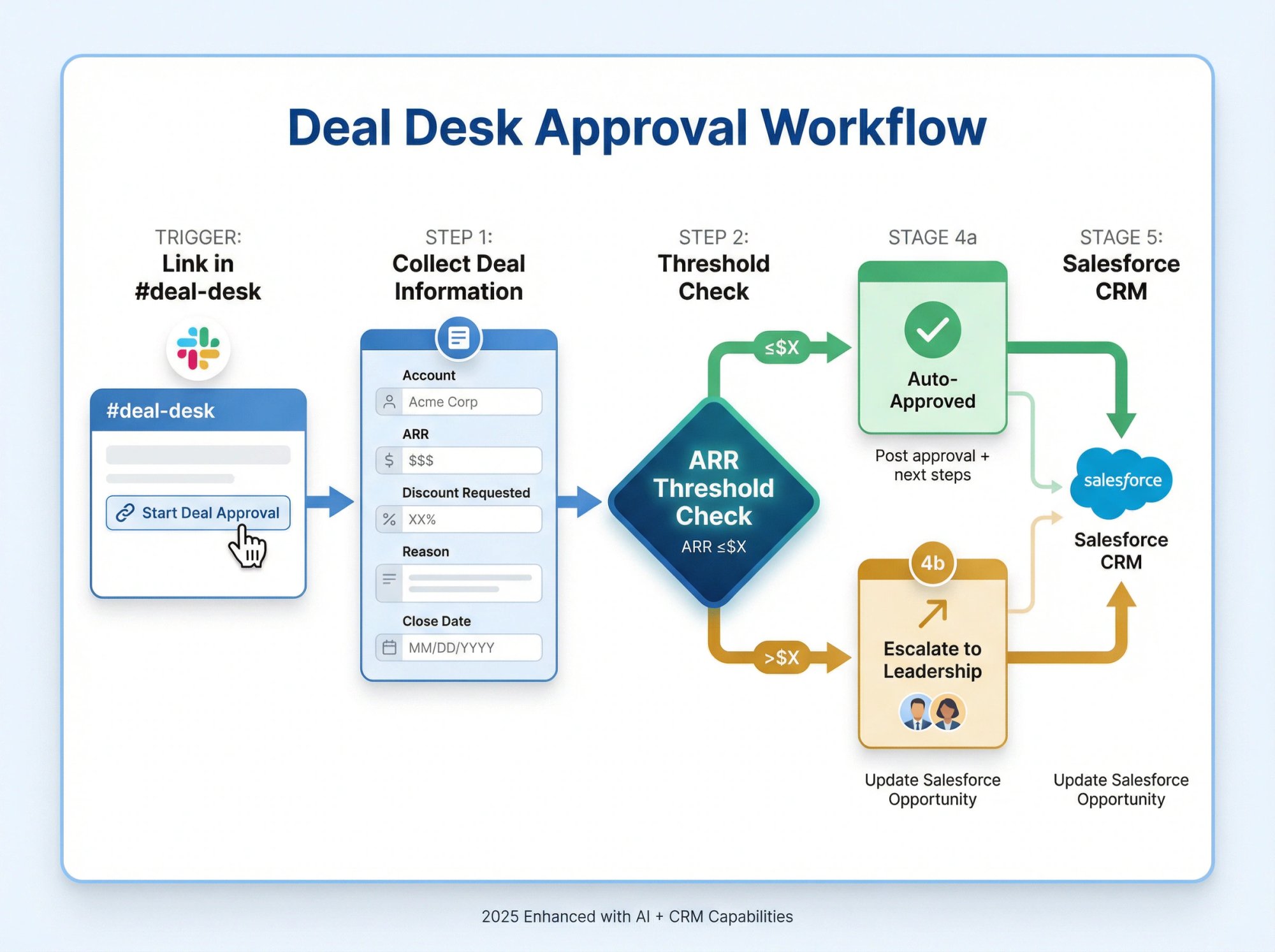
Link in #deal-desk
Workflow Steps
① Form: Account, ARR, discount requested, reason, close date
② Branch by threshold:
≤$X → Auto-approve
$X → Escalate to leadership
③ Post approval + next steps
④ Connector: Update Salesforce opportunity (if applicable)
Why This Got More Important After 2025
Slack's June 2025 update described deeper CRM and AI capabilities being included across paid subscriptions and "supercharging" Business+ with additional AI features.
Recipe 8: How to Create a Weekly Leadership Digest
Trigger
On a schedule (e.g., Thursday 10am)
Workflow Steps
① Gather updates (form sent to team leads)
② Post digest to #exec-updates
③ Optionally add to a canvas for persistent reference
AI Option
Slack's Help Center describes a workflow step to summarize a public channel and send the summary to a channel or update a canvas automatically.
Recipe 9: How to Handle IT Access Requests With Audit Trail
Trigger
Link in #it-requests
Workflow Steps
① Form: System, access level, justification, manager
② Branch:
Standard access → Route to IT queue
Elevated access → Route to security + require manager approval
Governance Tip
Your system of record should be a ticketing/ITSM tool, not only Slack. Use connectors to create tickets automatically.
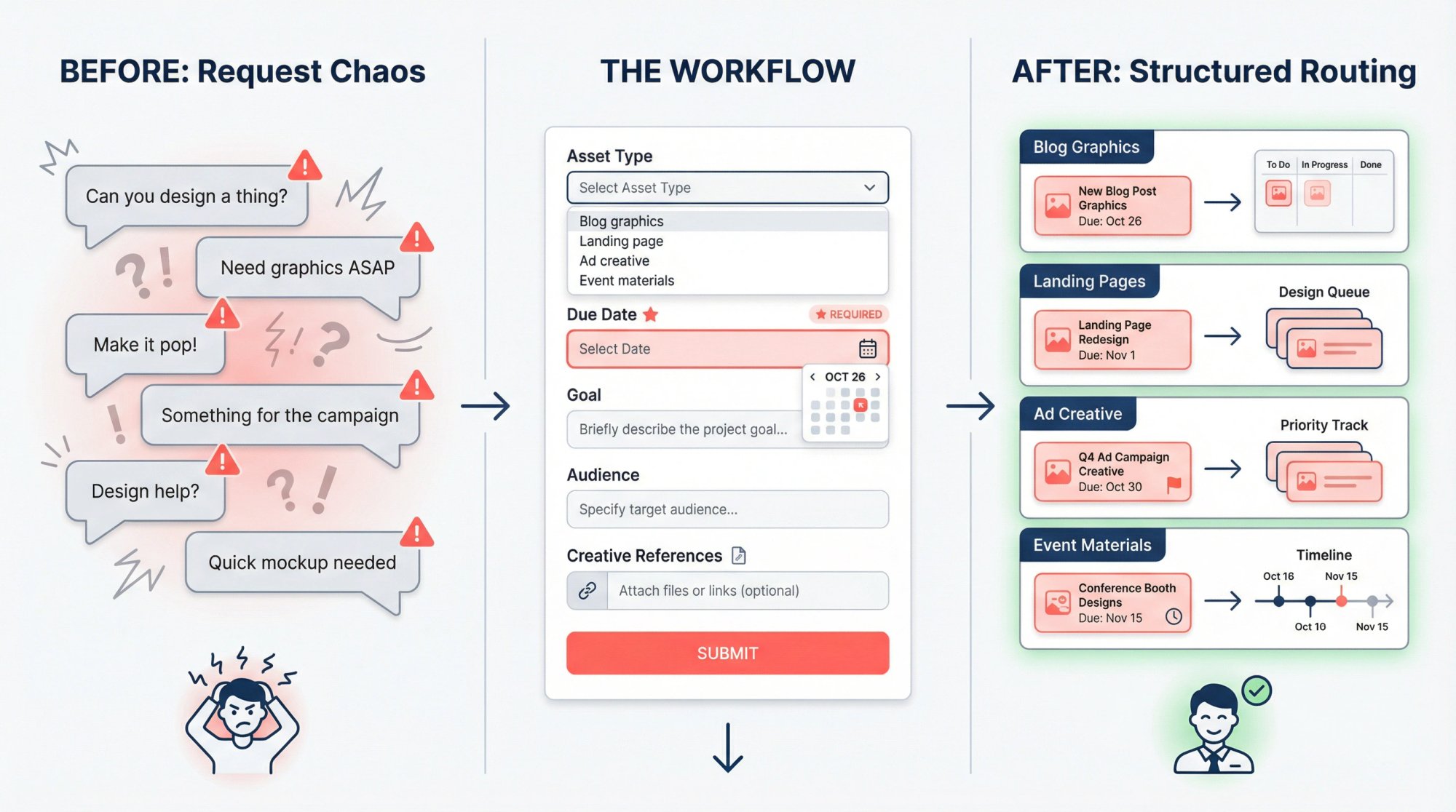
Recipe 10: How to Streamline Marketing Creative Requests
No more vague "can you design a thing?" messages
Trigger
Link in #marketing-requests
Workflow Steps
① Form: Asset type, due date, goal, audience, creative references
② Branch by asset type:
Blog graphics
Landing page design
Ad creative
Event materials
③ Create task in project management tool + post standardized brief in channel
Governance Tip
Require a due date. Otherwise you've built a suggestion box, not a workflow.
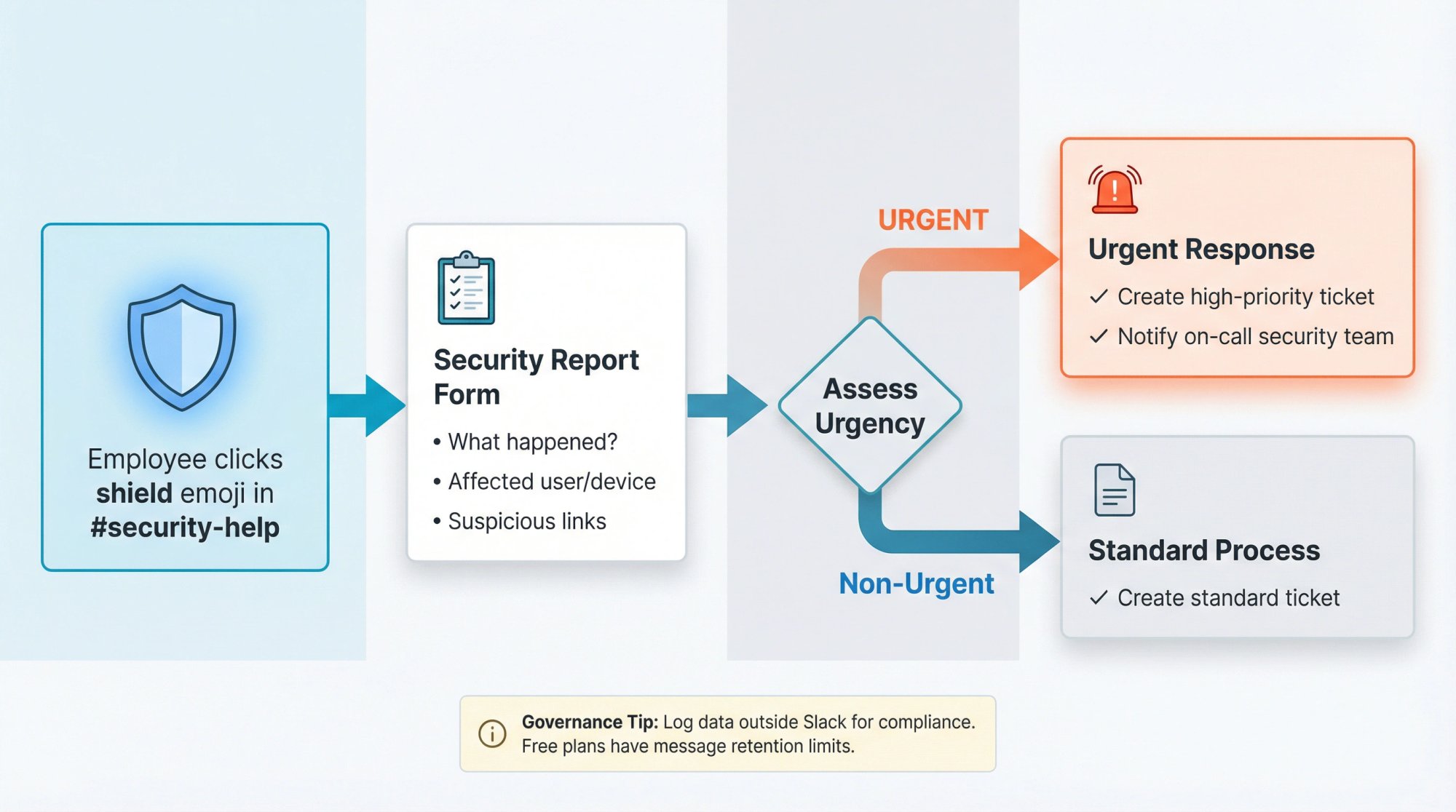
Recipe 11: How to Build a Security Reporting Workflow
For phishing, suspicious links, lost devices
Trigger
Emoji reaction (🛡️) in #security-help
Workflow Steps
① Form: What happened, affected user/device, suspicious links
② Branch urgent vs. non-urgent
③ Create ticket + notify on-call if urgent
Governance Tip
If compliance matters, ensure data is logged outside Slack. Free plans have message retention limits.
Recipe 12: How to Route Website Chat Directly Into Slack
This is the blueprint for running customer support entirely in Slack
If your business runs on Slack and you want customer conversations to live there too, this workflow is transformative for sales and support teams.
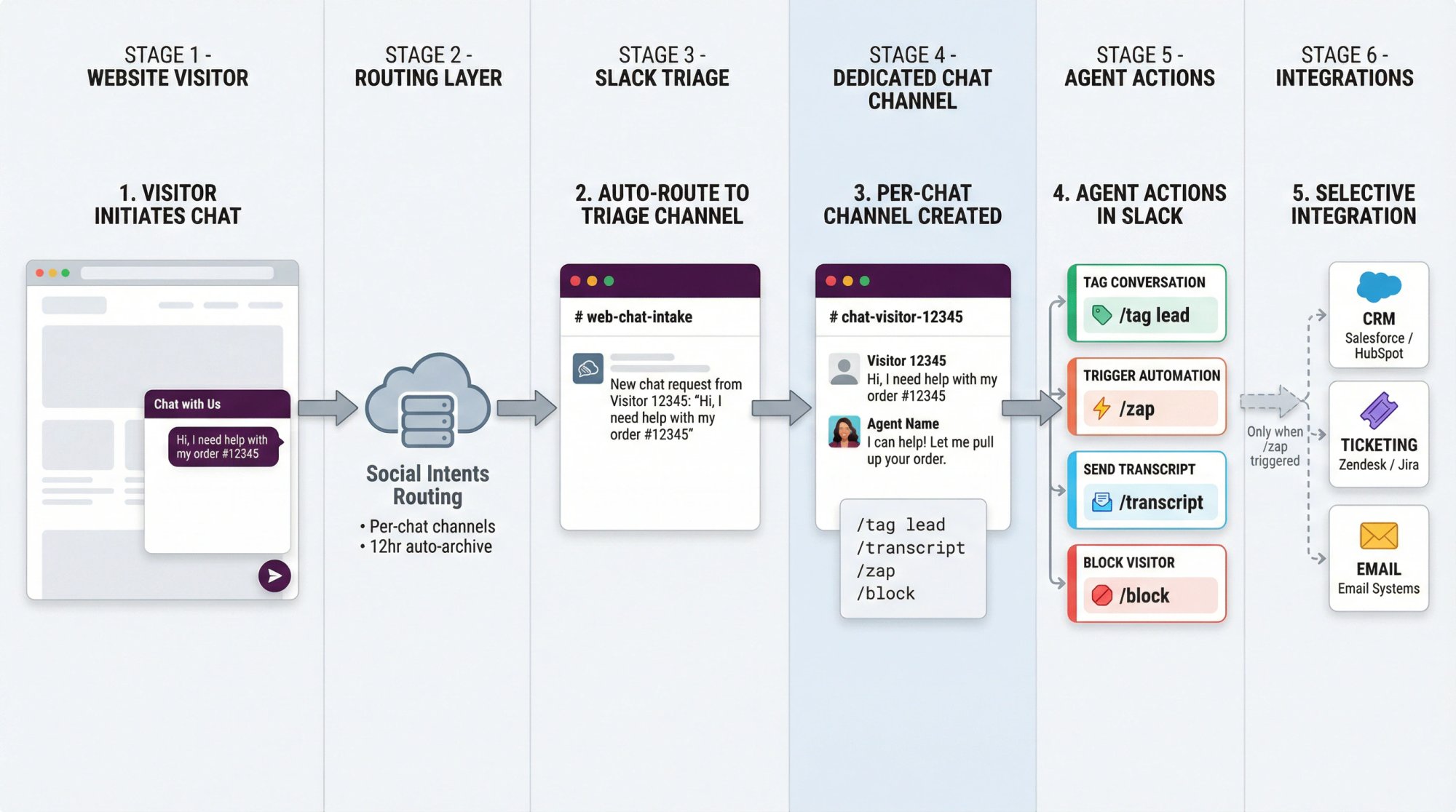
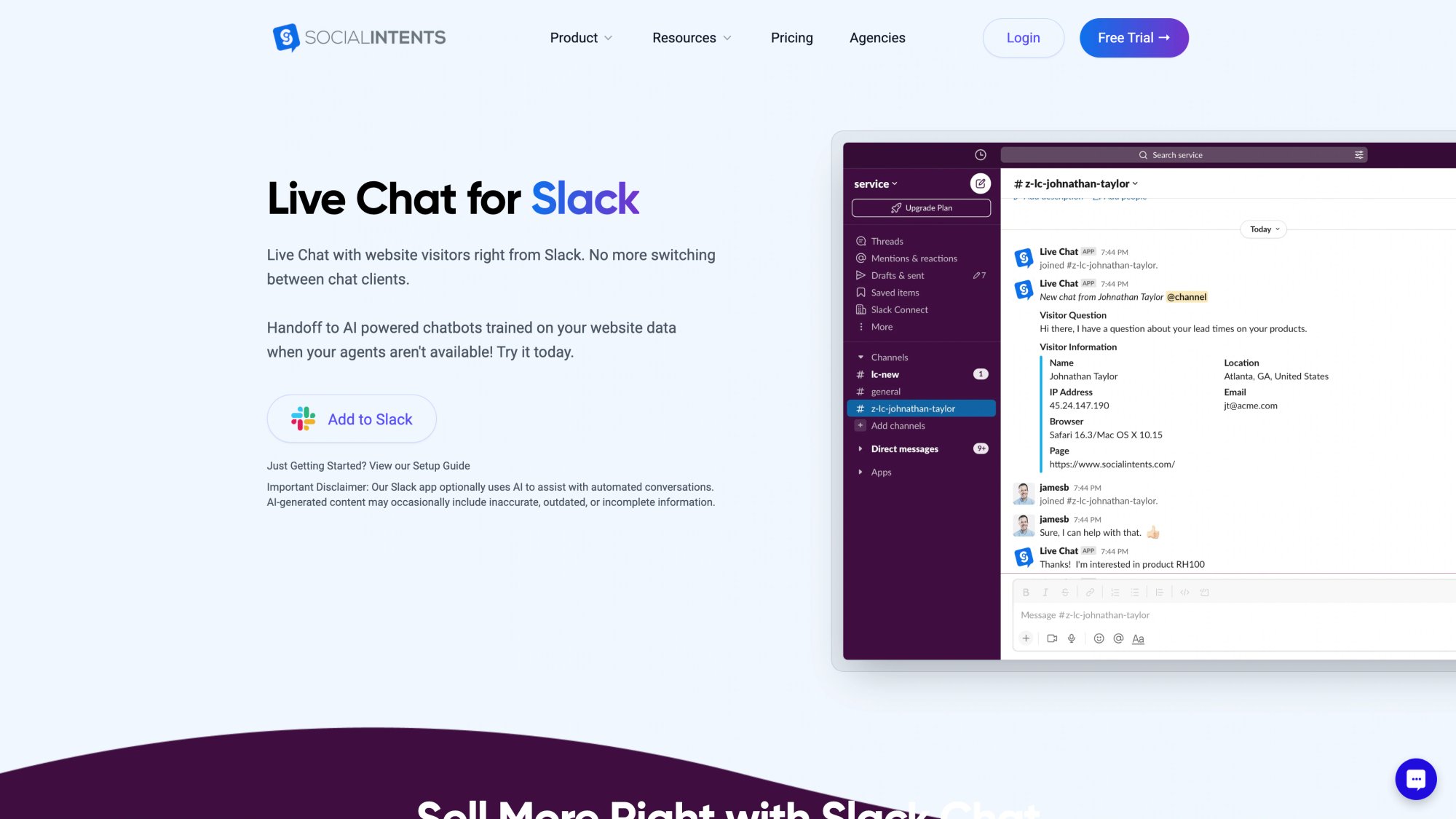
Step A: Route Website Chat Into Slack (With Per-Chat Channels)
At Social Intents, our Slack live chat integration routes chat requests into your configured channel and creates dedicated live chat channels for each conversation that archive after 12 hours.
Our help docs recommend choosing a public channel during setup. Private-channel setups can miss chat requests unless the bot is invited and configured correctly.
Step B: Standardize Agent Actions Inside Slack
Social Intents supports these agent commands (last updated November 8, 2025):
/tag → Label conversations (lead, support, bug, etc.)
/transcript → Email transcript to visitor
/block → Block abusive visitors
/zap → Trigger a Zapier workflow on demand
These let you keep all customer support interactions organized without leaving Slack.
Step C: Trigger CRM/Tickets Only When It's Worth It
Our platform lets you enable manual triggers so your Zap only fires when an agent runs /zap. This is ideal when you don't want to create tickets for every single chat.
The Zapier integration guide (last updated September 28, 2025) explains connecting via API key and building Zaps.
Zapier's Social Intents integration listing shows example triggers like:
Chat Closed
New Offline Message
New Lead
Step D: Speed Up Replies With Slack-Based Canned Responses
Social Intents supports running your saved shortcuts from Slack using /livechat <shortcut name> (last updated June 22, 2025).
The "Customer Chat Operating System" Blueprint
Copy this structure:
① Triage channel: #web-chat-intake
② Per-chat channel: Auto-created for each conversation
③ During chat: Tag early (/tag lead / /tag support / /tag bug)
④ High-value chat: Run /zap to create CRM lead or support ticket
⑤ If needed: Send transcript with /transcript
⑥ Reporting: Use Zapier outputs as your durable system of record
Why This Works
Agents stay in Slack. No context switching to a separate helpdesk.
Customer conversations turn into structured outcomes. Tags + tickets/CRM + transcripts create a complete record.
Automation happens selectively. Only where it matters, not everywhere.
Critical insight: This approach eliminates the "learn a new tool" problem while maintaining professional customer support standards. Your team gets tight adoption because they're working in the tool they already use all day.
50+ Slack Automation Ideas By Department
Use this as a roadmap. Combine the 6 patterns above to build custom workflows.
Onboarding and HR
Welcome + intro prompt when someone joins a channel
Buddy assignment workflow
Equipment request + routing
Training completion acknowledgments
Offboarding checklist workflow
Engineering and IT
"Deploy ready" checklist triggered by ✅ reaction
Access request approvals with branching
Incident comms update reminder (scheduled)
Weekly release notes collector
Automated backlog triage intake
Sales and RevOps
Lead routing by region or product
Contract redline request intake
"Exec sponsor required" escalation
Renewal risk flag intake
Weekly pipeline update workflow
Customer Support and Success
Support intake + intelligent routing
Escalation to engineering workflow
CSAT collection after resolution
"Save this answer" workflow (emoji → append to canvas)
Weekly "top issues" digest
Marketing and Ops
Campaign request intake
Webinar/event project channel template kickoff
Social post approvals
Budget approvals
Vendor onboarding request workflow
Security and Compliance
Phishing report intake
Privacy request intake
Audit evidence request routing
DLP exception requests
Vendor risk intake with approvals
What's Real vs. Hype: AI-Powered Slack Automation
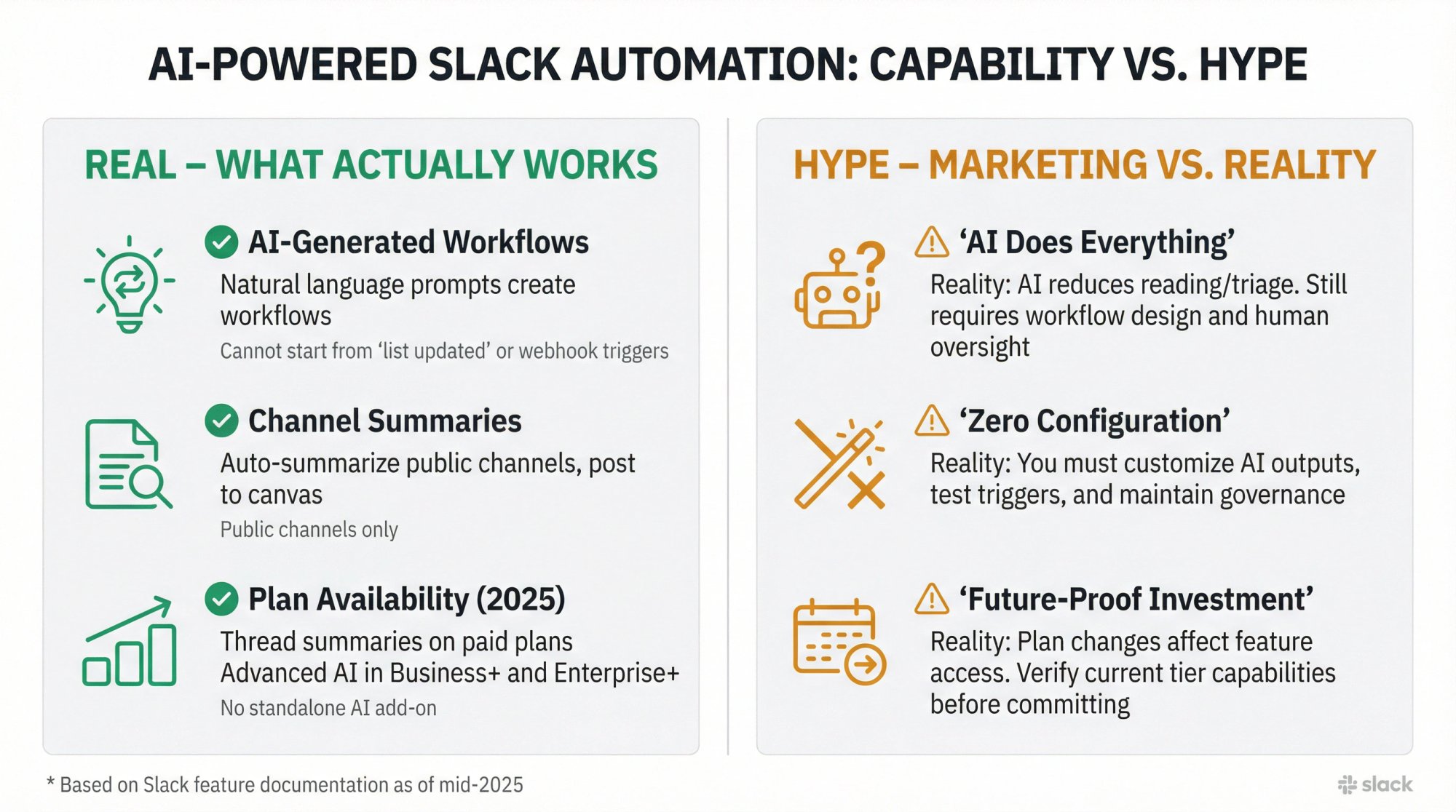
Slack's AI becomes valuable in automation when it reduces reading and triage. Here's what actually works.
1) AI-Generated Workflows From a Prompt
Slack's Help Center describes generating workflows from natural-language prompts and then customizing/publishing them.
Important limitation: AI-generated workflows can't start from "When a list item is updated" or "From a webhook."
2) Automated Channel Summaries as a Workflow Step
Slack describes a workflow step to summarize a public channel and then send it to a channel or update a canvas.
3) Plan Availability After Mid-2025 Changes
According to Slack's plan update documentation:
Conversation/thread summaries + huddle notes are available to paid plans
The Slack AI add-on is no longer purchasable from the Slack website
Advanced AI features are included in the new Business+ and Enterprise+ plans, with transitions at renewal after August 17, 2025
When Should You Build Custom Workflow Steps?
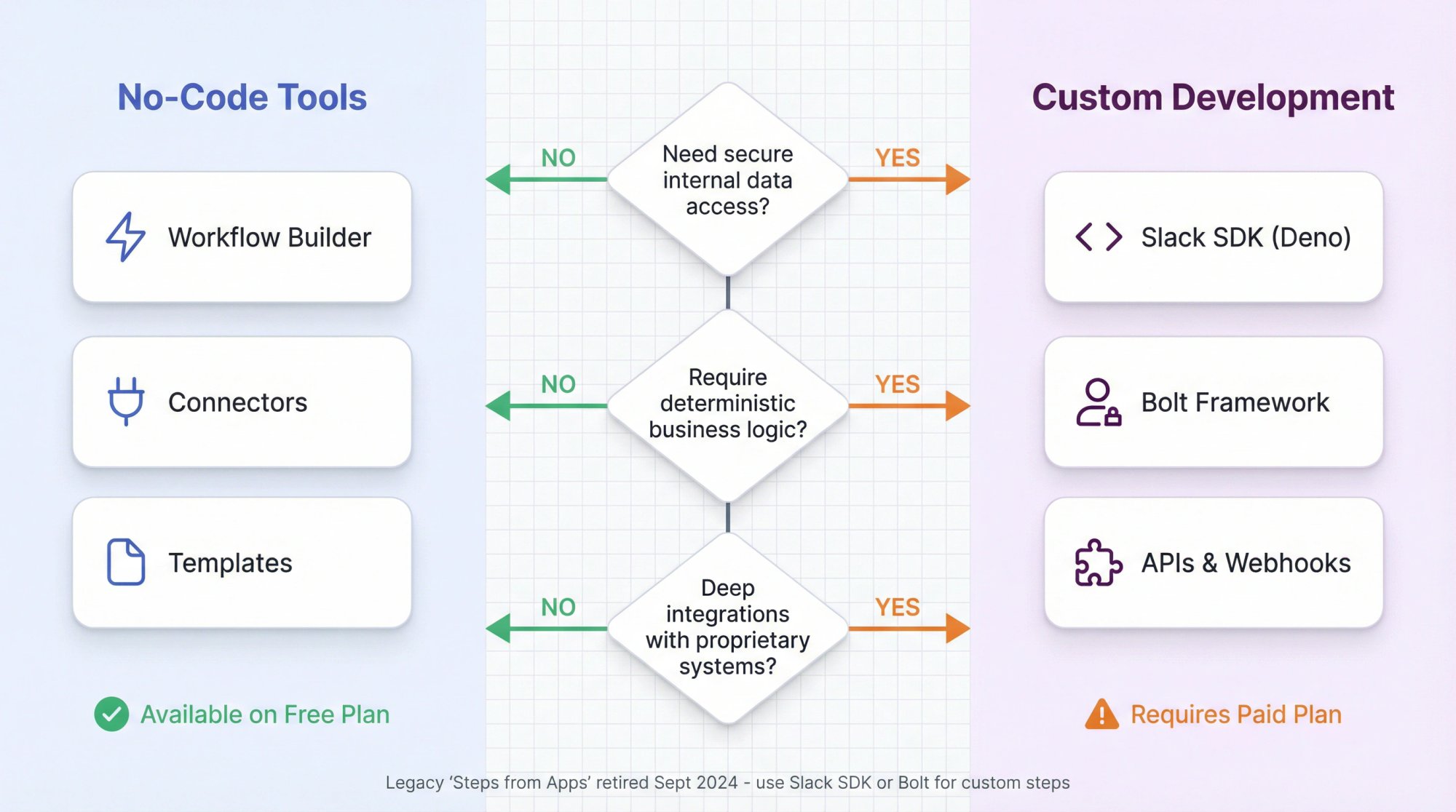
Build custom steps when you need:
Secure internal data access
Deterministic business logic
Deep integrations with proprietary systems
Slack's dev docs describe custom workflow steps with the Slack SDK (Deno runtime) or Bolt frameworks. You can't develop these on a Free plan.
Also: Slack's dev changelog confirms the retirement of "Steps from Apps" for legacy Workflow Builder on September 26, 2024. Many older "install steps into Workflow Builder" tutorials are now outdated.
How to Prevent Automation Sprawl
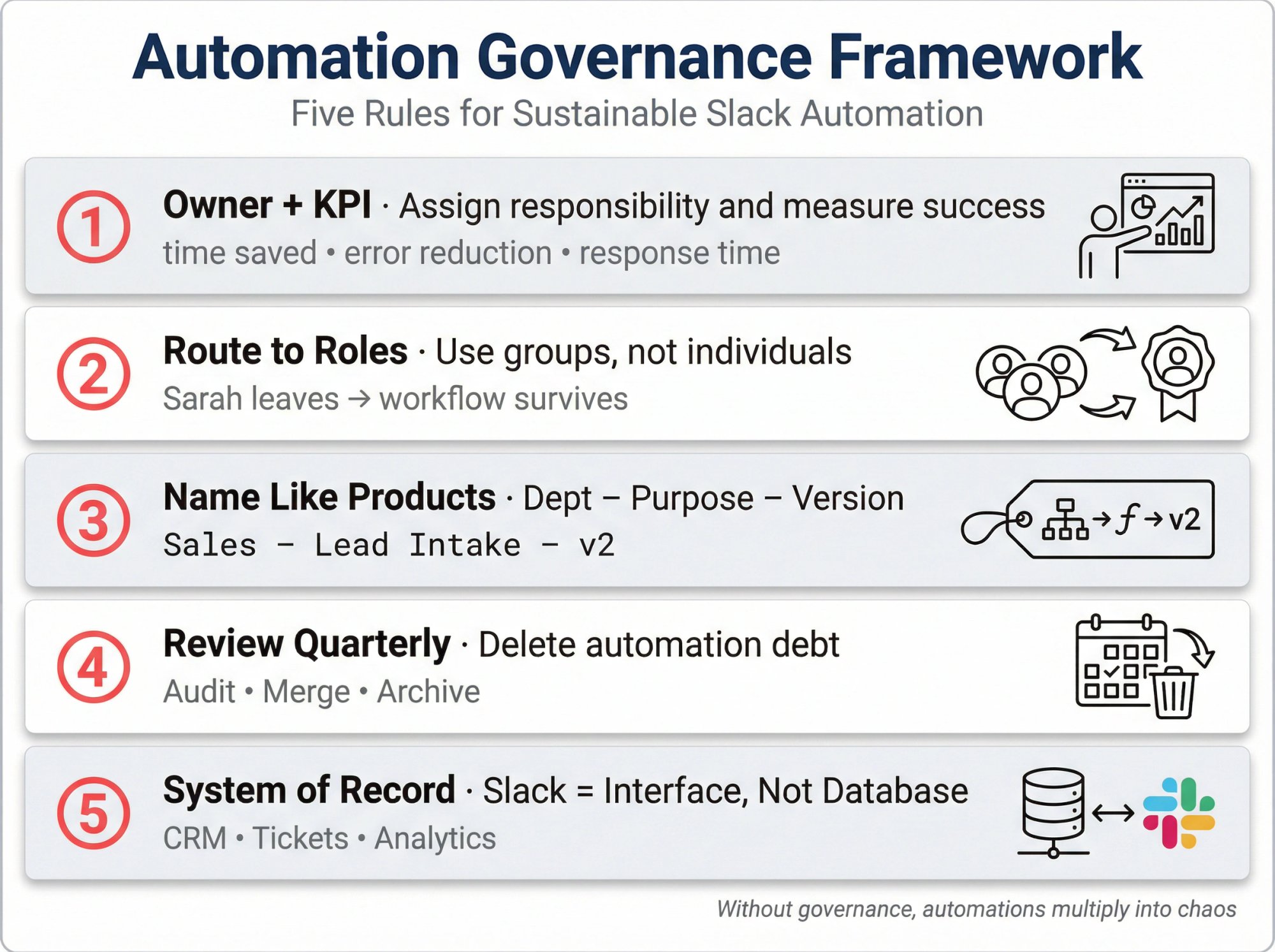
These rules keep Slack automations maintainable:
① Every workflow needs an owner + KPI
Assign a person responsible for monitoring and updating each automation. Define what success looks like (time saved, error reduction, response time improvement).
② Route to roles, not people
Use user groups or on-call rotations. When Sarah leaves the team, the workflow doesn't break.
③ Name workflows like products
Use this format: Dept – Purpose – Version
Example: Sales – Lead Intake – v2
④ Review quarterly
Delete or merge dead workflows. Automation debt is real.
⑤ Decide your system of record
Slack is the interface. Tickets, CRM, or databases often hold the truth. Make this explicit.
Retention Note
Slack's plan documentation describes Free plan message history limits and one-year retention/deletion behavior. If you need durable records, store them elsewhere.
How Social Intents Turns Slack Into Your Customer Support Hub
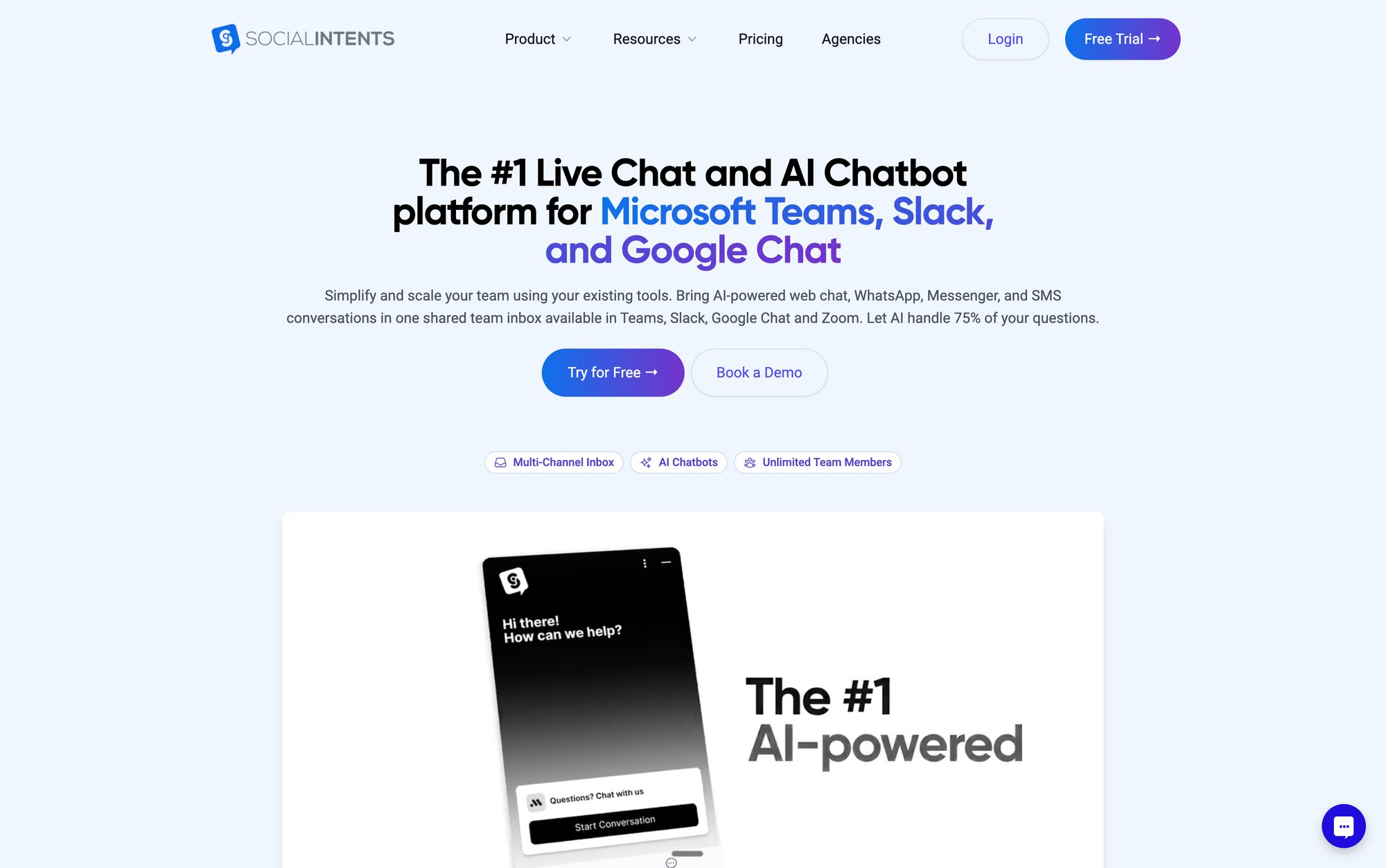
We built Social Intents specifically for teams that live in Slack and want to handle customer conversations there without adding another dashboard.
| Feature | What It Does | Why It Matters |
|---|---|---|
| Route website chat to Slack | Dedicated channels per conversation | No tool switching |
| Multi-platform support | Teams, Slack, Google Chat, Zoom, Webex | Works where you work |
| AI chatbots + human handoff | 24/7 coverage with smart escalation | Never miss a lead |
| Custom AI Actions | Order status, ticket creation, shipping updates | Deep tool integration |
| Zapier integration | Selective CRM/ticket creation | Automation when needed |
| Real-time translation | Multilingual support | Global customers |
| Unlimited agents | From Basic plan up | Predictable pricing |
What We Do
Route website chat directly into Slack with dedicated channels per conversation
Support Teams, Slack, Google Chat, Zoom, and Webex for agent replies
AI chatbots with human handoff for 24/7 coverage that escalates intelligently
Custom AI Actions to integrate with your tools (order status, ticket creation, shipping updates)
Zapier integration for selective CRM/ticket creation
Real-time translation for multilingual support
Why Teams Choose Us
No new tools to learn. Your support team answers from Slack. Period.
Unlimited agents from the Basic plan up. Predictable pricing that scales with conversations, not team size.
Fast setup. Native apps for Shopify, BigCommerce, Wix, WordPress, and Webflow. Most teams are live in under an hour.
AI that actually helps. Train chatbots on your content, let them handle FAQs, and escalate complex questions to humans seamlessly.
Get Started Today
Try Social Intents free for 14 days. No credit card required.
How to Get Started With Slack Automation
Reading about these ideas is exciting, but where do you actually begin?
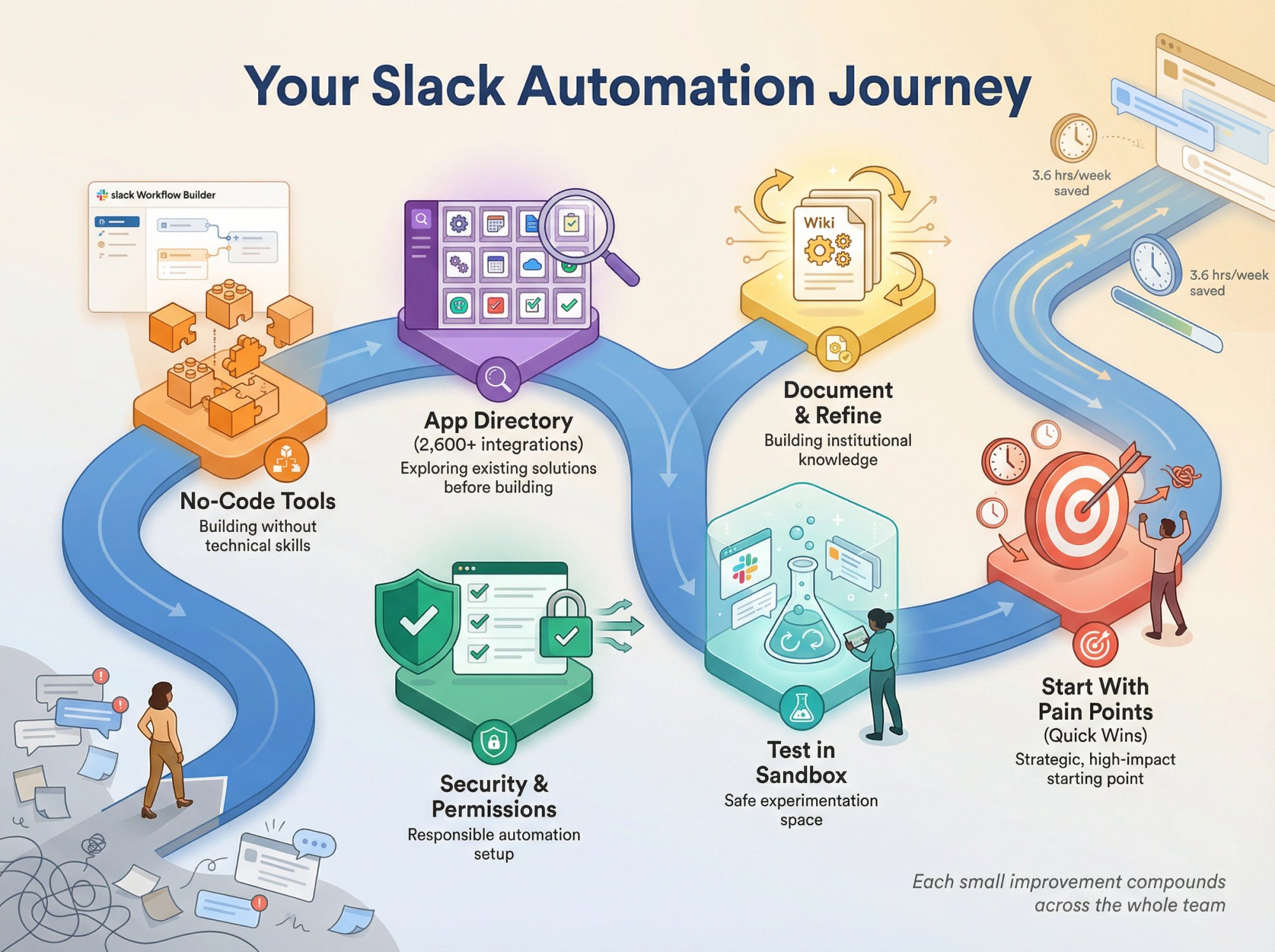
Leverage No-Code Tools
You don't need to be a programmer. Slack's Workflow Builder is perfect for many internal automations (scheduled messages, forms, simple if-this-then-that sequences).
For more complex multi-app workflows, platforms like Zapier, Microsoft Power Automate, or Make can connect Slack with other services through a visual interface.
Explore the Slack App Directory
Before reinventing the wheel, browse Slack's App Directory for your use case. The directory has over 2,600 integrations as of 2024.
Want to integrate Asana, GitHub, or Google Drive? There's an app for that. Want a polling or reminder bot? There are dozens.
Security and Permissions
When adding integrations, be aware of what permissions they request. Use Slack's built-in admin tools to manage app permissions and consider creating a dedicated "automation" user or channel for certain tasks to limit exposure.
Test in a Sandbox
Create a private channel or separate workspace to test your automations. Nothing is more embarrassing than accidentally flooding #general with 100 test messages.
Do a dry run, watch it work, then deploy to your intended channels.
Document and Refine
Keep a short wiki or doc about your team's Slack automations:
What they are
How they work
Who to contact if something breaks
This helps onboard new team members and ensures continuity. Also, periodically review automations. As your processes change, some workflows might become obsolete or need tweaks.
Start With the Pain Points
Implement the automation that addresses your biggest pain point first. If missed customer chats are a problem, integrate live chat with Slack before the daily trivia bot.
Quick wins build confidence and free time, which you can then invest in more automations.
Remember: Each small improvement, even saving a few minutes a day, compounds across the whole team.
Frequently Asked Questions
What's the difference between Slack Workflow Builder and Zapier?
Workflow Builder is built into Slack (on paid plans) and handles automations that mostly stay within Slack or use Slack's connector apps. Zapier is a separate platform that connects Slack to thousands of other apps and services. Use Workflow Builder for simple Slack-centric automations, Zapier when you need to connect multiple external tools.
Can I automate Slack on the free plan?
Very limited. Workflow Builder requires a paid subscription. You can use free Slack apps from the App Directory and external tools like Zapier's free tier, but you won't have access to Slack's native automation features.
How do I prevent automation spam in Slack channels?
Use dedicated channels for automated notifications (#alerts, #bot-updates, etc.) rather than posting to general channels. Implement smart filtering so only important events trigger notifications. Use threaded replies when possible to keep channels clean.
What happens if a workflow breaks?
Slack provides workflow activity and error views for administrators. Set up monitoring for critical workflows and assign owners who will receive notifications when errors occur. Always have a manual fallback process documented.
Can Slack automations access private channels and DMs?
This depends on permissions. Workflows can send DMs to users and post to channels the workflow creator has access to. For private channels, the bot or workflow must be explicitly invited. Always review permission requests when installing apps.
How do I handle customer data in Slack automations?
Be mindful of data privacy regulations (GDPR, CCPA, etc.). Use Slack's Enterprise Key Management for sensitive data, implement proper access controls, and ensure your system of record (CRM, ticketing system) stores the authoritative copy of customer data. Slack should be the interface, not the database.
What's the best way to route website chat to Slack?
Use a dedicated Slack integration like Social Intents, which creates per-chat channels, supports agent commands, and integrates with Zapier for selective ticket creation. This keeps your support team in Slack while maintaining professional customer service standards.
Can I use AI to create Slack workflows automatically?
Yes, on paid plans with AI features. Slack's AI can generate workflows from natural-language prompts. However, AI-generated workflows have limitations (can't start from "When a list item is updated" or "From a webhook"). You'll still need to customize and test the output.
How many automations is too many?
There's no magic number, but if your team can't remember what automations exist or workflows are triggering unexpectedly, you have too many. Implement quarterly reviews, deprecate unused workflows, and maintain clear documentation. Quality over quantity.
What's the ROI of Slack automation?
Teams using automation save an average of 3.6 hours per week per person (according to Slack research). Calculate your team's hourly cost, multiply by hours saved, and subtract automation tool costs. Most teams see positive ROI within the first month for high-leverage automations.
Final Thoughts
Slack is far more than a chat app. It's a platform where you can build a custom workspace experience that eliminates busywork and keeps your team focused on what actually matters.
The automation ideas in this guide scratch the surface of what's possible. By automating repetitive tasks and aggregating important information into Slack, your team spends less time juggling tools and more time on high-value work.
Start with one automation this week. Pick the biggest pain point. Implement it. Measure the impact. Then build the next one.
And if you're running customer support or sales in Slack, try Social Intents free for 14 days. We'll help you route website chat directly into Slack with AI assistance, unlimited agents, and seamless integrations.
→ Get started with Social Intents
Your team already lives in Slack. Make it work harder for you.