Building a Slack bot can completely change how your team works. Instead of jumping between apps or doing the same tasks manually every day, a bot handles it all directly inside Slack.
Whether you want something simple like automated reminders or a full AI assistant that answers questions, this guide walks through everything you need to know. We'll cover planning, setup, coding, testing, and best practices so you can build a Slack bot that actually works.
Why Build a Slack Bot? (5 Common Use Cases)
Slack bots extend what Slack can do by interacting with users and automating workflows right inside your workspace. Instead of context-switching or manual work, the bot handles it within Slack itself.
Common uses for Slack bots:
• Automating reminders and notifications like stand-up meetings or deadline alerts
• Managing support requests by fielding FAQs or creating tickets in external systems
• Integrating with other tools to pipe in updates from GitHub, Trello, or CI/CD systems
• Building team culture through bots that pair colleagues for coffee chats or track kudos
If you want something in Slack that chats with your team and gets work done, you're looking for a bot. Bots can listen to messages or commands and respond or take action, making Slack more interactive and powerful.
What Is the Difference Between Slack Bots and Slack Apps?
You'll see these terms used interchangeably, but there's a relationship worth understanding.
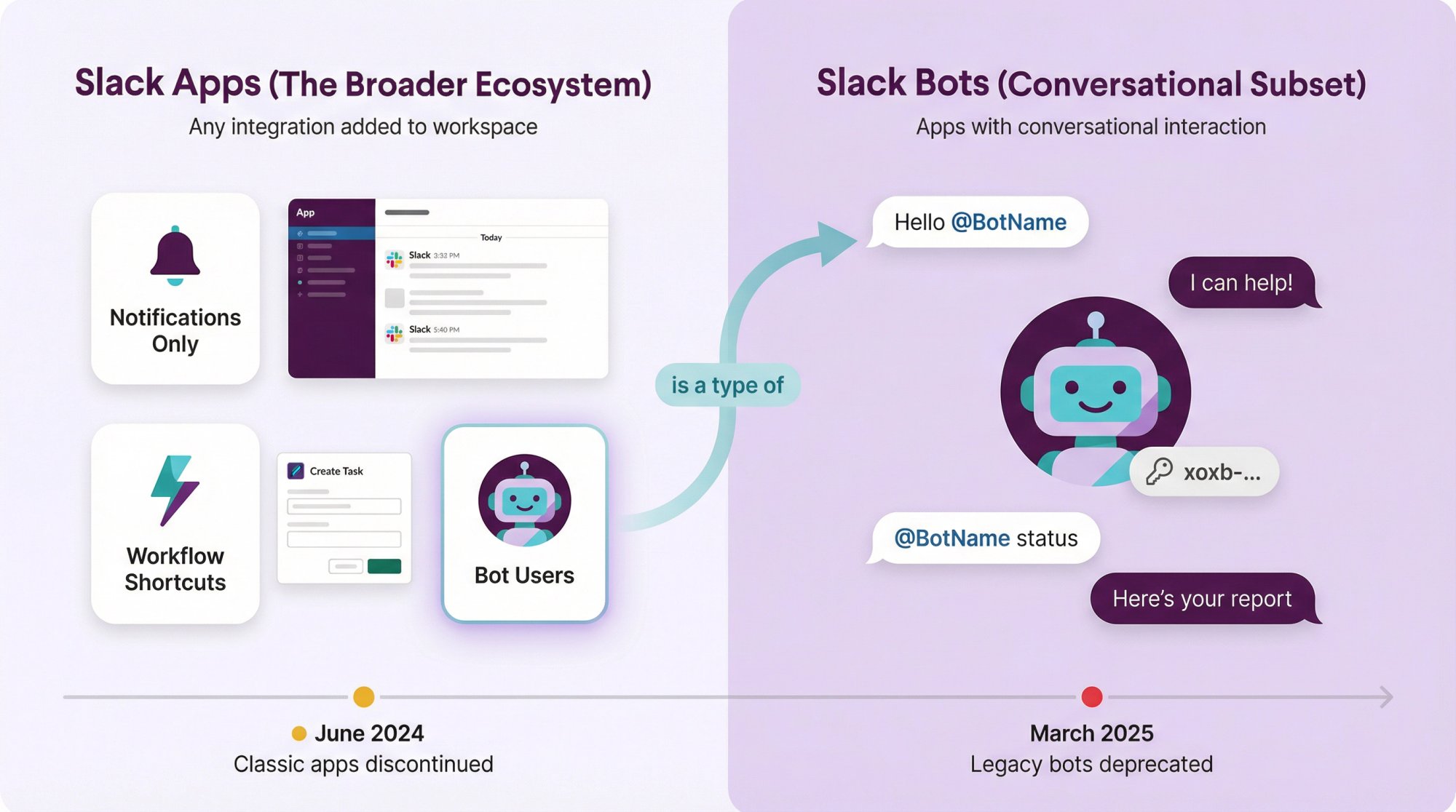
All Slack bots are built as Slack apps, but not all Slack apps have bots.
A Slack app is any integration added to a workspace (it could just post notifications or add a shortcut). A Slack bot is a special kind of app that interacts via messages, acting like a conversational team member.
When we talk about creating a Slack bot, we mean creating a Slack app with a bot user component. Your app will have a bot user OAuth token and permissions to read and send messages. The bot user is what people see and interact with (like @YourBotName).
What Changed with Slack Bots in 2024-2025?
Slack streamlined its platform recently. As of June 2024, you can no longer create old "classic" Slack apps or custom bots. All new integrations must use the current app model.
Existing legacy bots stopped working in March 2025 unless migrated to the new framework.
Critical to know: If you find older tutorials referencing "classic apps" or legacy tokens, ignore them. We'll use the latest recommended methods in this guide.
Slack's newer platform offers granular permissions and modern tools. It requires using Slack apps (with bot users) for any new bot development.
How to Plan Your Slack Bot (Features and Build Approach)
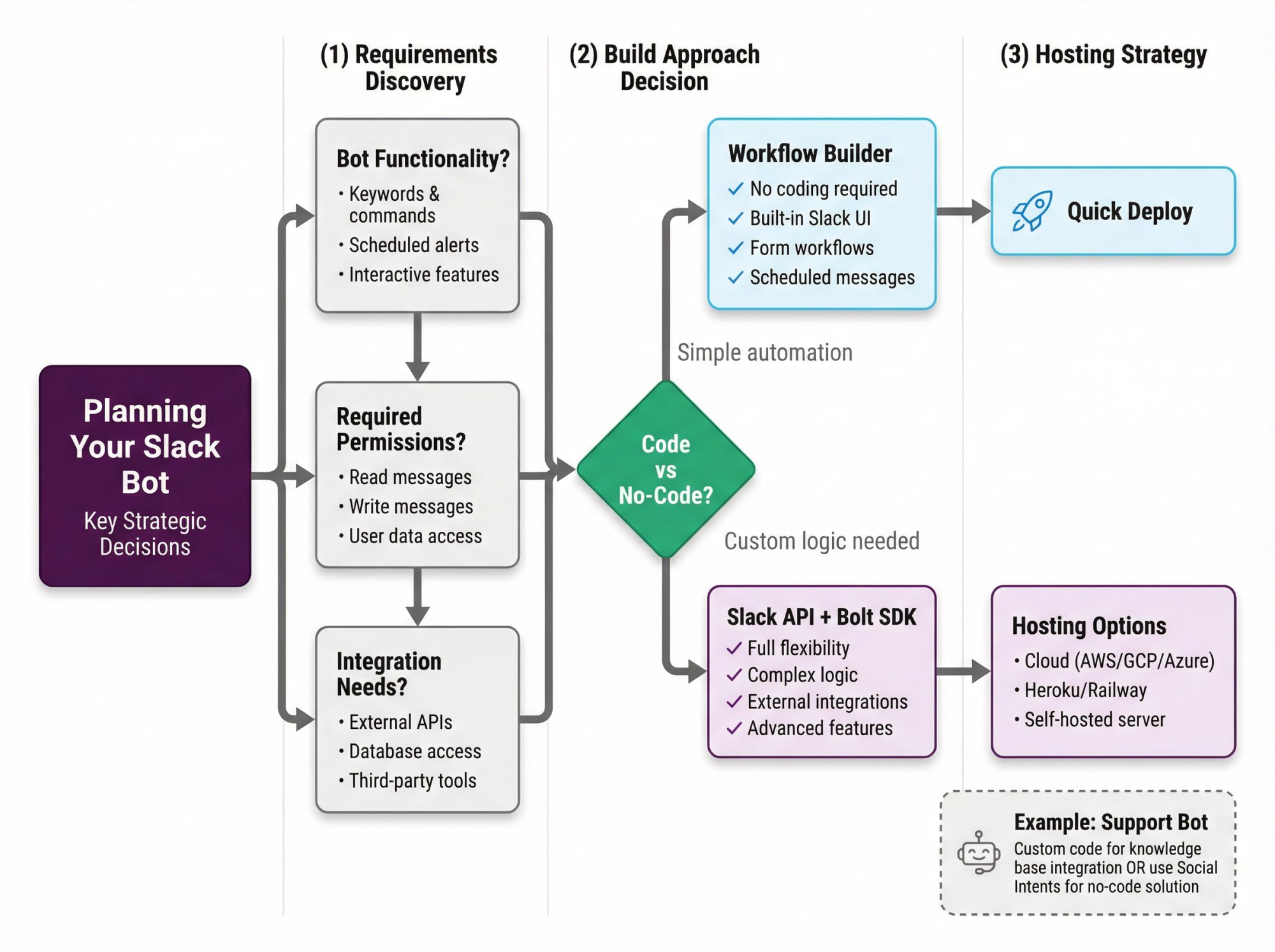
Before diving into code, clarify what you want your bot to do and how you'll build it.
Key questions:
• Will it respond to specific keywords or handle slash commands like /help?
• Does it need to post scheduled alerts?
• What permissions (scopes) will it need?
Should You Code Your Bot or Use No-Code Tools?
If your needs are simple, Slack's Workflow Builder handles basic automation (form workflows, scheduled messages) without code. Workflow Builder allows non-developers to create workflows right inside Slack's UI.
But custom logic beyond those basics requires writing code using Slack's API or SDKs. Third-party tools can act as Slack bots too, but they have limitations compared to custom-coded solutions.
How Will You Host and Maintain Your Slack Bot?
A coded Slack bot typically runs on a server or cloud function that you maintain. If you prefer not to manage infrastructure, consider whether a no-code solution or existing app meets your needs.
For an internal team bot with custom functionality, coding with Slack's API gives maximum flexibility.
Example scenario: You want a customer support chatbot in Slack. You could code one that integrates with your knowledge base, or use a tool like Social Intents, which provides a no-code Slack chatbot integrated with your website. Social Intents lets your team manage website live chat and AI chatbot conversations directly from Slack, so it's purpose-built for that use case without requiring you to maintain custom code.
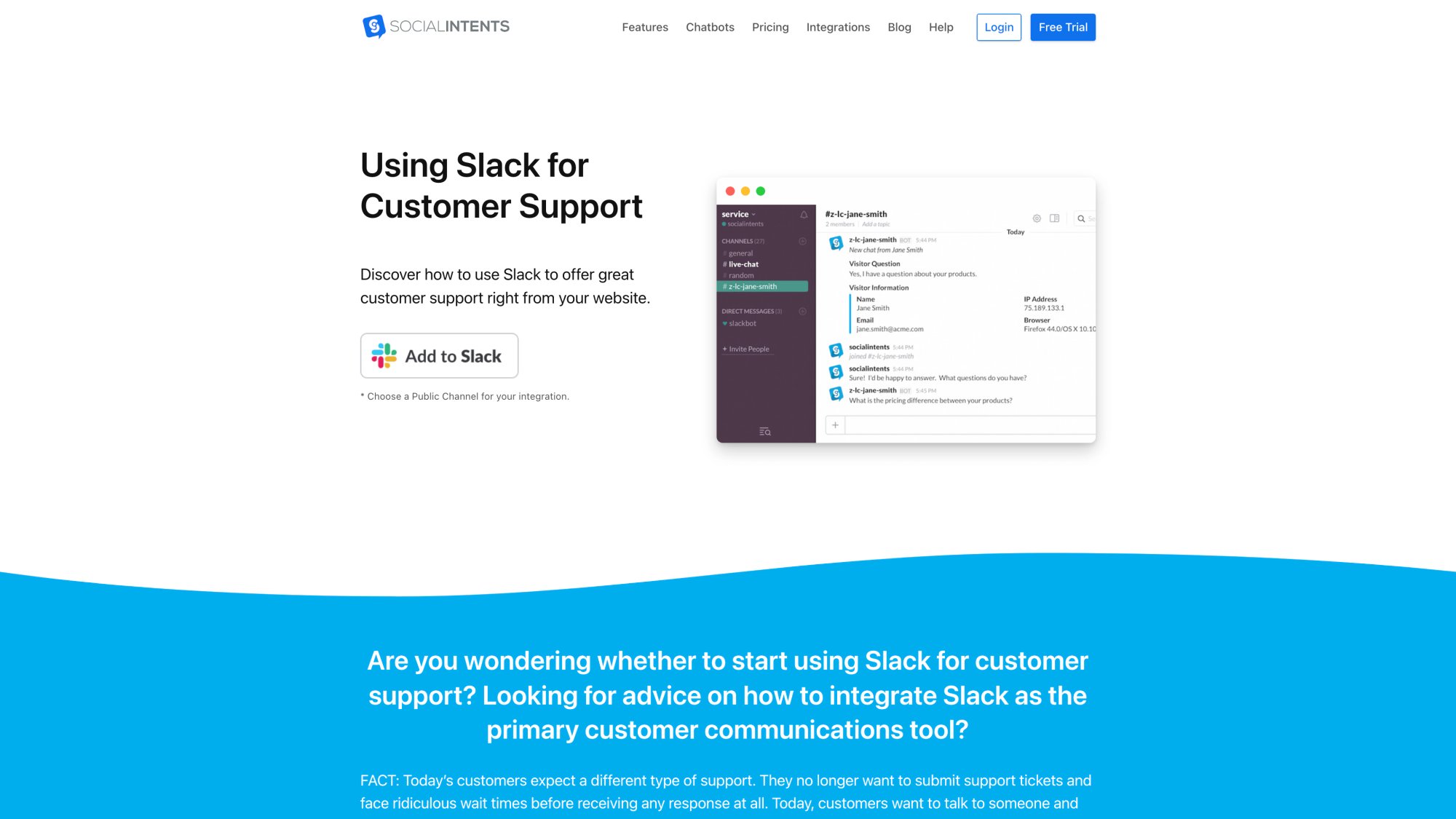
Social Intents enables customer support teams to handle website chat and AI bot conversations directly from their Slack workspace.
What Do You Need Before Creating a Slack Bot?
Make sure you have these ready:
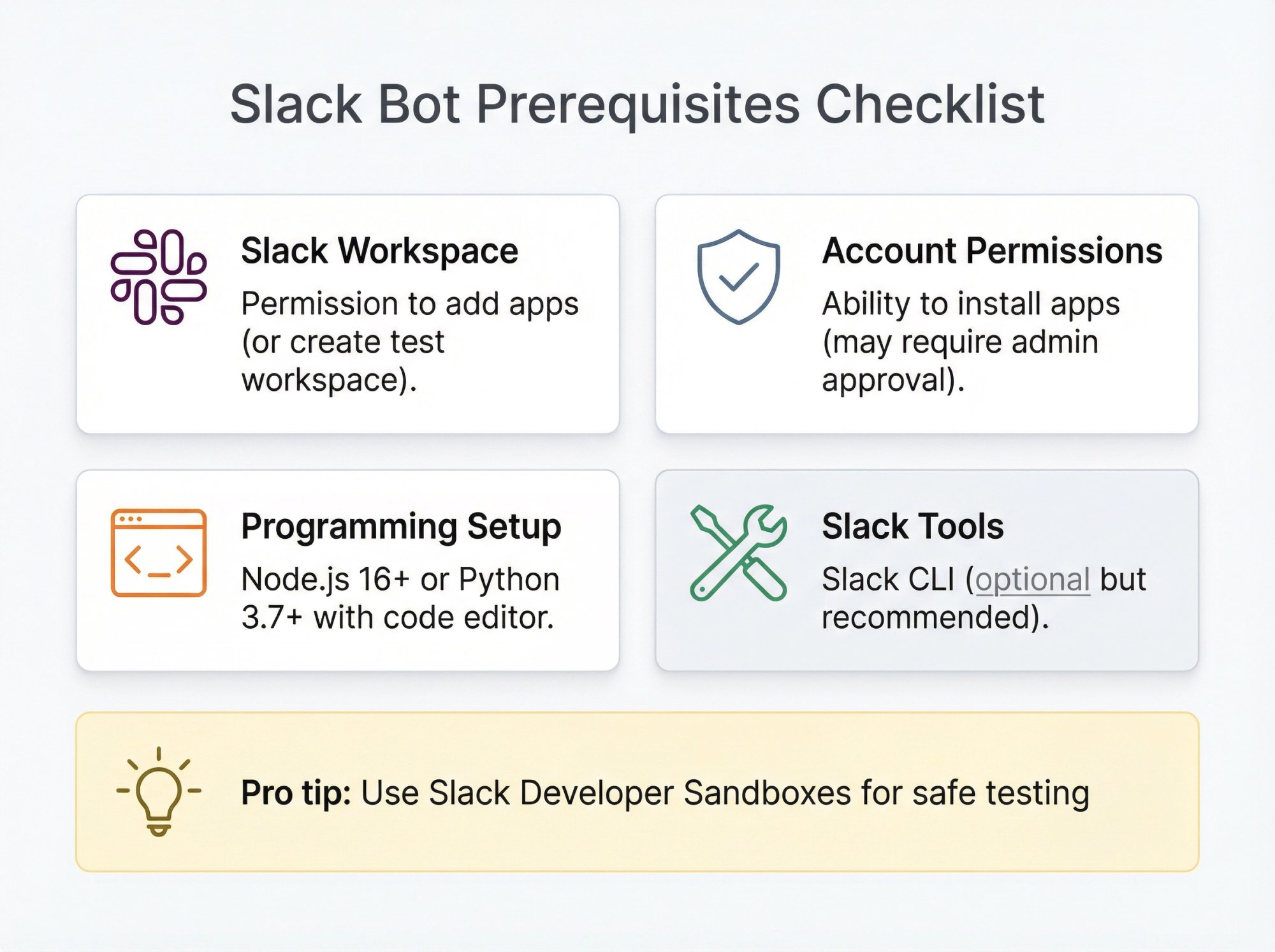
| Requirement | What You Need |
|---|---|
| Slack Workspace | A workspace where you have permission to add apps (or create a test workspace) |
| Account Permissions | Ability to install apps (some workspaces restrict this to admins) |
| Programming Setup | Node.js (16+) or Python 3.7+ with a code editor |
| Slack Tools | Slack CLI (optional but recommended for scaffolding) |
Pro tip: Slack offers Developer Sandboxes, which are free workspaces for development and testing. Using a sandbox workspace lets you build and test safely without affecting real teams.
With these prerequisites ready, you can create the bot.
Step 1: How to Create Your Slack App (The Bot's Container)
First, register a new Slack app via Slack's API site (or using the CLI). This gives you a container to configure your bot and obtain credentials.
Using the Web Interface
① Visit the Slack API Apps page
Go to the Slack API Apps page while logged in.
② Click "Create New App"
Choose "From scratch" unless you already have a manifest JSON.
Give your app a name and select the workspace where you'll develop/test it. You can change the name later.
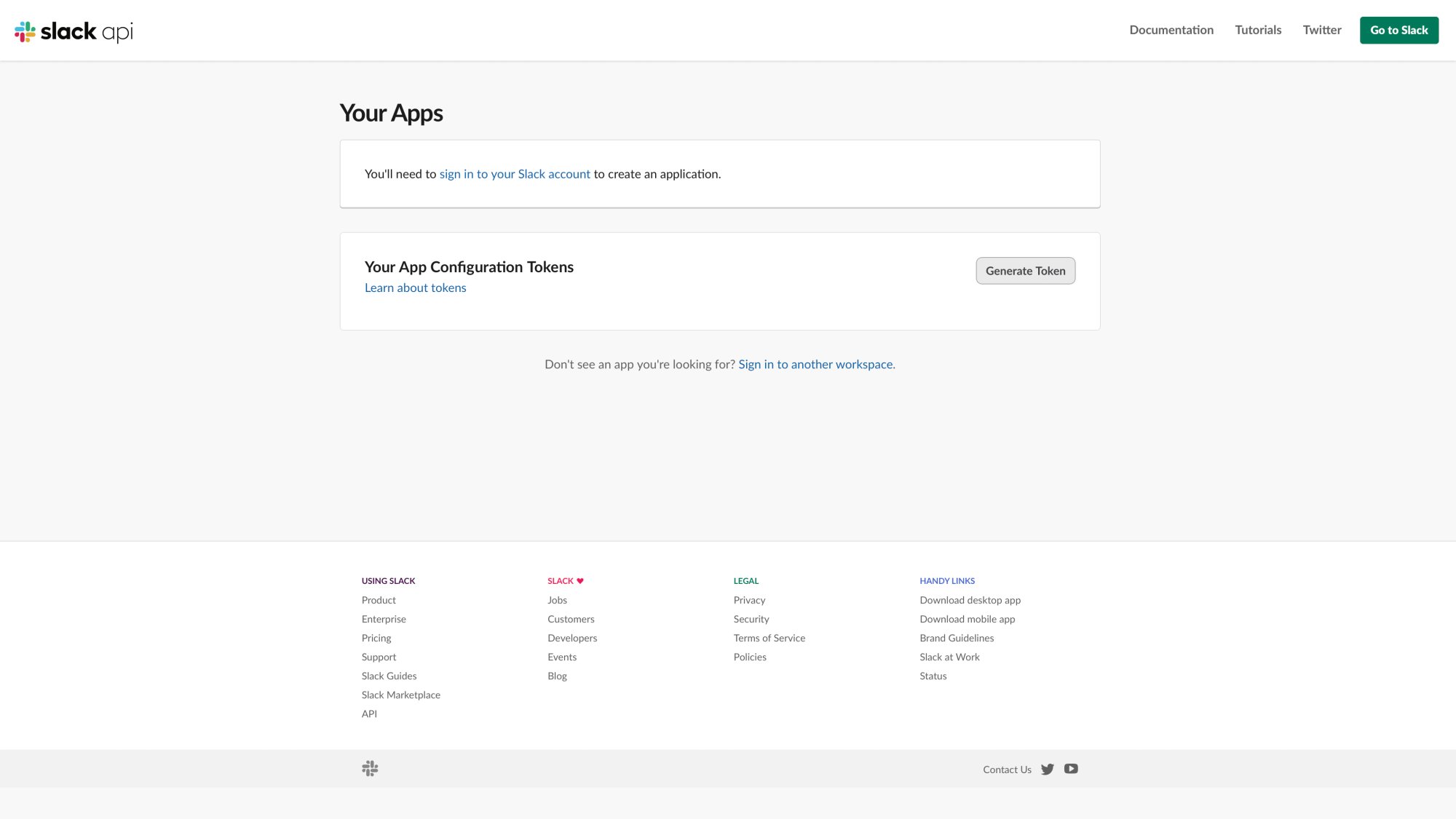
The Slack API Apps dashboard is where you'll create and manage your bot applications.
③ Configure basic settings
In the app's settings dashboard, you'll see Basic Information with your App ID, client ID, and client secret.
Optional but helpful: Upload an icon and update the display name. This is what users see when the bot posts messages.
Using Slack CLI (Alternative)
Run:
slack create my-app-name --template slack-samples/bolt-js-getting-started-app
The CLI will prompt you to choose a workspace and create the app with defaults (like a bot user and basic scopes) automatically.
Enable the Bot Feature
By default, a new app may not have a bot user until you add bot capabilities. Look for "App Manifest" or "Add features and functionality" in your app settings. When you add bot scopes (next step), the bot user exists once installed.
You now have a Slack app entry that will represent your bot.
Step 2: How to Set Permissions (Scopes) and Install Your Bot
Slack apps operate on a permission model. You must declare what your bot will be allowed to do by adding OAuth scopes.
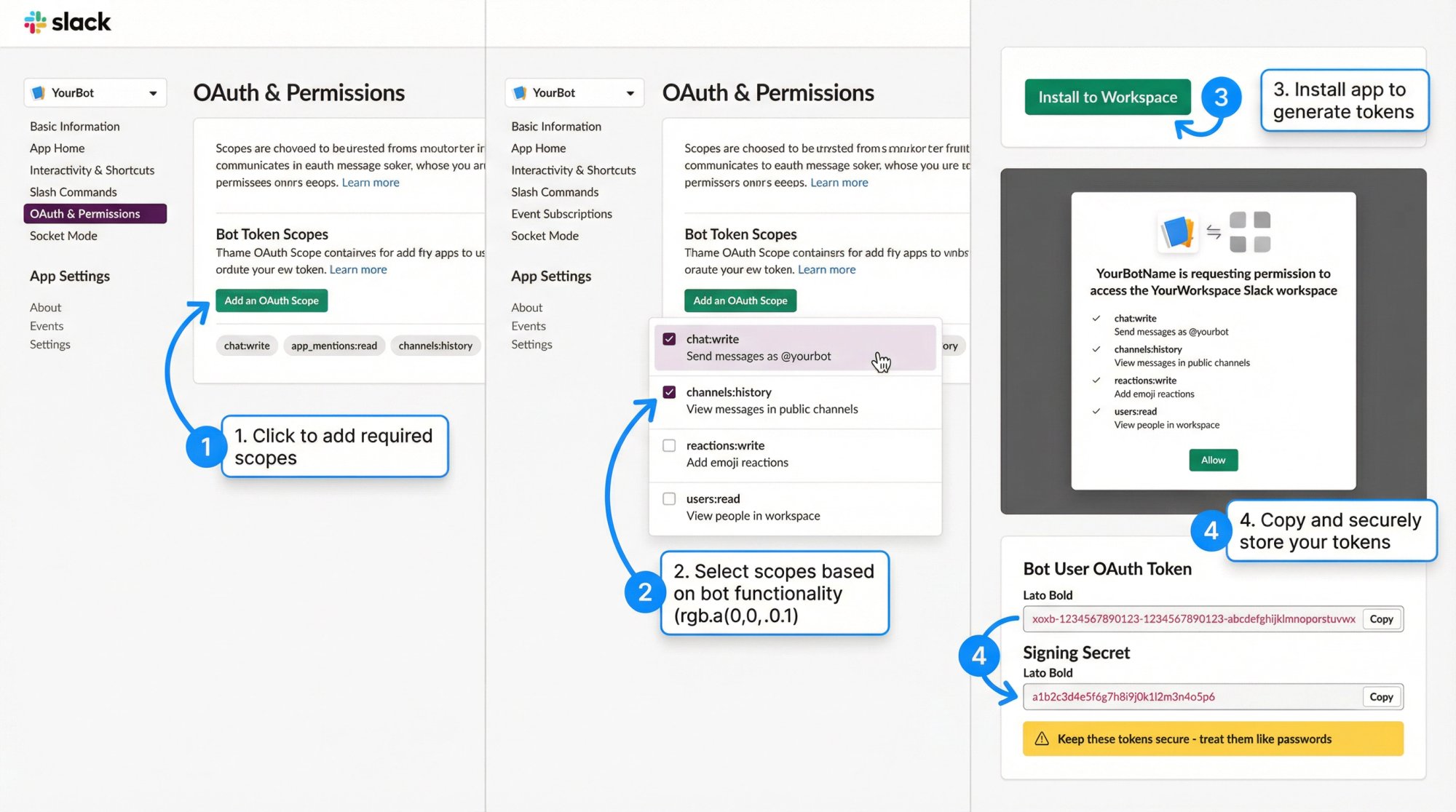
What Scopes Does Your Slack Bot Need?
Based on your bot's functionality:
• Sending messages: chat:write (required for the bot to send messages)
• Reading messages: channels:history (public channels), groups:history (private channels), im:history (direct messages)
• Reactions or thread replies: reactions:write if your bot adds emoji reactions
• User or channel info: users:read or channels:read if needed
In your app's OAuth & Permissions tab, focus on Bot Token Scopes. Click Add an OAuth Scope and select what your bot requires.
For example, a basic chat bot might add:
→ chat:write
→ app_mentions:read (to get mention events)
→ channels:history (if it needs to read message text)
⚠️ Keep scopes minimal. Only request what you truly need. Over-scoping raises security concerns and isn't allowed for public apps.
How to Install Your Slack Bot to Your Workspace
Now that scopes are defined, install the app to generate access tokens.
In the app settings, go to Install App (or OAuth & Permissions). Click Install to Workspace. You'll be prompted to authorize the app, listing the scopes it's requesting.
After installation, you'll receive:
| Token Type | Format | Purpose |
|---|---|---|
| Bot User OAuth Token | xoxb-... |
Your bot's login credential for Slack APIs |
| Signing Secret | From Basic Information | Used to verify requests are from Slack |
Copy and save these securely. The bot token is sensitive, treat it like a password.
At this point, your Slack app (with a bot user) is installed in your workspace. If you check your Slack workspace, you should see your bot listed under Apps.
Step 3: How Your Bot Receives Information (Event Handling)
For your bot to respond to things happening in Slack, tell Slack what events to send. Two main approaches:
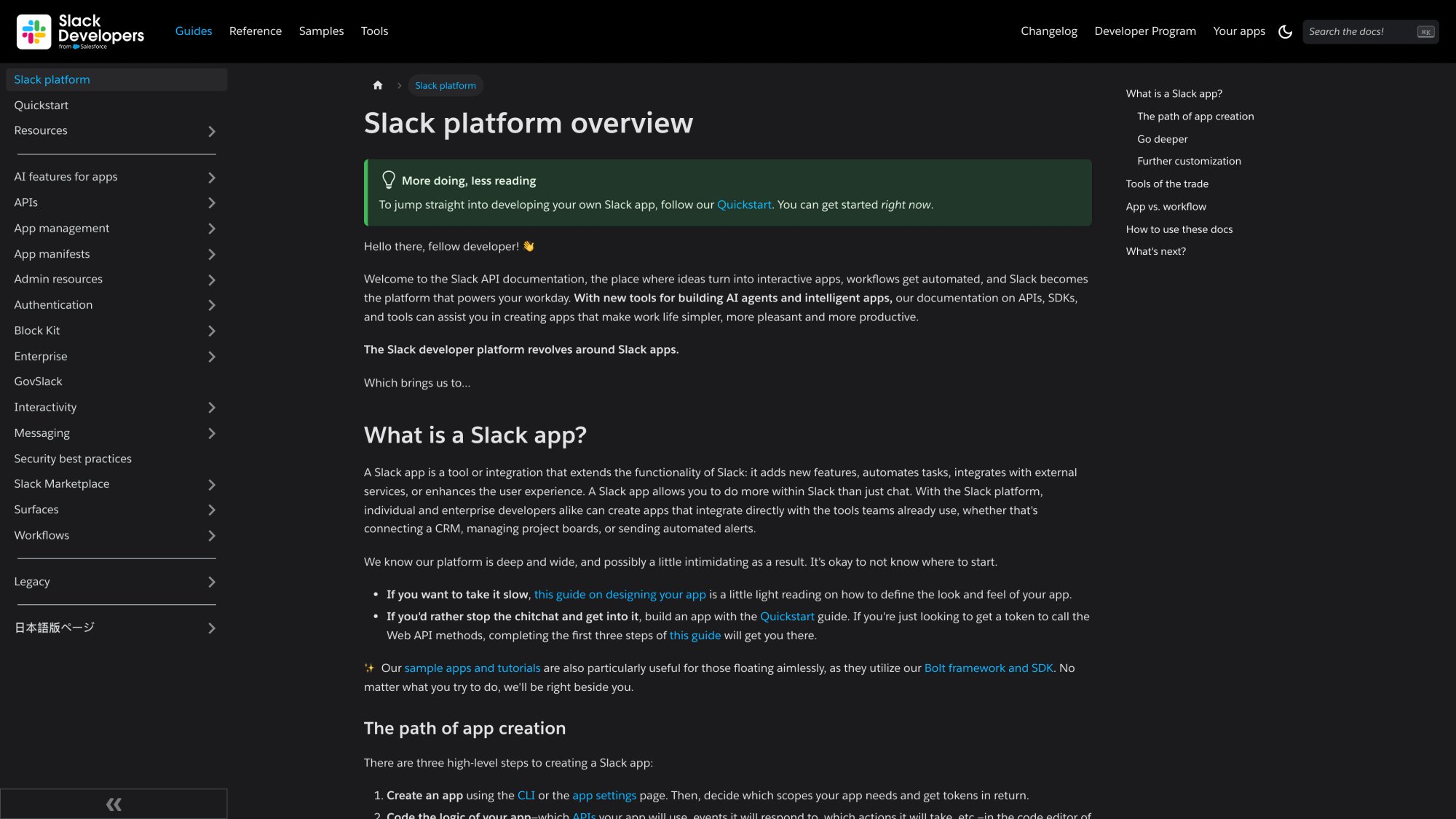
Slack's comprehensive developer documentation provides detailed guides for implementing event handling, Socket Mode, and webhooks.
Socket Mode vs Webhooks: Which Should You Use?
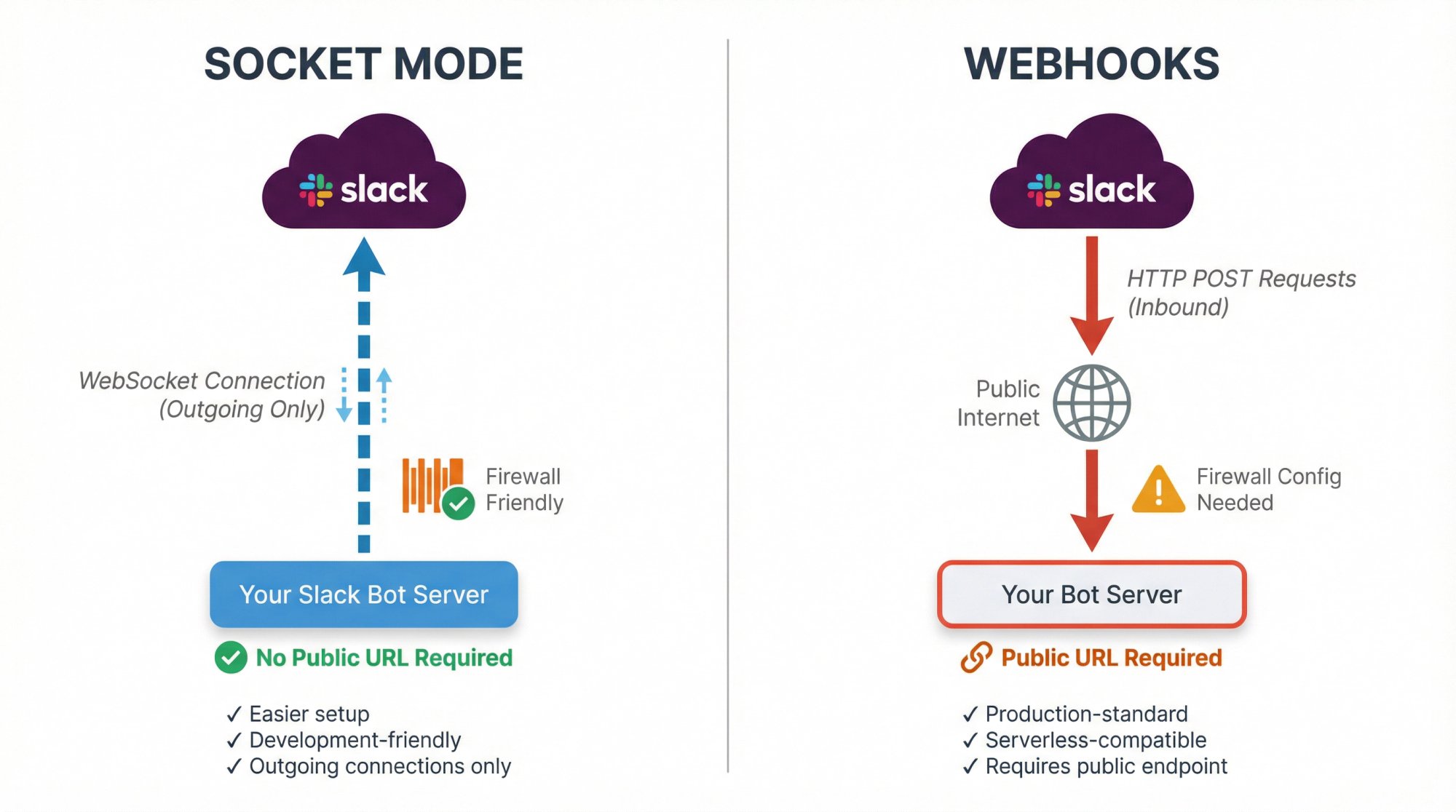
| Feature | Socket Mode | Webhooks |
|---|---|---|
| Public URL needed | No | Yes |
| Best for | Development, simple deployments | Production, serverless |
| Connection type | WebSocket (bot connects to Slack) | HTTP POST (Slack connects to bot) |
| Setup complexity | Easier | Requires ngrok or public server |
| Firewall friendly | Yes (outgoing only) | Requires inbound access |
Option 1: How to Set Up Event Subscriptions (Webhooks)
Slack sends HTTP requests to your bot's server for events (messages posted, mentions, slash commands, etc.).
Setup steps:
① Run a server with a public URL
You need an internet-accessible URL. During development, use ngrok to tunnel localhost. For example, run your bot on port 3000, then:
ngrok http 3000
Get the forwarding HTTPS URL.
② Enable events in app settings
Find Event Subscriptions in your app config. Turn it on and provide a Request URL (the endpoint Slack will call).
Slack immediately sends a challenge to verify the URL. Your bot code must respond with the challenge token. (Slack's Bolt framework handles this automatically.)
③ Subscribe to bot events
Under Subscribe to bot events, add specific events you want:
→ app_mention to get messages that mention your bot
→ message.channels for all messages in public channels the bot is in
→ message.groups for private channels
Add the events your bot needs to know about.
Option 2: How to Set Up Socket Mode (Recommended for Development)
Socket Mode allows Slack to push events via a WebSocket, so you don't need a public URL.
Setup steps:
① Enable Socket Mode
Go to Socket Mode in app config and toggle it on.
② Create an App-Level Token
In Basic Information or App-Level Tokens section, create a token with connections:write and authorizations:read scopes. Generate the token (starts with xapp-...).
③ No public URL needed
With socket mode, you don't set a Request URL. Your bot connects to Slack instead.
④ Subscribe to events
Even in Socket Mode, go to Event Subscriptions and select event types (app_mention, message.channels, etc.). Slack delivers them over WebSocket instead of HTTP.
Whether using webhooks or socket mode, ensure your bot has proper scopes for any events you subscribe to. For example, to get message.channels events, your bot needs channels:history scope.
Step 4: How to Code Your Slack Bot (Using Bolt SDK)
With configuration done, write the bot's code. You can use any language, but Slack's official Bolt framework makes this easier by abstracting boilerplate.
Bolt is available for JavaScript (Node.js), Python, and Java and handles event routing, authentication, and Socket Mode for you. We'll use Node.js + Bolt for this example.
Set Up Your Project
Create a project directory and initialize:
mkdir my-slack-bot && cd my-slack-bot
npm init -y
npm install @slack/bolt dotenv
We add dotenv to manage environment variables.
Save Credentials in a .env File
Create a .env file (don't check this into git):
SLACK_BOT_TOKEN=xoxb-1234-abcdef...
SLACK_APP_TOKEN=xapp-1234-abcdef...
SLACK_SIGNING_SECRET=xxxxxxxx...
Using environment variables keeps secrets out of your code.
Write the Bot Application Code
Create an index.js file:
// index.js
const { App } = require('@slack/bolt');
require('dotenv').config();

// Initialize Bolt app with your credentials
const app = new App({
  token: process.env.SLACK_BOT_TOKEN,
  signingSecret: process.env.SLACK_SIGNING_SECRET,
  socketMode: true,
  appToken: process.env.SLACK_APP_TOKEN
});

// Listen for a simple keyword in messages
app.message(/hello/i, async ({ message, say }) => {
  // When a user says "hello" (in any case), respond
  await say(`Hello, <@${message.user}>! :wave:`);
});

// Start the Bolt app
(async () => {
  await app.start(process.env.PORT || 3000);
  console.log('⚡️ Slack bot is running!');
})();
What this does:
→ Imports @slack/bolt and configures a new App with your bot token and signing secret
→ Sets socketMode: true and provides the appToken (Bolt connects via WebSocket automatically)
→ Registers an event handler: app.message(/hello/i, ...) listens for messages containing "hello" (case-insensitive)
→ The handler gets the message and a say function to respond in the same channel
→ Starts the app on port 3000 (or specified PORT)
This is a minimal bot that listens for "hello" and responds. You can add multiple listeners for different triggers.
Run Your Bot Locally
Start your bot:
node index.js
You should see: ⚡️ Slack bot is running!
If using Socket Mode, your app is now connected to Slack. Bolt will log verification or event receipt info in the console.
Step 5: How to Test Your Slack Bot
Now for the fun part.
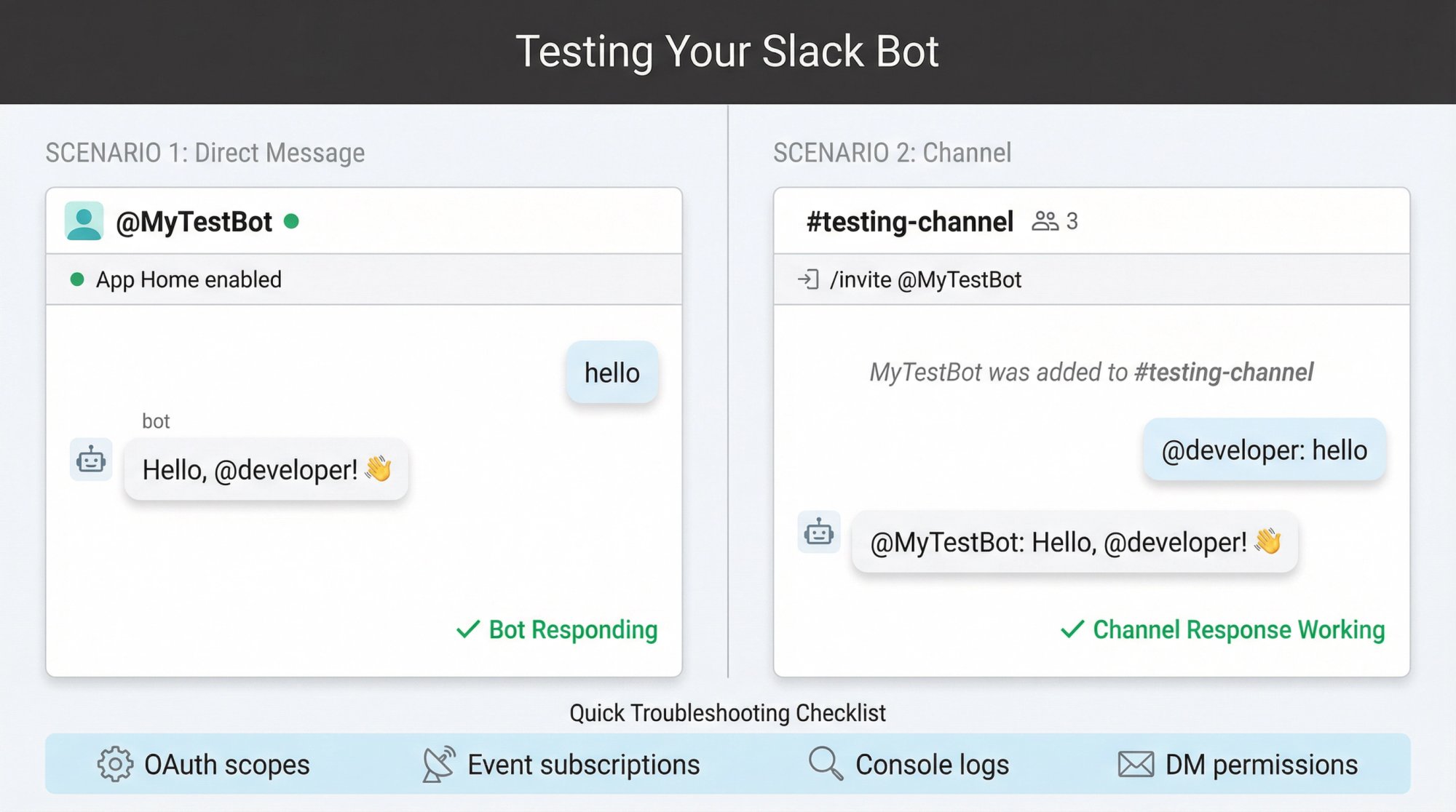
Testing Direct Messages
Testing Direct Messages
Open Slack and find your bot under Apps. You might see "This app hasn't been authorized to receive messages in the DM."
Go to your app settings and find App Home. Enable "Allow users to send Slash commands and messages to the bot" (opens the Messages Tab).
Once enabled, DM your bot. Say "hello" and it should reply with a greeting.
Testing in Channels
Invite the bot to a channel: /invite @YourBotName
Once invited, try saying "hello" in the channel. The bot should respond there too.
If you set it to only respond to direct mentions (using app_mention event), you'd need to tag the bot. In our regex listener, any message with "hello" in that channel triggers it.
Troubleshooting Tips
If the bot isn't responding:
• Check OAuth & Permissions to ensure the bot token is present and scopes are correct
• Ensure events are added in Event Subscriptions and the bot is in the channel
• Look at your console log (Slack events often show up there; Bolt logs errors if signing secret check fails)
• Try a simple log in your handler to see if it's actually getting called
• Check that you enabled DM permission if testing in DM
You now have a basic working Slack bot in your workspace.
Step 6: How to Add Advanced Features to Your Slack Bot
A truly useful bot often needs more than responding to a hardcoded keyword. Slack's platform lets you add richer interactions.
How to Respond to Mentions
Instead of matching "hello" anywhere, listen specifically for when someone pings the bot:
app.event('app_mention', async ({ event, say }) => {
  // Respond when someone types @YourBotName
  await say(`You called? I'm here to help!`);
});
Many bots use this as a cue to respond only when called upon.
How to Create Slash Commands
You can define custom commands like /weather or /notify.
In your app settings under Slash Commands, add a new command (say /notify). Provide a description and usage hint.
In Bolt:
app.command('/notify', async ({ command, ack, respond }) => {
  await ack();
  const textToNotify = command.text || "(no text)";
  await respond(`You said: "${textToNotify}"`);
});
Remember to call ack() immediately to acknowledge receipt within 3 seconds.
How to Add Interactive Buttons and Menus
Slack bots can send messages with interactive elements (buttons, dropdowns, date pickers) using Block Kit.
For example, post a message with Yes/No buttons:
await say({
  text: "Do you want to proceed?",
  blocks: [
    {
      type: "section",
      text: { type: "mrkdwn", text: "Do you want to proceed?" }
    },
    {
      type: "actions",
      elements: [
        {
          type: "button",
          text: { type: "plain_text", text: "Yes" },
          style: "primary",
          value: "yes_click",
          action_id: "confirm_yes"
        },
        {
          type: "button",
          text: { type: "plain_text", text: "No" },
          style: "danger",
          value: "no_click",
          action_id: "confirm_no"
        }
      ]
    }
  ]
});
Handle the actions:
app.action('confirm_yes', async ({ ack, say }) => {
  await ack();
  await say("Confirmed! :white_check_mark:");
});

app.action('confirm_no', async ({ ack, say }) => {
  await ack();
  await say("Cancelled. :x:");
});
Ensure Interactivity is enabled in app settings. Interactive components allow workflows like approvals, forms (using modals), and complex bot interactions.
Rich Messages with Block Kit
Even without interactive elements, you can make messages more user-friendly with formatting and attachments. Use Block Kit layout blocks (sections, images, etc.) to structure info.
Explore Slack's Block Kit Builder to design messages visually.
File Uploads
Bots can upload files or images using the Slack Web API (files.upload method) if granted files:write scope. Imagine a bot that generates a report and posts a PDF.
Adding these features typically means adding more event or command handlers in your code. You might need additional scopes (update your app's OAuth scopes and reinstall).
Step 7: How to Deploy and Maintain Your Slack Bot
Running on your local machine is fine for development, but for a real-world bot you'll want it running 24/7 on reliable hosting.
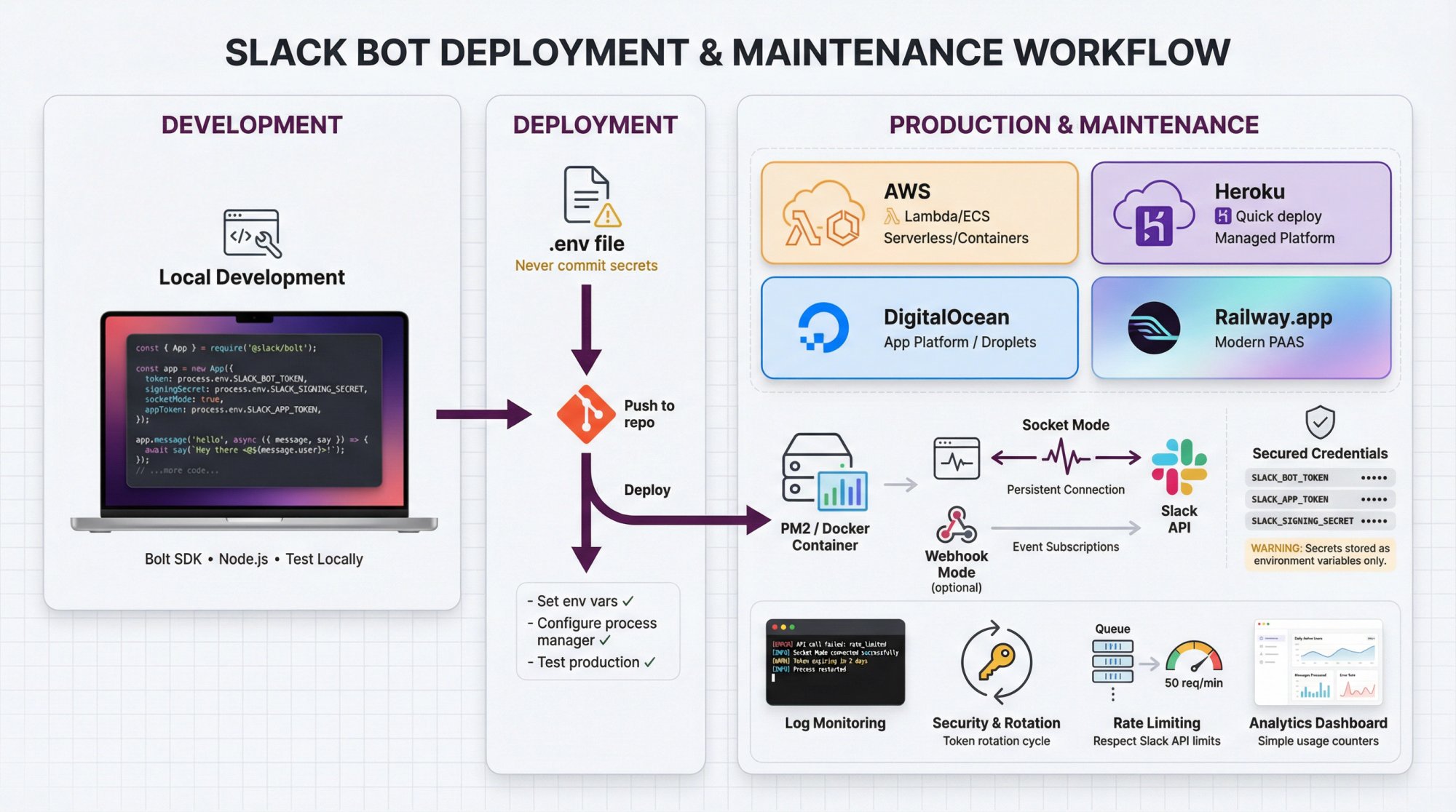
Deployment Options
Cloud platforms:
• AWS (Lambda, ECS, etc.)
• Google Cloud
• Azure
• Services like Heroku, Railway.app, or DigitalOcean
For small bots, Heroku or Railway.app are convenient (just mind free tier limitations).
Your own server:
You can run the bot on an on-prem server or Raspberry Pi. Just ensure it's always on with internet connectivity. If using webhooks, the server needs to be accessible (public IP or domain).
Slack Functions (experimental):
Slack's newer platform allows deploying code into Slack using Slack Functions (with Deno runtime) and Workflow Steps. This is more advanced, where your bot's logic partially lives within Slack's infrastructure.
When Deploying
Set environment variables (bot token, app token, signing secret) in the hosting environment. Never commit secrets to a public repo.
Use a process manager if applicable (PM2 or Docker to handle restarts).
Webhooks vs Socket Mode in production:
Socket mode removes the need for a public HTTP endpoint, which is great if you can't easily expose one. Some prefer HTTP for more control (works well with serverless setups).
For many cases, socket mode on a basic server is simplest. It's real-time and you don't deal with networking issues beyond an outgoing WebSocket connection.
Post-Deployment Checks
Do a final round of testing. Make sure the bot responds as expected. Verify URLs (if using webhooks) are updated to production ones.
Ongoing Maintenance
Monitor logs: Have logging for errors. If an API call fails (trying to post to a channel the bot isn't in), log it so you can address it.
Keep your bot token secure: If it leaks or you suspect compromise, revoke it by rotating the token in Slack's admin UI and reinstall the app.
Stay within Slack rate limits: Bolt SDK helps by handling some rate limit responses (it queues and retries). But if your bot will do large volumes, consider implementing backoff or batching.
Update for Slack changes: Keep an eye on Slack's developer changelog for deprecations or new features. Slack's push toward the newer platform (phasing out classic apps by 2026) is an example of why staying current matters.
Analytics and usage: Track how the bot is used. Log events or use simple counters (like command usage). This can inform improvements.
Security Best Practices
Security reminder: Only store the minimum data you need. If your bot deals with sensitive information, be mindful of privacy and ensure you're using the latest version of the Slack SDK.
Restrict your app's scopes so even if a token leaks, it can't do more than necessary.
How to Use AI and External APIs in Your Slack Bot
A big trend is integrating AI into Slack bots (bots that answer questions using OpenAI GPT models, or interface with your knowledge base).
Calling External APIs
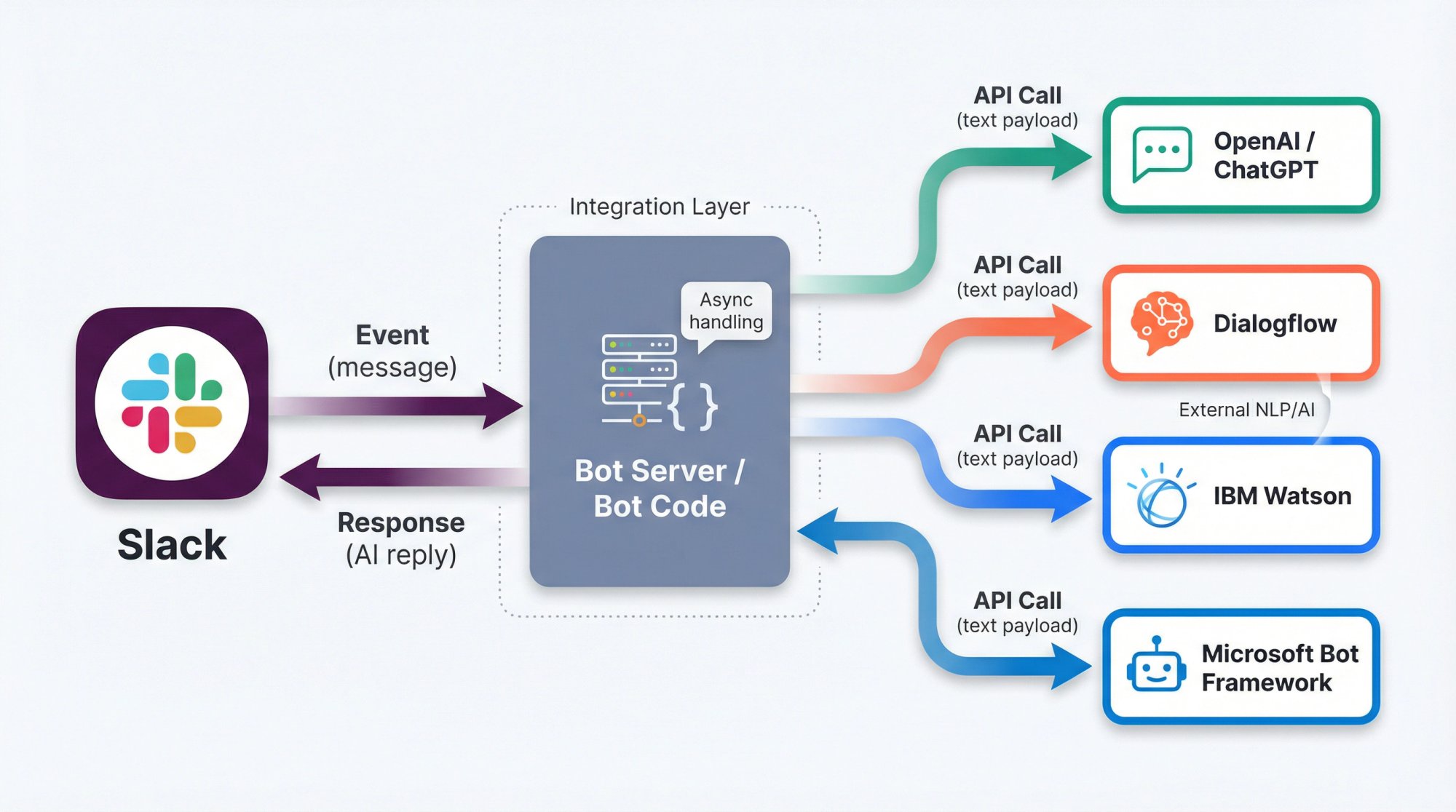
Your Slack bot code can call any web API when handling an event. For instance, on a message event, take the text and send it to an AI service, then post the reply.
Use async programming and handle cases where the API call might take a few seconds. You might want to indicate "typing…" by sending an ephemeral response.
Watch out for token limits: Don't inadvertently expose sensitive Slack info to an external API unless appropriate.
Using Dialogflow or Other Chatbot Frameworks
Some developers connect Slack to NLP engines like Dialogflow, IBM Watson, or Microsoft Bot Framework. Often this involves using their SDKs within your Slack bot code.
Social Intents, for example, provides an integration where you can train an AI chatbot on your website content and have it respond in Slack, essentially doing the heavy NLP lifting for you.
You could DIY by hooking Slack events to Dialogflow's detect-intent API and mapping responses to Slack messages. It requires careful design to ensure context is managed (Slack threads help keep context per user conversation).
Slack's Native AI Features
In 2023-2025 Slack introduced things like Slack GPT (which can summarize threads or draft replies), but those are user-side features.
However, Slack released some AI SDK features for app developers. This includes the ability to create AI-driven bots or use functions that Slack can route to an LLM. Keep an eye on Slack's AI documentation if you want your bot to leverage built-in AI capabilities (this is a fast-evolving area).
Testing with Real Users
If your bot uses AI to generate content, thoroughly test it to ensure correct and appropriate answers. Provide fallbacks or the ability for users to get human help if the AI isn't confident.
When You Don't Need to Code a Slack Bot from Scratch
Build vs buy consideration: Sometimes the best solution isn't coding it all yourself. If a service offers the exact Slack integration you want with required security and compliance, it might save significant development time.
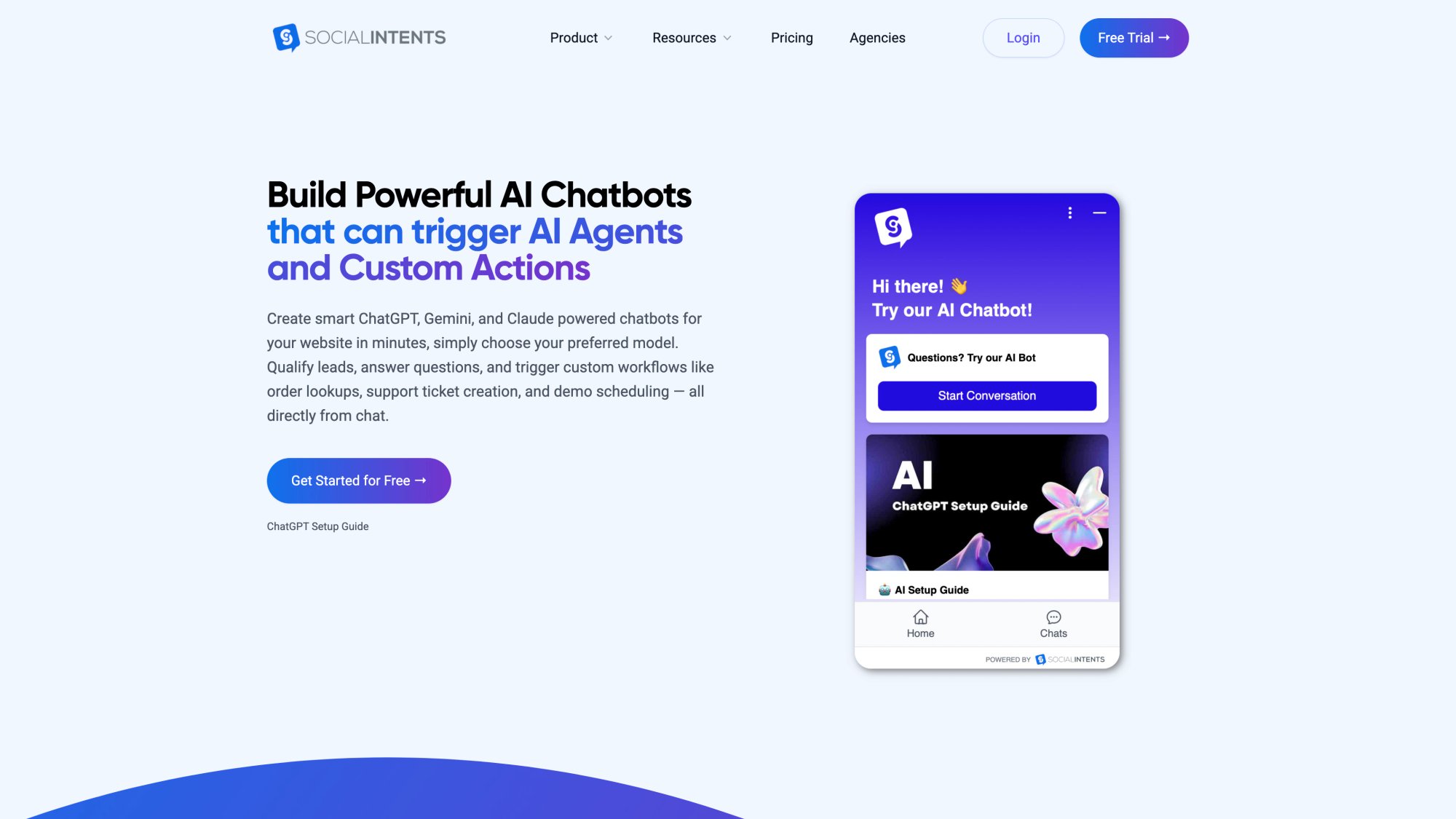
No-code platforms like Social Intents provide AI chatbot capabilities with ChatGPT, Claude, and Gemini integration, allowing you to train intelligent bots on your content without writing code.
A few alternatives:
Slack Workflow Builder
For simple automations (like "when X form is submitted, post Y in channel" or "each Friday, ask everyone how their week went"), the built-in Workflow Builder might suffice.
Access it via Slack's Tools > Workflow Builder menu. You create triggers (manual, scheduled, or emoji reactions) and actions (send a message, add a user to a channel). No coding needed.
However, it's limited to provided building blocks.
No-Code Bot Platforms
Platforms exist that let you visually create chatbots for Slack. Some customer support software or bot-as-a-service platforms allow linking a knowledge base to Slack with minimal code.
Always evaluate build vs buy. If a service offers the exact Slack integration you want (with required security/compliance), it might save time.
Social Intents, for instance, offers a Slack-integrated live chat where a trained AI bot can answer FAQs and hand off to a human in Slack when needed, all with a no-code setup. This could be ideal if your goal is specifically a support chatbot and you don't want to maintain bot code yourself.
Existing Slack Apps
The Slack App Directory has thousands of apps. What you need might already exist. For example:
• Need GitHub notifications? The official GitHub app for Slack might do the job with configuration, no coding.
• Need a poll or survey bot? Apps like Polly exist.
Before building, do a quick search. Maybe the functionality is available as an installable app. (Of course, building your own is justified if you need custom logic or to own the integration fully.)
Best Practices for an Exceptional Slack Bot
To make your Slack bot truly great:
Clarity and Help
Provide a way for users to know what your bot can do. This could be a help command (@BotName help or /bothelp) that lists available commands or example queries.
Users won't magically know your bot's features. You have to teach them. A pinned message in a channel or a short onboarding DM from the bot can be useful.
Conversational UX
Write your bot's messages in a friendly, concise manner. Use emojis or formatting where appropriate to make interactions intuitive.
But also balance interactivity with noise level. Don't flood channels with too many messages.
Error Handling
The bot should handle unknown inputs gracefully. If it doesn't understand something, say:
"Sorry, I didn't get that. Try asking me help to see what I can do."
This is better than silence.
Also handle cases like missing permissions. If a user tries a command that requires the bot to be an admin or have higher scope, respond with an error message informing them.
Security and Privacy
If your bot deals with sensitive information, use Slack's features wisely. For instance, if a user requests something sensitive (like their HR data), prefer replying in a DM or using an ephemeral message (only visible to them) rather than posting in a public channel.
Ephemeral messages can be sent with respond() in commands or the chat.postEphemeral API.
Testing
Before rolling out widely, test with a small group. There will always be edge cases (different user roles, channel types, large team vs small team nuances).
Better to catch bugs or confusing interactions early.
Performance
Slack expects your bot to acknowledge events within a few seconds. If you have a long-running task (like generating a big report), respond quickly (perhaps "Got it, working on that…") and send the result when ready.
This prevents Slack from timing out your request. Bolt automatically sends 200 OK for events, but for slash commands and actions you need to ack(). Use background jobs or async patterns for heavy lifting.
Keep it Human-Friendly
Despite automation, Slack is a human-centric platform. Bots that succeed often have a bit of personality (while remaining professional for workplace context).
A little charm can make your bot more engaging. Just don't overdo it or be inappropriate for the audience.
How Social Intents Simplifies Slack Chatbots for Customer Support
If you're specifically looking to add a customer support chatbot to Slack, Social Intents offers a purpose-built solution that removes the coding complexity entirely.
Social Intents provides a complete live chat and AI chatbot platform that integrates seamlessly with Slack, Microsoft Teams, and other collaboration tools.
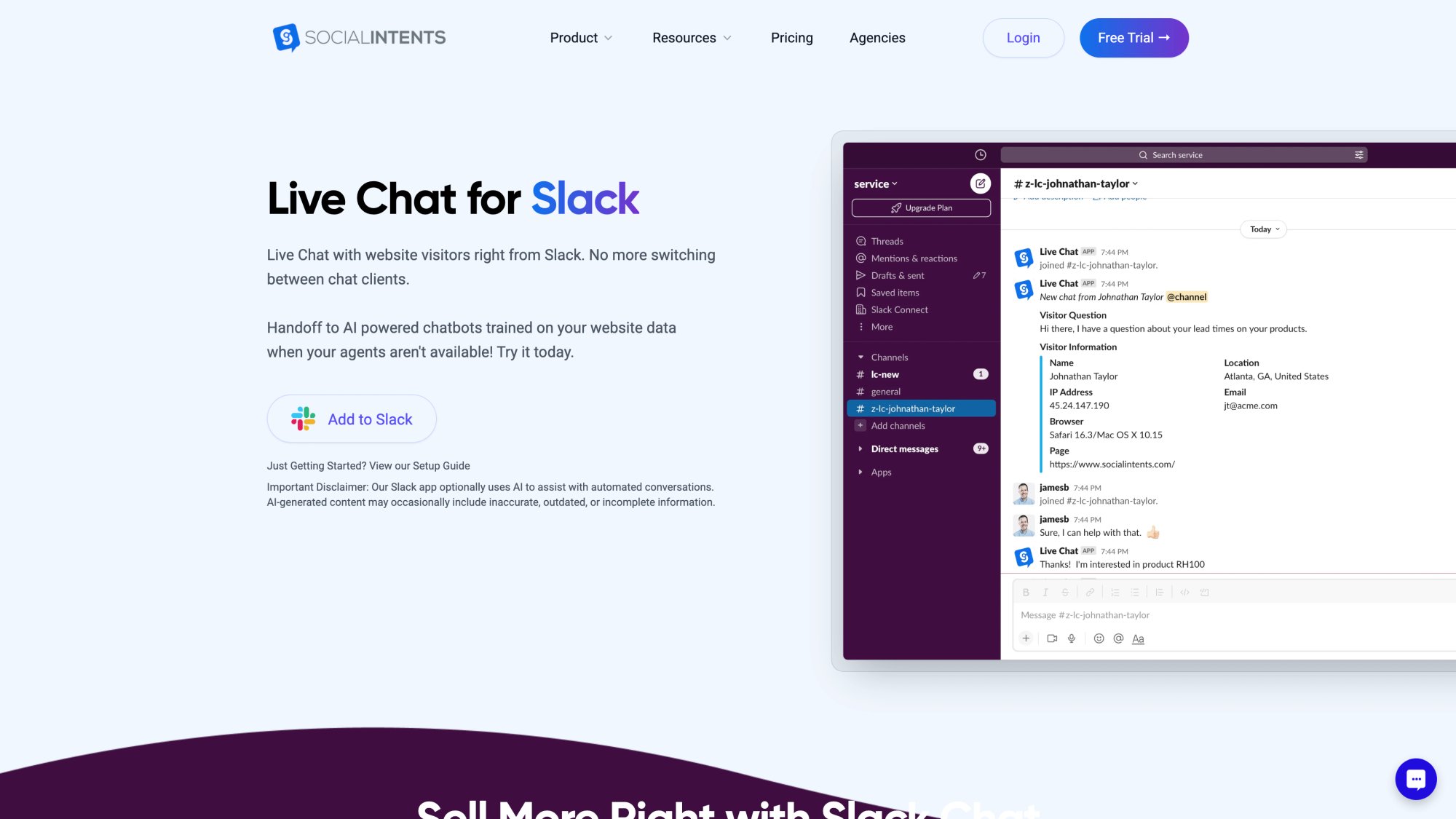
The Slack integration allows your entire team to manage website visitors and customer conversations without leaving Slack.
Here's how we help teams:
AI-Powered Chatbot with Human Handoff
Social Intents provides an AI chatbot that integrates with your website and Slack. Train the bot on your knowledge base, FAQs, and documentation. When a customer chats on your website, the AI bot responds intelligently.
If the bot can't answer or the customer requests a human, the conversation seamlessly hands off to your team directly in Slack. Your support agents never leave their existing workflow.
Custom AI Actions for Advanced Workflows
We offer Custom AI Actions that integrate with third-party tools. Enrich chat conversations with things like:
• Order status lookups
• Ticket creation
• Shipping status updates
• CRM data retrieval
These integrations make your chatbot incredibly powerful without requiring you to code API connections yourself.
No-Code Setup
You don't need to write a single line of code. Our platform provides:
• Visual chatbot builder
• Knowledge base training from URLs or documents
• Pre-built integrations with Slack, Teams, Google Chat, Zoom, and Webex
• Native apps for Shopify, BigCommerce, Wix, and WordPress
Unlimited Agents from Basic Plan Upward
Unlike many competitors, we offer unlimited agents starting at our Basic plan. This means your entire team can participate in customer conversations without per-seat charges.
| Plan | Price (Annual) | Key Features |
|---|---|---|
| Starter | $39/mo | 3 agents, 200 conversations/mo, ChatGPT integration, 10 trained URLs |
| Basic | $69/mo | Unlimited agents, 1,000 conversations/mo, 25 trained URLs |
| Pro | $99/mo | Unlimited agents, 5,000 conversations/mo, 200 trained URLs, remove co-branding |
| Business | $199/mo | Unlimited agents, 10,000 conversations/mo, 1,000 trained URLs, real-time auto-translation |
Real-Time Translation
Our Business plan includes real-time auto-translation, so your team can support customers in multiple languages without language barriers.
WhatsApp and Messenger Bots
Beyond Slack, we also provide AI chatbots for WhatsApp and Facebook Messenger with the same intelligent escalation to human agents.
Perfect For:
• Teams already using Slack or Microsoft Teams daily
• E-commerce stores on Shopify, BigCommerce, Wix, or WordPress
• Companies wanting AI automation with human backup
• Organizations that need multilingual support
The bottom line: If you're building a custom internal automation bot, coding from scratch makes sense. But for customer-facing support chatbots, Social Intents lets you deploy a production-ready solution in minutes instead of weeks.
Frequently Asked Questions
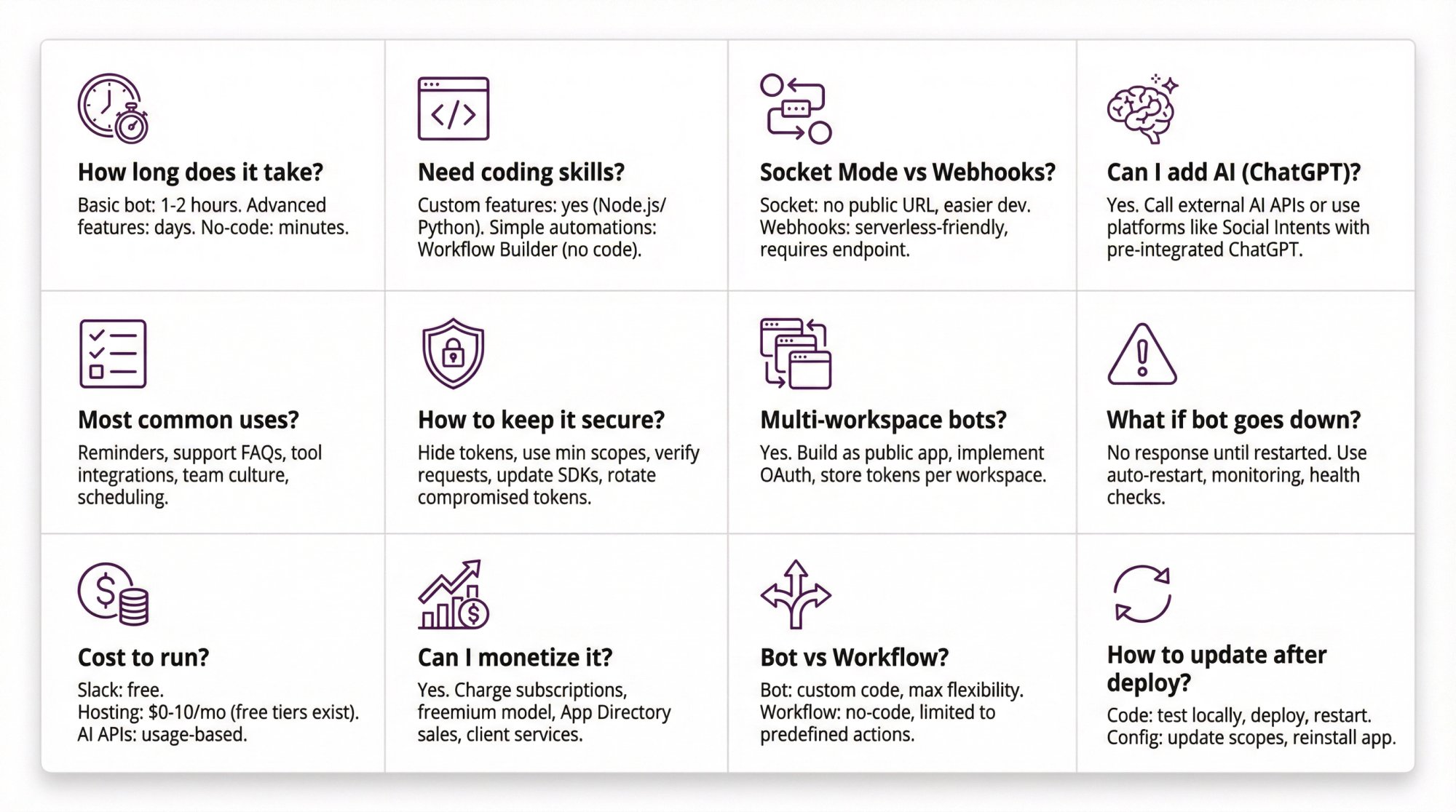
How long does it take to create a Slack bot?
A basic Slack bot can be up and running in a few hours if you follow this guide. The initial setup (creating the app, setting scopes, writing simple message handlers) takes 1-2 hours. Adding more advanced features like slash commands, interactive buttons, or AI integrations can take additional days depending on complexity.
If you use a no-code platform like Social Intents for customer support bots, you can deploy in minutes.
Do I need to know how to code to create a Slack bot?
For basic automations, Slack's Workflow Builder provides no-code options. For custom functionality and advanced features, yes, coding knowledge helps. Node.js, Python, or Java are common languages used with Slack's Bolt framework.
Alternatively, use pre-built solutions or no-code platforms for specific use cases like customer support chatbots.
What's the difference between Socket Mode and webhooks for Slack bots?
Socket Mode uses a persistent WebSocket connection. Your bot connects to Slack and receives events over that socket. No public URL needed, which makes it easier for development.
Webhooks require your bot to have a publicly accessible HTTP endpoint. Slack sends event data via HTTP POST requests to your URL.
Socket Mode is simpler for development and many production scenarios. Webhooks give more control and work well with serverless architectures.
Can I build a Slack bot that uses AI like ChatGPT?
Yes. Your Slack bot code can call external AI APIs (like OpenAI's GPT models). When your bot receives a message, send the text to the AI API, get the response, and post it back to Slack.
Alternatively, platforms like Social Intents provide pre-integrated AI chatbots (using ChatGPT, Claude, or Gemini) without requiring you to code the AI integration yourself.
What are the most common uses for Slack bots?
The most common Slack bot use cases include:
• Automated reminders and notifications
• Customer support and FAQ handling
• Integrating with external tools (GitHub, Jira, CRM systems)
• Collecting team feedback via surveys or polls
• Scheduling and calendar management
• Onboarding new team members
• HR requests and IT support tickets
How do I keep my Slack bot secure?
Security best practices:
• Keep your bot token and signing secret private (use environment variables, never commit to version control)
• Use the minimum scopes necessary for functionality
• Verify incoming requests using the signing secret
• Keep Slack SDK dependencies updated
• Monitor logs for suspicious activity
• Rotate tokens if compromise is suspected
• Use ephemeral messages for sensitive information
Can I use my Slack bot in multiple workspaces?
Yes, but it requires additional setup. To distribute your bot across multiple workspaces:
• Build it as a public Slack app (not just installed to your own workspace)
• Implement OAuth flow to handle installations from different workspaces
• Store credentials (tokens) separately for each workspace that installs it
• Consider submitting to the Slack App Directory for discoverability
For internal team use, a single-workspace installation is usually sufficient.
What happens if my Slack bot goes down?
If your bot's server stops running, it simply won't respond to events. No data is lost, but the bot won't perform its functions until you restart it.
To minimize downtime:
• Use reliable hosting with auto-restart capabilities
• Implement health checks and monitoring
• Set up alerts for bot failures
• Use a process manager (like PM2) that restarts on crashes
• Consider serverless architectures for automatic scaling and reliability
How much does it cost to run a Slack bot?
Slack costs: Creating and installing a Slack bot in your own workspace is free. If you plan to distribute your bot publicly, Slack doesn't charge for that either.
Infrastructure costs: You'll pay for wherever you host your bot code:
• Free tiers available on platforms like Railway.app or Heroku (with limitations)
• Small VPS: $5-10/month (DigitalOcean, Linode)
• Serverless functions: Often free for low usage (AWS Lambda free tier)
• Enterprise hosting: Varies based on scale
Third-party services: If you use AI APIs (OpenAI, etc.), those have their own pricing based on usage.
Can I monetize a Slack bot?
Yes. Many developers create Slack bots and sell them as SaaS products. You can:
• Charge a subscription fee for access to your bot
• Offer a freemium model (basic features free, advanced features paid)
• Submit to Slack App Directory with in-app purchases
• Build custom bots for clients as a service
Just ensure you comply with Slack's terms of service and app directory guidelines.
What's the difference between a Slack bot and a Slack workflow?
Slack Bot: A custom application that can send and receive messages, respond to events, handle commands, and integrate with external systems. Requires coding (or a no-code platform) and provides maximum flexibility.
Slack Workflow: A no-code automation built using Slack's Workflow Builder. Limited to predefined triggers and actions provided by Slack and installed workflow apps. Good for simple automations but can't handle complex custom logic.
For advanced functionality, build a bot. For simple scheduled messages or form submissions, workflows might suffice.
How do I update my Slack bot after deployment?
To update a deployed bot:
Code changes:
① Make changes to your bot code locally
② Test thoroughly in a development environment
③ Deploy the updated code to your hosting platform
④ Restart the bot process (or use auto-deploy features)
Slack configuration changes:
① If adding new scopes, update them in the app settings
② Click "Reinstall App" to apply new permissions
③ Update event subscriptions if adding new event types
④ Users may need to reauthorize if significant permission changes occur
Best practice: Use version control (Git) and staging environments to test updates before pushing to production.
Creating a Slack bot transforms how your team works by automating tasks, answering questions, and connecting Slack to your other tools. Whether you code a custom solution or use a platform like Social Intents for ready-made chatbots, you now have everything you need to build an effective Slack bot in 2025.
Start small, test often, and iterate. Before long, you'll have a helpful bot that your colleagues rely on daily.