

Your support team probably spends most of their day in Microsoft Teams already. They're messaging colleagues, hopping on calls, collaborating on documents. So why force them to switch to a completely different tool when someone needs help?
Turning Microsoft Teams into a help desk isn't just possible. It's become one of the smartest moves organizations can make for both internal IT support and external customer service. This guide walks through everything you need to know: the different approaches available, step-by-step implementation, and the practical details that actually matter when you're setting this up.
Why Use Microsoft Teams as Your Help Desk?
The numbers tell a compelling story. Microsoft Teams had over 320 million monthly active users as of 2024. That's a massive user base already familiar with the interface, the notifications, the whole experience. When your help desk lives inside a tool people use every day, adoption happens naturally.
Organizations consistently report these benefits after moving support to Teams:
Zero training required. Your staff already knows how to message, search, and use threads. Asking for help becomes as simple as sending a chat message. Employees find it intuitive because they're not learning new software. They're just using the same app where they already talk to coworkers.
Faster resolution times. Context switching kills productivity. When support agents don't have to jump between email, a ticketing portal, and their actual work, issues get resolved faster. The entire process from report to resolution stays streamlined inside one application.
Conversations feel human. Internal support through Teams feels natural because it mirrors how people already communicate at work. Quick back-and-forth messages, casual tone, emoji reactions. It doesn't have the stiff formality of ticket portals or email chains.
One less system to maintain. Consolidating into Teams often means you don't need separate helpdesk software for basic to moderate use cases. That reduces licensing costs and eliminates another platform to manage.
The underlying principle is simple: If your team spends all day in Teams, bringing your help desk there meets people where they already work. It removes friction and makes getting help feel effortless.
5 Ways to Build a Help Desk in Microsoft Teams
There's no single "correct" way to turn Microsoft Teams into a help desk. The right approach depends on whether you're supporting internal employees, external customers, or both. Let's look at what's actually available.
How to Set Up a Help Desk Using Native Teams Features
The simplest path uses nothing but what Teams already provides. Create dedicated channels, establish some conventions, and your basic ticketing system is live.
Setting up support channels:
Start by creating public channels for each support function. An #it-support channel, maybe #hr-help, possibly #finance-requests. Make sure everyone in the organization knows these channels exist. Announce them widely and add them to onboarding materials.
Using threads for organization:
Each new support request should be its own conversation thread. Users post their issue, agents reply in the thread, and everything stays organized. You can use emoji reactions to signal status (a eyes-emoji when someone's looking at it, a checkmark when it's resolved).
Building self-service into the channel:
Teams lets you pin messages and add tabs for FAQs. Pin a "Start Here" post with answers to the most common questions. Add a Wiki or OneNote tab with troubleshooting guides. Connect a SharePoint library of help articles. People often solve their own problems when the answers are visible.
Automating common responses:
Microsoft Power Automate enables keyword-based automations in your channels. Someone types "password reset" and a bot instantly replies with the self-service reset link. These simple automations deflect repetitive questions before an agent even gets involved.
Adding structure with Forms:
For requests that need specific information (username, asset tag, error code), integrate Microsoft Forms. Users fill out a standardized form, ensuring you capture all the details upfront. You can even trigger approval workflows from form submissions.
Tracking work with Planner or Lists:
Teams doesn't have a built-in ticket queue, but Planner and Lists fill that gap. Create a Planner board where each issue becomes a task card. Move cards through "New," "In Progress," and "Done" columns. It's lightweight ticket tracking without additional software.
| Pros of DIY Approach | Cons of DIY Approach |
|---|---|
| Free with existing M365 license | No advanced SLA tracking |
| Quick to set up | Can get messy at high volume |
| Uses familiar tools | Everyone sees all requests |
| Highly customizable | Limited metrics and reporting |
One important consideration: in a public channel, everyone sees all requests and replies. That works fine for IT issues but becomes problematic for HR matters or anything sensitive. Plan your channel privacy accordingly.
Best Teams Help Desk Apps and Bot Integrations
If you want more structure than basic channels provide, Microsoft's app ecosystem offers dedicated help desk solutions that add ticketing functionality while keeping everything inside Teams.
Popular Teams Help Desk Solutions:
Several apps allow users to create tickets from Teams messages, either in a help channel or via direct message to a bot. Each ticket gets a unique ID, can be assigned to agents, and syncs with external systems if needed. Pricing for dedicated ticketing apps typically starts around $12-30 per agent monthly.
ServiceNow and Enterprise Tools:
For organizations already using ServiceNow, the Virtual Agent integrates directly with Teams. Employees interact with the knowledge base and create tickets through a chat bot. Other enterprise tools like Jira Service Management offer similar integrations that connect your existing systems to Teams.
Power Apps and Custom Bots:
Microsoft's low-code platform lets you build your own mini helpdesk. Create a Power Apps form for tickets that writes to SharePoint, triggers Teams notifications, and allows updates. Or deploy a Power Virtual Agents bot that answers FAQs and escalates when needed.
The cost consideration matters. Most dedicated solutions charge per agent. Industry reports show Teams helpdesk integrations typically range from $24 to $80+ per agent monthly. That adds up fast with larger support teams.
How to Connect Teams with Your Existing Helpdesk
Maybe you've already invested in a helpdesk platform. You don't have to abandon it. Instead, connect it to Teams as an additional front-end.
The hybrid advantage: You get the best of both worlds. Users and agents interact through Teams' familiar interface while tickets live in your established system for robust tracking and reporting.
What hybrid integration typically provides:
→ Notifications in Teams: Get alerts when tickets are created or updated. "New ticket #1234 from Alice: 'Cannot login'" appears right in your channel.
→ Ticket actions from Teams: Many helpdesk apps let team members create, view, and update tickets directly from chat. Updates sync back automatically. Social Intents offers integrations with popular platforms including Salesforce, HubSpot, and Zendesk.
→ Knowledge base access: Query your help center through Teams bots. Employees find answers without submitting tickets at all.
Adding Live Chat for External Customer Support
So far we've focused on internal help desks. But what about using Teams to handle customer inquiries from your website?
This is where live chat integrations become valuable. Your support agents stay in Teams while customers reach them through a chat widget on your website, WhatsApp, Facebook Messenger, or other channels.
How it works:
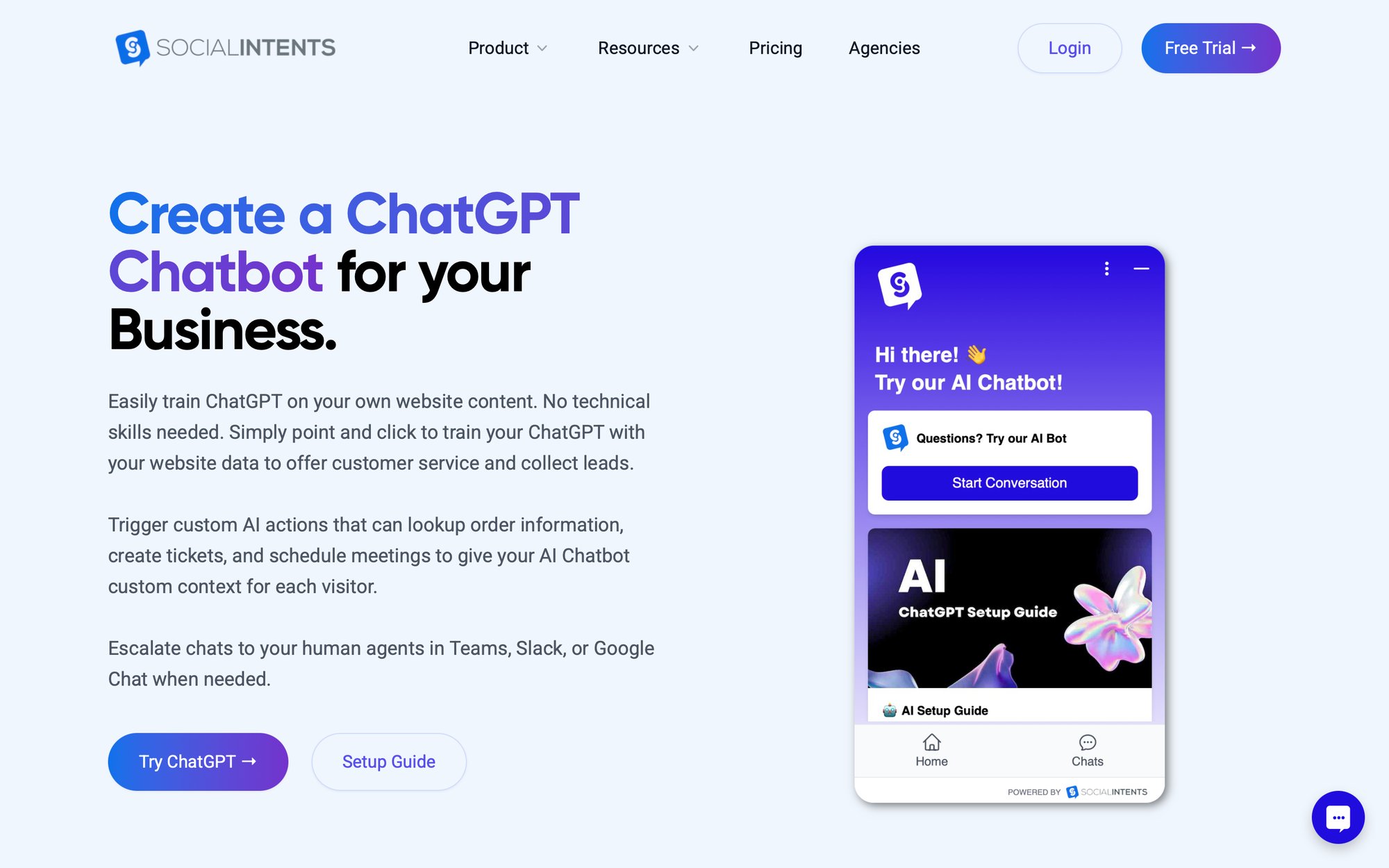
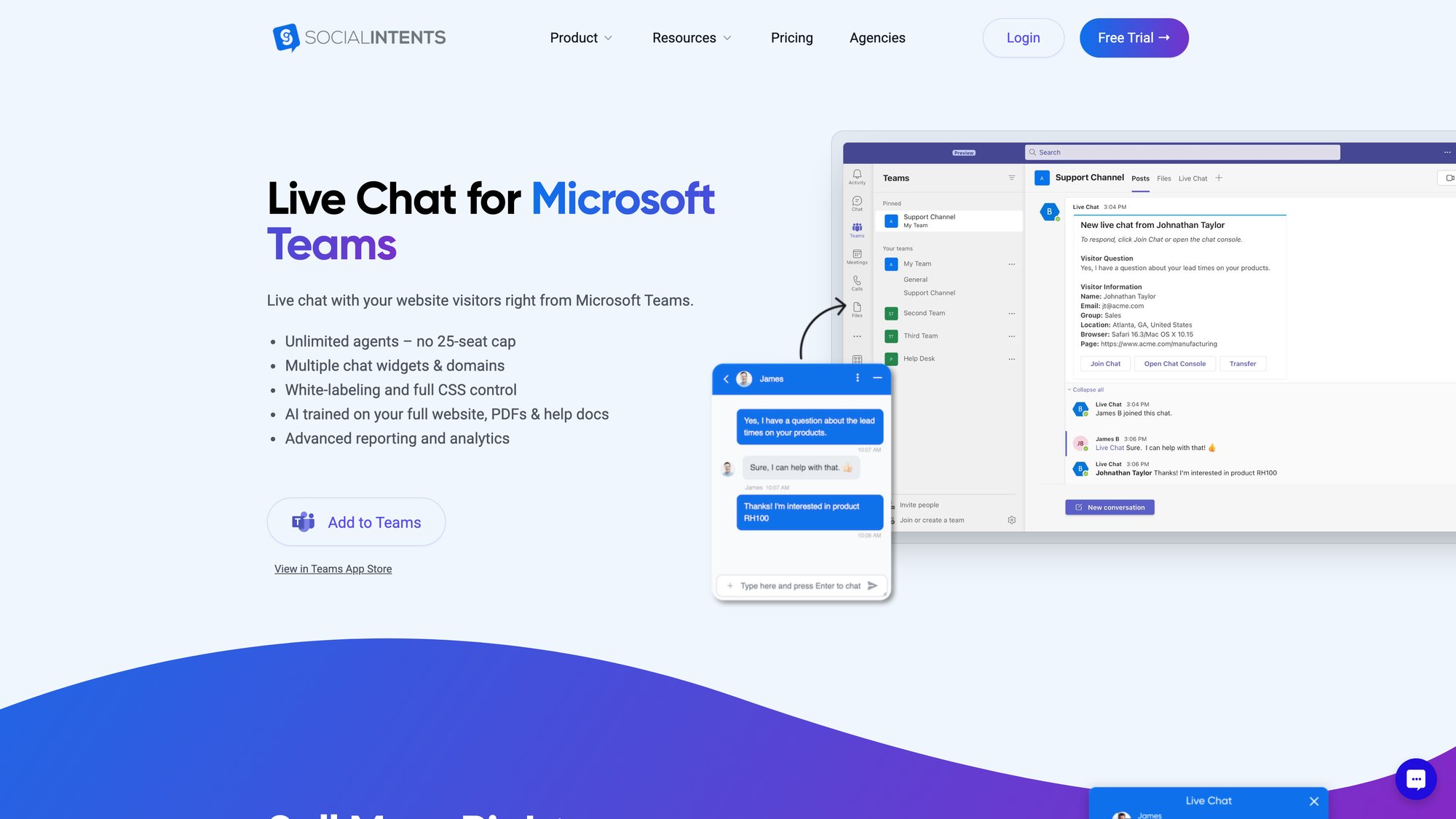
You embed a chat widget on your website. When a visitor types a message, it routes into Microsoft Teams. Your agents see "New live chat from [Name]" in their designated channel and reply directly. The customer receives responses in real time on the website chat box.
The agent experience stays in Teams. No new dashboard to learn. No separate console to monitor. Agents use Teams' notification system, @mention colleagues for help, and collaborate internally while assisting customers.
Routing rules direct conversations appropriately. Sales chats go to the Sales Team channel. Support issues go to the Support Team. Each department only sees relevant conversations.
AI chatbots handle initial interactions. Deploy a ChatGPT-powered chatbot that answers common questions automatically. When queries are too complex or someone asks for a human, the conversation escalates to your Teams channel. Your staff focuses on high-value interactions while routine queries resolve automatically.
Picture this scenario: Your e-commerce site gets a customer asking "Do you ship to Canada?" at 3pm. The message appears in Teams. An available salesperson replies in seconds with the answer, maybe even tags a shipping specialist for a quick check. The customer gets immediate help. They have no idea your team never left their internal chat tool.
Running Internal and External Support from Teams
You don't have to pick either internal or external support. Teams can handle both simultaneously.
Use channels or a helpdesk app for internal IT/HR support tickets (employees helping employees).
Use a live chat integration for customer inquiries from your website (employees helping customers).
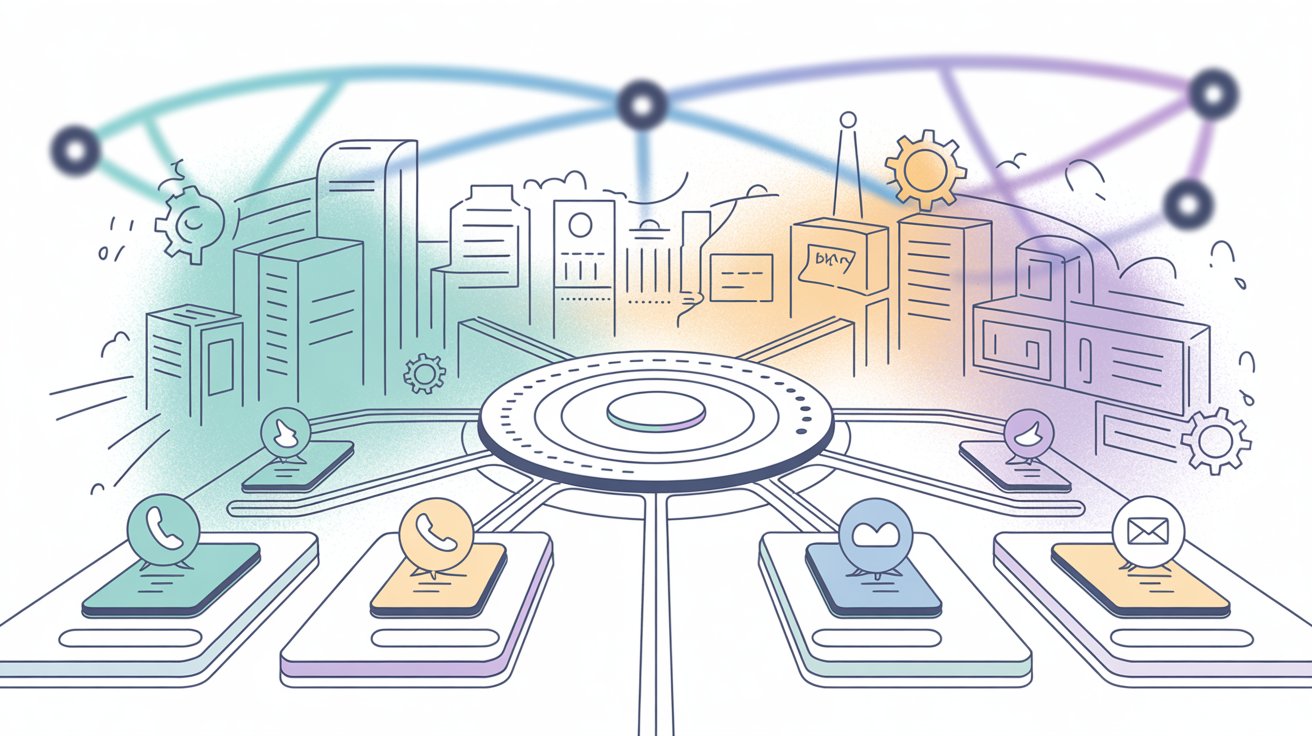
Each routes to different Teams channels. Train different groups of agents. The advantage is unified communications. Your support teams for all audiences use the same platform, and you can transfer issues between teams when needed ("This customer issue is actually an internal IT bug, let me notify the IT helpdesk channel…").
Teams Help Desk Approaches Compared
| Approach | Best For | Complexity | Cost |
|---|---|---|---|
| DIY with Native Features | Small teams, internal support only | Low | Free (M365 license) |
| Help Desk Apps/Bots | Growing teams needing ticket tracking | Medium | $12-80/agent/month |
| Hybrid Integration | Orgs with existing helpdesk systems | Medium-High | Varies by platform |
| Live Chat Integration | External customer support | Low-Medium | $39-199/month total |
| Combined Approach | Both internal and external support | Medium | Varies by combination |
How Social Intents Turns Teams into a Complete Help Desk
We built Social Intents specifically for organizations that want their support team to work from Microsoft Teams (or Slack, Google Chat, Zoom, or Webex) without switching tools. Our platform connects website live chat, AI chatbots, and customer communication channels directly into Teams.
What makes Social Intents different:
Why Unlimited Agents Matters for Teams Support
Most help desk tools charge per agent. Our plans include unlimited agents starting at $39/month. Want your entire sales team to jump in on live chats during a product launch? No additional licensing fees. Need seasonal support staff for the holidays? Add as many people as you need.
This pricing model changes how teams approach support. Instead of limiting who can help customers based on license counts, you can involve anyone who might add value to a conversation.
How AI Chatbots Handle Tickets Before Your Team
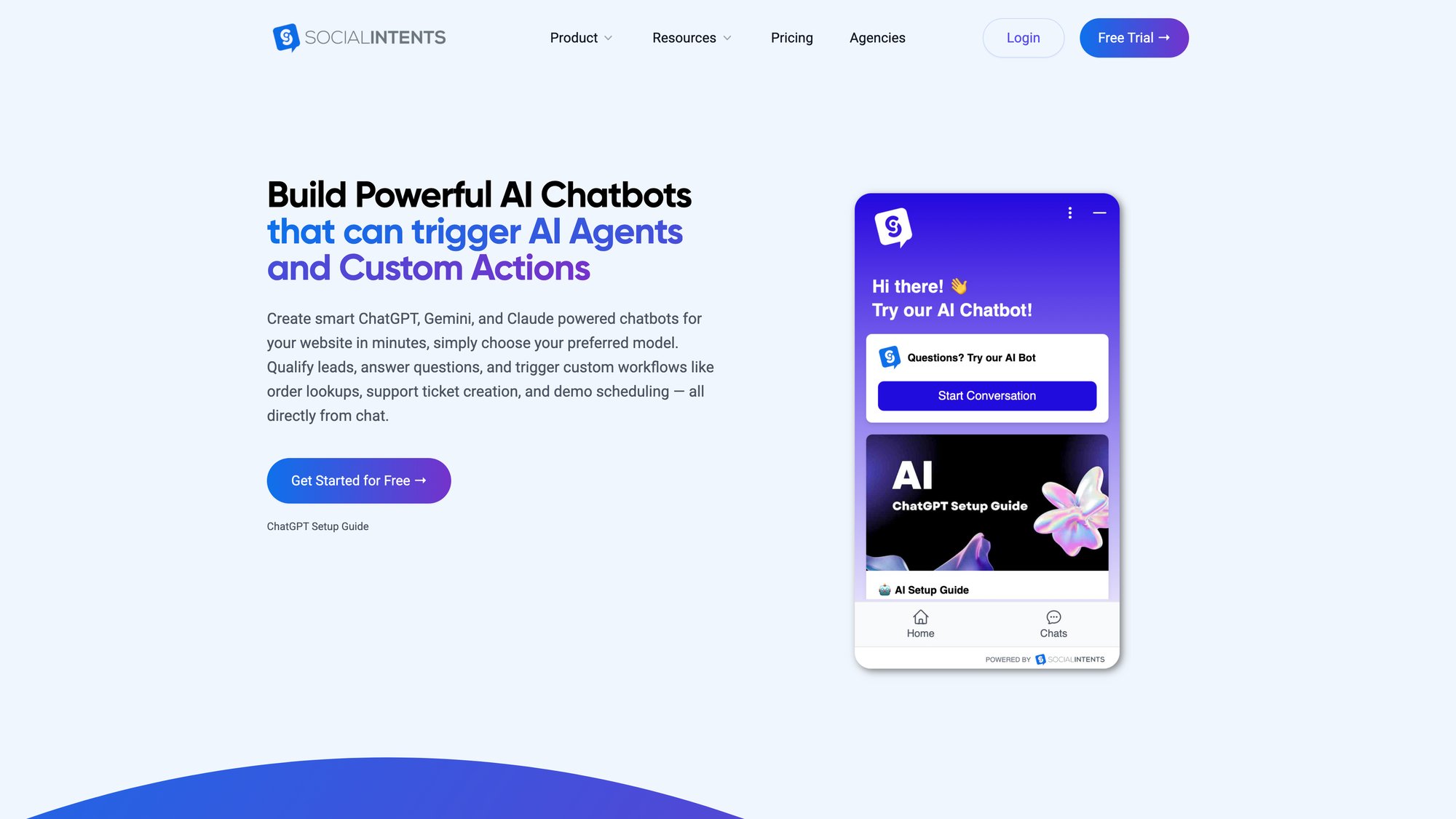
Our AI chatbots train on your website content, documents, and knowledge base. They handle common questions automatically using OpenAI ChatGPT, Anthropic Claude, or Google Gemini. When questions get complex or customers ask for a human, the conversation seamlessly transfers to your agents in Teams.
The handoff options are flexible:
-
AI-only mode for after-hours coverage
-
Hybrid AI + Human for immediate responses with easy escalation
-
AI fallback when chats are missed or agents are unavailable
What Are Custom AI Actions?
This is where things get interesting. Our Custom AI Actions let you integrate third-party tools into chat conversations. Customers can ask about order status, shipping updates, or ticket progress. The AI pulls information from your systems and responds instantly.
We're seeing significant interest in this capability. Organizations connect their order management, ticketing systems, and CRM data so customers get real answers without waiting for an agent to look things up manually.
Supporting Customers on WhatsApp, Messenger, and More
Social Intents handles more than website chat:
-
WhatsApp chatbots with escalation to Teams
-
Facebook Messenger integration
-
Shopify, BigCommerce, Wix, and WordPress apps for e-commerce
All conversations route to Teams. Your agents respond from one place regardless of where customers reached out.
How Real-Time Translation Works in Teams Chat
Serving international customers? Our auto-translate feature handles incoming and outgoing messages in real time. Each side sees the conversation in their language. It uses Google Translate API, so treat it as practical translation for customer service rather than legal-grade translation.
How to Install Social Intents in Microsoft Teams
Getting Social Intents running in Teams takes minutes:
① Create a live chat widget in our dashboard
② Install the Social Intents app from the Teams App Store
③ Connect your account and select which Teams channel receives chats
④ Embed the widget code on your website
You can generate a standalone chat URL or even add a chat console as a tab inside Teams.
Using Canned Responses and Slash Commands
Save time with pre-written responses. Type a shortcut and insert entire paragraphs. Our slash commands let agents tag conversations, send transcripts, and trigger workflows directly from Teams.
Social Intents Pricing Overview:
| Plan | Monthly (Annual) | Key Features |
|---|---|---|
| Starter | $39 | 3 agents, 200 chats/month, ChatGPT integration |
| Basic | $69 | Unlimited agents, 1,000 chats/month, 25 trained URLs |
| Pro | $99 | 5,000 chats/month, remove branding, cross-team transfers |
| Business | $199 | 10,000 chats/month, real-time translation, 1,000 trained URLs |
All plans include a 14-day free trial. Start using Teams as your help desk today.
How to Set Up a Help Desk in Microsoft Teams
Whether you're going DIY or using an integration like Social Intents, here's a practical implementation plan:
Plan Your Teams Channel Structure
Decide how support will be organized. Common patterns include:
-
Single Team for all support with channels for different functions (#it-support, #hr-help, #facilities)
-
Separate Teams per department for larger organizations
-
Public channels for user requests combined with private channels for agent coordination
Create a private "Support Agents" Team if you want space for internal discussion and triage without users seeing the chatter.
Create Entry Points for Support Requests
For internal channel-based support:
-
Make channels easy to find
-
Post welcome messages explaining how to use them
-
Consider moderation settings if needed
For bot or app-based support:
-
Install and configure your chosen solution
-
Pin usage instructions in relevant channels
-
Test the bot flow thoroughly
For external live chat:
-
Embed the widget on your website (or staging site first)
-
Configure which Teams channel receives conversations
-
Set business hours and offline behavior
Announce the new support process widely. "We're now using Microsoft Teams for IT support. Head to #it-support to ask questions. No more helpdesk emails needed!"
Build Self-Service Resources in Teams
Before going live, populate channels with useful information:
-
Upload FAQ documents to the Files tab
-
Add a Wiki or OneNote tab with troubleshooting steps
-
Pin messages answering top questions
-
Link to existing SharePoint or knowledge base sites
-
If using an AI chatbot, train it on your help center content
Self-service resources mean faster resolutions. Many users solve problems themselves when answers are visible.
Set Up Power Automate for Help Desk Tasks
Power Automate flows handle simple tasks effectively:
→ Auto-responses: "Password" in a message triggers the reset instructions
→ Escalation alerts: No reply after an hour pings a backup channel
→ Email bridges: Incoming support emails post to Teams automatically
If using Social Intents, configure:
-
Business hours and offline responses
-
Auto-escalation for unanswered chats
-
AI chatbot training and handoff rules
Start with a few automations and add more as patterns emerge.
Test Your Help Desk with a Pilot Group
Test with a limited audience before company-wide rollout. Maybe one department's requests for a week, or live chat for a small percentage of website visitors.
Gather feedback:
-
Are questions getting answered faster?
-
Any confusion about how to get help?
-
Are support agents comfortable with the process?
-
Did automations trigger correctly?
Adjust based on what you learn. Pilots prevent problems from scaling.
Train Your Team and Launch
Launch to all intended users with proper communication:
-
Conduct a short training (live demo or video)
-
Emphasize benefits: faster help, easier tracking, more natural interaction
-
Train agents on any new tools, commands, or workflows
-
Update IT policy docs and intranet pages
Expect an adjustment period. Some people will keep sending emails for a while. Gently guide them to Teams until new habits form.
Create a Canned Response Library
Canned responses save significant time. Maintain templates for:
-
Common issues and their solutions
-
Standard status updates
-
Acknowledgment messages
-
Escalation procedures
Even without dedicated tools, agents can keep a shared document with copy-paste answers.
Track Performance and Improve Over Time
Track performance once the system is running:
-
Volume patterns (do you need more staff at certain times?)
-
Response and resolution times
-
User satisfaction (use polls, ratings, or direct feedback)
Identify opportunities for new knowledge base articles when questions repeat. Running a help desk is ongoing improvement, and Teams makes it easy to adjust channels, add automations, or integrate new tools at any time.
Microsoft Teams Help Desk Best Practices
A few guidelines that consistently make the difference between a help desk that works and one that frustrates everyone:
How to Handle Sensitive Requests in Teams
Public channels mean everyone sees everything. That's usually fine for IT issues (others can learn from answers). For HR, medical, or personal matters, use private channels or 1:1 chats.
One clever approach: create a private Team where each user has access only to their own support channels. HR requests route to HR agents without other employees seeing anything.
Keeping Agent Discussions Private
Create an "Agents Only" channel for behind-the-scenes coordination. Use private comments for internal notes. The user-facing thread stays clean and professional.
Setting Response Time Expectations
Teams feels instant, but your team isn't available 24/7. Use channel topics or bot auto-replies to communicate: "Support hours: 9am-5pm. We'll respond as soon as possible." After-hours posts can trigger automatic acknowledgments.
When to Use @Mentions in Support Channels
Teach users to @mention the support team for urgent issues. Agents can tag specific experts when needed. Just be careful not to mention large groups unnecessarily.
Keeping Your Knowledge Base Updated
Update pinned FAQs and documentation as patterns emerge. If you've answered "How do I access paystubs?" five times, pin that answer or create a tutorial. Teams Search helps people find past solutions too.
How to Measure Help Desk Satisfaction
For internal support, a follow-up emoji reaction or quick form gauges if issues got resolved. For external support, use chat ratings (thumbs up/down) or short surveys. Track CSAT to validate your approach.
What to Do When Teams Goes Down
If Teams goes down (rare, but possible), have a backup. A phone number for critical issues, or an email fallback. Robust setups include automatic routing to alternative channels during outages.
Teams Help Desk Security and Compliance
Support data is sensitive. Only give appropriate people channel access. Apply Teams compliance policies (data retention, eDiscovery) as required. If handling customer data through Teams, verify alignment with GDPR, HIPAA, or other regulations. Reputable integrations use encryption and Microsoft's security framework, but confirm apps are Microsoft 365 Certified for sensitive environments.
Using AI to Speed Up Help Desk Response Times
AI is increasingly built into support workflows. Microsoft's Copilot, Power Virtual Agents, and third-party tools like Social Intents offer AI-assisted support that can dramatically reduce resolution times. Let AI handle tier-1 queries while humans focus on complex issues. Just ensure easy handoff when the AI gets it wrong.
Teams Help Desk Results: What Companies Report
Many companies have made Teams their helpdesk platform successfully. Microsoft's own IT team moved internal support to Teams and found improved first-contact resolution and higher user satisfaction.
Social Intents reports that 65,000+ organizations have connected their chat to collaboration tools like Teams or Slack. One university handled all student IT queries via Teams using a chatbot plus human handoff, significantly reducing phone calls. The unlimited-agent pricing meant student workers and part-time helpers could participate without extra licensing costs.
The common theme across success stories: Whether for internal employees or external customers, meeting users on Teams shortens the support loop. Employees appreciate not having to use clunky ticket portals. Customers get instant answers from reps who appear right there on chat.
They don't know (or care) that the agent is using Teams. Speed and quality of help is what matters.
Microsoft Teams Help Desk FAQ
Can Microsoft Teams completely replace traditional helpdesk software?
For many organizations, yes. Small to mid-sized teams often find that Teams channels plus basic automation handle their support volume perfectly. Larger enterprises typically use Teams as a front-end while maintaining a backend system of record for advanced workflows and reporting.
How do I handle sensitive HR or personal requests in Teams?
Use private channels or 1:1 direct messages. Create structures where only the requester and relevant agents see the conversation. Some organizations create a private Team per user for their HR cases, ensuring confidentiality while still routing to support agents.
What's the typical cost of running a help desk in Teams?
It ranges from free (DIY with native features) to $20-150+ per agent monthly (dedicated apps and enterprise integrations). Social Intents offers a middle ground with unlimited agents starting at $39/month total, eliminating per-seat costs that add up quickly.
Can I use Teams for external customer support, not just internal employees?
Absolutely. Live chat integrations like Social Intents connect website visitors, WhatsApp, and other channels directly into Teams. Your agents respond to customers from Teams while customers interact through their preferred channel.
How do I measure if my Teams help desk is working?
Track first response time, resolution time, and user satisfaction. Most integrated apps provide analytics. For DIY setups, periodic surveys and manual observation work. Compare metrics against your previous support system to quantify improvement.
What happens if Teams goes down?
Have a documented backup plan. A phone number for emergencies, an email address as fallback, or automatic routing to an alternative channel. Communicate this plan to users so they know what to do during outages.
Can AI chatbots work with a Teams help desk?
Yes. Microsoft's Power Virtual Agents, third-party bots, and integrations like Social Intents provide AI-powered responses. Bots answer common questions automatically and escalate complex issues to human agents in Teams. This hybrid approach handles high volume while maintaining quality.
Do I need administrator permissions to set this up?
For basic channels and native features, standard Teams permissions usually suffice. For app integrations, you may need IT admin approval to install apps from the Teams App Store. Some organizations block third-party apps by default, requiring policy adjustments.
How do I get buy-in from my support team?
Emphasize reduced tool-switching and the familiar interface. Demonstrate the workflow in a pilot. Show how canned responses and automation save time. Most agents prefer working in an app they already use over logging into separate systems.
What's the best approach for a small team just starting out?
Start with a dedicated support channel and basic conventions. Add a Planner board for tracking if needed. As volume grows or complexity increases, graduate to an integrated solution like Social Intents. You don't need enterprise tools from day one.
Start Using Microsoft Teams as Your Help Desk
Microsoft Teams has evolved from a messaging app into a work hub for millions of organizations. Extending it into your help desk makes sense because it eliminates the gap between where people work and where they get help.
You have options:
→ DIY channels for quick, free implementation
→ Help desk apps for structured ticketing inside Teams
→ Hybrid integration connecting existing systems through Teams
→ Live chat solutions like Social Intents for external customer support
→ Combined approaches covering both internal and external needs
The strategies and practices in this guide give you a foundation, but each organization's implementation will look different. Start with what matches your current needs. Add sophistication as you learn what works.
Ready to turn your Microsoft Teams into a help desk? Start a free 14-day trial of Social Intents and see how quickly your team can support customers directly from the platform they already use every day.
