Your Shopify store gets traffic at 2 AM. Someone's staring at your product page, trying to figure out if the jacket comes in blue. Another visitor wants to know your return policy before checking out. A third person can't find their order status.
They all leave. No purchase. No answers.
What makes this frustrating? These weren't window shoppers. They were ready to buy or at least engage. They just needed one quick answer. But there was nobody there to help them.
That's the problem a chatbot solves. Not by replacing your team, but by being there when you physically can't be. At 3 AM on a Sunday. During your lunch break. When you're helping another customer.
This guide walks you through adding a chatbot to your Shopify store in 2026, covering everything from the technical setup (which is actually simpler than you'd think) to the strategic choices that determine whether your bot helps or annoys customers.
Social Intents provides the live chat and AI chatbot solution we'll use as the primary example throughout this guide, with direct integration into Microsoft Teams and Slack where your support team already works.
Why Add a Chatbot to Your Shopify Store?
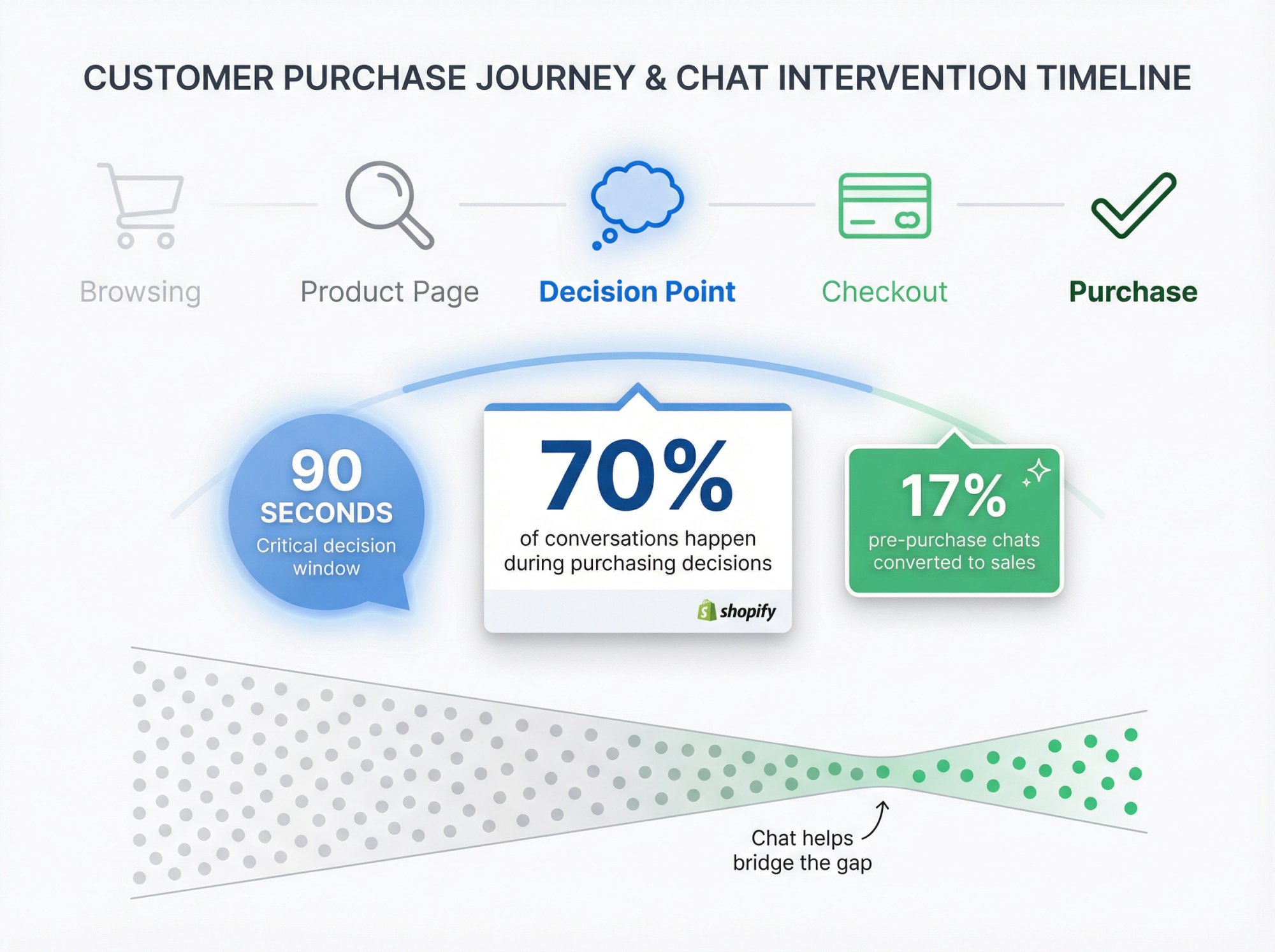
Let's start with some numbers from Shopify themselves. According to their data, 17% of pre-purchase conversations through Shopify Inbox turned into sales in November 2023. More telling: 70% of Inbox conversations happen while customers are making a purchasing decision.
Think about what that means. Most people don't chat with you after they've decided. They chat while they're deciding. That sizing question? That's not idle curiosity. That's someone with their credit card out, trying to figure out if they should click buy.
The data tells a clear story:
| Metric | Finding | Source |
|---|---|---|
| Pre-purchase chat conversion | 17% converted to sales | Shopify (November 2023) |
| Conversations during decision-making | 70% happen while purchasing | Shopify Inbox data |
| Impact of product cards in chat | 21% → 23.5% conversion bump | Shopify research |
| Customer preference against AI | 64% would prefer no AI | Industry research |
| Customers who'd switch companies | 53% over AI usage | Customer surveys |
So the goal isn't "add AI everywhere." The goal is add chat in a way that actually helps customers decide or solve problems, without trapping them in an AI dead end.
The Real Benefits You'll See
When you add a chatbot the right way, you'll notice these changes:
You'll answer questions you didn't even know you were missing. People don't always use your contact form. They especially don't use it at midnight when they're browsing from their phone. A visible chat bubble invites questions that would otherwise just become abandoned carts.
You'll free up time for actual complex issues. Most support tickets are variations on the same 15 questions. Returns policy. Shipping times. Size charts. Order tracking. A well-trained bot can handle these instantly, so you can focus on the person whose order got lost or who needs help with a damaged item.
Critical insight: Someone spending 90 seconds on a product page is probably deciding. A subtle chat prompt asking "Questions about sizing or shipping?" at that exact moment can be the nudge they need. Not aggressive. Just helpful.
You'll actually use the support tool. Here's a pattern we've seen: stores install live chat, get excited about it, then gradually stop responding because checking another inbox is a hassle. Chat works when it goes where your team already is. If your team lives in Slack or Teams, that's where chat notifications should go.
Best Shopify Chatbot Options in 2026
Before you start installing things, you need to understand what a Shopify chatbot actually is. Because it's not one thing.
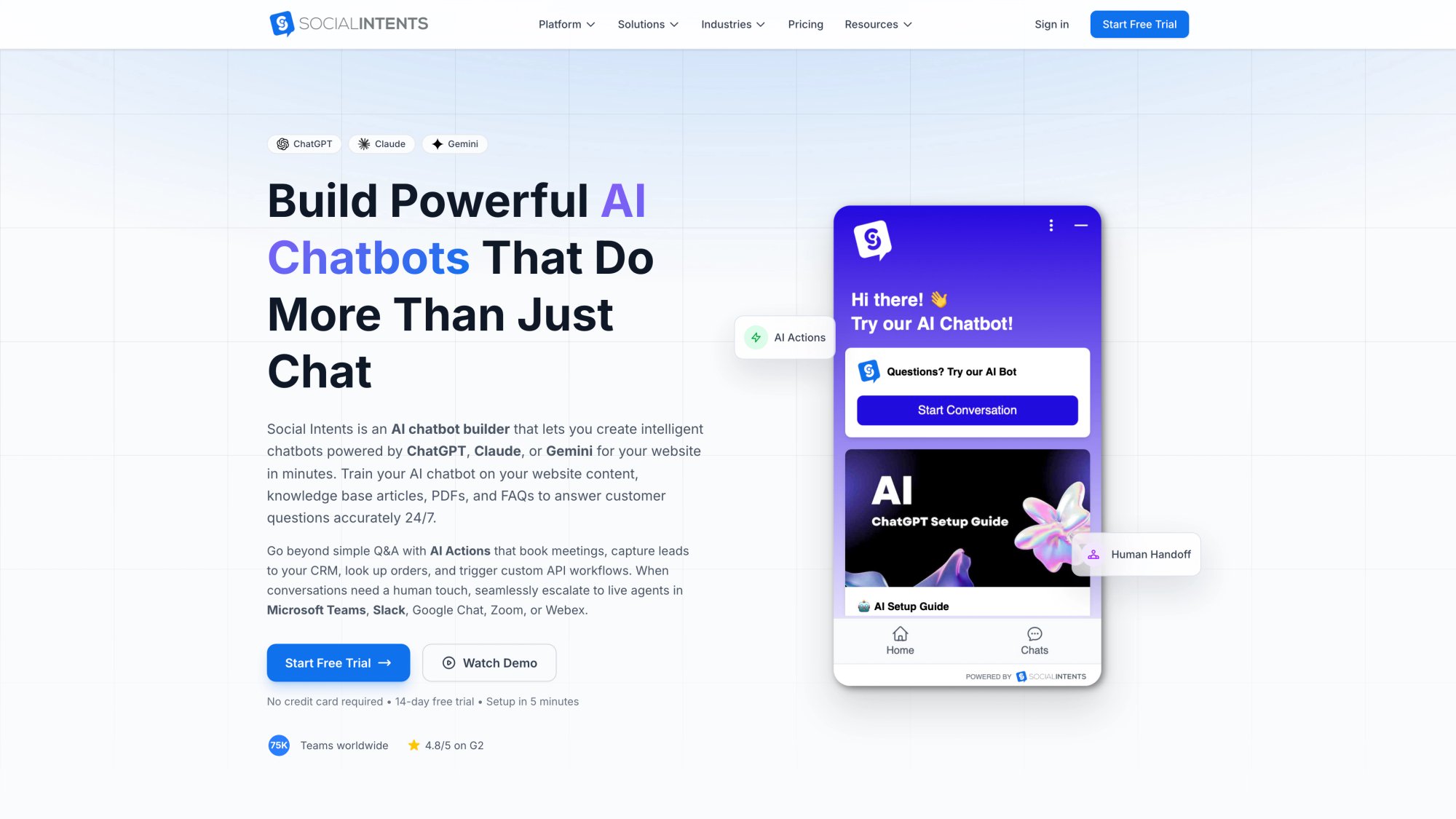
Real chatbot platforms like Social Intents offer AI-powered conversation handling, extensive training options, and seamless handoff to human agents when needed. Understanding these capabilities helps you evaluate which solution fits your store.
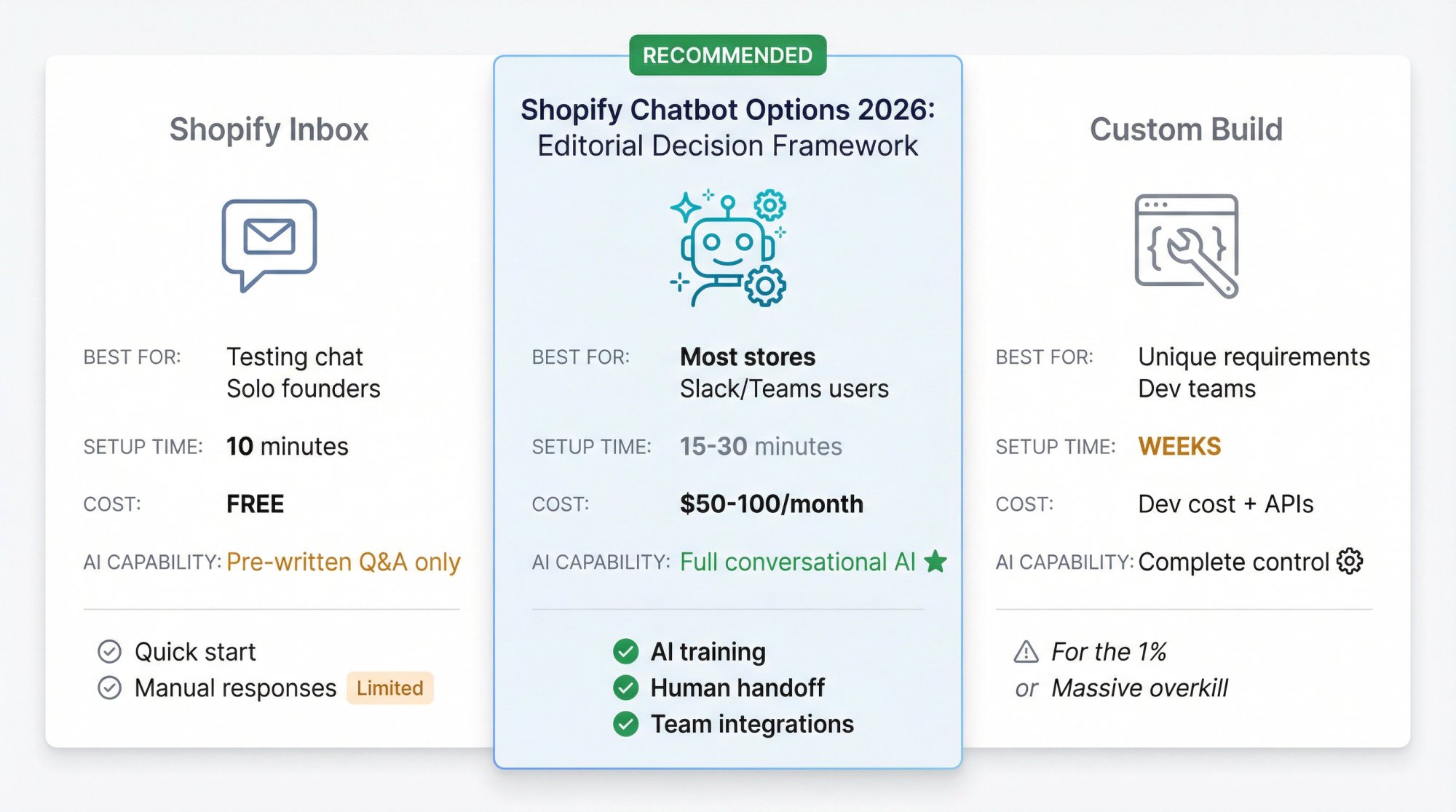
Your Three Main Options
| Approach | Best For | Setup Time | Cost | AI Capability |
|---|---|---|---|---|
| Shopify Inbox | Testing if customers will use chat; solo founders | 10 minutes | Free | Pre-written Q&A buttons only |
| Dedicated Chatbot App | Most stores; teams using Slack/Teams | 15-30 minutes | $50-100/month | Full conversational AI with training |
| Custom Build | Very unique requirements; dev teams available | Weeks | Developer cost + API fees | Complete control |
Option 1: Shopify Inbox (The Built-In Starting Point)
Shopify includes Shopify Inbox, which is free live chat. It adds a chat button to your store, and you respond via mobile app or web dashboard.
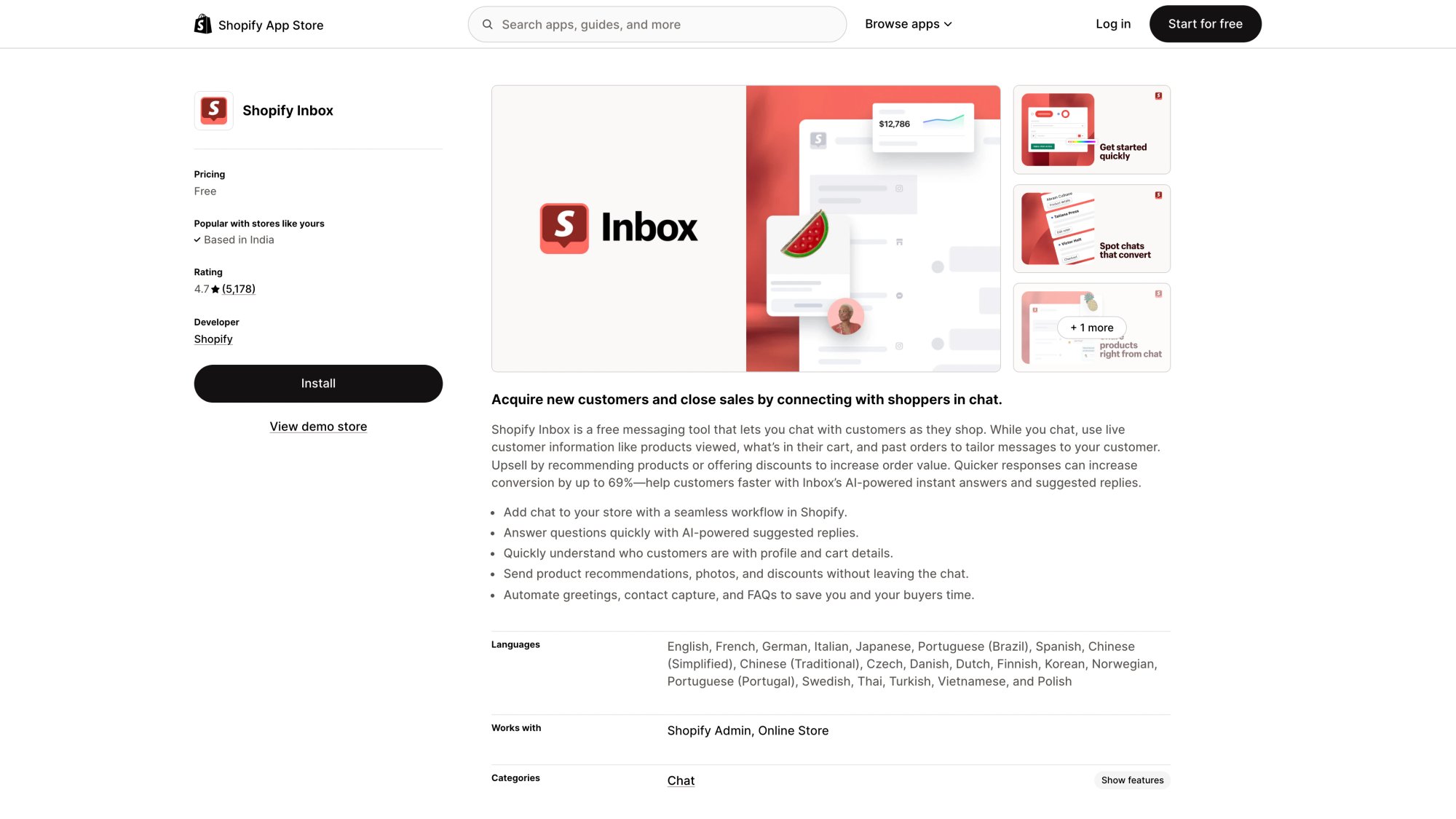
Shopify Inbox provides a solid free starting point for stores testing live chat. The app listing shows its core features: basic automation, mobile app support, and cart visibility when customers chat.
Shopify Inbox is genuinely useful if you just want basic chat capability. You can set welcome greetings, create FAQ buttons with Shopify Magic AI assistance, and see customer information like cart contents when they chat.
What it's actually good for:
Getting chat running in 10 minutes
Solo founders or tiny teams who can manually respond
Testing whether customers will even use chat
What it's not:
A true AI chatbot that handles conversations autonomously
Proactive (it only responds when customers initiate)
The "instant answers" in Shopify Inbox are basically pre-written Q&A buttons you create. Customers click a question, they get your pre-written answer. That's helpful, but it's not conversational AI.
Important note: Don't confuse Shopify Inbox with Shopify Sidekick. Sidekick is an AI assistant for merchants to help you manage your store. It's not a customer-facing chatbot.
Option 2: Dedicated Chatbot Apps (The Practical Path)
For most stores, the right answer is installing a dedicated chatbot app from the Shopify App Store. These apps give you actual AI-powered conversations, not just scripted responses.
The advantage? They're plug-and-play. The app handles the AI integration, the chat widget, the training interface, and ongoing updates. You don't need to know anything about APIs or programming.
What makes a chatbot app actually good:
→ AI that knows your store: You should be able to train the bot on your content. Your FAQs, your product pages, your policies. The best apps let you point them at URLs or upload documents, and they'll learn from that content.
→ Clean human handoff: When the AI can't help, it needs to escalate smoothly to a person. Look for apps that integrate with where your team already works. Social Intents, for instance, routes chats directly into Microsoft Teams, Slack, Google Chat, Zoom, or Webex, so your team doesn't have to learn a new interface.
→ Unlimited agents (or at least generous limits): Some apps charge per agent. Others, including Social Intents, offer unlimited agents even on basic plans. If you have a team, this matters for cost.
→ Store-specific actions: The difference between an okay bot and a great one is whether it can do things. Order lookups. Tracking info. Return label generation. Apps that support custom actions or API connections can turn your bot into an actual virtual assistant, not just an FAQ reader.
→ Sensible pricing: Most apps offer free trials or free tiers. Expect to pay $50-100/month for full features with reasonable usage limits (1,000-5,000 chats/month). Only very high-volume stores need the premium tiers.
Option 3: Building Custom (For the 1%)
You can build your own chatbot using APIs like OpenAI's GPT-4, custom code, and Shopify's API. This gives you complete control and potentially lower costs if you're only paying per API call.
It also requires:
Backend server setup
Frontend chat widget development
Shopify API integration
Security implementation
Ongoing maintenance
For 95% of Shopify merchants, this is massive overkill. The time and developer cost far exceeds what you'd pay for an app subscription. But if you have very unique requirements or developers on hand, it's technically possible.
For everyone else, let's focus on the practical path: using an app.
Where Chatbots Can Appear on Shopify Stores
Here's something that matters more than most tutorials admit: Shopify treats your storefront and your checkout/thank-you pages differently. Very differently.
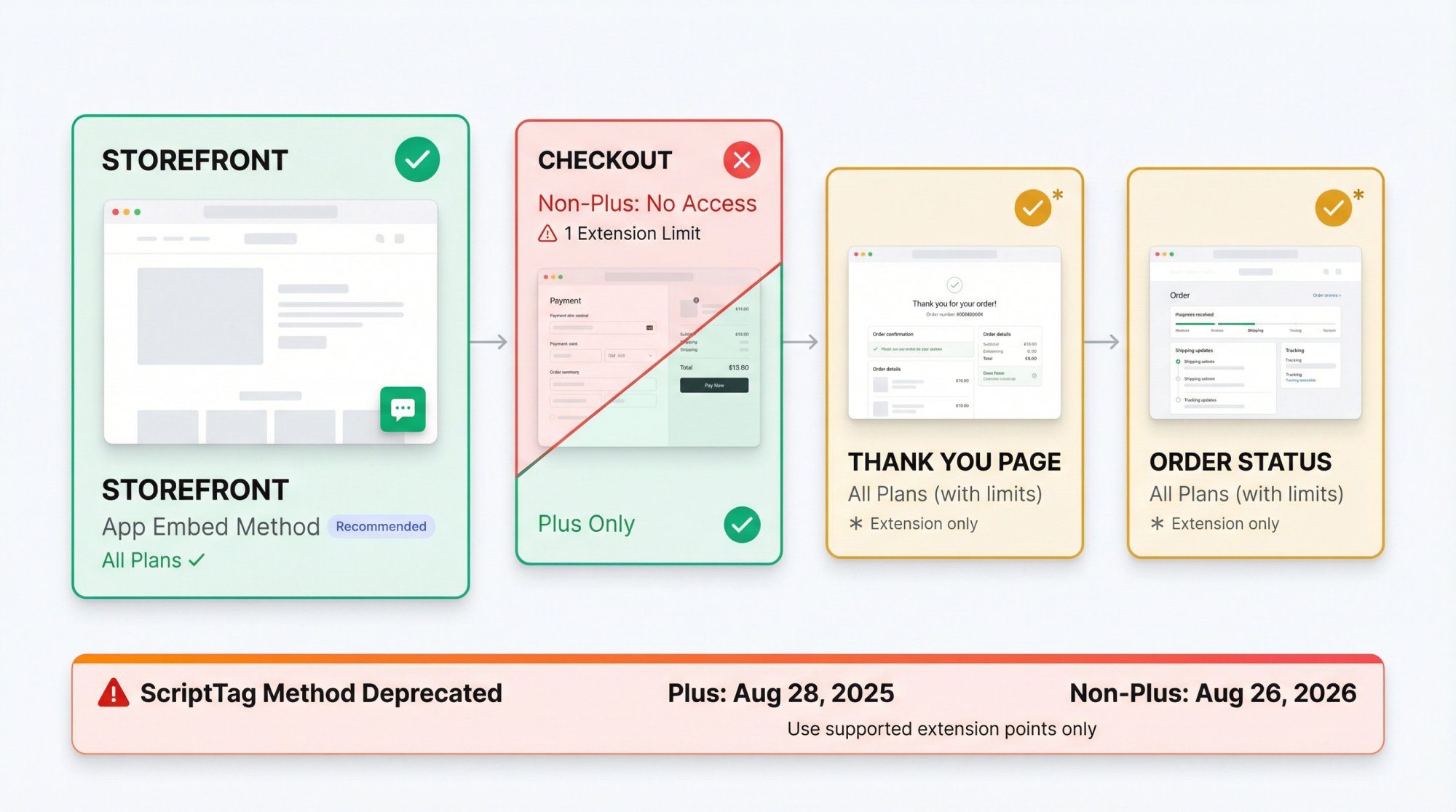
Storefront (Your Theme)
This is the easy part. Your storefront is your theme. Chat bubbles typically show here using an App Embed that you toggle on in the theme editor. Shopify explicitly supports this approach and it's the recommended way.
Checkout, Thank You, and Order Status Pages
This is where Shopify locks things down more. Good reasons (security, stability), but you need to understand the constraints.
According to Shopify's developer docs:
| Plan Type | Checkout Access | Thank You Page Access | Limitation |
|---|---|---|---|
| Shopify Plus | ✓ Chat allowed | ✓ Chat allowed | Only one chat extension active at a time |
| Non-Plus Plans | ✗ No chat | ✓ Chat allowed | Same single-extension limitation |
Why ScriptTags Are Dying
If you're thinking "I'll just paste a script onto the order status page," that approach is being phased out. Shopify blocked new ScriptTags on Thank You and Order Status pages starting February 1, 2025.
Existing scripts keep working until:
August 28, 2025 for Plus stores
August 26, 2026 for non-Plus stores
After those dates, they stop working. Period.
What this means practically: If you want chat on checkout or post-purchase pages, pick a solution that uses Shopify's supported extension points, not legacy script injection.
For most stores, focus on storefront chat first. That's where the purchase decisions happen anyway. Checkout chat is nice to have, but it's not usually the priority unless you're Plus.
How to Add a Chatbot to Shopify: Step-by-Step Setup
Let's walk through the real setup. We'll use Social Intents as the example because it handles everything we've talked about: AI with human handoff, Teams/Slack integration, unlimited agents, and custom actions.
The process is similar for other apps, so even if you choose something different, these steps will look familiar.
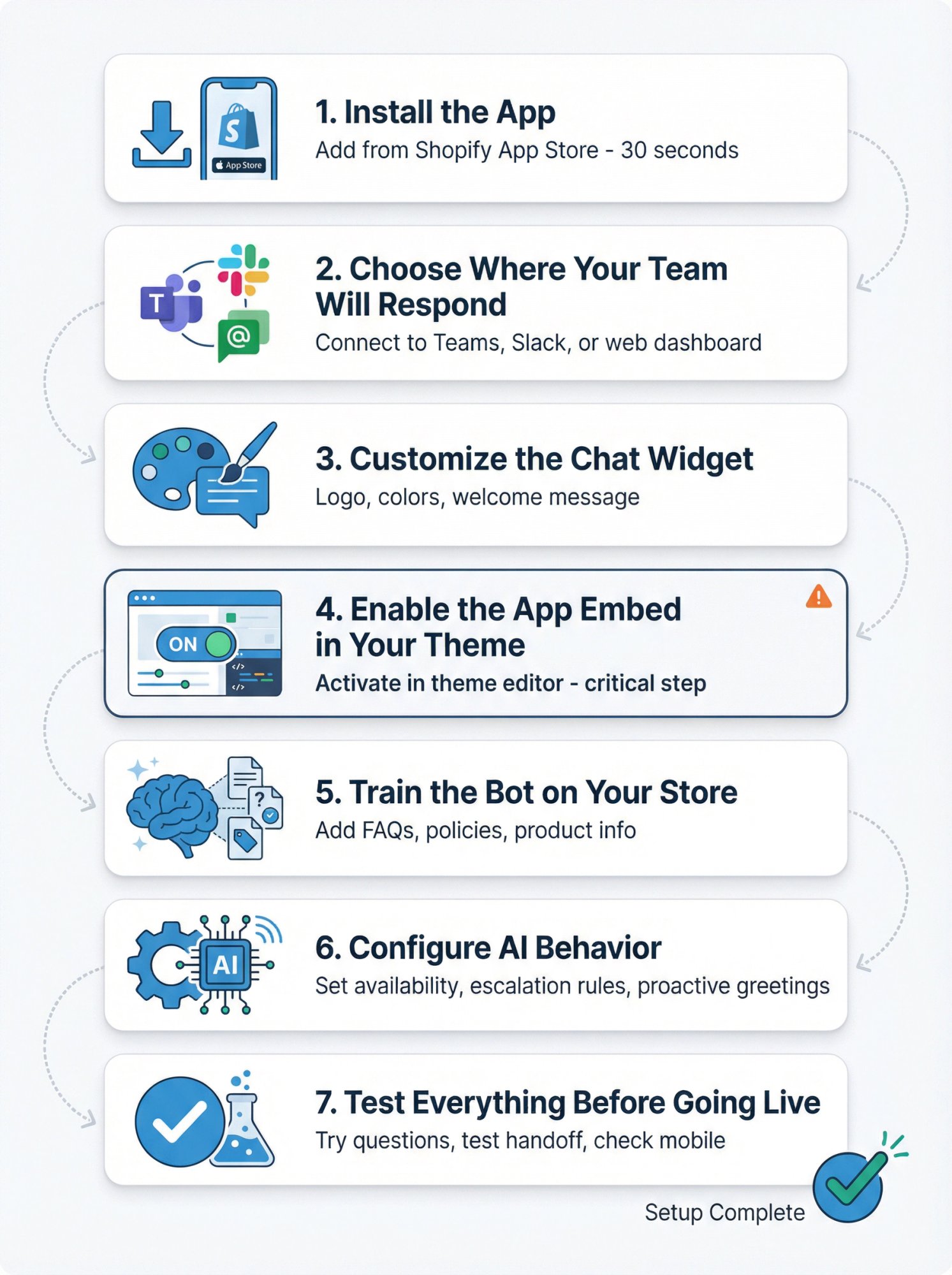
1. Install the App
Go to the Shopify App Store and search for your chatbot app. For Social Intents on the Shopify App Store, search "Social Intents AI Live Chat" directly in your Shopify admin under Apps.
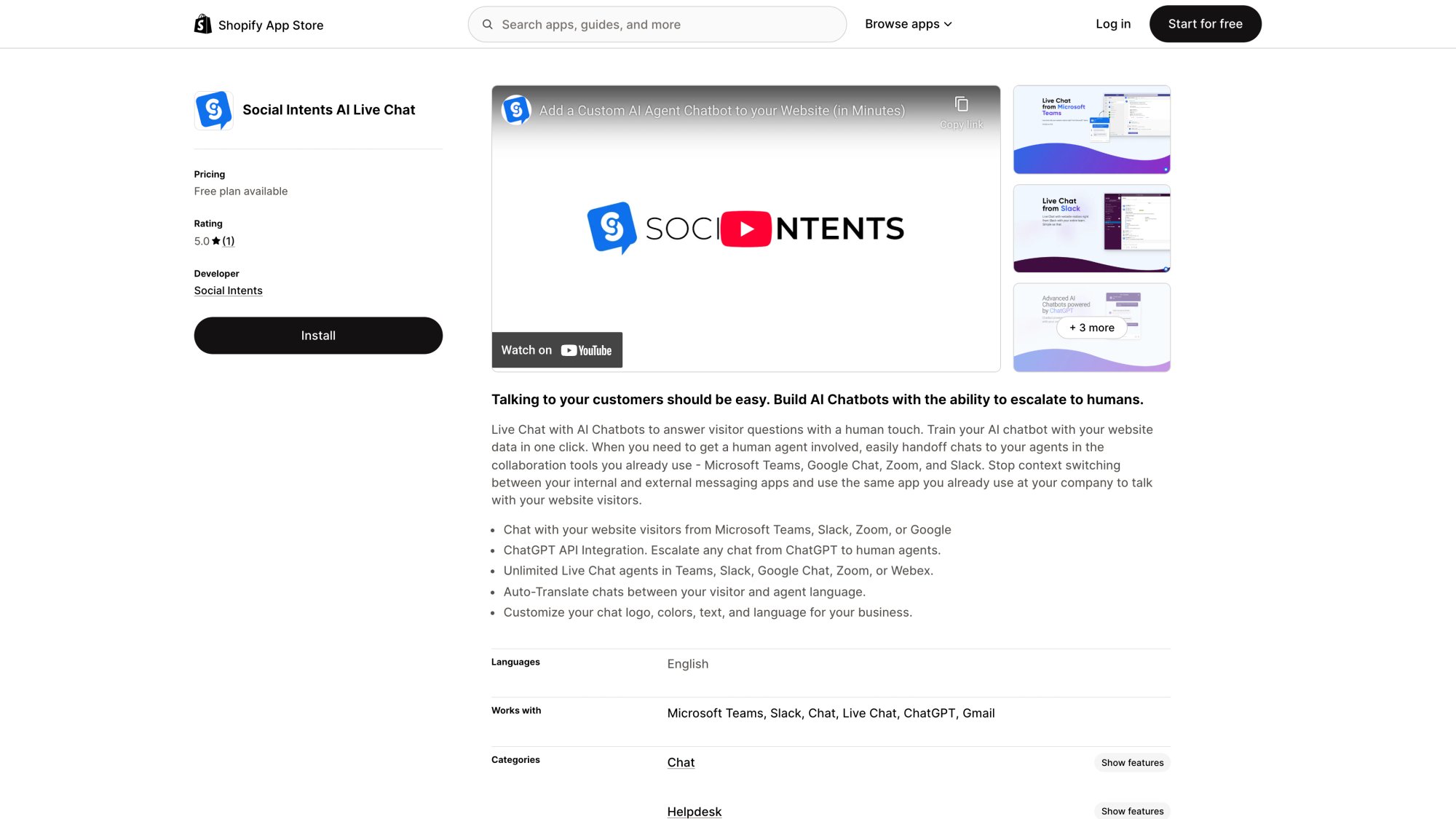
The Social Intents app listing shows ratings, key features (unlimited agents, Teams/Slack integration, AI training), and pricing tiers. This is where you'll click the "Add app" button to begin installation.
Click "Add app" and then "Install app." Shopify will ask for permissions. Review them and confirm. The app needs access to your store to embed the chat widget and read product/order information (if you're enabling those features).
This creates an account for you on the chatbot service and connects it to your store. The whole process takes about 30 seconds.
2. Choose Where Your Team Will Respond
This is the crucial decision most tutorials skip: how will you actually answer chats when customers need a human?
If your team uses Microsoft Teams, Slack, Google Chat, Zoom, or Webex, connect the app to that platform. Social Intents was built specifically for this: chats from your website get routed into your existing tools, so your team doesn't have to monitor yet another inbox.
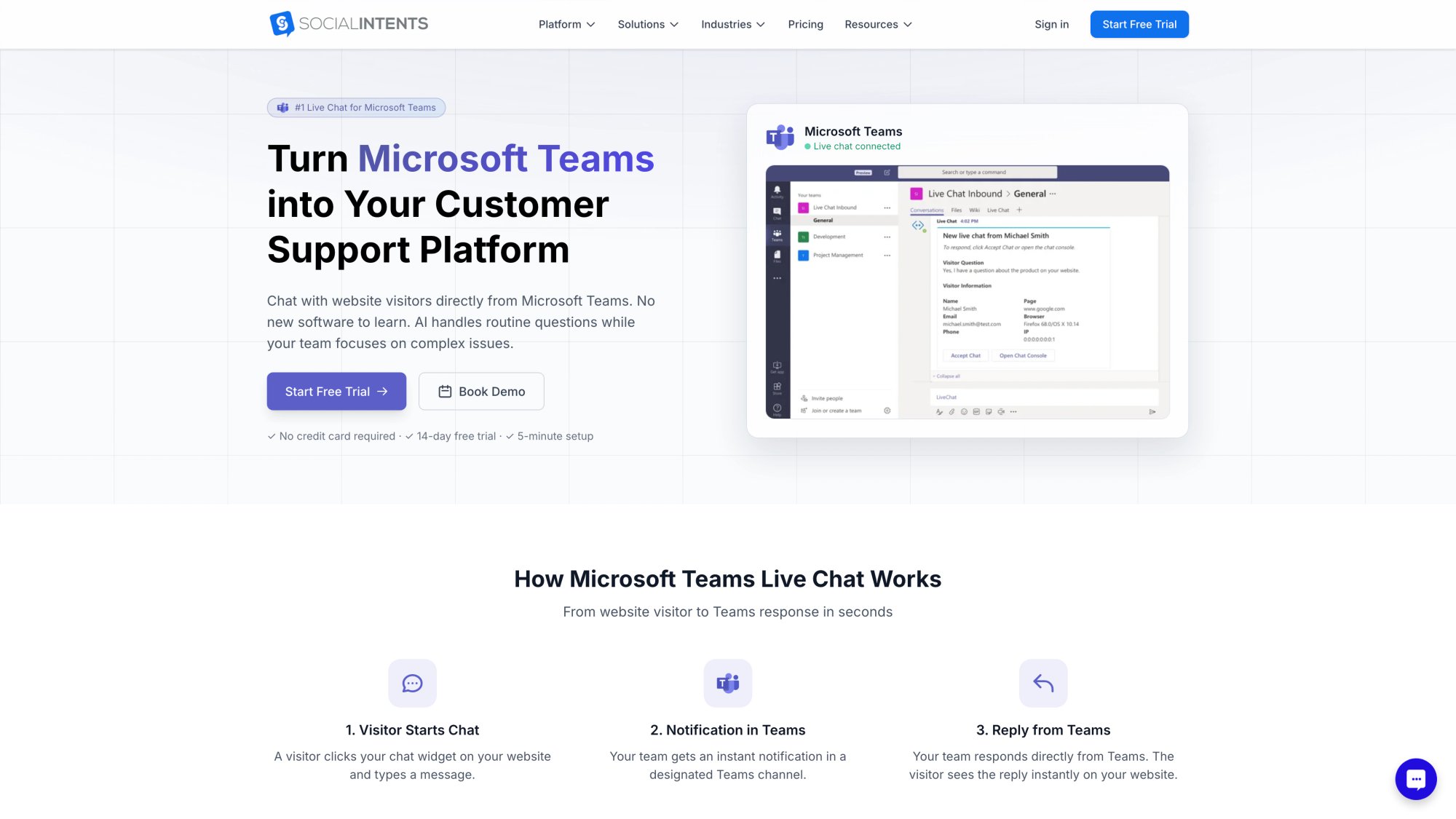
The Teams integration page demonstrates Social Intents' core value proposition: customer chats appear as native Teams messages, so your support team can respond without leaving the collaboration tool they already use all day.
If you prefer a standalone interface or you're working solo, most apps including Social Intents also offer a web dashboard.
Add your team members as agents. With Social Intents, you can add unlimited agents even on the free plan, so invite everyone who should be able to respond to chats.
3. Customize the Chat Widget
Make the bot look like it belongs on your site. Configure these elements:
| Element | Purpose | Best Practice |
|---|---|---|
| Logo/Avatar | Appears in chat window | Upload your brand logo |
| Colors | Chat bubble, header, buttons | Match your store's design palette |
| Welcome Message | First thing customers see | Be specific: "Questions about sizing, shipping, or returns? Ask here" |
| Visibility Rules | When/where widget shows | All pages with 5-10 second delay |
Skip generic "How can I help?" Instead, be specific about what you offer. Tell people exactly what the bot can help with.
4. Enable the App Embed in Your Theme
This is the step people miss, then wonder why their chat doesn't appear.
Installing the app doesn't automatically make the widget visible. You need to activate the app embed.
① Go to Online Store > Themes in your Shopify admin
② Find your published theme and click Edit theme
③ Look for the App embeds section (it's in the left sidebar)
④ Find your chat app's embed and toggle it on
⑤ Click Save
Screenshot needed: Shopify theme editor showing App embeds section with Social Intents Live Chat toggle enabled
Why placeholder: This screenshot requires Shopify merchant login credentials and cannot be captured automatically. A manual screenshot is needed showing:
Shopify admin theme editor interface
App embeds section in left sidebar
Social Intents Live Chat toggle switch (ON state)
Save button visible
Manual capture instructions: See /web-screenshots/captures/SC-03-shopify-admin-placeholder.md for detailed steps to capture this screenshot once merchant access is available.
Now preview your store. You should see the chat bubble. If you don't, you're probably editing the wrong theme (make sure it's your published theme, not a draft).
The Shopify help center has detailed guides that walk through this process if you need visuals.
5. Train the Bot on Your Store
Out of the box, the AI knows general information but not your specifics. Training is what makes it useful.
In the app dashboard, look for training or knowledge base settings. In Social Intents, you can train the bot with one click by pointing it at your store pages.
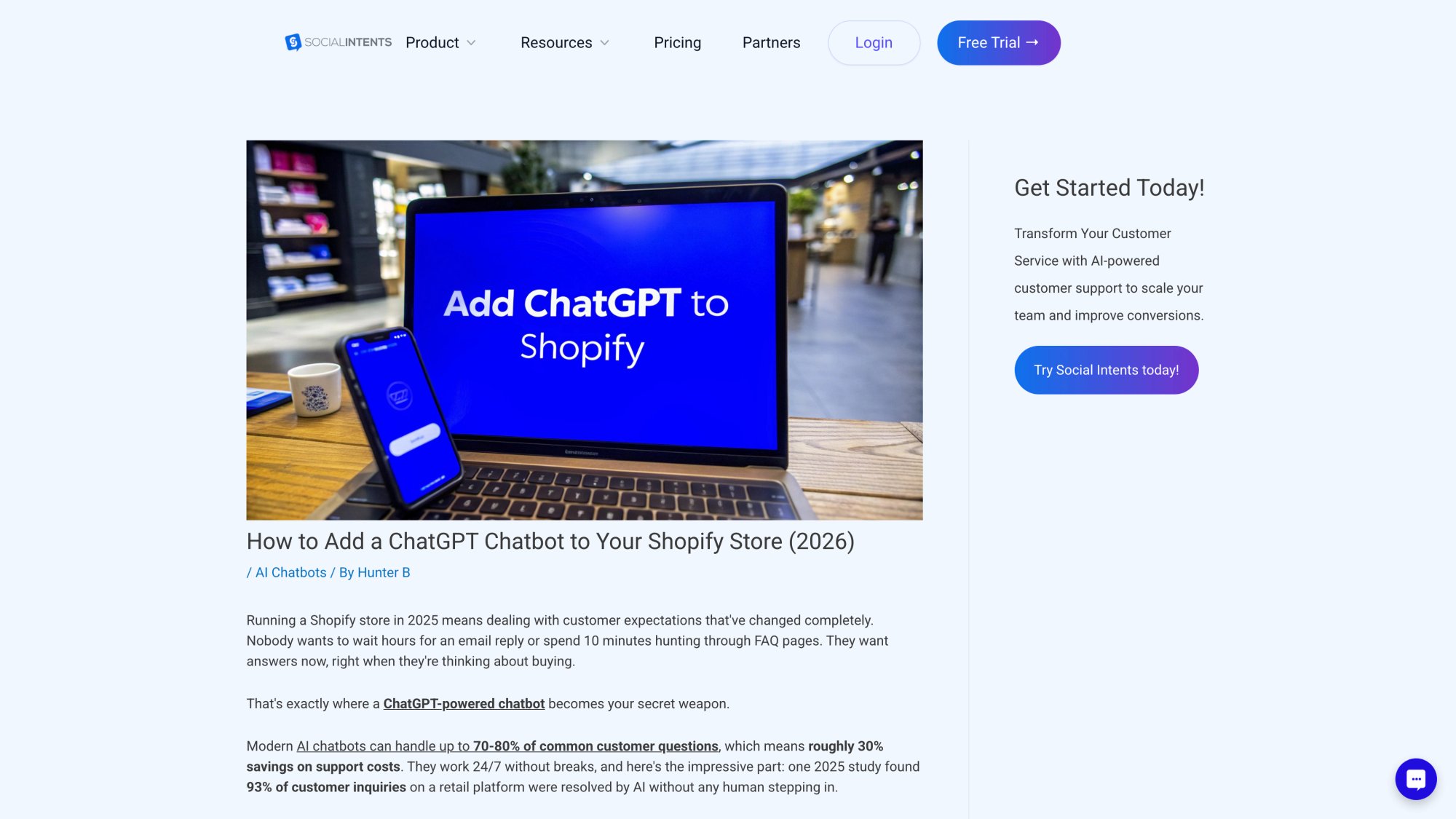
The training guide referenced in the text provides detailed instructions for adding your store content to the bot's knowledge base, including how to point the AI at specific pages and documents.
Add your most important content:
Your FAQ page
Shipping and returns policies
Key product pages (especially ones with common questions)
Size charts or fit guides
Any PDF manuals or documentation
The bot indexes this content and uses it to answer questions. So when someone asks "What's your return window?", the bot can say "We offer 30-day returns for unused items with original tags" because it read that from your policy page.
Update training regularly. When you add new products, change policies, or create new FAQs, re-train the bot so it stays current.
6. Configure AI Behavior
Set availability: Do you want the bot active 24/7, or only certain hours? Many stores run the bot constantly and configure it to escalate to email if a chat comes in outside business hours.
Adjust escalation rules: When should the bot hand off to a human? You can typically set confidence thresholds (if the bot is less than X% confident, it says "Let me get a person for you"). You can also set specific triggers (certain keywords, customer requests for a human, order issues).
Enable proactive greetings (carefully): Some stores see success with a subtle message after someone browses for 30 seconds on a product page: "Questions about this product? Ask here." Use this sparingly. Interrupting too early or too often is annoying.
Set up custom actions if needed: This is advanced but incredibly valuable. If your app supports it, you can enable features like order lookup by email and order number, shipping status from carrier APIs, return label generation, or discount code application.
Social Intents calls these "Custom AI Actions" and they're what turn a chatbot from a glorified FAQ into an actual assistant that can solve problems.
7. Test Everything Before Going Live
Act like a customer and ask questions:
"What are your shipping options?"
"Do you ship to Canada?"
"What's your return policy?"
"Do you have size 10 in the blue sneakers?"
"Where is my order?"
Check if the answers are accurate. If the bot gives wrong or vague info, go back and add more training content or adjust your knowledge base.
Test the human handoff. Ask something the bot shouldn't know, or just type "I want to talk to a person." Confirm that the escalation works and that your team receives the notification in Teams, Slack, or wherever you set it up.
Check mobile. Pull up your store on your phone. Is the chat bubble visible? Does it work smoothly? Is it positioned well (not covering your add-to-cart button)?
Look for two chat bubbles. If you see two, you probably have multiple chat apps enabled or both an app embed and a pasted script. Disable one.
Once testing looks good, you're live. Monitor conversations for the first few days to catch any issues or gaps in the bot's knowledge.
How to Make Your Shopify Chatbot Actually Useful
Installing a chatbot is step one. Making it valuable requires a bit of strategy.
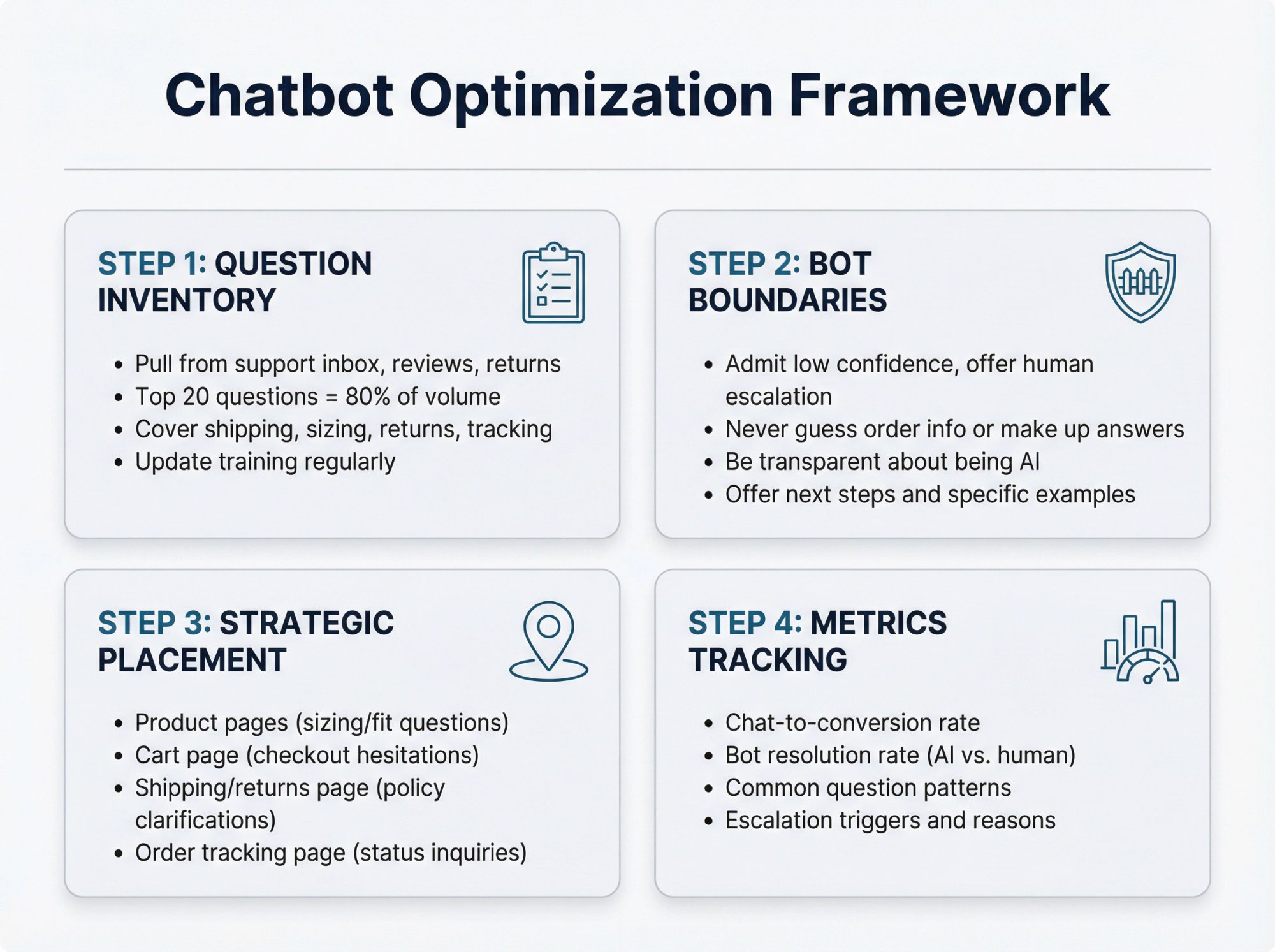
Start With a Question Inventory
Pull questions from:
Your support inbox (what do people ask most?)
Product reviews (what confused people?)
Return reasons
Failed searches on your site
The top 20 questions probably drive 80% of interruptions. Cover those thoroughly in your bot's training.
For Shopify stores, common high-priority topics include:
→ Shipping times by region
→ Return/exchange process
→ Size charts and fit
→ Order tracking
→ Discount codes or promotions
→ Product materials or care instructions
→ Warranty information
Decide What the Bot Should and Shouldn't Do
Given research findings about AI resistance, you should assume some customers are skeptical.
Rules that keep you safe: If confidence is low, the bot admits it and offers to connect to a human. Always include an obvious "Talk to a human" option. Never guess or make up order information. Be transparent (it's okay to say "I'm an AI assistant").
Rules that make you useful:
Focus on high-volume, low-complexity questions first
Add specific examples in responses (not "see our policy" but "We offer 30-day returns")
Use natural language (not robotic or overly formal)
Offer next steps ("Want to start a return? I can help with that")
Put the Bot Where Decisions Happen
Don't just leave it on your homepage. Make sure it's active on:
Product pages (sizing and fit questions)
Cart page (hesitations before checkout)
Shipping/returns page (policy clarifications)
Order tracking page (status questions)
Shopify's data shows that most chat happens during purchase decisions. Be there for those moments.
Measure What Matters
Track these metrics:
Chat-to-conversion rate: How many people who chat end up buying?
Bot resolution rate: What percentage of chats does the AI handle without human help?
Common questions: What are people asking most? (This tells you where your site needs better info)
Escalation reasons: Why does the bot hand off to humans? (This tells you what to train better)
Most chatbot apps provide basic analytics. Use them. If you're not tracking, you're just guessing whether the bot is helping or annoying people.
Troubleshooting Common Shopify Chatbot Issues
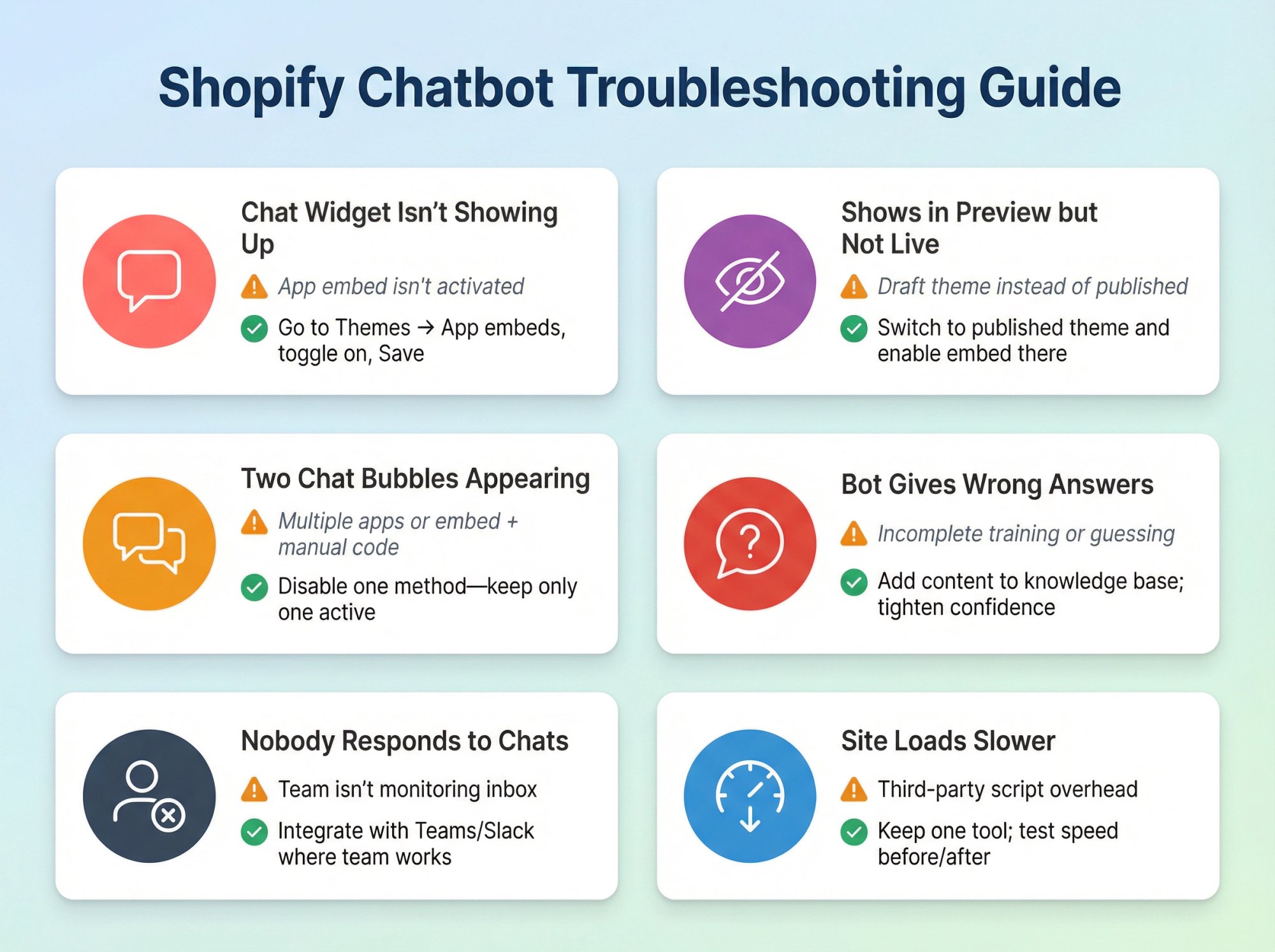
| Issue | Most Common Cause | Solution |
|---|---|---|
| Chat widget isn't showing up | App embed isn't activated | Go to Online Store > Themes > Edit theme > App embeds, toggle on, Save |
| Shows in preview but not live site | Activated on draft theme instead of published | Switch to editing published theme and enable embed there |
| Two chat bubbles appearing | Multiple chat apps enabled OR app embed + manual code | Disable one method |
| Bot gives wrong answers | Incomplete training or guessing | Add more content to knowledge base; tighten confidence threshold |
| Nobody responds to chats | Team isn't monitoring inbox | Integrate with Teams/Slack where team already works |
| Site loads slower | Third-party script overhead | Keep to one chat tool; test speed before/after to quantify impact |
What's Next for Shopify Chatbots in 2026
One quick note about the bigger picture: Shopify's Winter '26 Editions introduced "Agentic Storefronts," positioning Shopify stores to appear in AI chat interfaces like ChatGPT, Copilot, and Perplexity.
That's separate from an on-site chatbot, but it signals where things are heading. Conversational shopping is becoming a major channel. If you're investing in a chatbot now, think about making your content reusable across channels. Clean, consistent answers in your bot training can also feed into how AI platforms describe your products.
Frequently Asked Questions
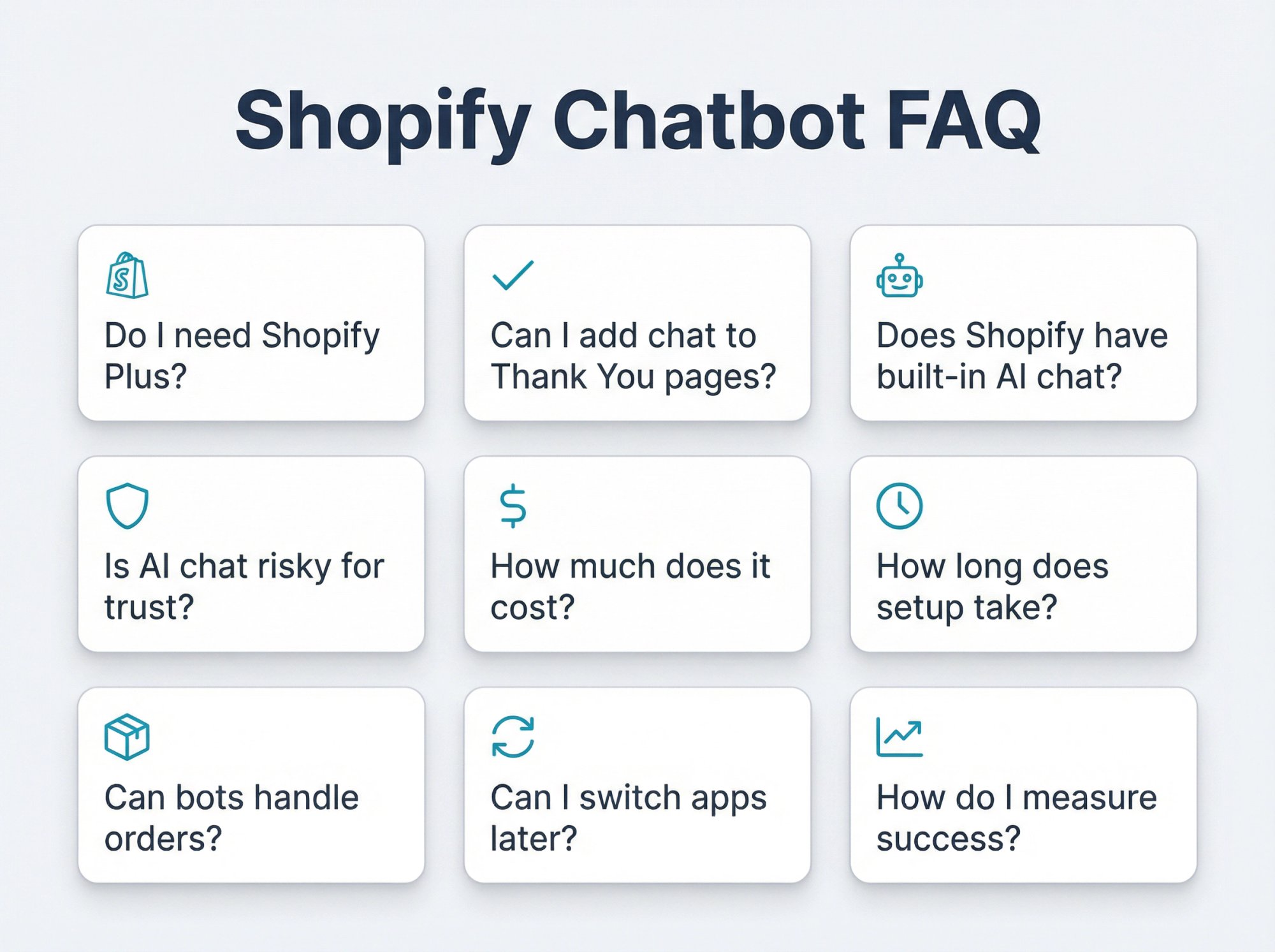
Do I need Shopify Plus to add a chatbot?
No. You can add chat to the storefront on any Shopify plan using app embeds. Plus mainly matters if you want chat inside the actual checkout flow. For Thank You pages, all plans support chat.
Can I add chat to the Thank You page?
Yes, but use the supported method. Shopify provides dedicated chat extension targets for thank-you pages. Avoid legacy ScriptTags, which are being phased out with hard deadlines in 2025 and 2026.
Does Shopify have a built-in AI chatbot?
Shopify has Shopify Inbox (live chat with some automation) and Shopify Magic (helps generate suggested responses). But for a fully autonomous AI chatbot trained on your content with advanced workflows, you'll need a third-party app like Social Intents.
Is AI chat risky for customer trust?
It can be if done poorly. Research shows customers are often skeptical of AI support. The fix: be transparent, don't let the bot guess or bluff, and make human escalation easy. A hybrid approach (AI handles simple stuff, humans take over for complex issues) works best.
How much does a good chatbot app cost?
Free tiers or trials are common. Expect to pay $50-100/month for full features with reasonable usage (1,000-5,000 chats/month, unlimited agents). Social Intents, for example, offers a free plan and paid tiers starting at $39/month with unlimited agents.
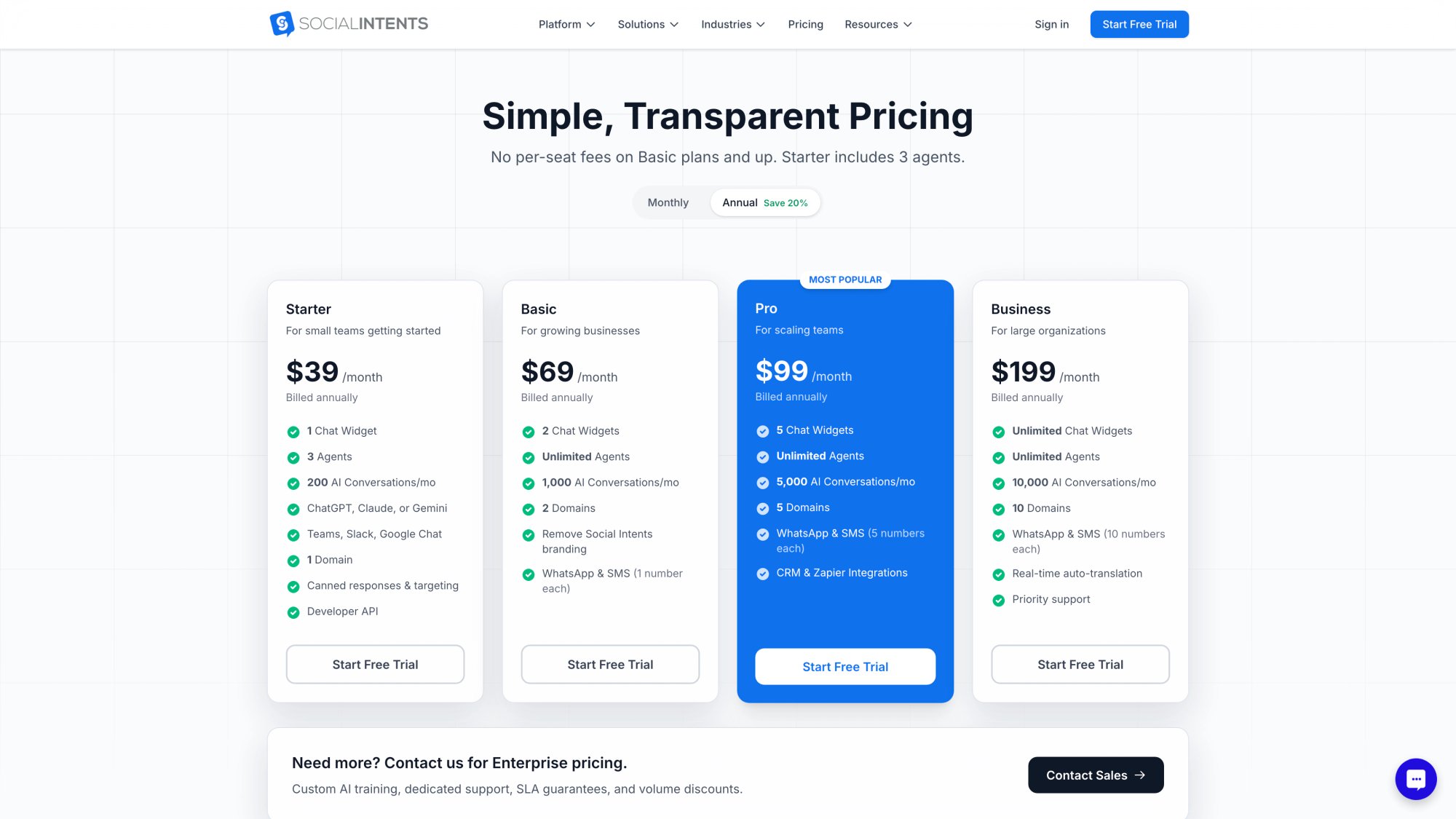
The pricing page shows transparent plan options: Starter ($39/month), Basic ($69), Pro ($99), and Business ($199), with the key differentiator being unlimited agents starting at the Basic tier—a significant cost advantage over per-agent pricing models.
Check the pricing page for current details.
How long does setup take?
Basic installation: 15-30 minutes. (Install app, enable embed, customize appearance)
Full setup with training: 1-2 hours. (Add knowledge base content, configure AI behavior, test thoroughly)
Optimization: Ongoing. (Monitor conversations, update training, refine based on actual usage)
Can the bot handle orders and tracking?
Yes, if you set up integrations. Many apps, including Social Intents, support custom actions like order lookup via Shopify's API. This requires some configuration but turns your bot into a much more capable assistant.
What if I need to change chatbot apps later?
You can switch. Uninstall the old app, install the new one, and repeat the setup process. Your store isn't permanently tied to any particular solution. Most apps offer free trials so you can test before committing.
How do I know if the chatbot is actually helping?
Watch your conversion rate for visitors who chat vs. those who don't. Track how many chats the AI resolves without human help. Monitor common questions to see if the bot is filling knowledge gaps on your site. Most apps for e-commerce provide basic analytics for this.
This guide was researched with sources accessed on January 21, 2026. App features and Shopify platform rules can change, so verify details in the Shopify Help Center, developer docs, and app listings before implementation.