Your customer starts typing in your chat widget at 11 PM. They wait. And wait. The widget says you're "online," but nobody's actually there to answer.
Five minutes later, they close the tab and probably won't come back.
This happens thousands of times a day across business websites. The chat looks available when it's not, and customers walk away frustrated. Research shows that 72% of customers expect immediate service whenever they reach out, and nearly half get frustrated when 24/7 support isn't available. If you can't staff live agents around the clock, set clear chat business hours and handle off-hours inquiries intelligently.
When we built Social Intents, we designed it to solve exactly this problem. Our live chat software lets you automate when your chat appears online, configure what happens after hours (from offline forms to AI assistants), and integrate directly into the tools your team already uses like Microsoft Teams, Slack, Google Chat, Zoom, and Webex.
In this guide, you'll learn what chat business hours are, why they matter, and how to configure them step-by-step in Social Intents. We'll also cover after-hours strategies, advanced multi-department setups, troubleshooting, and everything else you need to create a reliable, 24/7-ready chat experience.
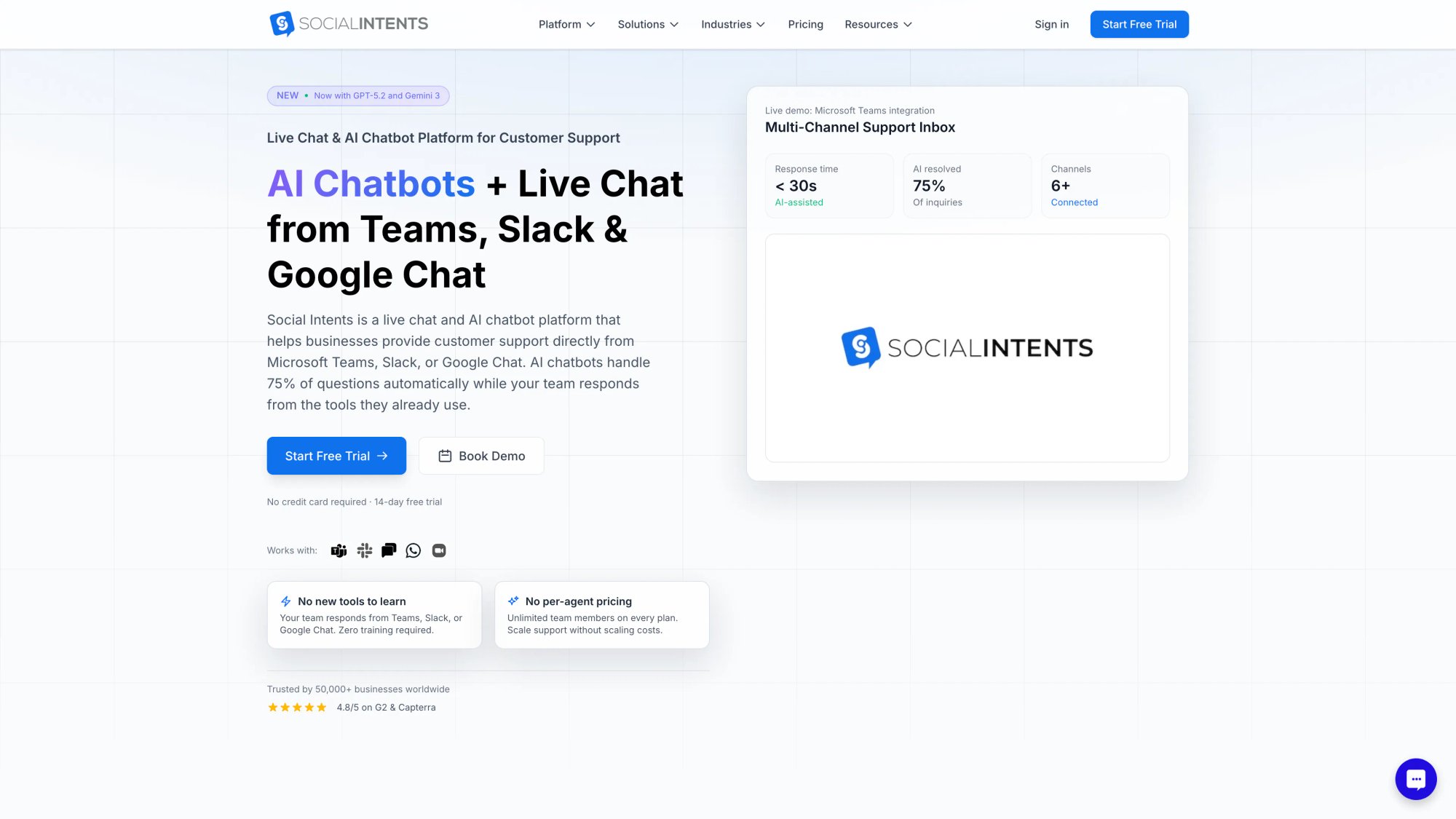
Social Intents integrates directly with the collaboration tools your team already uses, making it easy to manage chat without switching contexts.
What Are Chat Business Hours and Why Do They Matter?
Chat business hours are the specific times you designate for live chat to be actively available on your website. During these hours, your team is monitoring the chat and ready to respond in real time. Outside these hours, the widget typically goes into an offline mode (showing a contact form, hiding entirely, or handing off to an AI chatbot).
Setting defined business hours for your chat does three critical things:
Manages customer expectations clearly.
Visitors immediately see when live help is available. A clear schedule prevents the frustration of trying to chat after hours and getting no response. They know that "Live chat is online from 9am to 6pm" and can plan accordingly or leave a message.
Automates your online/offline status.
With defined hours, you don't have to manually toggle the chat on and off every day. Social Intents automatically switches the widget online during your working hours and offline when closed. This eliminates the risk of someone forgetting to turn it off at 5 PM and customers thinking you're ignoring them at midnight.
Uses team resources efficiently.
If your customer support team works standard business hours, there's no point pretending to offer 24/7 chat. Defining hours focuses your team's attention when they're actually available. Outside those hours, you can still capture inquiries for later or deploy an AI chatbot, rather than leaving customers wondering if anyone will answer.
Critical insight: Pretending you're online when you're not is one of the fastest ways to annoy customers. Social Intents' experts call this out bluntly in their after-hours playbook.
Business hours let you offer responsive live chat when you're staffed, and a smart alternative when you're not. That's what success looks like.
How Does Live Chat Availability Work? Manual vs. Automatic
Before you configure anything, you need to understand the two ways Social Intents decides whether your chat widget appears online or offline at any moment.
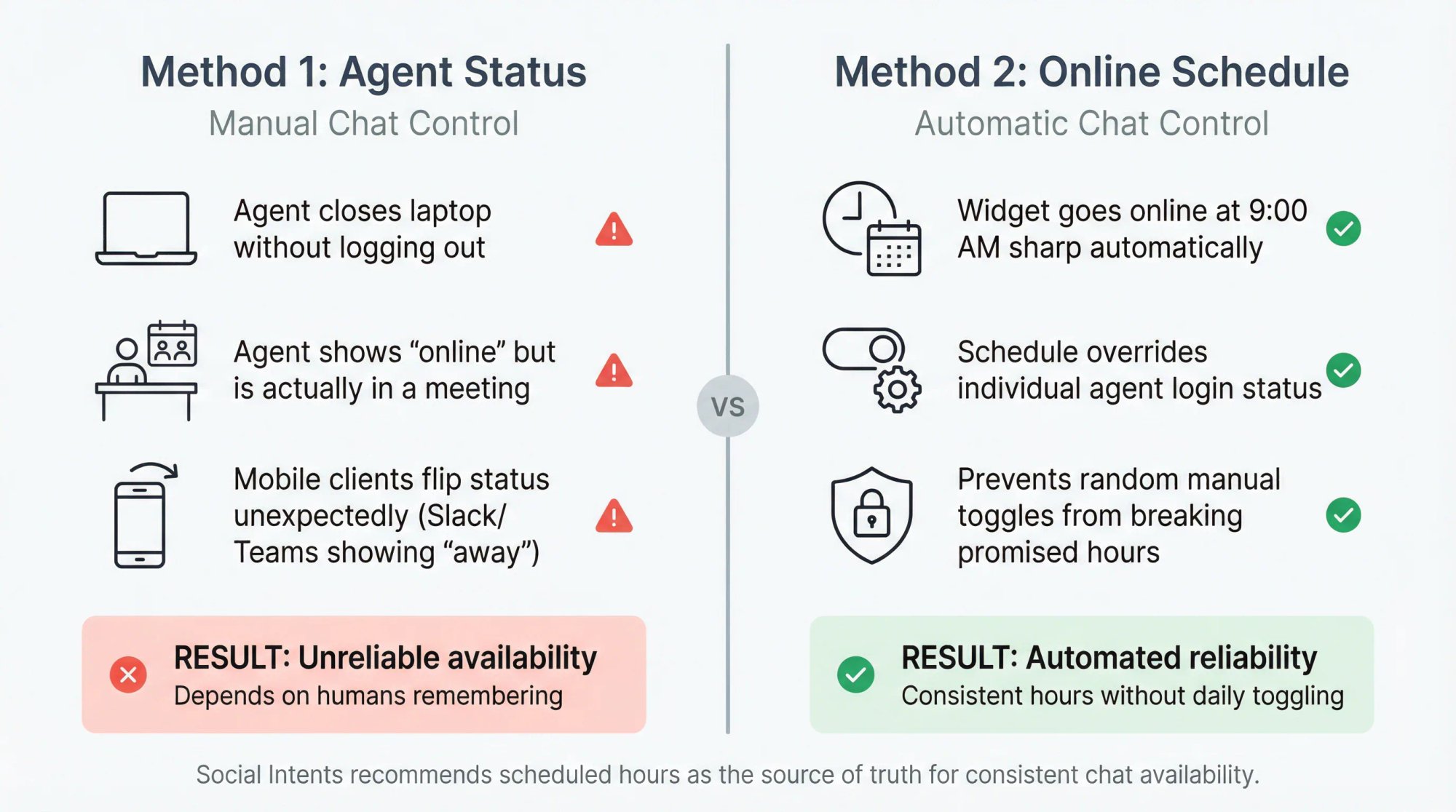
Method 1: Agent Status for Manual Chat Control
By default, your chat widget is online whenever at least one agent is logged in. If everyone logs out or closes the app, the widget goes offline.
This sounds simple until reality hits:
• Someone closes their laptop without logging out
• An agent stays "online" but is actually in a meeting
• Mobile clients flip status in unexpected ways (Slack or Teams showing someone as "away" when they're not)
In practice, purely manual control is unreliable for maintaining consistent hours. You're depending on humans to remember something they'll inevitably forget.
Method 2: Scheduled Business Hours for Automatic Control
The better approach (and what Social Intents explicitly recommends) is using the Online Schedule feature. You define a weekly schedule (Monday-Friday, 9am-6pm, for example) for each chat widget. During those hours, the widget automatically shows as online. Outside them, it switches to offline mode.
This schedule overrides individual agent login status, ensuring your chat follows preset hours regardless of who forgets to log out. Your chat will always be online at 9:00 AM sharp and offline at closing time without daily manual toggling.
Which Chat Availability Method Takes Priority?
When you enable a schedule, it becomes the source of truth. Social Intents notes that when the schedule is active, the manual availability toggle in your console gets disabled until you turn off the schedule.
This precedence is actually good. It prevents random manual toggles from breaking your promised hours.
Can You Set Different Hours for Different Chat Widgets?
Each chat widget in Social Intents has its own schedule. That matters if you have multiple departments, brands, or websites. Sales Chat might be available 9-5 while Support Chat runs 8-8. You can configure these independently and even use targeting rules to control which pages show which widget.
How to Set Up Your Chat Schedule Step-by-Step
Now let's actually configure your business hours. Once set, Social Intents handles everything automatically.
Step 1: Where to Access Online Schedule Settings
From the Social Intents dashboard:
Log in to your Social Intents dashboard and navigate to your Live Chat widget settings. If you have multiple widgets, select the one you want to configure. Look for Chat Settings in the left navigation (usually under Settings or a gear icon).
From Microsoft Teams:
If your agents work in Teams and you manage settings there, you can access everything directly in Teams. Find the Live Chat app in your Teams sidebar, open Live Chat Settings, then choose Online Schedule.
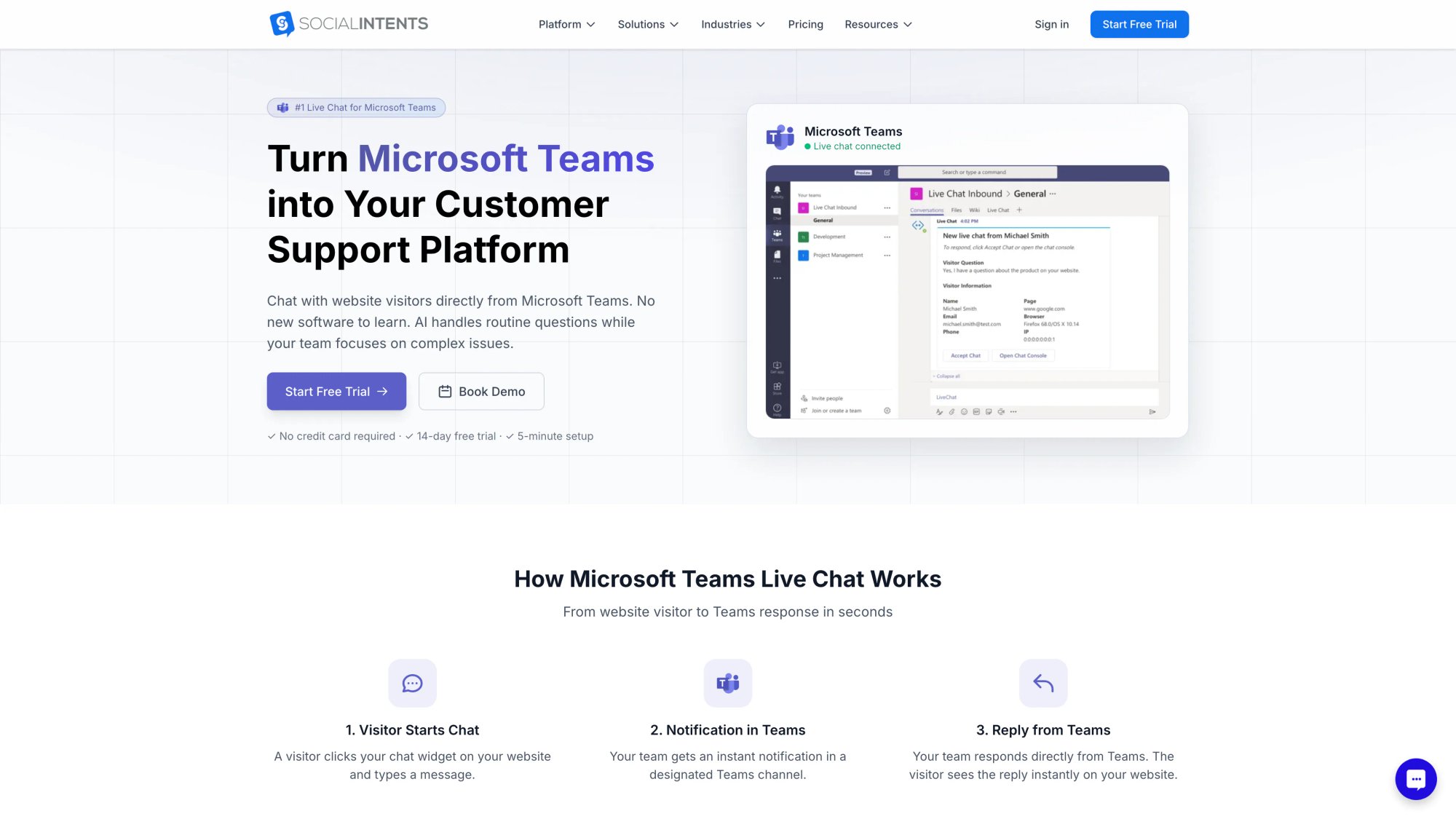
Social Intents integrates natively with Microsoft Teams, allowing your support team to answer website chats directly from their Teams channels without switching tools.
Step 2: How to Enable the Chat Schedule
In the Online Schedule section, you'll see a checkbox or toggle to Enable Live Chat Schedule. Turn this on.
Next comes the most important setting people skip: Timezone. Choose the timezone that matches how you staff chat. The system uses standard timezone names like America/New_York or Europe/London. Get this wrong and your chat will go online/offline at the wrong times.
Critical advice: Your timezone selection determines when your chat appears online. If you have one support team, pick their timezone. If you have regional teams, see the multi-timezone section later.
Practical advice:
• If you have one support team, pick their timezone
• If you have regional teams, see the multi-timezone section later
Step 3: How to Configure Your Business Hours
You'll see a section labeled "Your chat will be online during these times." Add schedule rows with these details:
• Pick the day (or day range like Monday-Friday)
• Set start and end times
• Use Add Schedule to create additional rows for split shifts
For example, you might add:
Monday-Friday: 09:00 to 17:00
Saturday: 10:00 to 14:00
Sunday: (leave blank for closed)
Click Save Schedule when you're done.
Step 4: How to Add Holiday Exceptions to Your Chat Schedule
This is where most teams mess up and end up "online" on Christmas. Social Intents supports a Holiday Schedule for exactly this situation.
How to set it up:
In the Online Schedule tab, click Add Holiday
Enter the holiday name and date range
Choose whether chat should show offline during that period
Optionally hide the chat widget entirely during the holiday
Customize what visitors see during holidays:
Edit your Offline Message so visitors see something specific:
"We're closed for Thanksgiving and will be back Monday, November 27. Leave a message and we'll respond as soon as we're back online."
Pro testing trick: Change your device date to verify the widget shows the right state during your configured holidays.
Step 5: How to Verify and Test Your Chat Schedule
Don't just save and walk away. Test it:
• Check that the widget appears online during business hours
• Start a test chat and verify messages route correctly
• Wait for closing time and confirm it switches to offline mode
• Submit a test offline message and verify your team receives it
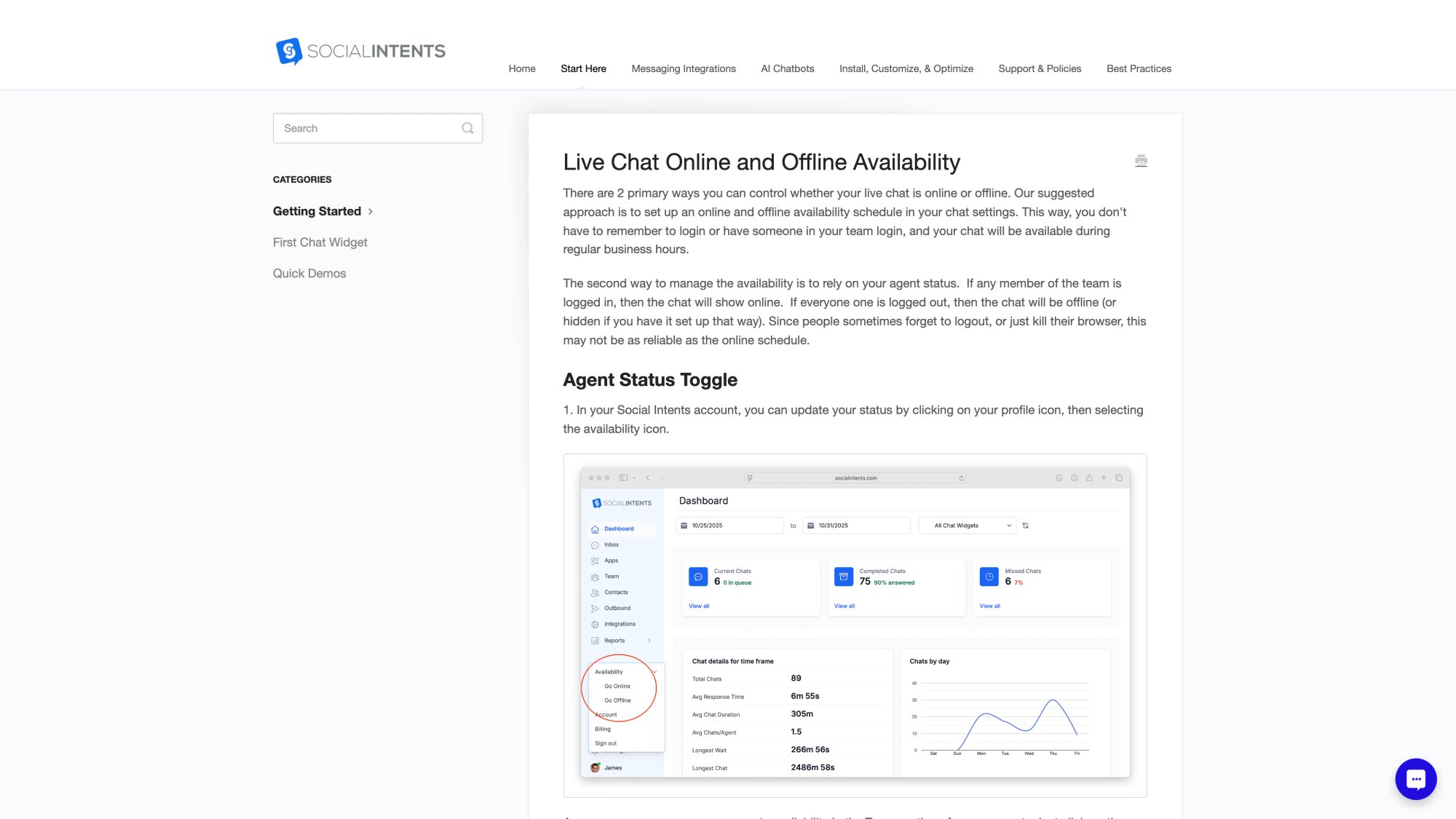
The Social Intents Online Schedule interface makes it easy to configure your chat availability with timezone selection, weekly hours, and holiday exceptions all in one place.
What Happens When Customers Contact You After Hours?
Setting business hours is only half the equation. The other half is deciding what happens when someone reaches out at 2 AM.
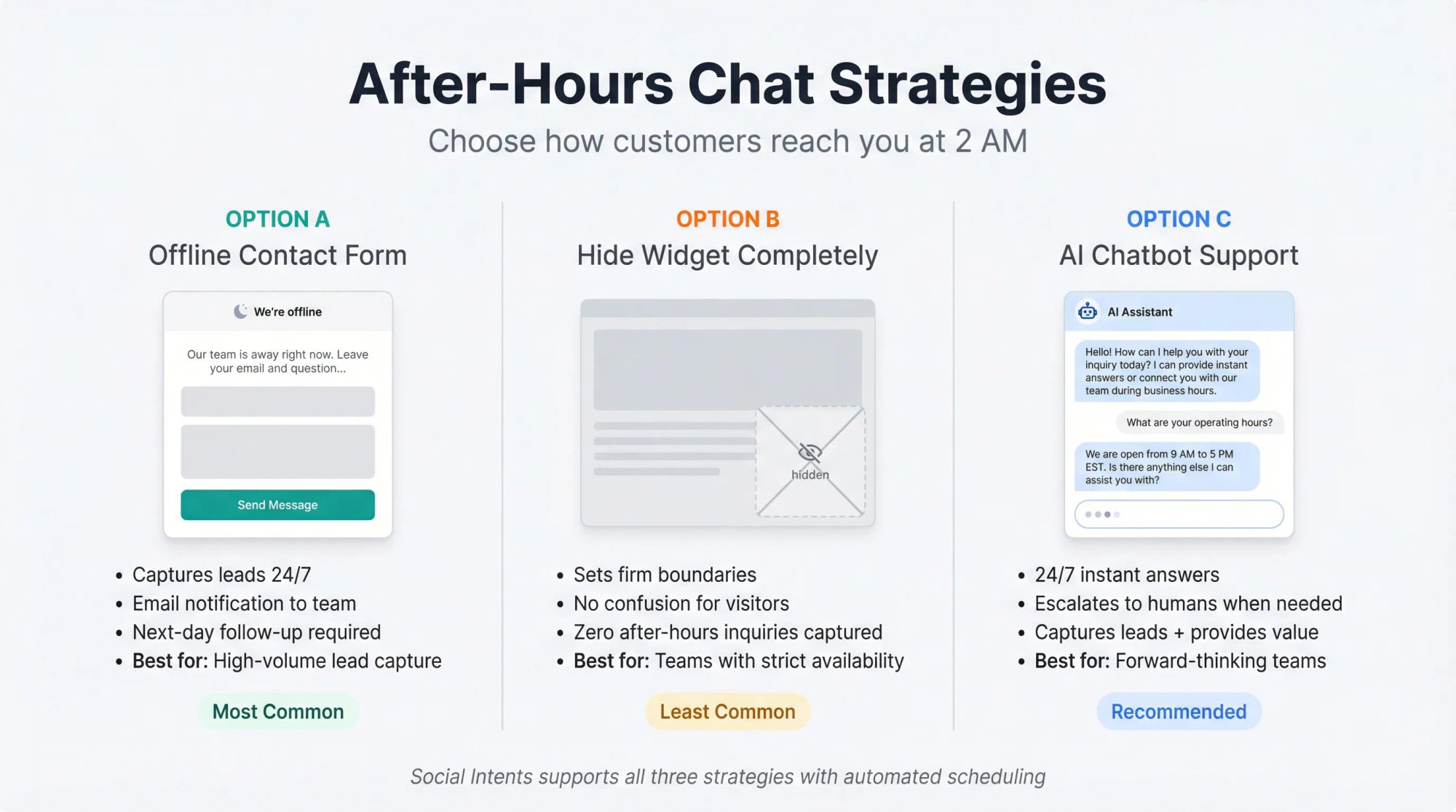
Social Intents gives you three main options:
Option A: Show an Offline Contact Form After Hours
The most common approach is keeping the chat widget visible after hours, but in an "offline" state where visitors can leave a message. Social Intents displays an offline form that captures the inquiry and sends it to your team via email or queues it in your console.
Visitors might see:
"Our team is away right now. Leave your email and question, and we'll reply first thing tomorrow morning."
This ensures you still capture leads and support requests even when live agents aren't available. The captured messages are defined as "Offline Messages" and stored for follow-up.
Best for: Teams that want to capture every opportunity and can commit to responding promptly the next business day.
Option B: Hide the Widget Completely When Offline
You can also configure the widget to not show up at all when you're closed. This sets a firm boundary and prevents any confusion.
Best for: Situations where your audience gets annoyed by any chat presence after hours, or you have a separate support channel you want to push people toward.
Tradeoff: You'll capture fewer after-hours leads and support requests.
Option C: How to Use AI Chatbots for After-Hours Support
This is the "business hours mode" most forward-thinking teams actually want. Humans during business hours, AI assistance after hours, with clean escalation to humans when needed.
Social Intents' after-hours guide strongly recommends not hiding chat entirely and instead using an AI-first approach with a "leave a message" fallback.
How Social Intents AI Powers 24/7 Chat Coverage
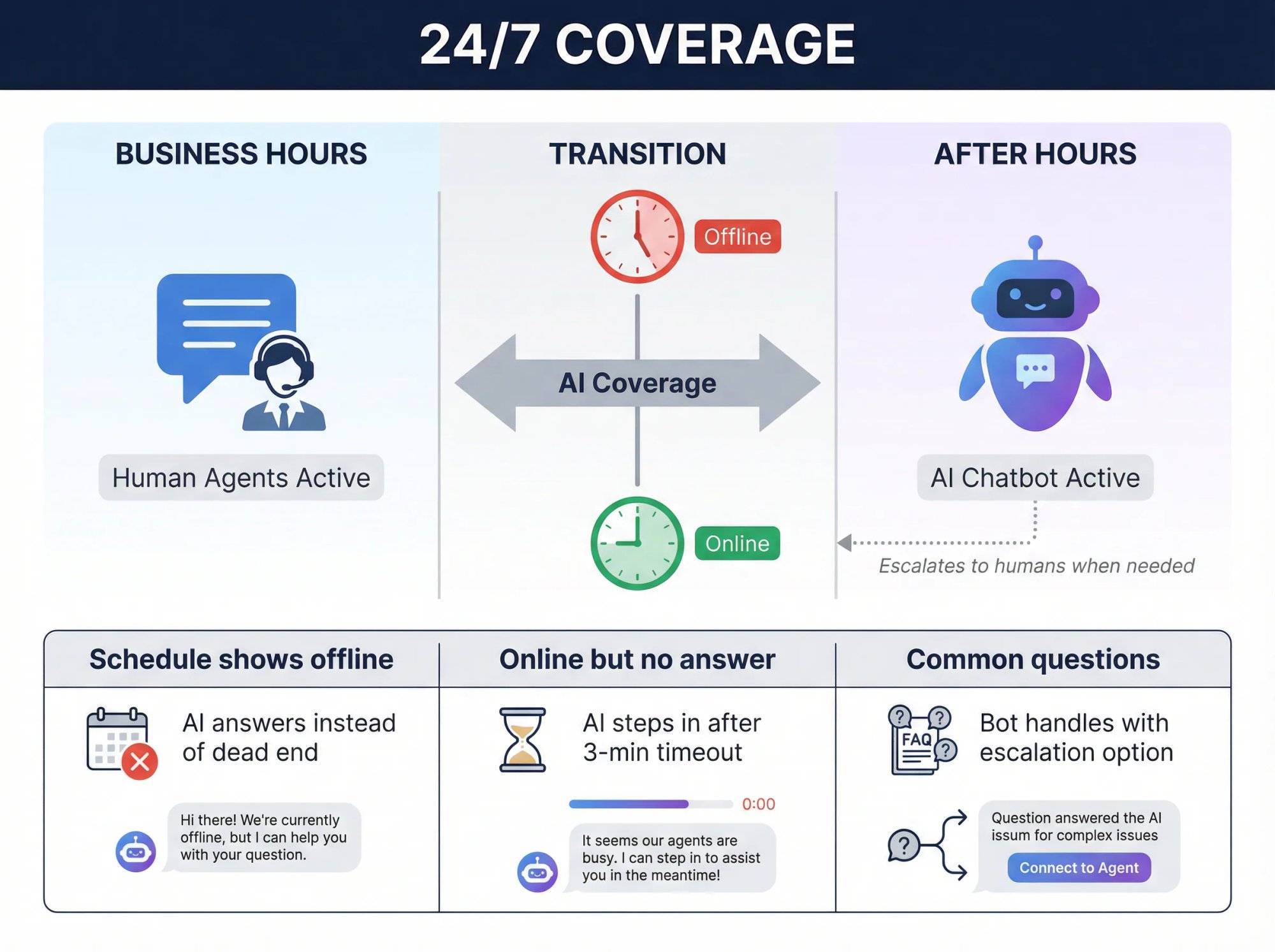
We built Social Intents with powerful AI chatbot features specifically to handle this after-hours challenge. Here's how it works:
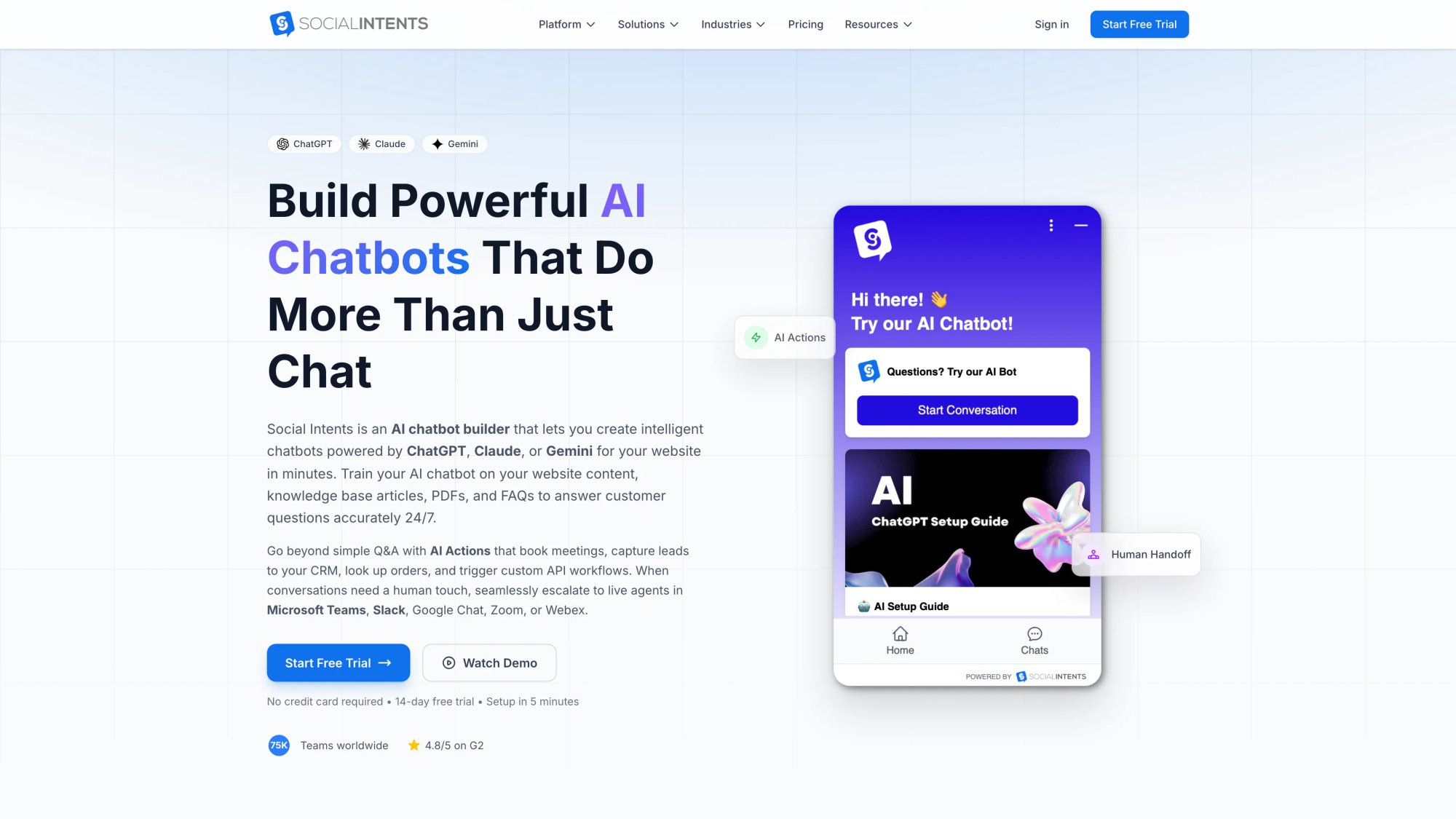
Social Intents supports multiple AI models including ChatGPT, Claude, and Gemini for intelligent after-hours coverage with seamless handoff to human agents.
How "Chatbot When Offline or Missed" Works
In Social Intents' ChatGPT integration settings, there's an option called "Chatbot when Chat is offline or missed."
| Scenario | What Happens |
|---|---|
| Schedule shows "offline" | AI chatbot answers instead of showing dead end |
| "Online" but nobody answers | AI steps in after timeout (default 3 minutes, configurable) |
| Common questions 24/7 | Bot handles automatically with escalation to humans when needed |
What this means in practice:
• If your schedule says you're offline, the AI chatbot can still answer instead of showing a dead end
• If you're "online" but nobody answers fast enough, the AI steps in after your timeout (default is 3 minutes, configurable)
• The bot can handle common questions 24/7 and escalate to humans when needed
You can configure this in your chatbot settings to add the chatbot only when chat is offline or missed, so it doesn't compete with your agents during normal hours.
Why AI After-Hours Coverage Works
It avoids two common failures:
AI interrupting humans when your team is available
Dead air when your team is unavailable
How to Train Your After-Hours AI Chatbot
Social Intents supports multiple AI models including ChatGPT, Claude, and Gemini. You can train it on:
• Your knowledge base and documentation
• FAQs and common questions
• Product information and specs
• Pricing and plan details
The bot learns from your content and provides instant answers. For anything outside its training, it can collect the visitor's info and create a ticket for your team.
How to Set Clear Expectations with AI Chat
If you use after-hours AI, don't pretend it's a person. You'll get better outcomes with transparency and a clear human exit.
A simple pattern that works:
"I'm our AI assistant. I can help right now with common questions. If you need a person, type 'agent' and we'll follow up during business hours."
Advanced Chat Schedule Configurations
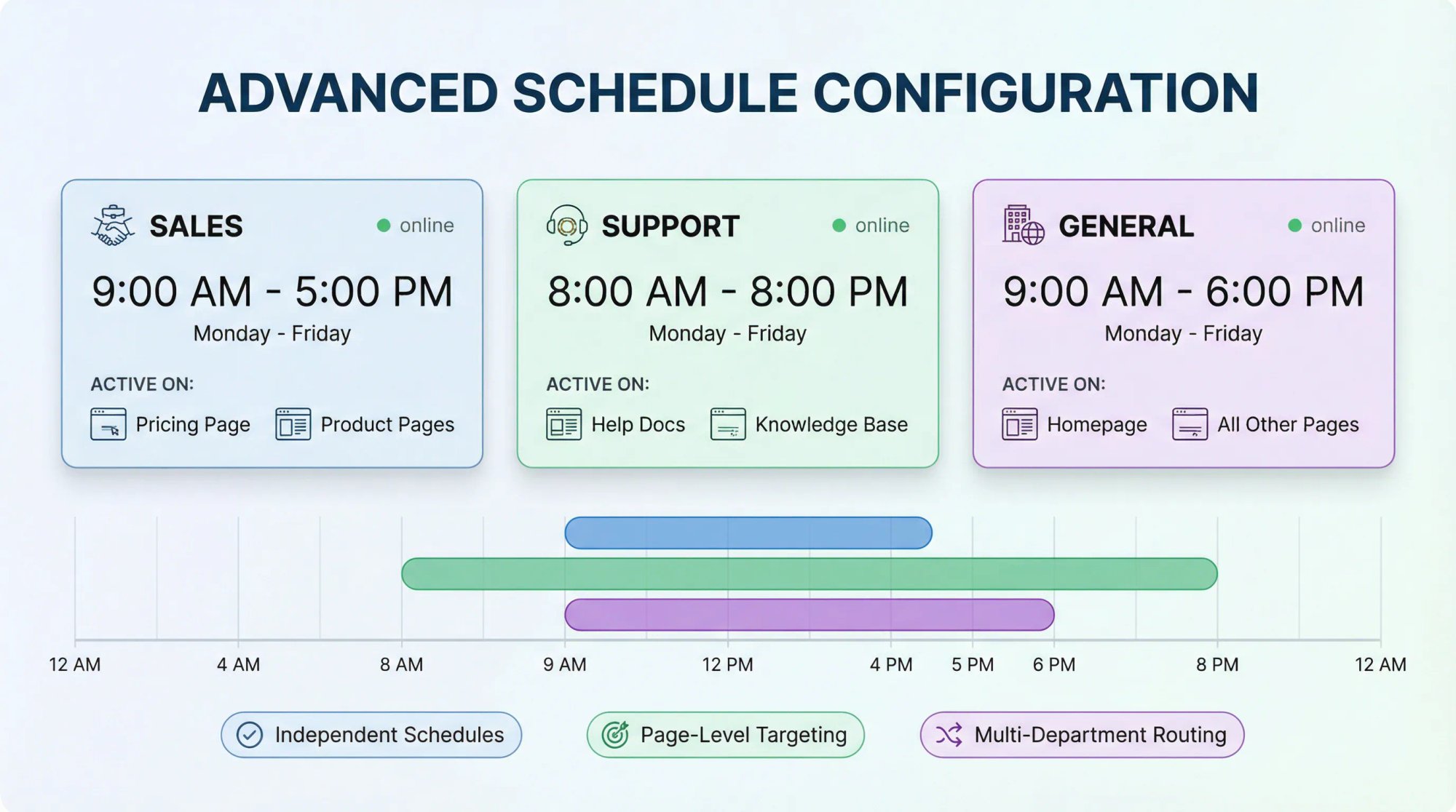
How to Set Up Multiple Departments with Different Hours
Sales available 9-5 but Support running 8-8? No problem. Create separate chat widgets for each department and give each its own Online Schedule.
Then use Targeting rules to control which pages show which widget. Your pricing page shows Sales Chat, while your help docs show Support Chat.
| Department | Hours | Widget Target |
|---|---|---|
| Sales | 9am-5pm | Pricing & product pages |
| Support | 8am-8pm | Help docs & knowledge base |
| General | 9am-6pm | Homepage & all other pages |
How to Configure Split Shifts and Complex Schedules
Need to cover 8am-12pm, then 2pm-6pm? Add multiple schedule rows. The schedule UI supports as many entries as you need.
You could even have:
Monday-Wednesday: 09:00-17:00
Thursday: 09:00-12:00, 14:00-18:00
Friday: 09:00-15:00
How to Handle Multi-Timezone Teams
Social Intents' after-hours content points out a key reality: your off-hours might be prime time somewhere else.
For global teams, you typically land on one of these models:
Single widget, single timezone: Simplest, but your "closed" hours are somebody else's daytime. Works if you're okay with AI or offline forms handling those regional gaps.
Multiple widgets per region: Each widget uses its region's timezone and routes to that region's team. More complex setup, but provides local coverage.
How to Override Your Schedule Temporarily
Real life never respects your schedule. Here's how to override it:
Override via dashboard:
Disable the schedule temporarily to regain manual control. Use this when you're unexpectedly open (product launch) or closed (emergency).
Slack-specific override:
If you run chats through Slack, Social Intents provides slash commands:
• /livechat offline turns chat offline even during office hours
• /livechat online turns it online even outside scheduled hours
Extremely useful for "we're in a company all-hands, stop incoming chats for 30 minutes."
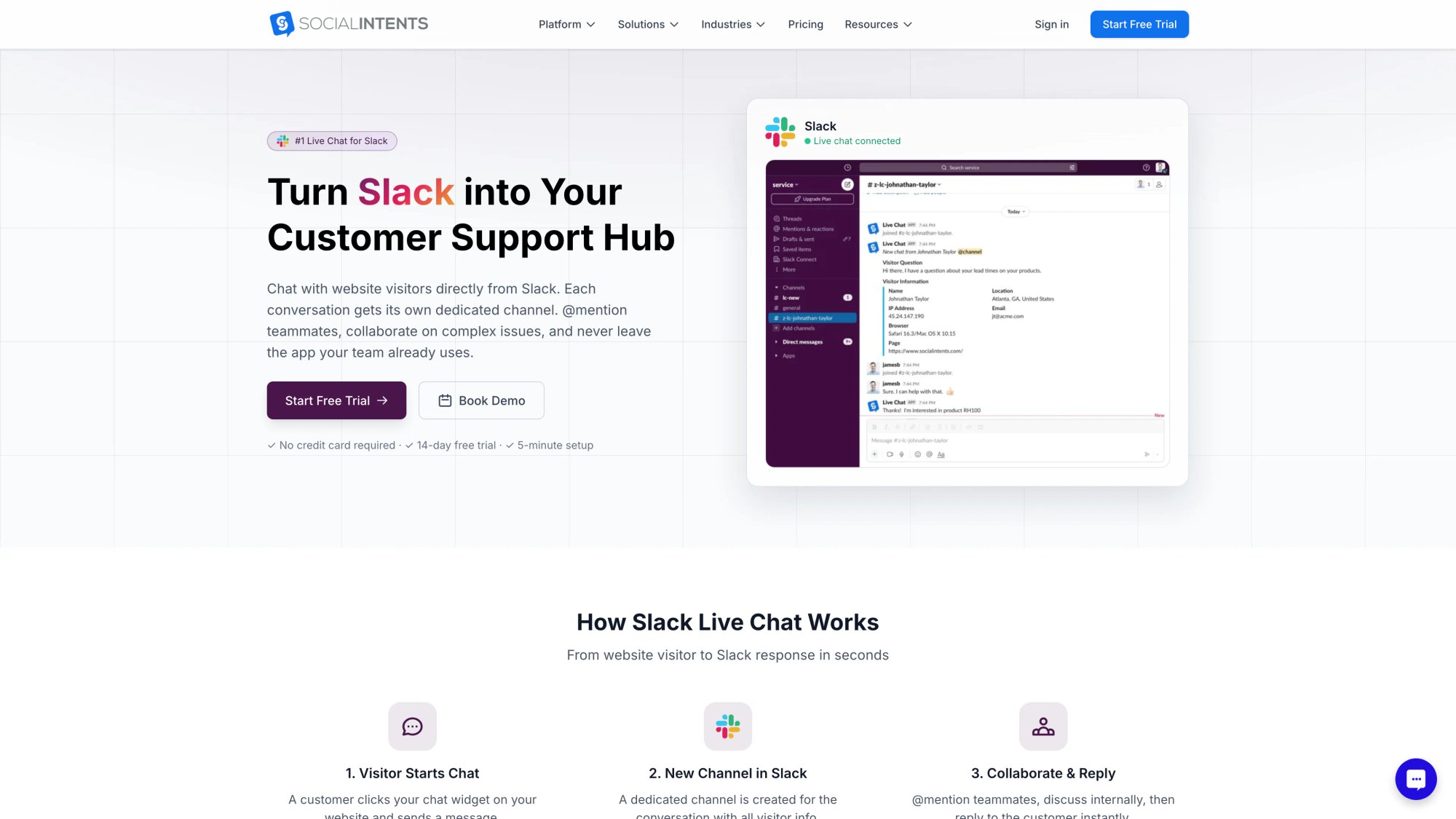
Social Intents' Slack integration lets your team handle website chats directly in Slack with powerful slash commands for quick schedule overrides.
How to Test Your Chat Business Hours Setup
Do this before announcing "live chat is available."
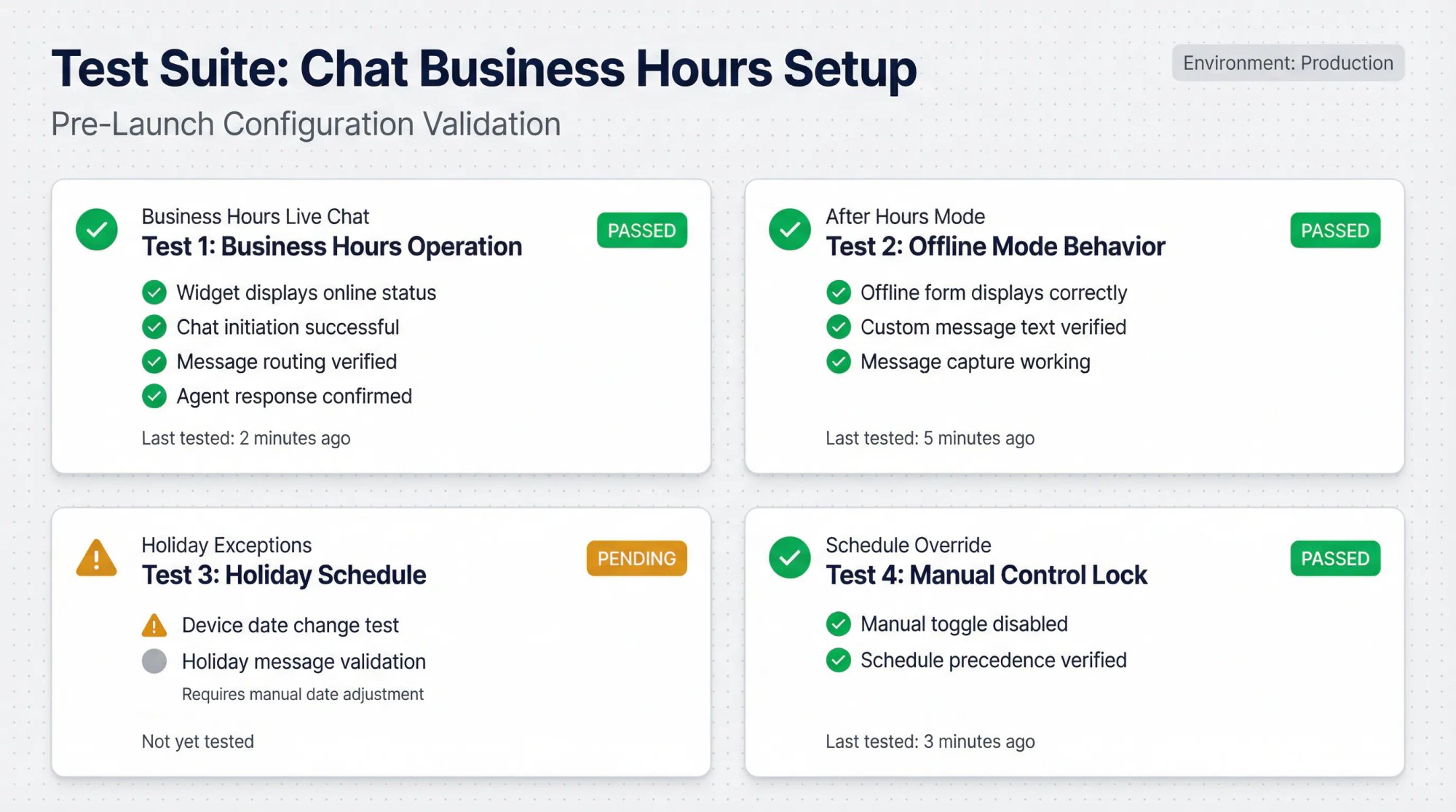
Test 1: Does Chat Work During Business Hours?
• Widget shows online
• You can start a chat
• Messages route to the right channel/team
• Agents can reply successfully
Test 2: Does Offline Mode Work After Hours?
• Offline form shows (or widget hides)
• Your offline message text looks correct
• Offline message gets captured for follow-up
Test 3: Do Holiday Exceptions Work?
Change your device date to validate holiday schedule behavior.
Test 4: Does Schedule Override Manual Control?
If your team expects manual toggle control, confirm everyone understands: schedule enabled means manual toggle disabled (until schedule is turned off).
Troubleshooting Chat Business Hours Issues
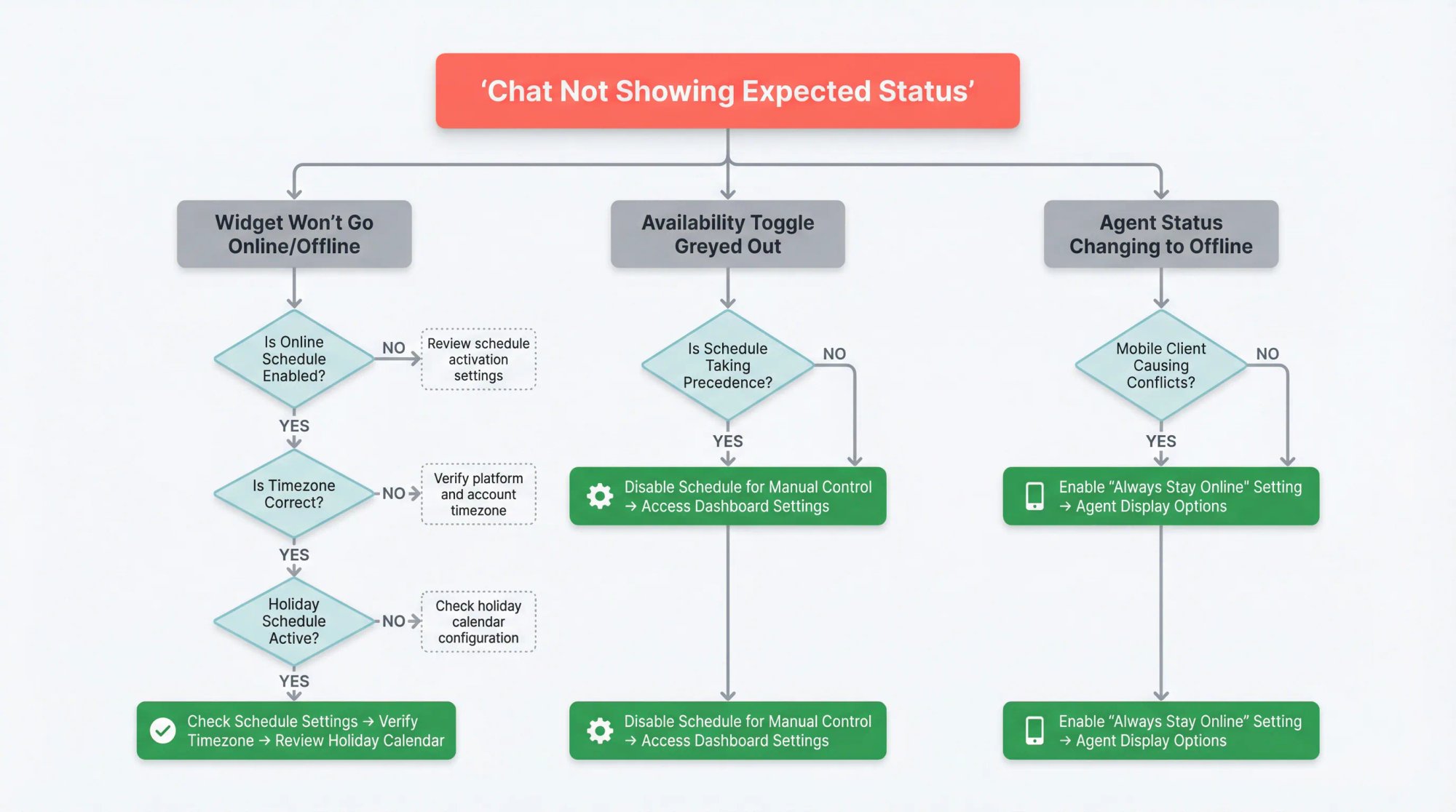
Chat Not Showing Online or Offline When Expected
Work through this checklist:
Is the Online Schedule enabled?
Social Intents recommends schedule-based availability as the source of truth.
Is the timezone correct?
The schedule uses a timezone you select like America/New_York. Check it.
Is a holiday schedule currently active?
Holidays can force offline and even hide the widget.
Are you hiding the widget when offline?
If enabled, you won't see the offline form because the widget disappears.
Slack-specific: Did someone run a slash command override? /livechat offline can override normal behavior.
Why Is the Availability Toggle Greyed Out?
This usually means the schedule is enabled and taking precedence. Disable the schedule if you need manual control.
Agent Status Keeps Changing to Offline on Mobile
Social Intents suggests using the "Always stay online" agent setting to prevent unexpected offline status from mobile clients. This way, the schedule controls widget availability instead of individual agent status.
You'll find this under: Agents > [Your Agent Name] > Agent Display > Always stay online
How to Measure Chat Business Hours Success
Business hours aren't a set-and-forget thing. Track these metrics to verify your setup works:
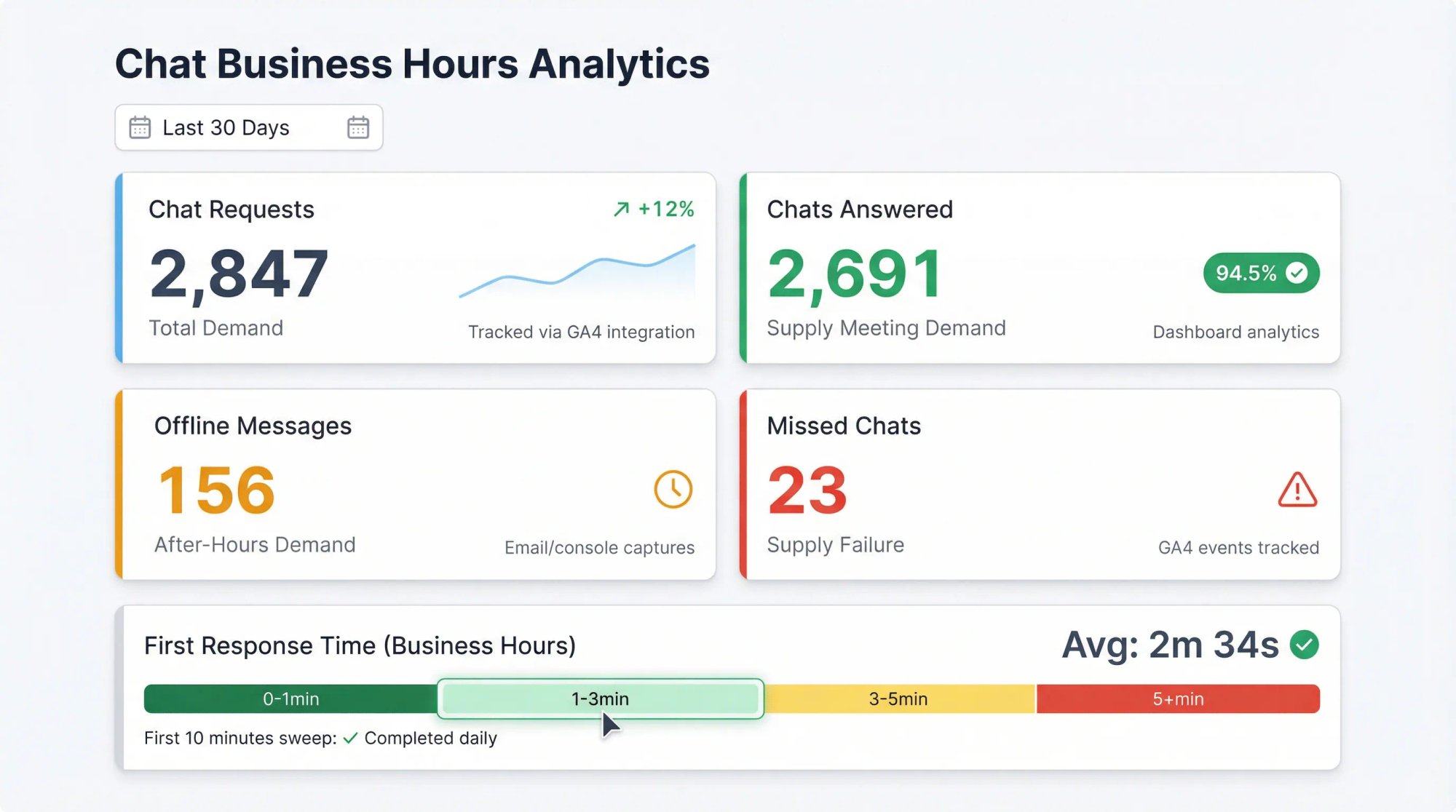
Key Metrics to Track
| Metric | What It Tells You | Where to Track |
|---|---|---|
| Chat requests | Total demand | GA4 integration |
| Chats answered | Supply meeting demand | Dashboard analytics |
| Offline messages | After-hours demand | Email/console |
| Missed chats | Supply failure | GA4 events |
Social Intents' GA4 integration explicitly tracks all these events.
How Fast Do You Respond When You Reopen?
How fast you respond when you reopen.
Social Intents' after-hours guide calls out "first business hour time-to-response" as a key place where loyalty is won or lost.
A simple operational habit: every morning, assign one person to sweep overnight messages in the first 10 minutes.
Frequently Asked Questions
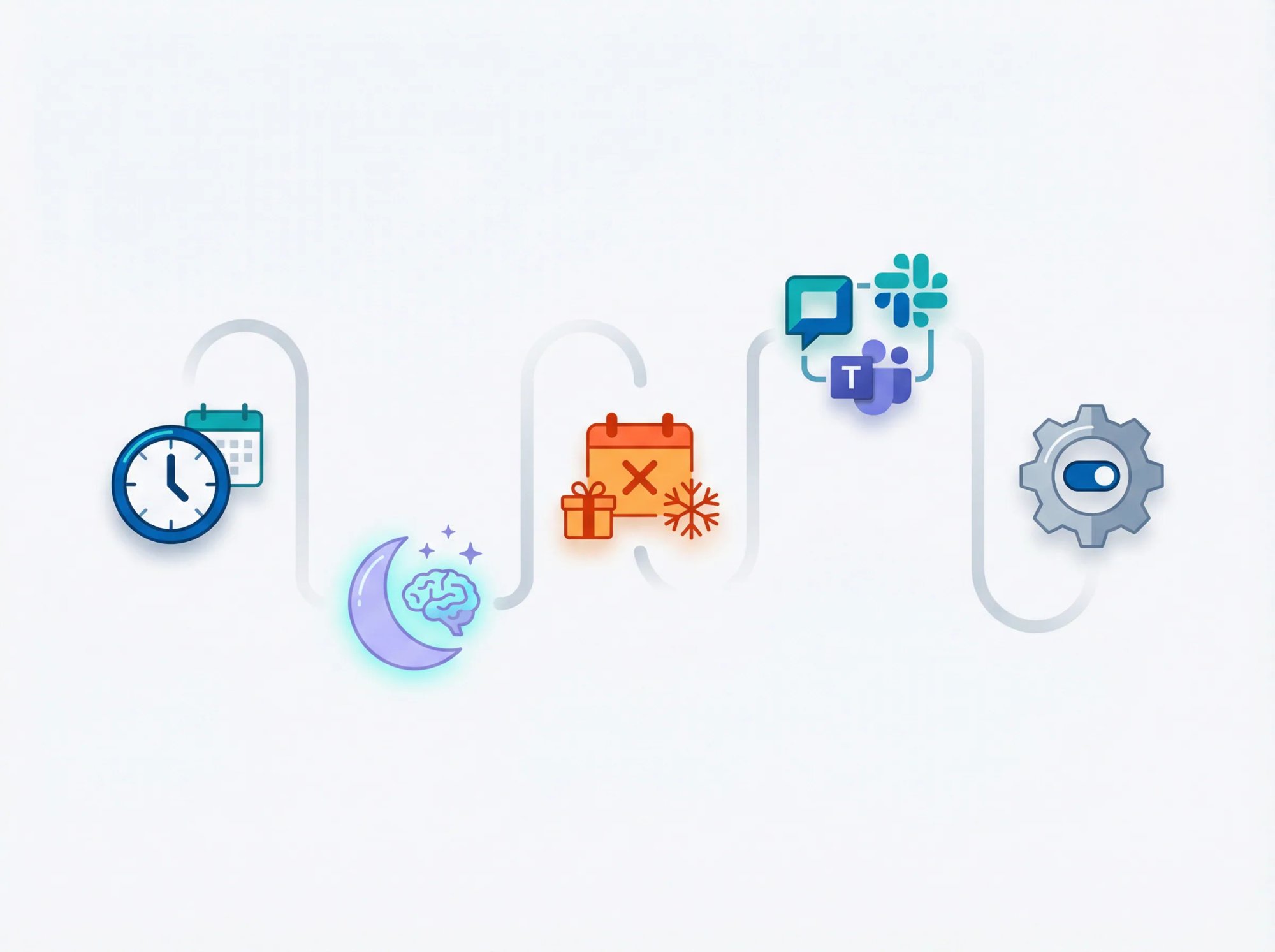
Can I have different hours for different departments?
Yes. Create separate chat widgets for each department and configure independent schedules. Use targeting rules to show the right widget on the right pages.
What happens to chats that come in after hours?
You decide. Options include: showing an offline contact form, hiding the widget entirely, or deploying an AI chatbot to handle common questions.
Can I use AI to cover nights and weekends?
Absolutely. Social Intents' "Chatbot when offline or missed" feature lets you deploy AI assistants that answer FAQs 24/7 and escalate to humans when needed. You can train the bot on your knowledge base and configure escalation triggers.
How do I handle holidays?
Use the Holiday Schedule feature to mark specific dates when your chat should be offline. You can customize the offline message for holidays and even hide the widget completely during those periods.
What if I need to override the schedule temporarily?
You have two options: disable the schedule temporarily in your dashboard to regain manual control, or if you use Slack, use slash commands like /livechat offline or /livechat online to override on the fly.
Does the schedule work with Teams/Slack integration?
Yes. Social Intents integrates directly with Microsoft Teams, Slack, Google Chat, Zoom, and Webex. The schedule works the same way regardless of which platform your agents use. You can even manage the schedule from within Teams if that's where your team works.
Can I hide the widget when offline?
Yes. Social Intents allows you to hide the chat widget when you're offline using a toggle in General settings. Most teams find it better to show an offline form or AI assistant to capture opportunities.
How do I test my setup?
Test during and outside business hours to verify the widget changes states correctly. Test the offline form by submitting a dummy message. For holidays, change your device date to see how the widget behaves.
What's the "Always stay online" agent setting?
This setting prevents agent status from controlling availability. It's especially useful if you use Teams or Slack, where mobile apps might unexpectedly mark agents as offline. With this enabled, only your schedule controls when chat is online.
How many widgets can I configure?
Social Intents supports multiple chat widgets depending on your plan. Each widget can have its own schedule, targeting rules, and settings. This lets you run different hours for different departments or websites.
Conclusion
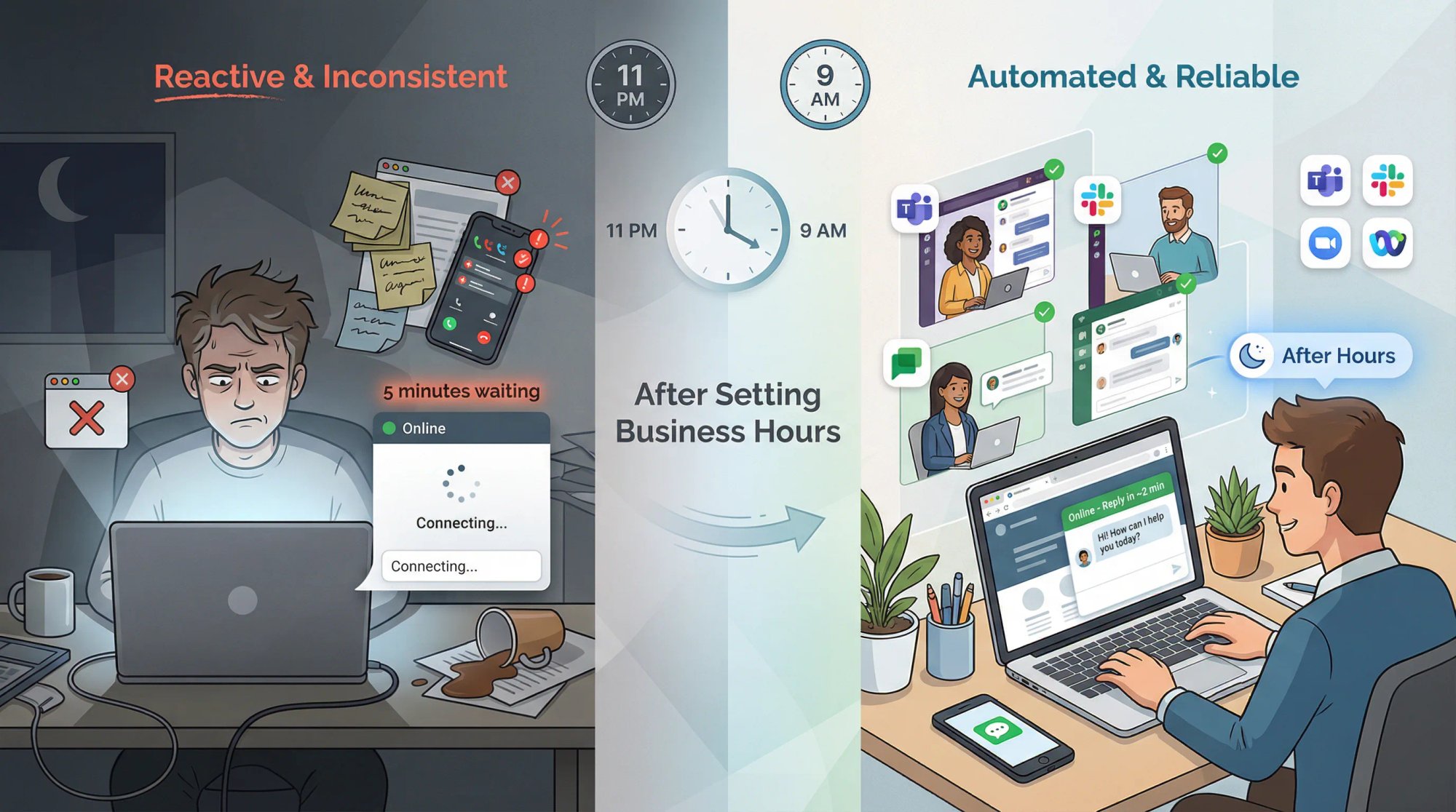
Configuring chat business hours in Social Intents transforms your support from reactive and inconsistent to automated and reliable. With a few simple settings, you establish when live chat is offered, and Social Intents handles the rest by flipping between online and offline at exactly the right times.
The result? Visitors know when they can get live help, your team isn't scrambling to remember to turn chat on or off, and you're capturing opportunities even outside business hours through offline forms or AI assistants.
Companies that excel at customer service aren't necessarily those with 24/7 live agents. They're the ones who communicate clearly and use smart tools to help customers anytime. With Social Intents' scheduling and AI features, you can achieve near round-the-clock presence without a night shift.
Our platform integrates directly into Microsoft Teams, Slack, Google Chat, Zoom, and Webex, so your agents can answer from the tools they already use every day. We offer unlimited agents from our Basic plan up, AI chatbot capabilities with human handoff, and flexible scheduling that works for single teams or global organizations.
Ready to stop missing chats and start managing availability like a pro? Try Social Intents free for 14 days and see how automated business hours (plus smart after-hours coverage) can transform your customer experience. No credit card required, and you can have your first schedule running in under 10 minutes.