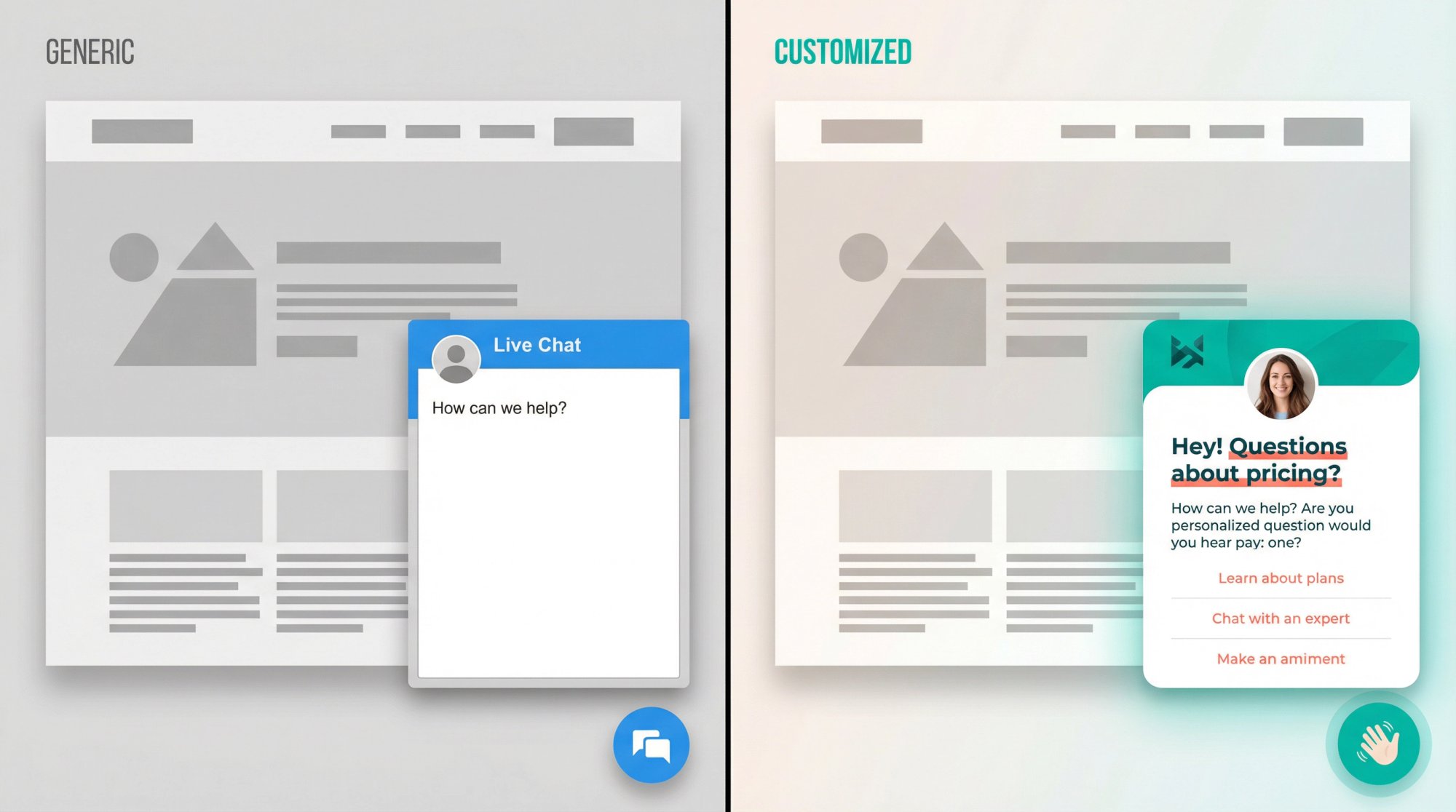
Your website's chat widget probably looks generic. Same bubble icon, same colors, same predictable behavior as every other site.
That's a problem.
When visitors see a cookie-cutter chat widget, they mentally file it under "one of those things." It doesn't feel like your company helping them. It feels like a third-party add-on they're not sure they should trust.
This guide shows you how to make your live chat widget feel like a natural part of your brand. We're covering everything from simple color changes to advanced JavaScript control, using Social Intents as our platform. Whether you're comfortable with code or prefer clicking buttons in a dashboard, you'll find what you need here.
By the end, you'll know exactly how to customize your widget's appearance, control what it says, manage when it appears, and integrate it deeply into your customer experience.
what we're covering:
• Making the widget match your brand (colors, logo, fonts, position)
• Customizing every word visitors see (welcome messages, forms, offline text)
• Controlling behavior (which pages, when it pops up, proactive invites)
• Advanced personalization (pre-filled data, hidden metadata, JavaScript API)
• Multi-language and multi-domain setups
• Tracking whether customization actually works
What Is Chat Widget Customization and Why Does It Matter?
Before you start clicking settings, understand what you're actually customizing.
A chat widget has three layers:
① presentation layer (how it looks)
Colors, fonts, logo, icon, placement, size. This is what most people think of as "customization."
② conversation layer (what it says and asks)
Welcome messages, offline text, pre-chat questions, quick replies, department prompts. The words that drive interactions.
③ behavior layer (when it shows and what context it carries)
Targeting rules, proactive popups, schedules, and the metadata passed into chat so your team can actually help without asking twenty questions.
Most teams over-focus on layer 1 (making it pretty) and under-invest in layer 3 (making it smart).
The highest-leverage customization isn't changing your brand color from blue to teal. It's showing chat to the right people at the right time with the right context already filled in.
If you want your chat to feel "high end," that's how you do it. Show it on pricing pages to people who've been there 60 seconds. Pre-fill their name and email if they're logged in. Pass their order number silently so your agent sees it immediately.
That's the difference between generic and genuinely helpful.
Where to Find Customization Settings in Social Intents
Social Intents gives you two main places to customize your widget, depending on how you run chat:
if you answer chats in microsoft teams:
You can manage everything directly inside Teams. Open the Live Chat app, and you'll find tabs for General settings, Customize Text, Targeting, and CSS & Javascript. The Teams integration keeps all your customization in one place where your team already works.
if you use slack, google chat, zoom, webex, or the web inbox:
Log into your Social Intents dashboard, go to My Apps, select your widget, and you'll see the same core settings. Different interface, same capabilities. We support Slack live chat, Google Chat, Zoom, and Webex with full customization on all platforms.
The rest of this guide applies to both. We'll call out platform-specific notes when they matter.
How to Customize Widget Colors, Fonts, and Design
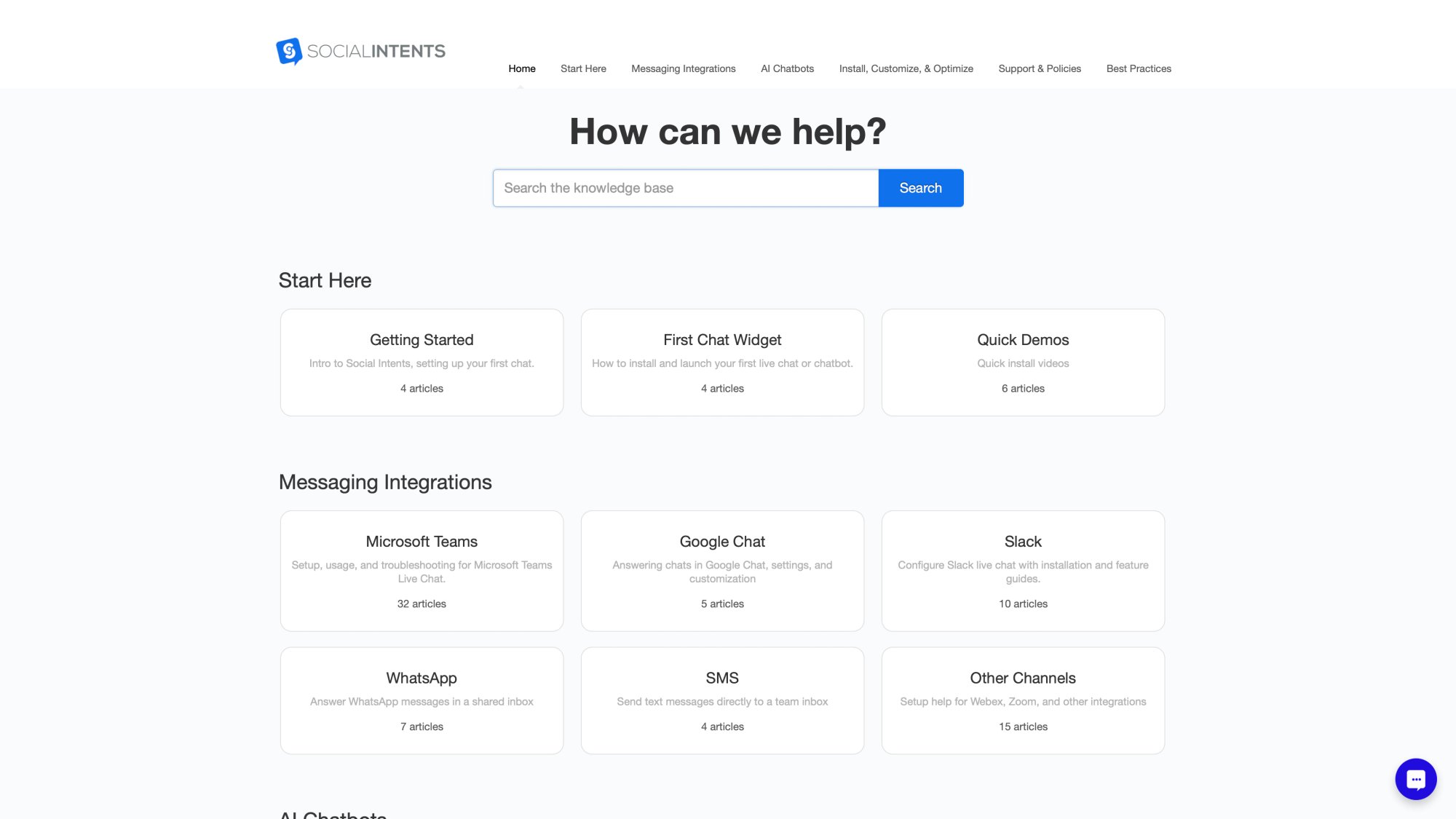
Social Intents provides comprehensive documentation for every customization scenario:
How to Change Widget Colors to Match Your Brand
What people want: "Make it match our brand hex code."
Social Intents lets you set the Tab Color using any hex code (like #0055FF for blue). This applies to the chat button and the header of the chat window. Simple.
If you want more control (different button color than header), you can override the CSS. In your widget settings, find CSS & Javascript and add something like this:
.title-bg {
  background-color: #333333 !important;
}
.si-msg-profile {
  background-color: #333333 !important;
}
This sets your header to dark gray while leaving the button at your Tab Color. The platform's color customization documentation walks through every option:
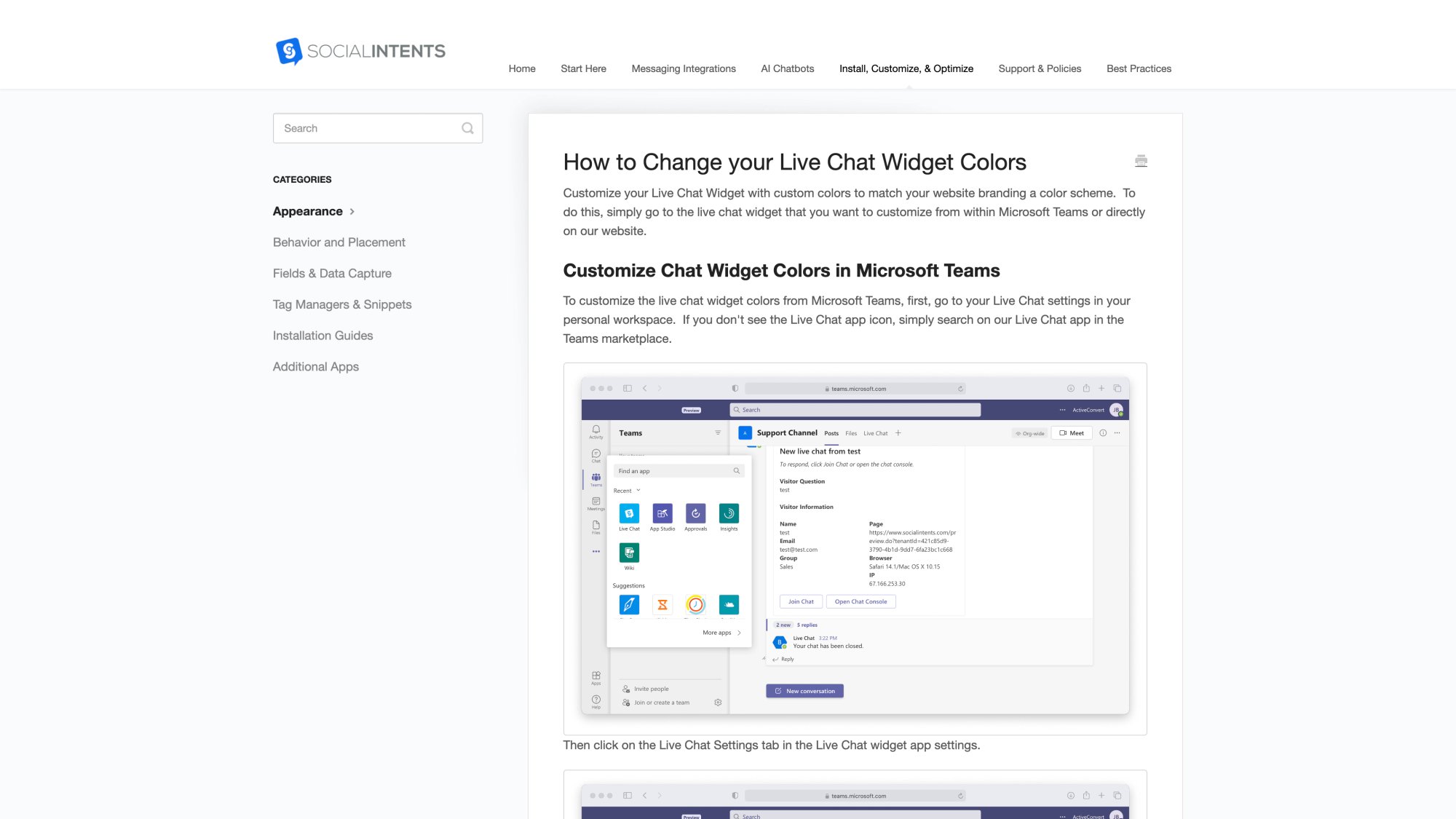
Practical tip: Don't blindly use your brand primary if it's low-contrast. You want the chat button noticeable, not a neon eyesore. Test on mobile. Make sure text is readable against your background.
How to Add Your Logo and Agent Photos
Upload a square logo (100px by 100px works best) in your widget's General settings. It'll appear on the pre-chat screen instead of a generic icon.
Or toggle Show Agent Photos instead. This displays up to six agent profile pictures on the welcome screen. (It doesn't filter by who's online. Just shows photos.) The logo setup guide walks through both options.
Why this matters: Real faces or your logo tell visitors "this is our company's chat, not some random service." Small trust builder, big impact.
This is especially important for customer support chat where trust drives engagement.
How to Customize Fonts and Text Colors
Your site probably has a specific font. Maybe you need high-contrast text for accessibility. You can control both.
In CSS & Javascript settings, link a Google Font and override the widget's typography:
@import url('https://fonts.googleapis.com/css?family=Montserrat');

body {
  font-family: 'Montserrat', sans-serif !important;
}

.si-comment {
  color: #000000 !important;
}
This loads Montserrat and makes chat text black. The font customization documentation includes selectors for titles, buttons, input fields, and agent messages.
If you want to change the tab button text color (the label on the closed button), add this to your site's CSS:
.siButtonText {
  color: black !important;
}
The tab lives in your page's styling, not just the widget UI, so this goes in your stylesheet.
How to Replace the Default Chat Icon
Want a custom launcher icon instead of the generic bubble?
Add this to your site CSS, pointing to your hosted image:
#si-wrapper.si-livechat .silc-btn-button {
  background-image: url(https://yoursite.com/chat-icon.png) !important;
  background-size: 55px !important;
  background-color: transparent !important;
}
The button customization guide explains the selectors. Make sure your image is publicly accessible and looks good at small sizes on mobile.
How to Change Widget Position and Size
By default, the chat button sits bottom-right. Maybe that conflicts with your cookie banner or a "back to top" button. Or you just want it somewhere else.
to move the button:
#si-wrapper .silc-btn {
  bottom: 25px !important;
  right: 25px !important;
  /* Or use left instead of right to move to bottom-left */
}
to resize or reposition the open chat panel:
#siWidget-chat {
  right: 25px !important;
  height: calc(100% - 150px) !important;
  bottom: 90px !important;
  width: 360px !important;
}
Test on different screen sizes. Make sure your widget doesn't cover critical elements like CTAs or navigation. Position customization details are documented with more examples.
How to Customize All Chat Widget Text and Messages
Design gets attention. Copy gets clicks.
How to Edit Every Message Visitors See
Social Intents lets you customize every message visitors see. Open the Customize Text tab in your widget settings.
You'll find fields for:
• Online tab text (the button label when you're available)
• Offline tab text (when you're away)
• Welcome title and subtitle
• "Start Chat" button text
• Pre-chat form labels (Name, Email, Question)
• Offline form messages
• System prompts
The localization guide notes that every visitor-facing message is fully customizable. You're not stuck with defaults.
high-performing copy examples:
| Context | Generic | Better |
|---|---|---|
| Online tab | "Chat with us" | "Questions? Chat with us" or "Need help choosing? Ask us" |
| Offline tab | "Leave a message" | "We're offline right now. Drop your email and we'll follow up." |
| Proactive popup | "Can we help?" | "Want help picking the right plan? I can help." |
Match your brand voice. If you're casual, be casual. If you're formal, stay formal. Just don't be bland.
How to Set Up Multi-Language Chat Widgets
Running a global site? You have options.
option 1: translate the widget text manually
Use Customize Text to create a Spanish version, German version, etc. Set up one widget per language and deploy each where needed.
option 2: multiple widgets with targeting
Create separate widgets for different language sections. Use targeting rules (more on this later) to show the English widget on /en/ paths and the Spanish widget on /es/ paths. Multi-language setup works smoothly this way.
option 3: real-time translation
If a customer chats in Portuguese and your agent only speaks English, the agent clicks "Translate" and Social Intents auto-detects the language. From that point forward, both sides see messages in their own language. Live translation uses Google Translate API, so it's instant but not perfect for legal or medical contexts.
option 4: chatbot language instructions
If you're using our AI chatbot, tell it to respond in a specific language via the system instructions.
Combine these approaches. Maybe your interface is in Spanish, but you use auto-translation during conversations because your team speaks English.
How to Customize Pre-Chat Forms and Fields
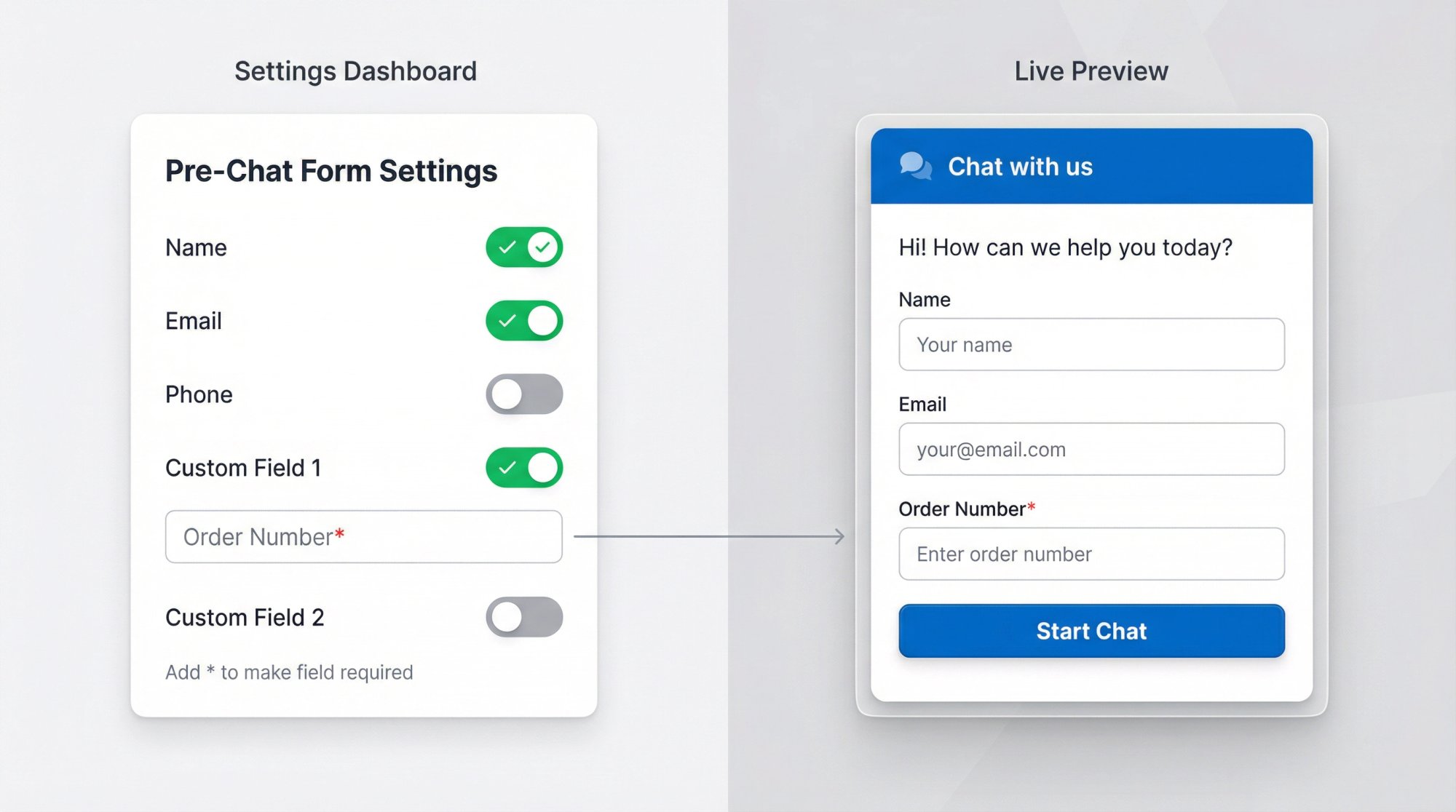
The pre-chat form is your first interaction with visitors. Make it count.
How to Choose What Information to Collect
In General settings, you'll see toggles for Name, Email, and Phone. Turn on what you need, turn off what you don't.
If you don't need phone numbers, don't ask. Every field is friction. The features overview explains the field options.
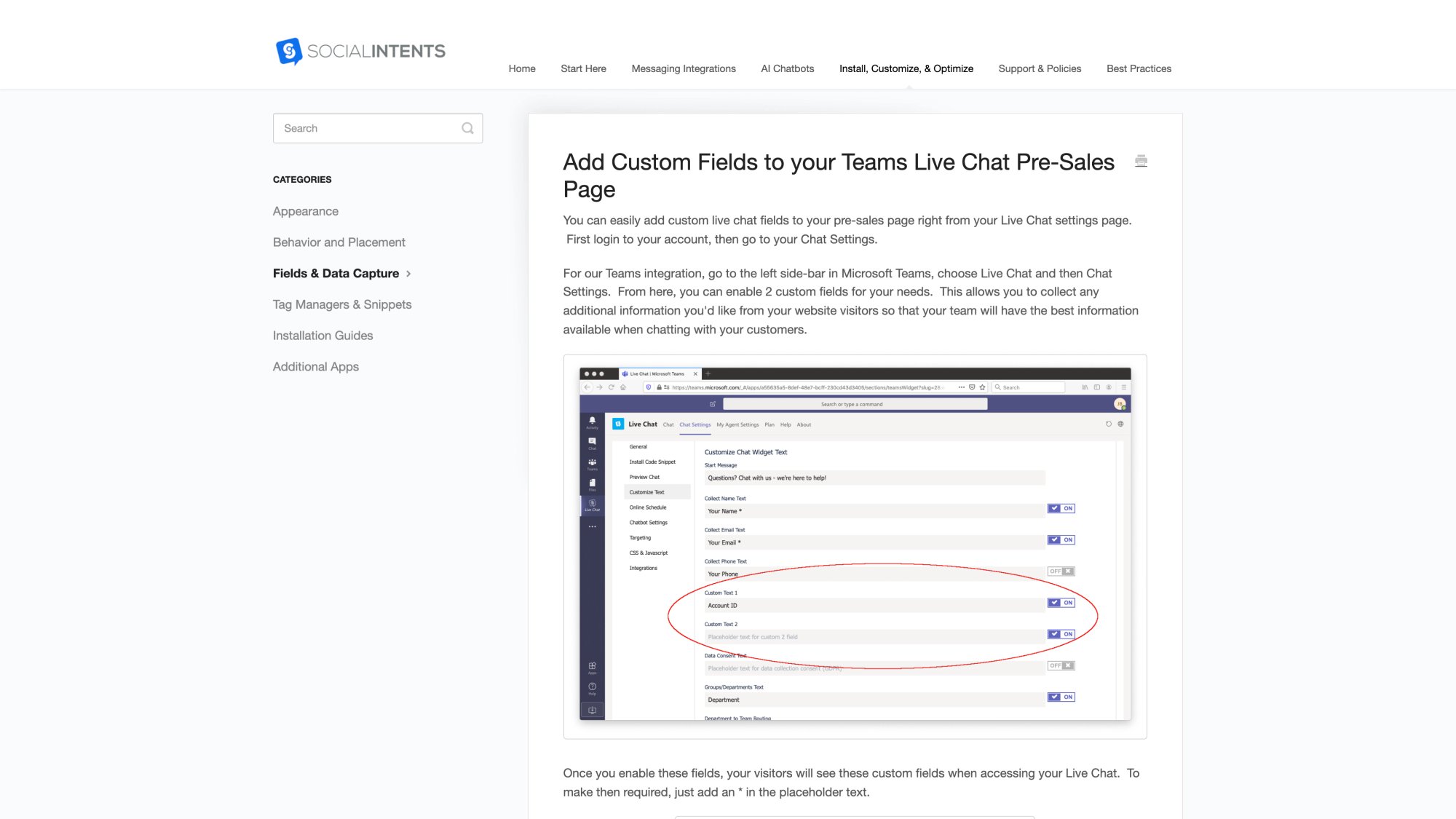
How to Add Custom Fields Like Order Number
Need to ask for an Order Number? Account ID? The topic of their question?
Enable Custom Field 1 and Custom Field 2 in your settings. Give each a placeholder label like "Order Number"* or "What's this about?"
Pro tip: Add an asterisk (*) in the placeholder text to make a field required. The platform interprets that as mandatory. Custom field setup shows this in action.
Custom fields let you tailor intake to your business:
→ A travel company might ask for a booking code
→ A B2B tool might ask "Are you an existing customer?"
→ E-commerce sites often ask for order numbers to speed up support
Whatever you collect appears in the agent's view immediately. No "Can I get your order number?" back-and-forth.
Custom field documentation provides detailed setup instructions:
How to Remove the Initial Question Field
By default, the pre-chat form asks visitors to type their question before starting chat.
Sometimes you don't want that. Maybe you're using quick reply buttons or want to guide the conversation with your chatbot.
To remove the question field: Go to Customize Text, find the Question placeholder, and clear it completely. The documentation confirms that clearing this field hides the question box.
Visitors will still see name/email fields (whatever you've enabled), but no big "What's your question?" box.
When to do this: If you're using quick replies, guided flows, or want to reduce mobile friction. Just make sure your chatbot or agent initiates the conversation with a clear prompt.
How to Set Up Offline Forms and Messages
When you're offline, the widget can show an offline form (name, email, message) or hide completely.
Set your online schedule in availability settings. Outside those hours, the widget follows your offline behavior.
Customize the offline message in Customize Text. Make it specific: "We're offline right now. Leave your email and we'll respond within 1 business day" is better than "Leave a message."
Or toggle Hide Chat When Offline to remove the widget entirely when no one's available. Offline setup lets you choose the approach that fits your support model.
How to Control When and Where Chat Appears
Now we get to the high-leverage stuff.
How to Target Specific Pages and Domains
You probably don't want chat on every single page. Maybe you want it on pricing but not checkout. Or you run multiple sites with different needs.
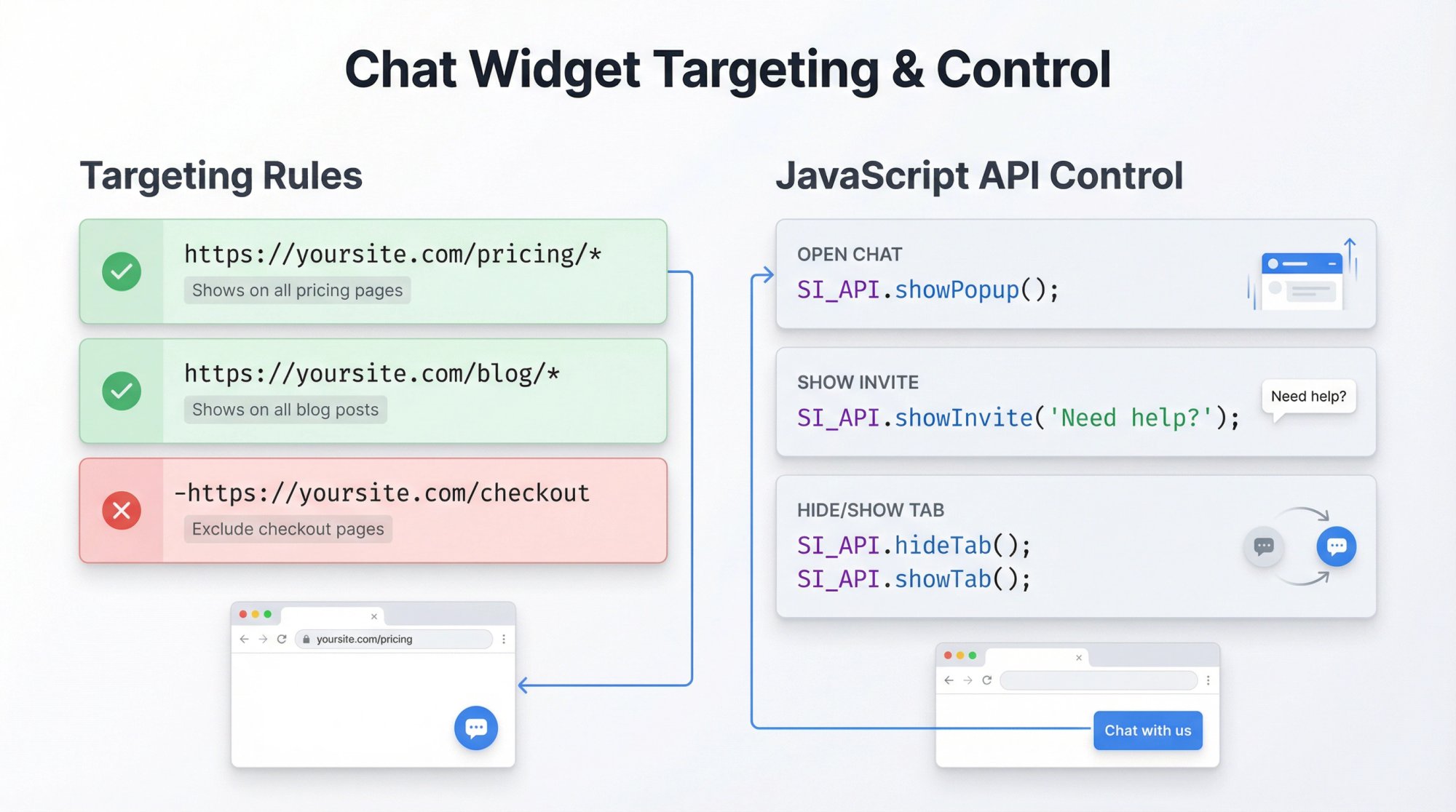
In the Targeting tab, use URL patterns with wildcards:
• https://yoursite.com/pricing/* shows chat on all pricing pages
• https://yoursite.com/blog/* shows it on all blog posts
• Exclude paths with a minus: -https://yoursite.com/checkout
Multi-domain targeting lets you run different widgets for different brands. Create multiple widgets, set unique targeting for each, and deploy the right snippet on each site.
use case example: Sales widget on pricing pages (blue, asks "What's your budget?"), Support widget on docs (green, asks "What are you trying to do?").
How to Show Proactive Chat Invitations
Instead of waiting for visitors to click, show them a message proactively.
In Targeting, set "Always Show Tab, Show Popup on Match" with conditions like:
• After 30 seconds on page
• On exit intent
• When scrolling past 50%
Then write your Proactive Popup Message in Customize Text. Something like: "Need help? I'm here to answer questions."
A small bubble appears with your message. Visitors can respond directly or dismiss it. Proactive invite setup explains the trigger options.
Balance is key: Proactive invites boost engagement but can annoy if overused. Consider showing them once per session using session storage (documented in the advanced examples). This is especially effective for sales chat where timing matters.
How to Control Chat with JavaScript API
Want to open chat from a custom button? Hide the default launcher entirely? Control display based on user behavior?
Social Intents provides a JavaScript API.
to open chat from any element:
<a href="#" onclick="SI_API.showPopup();">Chat with us</a>
to show a proactive message on demand:
SI_API.showInvite('Having trouble? Click here to chat.');
to hide/show the tab dynamically:
SI_API.hideTab(); // Hides the launcher
SI_API.showTab(); // Shows it again
The JavaScript SDK guide and developer API documentation cover all available methods.
Advanced use case: Show chat only after a user hits an error twice in your app. Or hide chat during checkout but show it on confirmation. Or trigger it when someone hovers over your "Help" icon.
How to Pre-Fill Visitor Data and Pass Hidden Context
This is where chat goes from "nice to have" to actually magical.
How to Pre-Fill Name, Email, and Phone Number
If your users are logged in, don't make them type name and email again.
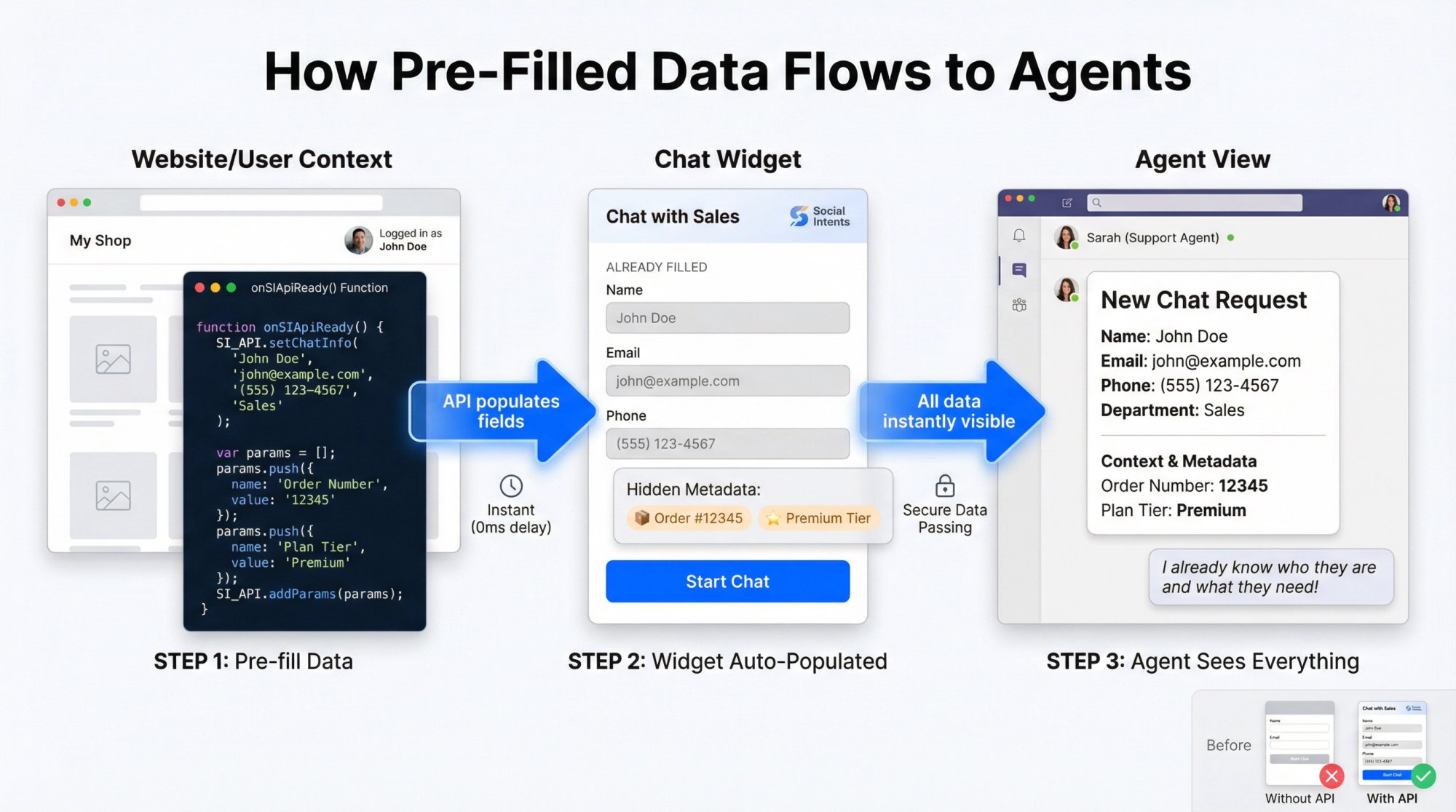
Use the Social Intents API to pre-populate fields:
function onSIApiReady() {
  SI_API.setChatInfo('John Doe', 'john@example.com', '(555) 123-4567', 'Sales');
}
This fills name, email, phone, and department silently. Pre-population guide shows the exact syntax.
Important: Wrap API calls in onSIApiReady() so they only run after the widget loads. The documentation emphasizes this repeatedly.
How to Pass Hidden Metadata to Agents
Want your agent to see order number, membership tier, or account ID without asking?
Pass hidden parameters:
function onSIApiReady() {
  var params = [];
  params.push({name: 'Order Number', value: '12345'});
  params.push({name: 'Plan Tier', value: 'Premium'});
  SI_API.addParams(params);
}
Your agent sees these immediately in the chat interface. Your AI chatbot can use them too. Hidden metadata setup is documented with examples.
How to Show or Hide Chat Dynamically
The API lets you control visibility programmatically:
// Show chat only if user is on page for 3+ minutes
setTimeout(function() {
  SI_API.showTab();
}, 180000);

// Hide chat during a specific flow
SI_API.hideTab();

// Show a custom invite based on behavior
if (cartValue > 100) {
  SI_API.showInvite('Want help completing your order?');
}
This turns chat into a dynamic part of your product, not just a static widget.
How to Set Up Multiple Widgets for Different Sites
Running multiple brands? Global audience? Here's how to handle it.
How to Create Multiple Widgets for Different Purposes
Create separate widgets in your Social Intents account. Each gets its own settings, branding, and targeting rules.
example setup:
widget 1: Primary brand (blue logo, routes to main support team, targets example.com/*)
widget 2: Partner brand (green logo, routes to partner support, targets partner.example.com/*)
widget 3: Spanish version (Spanish text, routes to Spanish-speaking team, targets example.com/es/*)
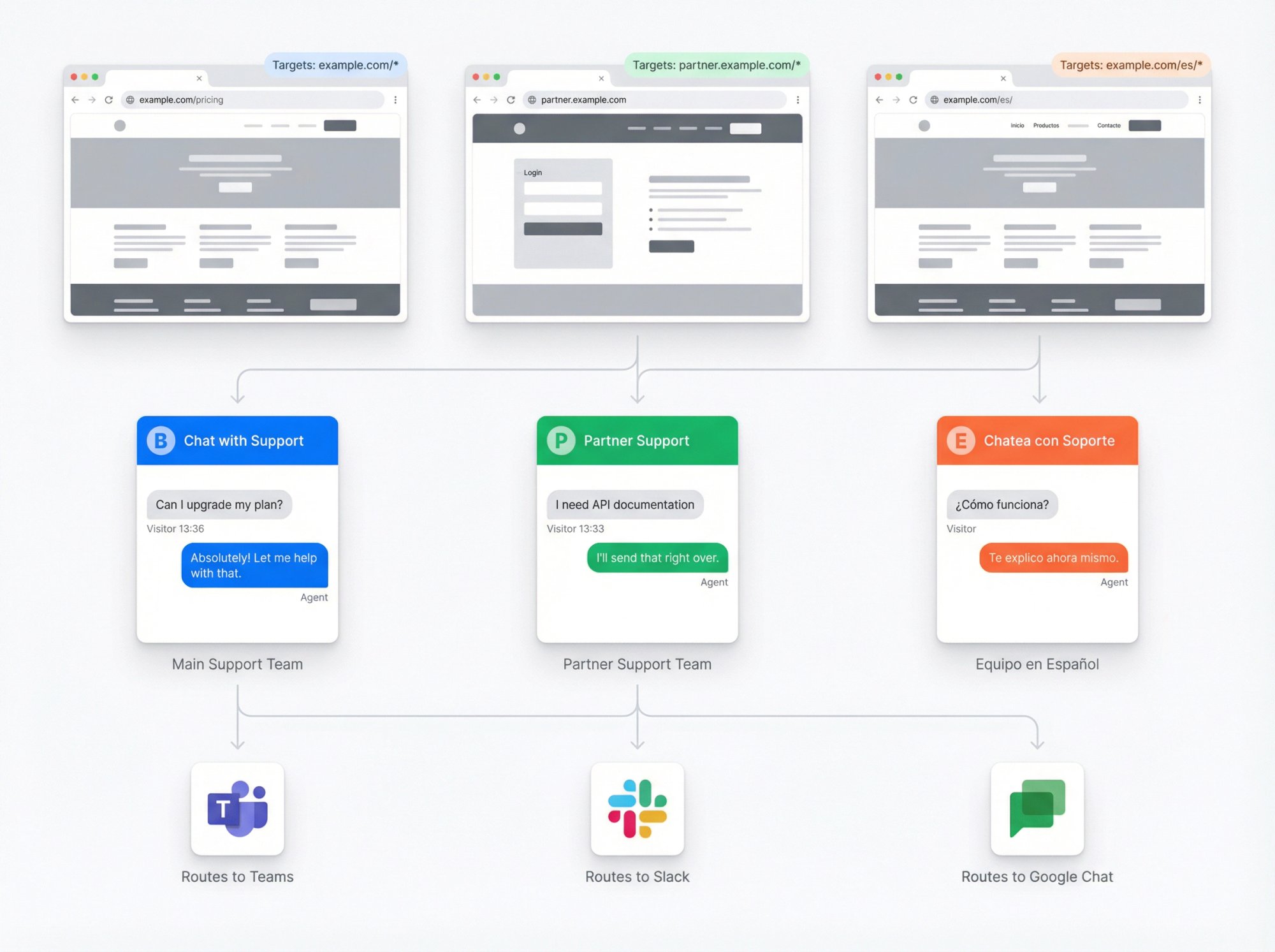
Use targeting rules to ensure each shows only where intended. Multi-widget documentation walks through the setup.
How Real-Time Translation Works During Conversations
Already covered in the text section, but worth repeating: the translation feature works during conversations, not just in the UI.
Customer types in French. Agent clicks "Translate," selects French. From that point forward, the customer sees French, the agent sees English. Both think the other speaks their language. Translation documentation explains the setup.
It's not perfect for complex nuance, but it's incredibly effective for routine support and sales conversations.
How to Embed Chat in a Page (Iframe Integration)
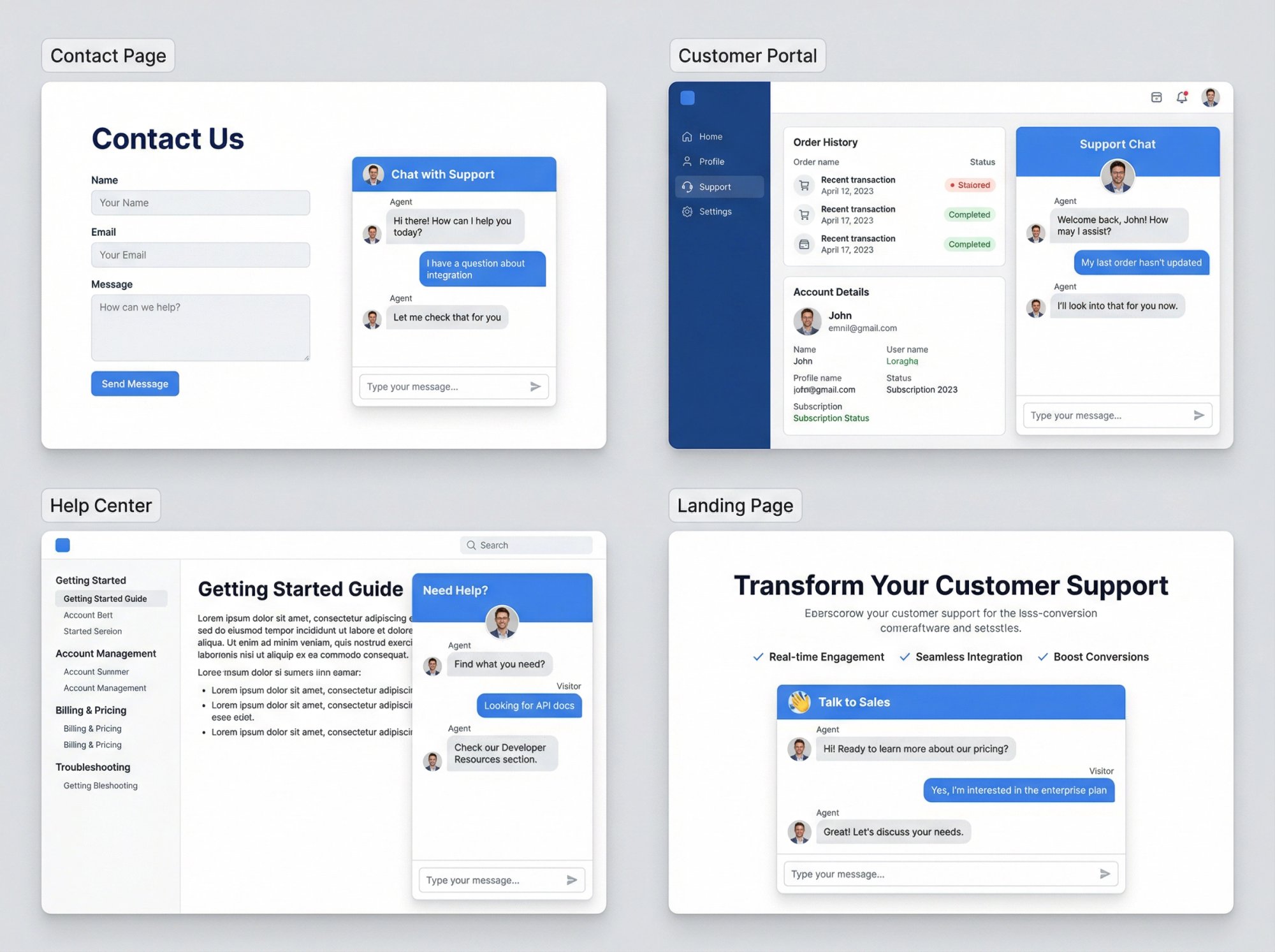
Sometimes you want chat inside a page, not floating.
use cases:
Contact page with embedded chat panel
Customer portal with dedicated help section
Internal dashboard with support access
Landing page "talk to sales" area
Social Intents generates a Standalone Chat URL for each widget. It looks like: https://chat.socialintents.com/c/YourWidgetName
Embed it with an iframe:
<iframe src="https://chat.socialintents.com/c/YourWidget"
        width="480"
        height="540"
        frameborder="0">
</iframe>
You can add width/height parameters to the URL too: ?width=600&height=500. Embedded chat guide has examples.
The embedded chat is fully functional. Same features as the popup, just presented differently.
How to Schedule Availability and Set Holiday Messages
Control when chat appears and what happens when you're away.
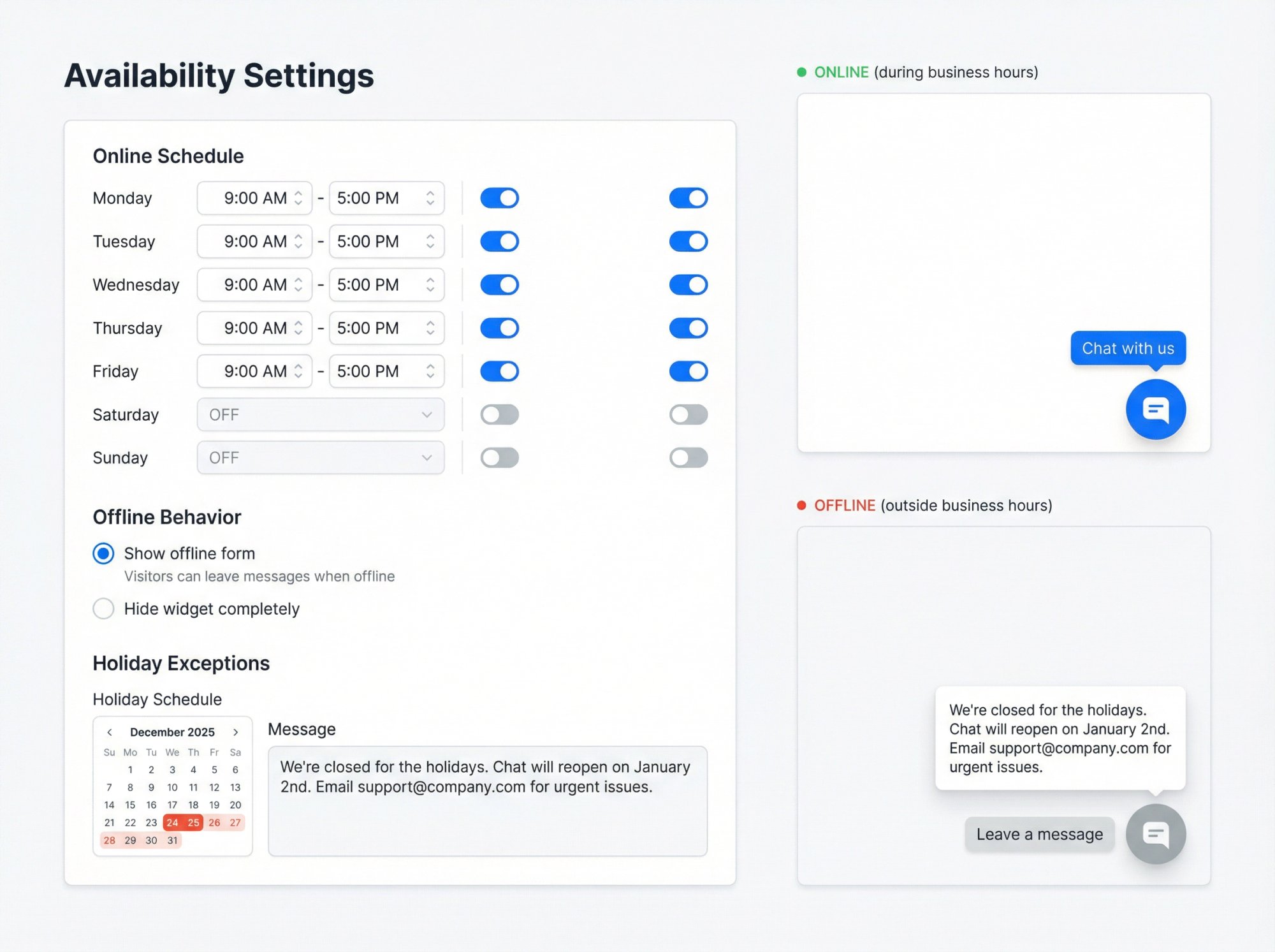
How to Set Online and Offline Schedules
Set business hours in Online Schedule settings. Define days and times when chat is available.
Outside those hours, the widget switches to offline mode (shows offline form) or hides completely (if you toggled that option).
For detailed configuration options, see the availability documentation:
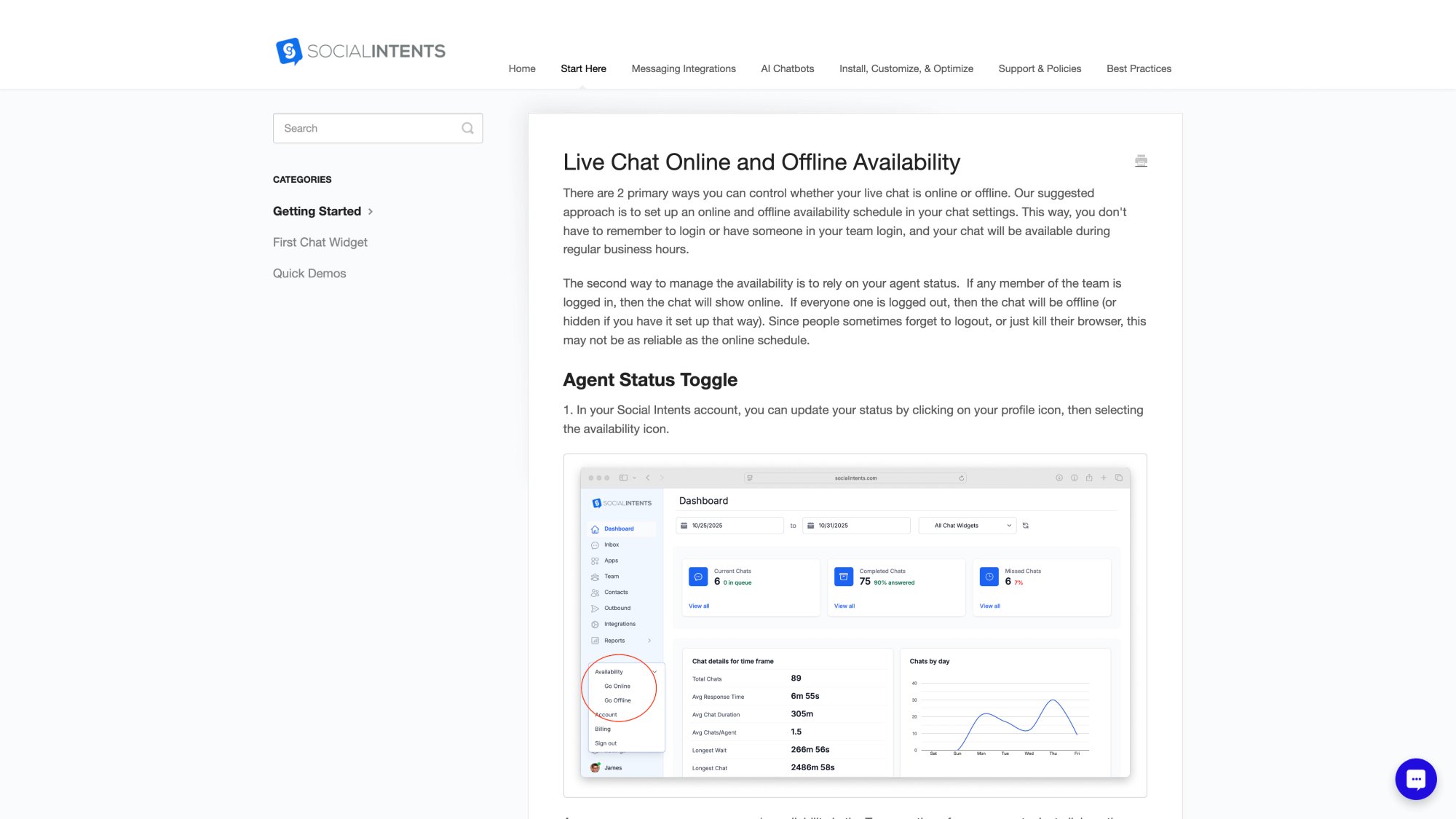
Teams-Specific Schedule Behavior
If you're using Teams integration, the schedule takes precedence over manual toggles. This prevents the "forgot to log out" problem where chat shows as online when no one's actually there. Teams scheduling is documented separately.
How to Add Holiday Schedules and Away Messages
Add specific holiday dates in availability settings. Set a custom away message like: "We're closed for the holidays. Chat will reopen on January 2nd. Email support@yourcompany.com for urgent issues."
You can also hide the widget entirely during holidays. Holiday schedule setup walks through the options.
Best practice for offline messages: Answer two questions immediately: When will you reply? Where else can they go right now?
How to Track Chat Performance with Google Analytics
If you don't measure chat, you'll end up arguing about chat.
How to Set Up GA4 Integration
Social Intents integrates with Google Analytics 4 to track chat events.
In your widget's CSS & Javascript settings, enter your GA4 Tag ID and GA4 API Secret. The platform will start sending events like:
• chat_requested (visitor starts chat)
• chat_answered (agent responds)
• offline_message (visitor fills offline form)
• missed_chat (chat not answered)
Events include parameters like agent (who handled it) and action (what happened). GA4 integration guide has the setup steps.
How to Build GA4 Reports for Chat Data
Create custom dimensions in GA4 for agent and action parameters. Then build reports showing:
• Chat requests by page
• Answer rate by agent
• Missed chats by time of day
• Offline messages vs live chats
Custom event reporting includes example configurations.
Pro tip: Run an A/B test. Enable chat on half your pricing traffic, measure conversion rate. This proves (or disproves) chat's value definitively.
Why Social Intents Is Built for Complete Customization
We've covered a lot of ground. Here's why Social Intents is built for teams serious about customization.
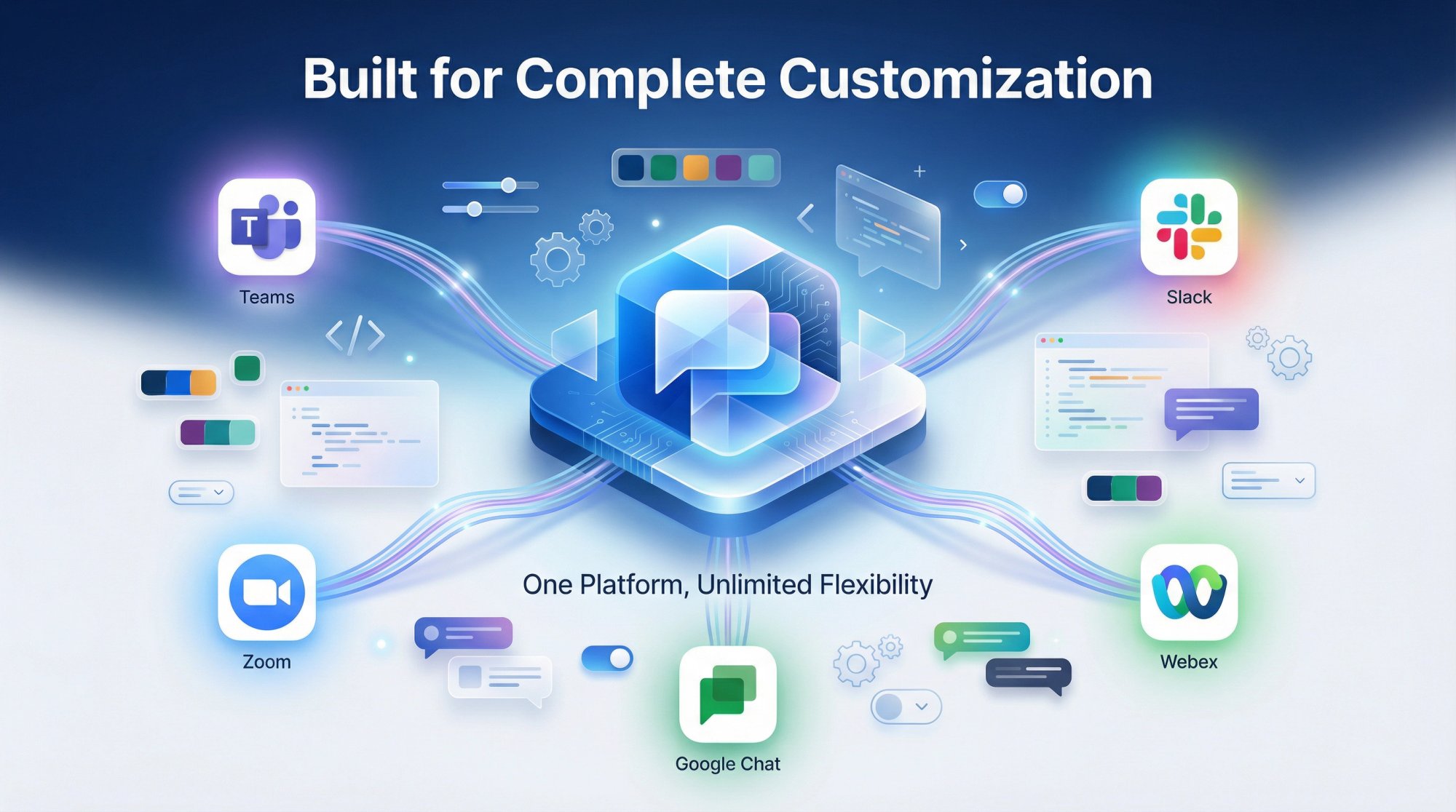
Social Intents brings together powerful customization with enterprise-grade reliability. Here's what that looks like in practice:
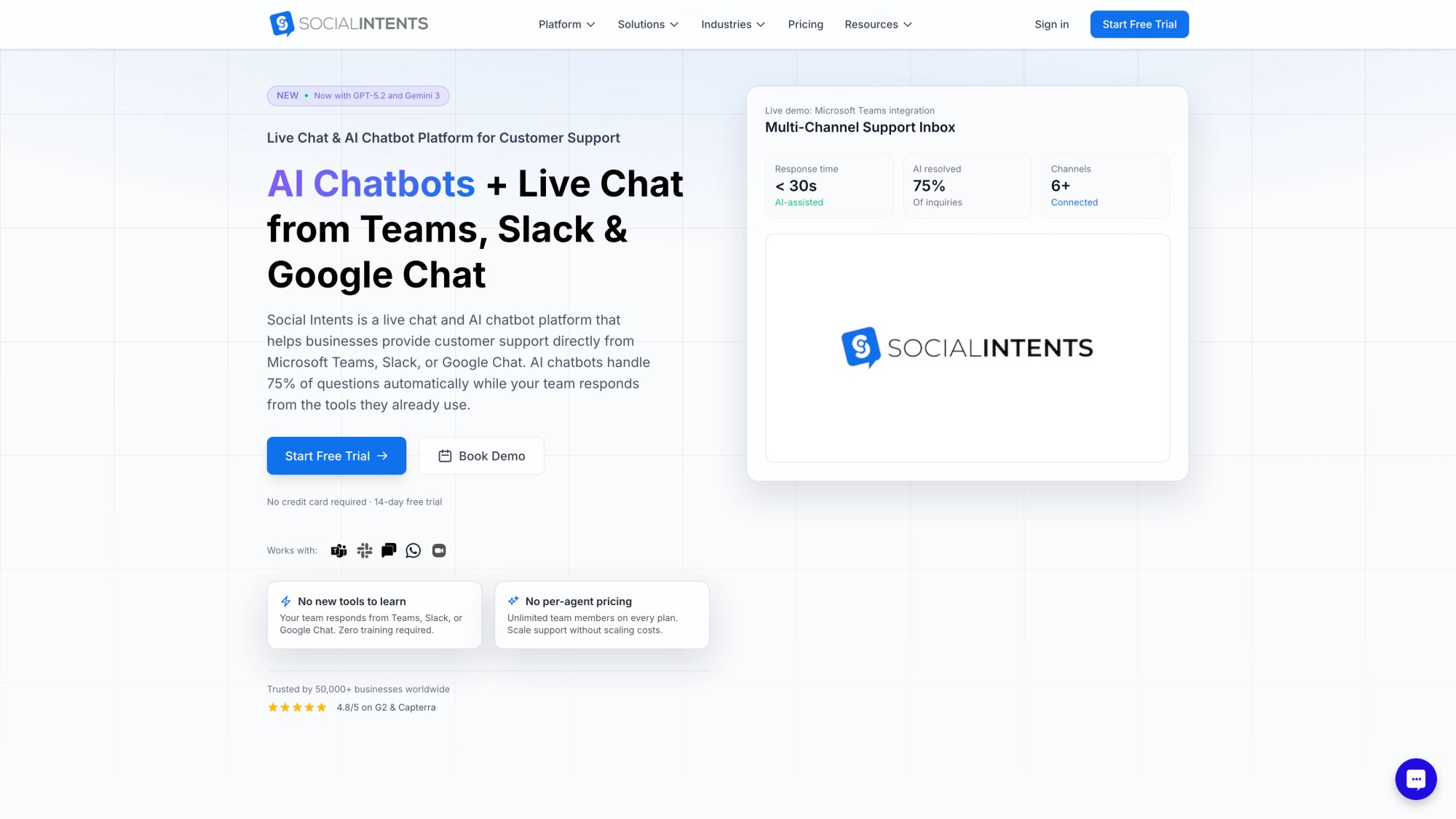
Answer Chats from the Tools You Already Use
The biggest differentiator: we integrate directly with Microsoft Teams, Slack, Google Chat, Zoom, and Webex. Your agents answer chats from the tools they already use all day. No new platform to learn. No context switching.
that means:
→ Faster agent adoption (they're already in Teams or Slack)
→ Lower training overhead (use the tools they know)
→ Better response times (agents see chats immediately in their active workspace)
Social Intents makes this possible through native integrations with the platforms you already use:
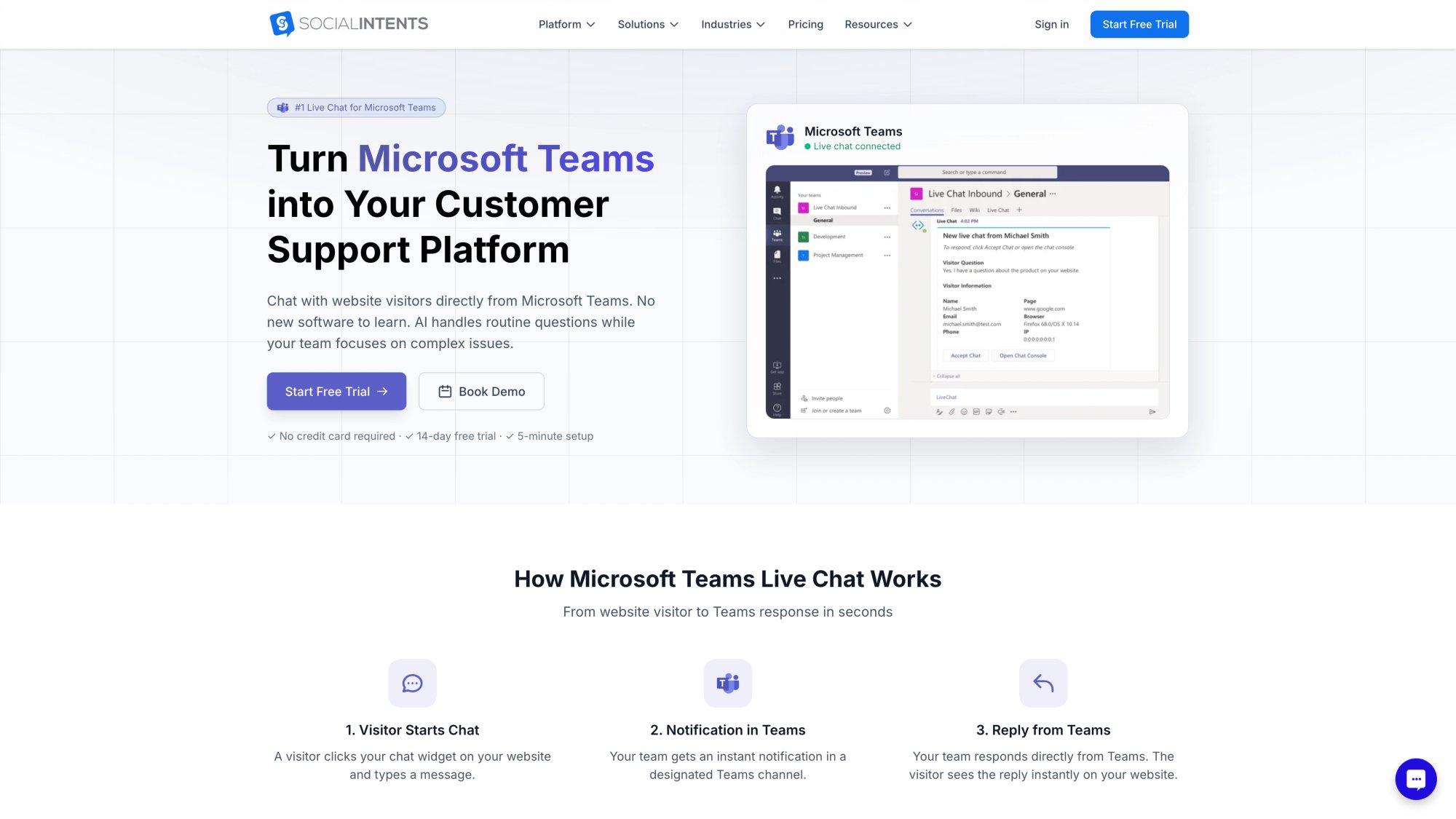
Whether your team lives in Teams or Slack, Social Intents meets them where they work:
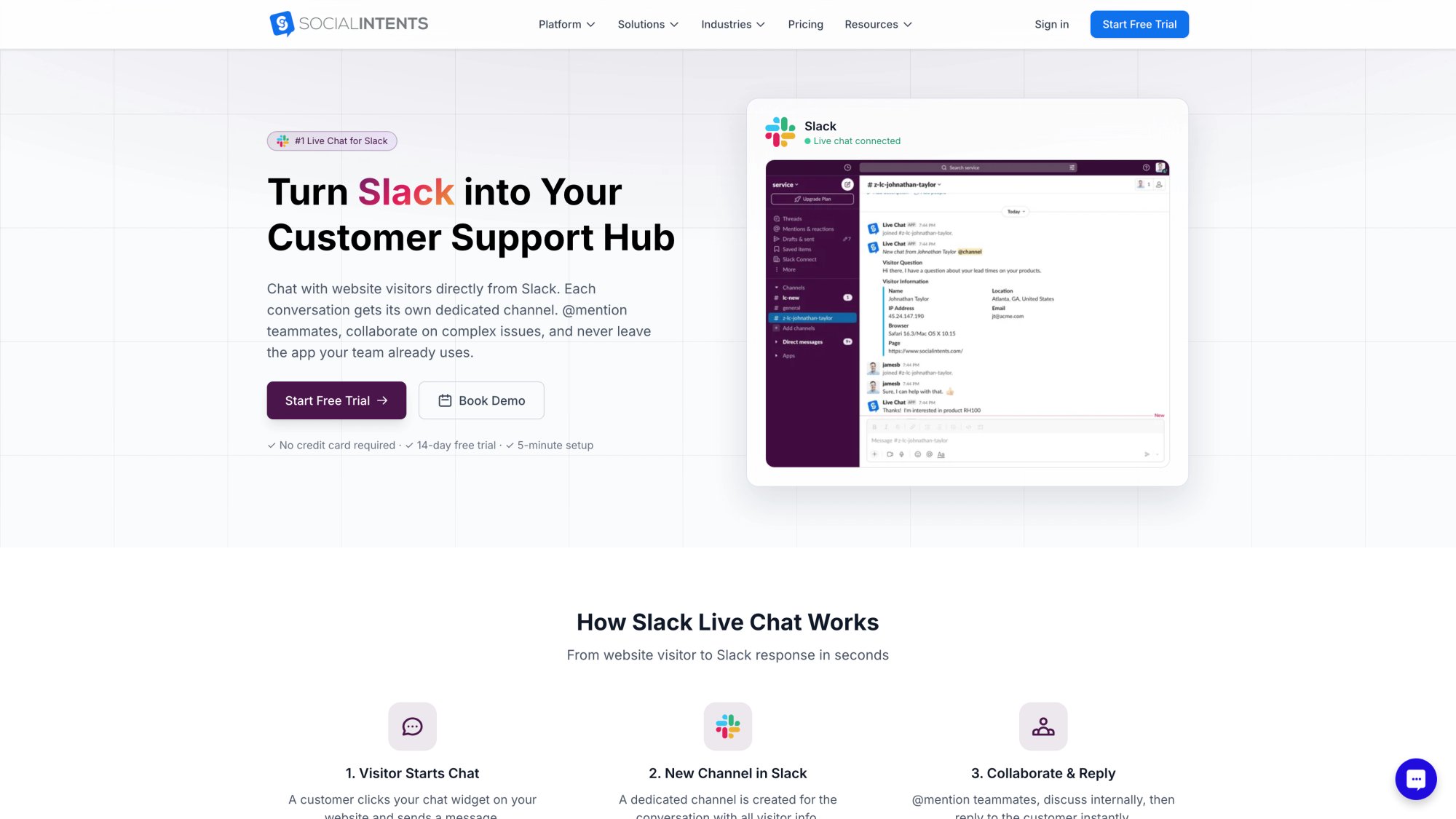
AI Chatbots That Hand Off to Humans
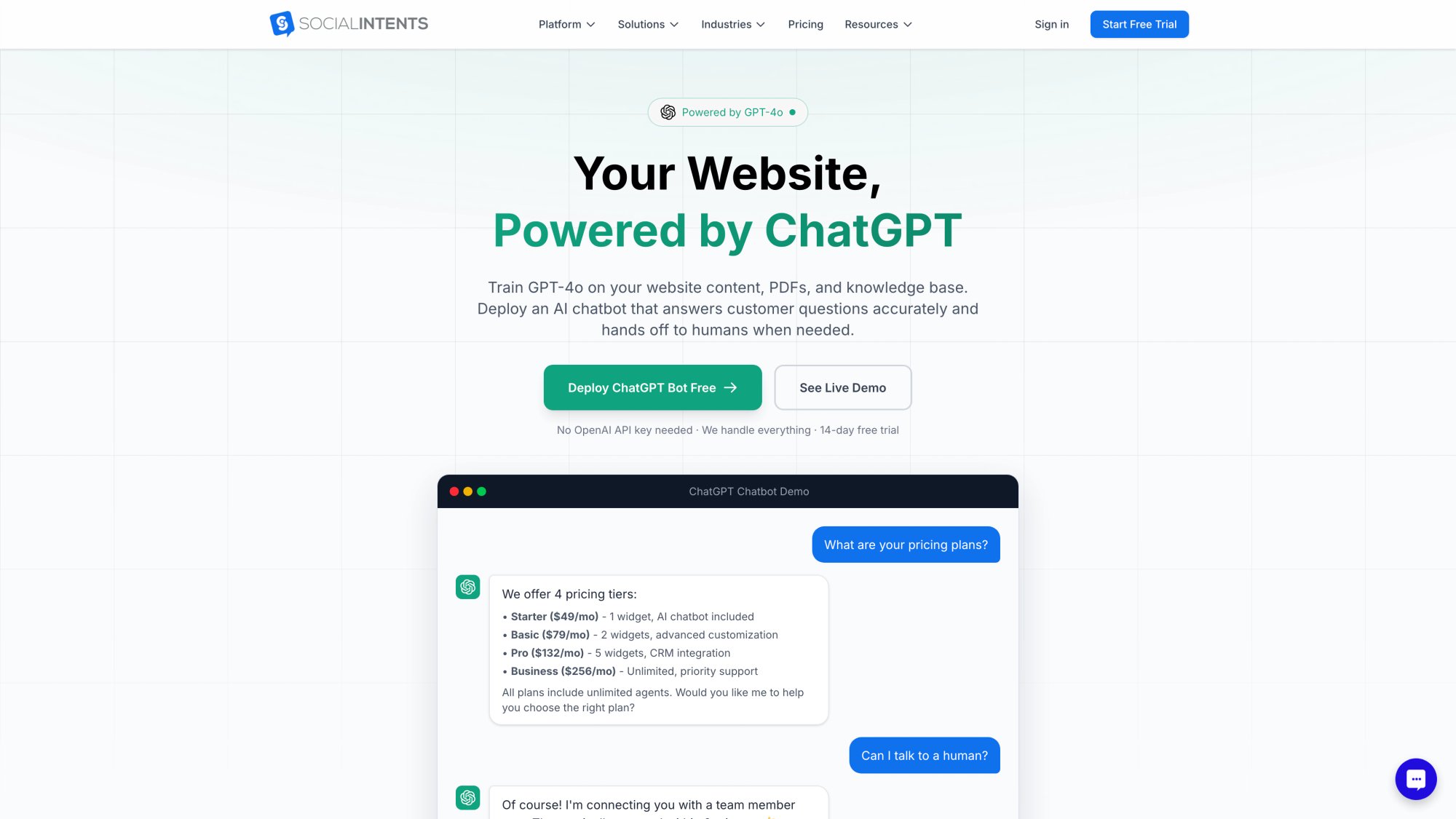
Our AI chatbot integration supports OpenAI ChatGPT, Anthropic Claude, and Google Gemini. Train it on your content in minutes. When it can't answer confidently, it hands off to a human agent seamlessly.
See how AI-powered chat transforms customer service:
Custom AI Actions are a game-changer. Integrate with your systems to look up order status, create tickets, check shipping, or pull account details mid-conversation. Customers are very interested in these capabilities because they turn chat from Q&A into actual problem-solving.
Unlimited Agents Without Per-Seat Pricing
Most platforms charge per agent. We don't. Starting at our Basic plan, you get unlimited agents. Scale your team without worrying about licensing costs.
Check our pricing to see the conversation limits by plan, but agents are unlimited across all tiers above Starter.
Chat on WhatsApp and Facebook Messenger
Run AI chatbots on WhatsApp and Facebook Messenger with the same escalation-to-human flow. One platform, multiple channels.
Full Customization on Every Plan
Everything we covered in this guide (visual customization, text changes, targeting, JavaScript API, tracking) is available across all plans. The Developer API is included on every tier.
The platform's comprehensive feature set ensures you can customize without compromise:
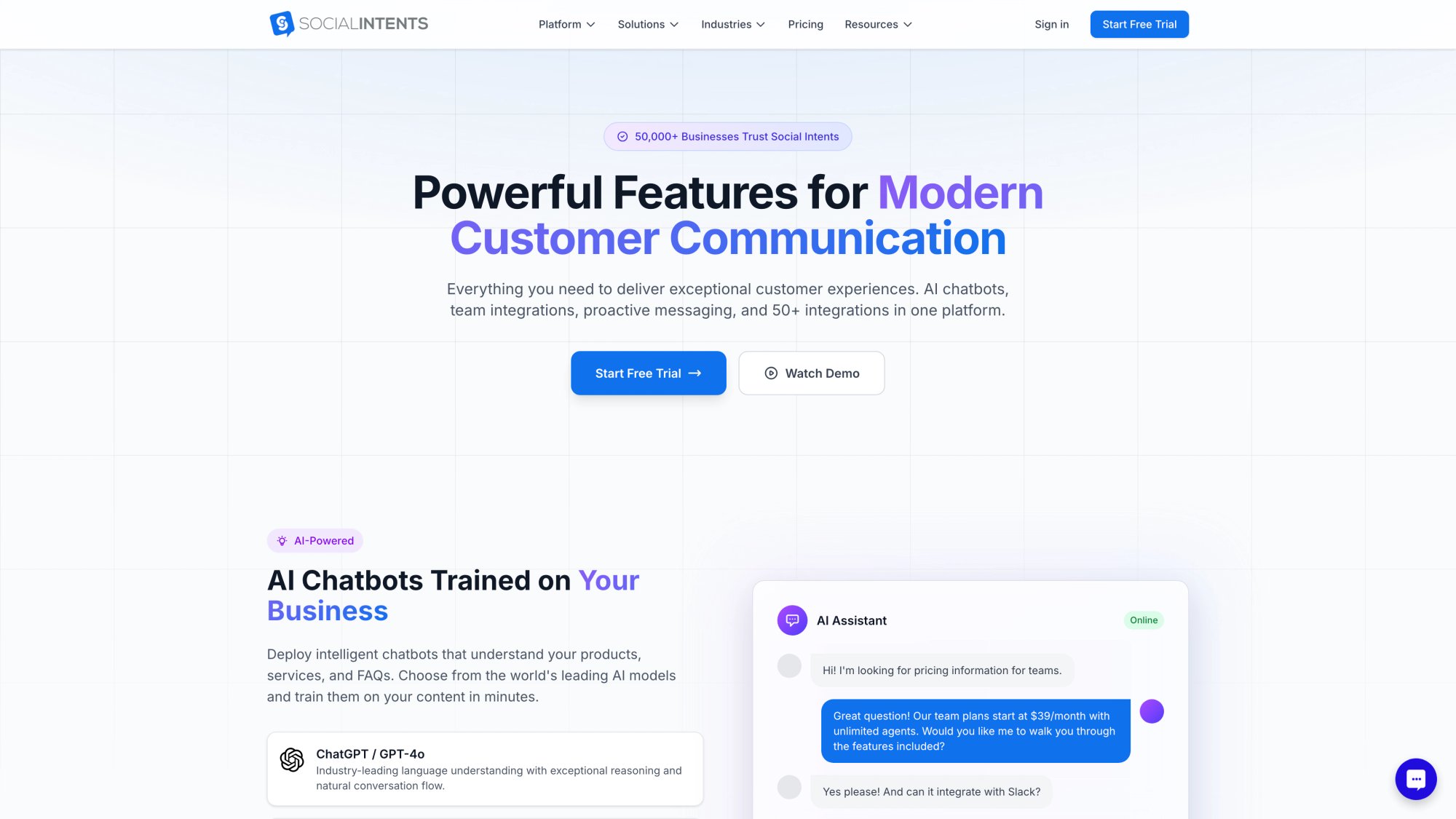
higher plans add features like:
• More widgets and domains
• Higher conversation limits
• Real-time translation
• Remove co-branding
• More AI training capacity
White Label for Agencies
Running a chatbot agency? Our Agency/Reseller plan gives you 20 chatbots, white-label branding, sub-accounts, and a brandable portal. Contact our team to learn more about partner programs.
Get Started Today
Start your free 14-day trial and see how customization transforms your chat experience. No credit card required.
Pre-Launch Testing Checklist
Before you declare victory, run through these checks:
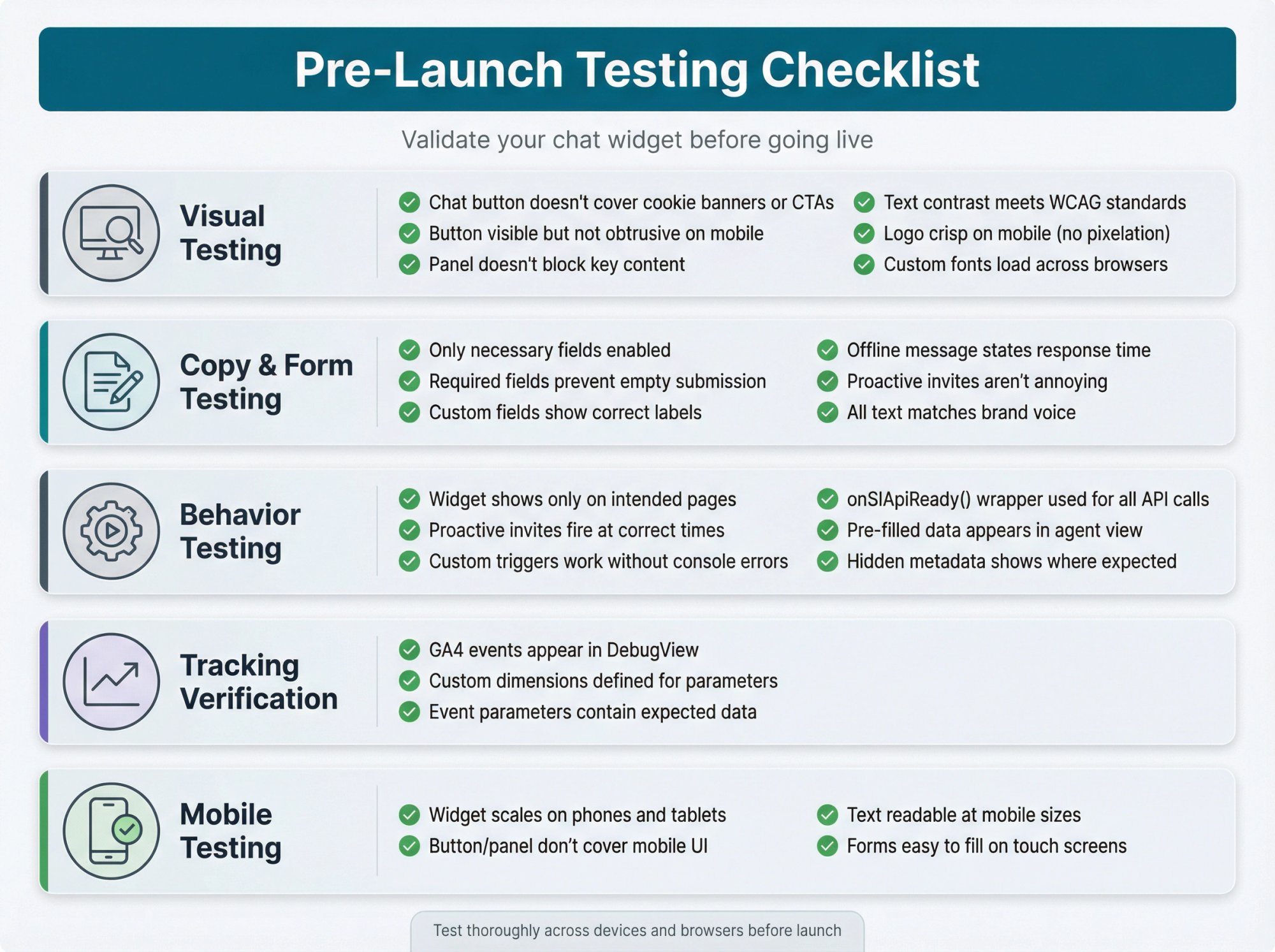
Visual Testing
button and panel placement:
Chat button doesn't cover cookie banners, reCAPTCHA, or "scroll to top" buttons
Button is visible but not obtrusive on mobile
Open chat panel doesn't block key content or CTAs
colors and readability:
Text contrast meets accessibility standards (use a contrast checker)
Logo looks crisp on mobile (not pixelated or cropped)
Custom fonts load correctly across browsers
Copy and Form Testing
pre-chat form:
Only necessary fields are enabled (not asking for info you don't need)
Required fields actually prevent submission when empty
Custom fields appear with correct labels
messages:
Offline message states response time clearly
Proactive invites aren't annoying (test frequency)
All text matches your brand voice
Behavior Testing
targeting and triggers:
Widget shows only on intended pages (test with targeting rules)
Proactive invites fire at the right time (not immediately on every page)
Custom triggers (onclick handlers, etc.) work without console errors
javascript api:
onSIApiReady()wrapper used for all API callsPre-filled data appears correctly in agent view
Hidden metadata shows up where agents expect it
Tracking Verification
ga4 events:
Events appear in GA4 DebugView after test chats
Custom dimensions are defined for agent and action parameters
Event parameters contain expected data
Mobile Testing
responsive behavior:
Widget scales appropriately on phones and tablets
Button and panel don't cover important mobile UI
Text is readable at mobile sizes
Forms are easy to fill on touch screens
Frequently Asked Questions
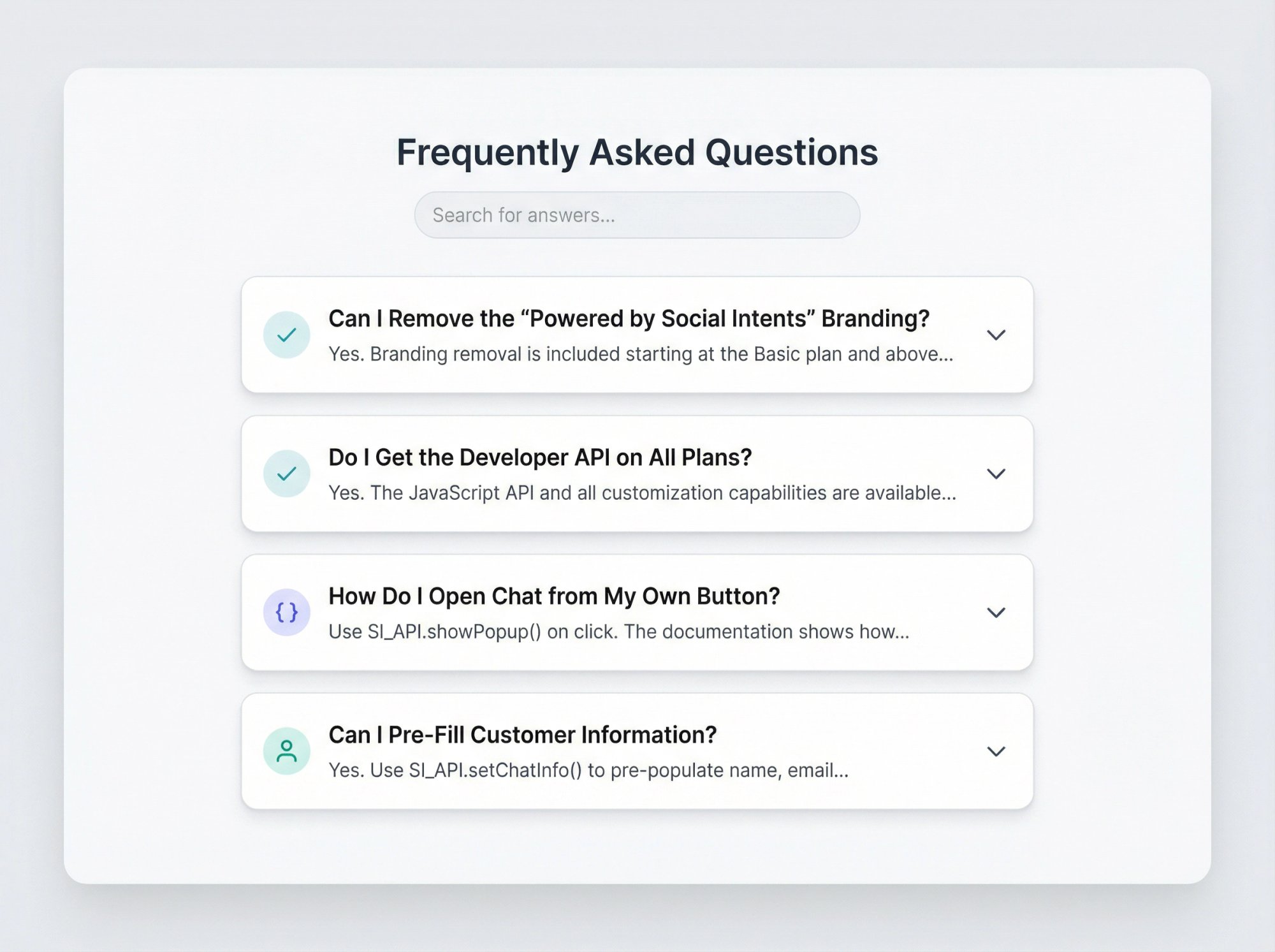
Can I Remove the "Powered by Social Intents" Branding?
Yes. Branding removal is included starting at the Basic plan and above. It's a standard feature on Pro and Business plans. Check our pricing page for plan details.
Do I Get the Developer API on All Plans?
Yes. The JavaScript API and all customization capabilities are available on every plan, including Starter. Our pricing page confirms "Developer API" is listed under "All Plans Include."
How Do I Open Chat from My Own Button?
Use SI_API.showPopup() on click. The documentation shows how to attach it to any element:
<button onclick="SI_API.showPopup();">Get Help</button>
You can hide the default tab using targeting settings and only trigger chat via your custom buttons.
Can I Pre-Fill Customer Information?
Yes. Use SI_API.setChatInfo() to pre-populate name, email, phone, and department:
function onSIApiReady() {
  SI_API.setChatInfo('Jane Smith', 'jane@example.com', '555-1234', 'Support');
}
Pre-population is documented with examples. This works great for logged-in users or returning customers.
How Do I Collect Order Numbers Before Chat Starts?
Enable Custom Field 1 or Custom Field 2 in your widget settings. Label it "Order Number*" (the asterisk makes it required). Custom field setup is straightforward.
Alternatively, pass it silently using SI_API.addParams() so your agent sees it without the customer typing it.
Can I Customize Everything Without Knowing Code?
Most customization happens through dashboard settings: colors, text, forms, targeting, schedules. You can get 80% of the way there without touching code.
For advanced customization (custom fonts, JavaScript triggers, dynamic behavior), you'll need some CSS or JavaScript. But Social Intents provides example code in the documentation for common scenarios.
Does Customization Work the Same on Mobile?
Yes. All visual customization, forms, and behavior work on mobile. Just test your positioning and sizing to ensure the widget doesn't cover important mobile UI elements.
The responsive behavior is built-in. You might want to adjust button size or panel height specifically for mobile using media queries in your CSS.
How Many Widgets Can I Create?
| Plan | Widgets | Domains |
|---|---|---|
| Starter | 1 | 1 |
| Basic | 2 | 2 |
| Pro | 5 | 5 |
| Business | 10 | 10 |
| Agency | 20 | (plus $20 per additional) |
Each widget can be fully customized independently. For complete pricing details and plan comparisons:
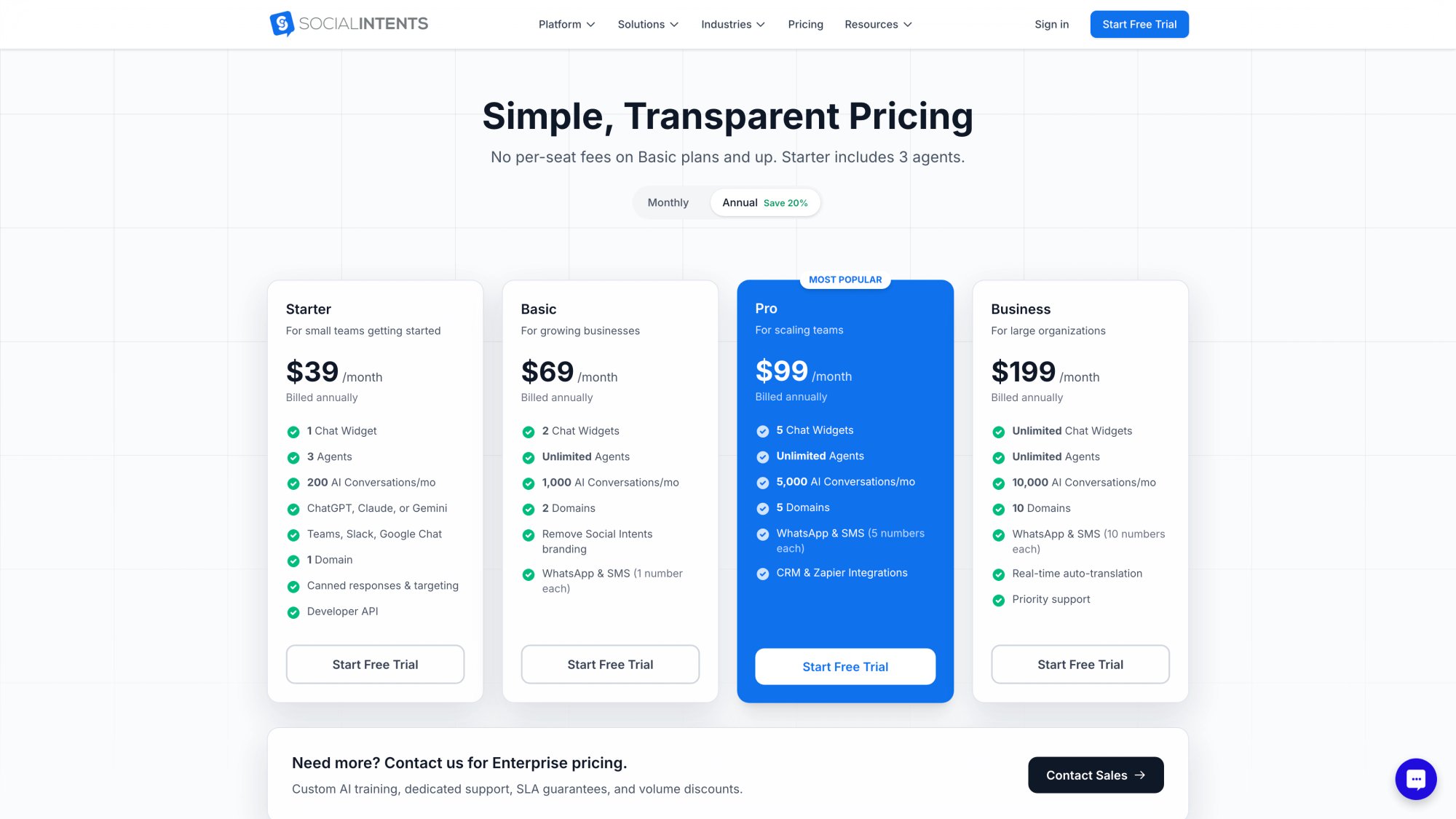
See pricing for details.
Can I A/B Test Different Widget Customizations?
Yes, using targeting rules and multiple widgets. Create two versions (different colors, copy, or behavior), deploy them on the same pages with different targeting conditions, and track performance in GA4.
Or use your own A/B testing tool to show different snippets to different users. You can also integrate with Zapier to trigger custom workflows based on chat events.
What If I Need Help with Customization?
Our documentation covers all customization scenarios with examples. We also offer support via chat and email.
For complex custom integrations, contact our team about implementation assistance.
Can I Use Social Intents with Shopify, WordPress, Wix?
Yes. We have native apps for Shopify, BigCommerce, Wix, WordPress, and Webflow. Each app includes the same customization capabilities we've covered in this guide.
You can also install via code snippet on any platform that lets you add JavaScript to your pages, including Squarespace and Magento.
Make Your Chat Widget Actually Yours
We've covered everything from changing colors to building advanced JavaScript integrations. The key takeaway: customization isn't just about looks. It's about creating a chat experience that feels like a natural part of your brand and actually helps visitors get what they need.
Social Intents gives you the tools to customize every aspect of your chat widget, from the visual layer to deep behavioral control. Whether you're a small team using Teams or Slack for chat, or a larger organization running AI-powered support across multiple channels, you can build the exact experience you want.
Start customizing today: Try Social Intents free for 14 days. No credit card required. Full access to all customization features.
Questions about customization? Chat with our team to see our platform in action.