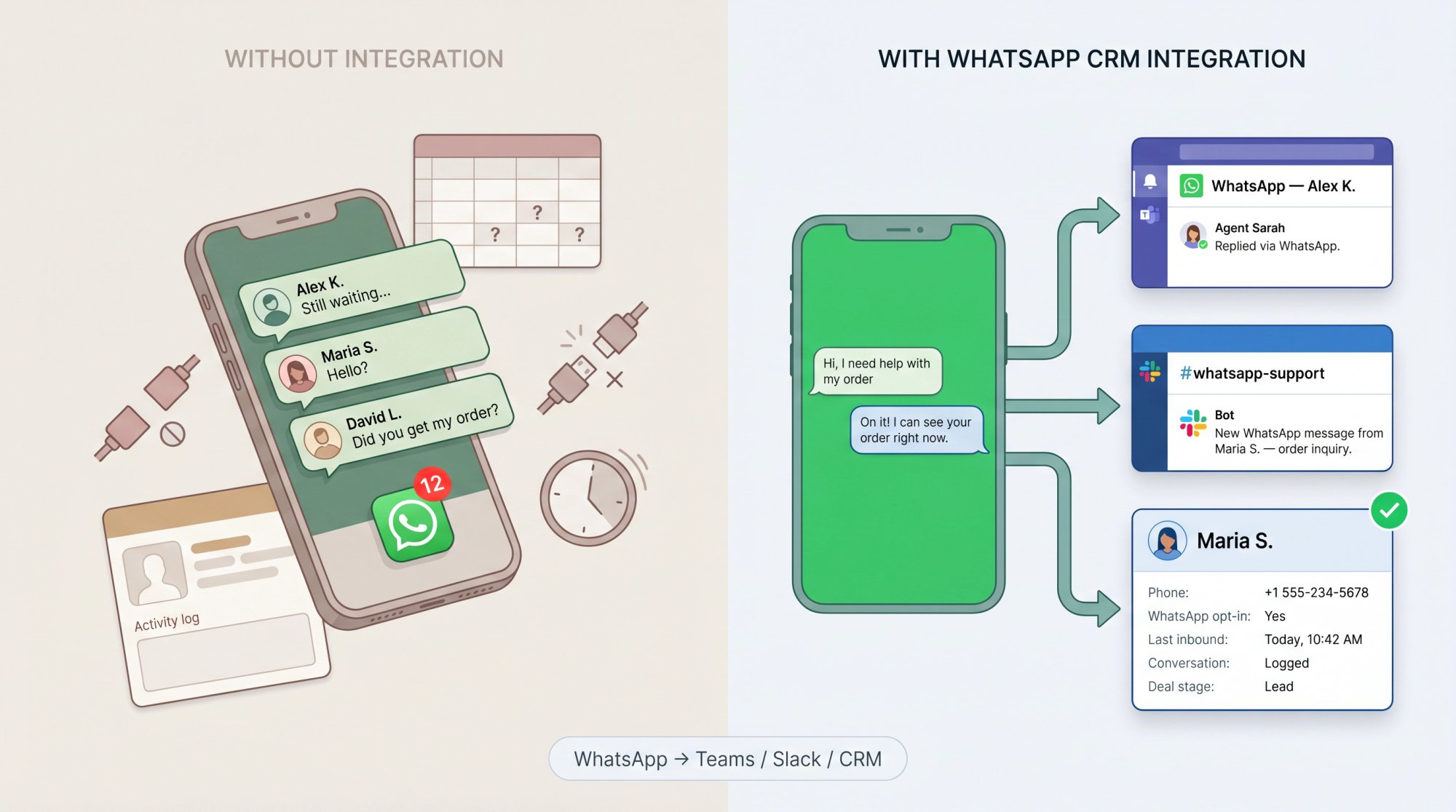
If your team is still handling WhatsApp from someone's personal phone, you already know the problem. Leads fall through the gaps. Conversations disappear when the phone gets lost or the person quits. The CRM has no idea any of this happened. Customers, though, expect fast and professional replies on WhatsApp the same way they expect them on email or live chat.
WhatsApp CRM integration connects your WhatsApp Business messaging to the systems your team already uses to manage customers: your CRM, your shared inbox, your ticketing system, and your collaboration tools. Every WhatsApp conversation can create a contact, update a deal, open a ticket, or send a transcript to HubSpot or Salesforce, without anyone manually copying information anywhere.
In 2026, there are three main paths to get there, and the right one depends entirely on where your team works. We've helped customers across all three setups, and the fastest way to get this wrong is to copy someone else's approach without understanding which path fits your workflow. This guide covers each one, the 2026 rules that affect every path, and the exact steps to set it up without running into compliance problems later.
Which WhatsApp CRM Integration Method Is Right for You?
There's no single "best" setup. The right integration is the one your agents will actually use. Here are the three main approaches, plus when each one makes sense:
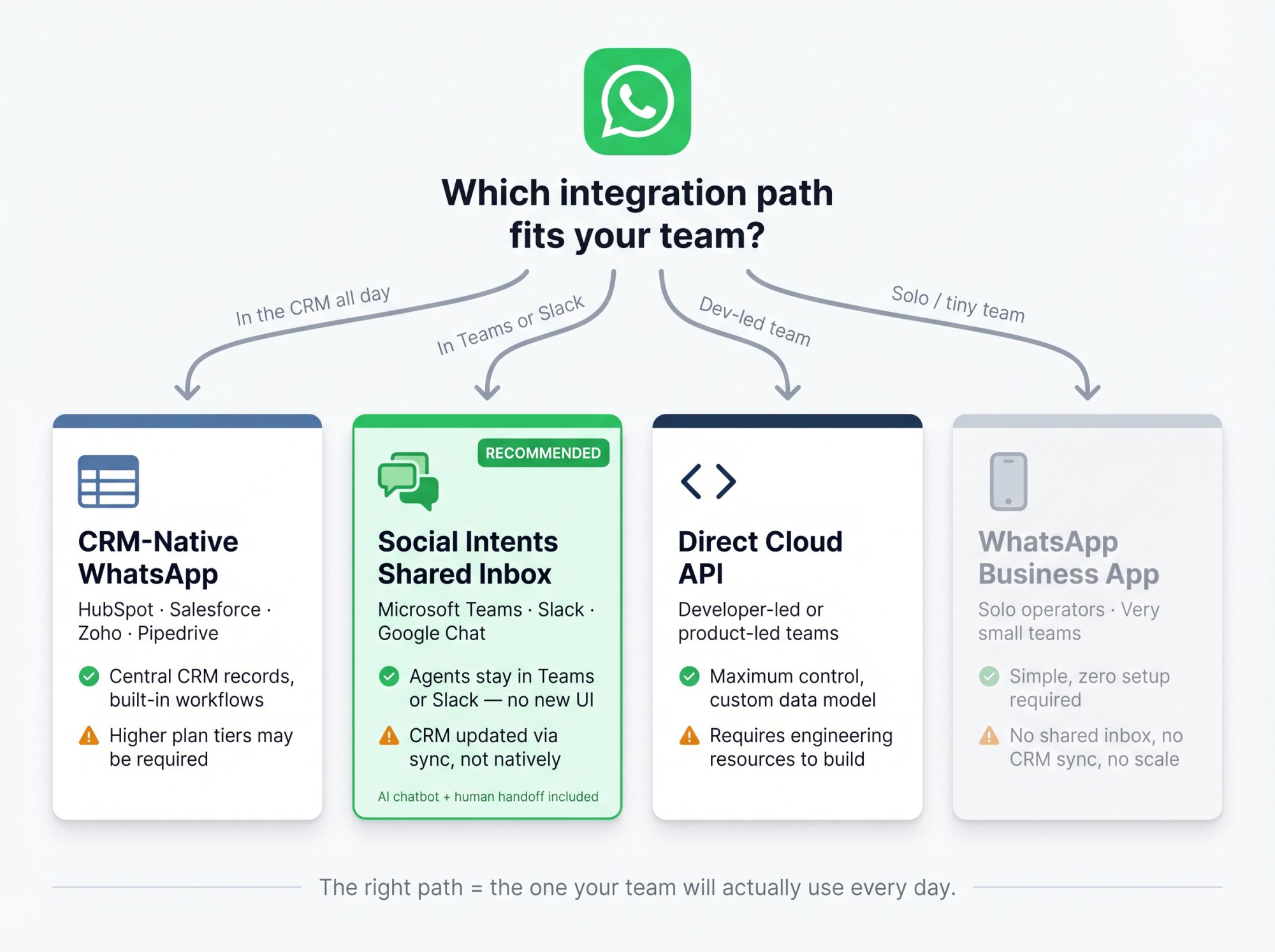
| Integration Path | Best For | Key Advantages | Main Tradeoff |
|---|---|---|---|
| CRM-native WhatsApp (HubSpot, Salesforce, Zoho, Pipedrive) | Teams that work inside their CRM all day | CRM records stay central, built-in contact matching, ticket/deal workflows | May require higher plan tiers, mobile app access often stops after connecting |
| Social Intents shared inbox | Teams using Microsoft Teams, Slack, or Google Chat | Agents stay in existing tools, shared inbox, AI with human handoff, Zapier/CRM sync | CRM is updated via sync rather than natively |
| Direct WhatsApp Cloud API | Developer-led or product-led companies | Maximum control, custom routing, custom data model | Requires engineering resources and ongoing maintenance |
| WhatsApp Business App only | Solo operators or very small teams | Simple, no setup | No shared inbox, no CRM sync, no scale |
The most common choice for teams already using Teams or Slack is the second path: Social Intents routes your WhatsApp conversations into the tools your agents already use, keeps a shared WhatsApp inbox with full conversation history, and connects to your CRM without forcing anyone to learn a new helpdesk UI. We'll cover this route first and in the most detail.
Before you set up anything, though, there are rules that govern how WhatsApp Business works in 2026. They affect your cost model, your compliance posture, and what your CRM actually needs to store.
WhatsApp Business Rules You Need to Know in 2026
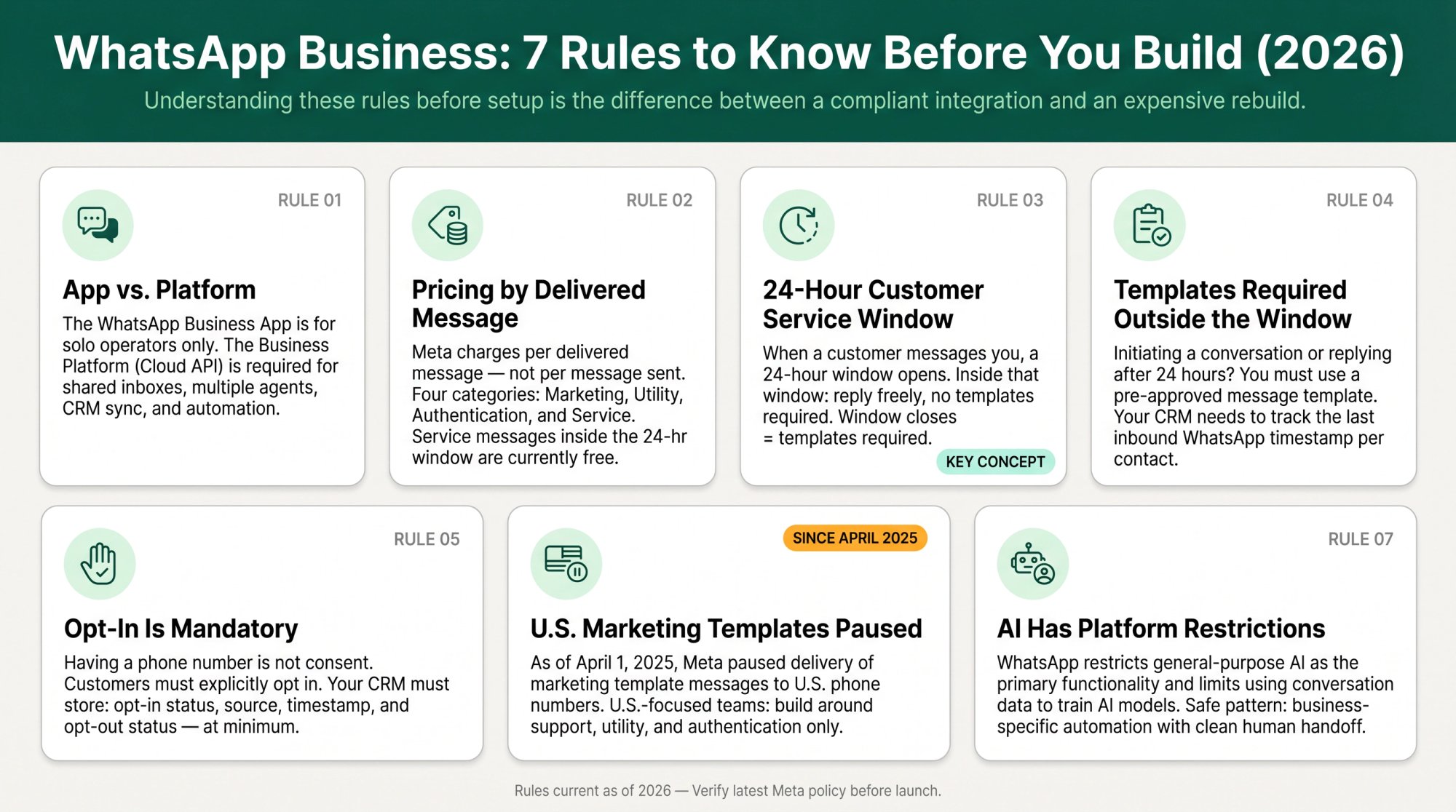
Most failed WhatsApp CRM projects don't fail on the technical setup. They fail because the team didn't understand these rules before they started building.
WhatsApp Business App vs. WhatsApp Business Platform: What's the Difference?
The WhatsApp Business App is what most small business owners use: a phone app for manually replying to customers. Good for a solo operator. Not designed for shared inboxes, CRM sync, automation, or multiple agents.
The WhatsApp Business Platform (often accessed through the Cloud API or an approved provider like Social Intents) is the enterprise-grade version. It gives programmatic access to WhatsApp messaging for customer support, sales, marketing, CRM integration, and AI automation. If you want a shared inbox with multiple agents, this is the one you need. For a full walkthrough of what the API setup involves, see our WhatsApp Business API setup guide.
How WhatsApp Business Pricing Works in 2026
In 2026, Meta's WhatsApp Business Platform pricing charges per delivered message, not per message sent. Rates vary by recipient country and message category.
The four categories are marketing, utility, authentication, and service. For support teams, this matters because service messages (the ones exchanged during an active customer conversation) are currently free. Your cost model should be based on delivered message volume, country mix, and message type, not just agent count.
What Is the WhatsApp 24-Hour Customer Service Window?
When a customer messages your business on WhatsApp, that opens a 24-hour customer service window. During those 24 hours, you can reply freely without needing pre-approved templates. Meta's pricing page confirms that service messages within this window are user-initiated and currently free.
For support teams, this creates a clear operational preference: let customers message you first, then respond quickly. The inbound-first model is both the cheapest and the most compliant approach.
When Do You Need WhatsApp Approved Message Templates?
Once that 24-hour window closes (or if you want to start a conversation with someone who hasn't messaged you first), you can generally only send pre-approved WhatsApp message templates. This applies to sales follow-ups, appointment reminders, order updates, renewal notices, and reactivation campaigns.
Your CRM needs to know the last inbound WhatsApp timestamp for each contact so agents know whether they're inside or outside the window.
WhatsApp Opt-In Requirements: What Your CRM Must Store
You can't message someone on WhatsApp just because you have their phone number. Meta's WhatsApp Business Messaging Policy requires that customers have given their mobile number and opted in to receive messages from your business. Opt-outs must also be honored.
This means your CRM integration should store at minimum: opt-in status, opt-in source, opt-in timestamp, and opt-out status. We'll cover the exact field setup later.
WhatsApp Marketing Templates for U.S. Numbers: What Changed in 2025
As of April 1, 2025, Meta paused delivery of WhatsApp marketing template messages to U.S. phone numbers. Meta's developer documentation confirms this, and HubSpot's WhatsApp documentation (updated April 14, 2026) also notes that marketing templates aren't supported for U.S. numbers.
If your customer base is primarily in the U.S., build your 2026 WhatsApp strategy around support, utility messages, authentication, and inbound conversations, not outbound marketing blasts.
Can You Use AI with WhatsApp? Platform Rules Explained
AI is genuinely useful for WhatsApp workflows: answering FAQs, routing requests, qualifying leads, and handling business hours coverage. But WhatsApp's Business Solution Terms include restrictions around using WhatsApp to make general-purpose AI or machine-learning technologies available as the primary functionality, and limits on using WhatsApp Business Solution Data to train AI models.
The safe pattern is business-specific automation: answer questions about your products, services, and support policies, then escalate to a human when needed. Social Intents is built exactly for this: AI handles routine queries, hands off to a human agent in Teams or Slack when the conversation needs it, and the human sees the full context without starting over.
What You Need Before Setting Up WhatsApp CRM Integration
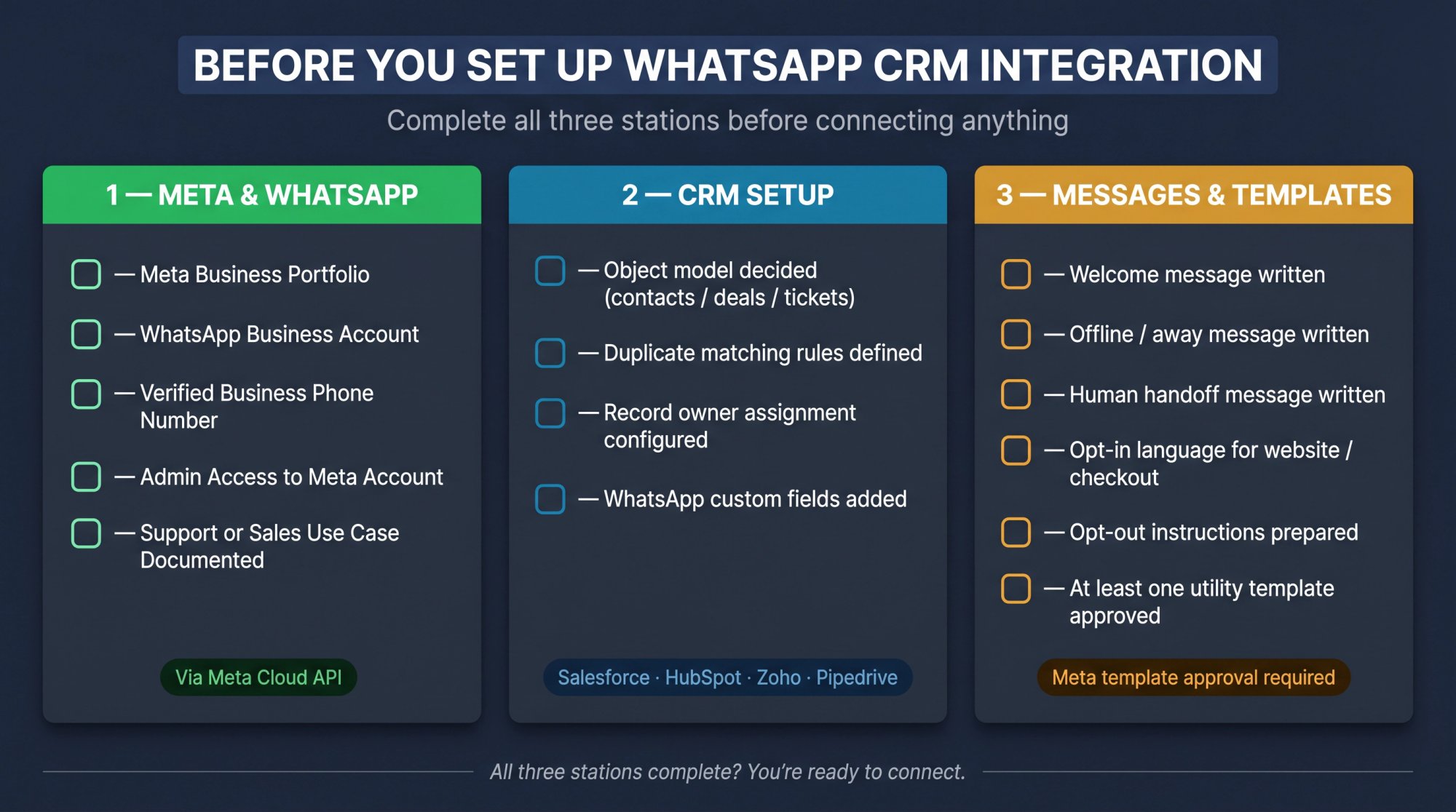
Get these in place before you touch a single setting. Before you connect WhatsApp to any platform, review our WhatsApp Business setup guide for the exact prerequisites and account requirements.
Meta Business Account and WhatsApp Requirements
You'll need a Meta business portfolio (or business account), a WhatsApp Business Account, and a business phone number to connect. You also need admin access to the Meta account and a clear support or sales use case documented.
As Meta's Cloud API documentation confirms, the Cloud API setup requires a Meta business portfolio, WhatsApp Business Account, and business phone number at minimum.
CRM Setup Requirements for WhatsApp Integration
Before connecting anything, decide:
Should WhatsApp create new contacts, leads, deals, tickets, or cases in your CRM?
What are your duplicate matching rules (phone number format matters here)?
Who gets assigned as the owner of new records?
Which fields need to exist for WhatsApp data?
Teams still evaluating which CRM to use can consult our guide to the best CRMs for small business for an up-to-date comparison.
WhatsApp Messages and Templates to Prepare Before Launch
Welcome message
Offline/away message
Human handoff message (what the customer sees when transferred)
Opt-in language for your website or checkout
Opt-out instructions
At least one approved utility template
Which CRM Fields to Add for WhatsApp Integration
| Field | Why It Matters |
|---|---|
| WhatsApp phone number | Primary matching field |
| WhatsApp opt-in status | Required for compliant outbound messaging |
| Opt-in source | Proves how consent was collected |
| Opt-in timestamp | Audit trail and workflow logic |
| Opt-out status | Prevents non-compliant messages |
| Last inbound WhatsApp timestamp | Determines whether the 24-hour window is open |
| WhatsApp conversation ID | Maps threads and transcripts |
| Message category | Tracks marketing vs utility vs service usage |
| CRM owner | Routes follow-up |
| Ticket/case/deal ID | Connects conversation to business outcome |
| Transcript URL or text | Preserves context |
| AI handled / human handled | Measures automation quality |
How to Set Up WhatsApp CRM Integration with Social Intents
This is the recommended path if your team uses Microsoft Teams, Slack, or Google Chat.
Social Intents routes your WhatsApp conversations directly into the collaboration tools your agents already use. Instead of asking your support team to work in a new inbox, they keep answering from Teams or Slack, with the full WhatsApp conversation threaded in their existing channel. WhatsApp becomes another input channel, not another tool to check.
Why Teams and Slack Users Should Route WhatsApp Through Social Intents
When agents have to leave Teams to open a separate helpdesk, adoption drops. With Social Intents, the handoff is invisible to the agent: a WhatsApp message arrives, it appears in the designated Teams channel or Slack workspace, they reply, and the customer gets the response on WhatsApp. No context switching. No new UI to learn.
Our WhatsApp live chat integration supports one WhatsApp number with unlimited agents, shared conversation history, AI chatbot with human handoff, and CRM/Zapier sync to keep your system of record accurate.
What Is WhatsApp Coexistence Mode and How Does It Work?
One of the most common objections we hear: "We can't migrate our WhatsApp number because the business owner still uses the phone app."
That's exactly what Coexistence Mode solves. Eligible WhatsApp Business App numbers can connect to the WhatsApp Cloud API while the mobile app continues working and messages sync between the app and Social Intents. The owner or front-desk team keeps their phone, and the support team gets the shared inbox. It's a gradual transition rather than a hard migration.
This is especially useful for small and midsize businesses where the business owner handles some WhatsApp conversations personally while the team handles the volume.
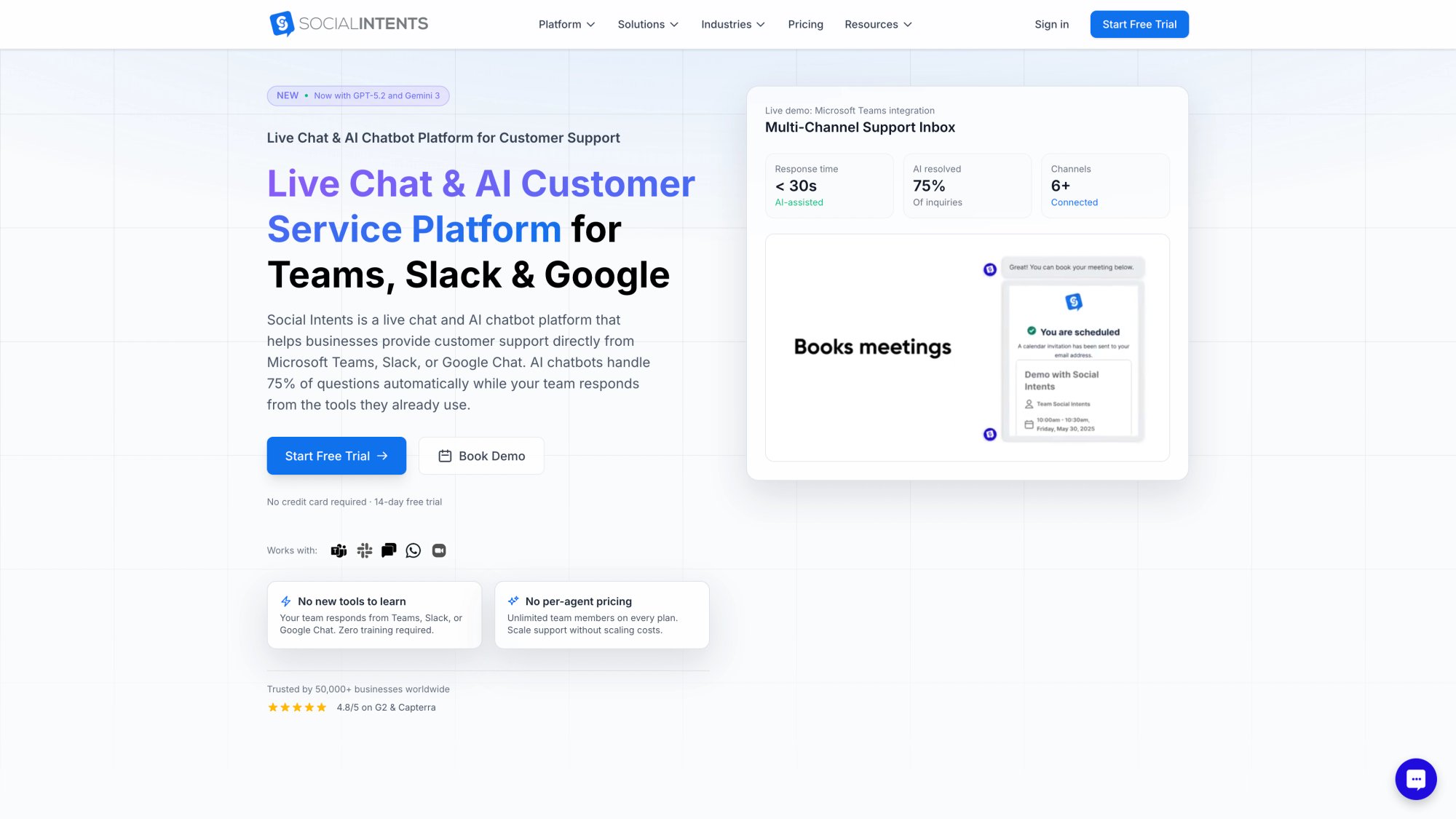
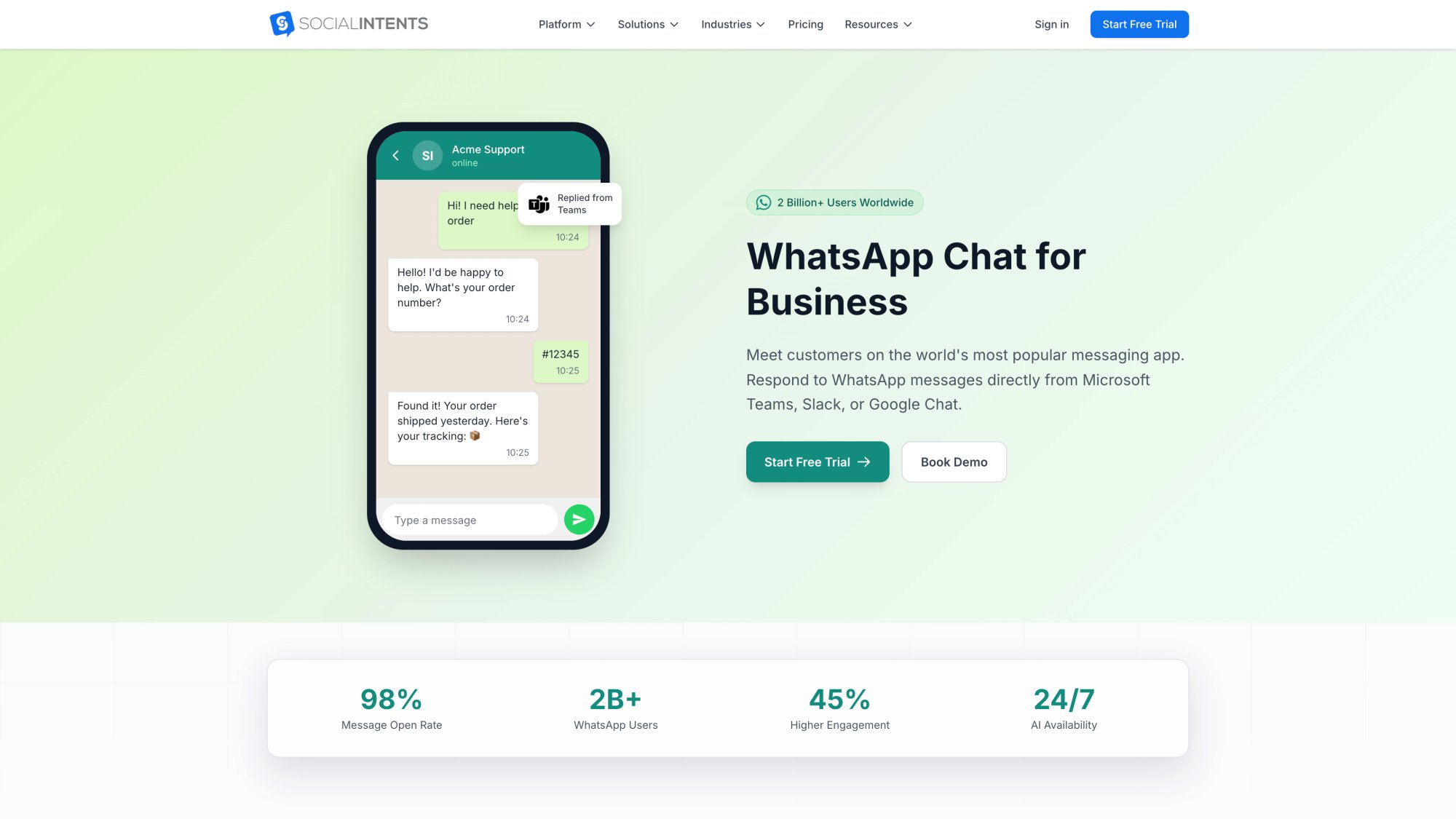
The Social Intents WhatsApp live chat page shows exactly what your agents get: a shared inbox where WhatsApp conversations route directly into Microsoft Teams, Slack, or Google Chat — with key stats like 98% message open rate and 24/7 AI availability visible right on the product page.
Step-by-Step: How to Connect WhatsApp to Social Intents
Log in to your Social Intents dashboard
Go to Apps or Integrations
Choose Connect WhatsApp
Select Continue with Facebook
Choose your Meta Business Account
Select or create the WhatsApp Business Account
Select the WhatsApp phone number
Grant the required permissions
Assign WhatsApp to the right Social Intents chat widget
Route inbound chats to Microsoft Teams, Slack, Google Chat, Webex, Zoom, or the web dashboard
Test inbound and outbound messages
Customize welcome messages, offline behavior, routing rules, AI bot behavior, and handoff rules
The full setup walkthrough in our knowledge base covers each step, including selecting the Business Account and WhatsApp number, granting permissions, assigning WhatsApp to a chat widget, routing inbound chats, and testing.
How to Connect WhatsApp to Microsoft Teams
If your team lives in Teams, route incoming WhatsApp conversations to a selected Teams channel. Our Teams integration guide explains how each WhatsApp conversation appears as a threaded chat in Teams, where agents can reply and collaborate using mentions. For the full technical setup, see our WhatsApp with Microsoft Teams documentation.
This works well for:
B2B support teams at Microsoft 365 organizations
IT and helpdesk-style workflows
Sales engineers and account teams
Enterprises standardized on Teams
How to Connect WhatsApp to Slack
For Slack-first teams, route WhatsApp chats to any Slack channel and let agents reply directly from Slack. Our Slack integration guide covers receiving WhatsApp messages in a selected Slack channel and escalating AI chatbot conversations to Slack agents when needed. See also our WhatsApp with Slack setup docs for full configuration details.
Works best for startups, SaaS support teams, and developer-heavy support or success teams.
How to Log WhatsApp Conversations to Your CRM
Social Intents connects to Salesforce, HubSpot, and other CRMs through Zapier and native integrations, including our dedicated HubSpot integration and Salesforce integration. A practical automated setup might work like this:
→ Unknown WhatsApp number messages you: create new lead/contact in CRM
→ Existing number contacts you: attach conversation to existing record
→ Conversation tagged "sales": create deal or opportunity
→ Conversation tagged "support": create ticket or case
→ Conversation closes: send transcript to CRM
→ Chat tagged "urgent": notify the account manager
→ AI confidence drops below threshold: escalate to human agent
You're not manually updating the CRM. The rules do it automatically.
How to Set Up WhatsApp AI with Human Handoff
Social Intents lets you train an AI bot on your help docs, FAQs, product content, and website pages. The bot handles routine questions, and when a conversation needs a human, the escalation is clean: the agent sees the full conversation history and picks up right where the AI left off. The chatbot stops responding once a human takes over.
Use AI for: FAQ answers, order status, appointment questions, lead qualification, triage, and after-hours coverage. Always track which conversations the AI handled, which escalated, and which resulted in unresolved issues.
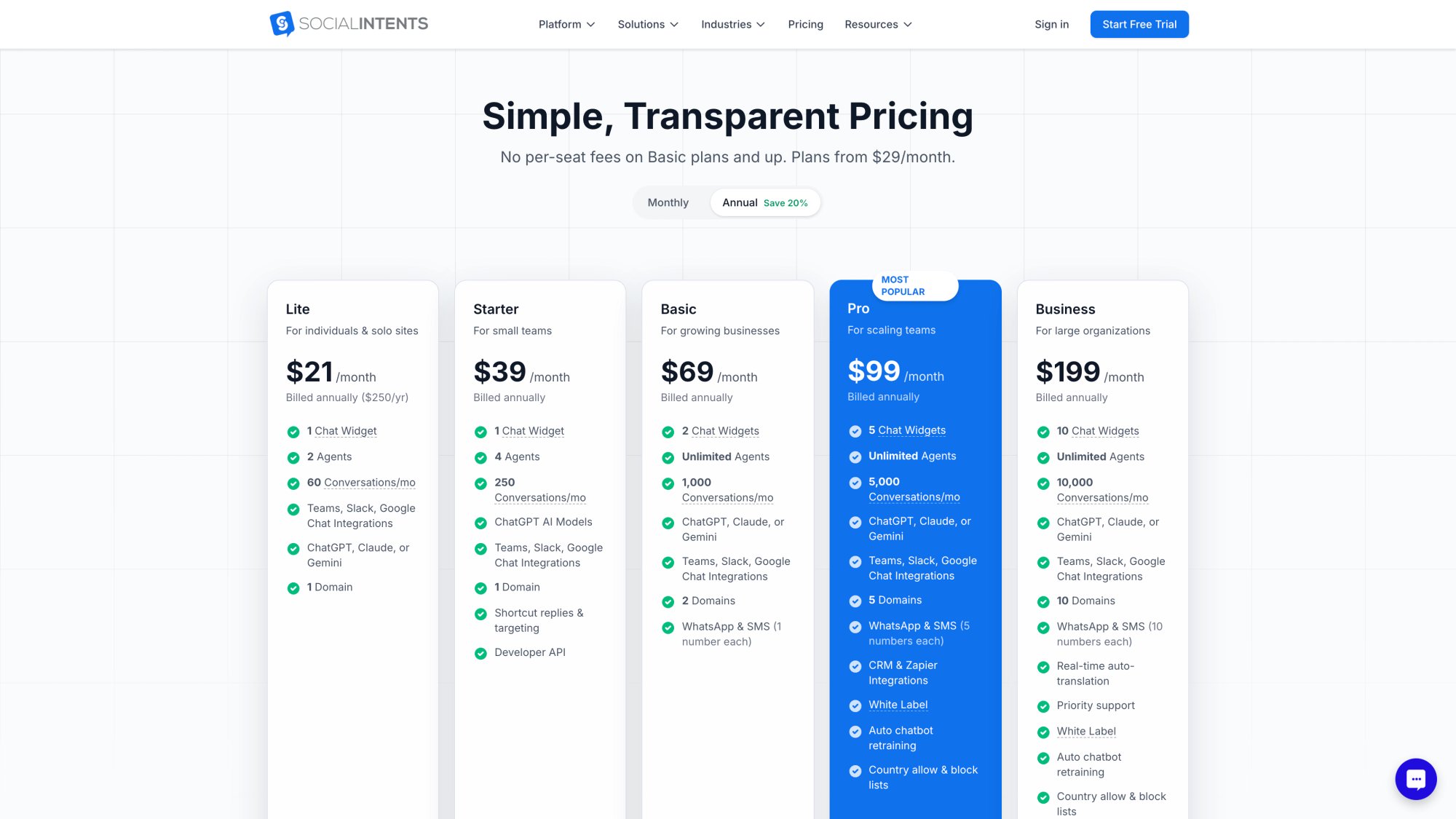
Not sure which plan fits your team? Social Intents plans start at $39/month (annual) with WhatsApp support on Basic and higher. Unlimited agents from Basic upward means no per-seat friction as your team grows. Try it free for 14 days.
The pricing page lays out all five tiers clearly — WhatsApp & SMS is included from Basic ($69/month) upward, with the Starter plan at $39/month for teams getting started.
How to Set Up WhatsApp in HubSpot
HubSpot is the right path if your team works primarily inside HubSpot's conversations inbox, help desk, contact records, tickets, and workflows all day.
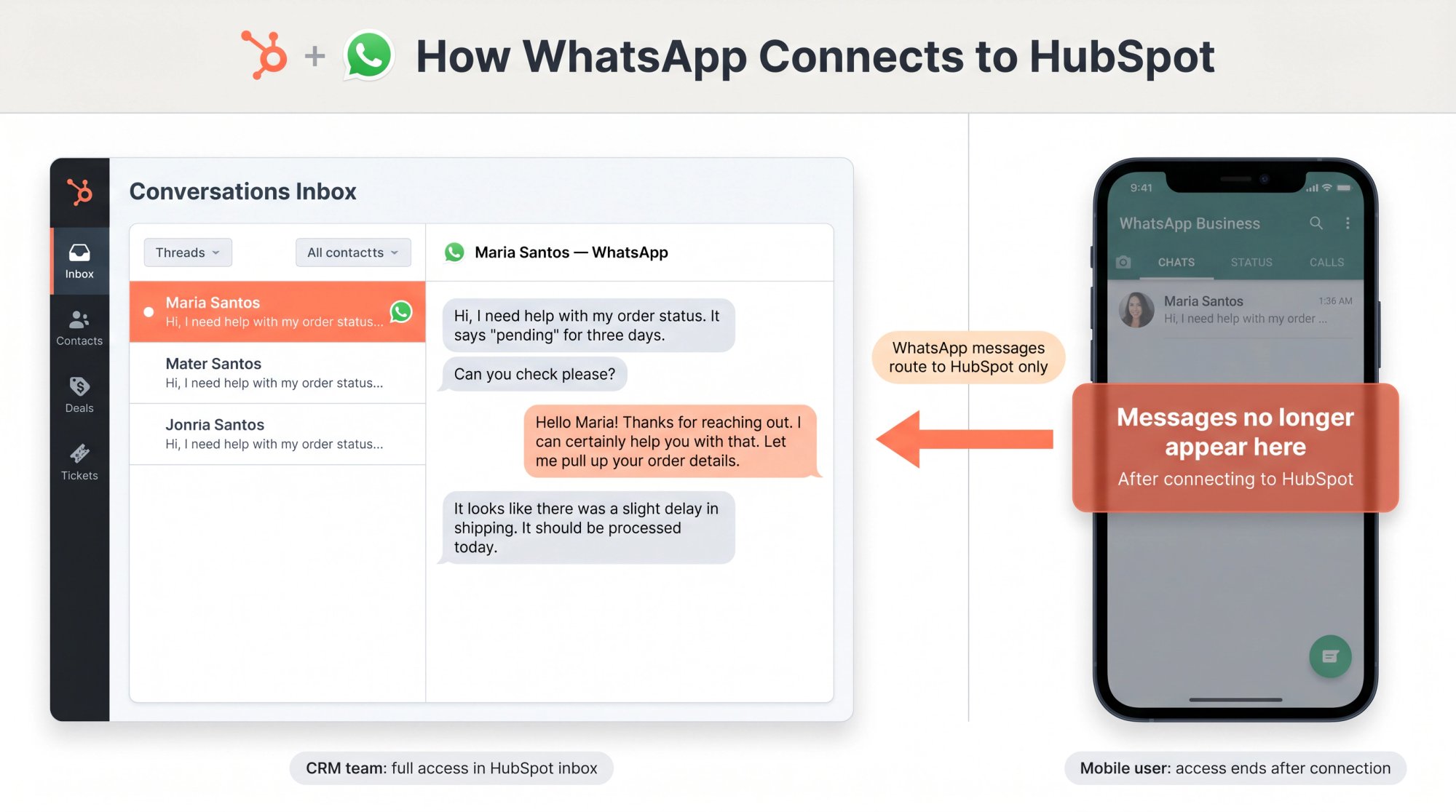
HubSpot's WhatsApp integration lets you start WhatsApp conversations from contact, company, deal, ticket, or custom object records, receive incoming WhatsApp messages in the conversations inbox or help desk, and apply the standard HubSpot workflow logic to WhatsApp threads.
Setup pattern:
Confirm your HubSpot plan includes WhatsApp
Connect your WhatsApp Business Account through the inbox settings
Verify the phone number
Create a WhatsApp inbox or help desk channel
Configure assignment rules
Create or sync approved WhatsApp templates
Add WhatsApp consent fields to contacts
Test contact matching with inbound messages
Test template-based outbound messages
Build workflows for ticket creation, lead routing, and follow-up
HubSpot requires explicit consent before you send WhatsApp messages and requires that you comply with WhatsApp's policies and applicable laws.
HubSpot WhatsApp Integration Limitations to Know
There are three things to know before committing to HubSpot's native integration:
A WhatsApp Business Account can have up to 25 phone numbers in HubSpot
Historical conversations don't sync when you first connect
After connecting to HubSpot help desk, messages no longer appear in the WhatsApp mobile or web app. They appear only in HubSpot from that point on.
That last point is significant. If your business owner, founder, or front-desk team depends on the WhatsApp Business mobile app, migrating the number to HubSpot will cut off their mobile access. Before committing, check whether WhatsApp Coexistence Mode through a provider like Social Intents would better fit your situation. Teams that want both HubSpot CRM connectivity and continued mobile access can also explore our HubSpot integration as a complement.
How to Set Up WhatsApp in Zoho CRM
Zoho CRM works well for small and midsize teams that already manage their sales or support pipeline inside Zoho.
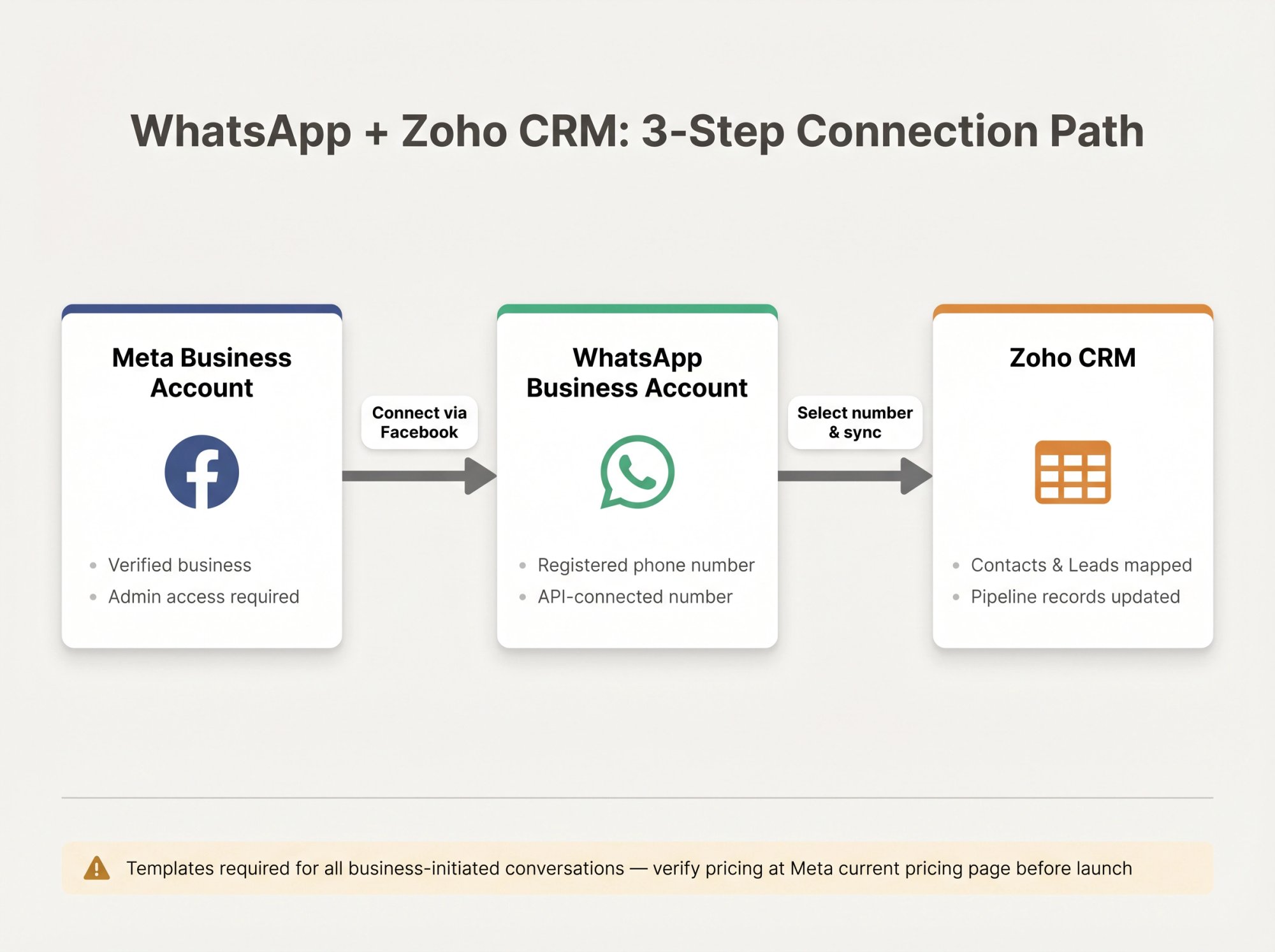
Zoho's WhatsApp integration requires a Facebook Business Manager account, verified business, WhatsApp Business Account, and registered phone number for the API. Once connected, you interact with customers through CRM records and keep records of all interactions.
Setup pattern:
Confirm Zoho CRM admin access
Go to business messaging or WhatsApp integration settings
Connect through Facebook/Meta
Select the business account and WhatsApp number
Decide whether WhatsApp contacts map to leads, contacts, or another object
Configure assignment rules
Create or sync approved templates
Test inbound and outbound messages
Connect templates to Zoho workflows, blueprints, or journeys as needed
Zoho's documentation confirms that businesses can't initiate casual conversations and must use approved templates for initiating conversations. Also, when any CRM documentation mentions WhatsApp pricing, always verify against Meta's current pricing page. The pricing model changed in 2026 and older references may be inaccurate.
Teams using Zoho who also want to route WhatsApp into Teams or Slack can use our Zoho CRM integration alongside Social Intents for a unified inbox experience.
How to Set Up WhatsApp in Pipedrive
Pipedrive is best for sales-led WhatsApp workflows: lead qualification, deal follow-up, quote conversations, and pipeline activity logging.
Pipedrive's WhatsApp CRM integration syncs WhatsApp messages, history, attachments, and profile information to CRM records, supports pre-approved templates, and links conversations to contacts and deals.
Common setup pattern:
Connect WhatsApp through a native or marketplace integration
Match WhatsApp numbers to people and organizations
Create new leads when no existing record matches
Link conversations to deals
Save WhatsApp messages as activities
Use templates for follow-ups outside the 24-hour window
Trigger sales tasks after unanswered conversations
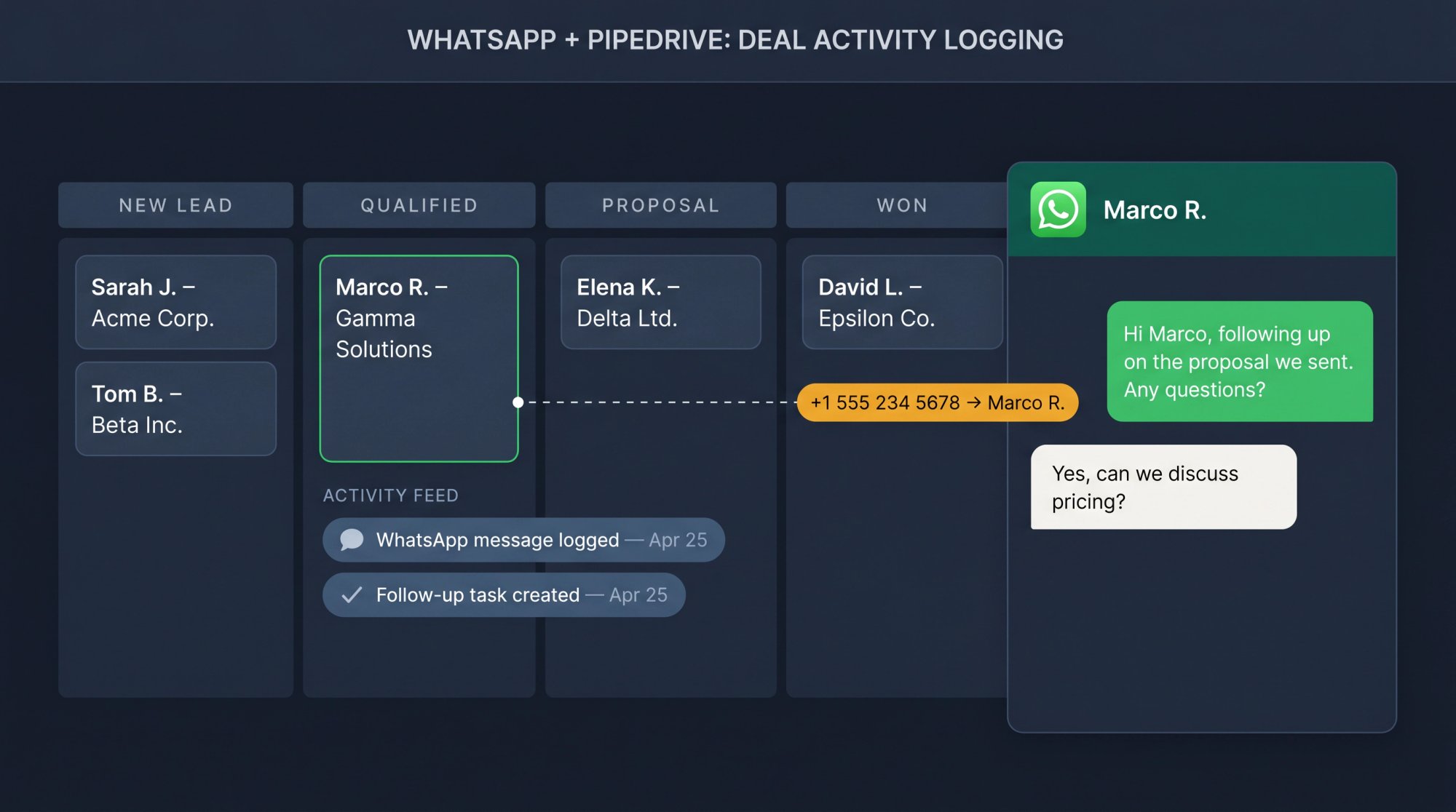
For teams that want their WhatsApp conversations visible in both Pipedrive and their Teams or Slack workspace, our Pipedrive integration connects chat activity to Pipedrive records via Zapier, no third-party add-ons required.
How to Build a Direct WhatsApp Cloud API Integration
Choose this route if you have developers, need custom routing logic, or want to connect WhatsApp to multiple internal systems with full control over the data model.
When to Use the Direct WhatsApp Cloud API
You need custom business logic that no existing platform supports
WhatsApp is central to your product, not just a support channel
You need to connect WhatsApp to multiple internal databases simultaneously
You want custom AI actions: order lookup, booking status, account-specific workflows
How the Direct WhatsApp Cloud API Integration Works
A direct setup typically looks like this:
Customer sends WhatsApp message
WhatsApp Cloud API sends a webhook to your server
Your server verifies the webhook
Your server looks up the phone number in the CRM
Your server creates or updates the contact record
Your server creates a conversation, ticket, case, or deal
Your server routes the message to an agent inbox or AI bot
Your server sends replies through the WhatsApp API
Your server writes the transcript and outcome back to the CRM
Meta's Cloud API documentation covers webhook subscriptions, message handling, template management, and token/permission requirements.
Pros: Maximum flexibility, full control over data model, custom business logic, best for high-volume specialized workflows
Cons: Requires engineering resources, you own webhook handling, retries, logging, errors, monitoring, access token management, template logic, agent experience, and compliance implementation
For most teams, direct API isn't the first choice. It's the right choice when WhatsApp is so central to your product or workflow that a third-party inbox would create more constraints than it solves. Teams looking for custom AI workflows without the full build overhead should evaluate whether AI Agents can bridge the gap.
WhatsApp Message Templates: How to Create and Use Them
Templates are required when your business initiates or restarts a conversation outside the 24-hour customer service window. Meta's policy is clear: business-initiated conversations must use approved message templates, and replies inside 24 hours of the user's last message don't require templates.
WhatsApp Message Template Categories Explained
| Category | Use Cases |
|---|---|
| Utility | Order updates, appointment reminders, account alerts, shipping updates, payment reminders |
| Authentication | OTPs, login verification, account verification |
| Marketing | Promotions, offers, product announcements, reactivation (where allowed) |
| Service | User-initiated support replies inside the customer service window |
Meta's pricing page defines rates by category and country. Service messages are currently free. Marketing messages to U.S. numbers are paused.
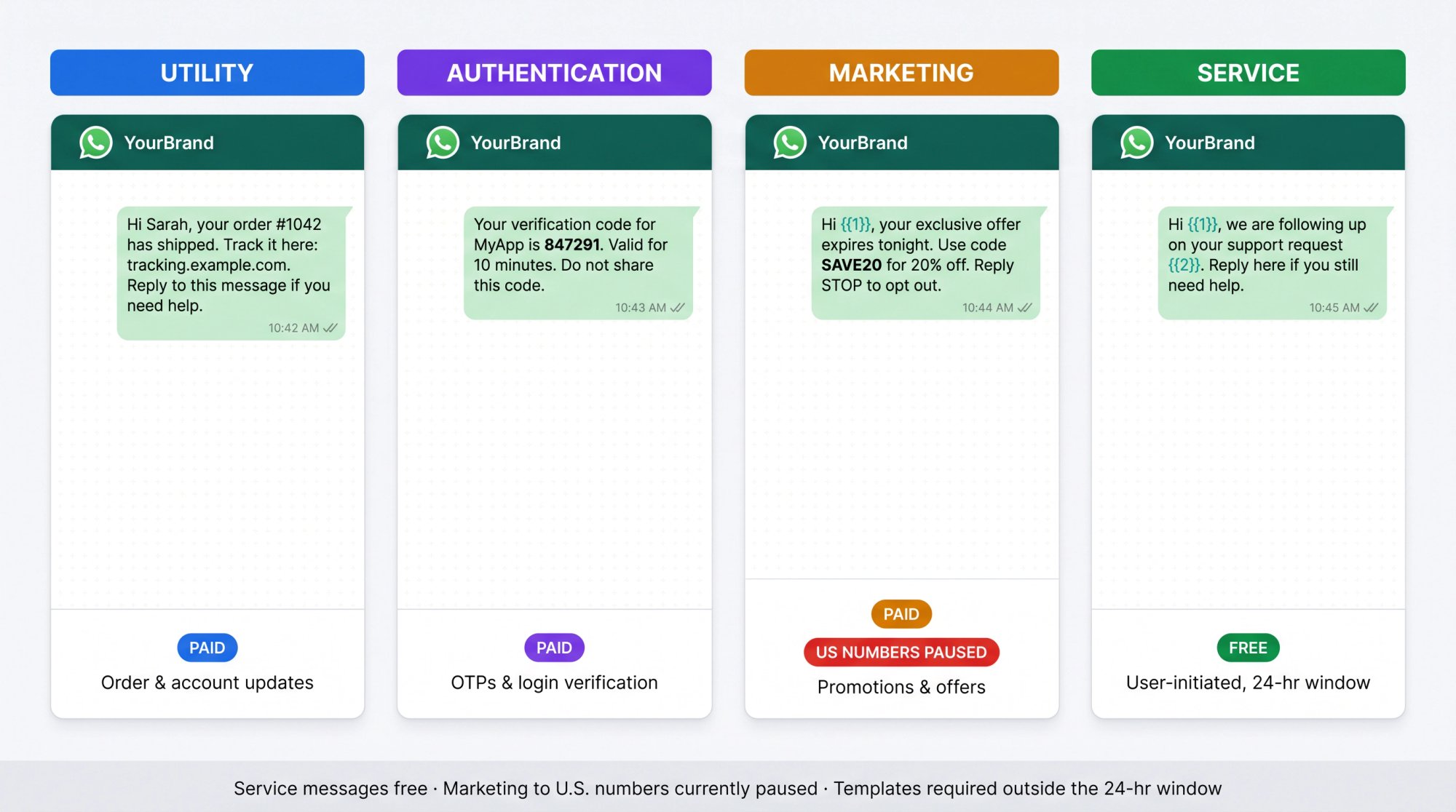
WhatsApp Message Template Examples You Can Use
Utility: order shipped
Hi {{1}}, your order {{2}} has shipped. Track it here: {{3}}. Reply to this message if you need help.
Appointment reminder
Hi {{1}}, this is a reminder for your appointment with {{2}} on {{3}} at {{4}}. Reply CONFIRM to confirm or HELP to reschedule.
Human handoff
I'm connecting you with a team member now. They'll be able to see this conversation so you won't need to repeat yourself.
Support follow-up
Hi {{1}}, we're following up on your support request {{2}}. Reply here if you still need help, or ignore this message if everything is resolved.
How to Avoid WhatsApp Template Rejection
Use the correct category. Vague promotional language in a utility template causes rejection.
Include opt-out instructions where appropriate
Test template variables before launch
Don't use templates to bypass opt-in requirements
Don't send marketing templates to U.S. numbers while the pause is in effect
HubSpot's template documentation notes that templates must be created in the WhatsApp Business Account, approved by WhatsApp, and synced into the platform. For managing templates within Social Intents, see our WhatsApp template settings guide.
How to Set Up WhatsApp Opt-In and Opt-Out in Your CRM
Your integration should never treat "we have their phone number" as consent. It isn't.
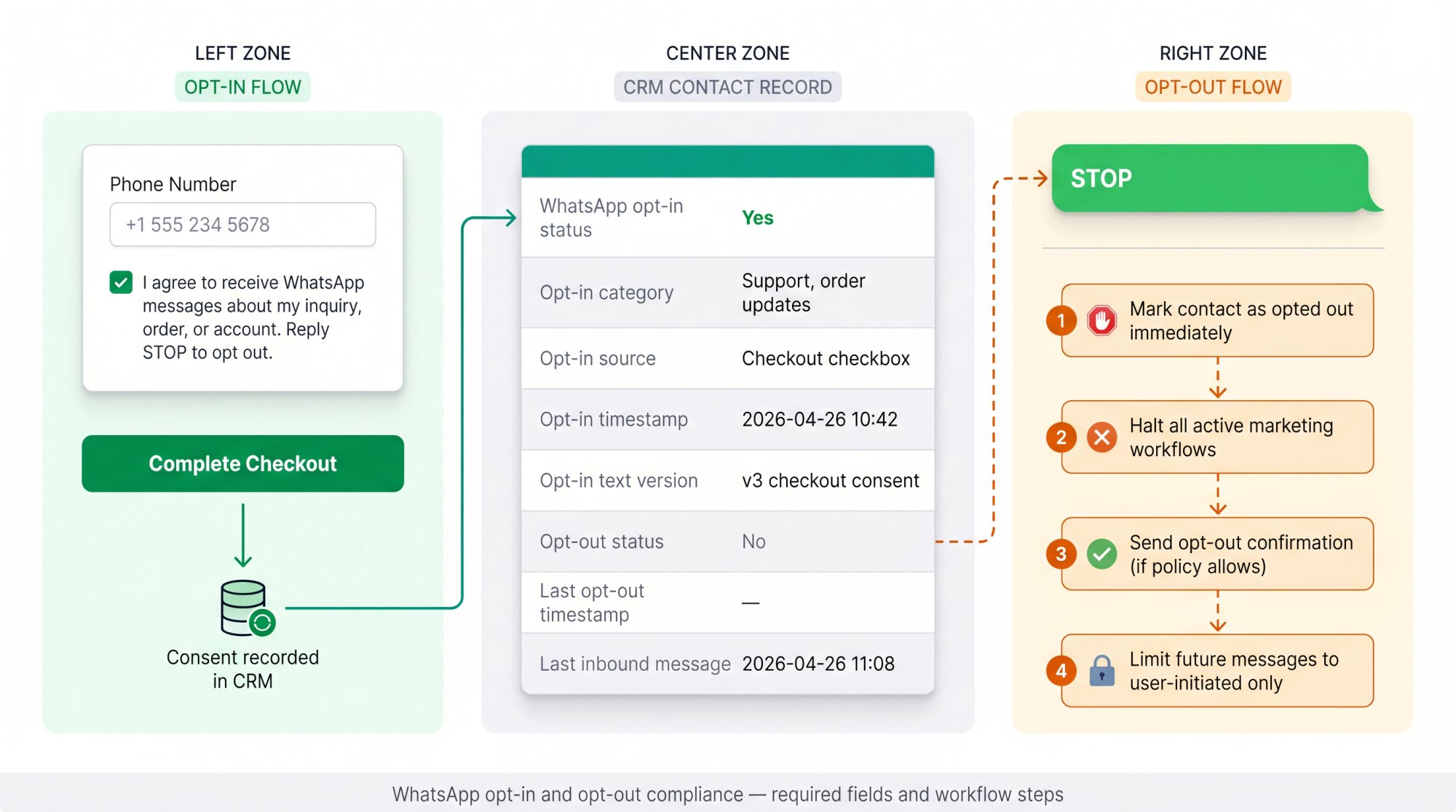
Meta's WhatsApp Business Messaging Policy requires that people have given their mobile number and explicitly opted in to receive messages from your business. They must also be able to opt out easily, and you must honor it.
WhatsApp Opt-In Message Examples for Your Website
For general support and order updates:
I agree to receive WhatsApp messages from [Company] about my inquiry, support request, order, appointment, or account. I can reply STOP to opt out.
For marketing where allowed:
I agree to receive WhatsApp messages from [Company] about offers, product updates, and promotions. I can reply STOP to opt out.
WhatsApp Consent Fields to Add to Your CRM
| CRM Field | Example |
|---|---|
| WhatsApp opt-in status | Yes |
| Opt-in category | Support, order updates, marketing |
| Opt-in source | Checkout checkbox |
| Opt-in timestamp | 2026-04-26 10:42 |
| Opt-in text version | v3 checkout consent |
| Opt-out status | No |
| Last opt-out timestamp | Blank |
| Last inbound WhatsApp message | 2026-04-26 11:08 |
How to Build a WhatsApp Opt-Out Workflow in Your CRM
Create a workflow that detects these words in incoming messages: STOP, UNSUBSCRIBE, CANCEL, OPT OUT, REMOVE. When detected:
Mark the CRM contact as opted out immediately
Stop any active marketing or template-based workflows for that contact
Send a short confirmation if your policy allows it
Limit future messages to user-initiated conversations and necessary transactional communication
This isn't just compliance. Customers who opt out and then receive another message lose trust permanently.
How to Set Up WhatsApp Routing and Human Handoff
A WhatsApp CRM integration without routing rules creates a chaotic shared queue where messages fall through, get double-answered, or get ignored entirely.
Define routing before you launch.
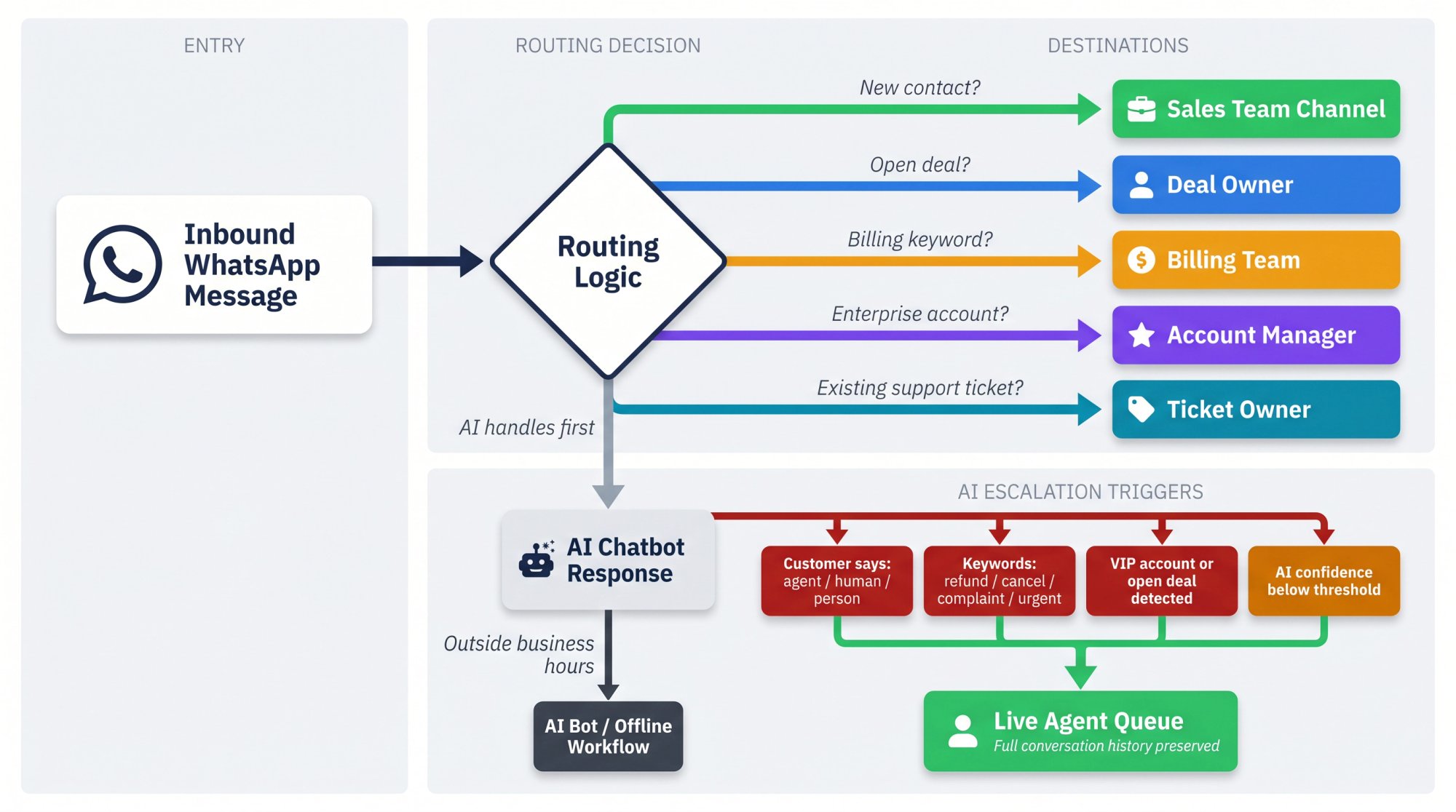
WhatsApp Routing Rules to Set Up Before Launch
| Condition | Route To |
|---|---|
| New sales inquiry | Sales team channel |
| Existing open deal | Deal owner |
| Existing support ticket | Ticket owner |
| Billing keyword detected | Billing team |
| Enterprise customer | Account manager |
| "Talk to human" | Live agent queue |
| Outside business hours | AI bot or offline workflow |
How to Manage Multiple WhatsApp Numbers with Social Intents
Social Intents supports routing multiple WhatsApp numbers to different Teams channels or Slack workspaces. This is useful if you have:
Separate numbers for sales and support
Different brands or product lines
Regional teams
A VIP customer support number
Different internal teams using Teams vs Slack
When to Escalate WhatsApp Chats from AI to a Human Agent
If you're using AI, define exactly when it should escalate. Common triggers:
Customer explicitly says "agent," "human," or "talk to a person"
Customer mentions "refund," "cancel," or "complaint"
Customer mentions "urgent"
AI confidence drops below your threshold
AI gives multiple failed answers
High-value account or open deal detected
VIP customer tier matched
For setting up AI-driven routing rules that automatically route chats to the right team or channel, Social Intents provides a dedicated escalation routing feature. Social Intents' escalation workflow preserves the full conversation history when the handoff happens, so agents never have to ask the customer to repeat themselves. The chatbot stops responding once a human takes over. For a deeper look at designing this kind of clean escalation to human agents, our implementation guide walks through every trigger type.
What to Log in Your CRM from WhatsApp Conversations
This is where most integrations either become genuinely valuable or become another system nobody uses. A WhatsApp conversation that doesn't make it into the CRM might as well not have happened.
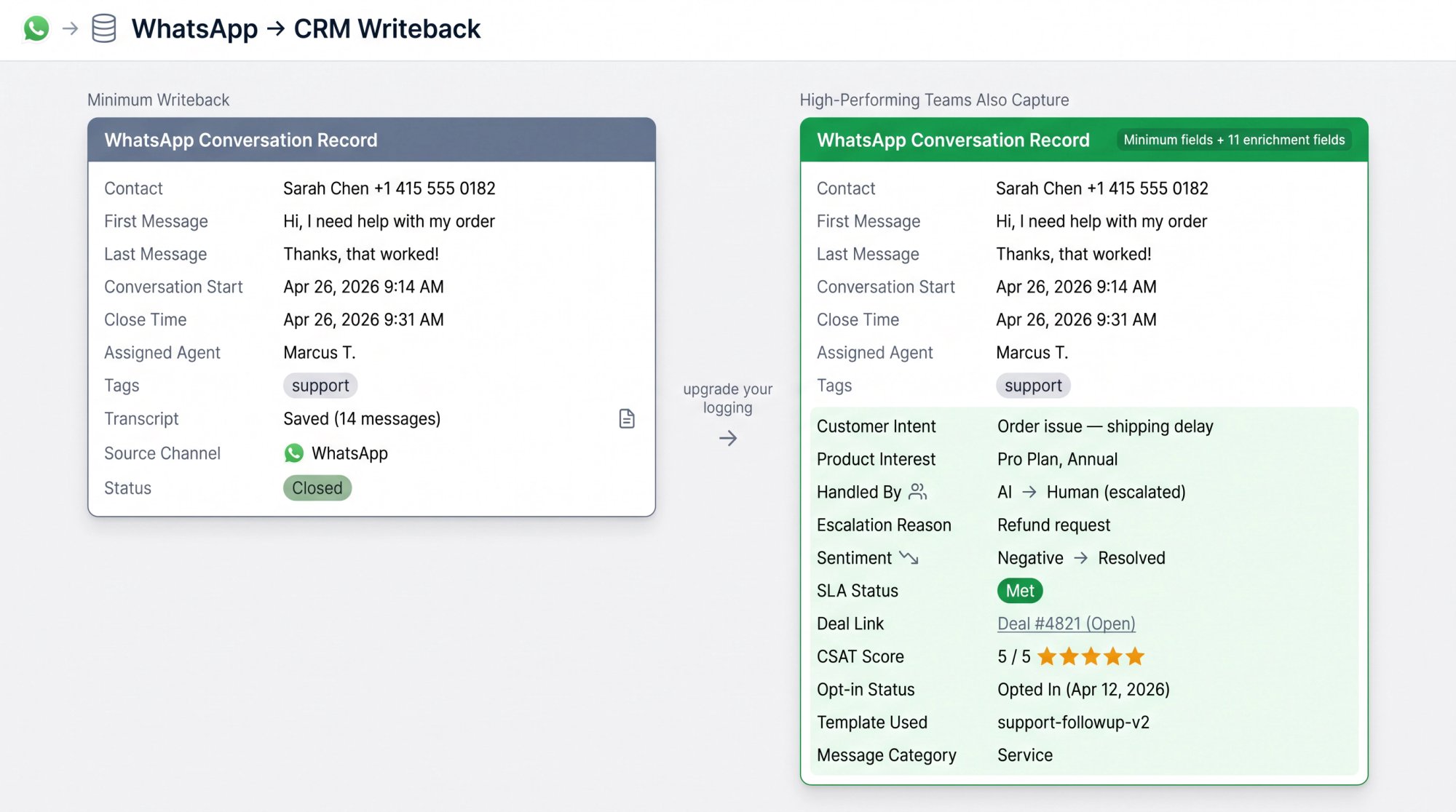
Minimum WhatsApp Data to Log in Your CRM Per Conversation
Log at minimum:
Contact phone number and name
First and last message content
Conversation start and close time
Assigned agent
Tags applied
Full transcript
Source channel (WhatsApp)
Status (open, pending, closed)
What High-Performing Teams Log from WhatsApp in Their CRM
Also capture:
Customer intent
Product interest mentioned
Whether AI or human handled it
Escalation reason (if escalated)
Customer sentiment
SLA status
Deal or ticket link
CSAT score
Opt-in status at time of conversation
Template used (if any)
Message category
WhatsApp CRM Automation Rules to Set Up
| Trigger | CRM Action |
|---|---|
| Unknown number messages you | Create lead/contact |
| Contact mentions pricing | Create sales task |
| Contact asks for refund | Create support ticket |
| AI escalates to human | Assign to live agent, mark as escalated |
| Conversation tagged "demo" | Create deal |
| Conversation closes | Save transcript |
| Contact replies STOP | Mark WhatsApp opted out immediately |
| No response after quote | Send approved follow-up template if compliant |
Social Intents connects to your CRM through Zapier and native integrations, sending transcripts and lead data to Salesforce, HubSpot, and other tools. You can automatically capture leads to your CRM using AI Actions, routing new contacts directly to HubSpot, Salesforce, or Dynamics 365 without writing code. For a full technical walkthrough of connecting chat to your CRM, see our chatbot-to-CRM integration guide.
How to Test Your WhatsApp CRM Integration Before Launch
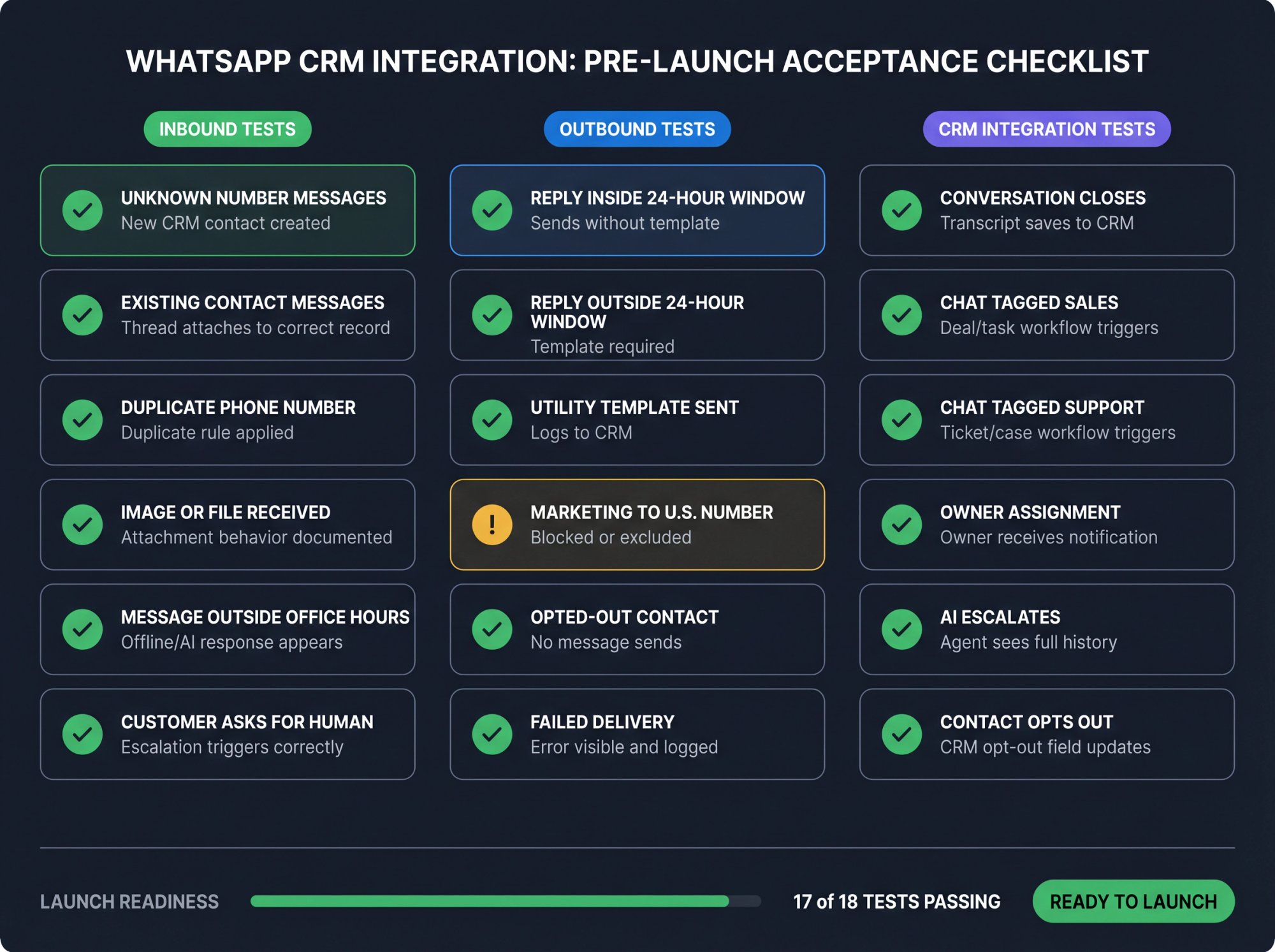
Don't launch after sending one successful test message. Run through this acceptance checklist.
Inbound WhatsApp Message Tests to Run Before Launch
| Test | Pass Condition |
|---|---|
| Unknown number sends WhatsApp message | New CRM contact/lead is created |
| Existing contact sends message | Message attaches to correct record |
| Contact with duplicate phone number exists | System follows duplicate matching rule |
| Customer sends image or file | Attachment behavior is documented |
| Customer messages outside office hours | Correct offline/AI response appears |
| Customer asks for human | Correct escalation happens |
Outbound WhatsApp Message Tests to Run Before Launch
| Test | Pass Condition |
|---|---|
| Agent replies inside 24-hour window | Message sends without template |
| Agent attempts to send outside 24-hour window | Approved template is required |
| Utility template sends | Template logs to CRM |
| Marketing template attempt to U.S. number | Blocked or excluded |
| Opted-out contact | No non-compliant message sends |
| Failed delivery | Error is visible and logged |
CRM Integration Tests to Run Before Going Live
| Test | Pass Condition |
|---|---|
| Conversation closes | Transcript saves to CRM |
| Chat tagged "sales" | Deal/task workflow triggers |
| Chat tagged "support" | Ticket/case workflow triggers |
| Owner assignment | Correct owner receives notification |
| AI escalates | Agent sees full conversation history |
| Contact opts out | CRM opt-out field updates immediately |
How to Track WhatsApp Messaging Costs in Your CRM
Track from day one: delivered messages, message category (marketing/utility/authentication/service), recipient country, template usage volume, service-message volume, and your provider platform fee. Meta charges per delivered message with rates varying by country and category, so realistic country and category assumptions need to be part of your cost test.
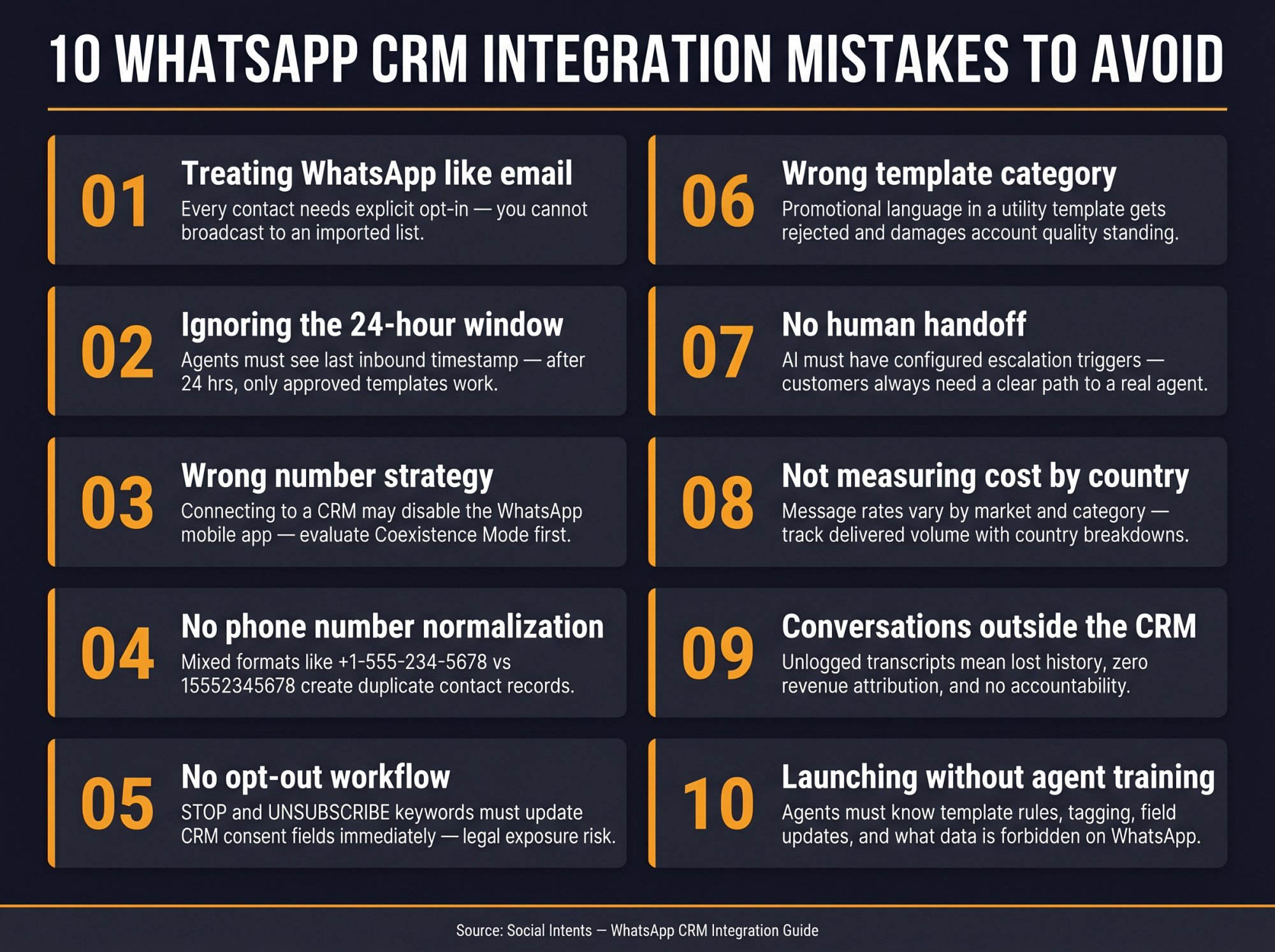
10 WhatsApp CRM Integration Mistakes to Avoid
Mistake 1: Treating WhatsApp like email
WhatsApp has stricter opt-in requirements, template categories, and customer window rules. You can't import a list and start a broadcast. Every contact needs explicit opt-in.
Mistake 2: Ignoring the 24-hour window
Agents need to know when they can reply freely and when they need a template. Your CRM should surface the last inbound timestamp prominently so agents can see at a glance whether the window is open.
Mistake 3: Choosing the wrong number strategy
If your business owner still relies on the WhatsApp Business mobile app, connecting the number to a CRM without checking mobile access implications can be a nasty surprise. HubSpot's help desk documentation states that after connection to HubSpot help desk, messages no longer appear in WhatsApp mobile or web. Evaluate Coexistence Mode before committing.
Mistake 4: Not normalizing phone number formats
Phone-number formatting creates duplicates. A contact saved as +1-555-234-5678 and another saved as 15552345678 may both receive messages and create separate records. Normalize all phone numbers with country codes before launch.
Mistake 5: No opt-out workflow
Every WhatsApp CRM integration should detect STOP, UNSUBSCRIBE, and similar keywords and immediately update CRM consent fields. Missing this creates legal exposure.
Mistake 6: Using the wrong template category
Using promotional language in a utility template gets templates rejected or creates quality flags. The category rules are strict and using them incorrectly affects your account standing.
Mistake 7: No human handoff
AI handles routine queries well, but customers need a clear, obvious path to a real person. Social Intents supports clean escalation to human agents with full conversation history preserved. Make sure your AI setup has escalation triggers configured from day one. For a complete guide to setting up AI escalation triggers that work reliably, see our dedicated implementation guide.
Mistake 8: Not measuring cost by country and category
Message costs vary significantly by market and category. Use delivered-message volume with country and category breakdowns to estimate spend. Meta's pricing model is based on delivered messages, not contacts or agents.
Mistake 9: Keeping WhatsApp conversations outside the CRM
If transcripts and outcomes aren't logged, you lose customer history, revenue attribution, and accountability. No one can see what was discussed, what was promised, or whether the customer's problem was actually solved.
Mistake 10: Launching without agent training
Agents need to understand when to use templates, how to tag conversations, how to close them properly, how to update CRM fields after a conversation, and what they should never send over WhatsApp (full payment card numbers, government ID numbers, or other sensitive data that Meta's policy restricts).
Ready-to-Use WhatsApp Templates for CRM Integration
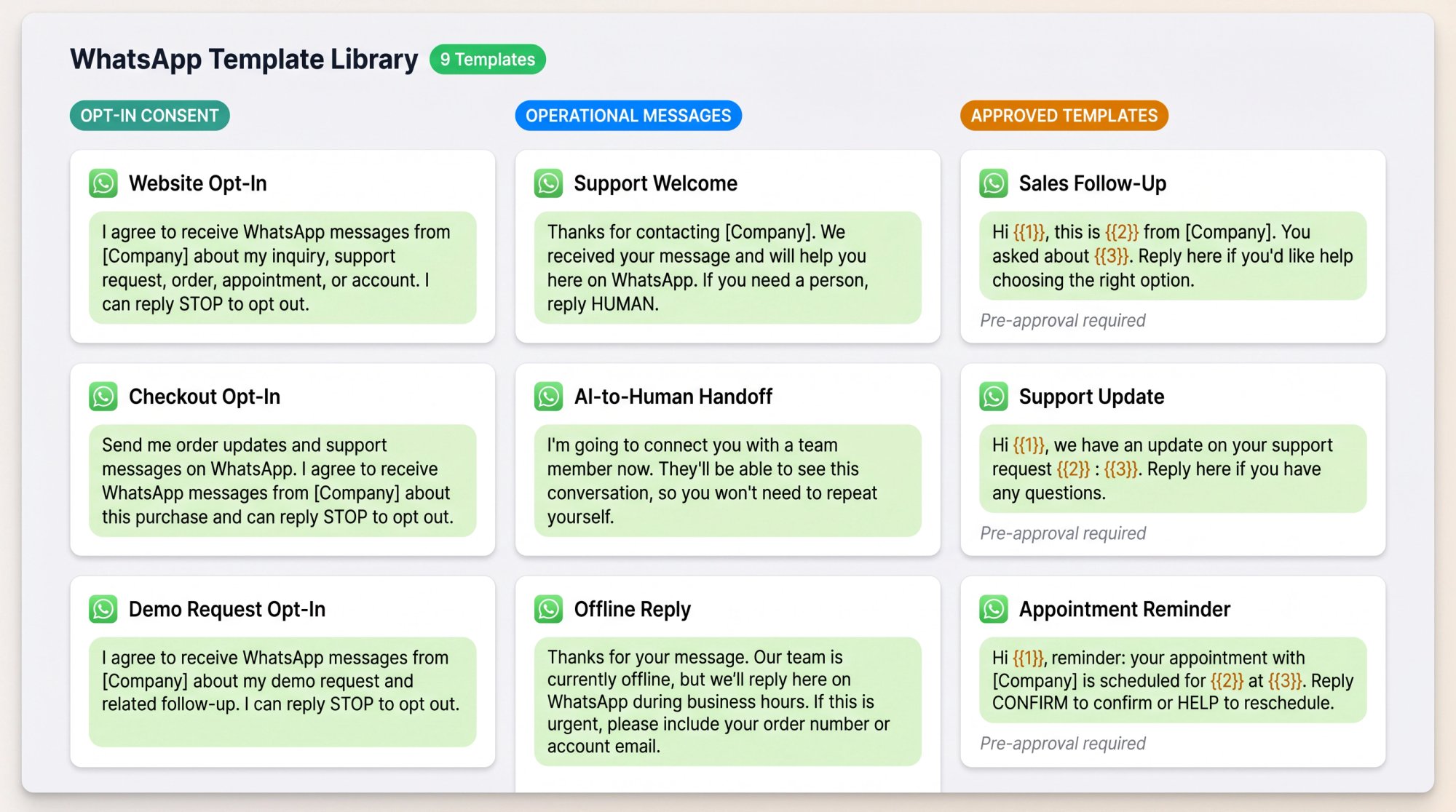
These are ready to use or adapt:
Website opt-in checkbox
I agree to receive WhatsApp messages from [Company] about my inquiry, support request, order, appointment, or account. I can reply STOP to opt out.
Checkout opt-in
Send me order updates and support messages on WhatsApp. I agree to receive WhatsApp messages from [Company] about this purchase and can reply STOP to opt out.
Demo request opt-in
I agree to receive WhatsApp messages from [Company] about my demo request and related follow-up. I can reply STOP to opt out.
Support welcome message
Thanks for contacting [Company]. We received your message and will help you here on WhatsApp. If you need a person, reply HUMAN.
AI-to-human handoff
I'm going to connect you with a team member now. They'll be able to see this conversation, so you won't need to repeat yourself.
Offline reply
Thanks for your message. Our team is currently offline, but we'll reply here on WhatsApp during business hours. If this is urgent, please include your order number or account email.
Sales follow-up template (approved format)
Hi {{1}}, this is {{2}} from [Company]. You asked about {{3}}. Reply here if you'd like help choosing the right option.
Support update template (approved format)
Hi {{1}}, we have an update on your support request {{2}}: {{3}}. Reply here if you have any questions.
Appointment reminder template (approved format)
Hi {{1}}, reminder: your appointment with [Company] is scheduled for {{2}} at {{3}}. Reply CONFIRM to confirm or HELP to reschedule.
WhatsApp CRM Integration Pre-Launch Checklist
Use this before going live. Each box should be genuinely confirmed, not just assumed.
Strategy
Primary use case defined: sales, support, e-commerce, or account management
CRM object model defined (what WhatsApp creates or updates)
Number strategy chosen: new number, migration, or Coexistence Mode
Team inbox chosen: Teams, Slack, Google Chat, Social Intents, CRM native
CRM owner assigned
Meta and WhatsApp
Meta business account ready
WhatsApp Business Account ready
Phone number verified
Templates submitted and approved
Pricing model reviewed (delivered messages, not sent)
U.S. marketing template restrictions reviewed
CRM
WhatsApp phone field added
Opt-in fields added (status, source, timestamp, text version)
Opt-out fields added
Last inbound timestamp field added
Conversation transcript field or activity type configured
Lead/contact creation rules configured
Ticket/case/deal workflows configured
Duplicate matching rules tested
Inbox and Routing
Teams, Slack, Google Chat, CRM inbox, or Social Intents dashboard configured
Assignment rules tested
Offline behavior tested
AI bot tested (if using)
Human handoff tested
Escalation notifications tested
Compliance
Opt-in language approved by legal or compliance
Privacy policy updated to mention WhatsApp
Opt-out workflow tested (STOP keyword)
Sensitive data policy documented
Agent training completed
AI usage reviewed against WhatsApp Business Solution Terms
Reporting
First response time dashboard live
Resolution time dashboard live
Lead conversion (WhatsApp as source) tracked
Ticket volume from WhatsApp tracked
Template delivery success rate tracked
Opt-out rate tracked
Cost dashboard live (delivered messages × country × category)
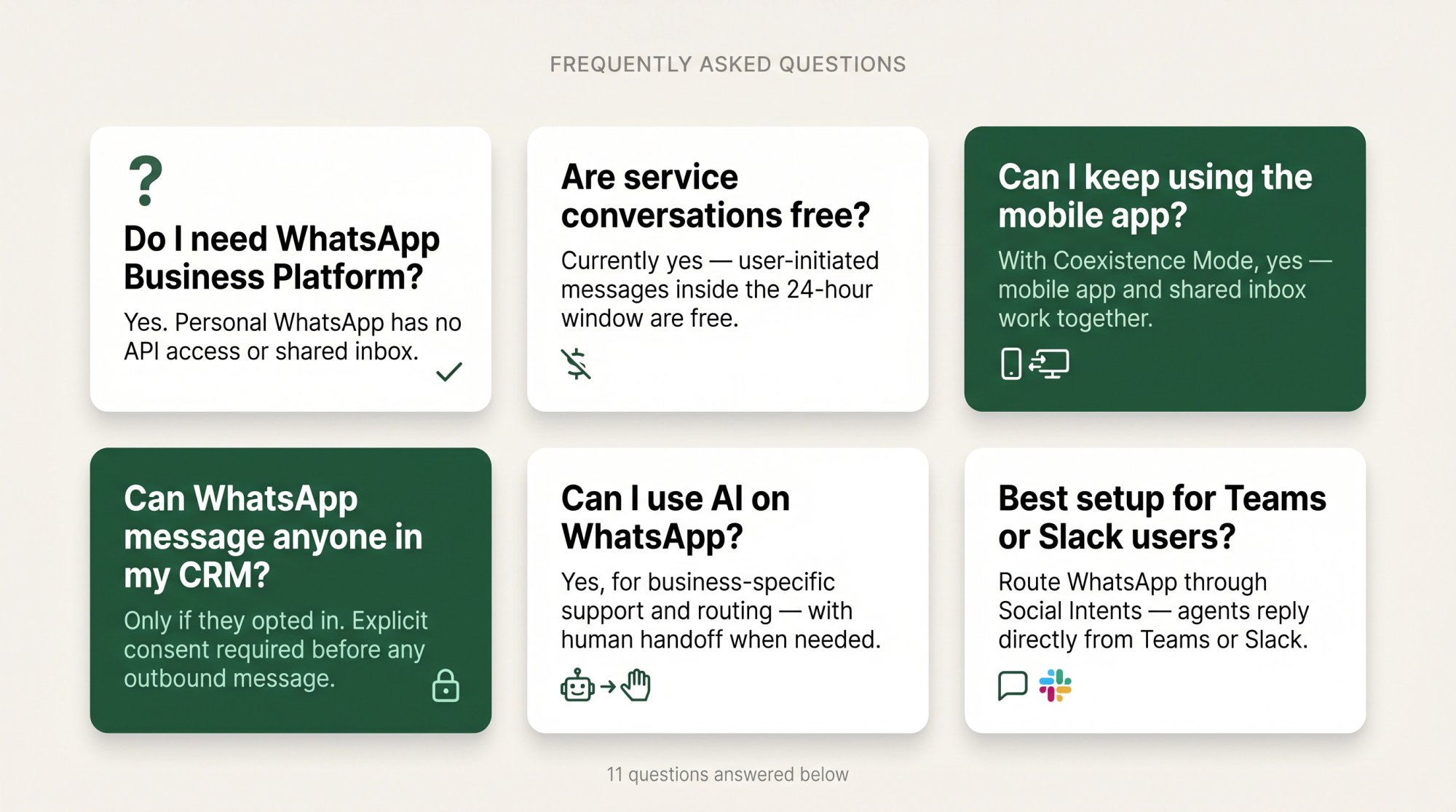
Frequently Asked Questions
Can I connect regular WhatsApp to my CRM?
For any serious CRM integration, you need the WhatsApp Business Platform, not a personal WhatsApp account. The platform is designed for API access, automation, shared inboxes, CRM workflows, and multiple agents. Personal WhatsApp accounts don't have the API access or business features required. See our full WhatsApp Business API guide for everything you need to get started.
Do I need a WhatsApp Business Account?
Yes. The WhatsApp Cloud API requires a WhatsApp Business Account, a Meta business portfolio, and a business phone number as the starting point.
Can I use my existing WhatsApp Business number?
Often yes, but the path depends on your current setup. Some integrations take over the number so it no longer works in the mobile app. Social Intents' Coexistence Mode allows eligible numbers to connect to the Cloud API while the mobile app keeps working and messages sync between both.
Can I keep using the WhatsApp Business mobile app after CRM integration?
It depends on your integration path. With standard API connections, the mobile app often stops being the place where messages appear. HubSpot's help desk documentation explicitly states that messages no longer appear in WhatsApp mobile or web after connecting to HubSpot help desk. Coexistence setups through providers like Social Intents may allow both to work together.
Can WhatsApp create leads, deals, tickets, or cases?
Yes, through automation rules in your CRM. The exact objects depend on your CRM and integration approach. HubSpot creates threads from incoming WhatsApp messages; Zoho ties interactions to CRM records; Pipedrive links conversations to sales records. With Social Intents + Zapier, you can create any object based on conversation tags, keywords, or outcomes.
Can I message anyone in my CRM on WhatsApp?
No. The person must have given you their phone number and explicitly opted in to receive WhatsApp messages from your business. Outside the 24-hour customer service window, business-initiated messages also require an approved template.
How much does WhatsApp CRM integration cost?
The cost has four parts: Meta's per-delivered-message charges (varying by country and category), your CRM subscription, your integration platform (like Social Intents), and implementation/maintenance time. Meta's 2026 pricing charges per delivered message. Service messages inside the 24-hour window are currently free, which matters a lot for high-volume support teams.
Are WhatsApp service conversations free?
Meta's pricing page currently lists service messages as free. These are user-initiated, tied to the 24-hour customer service window. Always verify current pricing before finalizing your budget, since Meta's pricing model can change.
Can I use WhatsApp for marketing in the U.S.?
Not with standard marketing templates right now. As of April 1, 2025, Meta paused delivery of marketing template messages to U.S. phone numbers. Build your U.S. WhatsApp strategy around support, utility, authentication, and inbound customer care.
Can I use AI in my WhatsApp CRM integration?
Yes, for business-specific use cases like support, FAQ answers, sales assistance, routing, and workflow automation. Social Intents' WhatsApp chatbot is built for exactly this: business-specific automation with human handoff when the conversation needs a real person. But review WhatsApp's Business Solution Terms before building: the 2026 terms restrict using WhatsApp to make general-purpose AI technologies the primary functionality, and limit using WhatsApp Business data to train AI models. The safe pattern is business-specific automation with human handoff.
What's the best WhatsApp CRM integration for Microsoft Teams or Slack users?
Social Intents is built exactly for this. Your team answers WhatsApp from Teams, Slack, or Google Chat, with shared conversation history, unlimited agents, AI chatbot with human handoff, and CRM integrations to keep Salesforce, HubSpot, or other tools updated without anyone switching out of their normal workspace.
Which WhatsApp CRM Integration Should You Choose?
For 2026, the best WhatsApp CRM integration isn't the one with the longest feature list. It's the one your agents adopt and use consistently.
Choose a CRM-native integration (HubSpot, Salesforce, Zoho, Pipedrive) if your team already spends the majority of their day inside the CRM and you want WhatsApp conversations living right alongside contacts, deals, and tickets in that existing system. For teams still evaluating options, see our chatbot-to-CRM integration guide for a detailed comparison of approaches.
Choose Social Intents if your team lives in Microsoft Teams, Slack, or Google Chat and wants WhatsApp conversations routed into the tools they already use, with AI automation, human handoff, and CRM sync handled without asking agents to adopt a new UI.
Choose direct WhatsApp Cloud API only if WhatsApp is so central to your product or workflow that a third-party inbox would create more constraints than it solves, and you have the engineering resources to build and maintain it.
The winning setup delivers five things: customers reach you easily on WhatsApp, agents respond quickly from their normal workspace, the CRM stays complete and accurate, opt-in and template rules are handled correctly, and AI improves speed without trapping customers in broken automation loops.
That's the real goal of a WhatsApp CRM integration. Not just "connecting" two systems, but turning WhatsApp into a governed, measurable customer channel that actually drives support quality and revenue.
Ready to see what this looks like in practice? Start a free 14-day trial of Social Intents and connect your WhatsApp in minutes, with your team answering from Teams or Slack from day one.
Social Intents is a live chat and AI chatbot platform trusted by 50,000+ businesses, rated 4.8/5 on G2 and Capterra. If your team uses Teams, Slack, or Google Chat, it's the fastest path to a WhatsApp shared inbox with no new UI to learn.