If you're searching "how to add chatbot to Wix," you're trying to solve a specific problem. Maybe you want to answer the same shipping questions 500 times without actually answering them. Or you need to capture leads at 2 AM when nobody's awake to respond.
Or your support team is drowning, and you need a life raft that doesn't require hiring three more people.
The confusing part? "Add a chatbot to Wix" can mean three completely different things. You might install Wix's native AI tool, add a third-party app from the Wix App Market, or paste a code snippet that works with almost any chatbot provider. Each approach works, but they solve different problems and have different limitations.
Social Intents routes website chats directly into your team's collaboration tools—no separate inbox to monitor.
This guide walks through all three methods, then shows you how to build a production-grade setup with AI that handles common questions and seamlessly hands off to a real human when needed.
Most chatbot guides skip that second part, which is why so many chatbots trap people in "bot jail" with no escape.
Which Wix Chatbot Method Should You Use?
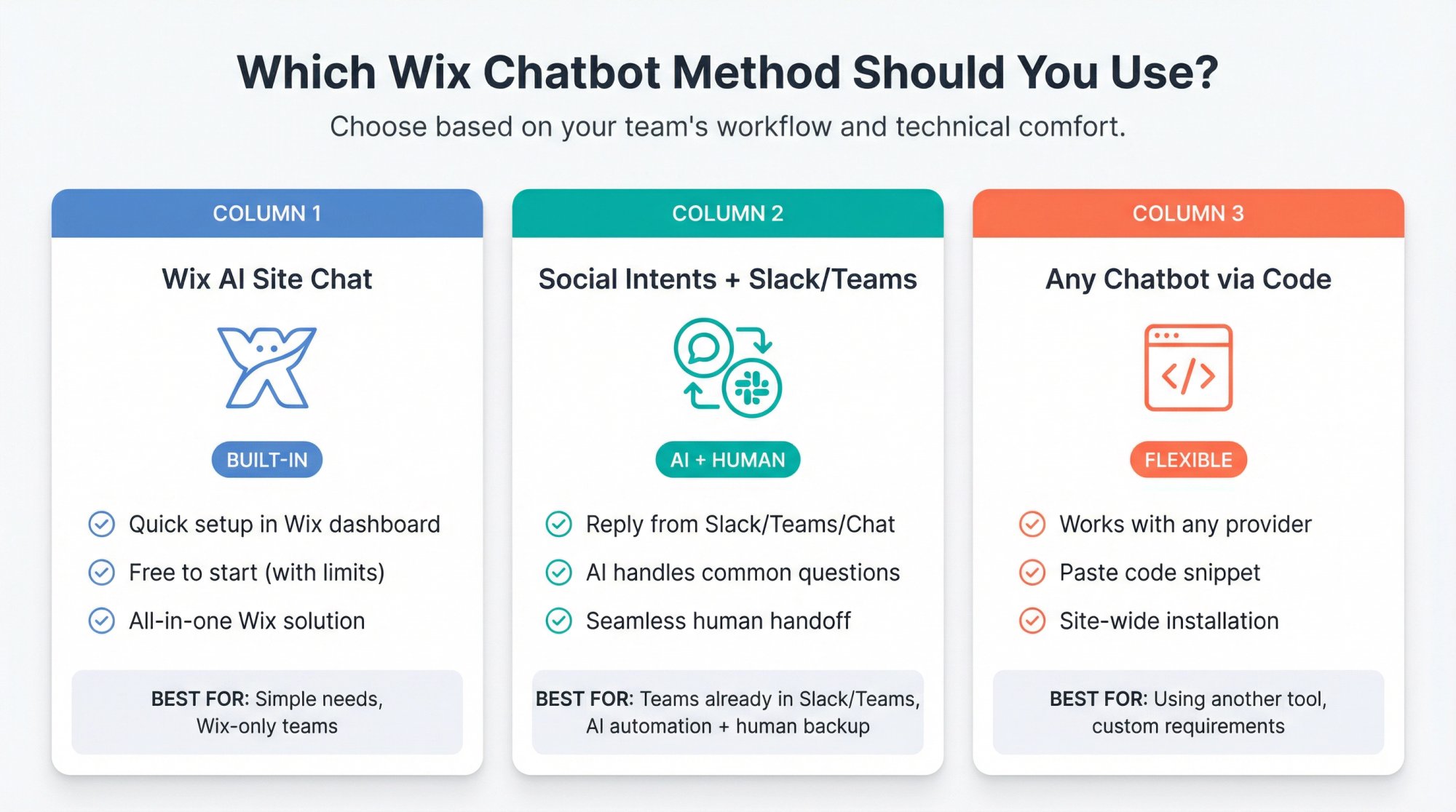
Simplest Option: Wix AI Site Chat (Built-In)
Use Wix AI Site Chat from the Wix App Market. It's built specifically for Wix, quick to enable, and has controls for hours, disclaimers, and training rules.
You configure everything inside your Wix dashboard, and it's free to start (with conversation limits). Learn more about Wix AI Site Chat setup.
For a more powerful alternative with live chat integration, consider solutions that connect to your team's existing tools.
Best for AI + Human Handoff: Social Intents with Slack/Teams
Use Social Intents. This is where we shine.
Your team keeps replying from tools they already use (Slack, Microsoft Teams, Google Chat, Zoom, Webex), and an AI bot powered by ChatGPT, Claude, or Gemini handles the common questions first. When someone asks for a human or the bot's unsure, the conversation routes seamlessly to your team.
You get AI automation with a human safety net.
Using Another Chatbot? Install via Custom Code
Most chatbot providers give you a script snippet. You'll install it by pasting the code into Wix Custom Code under your site settings, which injects it site-wide.
Wix's Custom Code documentation walks through the steps.
If you're looking for alternatives to common chatbot tools, we offer robust integrations with the collaboration tools your team already uses.
What Does "Adding a Chatbot to Wix" Actually Mean?
Here's what's really happening under the hood. A chatbot widget is just JavaScript running in your visitor's browser:
① Your Wix site loads a small snippet (or an app loads it for you)
② That snippet loads the chatbot provider's widget (the HTML/CSS/JS that makes the chat bubble appear)
③ The widget talks to the chatbot backend (AI model, knowledge base, routing rules)
④ Replies render in the chat bubble interface your visitor sees
So on Wix, you're choosing how that JavaScript gets onto your site:
App install: Wix handles placement and permissions automatically. You configure settings in a dashboard.
Custom Code: Wix injects your snippet into the <head> or <body> of your live site. Best for floating chat bubbles that appear site-wide. See Wix's Custom Code guide.
Embed element (iframe): Adds a visible embed block on a specific page section. Works for inline widgets but isn't ideal for floating chat bubbles. Wix embed documentation.
Understanding this matters because it explains why troubleshooting works the way it does.
If your widget doesn't appear, you're debugging where and how the JavaScript loaded, not the chatbot itself.
3 Wix Chatbot Mistakes You Must Avoid
Most "my chatbot doesn't work" problems come down to three avoidable mistakes. Fix these before you install anything.
| Mistake | What Happens | The Fix |
|---|---|---|
| Testing in Preview Mode Only | Custom code runs on published sites, not editor preview. You think it failed when it just hasn't loaded yet. | Publish your site and test on the live domain. Custom code doesn't run in preview. |
| Running Two Chat Widgets | Wix AI Site Chat cannot work alongside Wix Chat. Multiple widgets confuse visitors and destroy conversions. | Pick one solution. Disable the other completely. |
| Wrong Reply Location | Team forced into new inbox stops checking. Response times tank. "Instant support" takes 4 hours. | Route chats where your team actually works (Slack/Teams/web console). |
Why Custom Code Doesn't Work in Preview Mode
If you install by pasting a snippet into Settings → Custom Code, Wix is very clear: custom code runs on the published site connected to a domain, not in the editor preview.
Wix's Custom Code documentation specifically calls this out. We also mention this in our Wix integration guide because it's the number one reason people think the install failed.
Critical Rule: If you paste code and test in Preview mode, you'll think it didn't work when it actually just hasn't loaded yet. You need to publish your site and test on the live domain.
Why Multiple Chat Widgets Kill Conversions
Wix explicitly states that Wix AI Site Chat cannot work alongside Wix Chat. Their setup guide makes this non-negotiable.
But even beyond Wix's own rule, running two separate chat bubbles confuses visitors and destroys conversions. They don't know which one to click, or they get conflicting responses.
Pick one solution and commit to it.
Where Will Your Team Actually Reply to Chats?
You have three common options for where your team handles chat conversations:
Option A: Wix Inbox / Wix Chat interface
Option B: A collaboration tool you already use (Slack, Microsoft Teams, Google Chat, Zoom, Webex)
Option C: A browser-based web console
Here's why this matters: if your team lives in Slack or Teams all day, forcing them into a new inbox is where chatbot rollouts quietly die. They stop checking it, response times tank, and suddenly your "instant support" takes 4 hours.
Social Intents solves this by routing website chat directly into the tools your team already uses. We support Slack for customer support, Microsoft Teams for customer support, Google Chat for customer support, Zoom, and Webex, so agents never have to context-switch.
They reply from where they already work.
How to Install Wix AI Site Chat (Built-In Option)
Wix AI Site Chat is Wix's AI-driven chat interface that you add through the Wix App Market. It scans your site content and uses generative AI to answer visitor questions. Wix's AI Site Chat overview covers the basics.
Installation and Setup Steps
Here's the setup process:
① In your Wix dashboard, go to the Wix App Market
② Search for and add Wix AI Site Chat to your site
③ Configure your settings:
• Online chat hours: Set 24/7 availability or custom hours
• Automatic opening: Choose whether the chat opens automatically or stays minimized
• Legal disclaimer: Add a message stating it's AI-powered (Wix provides a field for this)
• Page summaries: Enable if you want the bot to summarize page content
• Contact form: Set up lead capture for when the bot can't help
④ Activate it from the AI Site Chat dashboard
⑤ Start training it with rules (see next section)
All of these settings are in Wix's setup documentation.
How to Train Wix AI Chatbot for Better Accuracy
Wix lets you add training rules to improve accuracy:
Add knowledge: Tell the bot specific information ("Our return policy is 14 days from purchase, no questions asked")
Add restrictions: Tell it what not to answer ("Do not provide medical advice" or "Don't discuss competitor products")
Wix's training guide explains how to create these rules.
But here's the important part: Wix is upfront about limitations in their AI Site Chat overview.
The tool uses public data on your site (including any personal information that's publicly visible), and it may generate inaccurate or misleading responses. Wix disclaims liability for what the AI says.
This isn't a reason to avoid it. It's a reason to test thoroughly, train carefully, and add guardrails before going live. The bot can only be as good as the training you give it.
Understanding Wix AI Conversation Quotas
Wix AI Site Chat operates on a conversation quota system. Their quota documentation explains how it works:
→ A conversation unit counts each time a visitor interacts, regardless of how long the chat lasts
→ A conversation ends after 10 minutes of inactivity
→ Free and trial quotas depend on when you installed the app (Wix has different rules for different install timing)
→ When you hit your limit, the chat switches to offline mode
If you run a store or paid ads that drive traffic, quota math can sneak up on you fast.
A busy weekend could burn through your monthly limit by Sunday.
Factor this into your planning before launch. For e-commerce sites with high volume, consider solutions with higher or unlimited conversation limits.
When Wix AI Site Chat Is the Right Choice
Choose Wix AI Site Chat if:
• You want everything managed inside Wix (no external tools)
• You don't need Slack or Teams integration
• You're comfortable with rule-based training (not complex workflows)
• Your conversation volume fits within the quota limits
• You want to leverage Wix's access to your store data (product details, order status)
What you give up: Wix AI Site Chat keeps all conversations in the Wix Inbox. There's no native way to route chats into Slack, Teams, or Google Chat. Your team has to monitor the Wix interface specifically.
And based on user reviews, the accuracy can be hit-or-miss if you don't invest time in training. As of 2025, it holds a 2.9 out of 5-star average rating.
How to Add Social Intents (AI + Human Handoff)
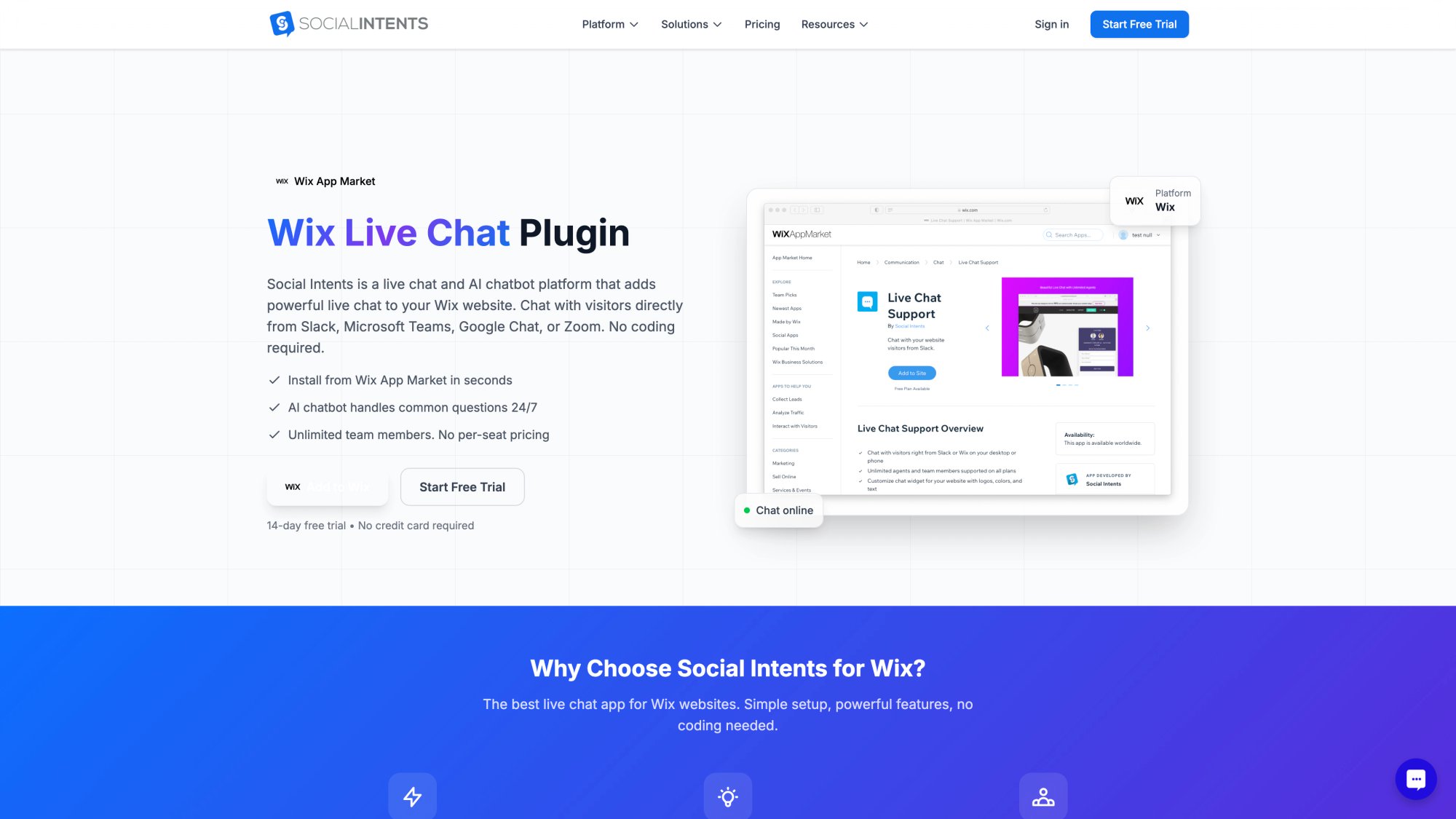
Social Intents' dedicated Wix integration page showcases live chat with AI and human handoff capabilities.
If your real goal is "AI answers the easy stuff, humans handle edge cases, and nobody has to learn a new helpdesk," this is where Social Intents is specifically designed to help.
Here's what you get: AI answers common questions using models like ChatGPT, Claude, or Gemini. When a visitor asks for a person or the bot's confidence drops, the conversation routes seamlessly to a human agent.
And your team replies from Slack, Microsoft Teams, Google Chat, Zoom, Webex, or our web console. No one learns a new tool. Our Wix integration page outlines the full setup.
Step 1: Choose Where Your Team Will Reply
This is the most important decision. Decide now where your agents will handle chats:
• Microsoft Teams
• Slack
• Google Chat
• Zoom
• Webex
• Social Intents web dashboard
Microsoft Teams provides a familiar interface where your support team already communicates throughout the day.
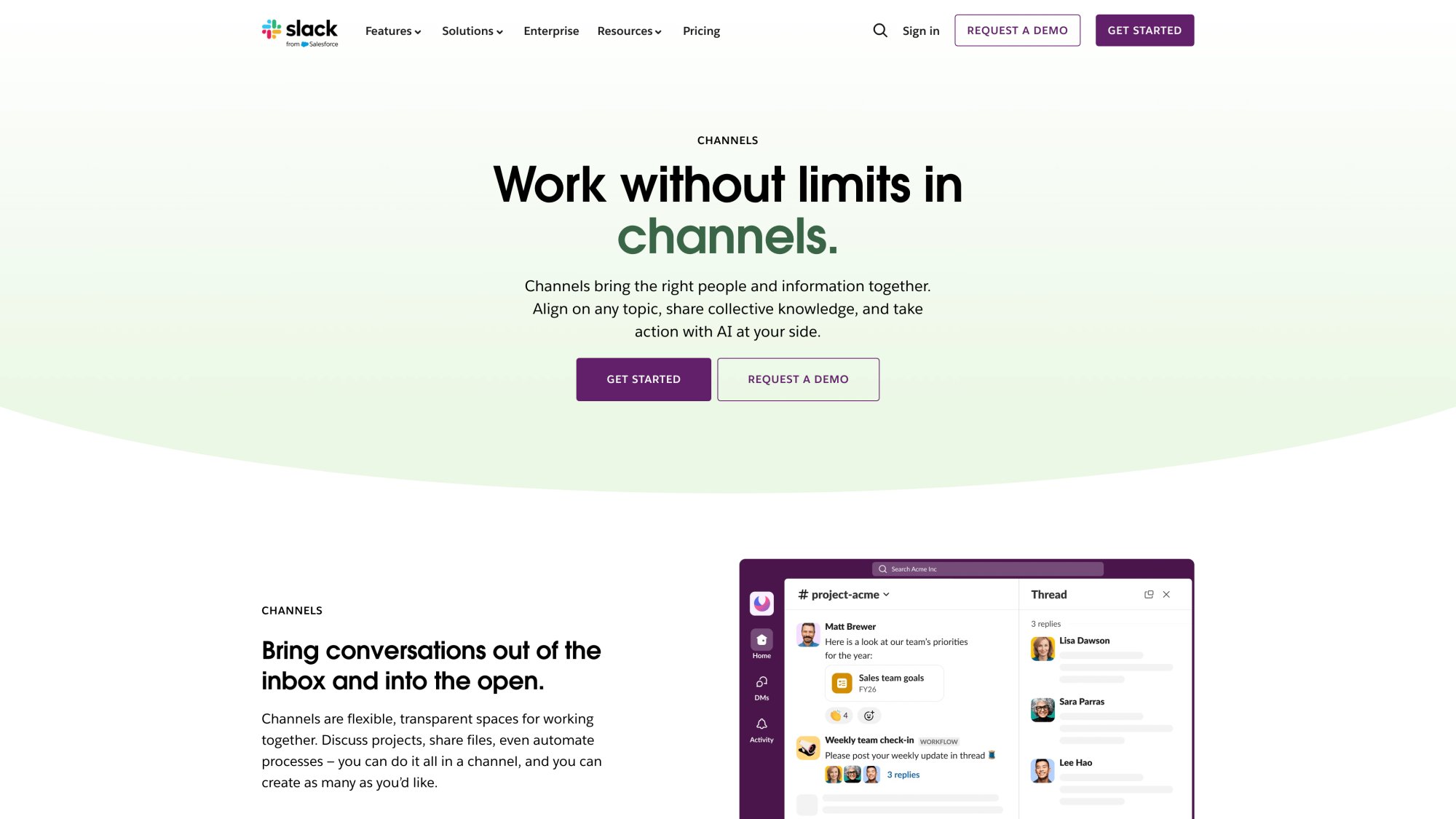
Slack channels allow teams to handle customer chats alongside their regular workflow without context-switching.
Most teams already live in one of these tools. Picking the one your team actually uses daily means they'll stay responsive.
Forcing them into a new interface tanks adoption.
Step 2: Create Your Chat Widget
In the Social Intents dashboard, you'll create a widget that controls:
• Branding: Colors, text, placement, bubble style
• Business hours: When agents are online vs. offline
• Pre-chat form: Capture names, emails, custom fields (perfect for lead generation)
• AI behavior: Which model to use, confidence thresholds, handoff triggers
You can customize everything to match your site's look and feel.
Step 3: Configure AI Chatbot Handoff Mode
Social Intents supports multiple handoff modes. Our AI chatbot with human handoff guide explains each:
| Mode | How It Works | Best For |
|---|---|---|
| Chatbot Only | AI handles everything, no human fallback | After training is rock-solid |
| Chatbot + Agents (Hybrid) | AI tries first, hands off to human if needed | Most businesses (recommended) |
| Chatbot When Offline or Missed | Humans get first shot, AI covers when they're busy/offline | High-touch sales teams |
Our recommendation for most Wix businesses:
Start with Hybrid for the first week or two. This lets you train the AI while humans catch anything it misses. Once accuracy stabilizes (usually around 70% of questions answered correctly), you can switch to Chatbot Only with good escalation triggers.
You still get human backup when needed, but the AI does most of the heavy lifting.
Step 4: Set Up AI Escalation Triggers That Work
Here's a reality check: visitors don't type "human handoff trigger phrase." They type things like:
• "can I talk to someone"
• "agent"
• "representative"
• "call me"
• "this didn't help"
Social Intents lets you define a generous list of trigger phrases and synonyms. Our escalation guide recommends thinking like your actual customers.
If someone's frustrated, they might say "I need help NOW" or "your bot doesn't understand."
Catch those phrases and route them to a human immediately.
Step 5: Install Social Intents on Wix (Two Options)
You have two installation options. Both work perfectly, just pick based on your comfort level.
Option A: Wix App Market Install (No Code)
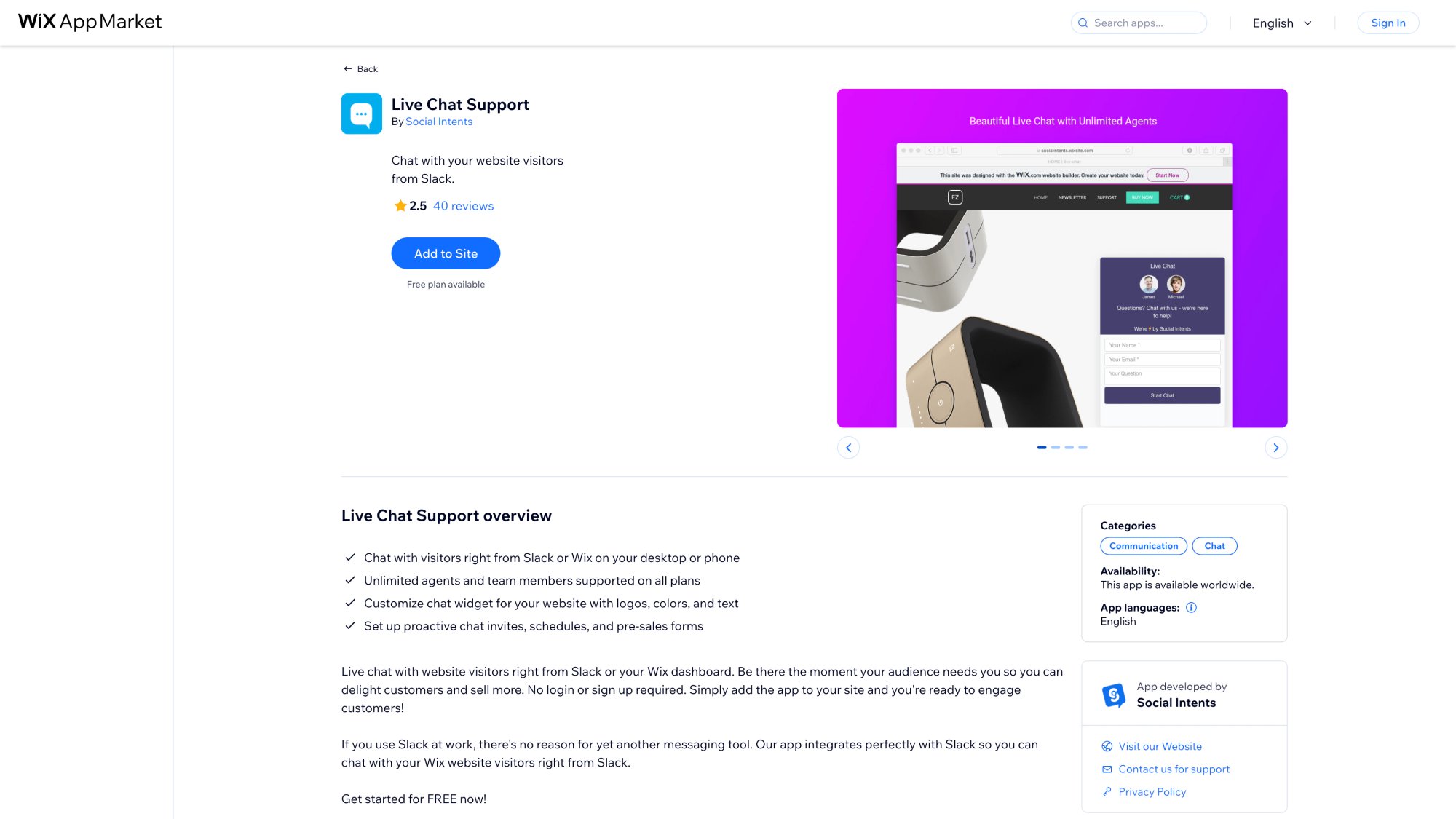
The Social Intents app is available directly in the Wix App Market for one-click installation.
This is the fastest path. Social Intents has a Wix App Market listing called Live Chat Support.
Here's how to install it:
① In your Wix Editor, go to Apps
② Search for Live Chat Support by Social Intents
③ Click Add to Site
④ Follow the setup flow to connect your Social Intents account
⑤ The app adds the chat widget to your site automatically
What you should know: The Wix App Market listing shows a free plan available, with paid pricing displayed in your local currency (it varies by region). The app emphasizes Slack integration but also supports Teams, Google Chat, Zoom, and Webex.
You can manage everything from the app interface inside Wix or from the Social Intents dashboard.
If you want the simplest install path and you mainly need basic live chat, start here. For Webflow sites, Shopify stores, or WordPress sites, we have similar integrations available.
Option B: Custom Code Snippet (Most Control)
This is the best route when you want:
• More control over when the chat appears
• Advanced triggers (like opening chat from a custom button)
• The ability to use JavaScript API methods
• A consistent approach that matches standard web development practices
Installation steps:
① In your Social Intents dashboard, go to the widget settings and copy your install code snippet. Our Wix installation guide shows you exactly where to find this.
② In Wix, go to Dashboard → Settings → Custom Code. Wix's Custom Code documentation explains this area.
③ Click + Add Custom Code and paste the Social Intents snippet
④ Set the code to load on All Pages (or specific pages if you only want chat in certain areas)
⑤ Choose Head for placement (this is standard for chat widgets)
⑥ Publish your site
⑦ Test on the live domain (not in preview mode)
Critical reminder: If the widget doesn't appear, confirm your site is published and connected to a domain. Wix requires this for custom code to run. It won't work in the editor preview.
How to Open Chat from a Custom Button
A "Chat with us" button in your header or on key pages often converts better than making people hunt for the chat bubble.
Social Intents provides a JavaScript API that lets you open the chat programmatically. Our JavaScript API documentation shows the full method:
SI_API.showPopup();
You can trigger this from any button or link click.
Two ways to implement this on Wix:
Option 1: Add an Embed HTML element containing your custom button:
<a href="#" onclick="SI_API.showPopup(); return false;">Chat with us</a>
This is quick and requires no coding knowledge beyond pasting HTML.
Option 2: Use Wix Velo (if you're comfortable with code) to call the function when a Wix button is clicked. This gives you more control over styling and button placement but requires knowing Velo's event system.
Opening chat from a button is powerful because it puts the action exactly where visitors need it. Put a "Chat with sales" button on your pricing page, and you'll see more qualified conversations.
This proactive engagement strategy significantly increases conversion rates for sales teams.
How to Pre-Fill Customer Information in Chat
If you already know a visitor's name or email (for example, they logged into a members area), you can pre-fill that information in the chat widget. This saves them from typing it again and makes the handoff feel smoother.
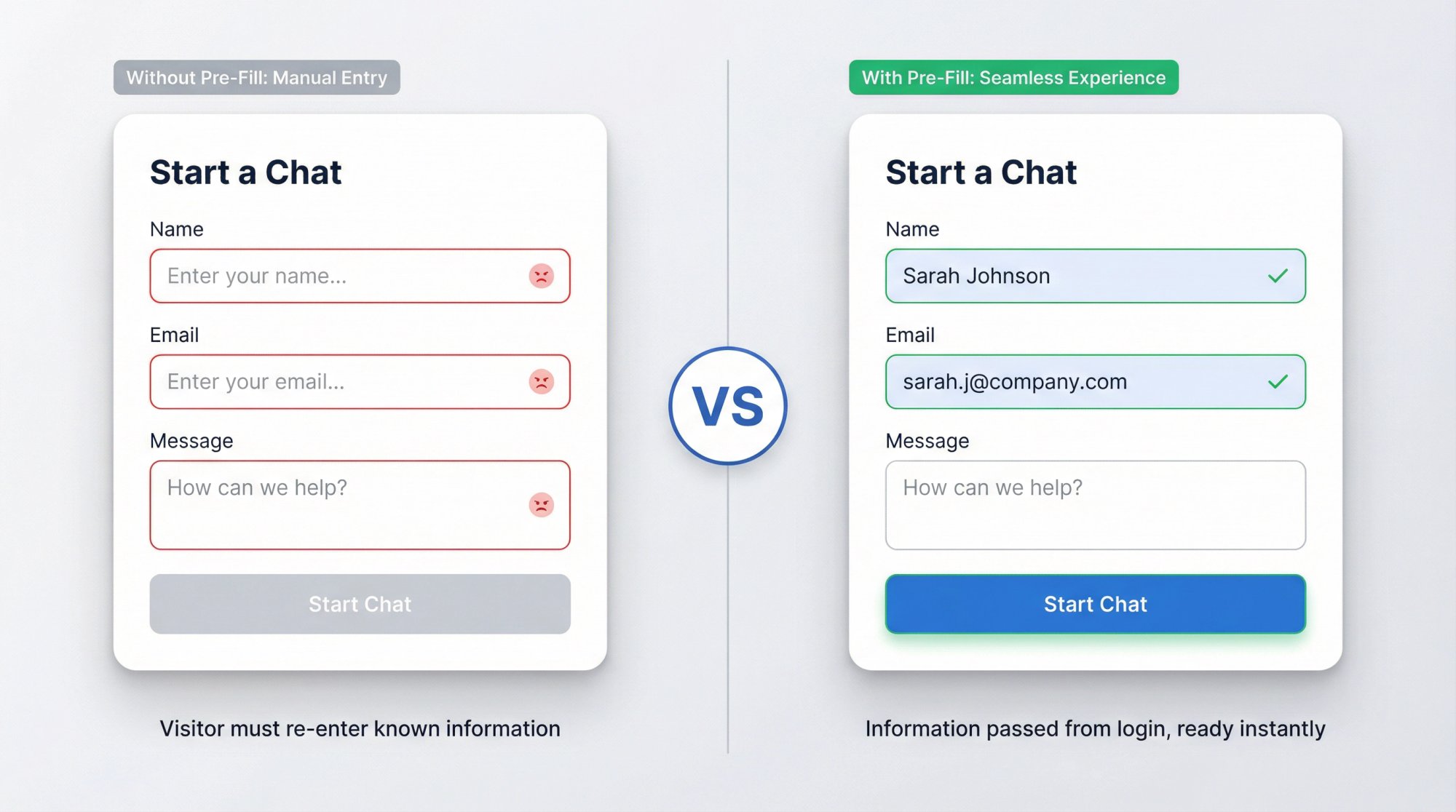
Social Intents' developer API includes a method to prepopulate chat fields with customer data. This matters because "please repeat your email" is where handoffs feel broken.
If you already collected their info during login, pass it through so agents see it immediately.
This is an advanced feature. Most businesses won't need it initially, but it's incredibly useful for membership sites, real estate portals, healthcare platforms, or financial services sites where you know who the visitor is.
How to Install Any Third-Party Chatbot on Wix
If you're using a different chatbot provider (not Wix AI Site Chat or Social Intents), the installation process is similar to what we covered in Method 2, Option B.
Most third-party chatbot tools will give you a JavaScript snippet. You have two choices for installation:
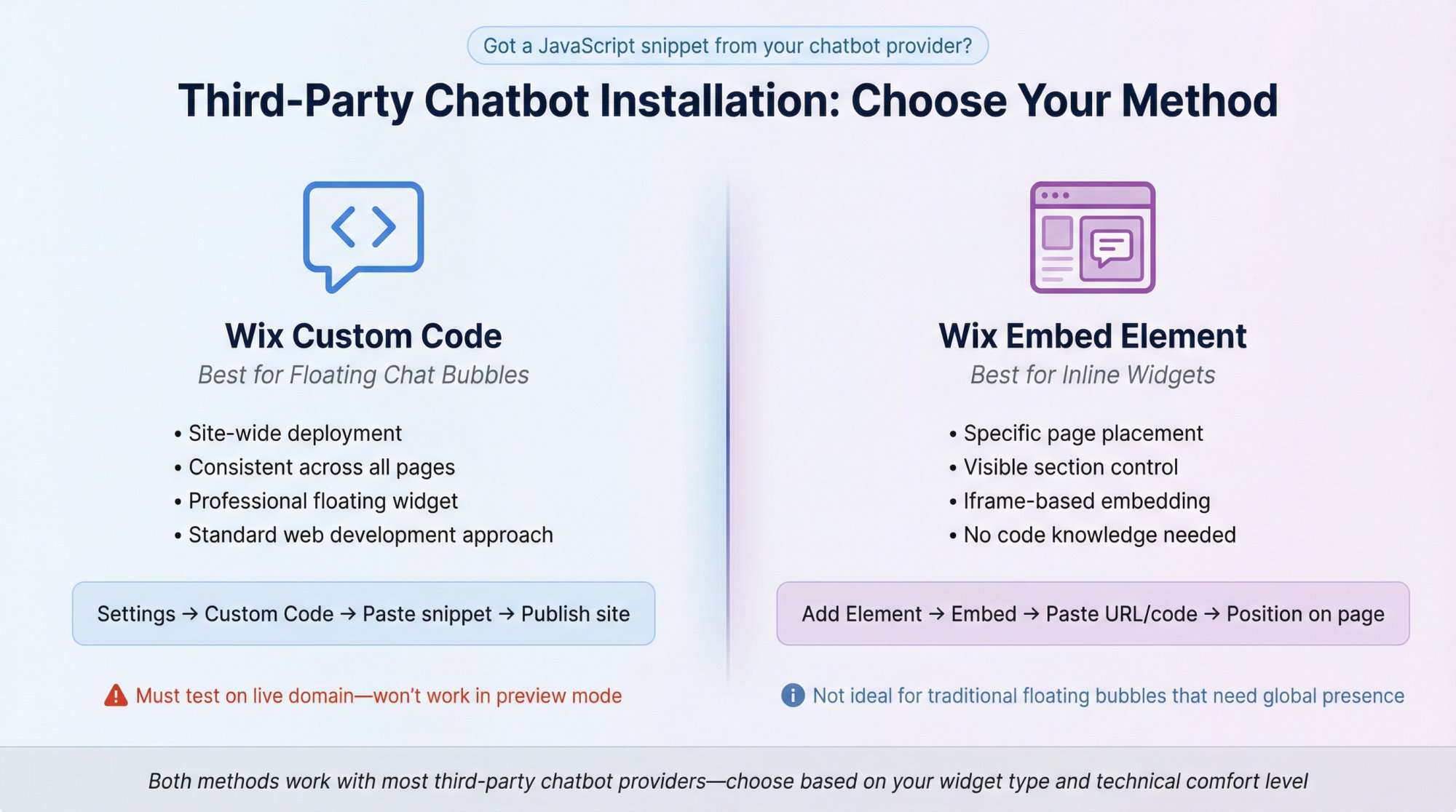
Best for Floating Chat Bubbles: Wix Custom Code
Use Settings → Custom Code so the chat widget loads site-wide and behaves like a proper floating bubble. Wix's Custom Code guide walks through the setup.
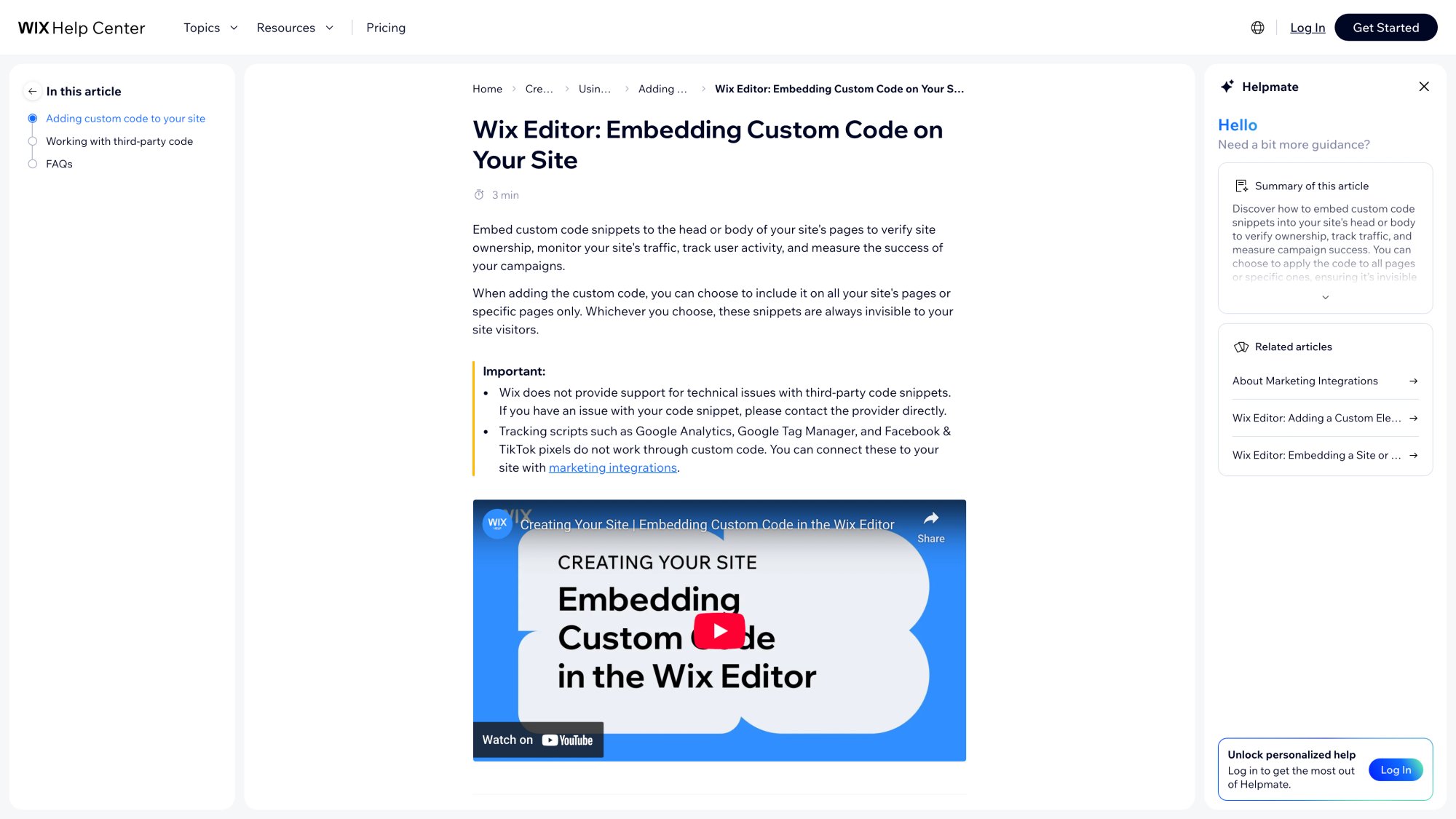
Wix's Custom Code documentation explains exactly how to add third-party chat widgets site-wide.
Remember: publish your site and test on the live domain. Custom code doesn't run in preview mode.
Best for Inline Widgets: Embed Element
If the chatbot is meant to appear inside a specific section of a page (not as a floating bubble), use Wix's embed element. This adds an iframe block you can position exactly where you want it. Wix's embed documentation covers this approach.
This works for inline support widgets but isn't ideal for traditional chat bubbles that need to appear consistently across all pages.
Wix Chatbot Not Showing? Fix These 5 Issues
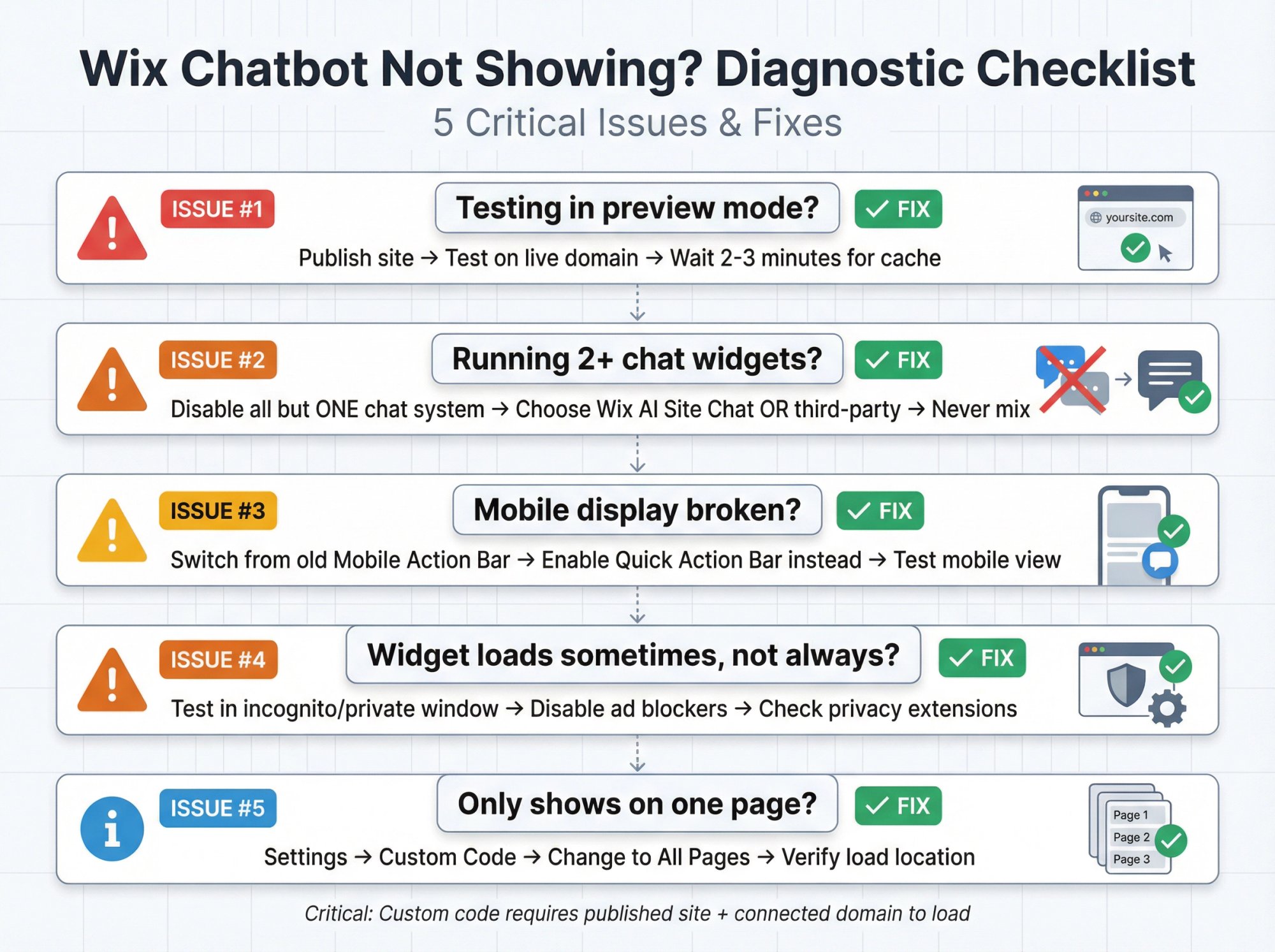
If you installed a chatbot and it's not appearing, here are the five most common causes:
1. Testing in Preview Mode Instead of Live Site
Custom code (pasted into Settings → Custom Code) runs on the published site connected to a domain, not in the editor preview. Wix's documentation explicitly states this.
Fix: Publish your site and test on the live URL. Wait a few minutes for caching, then refresh.
2. Multiple Chat Systems Installed
Wix AI Site Chat cannot run alongside Wix Chat. Wix's setup guide makes this clear.
Even if you're not using Wix's tools, running multiple third-party chat widgets creates visual conflicts and confuses visitors.
Fix: Disable one of the chat systems. Pick the one that fits your workflow and remove the other completely.
3. Mobile Display Issues with Action Bars
If you're using Wix Chat specifically (not AI Site Chat), Wix notes that the chat may not appear on mobile if you activated the old Mobile Action Bar. You need to switch to the newer Quick Action Bar instead. Wix's chat setup guide covers this mobile quirk.
Fix: Check your mobile settings and update to the Quick Action Bar if you're using Wix Chat.
4. Browser Ad Blockers or Privacy Extensions
Some browser extensions block third-party widgets by default. This is especially common with privacy-focused extensions or ad blockers.
Fix: Test in an incognito or private window with extensions disabled. If the chat appears there, the issue is a browser extension, not your installation.
5. Wrong Page Targeting in Custom Code
If you used Custom Code, confirm it's set to load on All Pages, not just a single page. Wix's Custom Code settings let you control where code loads.
Fix: Go back to Settings → Custom Code and check the page targeting rules. Change it to "All Pages" if it's currently restricted.
Chatbot Launch Checklist: Make It Actually Work
Most chatbots fail for one of two reasons: they're not trained on the right content, or they trap users in bot jail with no human escape. Here's a launch checklist that avoids both.
| Phase | Action | Why It Matters |
|---|---|---|
| Define Job | Pick ONE clear goal to start | "Reduce shipping questions" or "Qualify leads" or "Answer pre-purchase questions" |
| Golden Content | Train on specific, factual pages | Shipping policies, pricing, FAQs, product details, store hours |
| Escape Hatch | Add "Talk to a human" option | Never trap visitors. Always provide a way to reach a real person. |
| AI Disclaimer | State "This chat uses AI" | Builds trust and prevents "you lied to me" moments when bot errs |
| Test Scenarios | Try easy, tricky, and edge cases | "What's your return policy?" vs "I need a human" vs "Do you ship to [obscure place]?" |
Define Your Chatbot's Primary Job
Pick one clear goal to start:
• "Reduce repetitive support questions about shipping and returns"
• "Qualify leads and route high-intent prospects to sales"
• "Convert shoppers browsing product pages by answering pre-purchase questions"
If you try to do all three on day one, you'll train nothing well. Start narrow, get it working, then expand.
Train on High-Quality Content First
Train your bot on content it can answer confidently:
• Shipping policies, return policies, pricing details
• Store hours and contact information
• Top product pages or service descriptions
• FAQ pages and knowledge base articles
• Booking policies or appointment instructions
Don't start with vague marketing pages full of fluff. The bot needs specific, factual content to work with.
The clearer your source material, the better the answers.
Always Provide a Human Escape Option
If you're using Social Intents, configure:
• A visible "Talk to a human" option in the chat interface
• Escalation triggers with lots of synonyms ("agent", "person", "representative", "help me", "call me")
If you're using Wix AI Site Chat, set up a contact form or offline behavior that still captures leads when the bot can't help. Wix's setup options include this.
Never trap someone with no escape. That's where negative reviews come from.
Add an AI Disclaimer to Build Trust
Wix includes a dedicated field to add a legal disclaimer stating the chat is AI-powered. Their setup interface makes this easy.
Even if your tool doesn't force it, this is good practice. A simple "This chat uses AI. A human is available if needed" builds trust and prevents "you lied to me" moments when the bot says something wrong.
Test Your Chatbot Like a Real Customer
Before you go live, test these scenarios:
Easy questions: "What's your return policy?" (The bot should nail this)
Trick phrasing: "How do refunds work if I already opened the package?" (Can it handle variations?)
Escalation: "I need a human" or "let me talk to someone" (Does it route correctly?)
Edge cases: "Do you ship internationally to [obscure country]?" (Does it admit uncertainty or make stuff up?)
Bot is wrong recovery: If it gives a bad answer, does it allow correction or dig in?
Wix specifically recommends testing and training before activation, and warns that AI can generate inaccurate responses.
Catch those errors in testing, not after launch.
Frequently Asked Questions
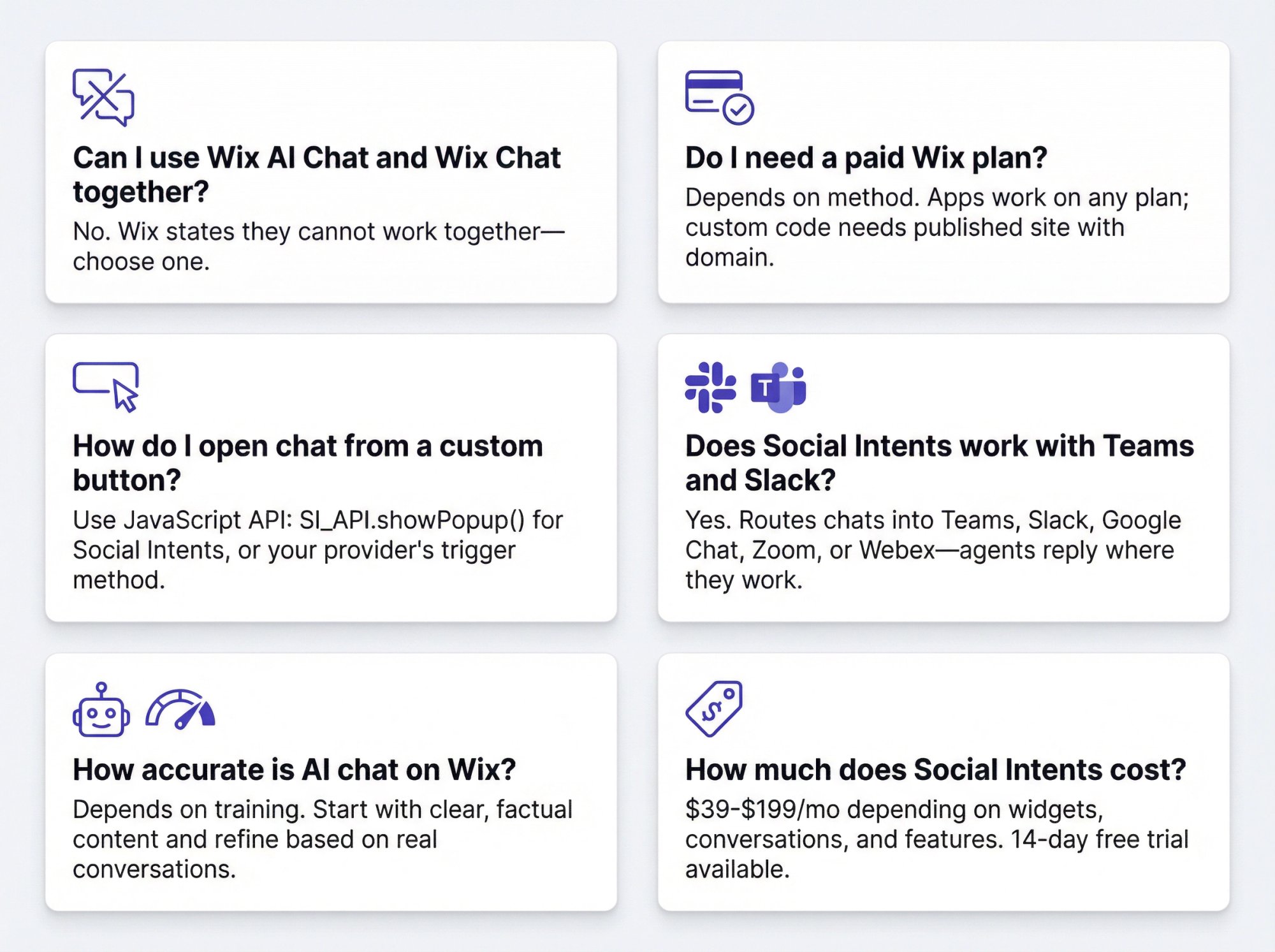
Can I Use Wix AI Site Chat and Wix Chat Together?
No. Wix explicitly states that AI Site Chat cannot work alongside Wix Chat. Their setup documentation makes this rule clear. You have to choose one or the other.
Do I Need a Paid Wix Plan to Add a Chatbot?
It depends on the installation method:
• App Market installations (like Wix AI Site Chat or Social Intents' Wix app) usually work on any Wix plan. The chatbot provider's subscription is separate from your Wix plan.
• Custom Code installations require a published site connected to a domain. Many businesses reach that point with a premium Wix plan, but Wix's Custom Code documentation focuses on the published and domain requirement, not plan tier specifically.
How Do I Open the Chatbot from a Custom Button?
If your chatbot supports it, use a JavaScript API call. Social Intents provides SI_API.showPopup() for this purpose.
You can add a button with an onclick event, or use Wix Velo to call the function when a Wix button is clicked. This gives you control over placement and makes the chat more visible on key pages.
Does Social Intents Work with Teams and Slack?
Yes. Social Intents routes website chat conversations directly into Microsoft Teams, Slack, Google Chat, Zoom, and Webex. Your team replies from whichever tool they already use daily.
That's the core of how we work. Agents never have to learn a new interface. Our Wix integration page explains the full setup. We also integrate with BigCommerce, Magento, and Squarespace platforms.
How Accurate Is AI Chat on Wix?
Accuracy depends entirely on training. Wix warns in their AI Site Chat overview that the tool may generate inaccurate or misleading information. They recommend testing thoroughly and adding training rules to improve responses.
Social Intents uses models like ChatGPT, Claude, and Gemini, which tend to perform better with proper training. But even the best AI can hallucinate answers if it doesn't have good source material.
The key is starting with clear, factual content and refining based on real conversations.
How Much Does Social Intents Cost?
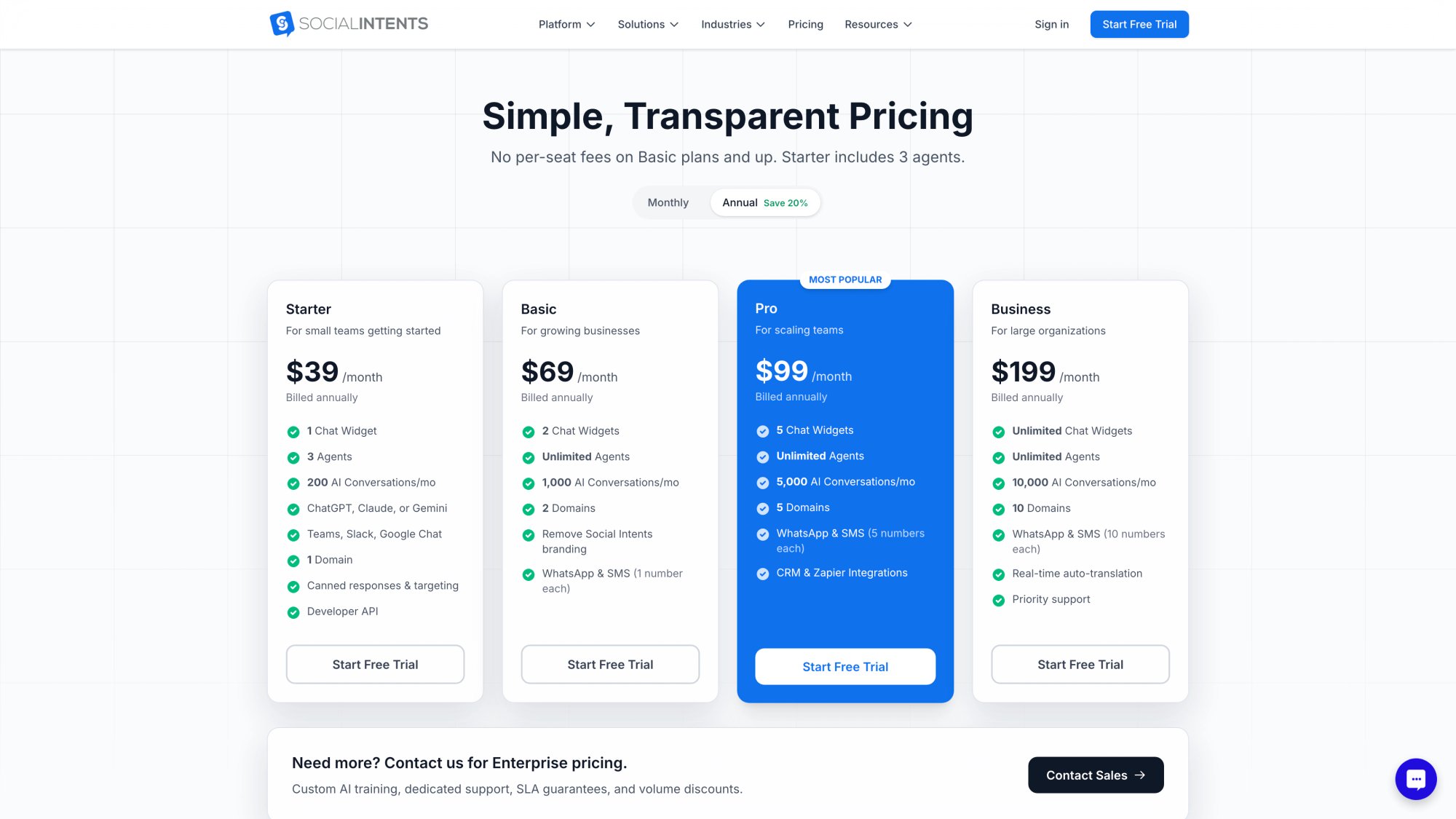
Social Intents offers transparent pricing with plans for teams of all sizes, all including AI chatbot integration.
As of January 2026, our pricing is:
| Plan | Annual Price | Key Features |
|---|---|---|
| Starter | $39/month | 1 widget, 3 agents max, 200 conversations/month, ChatGPT integration |
| Basic | $69/month | 2 widgets, unlimited agents, 1,000 conversations/month, ChatGPT integration |
| Pro | $99/month | 5 widgets, unlimited agents, 5,000 conversations/month, remove co-branding |
| Business | $199/month | 10 widgets, unlimited agents, 10,000 conversations/month, real-time translation |
All plans include AI chatbot integration with ChatGPT, Claude, and Gemini. From Basic upward, you get unlimited agents (a huge advantage if you have a larger team). We also offer a 14-day free trial to test everything before committing.
What If I Already Have Another Chatbot?
If you're using a different provider, you can still install it on Wix using the Custom Code method or an embed element. The process we covered in Method 3 applies to almost any chatbot that provides a JavaScript snippet.
The main tradeoff is whether that tool supports your workflow. If your team needs to reply from Slack or Teams, make sure your current provider offers that integration. If it doesn't, Social Intents might be a better fit.
We're also a strong alternative to Olark, Chatlio, and other traditional live chat software.
You're Ready to Add a Chatbot to Your Wix Site
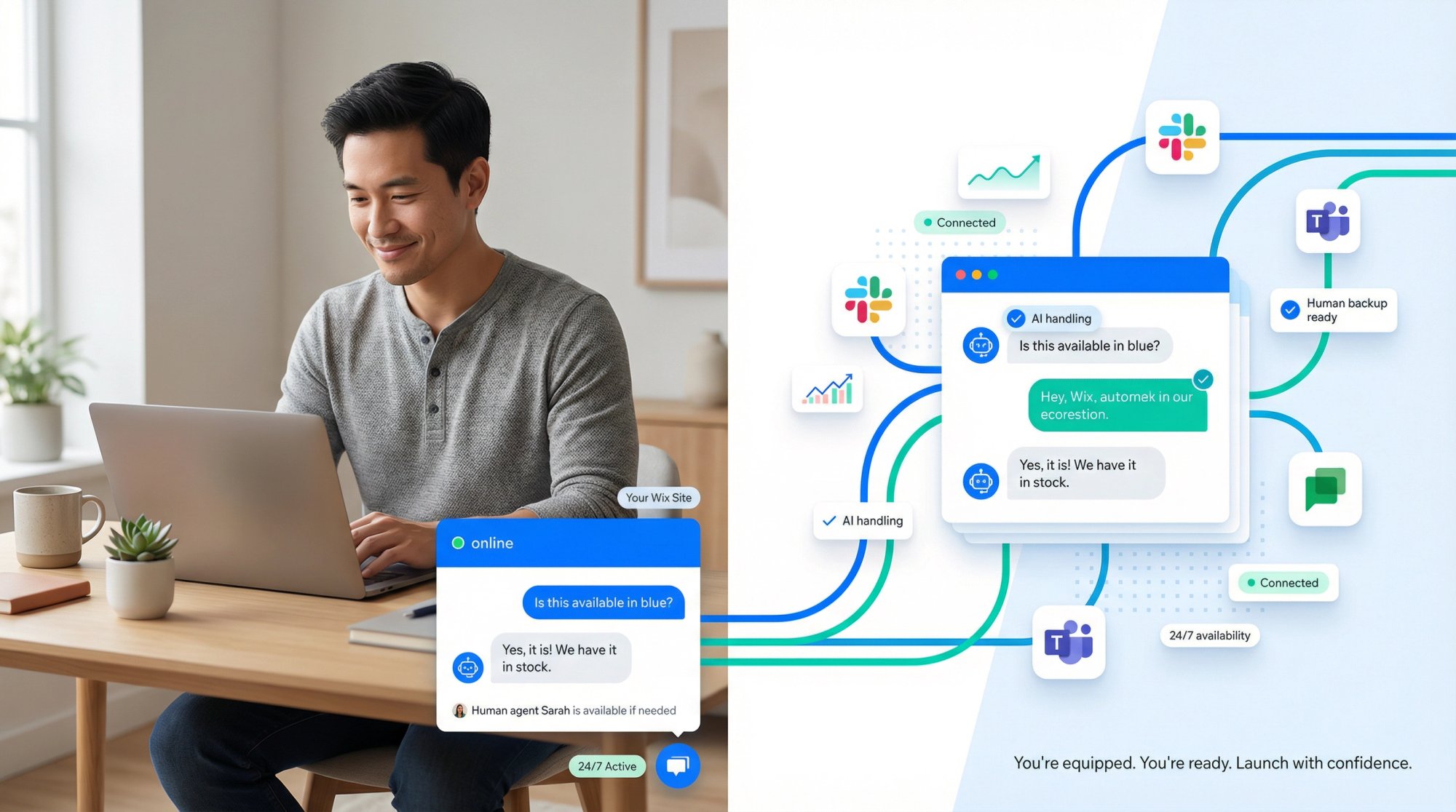
You now know all three ways to add a chatbot to your Wix site:
Wix AI Site Chat works if you want everything inside Wix's ecosystem, you're comfortable with training rules, and your conversation volume fits the quota limits. It's quick to set up and free to start.
Social Intents is built for teams that need AI automation and human backup, with agents replying from Slack, Teams, Google Chat, Zoom, or Webex. You get ChatGPT-powered responses, seamless handoff to humans when needed, and unlimited agents starting at $69/month.
We also support Custom AI Actions for things like order status lookups and ticket creation, which makes conversations more useful for software companies and professional services.
Generic third-party tools install via Custom Code or embed elements, depending on whether you need a floating bubble or inline widget.
Pick the approach that fits your workflow. If your team already lives in Slack or Teams, don't force them into a new inbox just to answer chats. That's a recipe for abandoned conversations and frustrated visitors.
Ready to get started? Try Social Intents free for 14 days and see how AI with human handoff works on your Wix site. No credit card required. Your team keeps using the tools they know, visitors get instant help, and you capture leads 24/7. Check out our pricing plans to find the right fit for your business.
Start your 14-day free trial with no credit card required—test AI + human handoff on your Wix site today.